
OELCHECK App 4.0
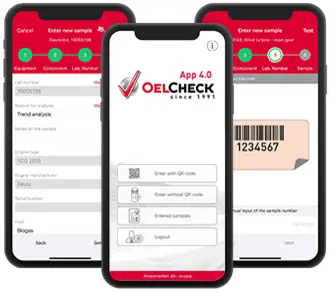
Sample entry How to proceed
with QR code
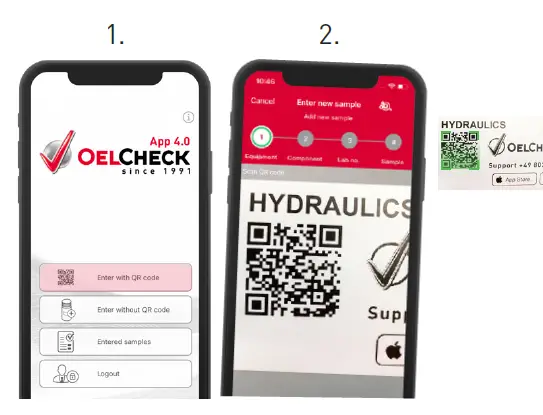
- Click Enter with QR code in the start menu.
- Scan the QR code affixed onto your machine.
- Choose the corresponding component.
- Scan the barcode (lab number) of your Sample Information Form. You can also enter the number manually. The lab number can be found on the bottom left, in the middle as well as on the top right on the Sample Information Form.
- Add missing data.
- Confirm with Submit. Your data is now transferred to OELCHECK.
without QR code
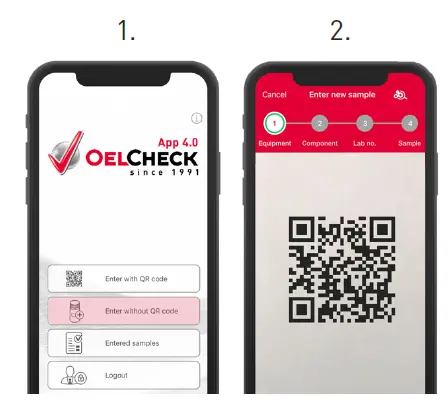
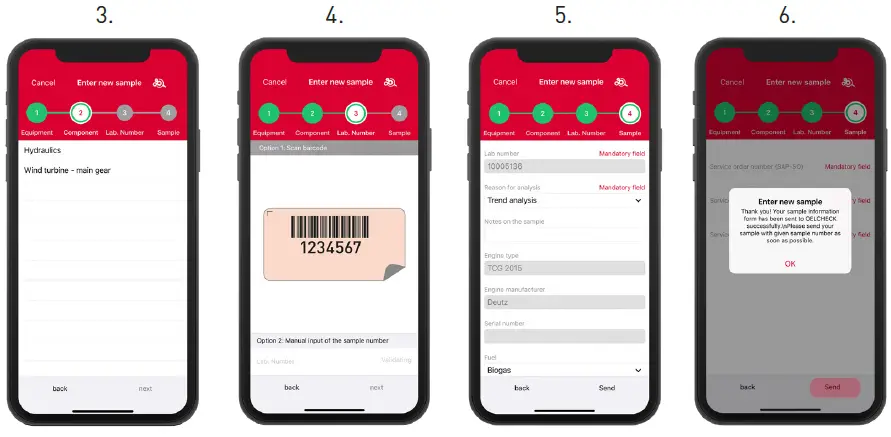
- Click Enter without QR code in the st nu.
- Choose the corresponding machine.
Sample entry is now completed.
Have you completed the data entry via the app
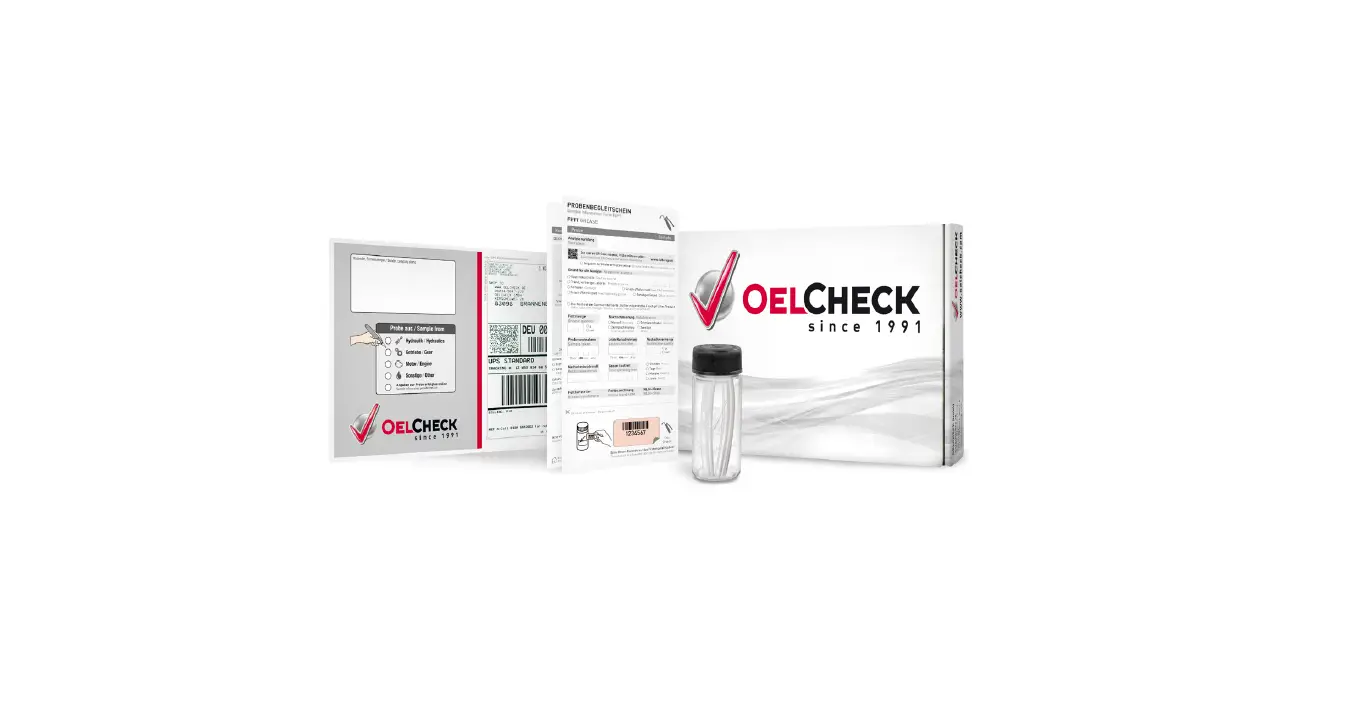
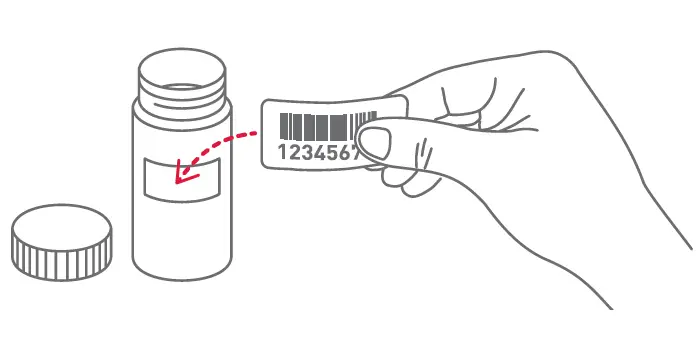
Then tick off “Sample information provided online” on the Sample Information Form and stick the bar code from the Sample Information Form on the sample bottle, then send the sample to us
You do not have a QR code yet?
Have you completed the data entry via the app? Upon request, we will send you your QR codes as practical, oil- and weather-resistant QR code stickers.
Information symbol
The information symbol in the top right shows the current version of the app and when your data was last synchronized.
 Das richtungsweisende Labor für Schmier- und Betriebsstoff-Analysen in Europa.