hwhardsoft
PP2040 Display Shield
Instruction Manual
| Rev. | Date | Description |
| A | 2021-11-03 | First release |
Electrical connection
| Pin | Cable color | Arduino | Description |
| 1 | black | N.C. | Optional Interrupt line — not used’ |
| 2 | brown | GP13 | SCL — I2C clock |
| 3 | red | GP12 | SDA— I2C data |
| 4 | orange | 3,3V | 3,3V power supply |
| 5 | yellow | GND | Ground connection |
Connections in RasPibox Pico:
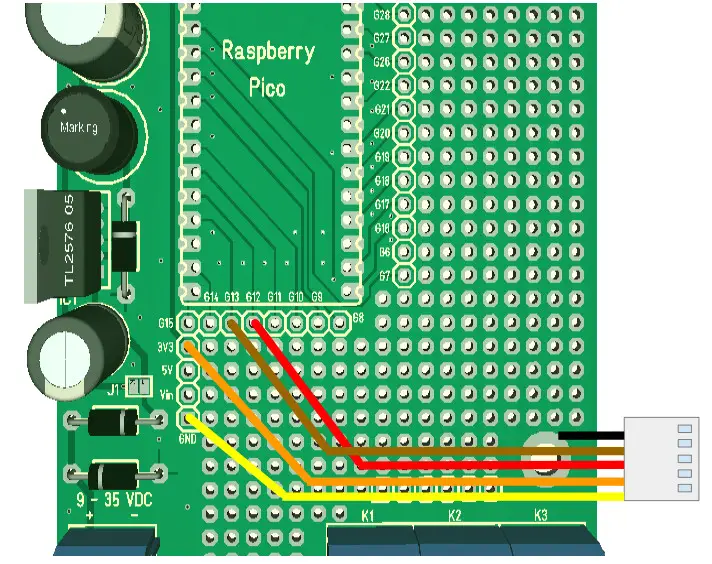 This line will generate an interrupt whenever a button is pressed. If you want, you can connect this wire with a digital input of your choice. In our programming example, we don’t use this line!
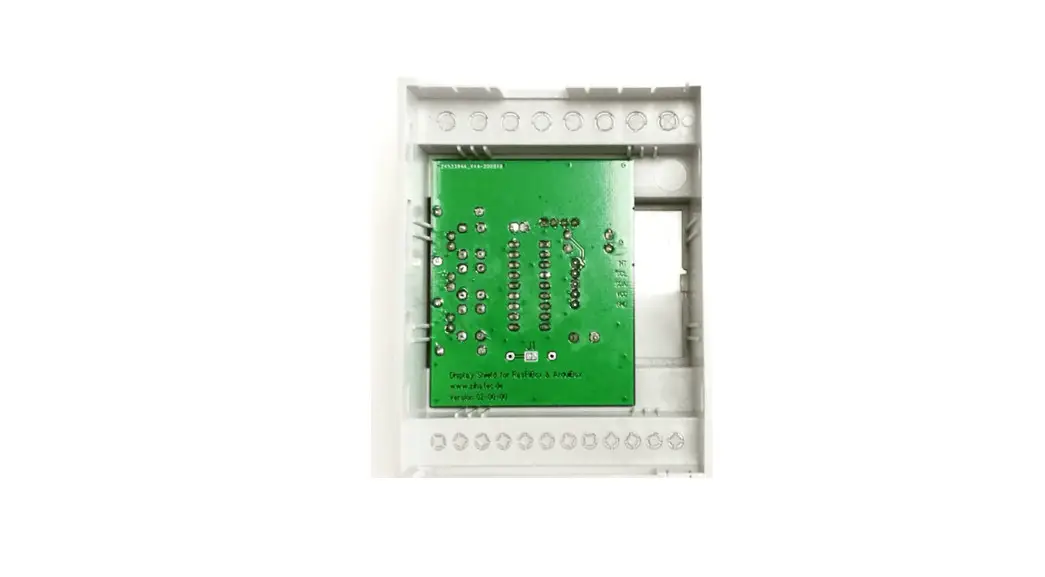
Mechanical assembly in Arduibox enclosure
Remove the protection foil from the double adhesive tape first: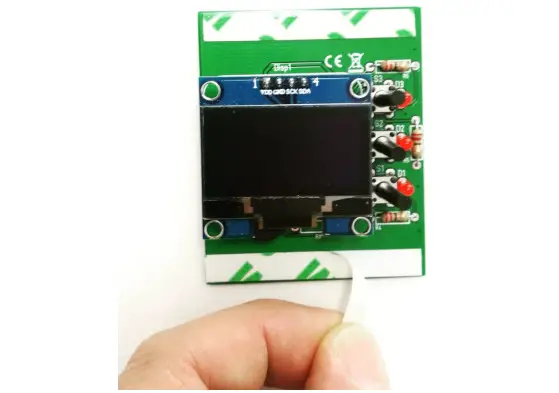
Glue the shield into the top shell:
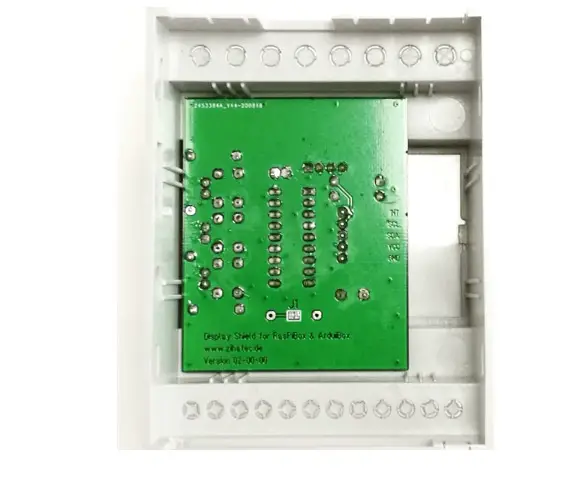
Place it exactly as in the picture above and close as possible to the left wall!
Programming
3.1 Install CircuitPython
Download the CircuitPython version for the Raspberry Pi Pico: https://circuitpython.org/board/raspberry_pi_pico/
Copy the downloaded file to the root directory of your Pi Pico.
For more information, please visit this link: https://learn.adafruit.com/getting-started-with-raspberry-pi-pico-circuitpython
3.2 Install additional libraries
Create a subfolder „lib“ in the root directory of the „CIRCUITPY“ drive. Copy now the following libraries in this subfolder.
- adafruit_bus_device
- adafruit_display_shapes
- adafruit_display_text
- adafruit_imageload
- adafruit_mcp230xx
- adafruit_displayio_sh1106.mpy
You will find all the needed libraries here
https://github.com/adafruit/Adafruit_CircuitPython_Bundle/releases
Display Shield and Raspberry Pi Pico Manual Rev A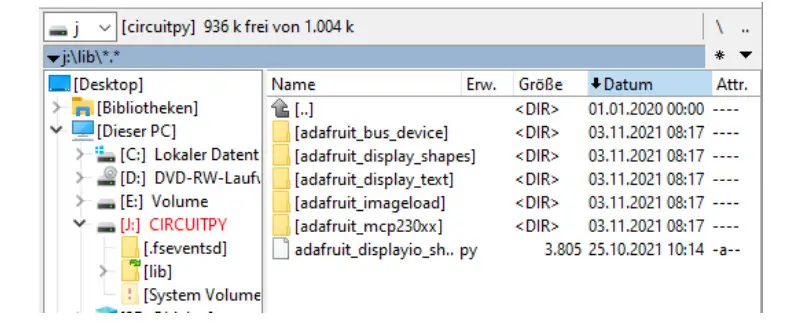
3.3 Install the demo program
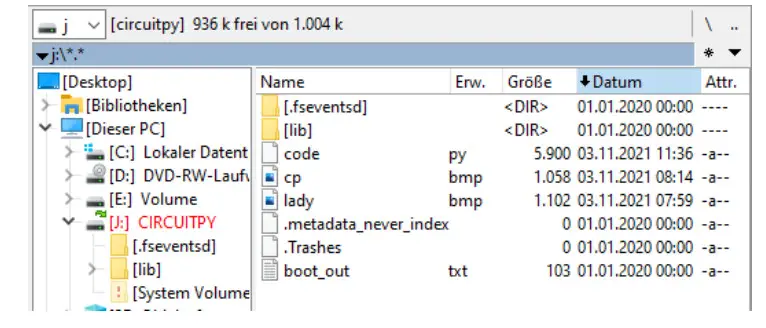
Copy now the files of the demo program in the root directory of the CIRCUITPY drive.
3.4 Run the demo
The demo will start automatically after overwriting the existing code.py with our file.
Press the buttons beside the display to show different screens and to switch the leds on.
 Pico Download
 Releases · adafruit/Adafruit_CircuitPython_Bundle · GitHub
 Overview | Getting Started with Raspberry Pi Pico and CircuitPython | Adafruit Learning System