CANYON CNE-CSET1 Desktop Wired Set User Guide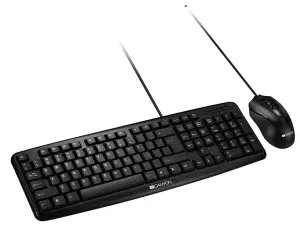
Features
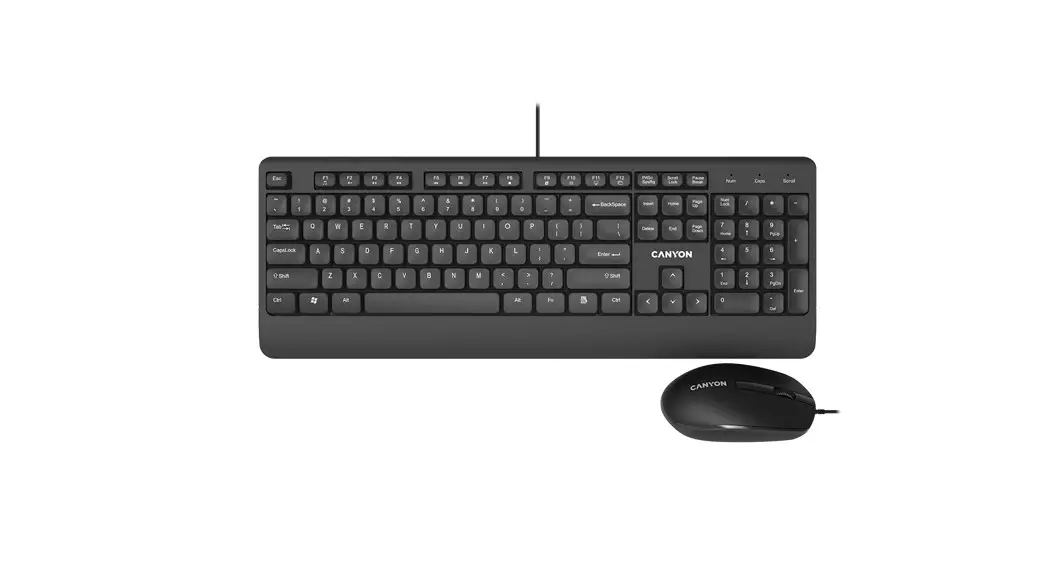
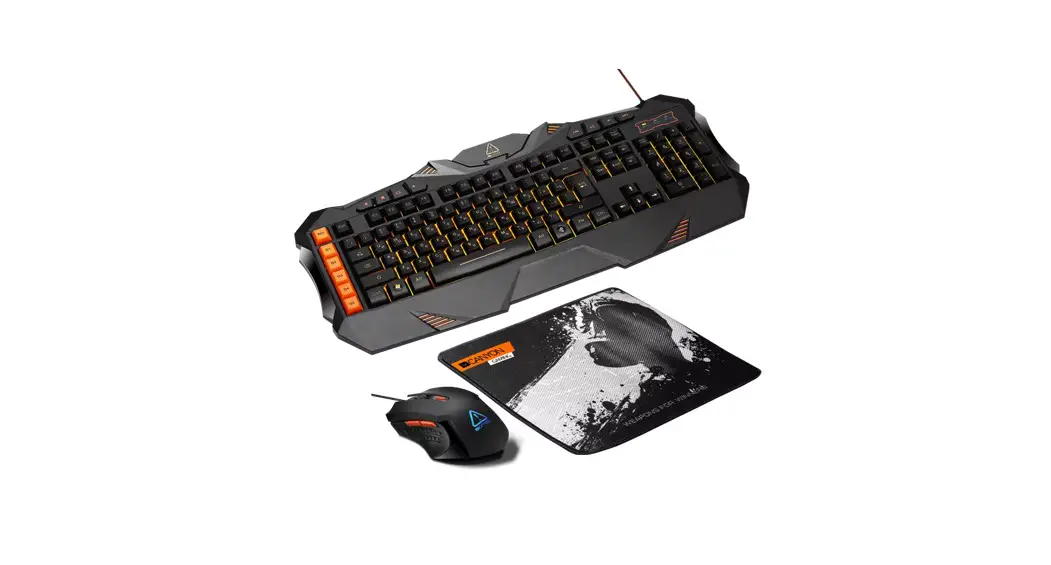
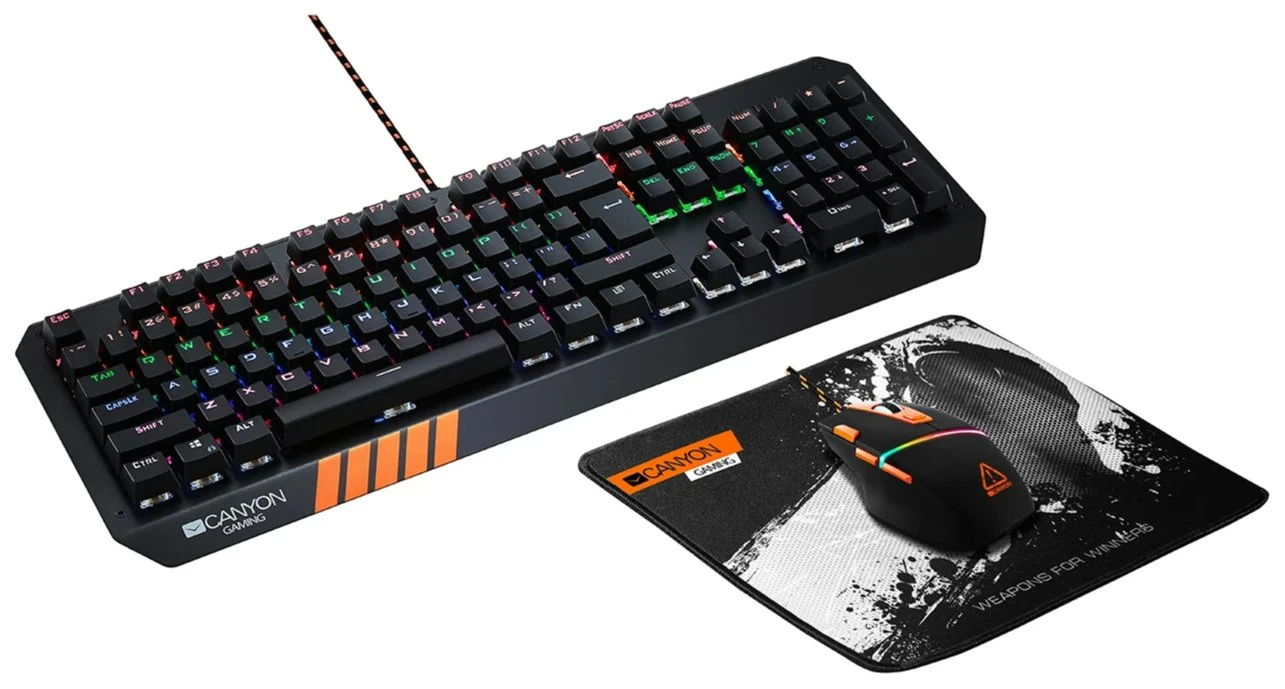
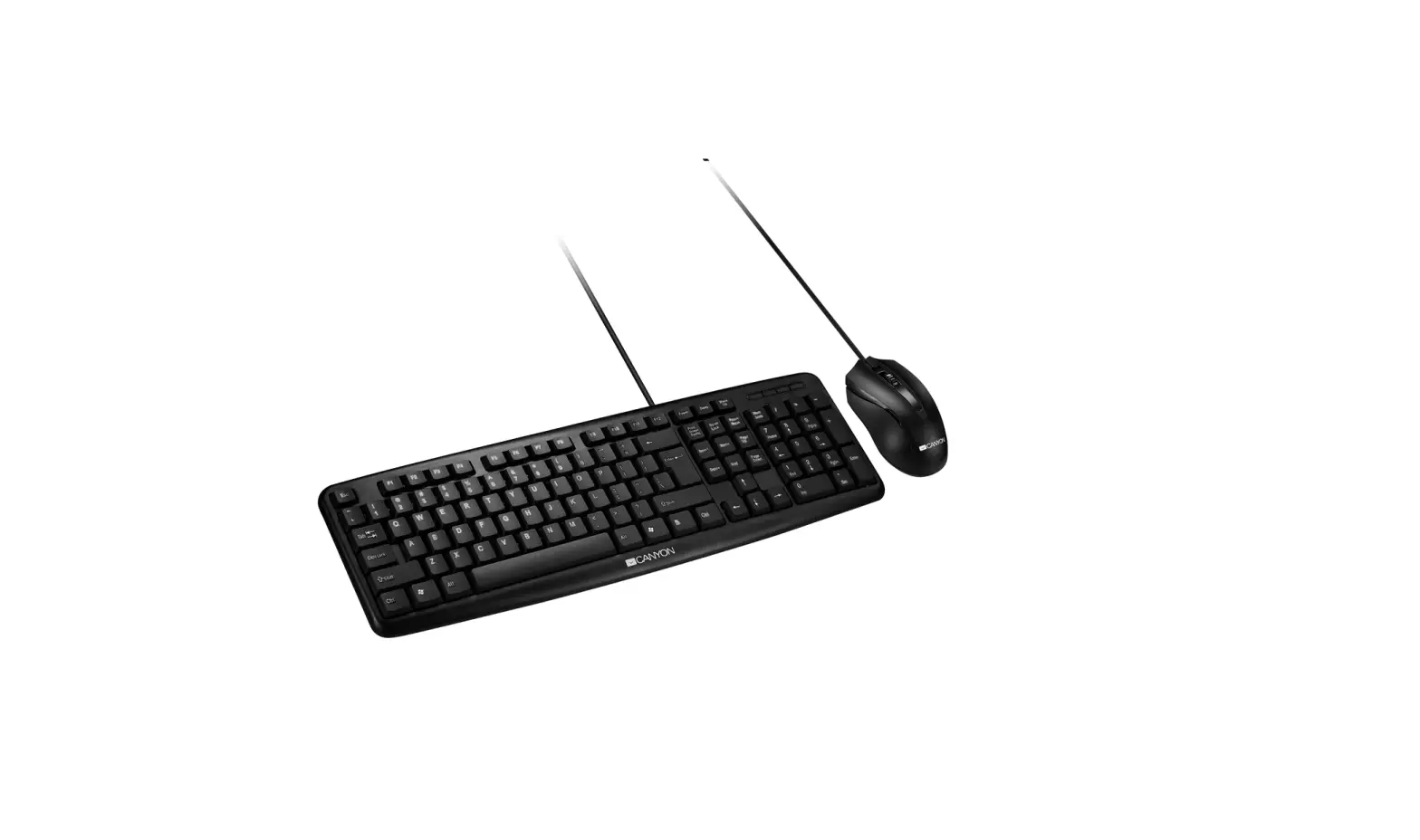
Slim desktop keyboard
Connectivity: Cable
Interface: USB
Number of keys: 107
Keyboard layout: QWERTY
Compatible with OS Windows & Mac OS
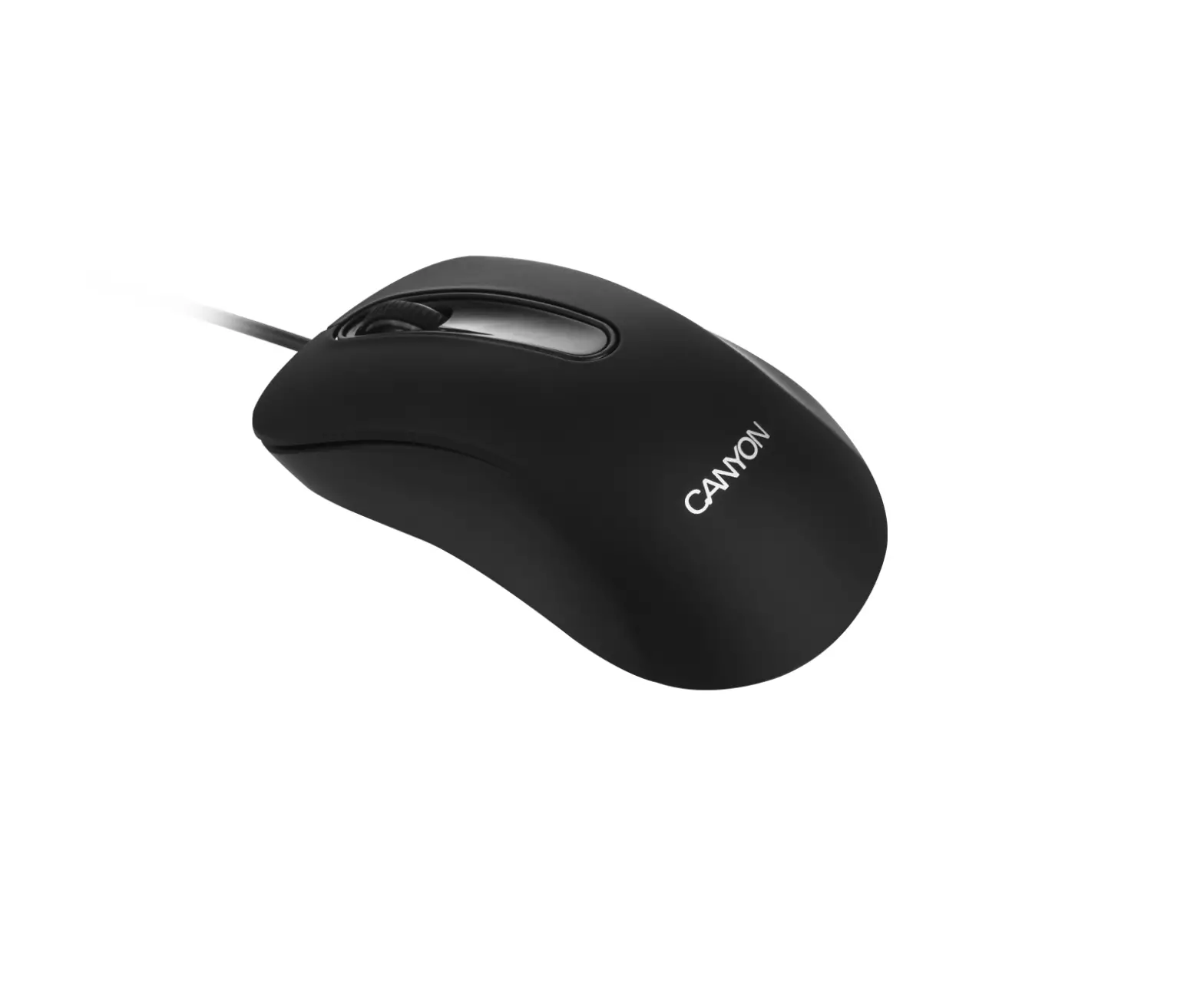
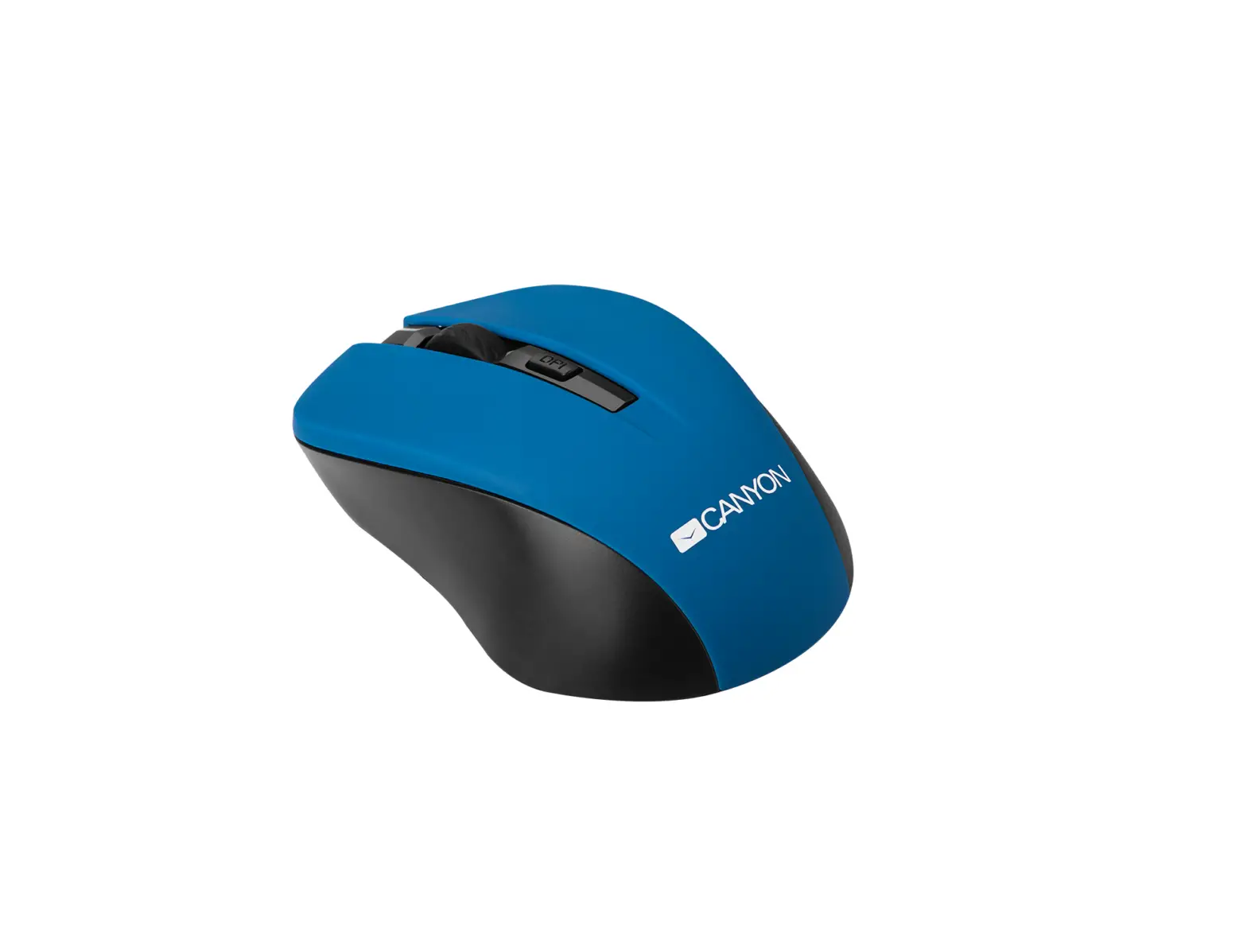
Wired optical mouse
Connectivity: Wired
Number of buttons: 3
Interface: USB 2.0
Resolution: 800 DPI
Pointing Device Technology: Optical
Package contents
- Wired keyboard
- Wired optical
- mouse
- User manual
Connection
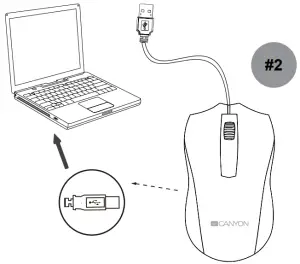
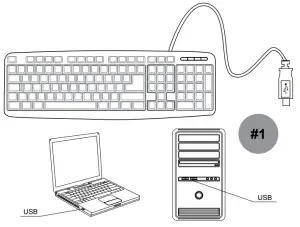
For correct operation of the keyboard, connect it to the USB port of a personal computer / laptop/ all-in-one. After turning on the computer and installing the operating system standard drivers – the keyboard will be ready for use (pic. 1). For correct operation of the wired optical mouse, connect it to the USB port of a personal computer / laptop / all-in-one. After turning on the computer and installing the operating system standard drivers – the mouse will be ready for use (pic. 2).
SAFETY INSTRUCTIONS
Read carefully and follow all instructions before using this product.
- Do not expose the mouse to excessive moisture, water or dust. Do not install in rooms with high humidity and dust level.
- Do not expose the mouse to heat: do not place it close to heating appliances, and do not expose it to direct sun rays.
- The product shall be connected to the power supply source of the type indicated in the operation manual only.
- Never spray liquid detergents. Use only dry clothes for device cleaning.
 WARNING
Troubleshooting
| Problem | Solution |
| The keyboard does not work properly | If some standard keys do not work on the keyboard, there may be a cable problem. You need to check that the cable is connected properly in the USB socket or connect it to another USB port or computer. It is possible that one of the keys is “fused”. Keypad faults can be caused by a technological defect in the keyboard, as well as from debris or water in the keyboard. It`s not recommended to perform self-cleaning of the keyboard. |
| Keyboard doesn`t work | Check whether the device supports your operating system. Enter the BIOS setup and make sure that the USB-port is enabled. Try to reset and save BIOS to default settings. |
| Mouse doesn`t work | Make sure that the USB cable is connected to the computer. Check the USB-receiver, connecting it to another USB port. |
If the actions from the above list do not contribute to problem solving, please contact the support team at Canyon: http://canyon.eu/ask-your question
Warranty
The warranty period starts from the day of the product purchase from Canyon authorized Seller. The date of purchase is the date specified on your sales receipt or on the waybill. During the warranty period, repair, replacement or refund for the purchase shall be performed at the discretion of Canyon. In order to obtain warranty service, the goods must be returned to the Seller at the place of purchase together with proof of purchase (receipt or bill of lading). 2 years warranty from the date of purchase by the consumer. The service life is 2 years. Additional information about the use and warranty is available at: http://canyon.eu/warranty-terms/
Manufacturer: Asbisc Enterprises PLC, 43, Kolonakiou Street, Diamond Court 4103 Ayios Athanasios http://canyon.eu

Website: https://canyon.eu/
References
 Гаранционни уÑÐ»Ð¾Ð²Ð¸Ñ - Canyon
-
Canyon | Mobile and Computer Accessories
-
Canyon | Mobile and Computer Accessories
-
Canyon
-
Canyon
-
Certificates
-
Limited warranty statement - Canyon
-
Limited warranty statement - Canyon
-
Garantie produse - Canyon
 Canyon | Мобильные и ПК-акÑеÑÑуары
-
ÐŸÐ¾Ð»Ð¾Ð¶ÐµÐ½Ð¸Ñ Ð¾Ð³Ñ€Ð°Ð½Ð¸Ñ‡ÐµÐ½Ð½Ð¾Ð¹ гарантии - Canyon
-
Podmienky záruky - Canyon
-
ZáruÄnà podmÃnky - Canyon
-
A Korlátozott Jótállás - Canyon
-
Canyon | Mobile and Computer Accessories
-
Certificates
-
Сертификати
-
Limited warranty statement - Canyon
-
Canyon
-
Canyon
-
Технічна підтримка - Canyon
 Гаранционни уÑÐ»Ð¾Ð²Ð¸Ñ - Canyon
 Canyon | Mobile and Computer Accessories
 Garantie produse - Canyon
 Canyon | Мобильные и ПК-акÑеÑÑуары
 Podmienky záruky - Canyon
 ZáruÄnà podmÃnky - Canyon
 A Korlátozott Jótállás - Canyon
 Canyon | Mobile and Computer Accessories
 Canyon