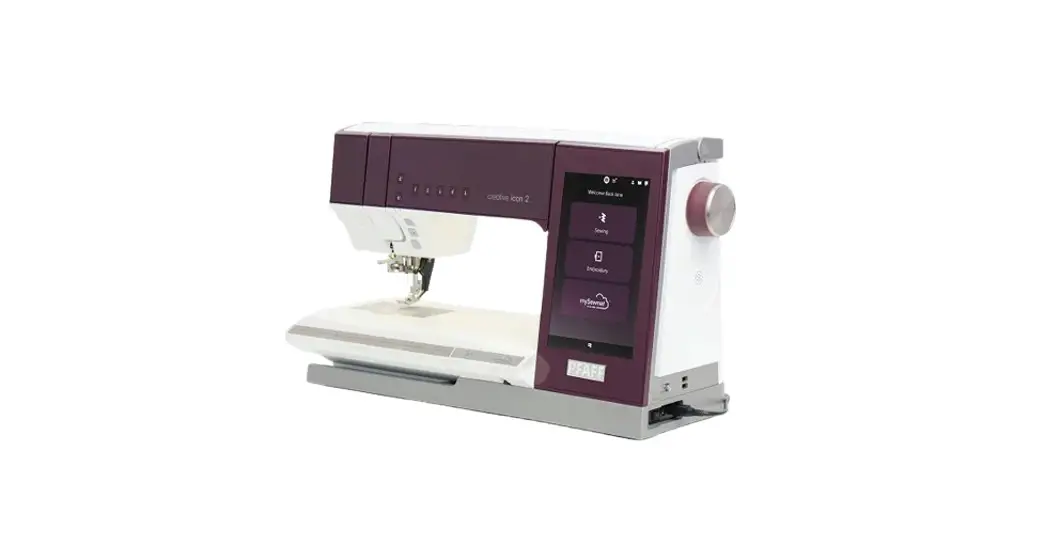
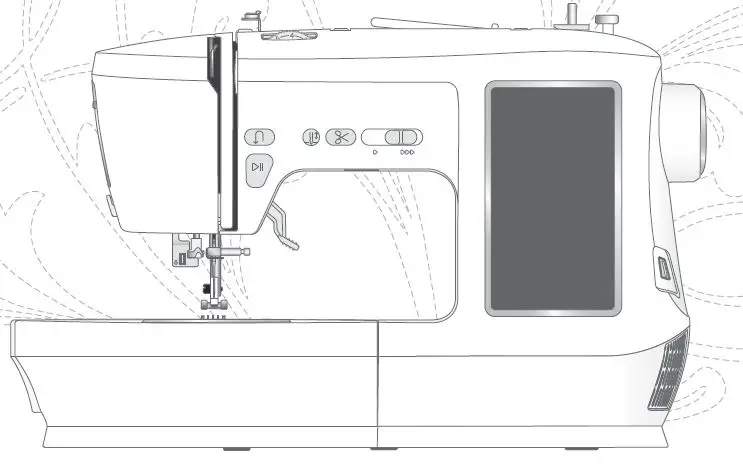
CREATIVE Icon 2 Voice Control Sewing and Embroidery Machine
Product Information
The creative iconTM 2 sewing and embroidery machine comes with
the Voice Control feature, allowing you to control the machine
using voice commands without pressing any buttons. You can ask the
machine for assistance on tasks such as threading or winding a
bobbin. The machine is compatible with Amazon Alexa and Google
Assistant, enabling you to send voice commands through these
devices or apps for execution.
Product Usage Instructions
To use the Voice Control feature on the creative iconTM 2,
follow these steps:
- Download the Amazon Alexa or Google Assistant app on your smart
device. - Ensure your machine is connected to your Wi-Fi network and
Bluetooth-enabled devices. - Launch the Amazon Alexa or Google Assistant app and follow the
setup instructions provided by the app. - For Amazon Alexa:
- Set up your creative iconTM 2 as a smart home device.
- If you encounter any issues during setup, visit the Alexa
support website for assistance.
- For Google Assistant:
- Prepare your creative iconTM 2 as instructed.
- Set up Google Assistant by following the provided
instructions. - If you face any problems during setup, refer to the Google
Assistant Help website for guidance.
- To activate Voice Control on your creative iconTM 2, follow
these steps:- Make sure your machine is powered on.
- Speak the command “Activate Voice Control.”
- For different types of commands, follow these guidelines:
- Refer to the user manual for a list of different command types
and their respective functions.
- Refer to the user manual for a list of different command types
- If Voice Control gets deactivated, follow these steps to
reactivate it:- Ensure your machine is powered on.
- Speak the command “Reactivate Voice Control.”
- If you want to control your creative iconTM 2 using Alexa Smart
Home, follow these instructions:- Refer to the user manual for detailed steps on setting up and
using Alexa Smart Home.
- Refer to the user manual for detailed steps on setting up and
Please note that Voice Control availability may vary depending
on the country you are in and whether Alexa and Google Assistant
are operating there. The availability is managed by third-party
suppliers and subject to change. Additionally, while the Voice
Control feature initially supports English, French, Spanish, and
German languages, other languages will be added in the future.
For further assistance with your Amazon Alexa or Google
Assistant setup, visit the respective support websites.
User’s Guide – Voice Control
TABLE OF CONTENTS
1 Voice Control……………………………………….1
Voice Control …………………………………………..2 Important Information! ……………………………. 2
Amazon Alexa …………………………………………2 Prepare Your creative iconTM 2 ………………….. 2 Set up Amazon Alexa ……………………………… 3 Set Up Your creative iconTM 2 as a Smart Home Device…………………………………………. 7
Google Assistant ………………………………………9 Prepare Your creative iconTM 2 ………………….. 9 Set Up Google Assistant …………………………… 9
How to Talk to creative iconTM 2………………11 Activate Voice Control …………………………… 11 Different Type Of Commands For Different Things …………………………………… 11 Reactivate Voice Control ………………………… 12 Alexa Smart Home ……………………………….. 12
Voice Control
Voice Control is a feature in which you can send voice commands to your sewing and embroidery machine and control it without pressing any buttons. For example you can ask your machine how to thread it or how to wind a bobbin. The creative iconTM 2 machine is compatible with Amazon Alexa and Google Assistant. Through these devices or apps you can send voice commands that will be executed by your machine.
Getting the Amazon Alexa or Google Assistant apps to cooperate with your WiFi, Bluetooth or devices can sometimes be a hassle. With the following instructions we will try to guide you smoothly through the process.
The steps described might vary depending on what smart device and software release you are using and whether or not you are/have been connected to the Amazon Alexa or Google Assistant app or device before.
If you experience problems with your Alexa or Google Assistant Setup, please visit the Alexa support respective Google Assistant Help web site.
To get started with the creative iconTM 2 Voice Control you need to download the Amazon Alexa or Google Assistant app and follow the steps stated below.
Important Information!
The Voice Control feature is limited to usage in countries where Alexa and/or Google are operating. The availability in different countries is managed by third-party suppliers and is subject to change.
The instructions below are general descriptions and include third-party suppliers. Availability, procedure and functionality are subject to change.
Voice Control can be used in many countries, if available, as explained above. However, your language might not be supported by the Alexa and Google Assistant apps. If your language is not supported, you can use any of the languages listed below. Make sure to set your device and your sewing machine to that language, otherwise your commands can be misunderstood.
Note: Initially, the Voice Control feature will be available in English, French, Spanish and German. Other languages will follow.
Alexa English French
Spanish German
Google Assistant English French
Spanish German
Amazon Alexa
Prepare Your creative iconTM 2
Turn on your creative iconTM 2 and enter Sewing or Embroidery mode.
1
Connect it to your WiFi by touching the WiFi icon in the
upper left corner of the machine screen. Enter the WiFi
2
password.
Touch the mySewnet cloud icon (1) to login to your mySewnet account (2). If you do not have a mySewnet account, you must create one (3).
Note: You can also create your account on www.mysewnet. com.
The machine needs to be connected to your WiFi and
3
you should be signed in to your mySewnet account.
2
1 Voice Control
Set up Amazon Alexa
On Your Smart Device · Download/open the Amazon Alexa app.
· Create an Amazon Alexa account, or login to your existing Amazon Alexa account.
Tip: If you experience difficulties with the linking of accounts, make sure you are connected to the same WiFi as your mySewnet account.
If you login to the Alexa app for the first time or when you create a new account, you are asked to do certain settings such as make voice ID settings and give access to bluetooth and your microphone.
The Voice ID Settings help Alexa to better recognize your voice and accent. Giving access to the microphone and bluetooth are necessary to be able to talk to Alexa. The Alexa app will guide you through those steps.
Note: If you have other devices in the same network, Alexa might want you to connect to those as well. This is not necessary to manage your creative iconTM 2. If you want to connect other devices, follow the instructions in the app.
Allow Alexa to use Bluetooth and to access the microphone
Tip: To be able to communicate with Alexa Hands-Free, without tapping the blue dot in the app before giving commands, enable handsfree in the Alexa App Settings menu (More/Settings/Alexa App Settings).
Repeat the phrases suggested by Alexa to set your Voice ID
Enable handsfree in the Alexa App Settings menu
1 Voice Control
3
Link mySewnet to Alexa You can link your mySewnet account to your Alexa account using the amazon.com site or the Alexa app.
Link mySewnet to Alexa Using amazon.com 1. Login to mySewnet on your creative iconTM 2. 2. Scan the QR-Code seen to the right. This will
transfer you to amazon.com and open the ” mySewnet-skill”. 3. To link the accounts touch “Enable”. Note: If you are not currently signed in to your amazon account, first touch “Sign In” and enter your amazon account details.
Alexa will ask mySewnet for access. 4. Touch “Allow”. Note: If you are not signed in to mySewnet, a mySewnet login screen is shown instead. Enter your account details and touch Sign In.
Once the accounts are linked, you will get a notification on your smart device. 5. From the Alexa Home screen, say: “Alexa, ask
creative icon 2 to connect”. Once Alexa confirms that your creative iconTM 2 is connected you are good to go. In the section “How to Talk to creative iconTM 2”, you can find examples of phrases and commands to use when communicating with your creative iconTM 2 sewing and embroidery machine. The list of commands that can be used is growing continuously.
4
1 Voice Control
Link mySewnet to Alexa Using the Alexa App Login to mySewnet on your creative iconTM 2 and login to the Alexa app. (If you experience problems, make sure both accounts are using the same WiFi network.) Now it is time to link your Alexa account to your mySewnet account. Here, the steps and screens shown might differ to the ones appearing on your device. 1. Find “Skills & Games”. They can be found on the
Home Screen or under the “More” menu (depending on what device you have). 2. Touch the magnifying glass in the top right and search “mySewnet”.
3. Select the mySewnet skill, with the sub headline “Alexa, ask creative icon 2 to connect”.
4. Depending on your device, touch “ENABLE TO USE” or “LAUNCH”.
5. Touch “SETTINGS”.
1 Voice Control
5
6. Touch “Link Account”. Once the “Link Account” is touched, Alexa will ask mySewnet for access. 7. Touch “Allow”. Note: If you are not signed in to mySewnet, a mySewnet login screen is shown instead.
When you get this screen you are ready to connect your machine. 8. Touch “Close” and return to the Alexa Home screen. 9. Say: “Alexa, ask creative icon 2 to connect”. Once Alexa confirms that your creative iconTM 2 is connected you are good to go. In the section “How to Talk to creative iconTM 2”, you can find examples of phrases and commands to use when communicating with your creative iconTM 2 sewing and embroidery machine. The list of commands that can be used is growing continuously.
6
1 Voice Control
Set Up Your creative iconTM 2 as a Smart Home Device
If you want to use Alexa Smart Home commands with your creative iconTM 2, you have to set it up as a smart home device.
1. In the Alexa app, open “Devices”.
2. Touch “+”.
3. Touch “Add Device”.
4. In the list of smart home devices, scroll until you reach the device called “Other”.
2 3
Make sure your creative iconTM 2 is turned on and signed in to mySewnet.
5. Touch “DISCOVER DEVICES”.
Alexa will start searching your home for your creative iconTM 2. Once the search is complete, Alexa will notify you that a device is found.
6. Touch “SET UP DEVICE” to set up and connect your creative iconTM 2 to Alexa Smart Home.
Once complete, Alexa will confirm the set up. Your creative iconTM 2 is called “Machine 1”.
7. Touch “DONE”.
4 1
1 Voice Control
7
Give Your Machine a Nickname You can give your machine a more personal name than the default “machine 1”. This nickname is used when giving the smart home commands (see Alexa Smart Home, page 12). 1. Go to “Devices”. 2. Touch “All Devices”. 3. From the list of devices, select “Machine 1”.
4. Open “Settings”. 5. Touch “Edit Name”. 6. Enter the name you want to give your machine. Note: Changing the name of the machine in the Alexa app does not change the machine name in your creative iconTM 2 sewing and embroidery machine or in your mySewnet account.
8
1 Voice Control
Google Assistant
Prepare Your creative iconTM 2
Turn on your creative iconTM 2 and enter Sewing or Embroidery mode.
1
Connect it to your WiFi by touching the WiFi icon in the
upper left corner of the machine screen. Enter the WiFi
2
password.
Touch the mySewnet cloud icon (1) to login to your mySewnet account (2). If you do not have a mySewnet account, you must create one (3).
Note: You can also create your account on www.mysewnet. com.
The machine needs to be connected to your WiFi and
3
you need to sign in to your mySewnet account.
Set Up Google Assistant
On Your Smart Device Download/open the Google Assistant app.
Create Google account, or login to your existing Google account.
Tip: If you experience difficulties with the linking of accounts, make sure you are connected to the same WiFi as your mySewnet account.
If you login to the Google Assistant app for the first time or when you create an account, you are asked give access to bluetooth and your microphone.
Giving access to the microphone and bluetooth are necessary to be able to talk to Google Assistant.
Tip: To be able to communicate with Google Assistant HandsFree, without tapping the microphone icon in the app before giving commands, just say “Hey Google” followed by your question or command.
Allow Alexa to use Bluetooth and to access the microphone
1 Voice Control
9
Link mySewnet and creative iconTM 2 to Google Assistant When you are signed in to mySewnet on your creative iconTM 2 and signed in to the Google Assistant app, make sure both accounts are using the same WiFi network.
Now it is time to link your Google Assistant account to your mySewnet account.
· Say: “Hey Google, talk to mySewnet”.
Google Assistant will ask for your permission to link the accounts.
· Say: “Yes”.
Google Assistant will ask mySewnet for access.
You need to login to mySewnet from your smart device. Once signed in, you have to allow sharing your e-mail address with mySewnet.
· Touch “Allow”.
When login is confirmed the accounts are linked. Google Assistant will say:
“Welcome to mySewnet! What would you like to do?”
Now you can give a command!
In the section “How to Talk to creative iconTM 2”, you can find examples of phrases and commands to use when communicating with your creative iconTM 2 sewing and embroidery machine.
The list of commands that can be used is growing continuously.
10
1 Voice Control
How to Talk to creative iconTM 2
Note: For your safety, only use Voice Control when you are within reach of your machine.
Follow the below, to communicate as efficiently as possible with your machine: · Make sure your device isn’t muted. · Speak clearly with a calm voice. · Move you device away from walls, other speakers, or background noise. · If your command is not executed, rephrase your question or command or make it more specific. · Be patient, your creative iconTM 2 sewing and embroidery machine is still learning!
Activate Voice Control
Do this before Voice Control can be used: · Turn on your creative iconTM 2.
Using Amazon Alexa · Open the Alexa app (if not already open). · Say: “Alexa, open creative icon 2”
This make Alexa active for about 30 seconds.
Using Google Assistant · Open the Google Assistant app (if not already open). · Say: “Hey Google, talk to mySewnet” . The respons will be: “Welcome to mySewnet! What would you like to do?” Now Google Assistant is active and you have about 8 seconds to give a command.
Different Type Of Commands For Different Things
The below commands can be used when creative iconTM 2 is “open” according to the above.
Show Tutorials You can search for tutorials and quick start guides, by using the phrase: “Show me…” “… how to wind the bobbin” “… how to sew an invisible zipper”
Open Stitch Categories or Design Search You can open stitch categories or search for embroidery designs by using the phrase: “Show me…” “… all butterfly embroideries” creative iconTM 2 will answer: “Would you like to search in the machine or in mySewnet Library?” Say what you prefer: “mySewnet Library”
Load Stitches You can load stitches or embroidery designs by using the phrase: “Load…” “… a zigzag stitch”
1 Voice Control
11
Reactivate Voice Control
Using Amazon Alexa If it has been more than 30 seconds since your previous command, use the phrase: “Alexa, ask creative icon 2 to show me…” “… how to wind the bobbin” “… how to sew an invisible zipper” “… all butterfly embroideries” “Alexa, ask creative icon 2 to load…” “… a zigzag stitch”
Using Google Assistant If it has been more than 8 seconds since your previous command, use the phrase: “Hey Google, talk to mySewnet” After the reply from Google Assistant, say: “Show me…” “… how to wind the bobbin” “… how to sew an invisible zipper” “… all butterfly embroideries” After the reply from Google Assistant, say: “Load…” “… a zigzag stitch”
Alexa Smart Home
You can use Alexa Smart Home commands with your creative iconTM 2. They are used slightly different. Instead of saying “Alexa, ask creative iconTM 2 to…”, you can give the direct command “Alexa, turn on machine 1” Note: If you have given your machine a nickname, that name is used instead of the default: “machine 1”. “Alexa, turn on machine 1” “Alexa, turn off machine 1” “Alexa, set mode to sewing on machine 1” “Alexa, set mode to embroidery on machine 1”
12
1 Voice Control
www.pfaff.com
4711208-26 C· © 2022 KSIN Luxembourg II, S.a.r.l. · All rights reserved
 Amazon.com. Spend less. Smile more.
 PFAFF sewing machines- Premier precision machines Worldwide