NEO 3 Brightest LED On-Camera Light
Product Information
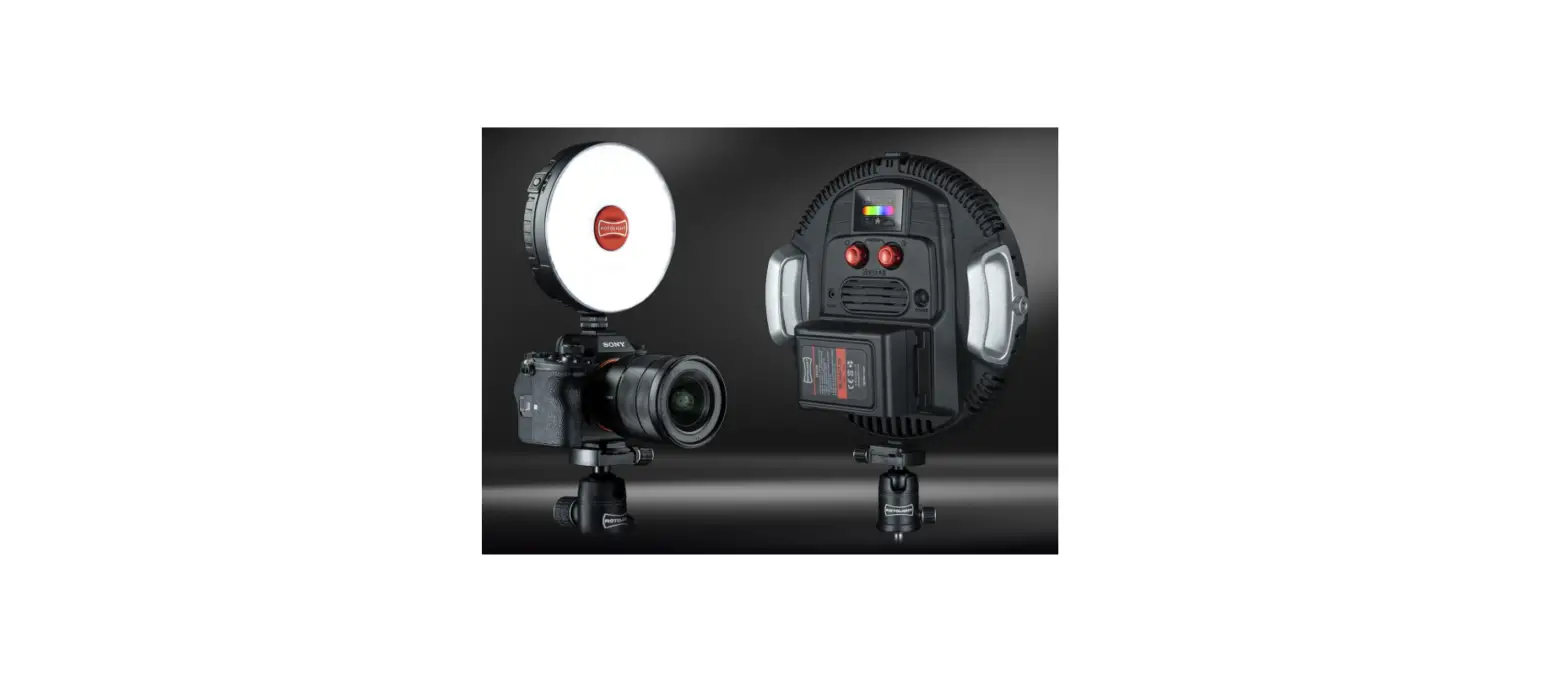
The Rotolight NEO 3 and AEOS 2 are high-speed sync RGBWW flashes
with powerful output and a lightweight design. They have an
intuitive touchscreen display and 16.7 million colors with 2500
filters. The product has both standard and pro editions, with the
pro edition being the world’s brightest on-camera LED light. The
pro models come with an aluminum red dial and red handles, while
the standard models do not. The product features a pocket socket
and an integrated V-lock battery plate. It is USB firmware
updatable and smart soft enabled.
Product Usage
To adjust the color temperature, use the touchscreen slider or
right-hand knob for fine adjustments, adjust Kelvin from
3000-10,000K to your desired setting, typically 5600K. Use the
left-hand knob to adjust brightness or tap the bottom-left
brightness icon to use the on-screen slider that appears. Long
press on one of the numbered presets to save your current settings,
and to recall, short tap on a preset indicated by a thick blue line
at the bottom of the preset box. To reveal additional presets,
swipe right across the preset bar.
The lights feature an integrated Godox*, Profoto*, Elinchrom
Skyport, and other* wireless flash receivers compatible with their
associated transmitters. For Elinchrom, ensure Skyport mode is set
to ‘SPEED’ for HSS, and that the transmitter is also set to ‘SPEED’
mode. Third-party transmitters can also be used via a wired
connection to the 3.5MM flash sync socket found on the light. In
CCT mode, modeling light power can be adjusted or turned off with
the left-hand knob.
For AEOS 2 only, enable diffusion when the smart softbox is
connected. To switch between color temperature/green magenta and
reveal user presets, tap on the color temperature slider. In the
flash menu, tap to switch to hue or filter color. The lights have a
battery level indicator and can be USB rechargeable. Please note
that the NEO 3 Pro requires a higher power PSU than the NEO 3
standard, which is available at Rotolight.com.
QUICK START GUIDE
M O V E . S H O O T. C R E AT E
NEO 3 & AEOS 2
STANDARD & PRO EDITIONS
Version V3.0 January 2023
TIME TO CREATE
WELCOME TO YOUR NEW ROTOLIGHT
HIGH SPEED SYNC RGBWW FLASH
P O W E RFU L O U TP U T, LIGHTWEIGHT DESIGN
16.7M COLOURS, 2500 FILTERS
INTUITIVE TOUCHSCREEN DISPLAY
PRODUCT OVERVIEW
ROTOLIGHT APP
MASTER OF LIGHT (MOL) – PRESETS
JOIN OUR
ROTOLIGHT USER GROUP
WORLD’S BRIGHTEST ON-CAMERA LED LIGHT
B U I LT- I N ELINCHROM®
GODOX*® PROFOTO*® FLASH RECEIVERS & WIFI
*PRO MODELS ONLY
POCKET SOCKET
PLEASE NOTE NEO 3 PRO REQUIRES A HIGHER POWER PSU
THAN NEO 3 STANDARD. AVA I L A B L E AT R O T O L I G H T. C O M
TOUCHSCREEN D I S P L AY
USB FIRMWARE U P D ATA B L E
16.7 MILLION COLOURS, 2500 GELS
CLICK BOTH DIALS TOGETHER TO LOCK / UNLOCK TOUCHSCREEN *ALUMINUM RED DIALS ON PRO MODELS ONLY
HIGH-PERFORMANCE USB RECHARGEABLE LITHIUM BATTERY
U LT R A – T H I N DESIGN
ALUMINIUM HANDLES
*RED HANDLES ON PRO MODELS ONLY
TOUCHSCREEN D I S P L AY
16.7 MILLION COLOURS, 2500 GELS
CLICK BOTH KNOBS TOGETHER TO LOCK / UNLOCK TOUCHSCREEN
I N T E R G R AT E D V-LOCK BATTERY PLATE
SMARTSOFT ENABLED
HOME MENU
From the home menu, select from 5 operating modes; CCT (Continuous light, Kelvin 300010,000K), HSI (Hue, Saturation, Intensity) for 16.7M RGB Colours, GELS for 2500 digital filters and sampled `source match’ effects, FLASH for RGB HSS flash (flash in any CCT, HSI or filter colour). System settings, such as language, display and factory reset, can also be adjusted by the `SET’ page. On start up, the light will automatically recall your last used settings and on each of the 5 operating mode pages. (e.g. CCT, HSI).
HUE, SATURATION, INTENSITY
COLOUR TEMPERATURE
( KELVIN )
FLASH MENU
CCT
HSI GELS
FLSH SFX SET
F I LT E R MENU
SYSTEM SETTINGS
SPECIAL EFFECTS
CCT MENU
Using the touchscreen slider or right-hand knob for fine adjustments, adjust Kelvin from
3000-10,000K to your desired setting, (typically 5600K). For maximum peak output brightness, set the light to 4600 Kelvin where both warm and cool LEDs are on full power. Use the left-hand knob to adjust brightness or tap the bottom-left brightness icon to use
the on-screen slider that appears. To save your current settings, long press on one of the numbered presets, (across the top) and a prompt to save will appear. To recall, short tap on a preset, (indicated by a thick blue line at bottom of preset box). Swipe right across preset bar to reveal additional presets.
ACCESS KELVIN PRESETS
(TOUCH TO REVEAL)
BATTERY LEVEL
1
5G6/M20:-05K4
USER PRESETS
(LONG PRESS TO SAVE)
SAVED PRESET INDICATOR
(TAP TO RECALL)
BRIGHTNESS
DIFFUSION*
(TOUCH TO SELECT) * A E O S 2 O N LY, E N A B L E D W H E N SMARTSOFT BOX IS CONNECTED
100%
5600K
HOME
C O L O U R T E M P. SLIDER
COLOUR TEMPERATURE /GREEN MAGENTA
TAP TO SWITCH
© SAM NASH
FLASH MENU
Rotolight AEOS 2 & NEO 3 are the world’s first RGBWW LED lights capable of High Speed Sync flash, providing an extra stop of output when compared to their maximum continuous power**. The flash will default to the colour mode you were using prior to entering flash, (e.g. CCT, HSI or GELS). Tap the bottom-right button to switch between colour modes, (Kelvin, Gels, HSI). For best results, maximum power is available at 4600 Kelvin. Flash power should always be set to `MAX’ or `MAX+’ if available with flash duration to the longest available, e.g. 1/50th. Any faster shutter speed will be captured automatically.
FREQUENCY
FLASH RECEIVER MODE
SKYPORT NORMAL (NON HSS) / SPEED (HSS) / GODOX* / PROFOTO* ETC.
FLASH POWER
TEST FIRE
MODELLING LIGHT POWER
SKYP SPEED
FREQ 1
MAX+
TEST
100%
GRP 1
1/50s
6620K
USER PRESETS & FLASH SLAVE MODE
( TAP TO REVEAL )
GROUP
FLASH DURATION
COLOUR TEMP. / FILTER / HSI
TAP TO SWITCH TO HUE OR FILTER COLOUR.
The lights feature an integrated Godox*, Profoto*, Elinchrom Skyport, and other* wireless flash receivers compatible with their associated transmitters. For Elinchrom, ensure Skyport mode, (top-right) is set to `SPEED’ for HSS, and that the transmitter is also set to `SPEED’ mode, (Menu> ELSP mode> Speed). Third-party transmitters, e.g. Godox X1T/R, can also be used via a wired connection to the 3.5MM flash sync socket found on the light.
*Pro models only Please note: modelling light power can be adjusted or turned off with the left-hand knob. in order to preserve battery life, it is significantly less bright than the regular continuous power, whilst providing enough light to focus and to compose your shot. **in CCT mode.
UNIVERSAL FLASH SLAVE MODE
NEO 3 PRO / AEOS 2 PRO can output a synchronized flash slave command using the spare Elinchrom receiver, that will fire ANY Skyport enabled Rotolight ( NEO 2, AEOS 1, AP2, TITAN). This would allow you to use a Godox / Profoto transmitter* to trigger an older generation Rotolight when utilising a NEO 3 PRO or AEOS 2 PRO. Alternatively, plug in a third party (e.g. Godox) flash reciever into the 3.5mm flash socket and using a standard edition NEO 3 / AEOS 2 now trigger all your Skyport enabaled Rotolights from a Godox or Profoto transmitter.
*See Rotolight.com/support for list of compatible transmitters
31
32
SLAVE ÜUT
SKYP SPEED
FREQ 1
GRP 1
SYNC GODOX
FREQ 1
GRP 1
X8
TEST
1
HUE
100%
0º
1. In flash menu press the downward arrow to reveal user
prests & flash slave out toggle. Touch slave out icon to enable slave out mode. (icon will turn
green when enabled)
MAX+
TEST
1/50s
100%
6620K
2. In the top left box, select skyport (skyp, speed) to set the
flash slave output frequency settings for any connected
slaves.
MAX+
TEST
1/50s
100%
6620K
3. Next, in the top left box, select the desired flash input receiver
brand (Godox, Profoto, etc). Select sync wired on standard NEO 3 /
AEOS2 when plugging a third party receiver into the 3.5mm flash socket.
HSI MENU
Access up to 16.7Million colours with the HSI menu. Using the touchscreen slider or righthand knob for fine adjustments, adjust hue colour to your desired setting. Tap the bottomright-hand box to adjust saturation of the selected colour. Use the left-hand knob to adjust brightness or tap the bottom-left brightness icon and use the on screen slider that appears. To save your current settings, long press on one of the numbered presets across the top and a prompt to save will appear. To recall, short tap on a preset, (indicated by a thick blue line at bottom of preset box). Swipe right across preset bar to reveal additional presets.
ACCESS MOL PRESETS
(TOUCH TO REVEAL)
BATTERY INDICATOR
BRIGHTNESS
USER PRESETS
(LONG PRESS TO SAVE. CHOSEN PRESET COLOUR
WILL NOW DISPLAY IN BOX.)
HSI COLOUR SLIDER
HUE / SATURATION
(TOUCH TO SELECT)
TRIANGLE INDICATES SECONDARY FUNCTION
MASTER OF LIGHT PRESETS
Including over 100+ built-in exclusive special effects, GEL and HSI colour presets and accompanying tutorial videos from some of the world’s leading photographers and Emmywinning filmmakers at your fingertips. With SFX presets designed by Two-time Emmy® Award winner Roy Wagner (Nightmare on Elm Street, House, Ray Donovan), Emmy® Winning Visual FX Veteran Stefan Lange, (Batman, Tombraider, No Time to Die), Cinematographer of the Year 2021, Denson Baker, (The Colour Room, Ophelia, The Lumineers) and more.
The Master of Light preset pack comes included as standard with the PRO models however they can be purchased for standard models via the Rotolight APP.
MASTER OF LIGHT PRESETS
(SWIPE TO REVEAL ALL PRESETS)
ACTIVE PRESET PACK
AVAILABLE PRESETS
(SWIPE TO REVEAL ALL PRESETS)
EXIT PRESETS
SFX MENU
Enhance your feature film, music video or short film with Rotolight’s award-winning SFX, which have been designed and developed with Stefan Lange, (James Bond – Skyfall/ No Time to Die, Batman, Tombraider & many, many more). Swipe across the SFX row to reveal available SFX. Tap desired SFX to start the effect and tap once more to stop. Certain effects, (fade, gunshot and paparazzi) can also be triggered using the right-hand knob when selected via the app or the test-fire button on the Elinchrom Skyport trigger. Each effect typically has multiple adjustable parameters. A grey triangle on the bottom-left box indicates a secondary function. Tap to reveal and adjust accordingly. For example, touch to select the Police SFX; use the bottom-left knob to adjust SFX brightness or tap to adjust colour mode. Touch the downward arrow to reveal user and MOL presets and switch between default SFX parameters or custom. In custom mode SFX will use last used RGB colour from HSI or gels page as the base colour for the SFX setting.
Note: The inbuilt SFX have colours assigned to them, (i.e. warm orange/red for fire) by default to produce realistic SFX. For fully customisable SFX, determined by the last-used HSI or filter colour, the default colours can be disabled in the MOL menu at the top of the sfx page.
ACCESS MOL / USER PRESET BANK
AVAILABLE SFX
(SWIPE TO REVEAL MORE)
PEAK BRIGHTNESS
TRIANGLE INDICATES SECONDARY
FUNCTION, TOUCH TO REVEAL
ACTIVE EFFECT
(TOUCH SFX TO START/STOP)
SFX CONTROL
(I.E. SPEED)
FILTER MENU
Access up to 2500 digital filters and sampled `Source Match’ effects using the `GELS’ menu. Tap to select preferred filter group, (i.e. `RED’) and use the right-hand knob to cycle available filters in that group. Click on the right-hand knob to switch between a daylight, `D65′, or tungsten, `D32′ emulation of the selected filter. The selected filter is indicated by the last digits of the displayed filter name. Use the left-hand knob to adjust brightness of the selected filter. Tap the top-righthand box, `Source Match’ for real-world sampled lighting sources. Rotate the right-hand knob to cycle available Source Match samples.
STORE & RECALL USER/
MOL GEL PRESETS
BRIGHTNESS
L115@D32 ZENITH BLUE
SMOAUTRCCHE
D32 (TUNGSTEN) OR D 6 5 (DAYLIGHT) INDICATOR
CLICK THE RIGHT KNOB TO SWITCH EMULATION
FILTER COLOUR GROUP
TRIANGLE INDICATES SECONDARY
FUNCTION, TOUCH TO REVEAL
100%
FILTER
USE RIGHT HAND KNOB, TO CYCLE SELECTED FILTER GROUP / SOURCE MATCH
© SAM NASH
SYSTEM MENU
Adjust universal system parameters and apply factory reset in the SYS menu. Swipe up to reveal system parameters and use the right knob to adjust selected option.
SYSTEM SETTING
SWIPE UP OR USE LEFT KNOB
TO SCROLL SYSTEM
SETTINGS
FAN MODE
ARROW INDICATES TOUCH TO
REVEAL SUB-MENU
CURRENT SETTING (USE RIGHT KNOB TO
CHANGE VALUE)
FAN MODE
FDIM
LUX MODE
CONSTANT
CHANGE CONTROL SETTING
LOCAL CONTROL – CONTROL VIA TOUCHSCREEN OR KNOBS APP CONTROL – CONTROL VIA ROTOLIGHT APP (ENABLES WIFI)
A U T O – (RECOMMENDED) MAX POWER WITH AUTO FAN CONTROL V I D E O – SILENT FAN OPERATION, REDUCED MAX POWER O F F – NO FAN, CAPPED MAX POWER
*FLASH POWER UNAFFECTED BY FAN MODES
TRUE APERTURE DIMMING (FDIM) CALCULATE AND DISPLAY THE LIGHT OUTPUT AS AN F-STOP FOR A SUBJECT AT A GIVEN DISTANCE, ISO AND SHUTTER SPEED, E L I M I N AT I N G T H E N E E D F O R A L I G H T M E T E R . PRO MODELS ONLY M A X – (RECOMMENDED) MAX POWER, AT ANY KELVIN C O N S TA N T – CONSTANT LUX ( EXPOSURE ) REGARDLESS OF KELVIN.
IDEAL FOR VIDEO OPERATION, REDUCED MAX POWER
ON = PERMANENTLY ON AUTO = AUTO OFF
LANGUAGE SELECTOR ENGLISH, GERMAN, FRENCH, SPANISH, ITALIAN, DUTCH
SERIAL NUMBER, FIRMWARE, VERSION
REGULATORY INFO: FCC ID, WIFI, IC & MORE
FA C T O RY R E S E T, S C R O L L R I G H T K N O B T O A C T I VAT E
APP CONNECTION GUIDE V3.0
In order to connect a fixture to the Rotolight App it is necessary to have firmware version 3.0 or later installed into you light. To verify which firmware is currently installed, go to system page > About OR it is also displayed on power up of the light
Current firmware can be found on the Rotolight website.
1. Power on your light and navigate to the `SYS’ menu.
2. Select the `Wifi control’ option from the Sys menu.
3. Within the control menu you will see two options. LOCAL CONTROL turns off the WiFI APP CONTROL turns on the Wifi. Select `APP CONTROL’ If `APP CONTROL’ is already highlighted then the WiFI is on. The fixture will remember the setting so everytime your light is power cycled the fixture will remain in the state it was set in previously.
4. If you have just switched to `APP CONTROL’ or if you have just powered on your light the WiFi module needs time to boot up. This takes approximetely 20 seconds and you will see the message `WiFi Initialising, wait for `Wifi Ready”. This message is only displayed within the control menu.
5. When the Wifi module has finished booting up and is ready to accept connections you will see the message `Wifi Ready’.
CCT
HSI GELS
1F.LSH SFX SET
2.
LOCAL CONTROL
APP CONTROL
3.
BAC» TO ÍWNU
COLOWNCTaARWitLOfILFoIr I”nWitiIaFIisRCienOagANd,PTyPR”OL
O»
4.
BAC» TO ÍWNU
6. When the WiFi is ready to accept connections you will be taken back to the control menu. Select `APP CONTROL’ again to open the QR code screen. Please note that if your Wifi was previously ready to accept connections then selecting `APP CONTROL’ in step 3 will take you straight to the QR code
screen.
COLONCTARLOWL IFI ReadCyOANPTPROL
O»
5.
BAC» TO ÍWNU
7. Open up the Rotolight App on you mobile device. If this is the first time you have used the app you will need to complete the sign in process and accept the Terms and Conditions.
8. From within the Rotolight App Select the Red circle with the plus symbol.
9. After you have selected plus symbol this will open the Camera on you mobile device. Move the camera over the QR code shown on the light. The App should now attempt to connect to your light.
Important Note: Some cameras on lower end devices, or in conditions with a lot of ambient light, can struggle to focus on the QR code. There are two alternative ways to add a device without scanning the QR code.
You can scan the 2D barcode shown on the serial label of your light, alternatively you can enter the SSID and Password manually. The SSID and Password are identical. They are both the Serial number of your light which can be found in the `ABOUT’ option located in the SYS menu or on the serial label on your light. These fields are case sensitive and all characters should be in capitols.
10. You should now see a request from the App asking if you want to Join the WiFi network. Select Join. When the App has successfully connected to the fixture (indicated with green status dot on the light within the app), you can close the QR code page on the light and go to the home menu (or CCT/HSI etc).
Please also note that the QR page on the light will self close when the connection to the app is complete.
11. You are now connected to your light and can begin to control it via the App. To add additional fixtures repeat the process above. You can then switch between lights by selecting them on the fixture list in the App.
Troubleshooting and bug reporting If you have any issues connecting to your lights or experience any bugs please use the email address below and give as much detail as possible including the mobile device you are using. We will respond to you as soon as possible.
[email protected]
8. 9. 10.
TROUBLESHOOTING AND BUG REPORTING
SCAN QR CODE TO WATCH OUR TROUBLESHOOTING GUIDE
If you are experiencing repeated issues with connectivity please try the follows steps 1. Ensure you have the latest Rotolight firmware installed on your light. The app will only work with firmware 3.0 or later. To install the latest firmware go to rotolight.com/ support and download the latest firmware to a USB 2.0 stick, with no other files on it. With the light powered off, insert the USB stick containing the update file, hold down both knobs, and whilst continuing to hold them down, turn the power on. An update dialgoue box will now appear prompting you to upgrade. You can verify what firmware you have installed on the light by turning the light on and noting the version on the bottom of the logo screen OR, by going to the system settings page, scroll down to `About’ , and tap on the arrow to enter the menu. Firmware will now be displayed. 2. Ensure you have the latest version of the app installed from the Apple or Android app stores. For links to the app in the respective stores visit rotolight.com/app 3. Cycle the power on your mobile device and light. Turn the power off/on on both your phone, and light. It is always good practice to do this after installing any new firmware or update for your device. 4. Ensure Wifi is enabled in the light (this is disabled after a factory reset, or on first use). To switch on Wifi (you will only need to do this once, unless you do a factory reset), from the home menu, go to the system settings page (bottom right) > Wifi control > select App control.
You will now see a Wifi initializing, `wait for Wifi Ready’ message. After 15-20 seconds the message will clear and “wifi ready” will be displayed. Wifi is now enabled. You can now pair your rotolight with the app by tapping the app control box to display a QR code, then open the rotolight app, press the “+” button to add a fixture and place the QR code label in the middle of the camera display window, then press join when the dialogue box appears.
Note: Upon turning on the light, it takes approximately 15-20 seconds for the Wifi to fully initialize (like a wifi router in your home). You can also verify that Wifi is turned on by going to the system settings page (bottom right) > Wifi control , and if the right hand box “wifi/app control” is highlighted blue, then it is on.
5. Force quit the app, re-open, and tap on the light to reconnect to your light. If you exit an app, to use other functions on your phone, the app is not quit, its infact still running in the background. Force quit the app if you are having problems to refresh the app. In iOS, to force quit the app, swipe up from the bottom of the screen, the swipe the selected app upwards off the screen to quit it. Now reopen.
6. Remove the light within the app, and re-add the light. To do so swipe left across the fixture to reveal a red “x” , press to remove the light. Now press the “+” button to re-pair the light to the app.
7. Ensure any use of a VPN is disabled. Virtual Private Networks (VPN’s) can interefere with connection of the mobiletablet to the app, if you use a VPN, please ensure VPN’s are disabled.
8. Factory Reset your Rotolight go to the system settings page (bottom right) > Factory Reset > Click the right knob and select “Yes”. (Please note wifi will now be disabled, see step 4 to turn Wifi on)
Important Note: Please ensure location information is enabled. The Rotolight App will request that location information is switched on. Rotolight do not collect your location information. IOS and Android operating systems restrict the apps access to WiFi controls if the location information is not enabled which leads to communication issues between the App and the light.
If having tried all of the above troubleshooting steps, you continue to have any issues connecting to your lights or experience any bugs please use the email address below and give as much detail as possible including: mobile device details, iOS/Android software version Which light you are using Rotolight firmware version installed (displayed on startup screen, OR System page> About) The exact nature of the problem and when it started
We will respond to you as soon as possible. [email protected]
LATEST FIRMWARE AND MANUAL
For all firmware updates, user manual and other resources, please visit www.rotolight.com/support
To apply a firmware update, download the latest firmware to a USB 2.0 type A stick, (not USB 3.0) and ensure it is formatted to Fat 32, (not Fat 32 extended). Ensure any connected battery has a reasonable charge level prior to starting the update process. Power off the light and insert the USB stick. Whilst clicking and holding down both knobs, power on the unit. Release knobs when the bootloader dialogue box appears. Select `YES’ to install the firmware. DO NOT power off the light during a firmware update and ensure the update is allowed to complete. A progress bar will appear and upon completion the light will restart.
© JASON LANIER
SAFETY WARNINGS & NOTICES 1. Do not under any circumstance attempt to use the USB port for any purpose
other than inserting a USB stick for firmware updates. Do NOT under any circumstance attempt to charge your phone from the NEO battery from the USB port. Doing so presents an immediate risk of fire or explosion. 2. Rotolight is a high performance hybrid flash and continuous light and places a unique demand on batteries in flash mode to achieve a zero recycle time flash. Rotolight only recommends the use of official Rotolight batteries for flash operation. 3. Only ever use the Rotolight official power supplies. Using any other power supply may present a risk of damage to the light,
fire or explosion.
Wooburn Industrial Park, Unit 10 Thomas Rd, Wooburn Green, High Wycombe HP10 0PE
WWW.ROTOLIGHT.COM
 Rotolight | Advanced LED Lighting for Video, Photography and Studio
 Rotolight | Advanced LED Lighting for Video, Photography and Studio