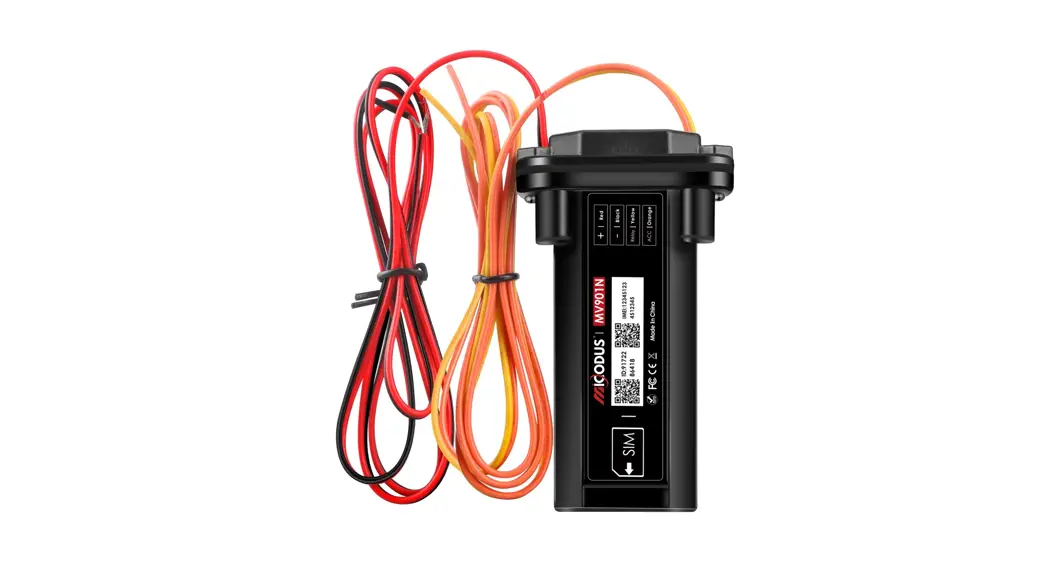
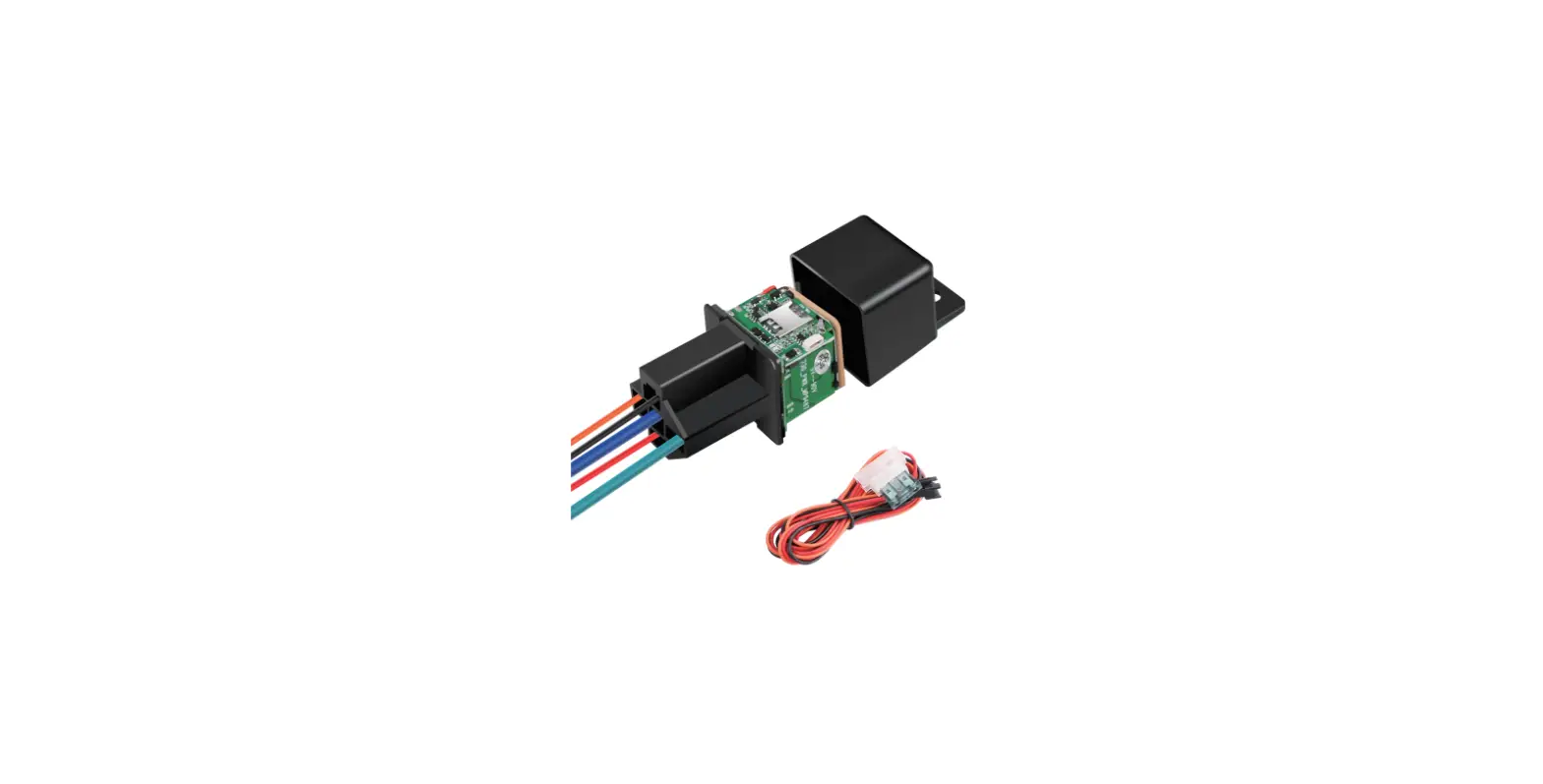
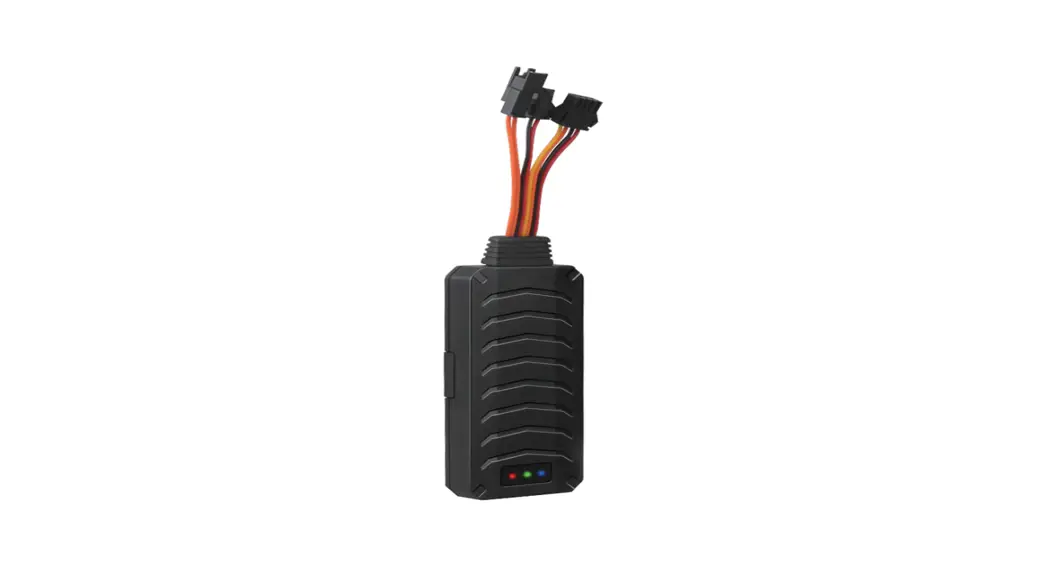
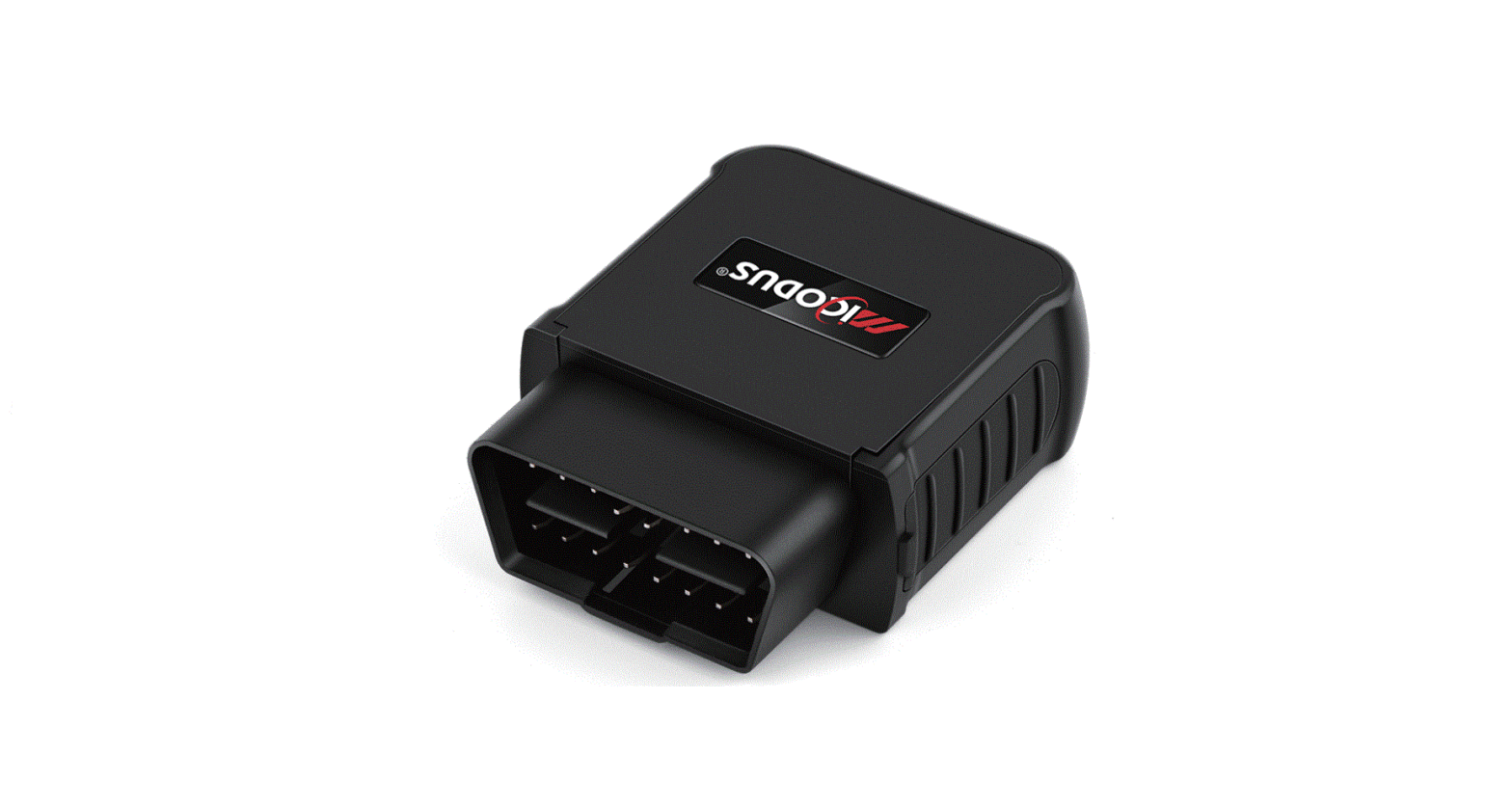
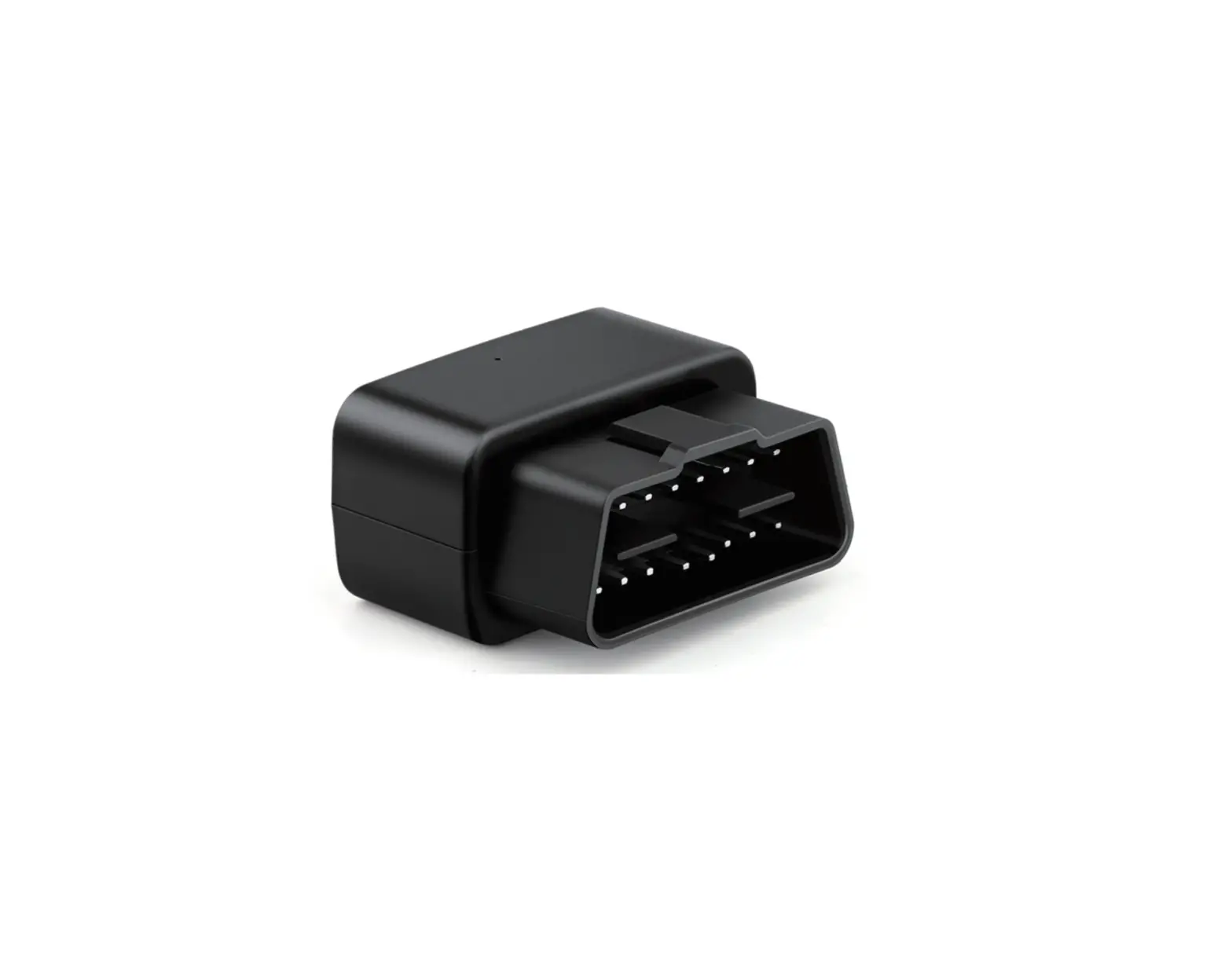
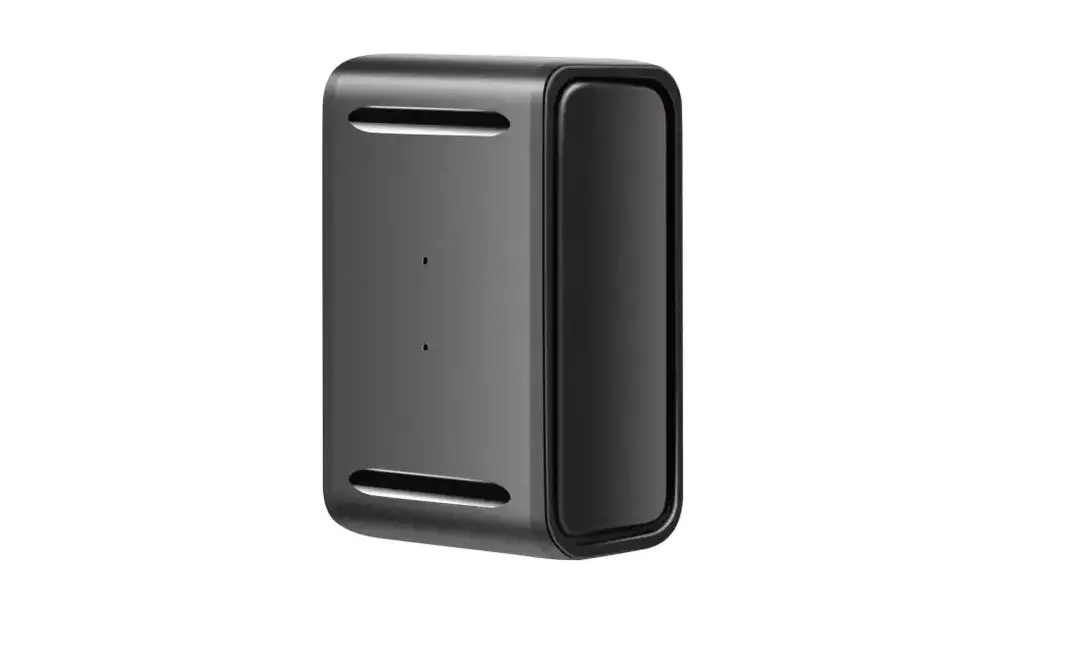
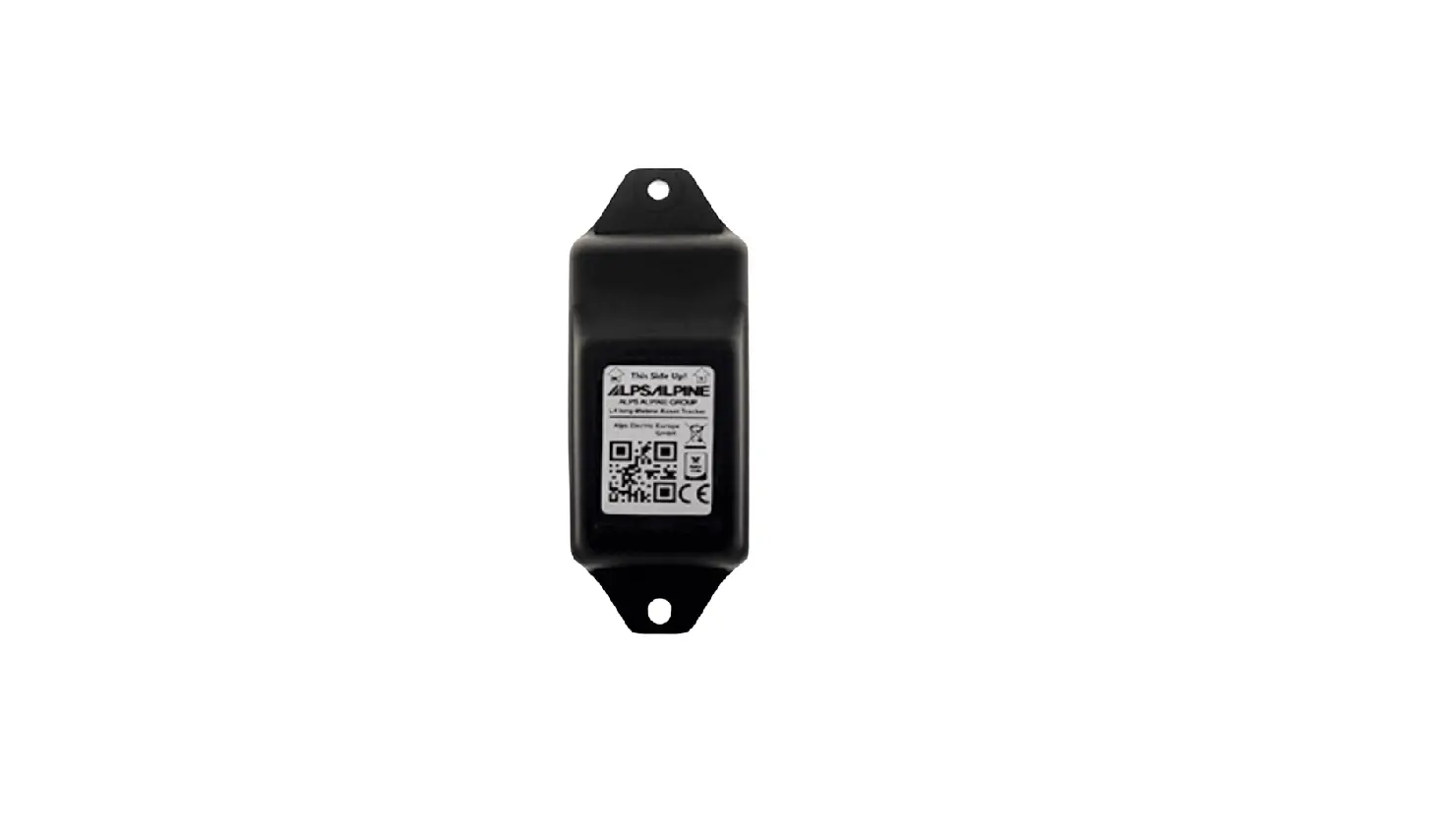
MV110 Tracker
Product Information
The MiCODUS Tracker MV110 is a GPS tracking device that uses
GPS, LBS, and AGPS technology to track the location of a vehicle in
real-time. The device has a wide working voltage of 12-36V and can
store historical routes, as well as remotely cut off fuel and
resume playback. It also has an engine start/flameout alarm, power
disconnect alarm, and geo-fence feature. The device comes with
lifetime free tracking platform access and has working parameters
that can be accessed through the device information.
Product Usage Instructions
- Before using the MiCODUS Tracker MV110, ensure that the device
is fully charged and activated with a 2G GSM/GPRS network. - To set up the device, attach it to the vehicle using the
provided adhesive or screws. Ensure that the device is placed in a
secure location and is not easily accessible. - To track the vehicle in real-time, log in to the lifetime free
tracking platform using the provided login credentials. Enter the
device ID and password to access the device’s location
information. - To remotely cut off fuel or resume playback, use the provided
commands on the tracking platform. - If the engine starts or flames out unexpectedly, an alarm will
be triggered. If there is a power disconnect, an alarm will also be
triggered. - To set up a geo-fence, select the desired area on the tracking
platform and set the parameters for entry and exit alerts. - If the vehicle exceeds a certain speed or is being towed, an
overspeed or tow alarm will be triggered.
R
MV110 User Manual V1.0
Learn how to set up your new MiCODUS Tracker
Copyright ©2022 MiCODUS | All Rights Reserved
1. Main Features
GPS+LBS+AGPS Remotely Cut Off Historical Route
/Resume Fuel
Playback
Realtime Tracking
12-36V Wide Working Voltage
Storage Memory
ON / OFF
Engine Start/ Flameout Alarm
Power Disconnect Alarm
Geo-fence
2.Specifications
Overspeed Alarm
Tow Alarm
Lifetime Free Tracking Platform
Device Information Working Parameters
Model Weight
MV110 42g
Dimensions
90mm(L) * 45mm(W) * 16mm(H)
Network
2G GSM/GPRS
Band GPS sensitivity GPS accuracy Work voltage Working Humidity
850/900/1800/1900Mhz -159dBm <5m (under open sky with good GPS signal) 12-36V DC 10%-85%RH non-condensing
Cold status 45s
Time To First Fix
Warm status 35s
Hot status 1s
Storage Temperature -40°C to +85°C Operation Temperature -20°C to +55°C
Humidity
5%–95% non-condensing
3.Product Structure
NOTE
:
1.The USB interface just can be used for firmware updating, can’t be used for charging 2.The 200mAh battery version is optional, please make sure you ordered the correct version
4.How to manage the tracker to get online?
Step 1
Normal SIM
Please get a suitable SIM card from your local place. The SIM card must meet below points:
It must be compatible with the 2G GSM network Please enable SMS, call, internet data traffic of the SIM card Enable the caller ID display feature Remove the PIN code Use Normal size SIM card for the tracker Please inquire the SIM card provider for the exact correct APN information Step 2 Insert the SIM card
Step 3 Wiring Diagram
Relay
86
85
30 87a
Battery
Device has 2PIN and 4PIN, only 4PIN version has ACC function 1) Red wire connect power positive + 2) Black wire connect power negative 3) Yellow wire connects to ACC ignition line positive + 4) White wire connects to relay white wire
Step 4 Configure APN
Please get the exact correct APN name from local SIM card provider.Take the tracker to a good signal place for operation and configure the APN for it as below:
INSTRUCTION
COMMAND
REPLY
Turn on GPRS
GPRS123456
GPRS OK
APN (any existing will be replaced)
APN username (If without, please ignore)
APN password (If without, please ignore)
APN123456+space+APNname +space+APNuser name+ space+ APNpassword
APN OK
Note: The APN information is very important, it must 100% correct to match with the sim card of
the tracker, if you configured wrong APN, the tracker also will reply “SET APN ok” but it will can’t get online!
Step 5 Indicator status description
LED Green Light (GSM) Blue Light (GPS) Red Light (Power)
Event GSM signal connection searching GSM signal GPS signal connection Searching GPS signal Power ok
State State Solid Flash every 1 second Solid Flash every 1 second Solid
NOTE
:
* Please connect tracker with 12-36V DC external battery for the power supply. * All led indicators will turn off after 10 minutes for hidden.You can call the SIM number of the tracker to wake up it!
5. Package Content
GPS Main Unit
x 1
Function Cable
x 1
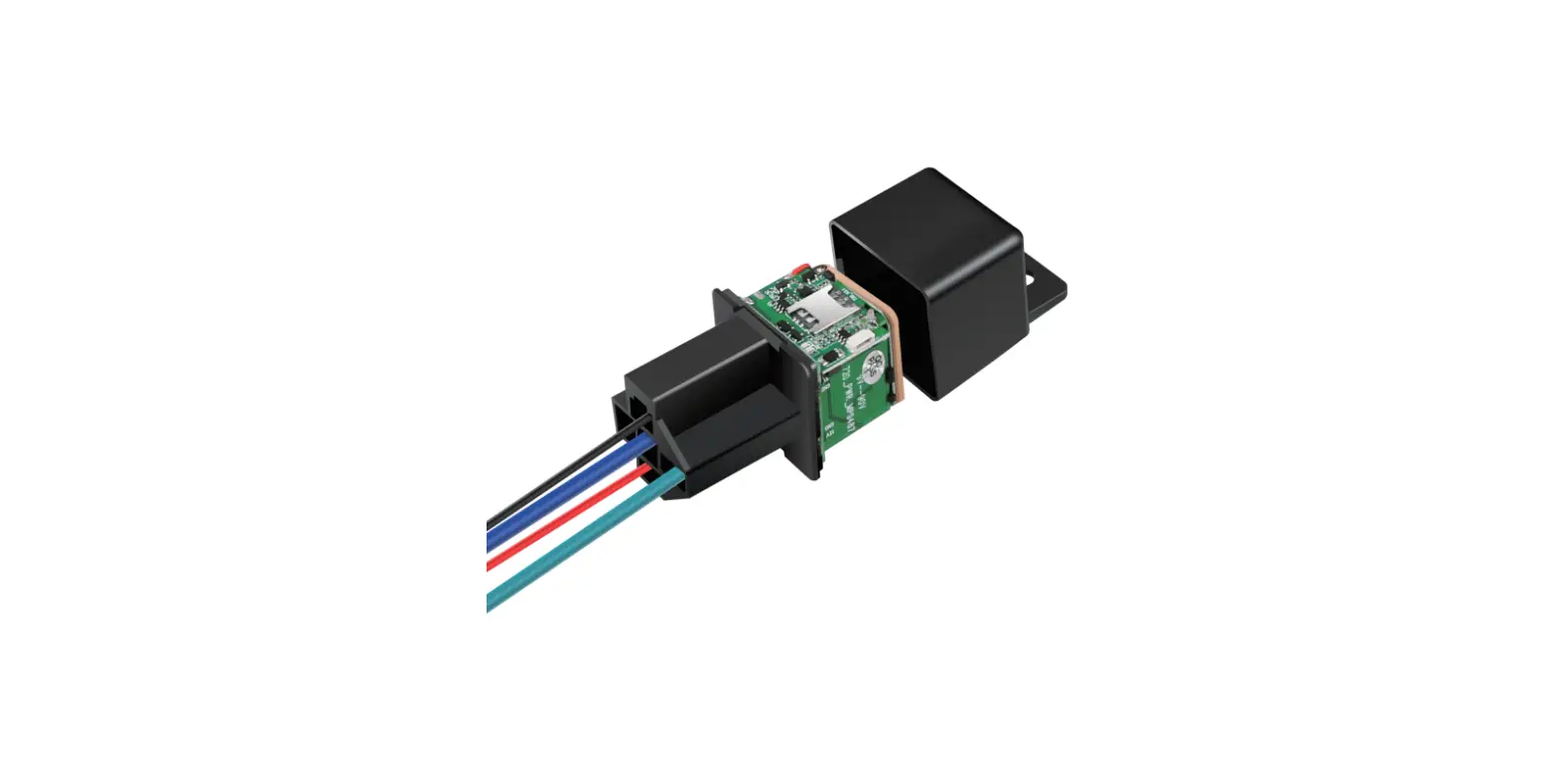
Relay(Optional)
x 1
User Guide
x 1
Genuine Packing Box
x 1
6. Functions Explanation
a.APN without user and password: Take China Mobile SIM card as example,their APN name is “cmnet”,no user and no password, then the sms command should be sent as below:
For example:
MV110 GPRS123456
GPRS OK APM OK
apn123456 cmnet
b.APN with user and password:
Take the tesco mobile SIM card in UK as example, the APN information of it is as below:
For example:
MV110
APN name: prepay.tesco-mobile.com APN username: tescowap APN password: password
Then the APN sms commands should be sent as below:
NOTE
: Different operators have different APN information,
pleasemake sure the APN is exact correct!
GPRS123456
GPRS OK apn123456 prepay.tesco-m obole.com tescowap passw ord
APM OK
7. Installation Recomendation
Under Front Dash Inside Door Pedal
Inside the taillight
component
or plastic
4
Under the pedal
1 2
3
Inside the head light Inside the front cover
1) The decice should face up to the sky. 2) Metal thermal barrier of heating layer of the windshield affects the signal.
8. Troubleshooting
Type Unable to connect to tracking platform Tracker shows offline
Unable to locate
Location drift No command reply
Use
Check the APN and settings. Check whrther the data service of SIM card is enabled. Check the balance of SIM card.
Check whether external power is still connected. Check if the vehicle entered network blind area. Check the balance of SIM card.
Make sure the top side facing upward without metallic things shielded. Make sure it’s not in area with no satellite coverage.
In area with poor GNSS signal (tall building around or basement), drifting may happen.
Make sure command format is correct. Vehicle may be in network blind area. Make sure SIM card is well inserted and has SMS service.
9. Full SMS Commands List
Command Name
Command Format
Explanation
Set APN
apn123456 apn Name
apn123456 cmnet
apn123456 apn name user password apn123456 cmnet cmwap 66666
Set IP / DNS port
adminip123456 IP port adminip123456 DNS port
adminip123456 47.254.77.28 7700 adminip123456 d.micodus.net 7700
Parameter
check123456
Reset to Factory Default Settings
begin123456 or reset123456
check device’s status
Check Position
smslink123456
Tracker will reply with Latitude, Longitude, Google Maps URL
Setup Admin Number admin123456 mobile number
admin123456 008613810008888
Cancel Admin Number noadmin123456 mobile number
noadmin123456 008613810008888
Setup Full Time zone time zone123456 full time zone Setup Half Time zone time zone123456 half time zone
time zone123456 1 or time zone123456 -1 (1 means east 1,-1 means west 1)
time zone123456 8 30 (8 30 means east 8.5 time zone)
Setup Movement Alarm move123456
Canecl Movement Alarm nomove123456
Over-speed Alarm
speed123456 speed limit value
Cancel Speed Alarm
nospeed123456
Cancel Low Battery Alarm lowbattery123456 off
Engine On/Off Alarm
acc123456
speed123456 80 (80 means 80km/h, it is configurable)
Cancel On/Off Alarm
noacc123456
Cut Off Fuel
cut123456 stop123456
The fuel will be cut off completely when the speed is less than 20KM/H
Stop car quickly
Resume Fuel
Data Upload Interval (default 10s)
resume123456 fix030s***n123456
This means every 30seconds/1 time positioning, the time interval is changeable
10. Any Questions?
E-mail: [email protected] Skype: MiCODUS
11. Download the APP
Search “MiCODUS” in iOS APP store or Google Play Store, or just scan the QR code as below to download MiCODUS APP:
Download on the
APP Store
Download for
Android
 obole.com