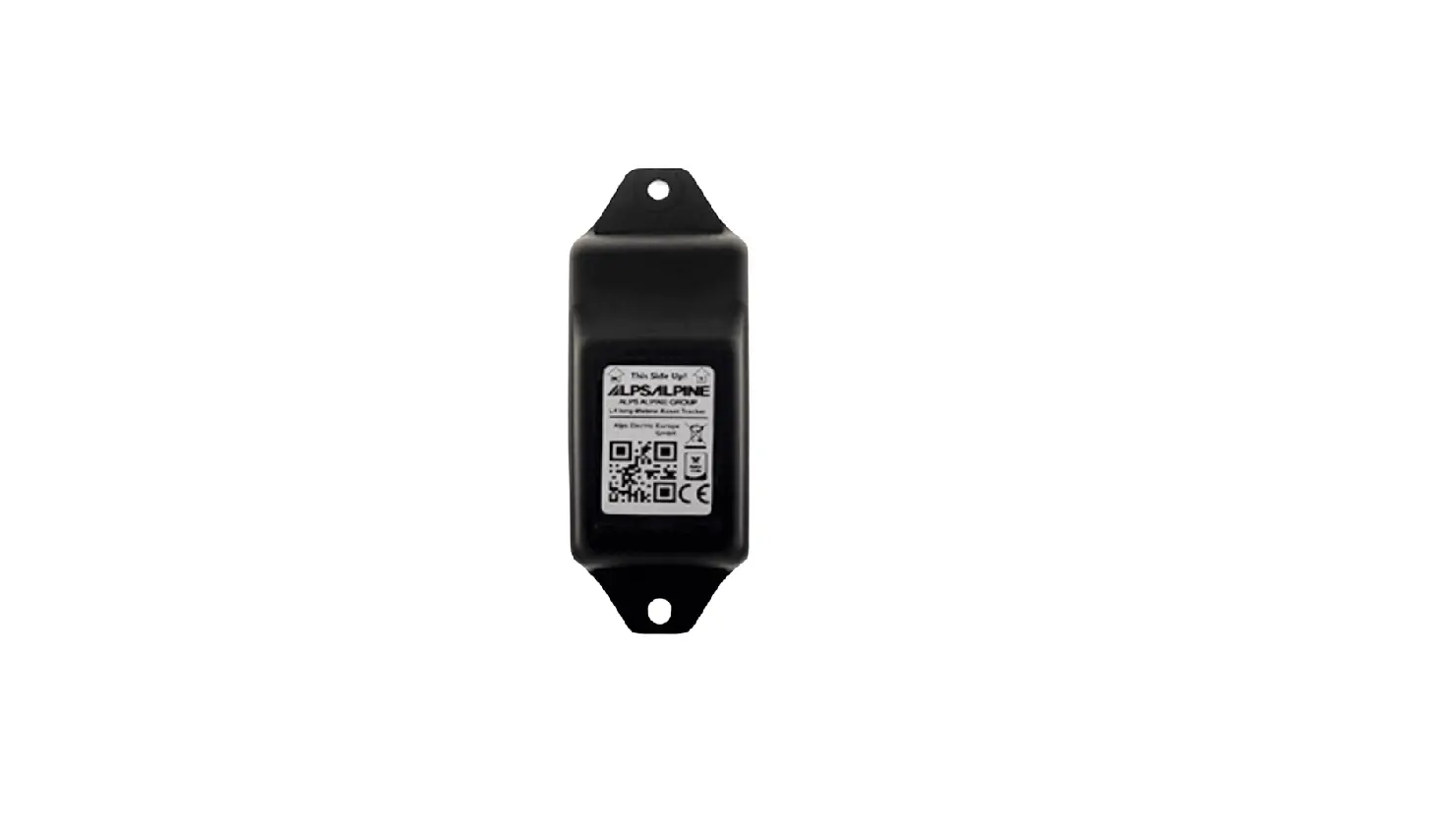
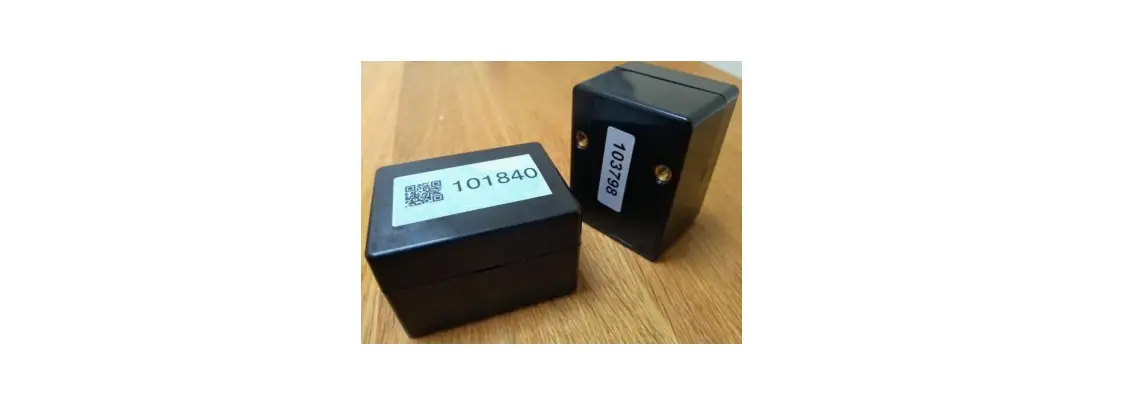
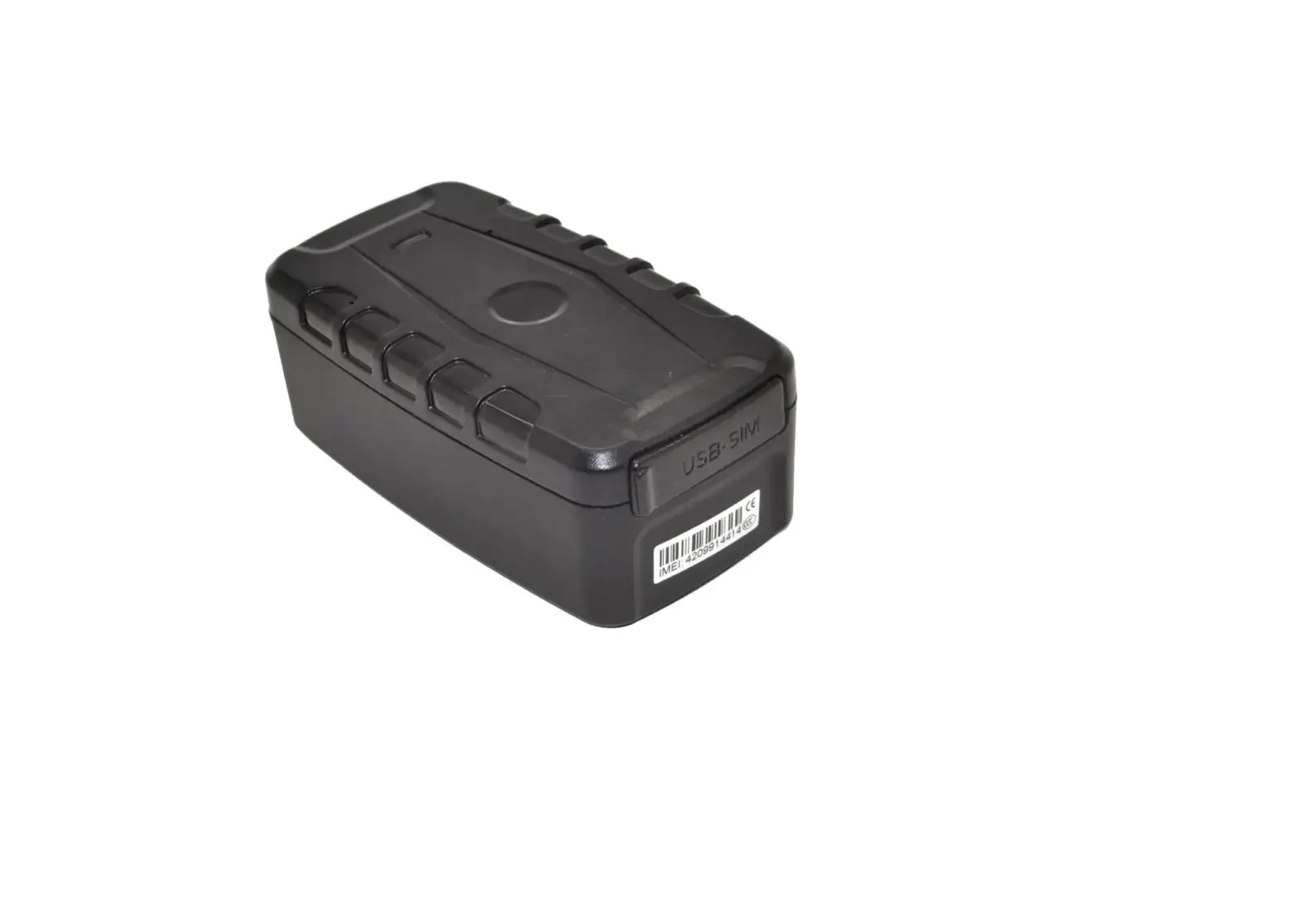
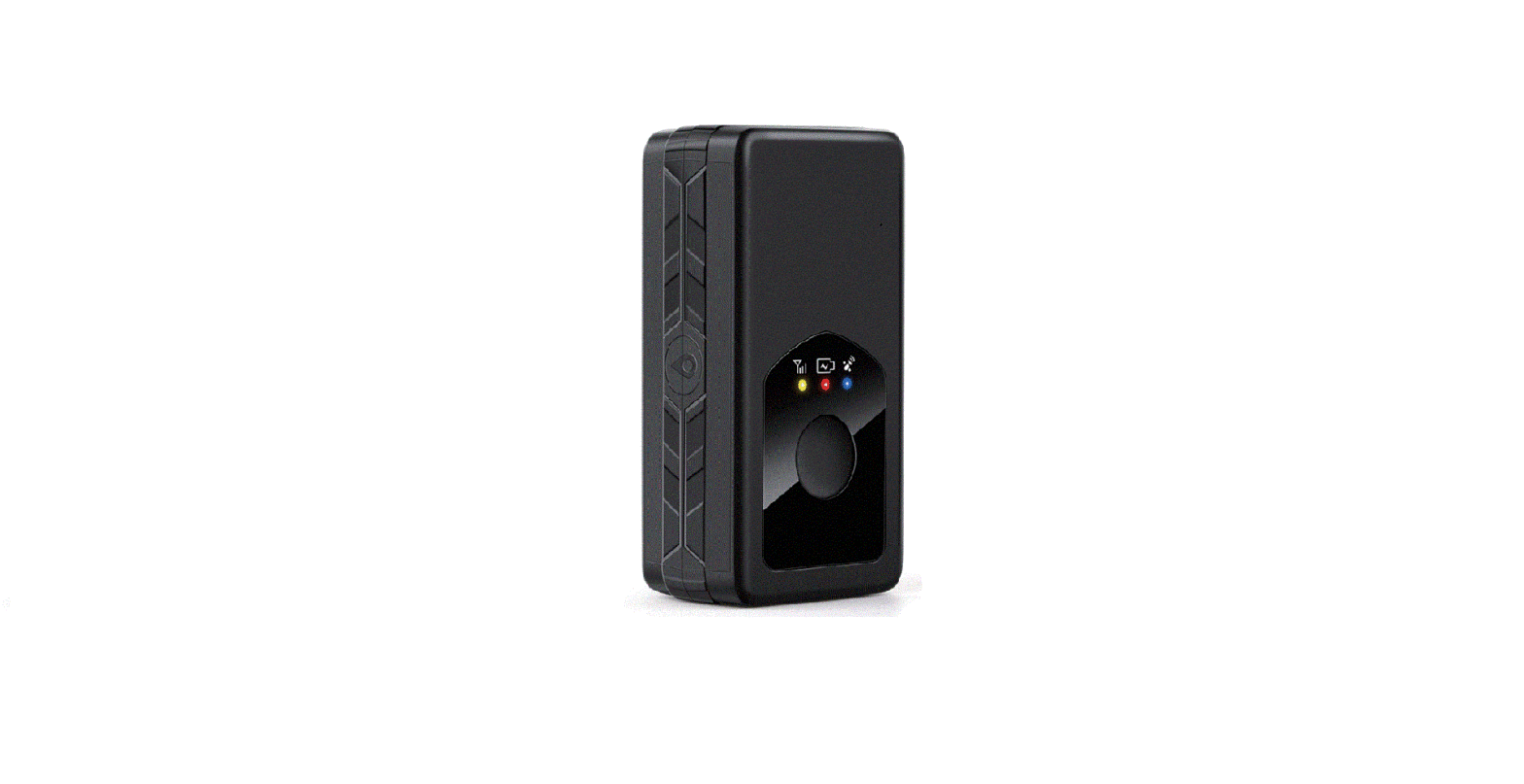
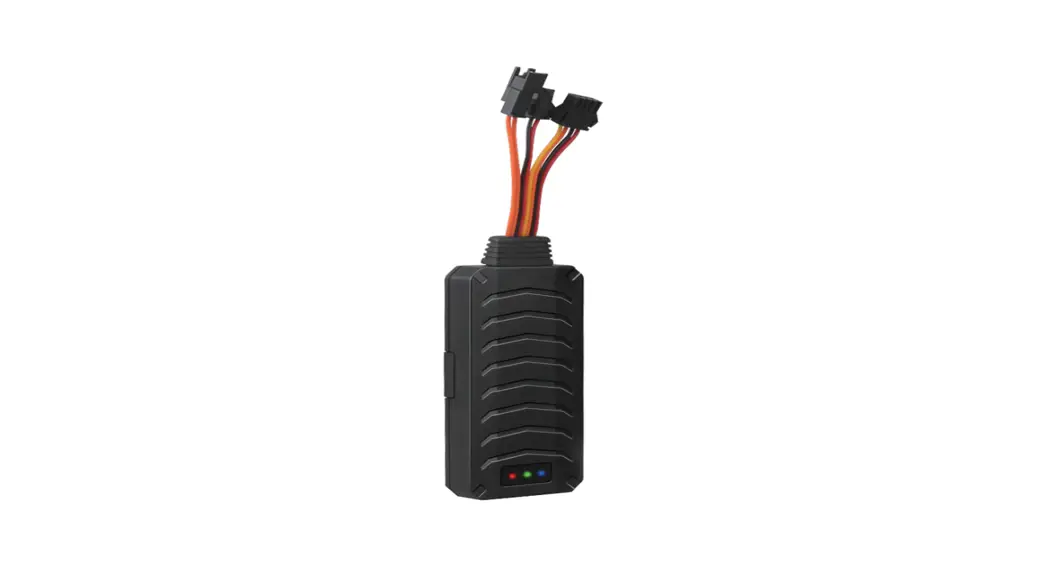
TRACK 1000 Battery Powered Tracker
Product Information: TRACK 1000 Battery Replacement
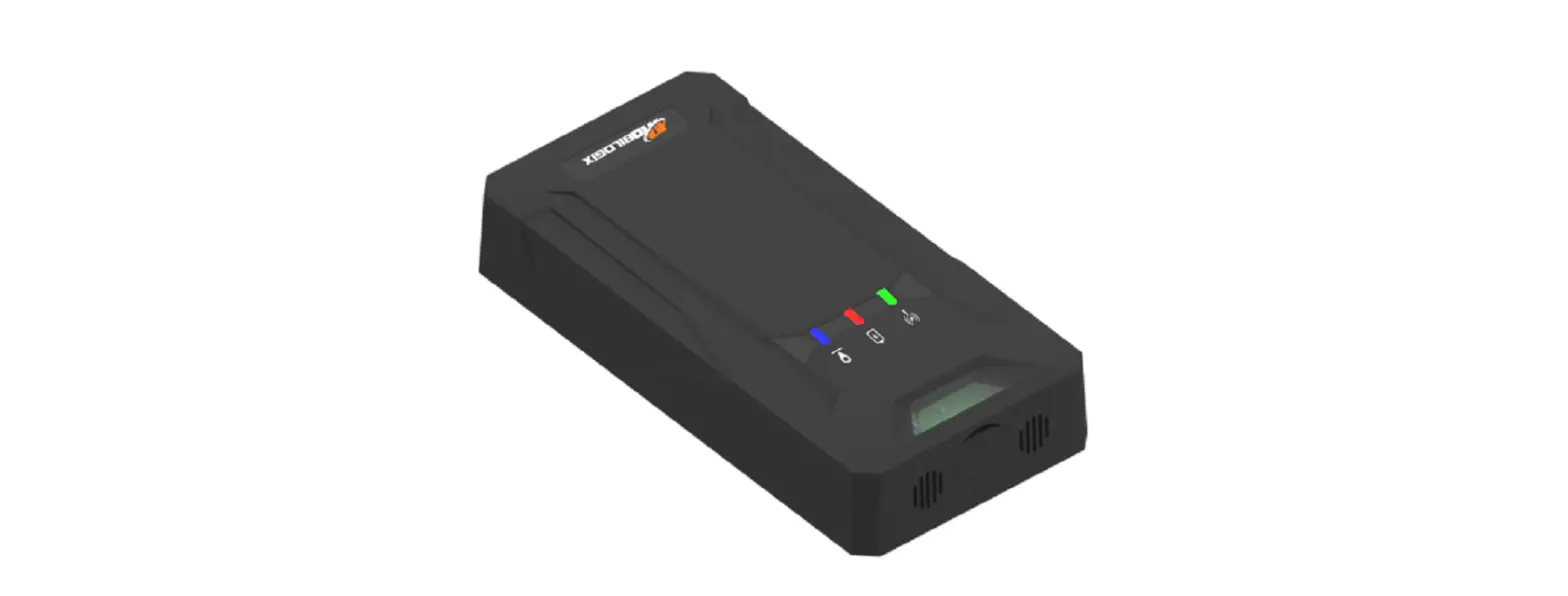
The TRACK 1000 is an asset tracker designed to send activity and
GPS location information. It utilizes a battery for power and
requires replacement when the battery runs out. Follow the
instructions below for a successful battery replacement.
Product Usage Instructions: TRACK 1000 Battery Replacement
- Step 1: If using a power drill, set it to
power seng 7 on low. Note that power drills may have different
settings. - Step 2: [No specific instructions
provided] - Step 3: Place a finger on the sponge to hold
it in place. - Step 4: Position the chip so that the
connector is towards the holder. - Step 5: Insert new batteries. Ensure that the
batteries are positioned in the center, on top of the sponge,
neither too low nor too high. Also, make sure the polarity (+/-) of
the batteries is correct. - Step 6: Ensure that the connector is inside
the holder and that the cable is tucked to the left-hand side. - Step 7: Ensure that the seal on the back of
the tracker is completely intact. - Step 8: Close the case by tightening the 6
screws in the corresponding holes. Be cautious not to break the
casing when using a power drill. - Step 9: After closing the case, observe that
the green light on the front of the tracker rapidly flashes green.
This indicates that the tracker has started sending activity and
GPS location information. To access this information, make sure you
are in an area with Sigfox communication network coverage and visit
the Sensolus Platform.
Note: After replacing the battery in the
tracker, it is important to indicate the battery replacement in the
Sensolus Platform.
For more information or assistance, visit www.sensolus.com or contact
[email protected].
TRACK 1000 Battery replacement manual
Step 1
· Make sure that the serial number and logo are facing the right way up.
· Then turn the tracker face down. · Unscrew the 6 screws.
Tip: If using a power drill, use power seng 7, on low. (Note: not all power drills have the same sengs!)
Step 2
· Remove the back plate and the 6 screws.
Step 3
· Remove the baeries – pull them out of the connector.
Tip: place a nger on the sponge to hold it in place
Step 4
Place the chip so the connector is towards the holder.
Step 5
Insert new baeries. Posion the new baeries and make sure the baeries are in the center (on top of the sponge) – not too low or too high.
Step 6
Make sure the connector is inside the holder and that the cable is tucked to the le-hand side.
Step 7
Make sure that the seal is completely at/intact on the back of the tracker.
Step 8
Close the case again by ghtening the 6 screws in the corresponding holes. Be careful not to break the casing when using a power drill.
Step 9
The green light on the front of the tracker will rapidly ash green. From this moment, your asset tracker will start sending acvity (movement) and GPS locaon.
This informaon will be visible in the Sensolus Plaorm if you nd yourself in an area with Sigfox communicaon network coverage.
www.sensolus.com | [email protected]
Indicate baery replaced in plaorm
When you replaced the battery in the tracker you have to indicate thet in the platform.
· Go to the tracker details page in the general secon. You can search for this tracker or nd in in the asset list or asset map.
· Go to the baery tab · Click on the replace baery link to indicate you have replaced the
baery of that tracker. · Conrm the update.
www.sensolus.com | [email protected]
 Sensolus, It Just Works! Industrial grade tracking solution.