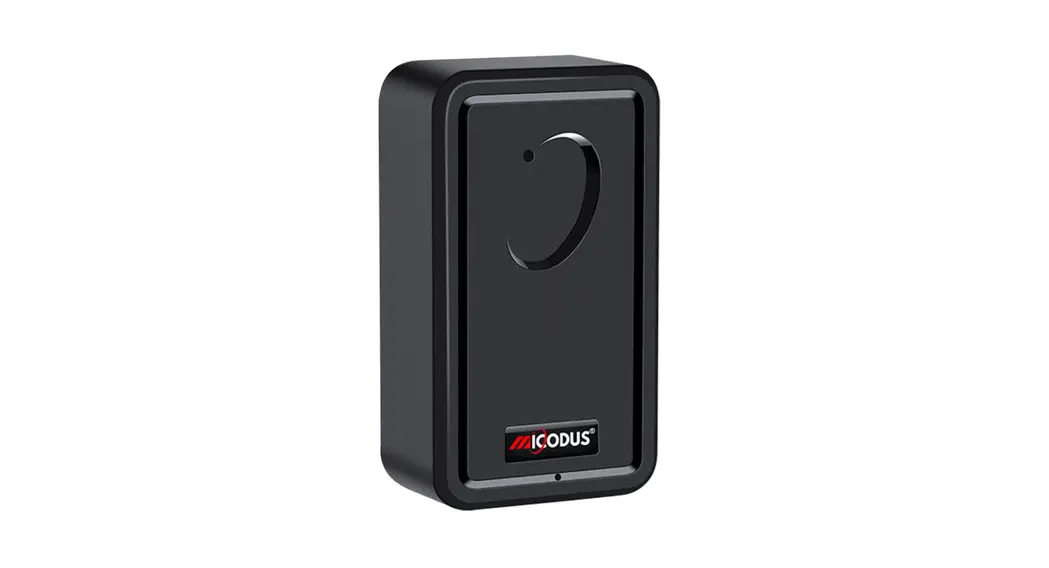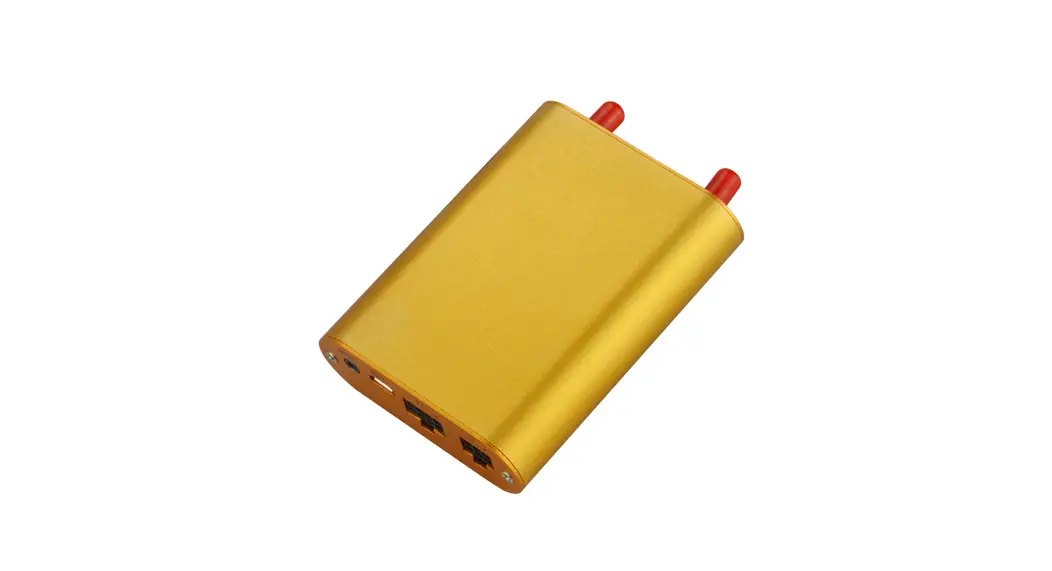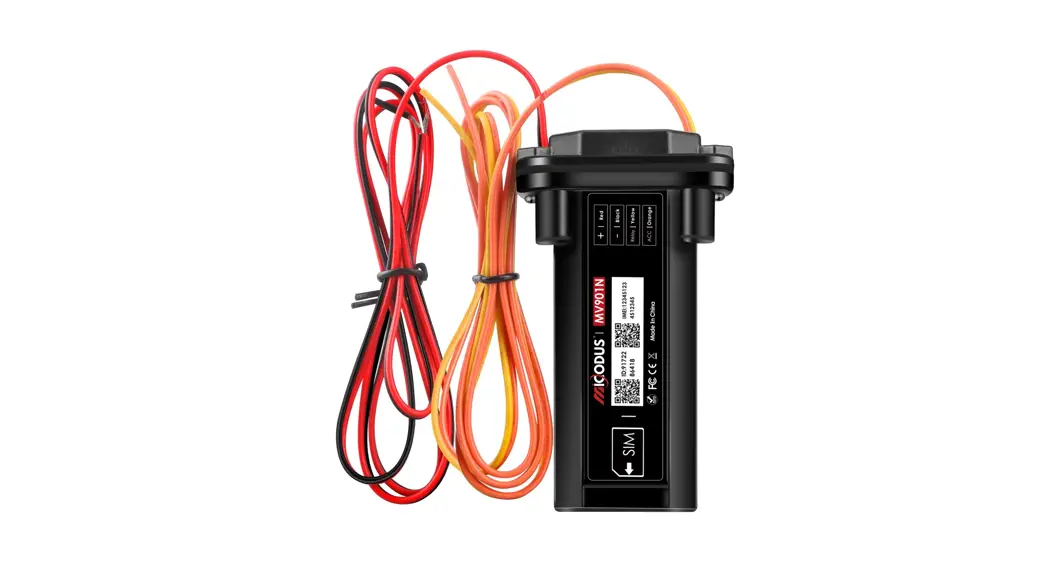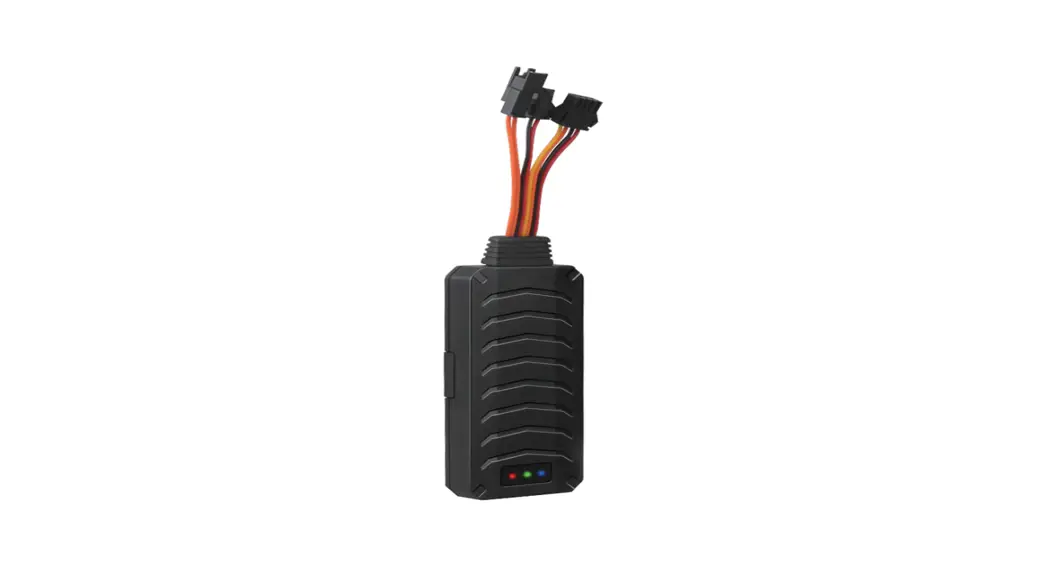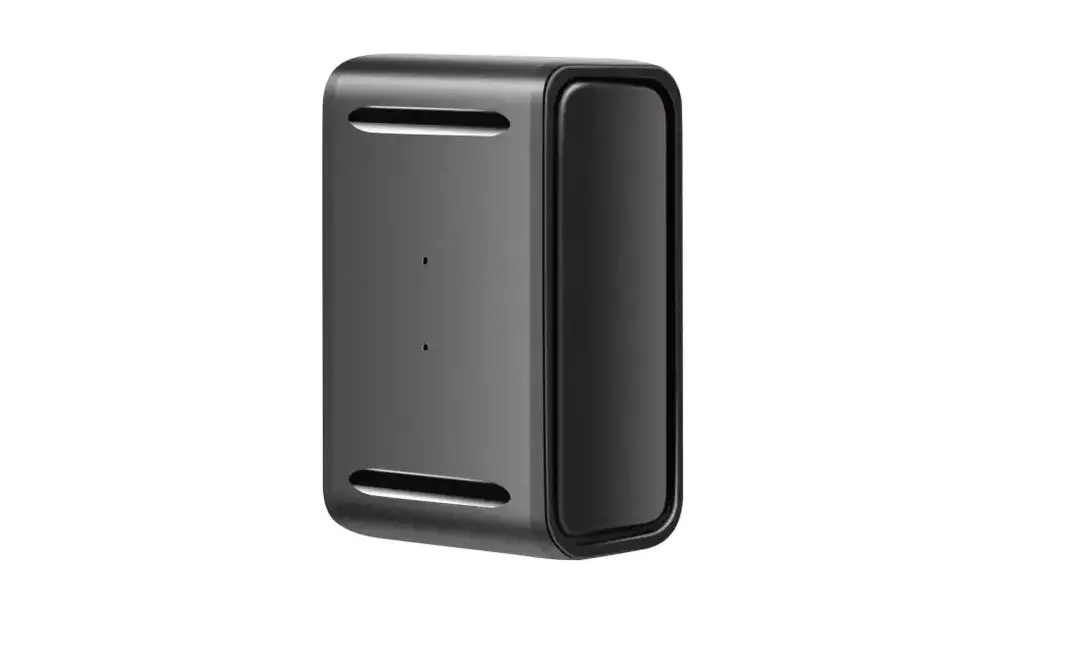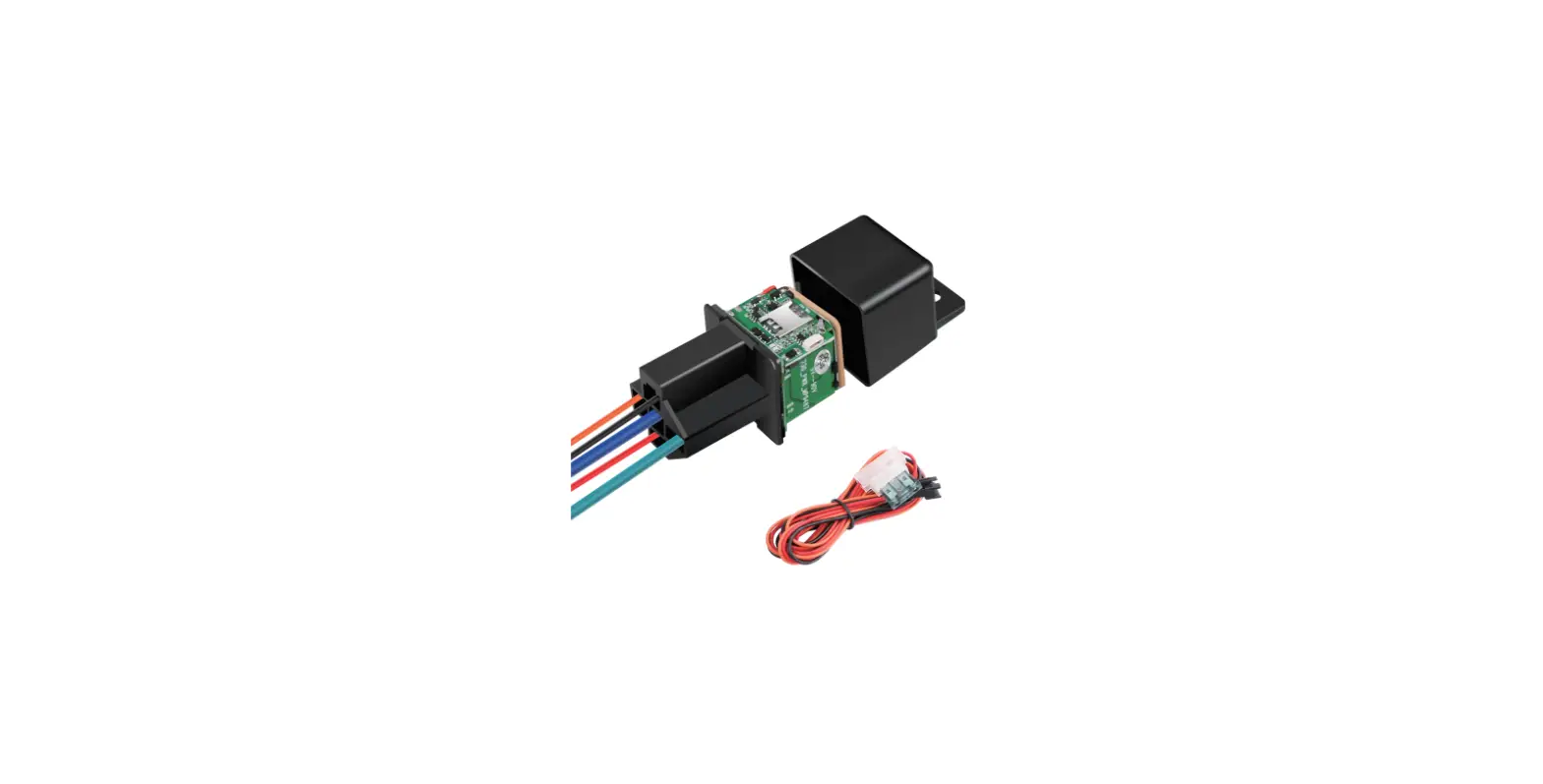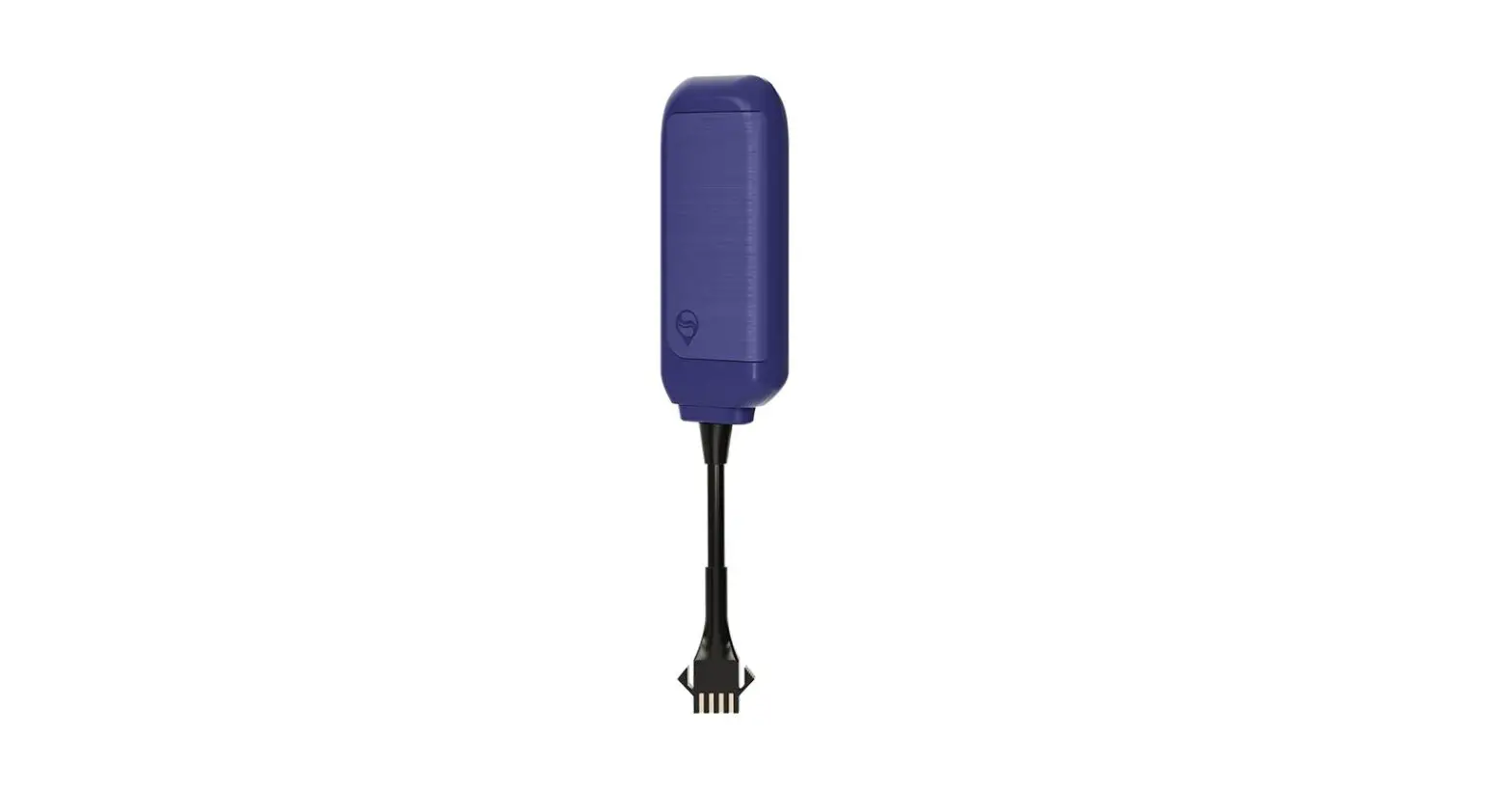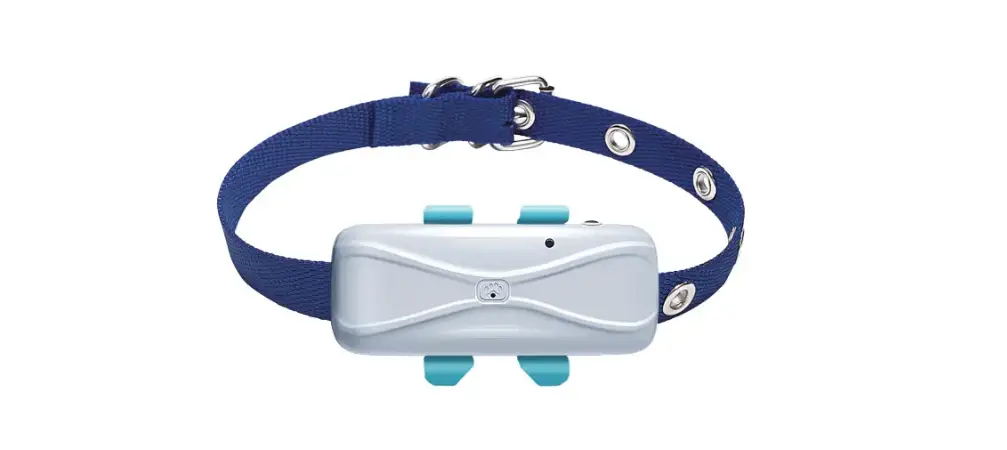

MiCODUS 4G MP80G Tracker
Product Information – R4G MP80G User Manual V1.0
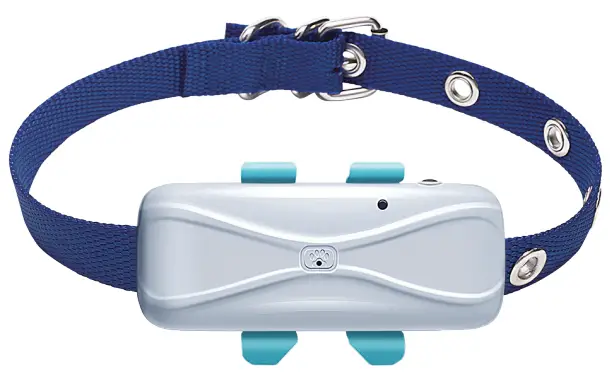
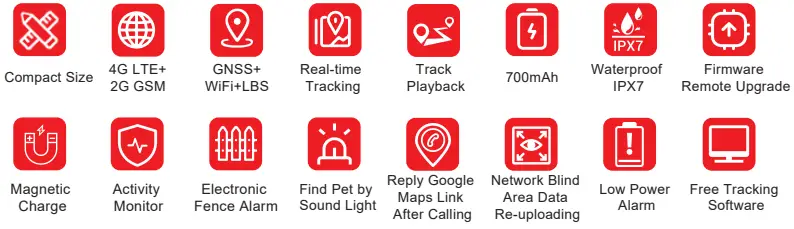
The R4G MP80G is a compact and waterproof tracker that supports 4G LTE, 2G GSM, GNSS, WiFi, and LBS technologies. It provides real-time tracking and track playback features. The device has a 700mAh battery and comes with firmware that supports remote
upgrade. It has an IPX7 rating and supports magnetic charging. It also comes with additional features like activity monitor, electronic fence alarm, find pet by sound and light, and low power alarm. The device comes with free tracking software.
Main Features:
- Compact Size
- 4G LTE+ 2G GSM
- GNSS+ WiFi+LBS
- Real-time Tracking
- Track Playback
- 700mAh
- Waterproof
- Firmware
- IPX7
- Remote Upgrade
- Magnetic Charge
- Activity Monitor
- Electronic Fence Alarm
- Find Pet by Sound Light
- Reply Google Maps Link After Calling
- Network Blind Area Data Re-uploading
- Low Power Alarm
- Free Tracking Software
Specifications:
Device Information:
- Model: MP80G
- Weight: 42.2g
- Dimensions: 75.8mm(L)*37.6mm(W)*19mm(H)
- Battery: Built-in 3.7V 700mAh Polymer
Battery - Working Voltage: 3.4-4.5V DC
- Working Current: 12V/Average 60mA
- Sleep Current: 12V/Average 5mA
- Working Temperature: -20 – 75
- Working Humidity: 10%-85%RH
- SIM Card: Nano SIM
- Celluar Antenna: Built-in, FPC
Celluar Specifications:
- Working Frequency: 2G GSM/GPRS:
850/900/1800/1900MHz, 4G LTE CAT1: LTE-FDD:
B1/B2/B3/B4/B5/B7/B8/B28/B66
GNSS Specifications:
- GNSS GPS Frequency: BDS Frequency
- Satellite Channels: Hot/Cold Start
- GNSS Antenna: Built-in, FPC
- Positioning Type: Accuracy
External Interfaces:
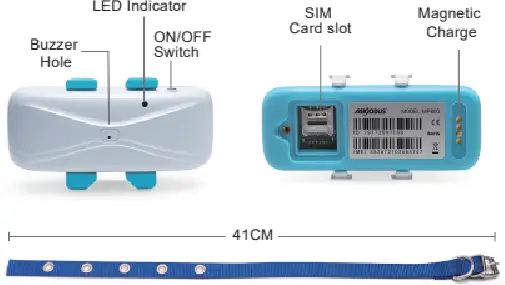
- Magnetic Charge Port
- Buzzer
- Led Indicator
Product Usage Instructions:
To start using your R4G MP80G tracker, follow the steps below:
- Insert a Nano SIM card into the device’s SIM card slot.
- Charge the device using the magnetic charging port.
- Download the free tracking software provided with the device and install it on your smartphone or computer.
- Configure the device settings using the tracking software. You can set up real-time tracking, track playback, electronic fence alarm, and other features.
- Attach the device to the object that you want to track, using the provided accessories like a collar or keychain.
- The device will start sending location data to the tracking software, and you can monitor the location of your object in real time.
Note: The device supports 2G GSM/GPRS and 4G LTE CAT1 networks.
Make sure to check network coverage in your area before using the device.
4G MP80G User Manual V1.0
Learn how to set up your new MiCODUS Tracker
Copyright ©2023 MiCODUS | All Rights Reserved
Main Features
Specifications
|
Device Information | Model | MP80G |
| Weight | 42.2g | |
| Dimensions | 75.8mm(L)*37.6mm(W)*19mm(H) | |
| Battery | Built-in 3.7V 700mAh Polymer Battery | |
|
Working Parameters | Working Voltage | 3.4-4.5V DC |
| Working Current | 12V/Average 60mA | |
| Sleep Current | 12V/Average 5mA -20℃ – 75℃ | |
| Working Temperature | ||
| Working Humidity | 10%-85%RH | |
|
Celluar Specifications | SIM Card | Nano SIM |
| Celluar Antenna | Built-in, FPC | |
| Working Frequency | 2G GSM/GPRS: 850/900/1800/1900MHz | |
| 4G LTE CAT1: LTE-FDD: B1/B2/B3/B4/B5/B7/B8/B28/B66 | ||
|
GNSS Specifications | GNSS | GPS+BDS+GLONASS |
| GPS Frequency | L1: 1575.42±1.023MHz | |
| BDS Frequency | B1:1561.098±2.046MHz | |
| Satellite Channels | 32 | |
| Hot/Cold Start | <1s,<32s @ Open Sky | |
| GNSS Antenna | Built-in Ceramics GNSS Antenna | |
| Positioning Type | GNSS+WiFi+LBS+AGPS | |
| Accuracy | Location accuracy: <10m(1σ) | |
| Timing accuracy: <30ns(1σ) | ||
| Speed accuracy: <0.1m/s(1σ) | ||
| External Interfaces | Magnetic Charge Port | 1 Channel |
| Buzzer | 1 Channel | |
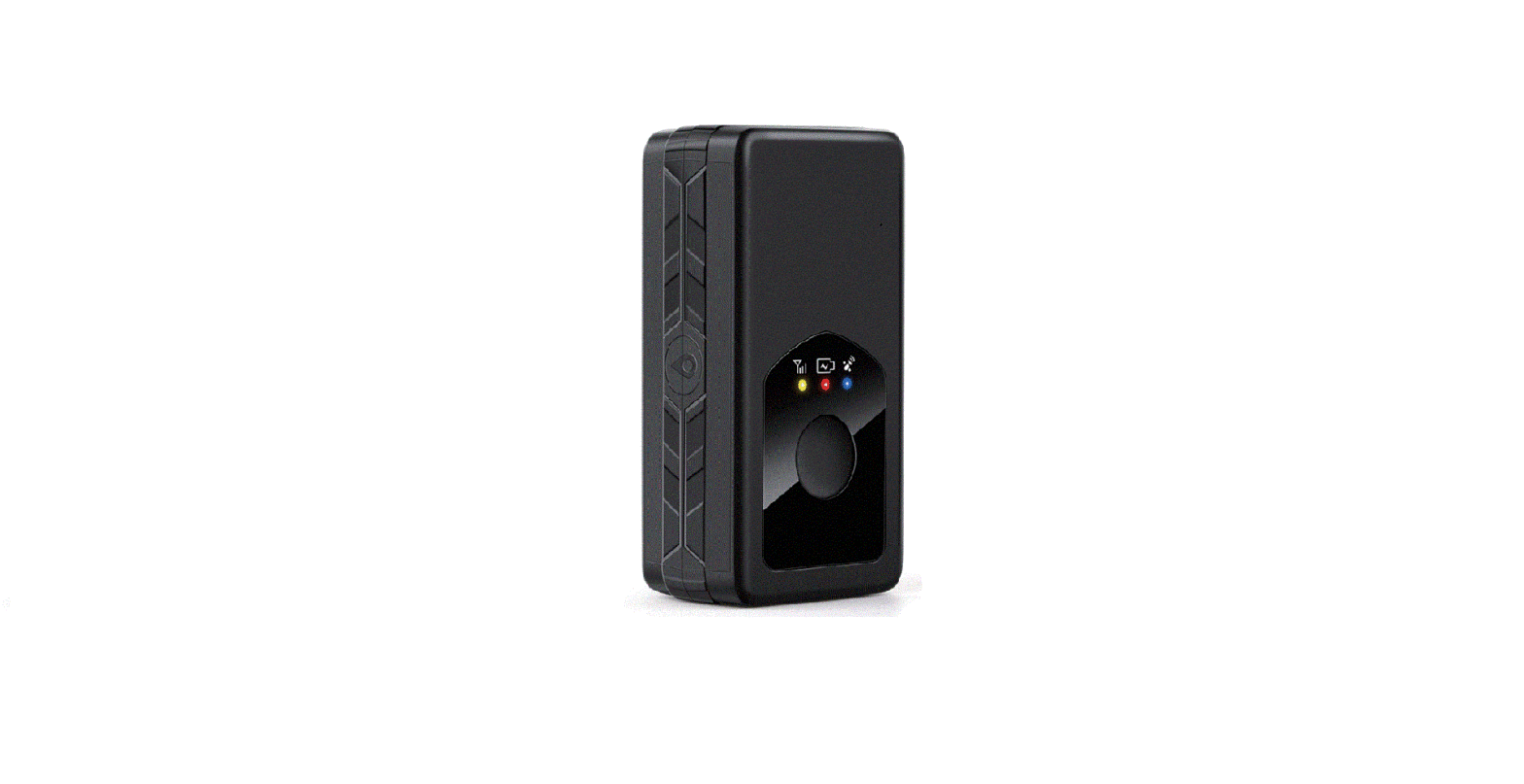
| Led Indicator | Charge(Red), GPS(Blue), Celluar(Yellow), Seeking Pet(White) |
Product Stucture
How to manage the tracker to get online?
Step 1
SIM card requirements
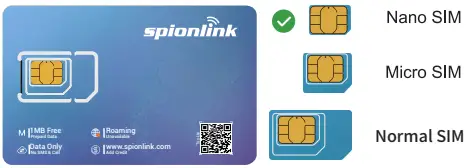
Please get a suitable SIM card from your local place. The SIM card must meet below points:
- It must be compatible with the 4G LTE or 2G GSM network
- Please enable SMS, call, internet data traffic of the SIM card
- Remove the PIN code
- Enable the caller ID display feature
- Use Nano size SIM card for the tracker
- Please inquire the SIM card provider for the exact correct APN information
Step 2
SIM card installation
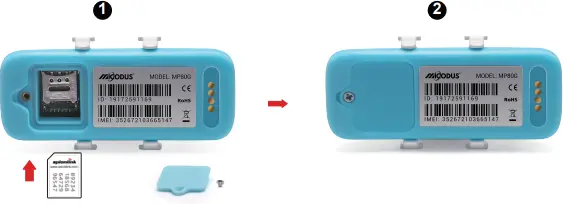
Step 3
Configure APN
Please get the exact correct APN name from local SIM card provider.Take the tracker to a good signal place for operation and configure the APN for it as below:
| SMS Command Format | Reply | Example | Note |
| APN,ApnName,User, Password# |
SET APN OK | APN,orange, orange,orange# | If the SIM card has APN user and APN password, then use this command. |
| APN,ApnName# | SET APN OK | APN,internet# | If the SIM card operator doesn’t have APN user and APN password, then please use this command. |
Note: The APN information is very important, it must 100% correct to match with the sim card of the tracker, if you configured wrong APN, the tracker also will reply “SET APN ok” but it will can’t get online!
Step 4 Indicator status description
| LED | Event | State |
| POWER LED (RED) | Charging | Solid |
| Fully charged/Ran out of battery | Dark | |
|
CELL LED (YELLOW) | Searching and registering network | Flash every 2 seconds |
| Registered network successfully | Solid | |
| Celluar module sleep or turn off | Dark | |
|
GPS LED (BLUE) | Searching for satellite signals | Flash every 2 seconds |
| GPS/GLONASS successfully positioned | Solid | |
| Satellite module sleep or turn off | Dark | |
| FINDING PET LED (WHITE) | LED flash fastly to find pet more easily | Flash fastly |
Package Content
- GPS Main Host x 1
- Collar x 1
- Charging cable x 1
- Screwdriver x 1
- Rubber clip x 1
- User Guide x 1
- Genuine Packing Box x 1
Functions Explanation
Working Modes Setting
* SMS command format: MODE, A, T1, T2#
A=1/2/3, 1: Realtime tracking mode 2: Regular
reporting mode 3: Power saving mode; Default mode: 1
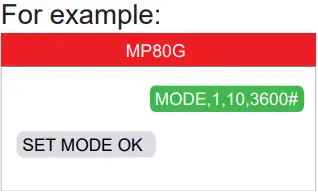
A=1 (For example: MODE,1,10,3600# means the tracker will work under mode 1, it will upload every 10s under moving status and 3600s under static status)
T1:upload interval of GPS data in moving status,unit: second,10-3600s; default: 10s
T2:upload interval of GPS data in static status, unit: second, 180-86400s; default: 3600s
NOTE:
- Device sends data to server according to the time interval and always stays online.
- User needs to set reporting time to server when moving and when no moving. GPS/WIFI on when moving and off when not moving.
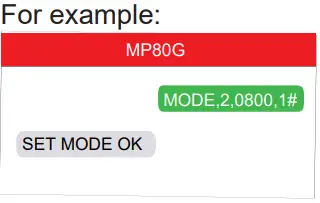
A=2 (For example: MODE,2,0800,1# means the tracker will work with mode 2 since the 08:00am, and upload every 1 hour )
T1: interval start time,format: HHMM
T2: time interval,range: 1-72 unit: hour,default interval: 24hours
NOTE:
Under Mode 2 the device will disconnect with server after reporting, but it still can receive SMS and Call.
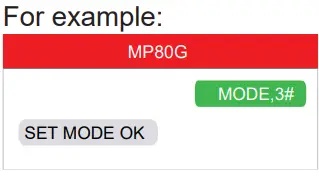
A=3 (For example: MODE,3# )
NOTE:
- Under mode 3, no need set reporting time interval, the device will always keep connect with server with the heartbeat data.
Device only sends data to server when an alarm occurs. - GPS/WiFi only triggers when there is an event. (the rest of the time, GPS is off)
Full SMS Commands List
Query Commands
| Query Commands | ||
| Functions | Command Format | Explanation |
|
Version Inquiry |
VERSION# | Device Reply Example: ID: ID number of the tracker IMEI: IMEI number of the tracker ICCID: The ICCID number of the SIM card in the tracker VERSION: The firmware version of the tracker |
|
Parameter Inquiry |
PARAM# | Device Reply Example: ID: ID number of the tracker IMEI: IMEI number of the ICCID: The ICCID number of the SIM card in the tracker APN: APN name,APN user,APN password, IP: Domain name and port number or IP address,port pumber MODE: Working mode;interval or starting time,upload interval SPEEDLIMIT: The overspeed threshold CENTER: Center number of the tracker SOS: SOS1,SOS2,SOS3 GMT: Time zone |
|
Status Inquiry |
STATUS# | TRAFFIC: ON/OFF BATTERY: XX% (Built-in Battery Power Percent) INTERNET: CLOSED (No Network) FAILED (Connecting Network or Failure) SUCCESS (Connected to Network) NET: NONE (No GSM Signal) , HIGH / MED / LOW (Signal Strength) 18 GPS: CLOSED (GPS Module Closed), FIXED,N (Positioned and satellite number), UNFIX,0 (Not Positioned yet) SPEED:30KM/H (The current speed of the target) |
|
Alarms Parameters |
ALARM# | ID: 19172012644 (Device ID number) SPEED: ON(OFF); 30km/h(speed limit); alarm ways MOTION: ON(OFF); 300s(static time);alarm ways NO MOTION: ON(OFF);3600s(static time);alarm ways LOW BATTERY: ON(OFF);alarm ways FENCE1: ON(OFF), 500m(Radius) , alarm ways FENCE2: ON(OFF), 300m(Radius) , alarm ways FENCE3: OFF FENCE4: OFF |
| Latitude&Longitude Inquiry | WHERE# | LAT:N23.02930,LON:E114.32180,SPEED:0.00KM/H, DATETIME:2015-05-23 14:39:11 |
| Map URL Inquiry | URL# | http://map.google.com/?q=22.557868,113.935090 <0.0km/h 0.0> <2014-12-12 07:32:13> IMEI:354188047752402 |
Setting Commands
| Setting Commands | ||
| Functions | Command Format | Explanation |
| APN Setting | APN,APN name,APN user, APN password# | Example: APN,CMNET# (if no APN User & APN Password) APN,internet,internet,internet# (if with APN User & APN Password) |
|
Server Setting | If set with Domain Name: SERVER,1,Domain,Port# | SERVER,1,d.micodus.net,7700# |
| If set with IP: SERVER,0,IP,Port# | SERVER,0,47.254.77.28,7700# | |
| Restore factory settings | FACTORY# | FACTORY OK |
| Restart device | RESTART# | RESTART OK |
| Internet Traffic Switch | TRAFFIC,ON# | OPEN TRAFFIC OK |
| TRAFFIC,OFF# | CLOSE TRAFFIC OK | |
| Time Zone Setting | GMT,Time zone orientation,Whole Time Zone[,Half Time Zone]# | Example: GMT,E,8# (if no half time zone) GMT,W,9,30# (if has half time zone) NOTE: Parameter : E / W; 0 ~ 12; 0/15/30/45 |
|
Mileage Statistics |
MILEAGE,A,B# | A=ON/OFF, On/Off mileage calculation, default: Off B=0~999999,Mileage initial value , unit:km ; default: 0, mileage return to zero |
| MILEAGE# | Query current mileage | |
|
Add SOS Administrator Number |
SOS,A,1st number, 2nd number,3rd number# | Set 3 numbers at a time: SOS,A,13800138000,1380013800 1,13800138002# Set the first numberseparately: SOS,A,13800138000# Set the second number separately: SOS,A,,13800138001# Means to set 3rd number separately: SOS,A,,,13800138002# |
|
Delete SOS Administrator Number |
SOS,D,1st number,2nd number,3rd number# or SOS,D,1,2,3# | Directly delete the number: SOS,D,13800138000# Delete 1st number: SOS,D,1# Delete 2nd number: SOS,D,2# Delete the 2nd and 3rd number: SOS,D,2,3# |
| Add Center Number | CENTER,A, center number# | Example: CENTER,A,+8613800138000# Note: Please set up the center number with the country code as prefix! |
| Delete Center Number | CENTER,D# | DEL CENTER OK |
|
Set Up GEO-Fence |
FENCE,S,R,LNG,LAT# | Example: FENCE,1,500,22.65897,114.985231# ( Means set up the fence 1 as center dot 22.65897,114.985231, radius 500m ) FENCE,2,300,,# ( Means set up the fence 2 with the center dot as the last GPS fixed position, radius: 300m) S=1~4, fence serial number R=100-65535m, Radius value LNG=Longtidue of the center dot LAT=Latitude of the center dot NOTE: 1. Fence only can be setup when the device has GPS signal, if no GPS signal, then reply: Unable to set GEO fence now, please fix the GPS location firstly! 2. User can set with or without coordinates in the command, if without coordinates then it will set up as the last GPS fixed position |
|
Geo-fence Parameters |
FENCE# | ID: 19172012644 (Device ID number) FENCE1: 500m(Radius), 22.65897,114.985231(center coordinate) FENCE2: 300m(Radius), 22.65897,114.985231(center coordinate) FENCE3: 400m(Radius), 22.65897,114.985231(center coordinate) FENCE4: 400m(Radius), 22.65897,114.985231(center coordinate) |
|
Delete GEO-Fence |
DFENCE,S# | Example: DFENCE,1# (Means delete the fence 1) DFENCE,0# (Means delete all fence) S=0~4, fence serial number |
|
Search Mode |
SEARCH# | Example: SEARCH# Note: 1. After received this command, device will start live tracking every 10 seconds and last for 10 minutes. 2. When there is an Geo-fence alarm, this search mode will be activated automatically |
| Buzzer Switch | BEEP,A# | Example: BEEP,ON# BEEP,OFF# |
| LED Switch | LED,A# | Example: LED,ON# LED,OFF# |
|
Working Mode Setting |
MODE,A,T1,T2# | A=1/2/3, 1: Realtime tracking mode 2: Regular reporting mode 3: Power saving mode; Default mode: 1
A=1 (For example: MODE,1,10,3600# means the tracker will work under mode 1, it will upload every 10s under moving status and 3600s under static status) T1:upload interval of GPS data in moving status,unit: second,10-3600s; default: 10s T2:upload interval of GPS data in static status, unit: second, 180-86400s; default: 3600s NOTE: Device sends data to server according to the time interval and always stays online. User needs to set reporting time to server when moving and when no moving. GPS/WIFI on when moving and off when not moving.
A=2 (For example: MODE,2,0800,1# means the tracker will work with mode 2 since the next 08:00am, and upload every 1 hour ) T1: interval start time,format: HHMM T2: time interval,range: 1-72 unit: hour,default interval: 24hours Note: Under Mode 2 the device will disconnect with server after reporting, but it still can receive SMS and Call.
A=3 (For example: MODE,3# ) NOTE: Under mode 3, no need set reporting time interval, the device will always keep connect with server with the heartbeat data. Device only sends data to server when an alarm occurs. GPS/WIFI only triggers when there is an event. (the rest of the time, GPS is off) |
| Heartbeat Packet Upload |
HBT,time# | Example: HBT,3# ( Means the tracker will send hearbeat data package to server very 3min to keep the network connected ) Time: 1-60min, default 3min |
| Alarm Commands | ||
| Functions | Command Format | Explanation |
|
Overspeed Alarm Setting |
SPEED,A,B,M# | Example: SPEED,ON,120,1# ( Means the speed limit is 120km/h and the alarm way is via SMS and Server ) A=ON/OFF, open or close over speed alarm, default:OFF B=1~255(km/h), speed limit, default:100(km/h); M=0/1/2, way of alarm, 0 : SERVER only, 1: SERVER+SMS, 2: SERVER+SMS+CALL; default: 1 |
| SPEED,OFF# | CANCEL OVERSPEED ALARM OK | |
|
Set Up GEO-Fence Alarm |
FENCE,A,S,M# | Example: FENCE,ON,2,1# ( Means the fence 2 alarm already been enabled, once the device enter or leave the fence 2 the alarm message will be sent via server and SMS) A=ON/OFF, open or close over speed alarm, default: OFF S=1~4, fence number M=0/1/2, way of alarm, 0 : SERVER only, 1: SERVER+SMS, 2: SERVER+SMS+CALL; default: 1 |
| Cancel GEO-Fence Alarm | FENCE,A,S# | FENCE,OFF,2# (Means cancel alarm of the fence 2) A=OFF S=1~4, Fence serial number |
|
No Motion Alarm Setting |
NMOTION,A,T,M# | Example: NMOTION,ON,3600,1# ( Means if device doesn’t move (no motion) for 60 minutes, within 61 minutes, the no motion alarm will be activated, device will send alarm message to platform and SMS ) A=ON/OFF, open or close over speed alarm, default:OFF T=60~36000s, Static time, Unit: second, Default: 3600s ; M=0/1/2, way of alarm, 0 : SERVER only, 1: SERVER+SMS, 2: SERVER+SMS+CALL; default: 1 |
| NMOTION,OFF# | CANCEL NO MOTION ALARM OK | |
|
Motion Alarm Setting |
MOTION,A,T,M# | Example: MOTION,ON,300,1# ( Means if device doesn’t move for 5 minutes and then start move and lasts for 3 seconds, this motion alarm will be activated and the alarm message will be sent via server and SMS ) A=ON/OFF, open or close over speed alarm, default:OFF T=60~36000s, static time, unit: second, default: 300s ; M=0/1/2, way of alarm, 0 : SERVER only, 1: SERVER+SMS, 2: SERVER+SMS+CALL; default: 1 |
| MOTION,OFF# | CANCEL MOTION ALARM OK | |
|
Low Battery Alarm Setting |
BATALM,A,M# | Example: BATALM,ON,1# ( Means the low battery alarm already been enabled and the alarm message will be sent via Server and SMS ) A=ON/OFF, default:ON; M=0/1/2, way of alarming, 0: SERVER only, 1: SERVER+SMS, 2: SERVER+SMS+Call, default:1; NOTE: Once the battery level is below 20% device will alarm |
| BATALM,OFF# | CANCEL LOW BATTERY ALARM OK |
Troubleshooting
| Type | Use |
| Unable to connect to tracking platform | Check the APN and settings. Check whether the data service of SIM card is enabled. Check the balance of SIM card. |
| Tracker shows offline | Check whether external power is still connected. Check if the vehicle entered network blind area. Check the balance of SIM card. |
| Unable to locate | Make sure the top side facing upward without metallic things shielded. Make sure it’s not in area with no satellite coverage. |
| Location drift | In area with poor GNSS signal (tall building around or basement), drifting may happen. Check whether vibration happens around to trigger the accelerator. |
| No command reply | Make sure command format is correct. Vehicle may be in network blind area. Make sure SIM card is well inserted and has SMS service. |
Any Questions?
E-mail: [email protected]
Skype: MiCODUS
Download the APP
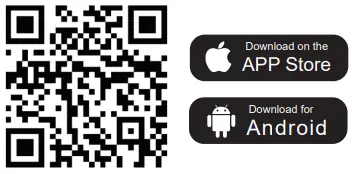
Search “MiCODUS” in iOS APP store or Google Play Store, or just scan the QR code as below to download MiCODUS APP:
 Spionlink - SIM Card Service | Prepaid Data Plan | GPS Tracker Supplier