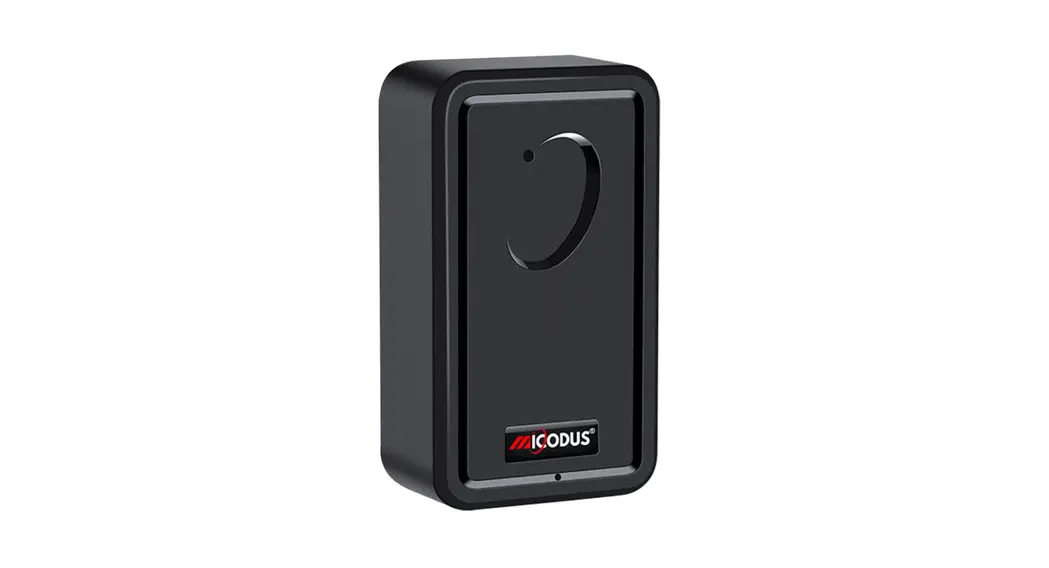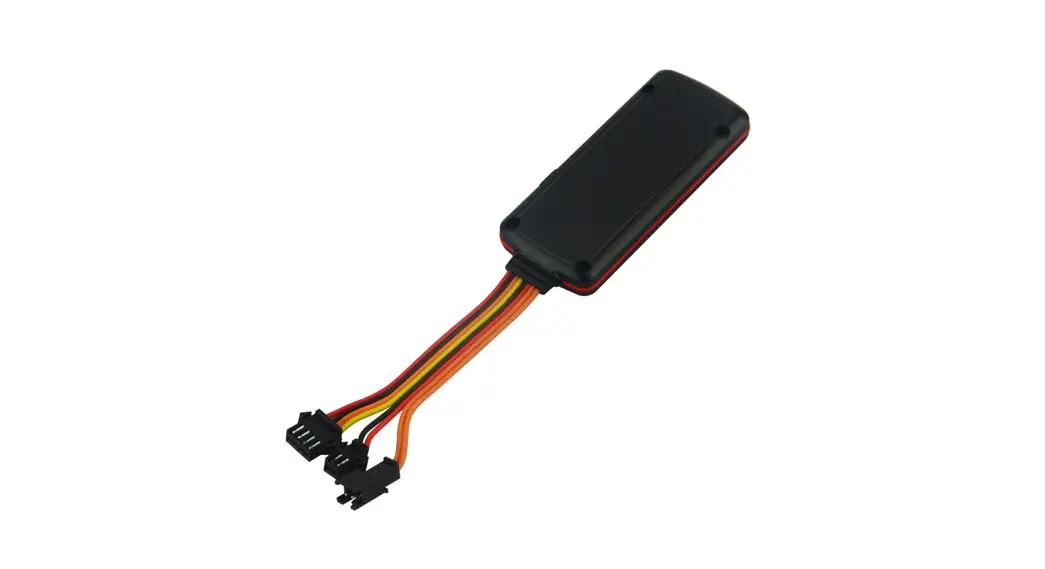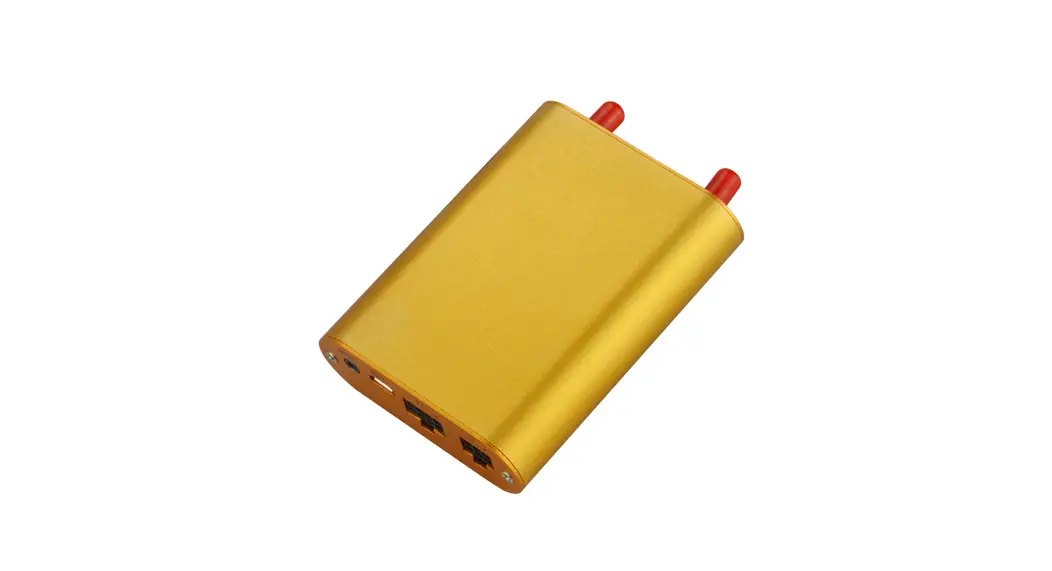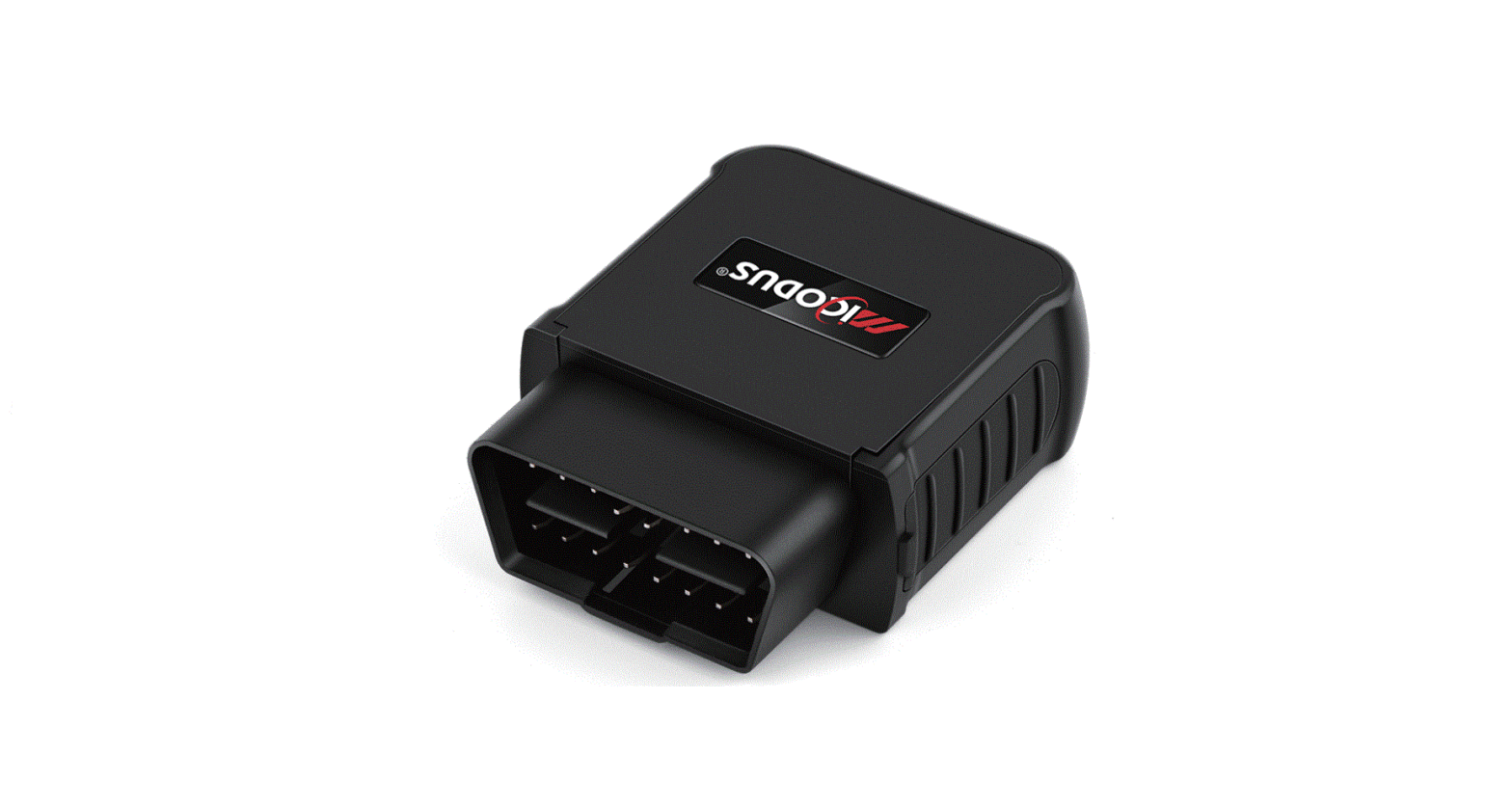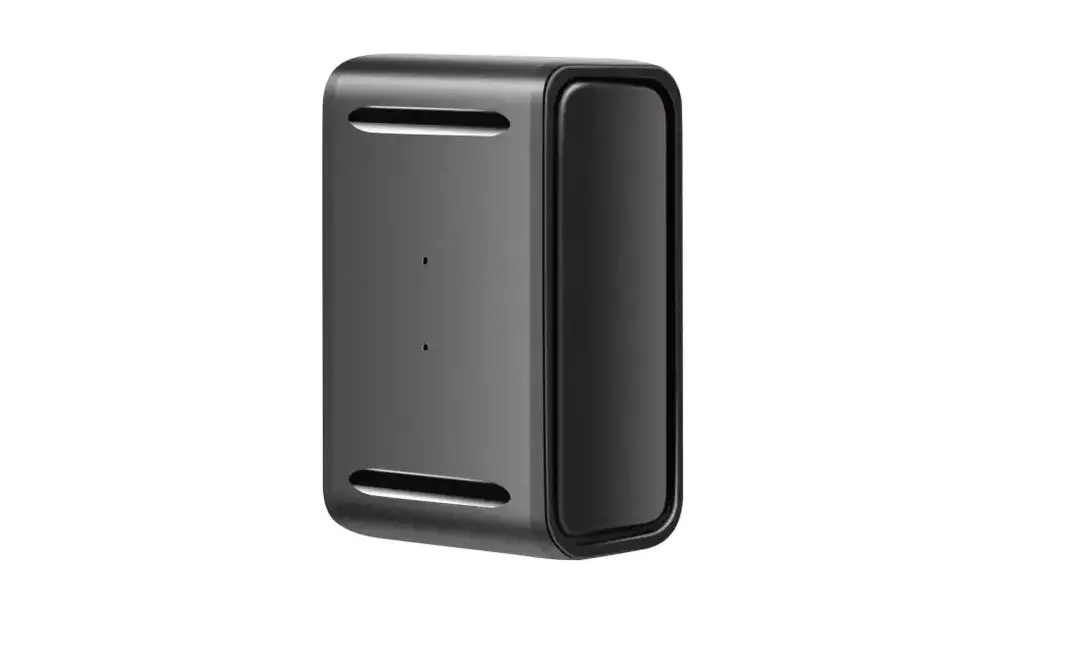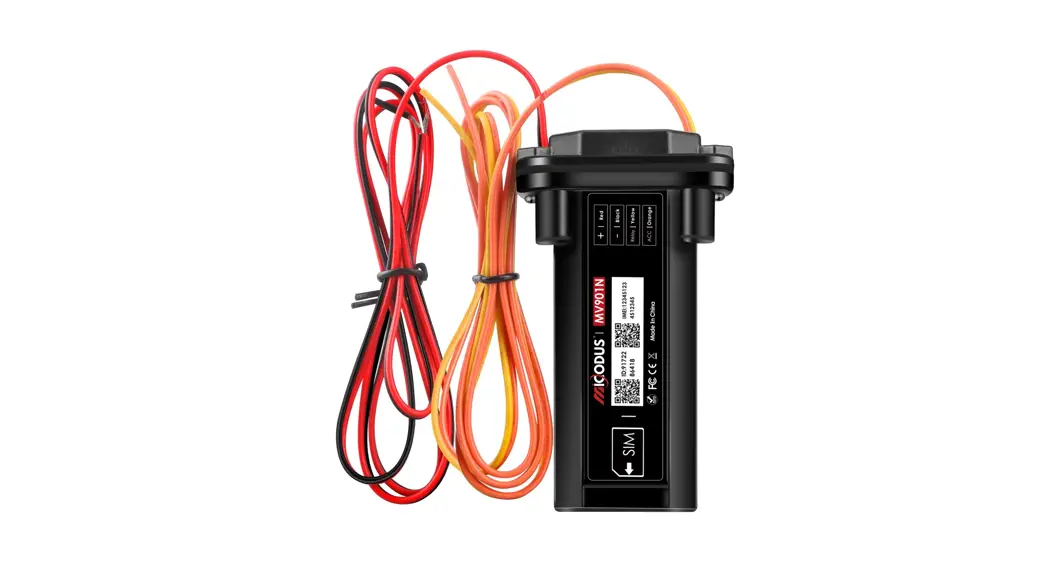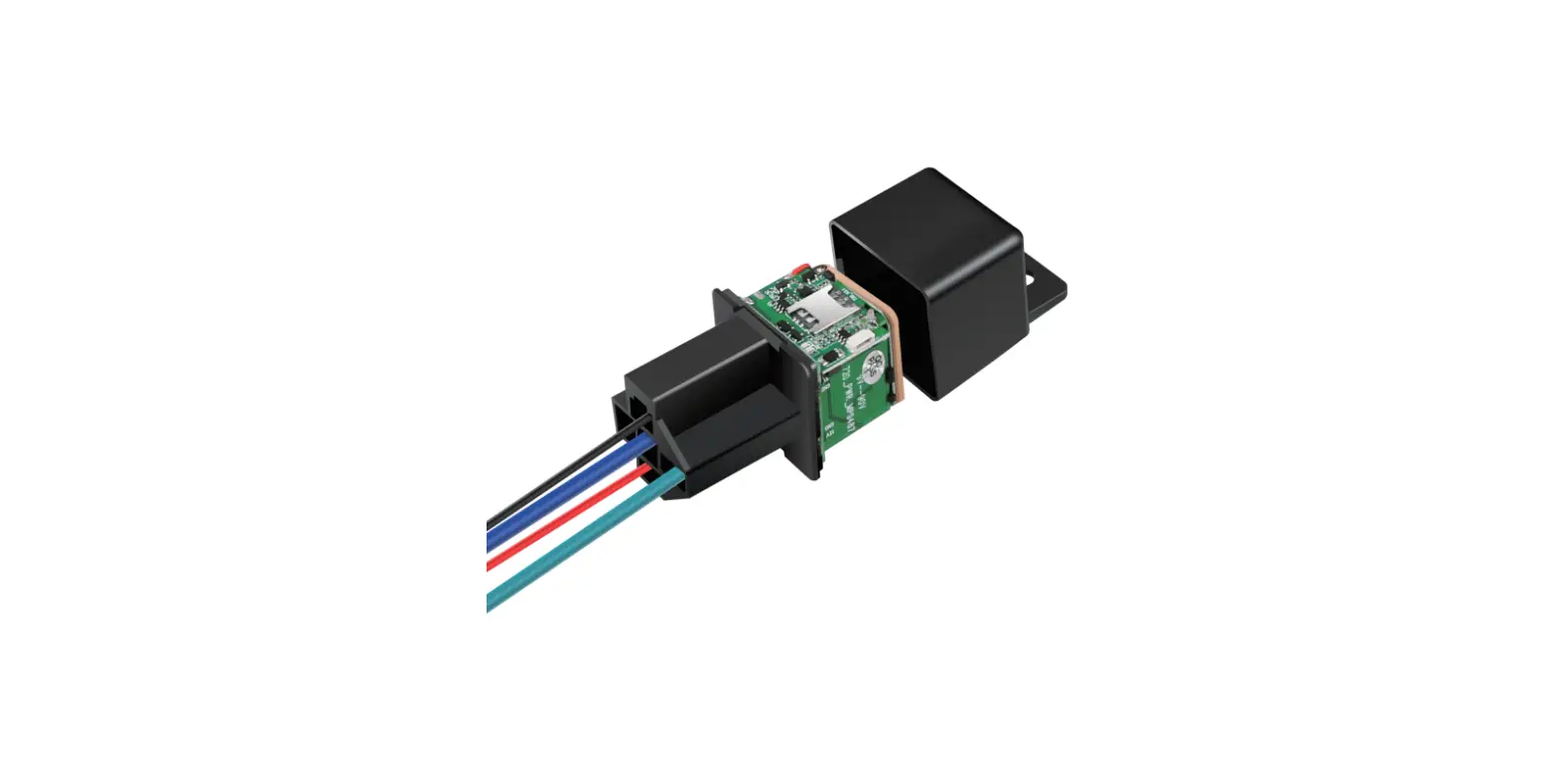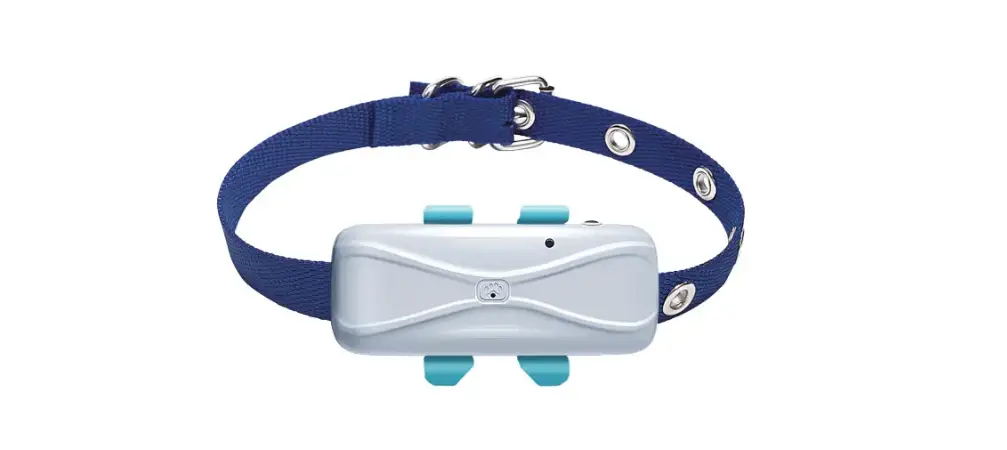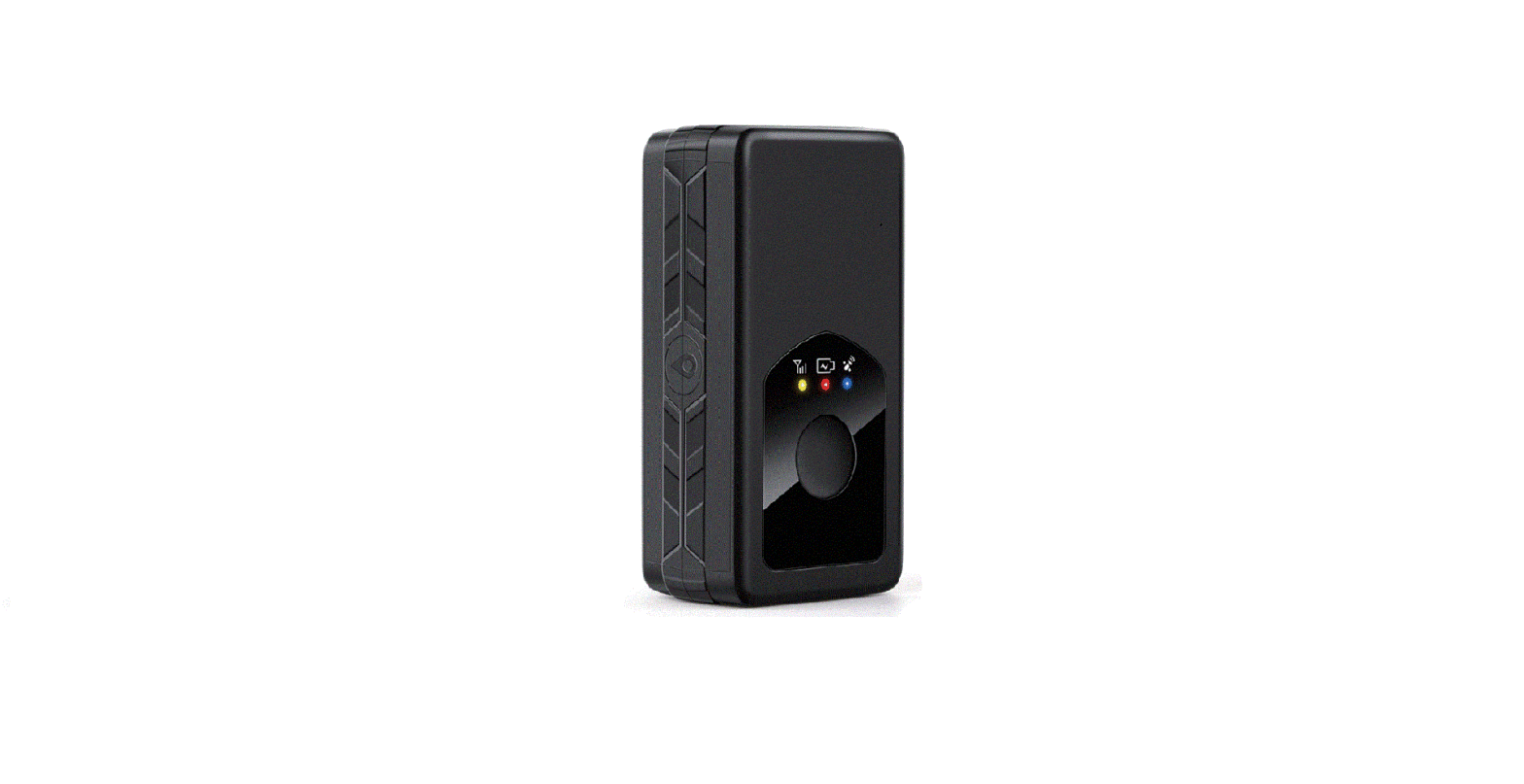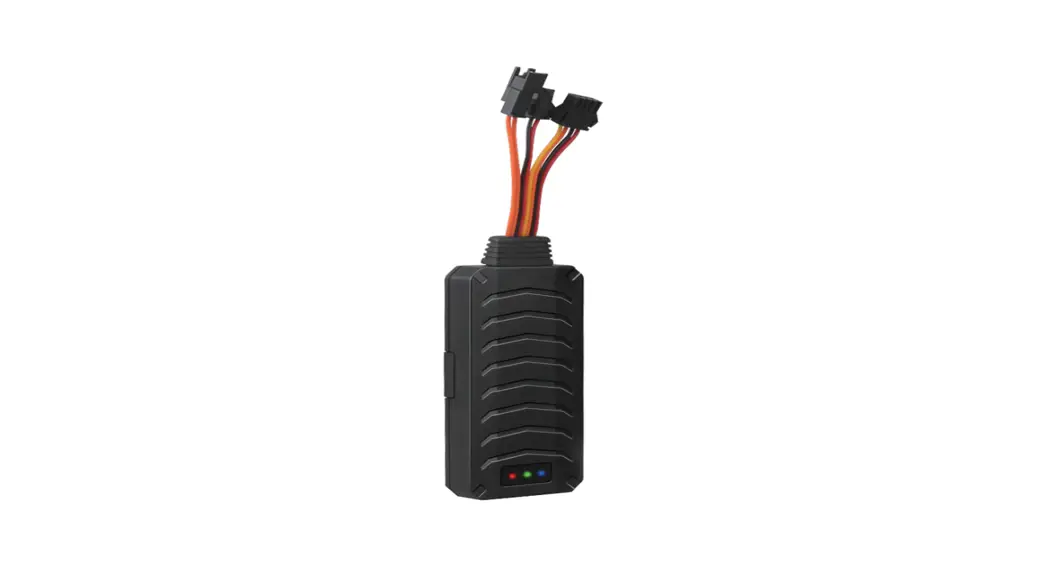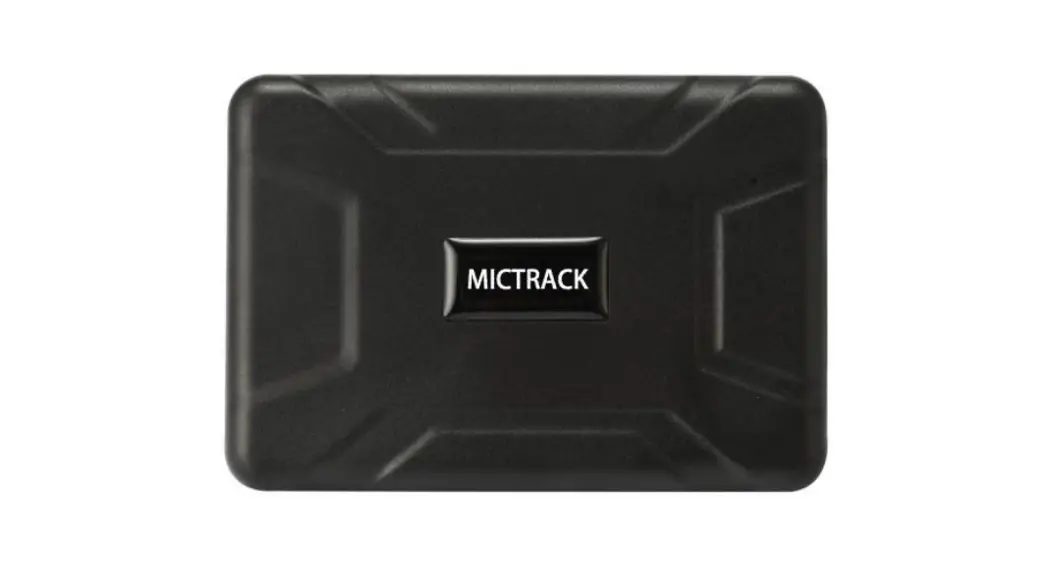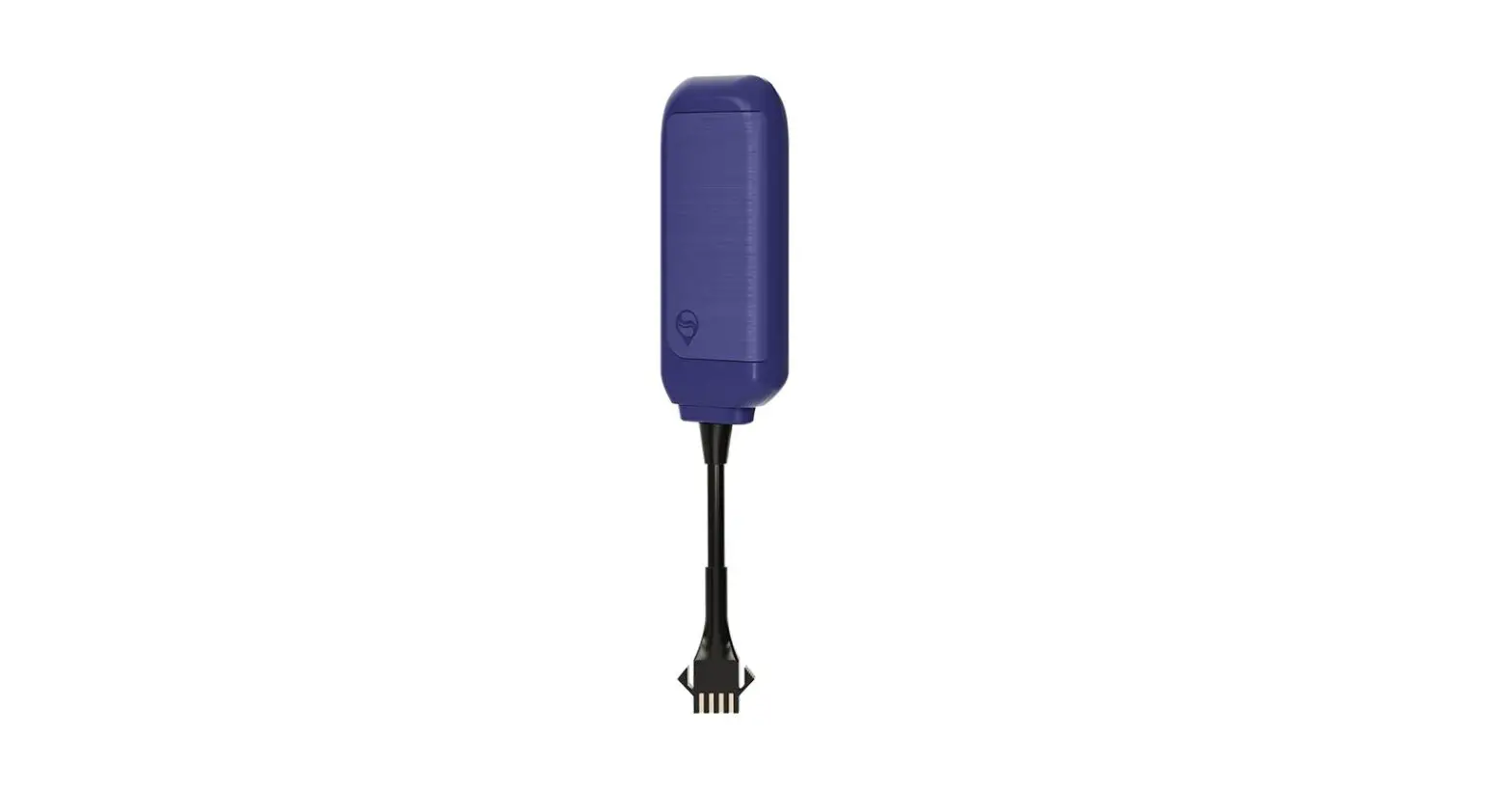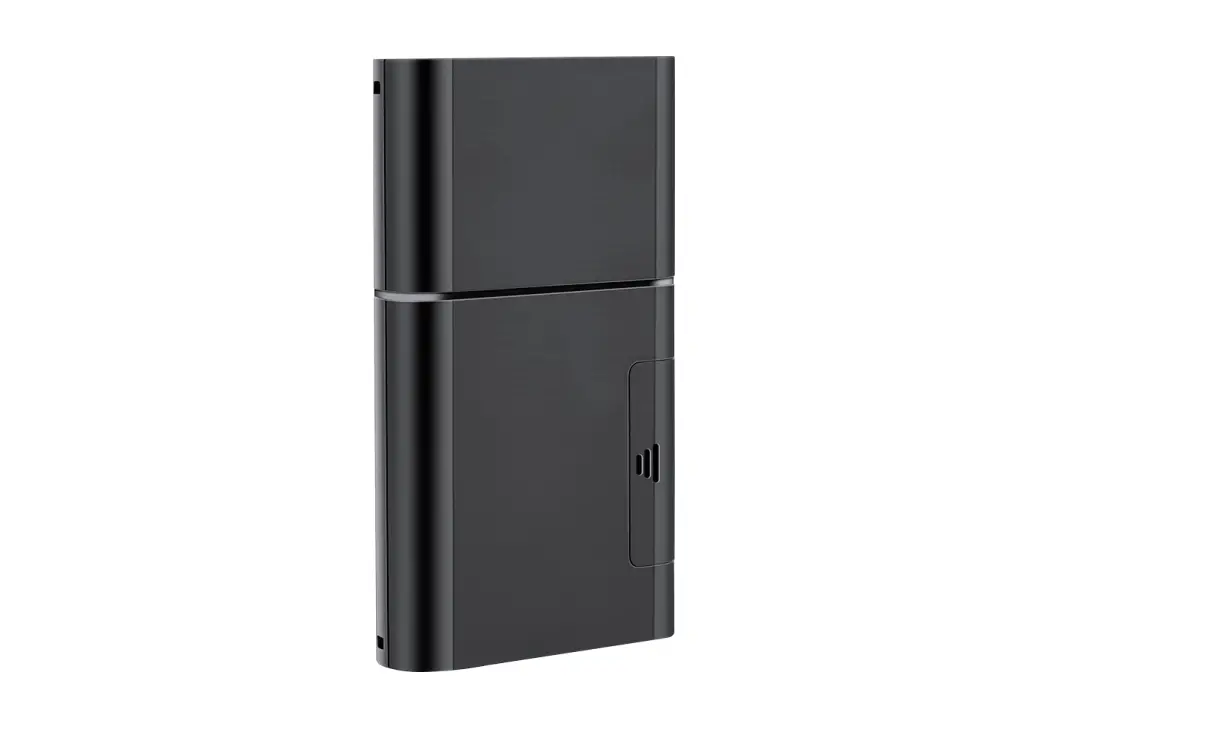
MiCODUS ML208G Wireless 4G GPS Tracker User Manual
Introduction
Welcome to use our device,please read this manual carefully to install and operate device exactly. This user manual is for reference only.If some contents and operation steps are inconsistent with those for the actual product, the latter will prevail.
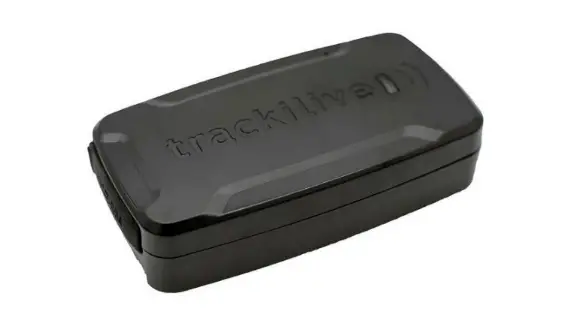
With ML208G Long Standby GPS Tracker, we can monitor your vehicle or asset by GPS satellite positioning system, GPRS/LTE CAT M1/LTE NB1 communication and Internet, remote location of vehicles or asset can be achieved through a powerful service platform. Meanwhile, ML208G also can be a host tracker works Beacons, it can get temperature & humidity data from Beacons by BLE.
ML208G plays a significant role in logistics and asset protection, helping customers to achieve transparent management, reduce costs, ensure safety, and improve efficiency.
Product Features
- Support 2G GSM/EGPRS+4G LTE CAT M1/NB1 (iOT network)
- Globally supports viarious satellite positioning system: GPS/Glonass/Beidou/ Galileo/Qzss
- Triple Positioning Ways and Support AGPS: GNSS+WiFi+LBS
- Built-in temperature sensor, support temperature alarm (Optional)
- Built-in light sensor, detecting opening door/box behavior. Support Light alarm
- One GPS host device can connect 24 beacons at most, it can gather temperature & humidity data from Beacon model by BLE, then upload all data to server regularly
- Buit-in with 5500mAh rechargeable lithium Battery
- Multiple alarms: speed alarm, vibration alarm, shift alarm, light sensor alarm, low power alarm, geo-fence alarm
- Support firmware upgrade by OTA
Specifications
| Device Information | Model | ML208G |
| Weight | 165g | |
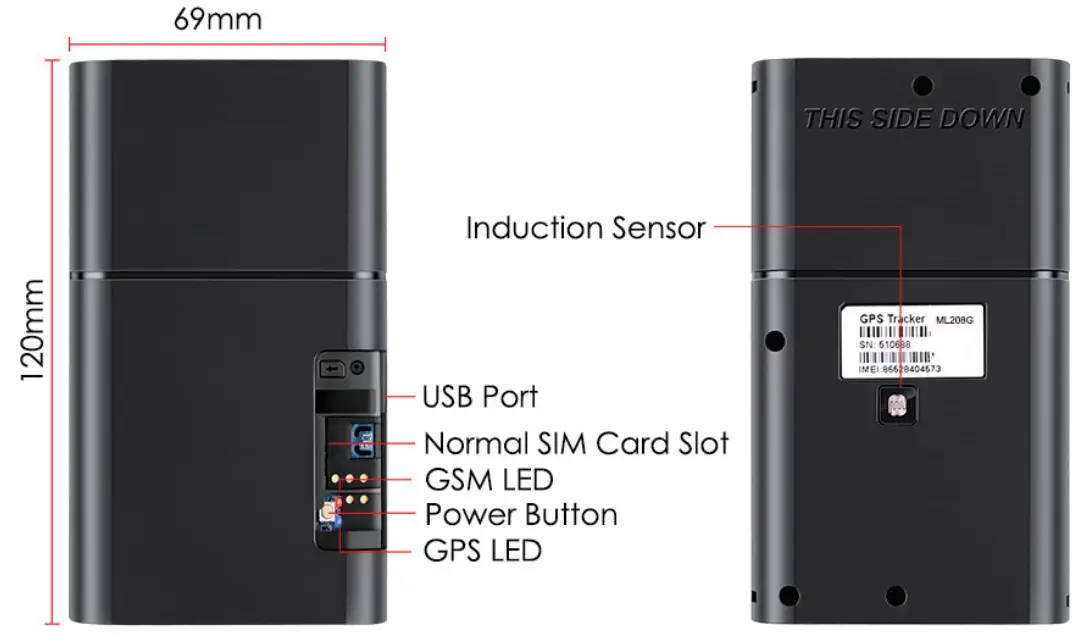
| Dimensions | 120mm(L) * 69mm(W) * 19.5mm(H) | |
| Battery Working Time | 5500mAh Lithium Battery; 3.3-4.2V DC; Charge 5A@1A | |
| Working Parameters | Work Current | LTE data (400mA); |
| GPRS data (500mA) | ||
| Idle(4mA);30uA(power off | ||
| Working Temperature | -20℃ – 60℃ | |
| Working Humidity | 20%-90%RH non-condensing | |
| Cellular Specifications | Working Frequency | 2G GSM/GPRS: 850/900/1800/1900MHz |
| 4G LTE CAT M1: B1/B2/B3/B4/B5/B8/B12/B13/ B18/B19/B20/B25/B26/ B28 | ||
| 4G LTE CAT NB1: B1/B2/B3/B4/B5/B8/B12/B13/B18/B19/B20/B25/B26/ B28 | ||
| SIM Card | Normal Size | |
| Cellular Antenna | Built-in | |
| GNSS Specifications | Hot/warm/cold Start | <3s,<26s,<35s @ Open Sky |
| GNSS Antenna | Built-in Ceramics GNSS Antenna | |
| Positioning Type | GNSS + WiFi + LBS + AGPS | |
| Accuracy | GNSS Accuracy: <2M @ Open Sky | |
| LBS Accuracy: > 200m (Depend on density of base stations) | ||
| GNSS Band | 1575MHz | |
| GNSS Module Certificates | GCF,CE,PTCRB, RCM, FCC, IC, JATE, Anatel, FAC,CCC | |
| Bluetooth | BLE Version | BLE 4.2 |
| BLE Max Connections | 24 Beacons |
Product Structure
How to manage the tracker to get online?
Step 1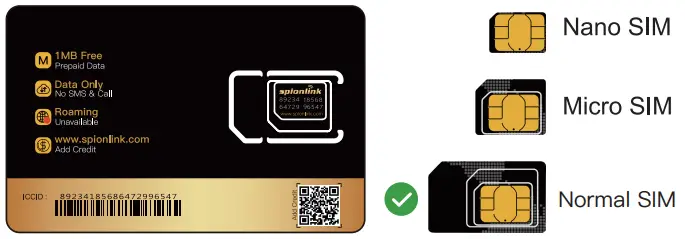
Please get a suitable SIM card from your local place. The SIM card must meet below points:
- It must be compatible with the 2G GSM or 4G LTE CAT M1 network
- Please enable SMS, call, internet data traffic of the SIM card
- Remove the PIN code
- Enable the caller ID display feature
- Use Normal size SIM card for the tracker
- Please inquire the SIM card provider for the exact correct APN information
Step 2 SIM card installation
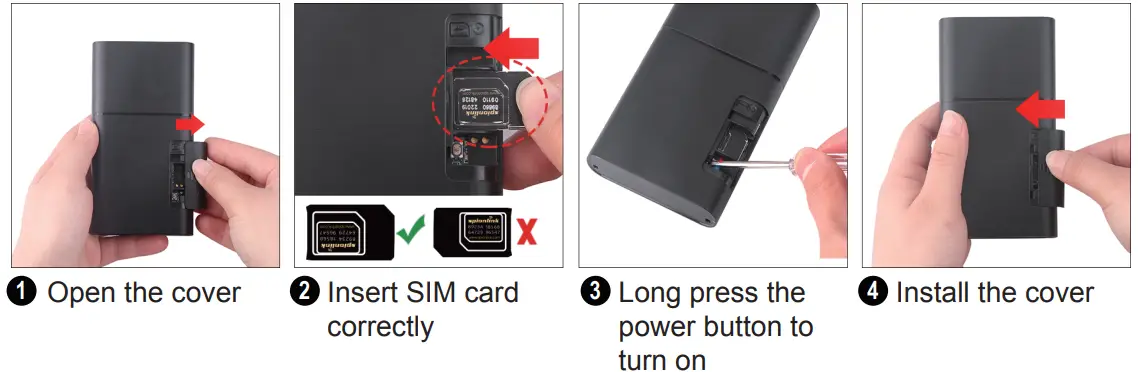
Indicator status description
| LED | Event | State |
| RED LED | Searching for GSM/Cat M1/Cat NB1 network | Fast blinking |
| GSM/Cat M1/Cat NB1 works normally | Slow blinking | |
| BLUE LED | Searching GPS Satellites | Fast blinking |
| GPS works normally | Slow blinking |
Step 4 Configure APN
Please get the exact correct APN name from local SIM card provider. Take the tracker to a good signal place for operation and configure the APN for it as below:
| SMS Comm and Format | Reply | Example | Note |
| APN, Apn Name, User, Password# | SET APN OK | APN ,orange, orange ,orange# | If the SIM card has APN user and APN password, then use this command. |
| APN,ApnName# | SET APN OK | APN,internet# | If the SIM card operator doesn’t have APN user and APN password, then please use this command. |
Note: The APN information is very important, it must be 100% correct to match with the sim card of the tracker, if you configured wrong APN, the tracker also will reply “SET APN ok” but it will can’t get online!
Package Content
GPS Main Unit: x 1
USB Charging Cable: x 1
User Manual: x 1
Genuine Packing Box: x 1
Functions Explanation
a. Remove Alarm
- Conditions: When Device is removed.
- NOTE:
 Light Sensor detect any light will trigger this alarm
 Light Sensor detect any light will trigger this alarm
b. Temperature Alarm
- Conditions: When Temperature exceed set range
- NOTE: You need to set Temperature range value & time.
c. Vibration Alarm
- Conditions: When the Vehicle Vibration occurs.
- NOTE: You need to set vibration sensitivity and time, there is an alarm switch.
d. Geo-fence Alarm
- Conditions: when the vehicle entry / exit / across11 the Geo-fence
- NOTE: You need to set the conditions of crossing fence, fence types and so on.
e. Low Battery Alarm
- Conditions: When device’s battery power falls below a certain value
- NOTE: When above alarm occurs, device will send alarm to service platform, meanwhile send a SMS message to the administrator number if the number is set in advance
Applications
a. Host without BLE beacon
b.Host with BLE beacon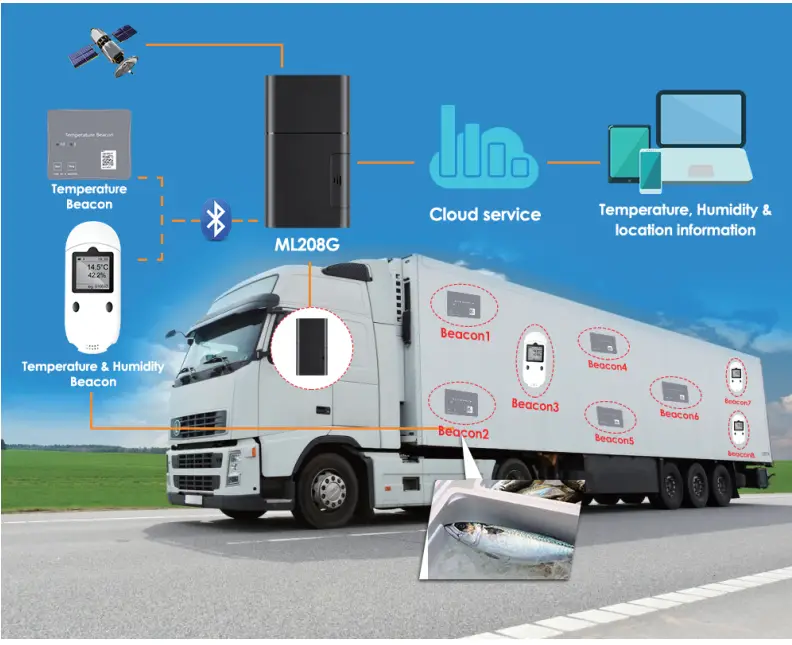
Troubleshooting
| Type | Use |
| Cannot connect platform | Device is never online on the position server when installed at the first time. Please check device:
|
| Offline status | First check if LED indicators are OK, if cannot check them, you can check SIM card following next steps:
|
| No positioned | If the GPS is active, but device cannot be positioned for long time, please check device:
|
| Type | Use |
| Position drift | Serious position drift will be found in places where GPS signal is poor. Please drive the vehicle to the open places. |
| Commands receiving abnormally |
|
Full SMS Commands List
| Command Type | Command Format | Explanation | Example |
| PARAMETER | PARAM# | IMEI, APN, SERVER, COLLECT, LANG,GMT,SAVING | IMEI:354188046487208APN:cmnet SERVER:”tcp://hzgps.sky200. com:32001″ COLLECT:120,300,40,30,4 LANG:EN GMT:E8.00 SAVING:1; |
| STATUS | STATUS# | BATTERY, GPRS,GSM,GPS, ACC, RELAY, POWER, MS | BATTERY:90% GPRS:SUCCESS GSM:HIGH,53 GPS:FIXED,8 MS:LIS3DH; |
| VERSION | VERSION# | IMEI, IMSI, ICCID, SYSTEM, VERSION, BUILD TIME | IMEI:354188046487208 IMSI:9460040890315878 ICCID:898602B8191750035878 SYSTEM:M6000_V1.8.7 VERSION:MXAPP_V2.0.6 BUILD:Oct 28 2017 16:19:22 |
| Command Type | Command Format | Explanation | Example |
| STATISTICS | STATE | [MILEAGE] The mileage (in km) [BOOTUP COUNT] The boot-up count[UPLOAD AMOUNT] Total amount of upload data[DOWNLOAD AMOUNT] Totalamount of download data [POWER TIME] Accumulative time when power is on[ACC TIME] Accumulative time when ACC is on[GPS TIME] Accumulative time when GPS is on | MILEAGE:0.36(km) BOOTUP:13 UPLOAD:0KB DOWNLOAD:0KB POWER:0D01:25 ACC:0D02:28 GPS:0D01:25 |
| WHERE | WHERE# | [LATITUDE] The latitude (in degrees)[LONGITUDE] The boot-up count [COURSE] The moving course [SPEED] The moving speed(in km/h)[DATETIME] Total amount of upload data | Lat:N22.55552 Lon:E113.94014Course:0.0 Speed:0.2km/hDateTime:2019-05-02 22:19:14 |
| ADDRESS | POSITION# | The address | 1027 Flatbush Ave, Brooklyn, NY 11226, USA |
| GOOGLE MAPS LINK | 123 | The google URL and other information | |
| RESET | RESET# | This command requests to reboot device. | |
APN | APN,[APN],[USERNAME], [PASSWORD]# | a. APN,CMNET# (if no name & Password)b. APN,internet,internet,internet# (if have name & Password) | |
| APN? | Check the current APN | ||
SERVER | SERVER,”URL:Port]” | a. SERVER,”TCP://hzgps.sky200. com:32001”#b. SERVER,”UDP://hzgps.sky200. com:32008”# | |
| SERVER? | Check the current server information | ||
| GMT | GMT,[E/W],[HOUR],[MINUTE],[DST]# | [E/W] Which globe —E: East W: West[HOUR] Hour part of time difference — -12 ~ 12 [MINUTE] Minute part of time difference—0,15,30,45 | Examples: a.GMT,E,8# b.GMT,W,9,30# |
| GMT? | Check the current time zone | ||
| Command Type | Command Format | Explanation | Example |
LOCATION COLLECTION | COLLECT,[Interval], [Distance],[Turn], [Active],[Quantity]# | [INTERVAL] The time interval (in seconds)[DISTANCE] The running distance (in meters)[TURN] The turning angle (in degrees)[ACTIVE] The time interval when device is moving/active (in seconds) [QUANTITY] The number of cached location packages before they are sent | a.COLLECT,120,200,40,30,1#Device will gather a data per 120s when device is satic, or per 30s when device is moving, or it has more than 200m movement, orit has an 40 ° angel; Upload data package after gathering 1 data.b.COLLECT,0,300,40,30,5#Device will gather a data per 30s when device is moving, or it has more than 300m movement, or it has an 40 ° angel; Upload data packages after gathering 5 data.0 means device will not gather any data when it’s satic c.COLLECT,30# = COLLECT, 30,0,0,30,1#Device will gather data every 30s and upload them after gathering 1 data. Ignore it’s motion state, movement distance and turning angle. |
| COLLECT? | Check the current data upload parameters | ||
| GPS MODULE | GPS,[MODE],[T0], [T1_TOTAL], [T1_WAKING] , [T2_PERIODIC], [T2_WAKING]# | [MODE]0 — ALWAYS ON; 1 — ON/OFF by MOVEMENTS Or ON TIMERS; 2 — ON TIMERS ;3 — ALWAYS OFF [T0]The work time after GPS module is awaken (in seconds)[T1_TOTAL]The total time of phase 1 (in minutes) [T1_WAKING]The work time in phase 1 (in minutes) [T2_PERIODIC]The periodic time of phase 2 (in minutes)[T2_WAKING]The work time in phase 2 (in minutes) [GPS_RUN]The running time from last GPS command (in minutes) | GPS,0# GPS module is always ON. GPS,3# GPS module is always OFF. In the following commands, At least 120s durative static status to confirm device go from moving to static status, GPS module will OFF after this 120s static status:GPS,1# = GPS,1,120,0,0,0,0#GPS module is ON when device is active.GPS,1,120,0,0,60,5#GPS module is ON when device is moving or GPS is ON for 5min every 60min when device is static.GPS,2,120,0,0,60,5#GPS module is circularly ON for 5min every beginning of 60min GPS,2,120,100,10,0,0#GPS module will ON for 10min, then OFF GPS,2,120,100,10,60,5#In the first stage, GPS module will ON for 10min, then OFF 90min, the whole time of this stage is 100min. In the second stage, GPS module will ON for 5min every beginningof 60min and cycling |
| GPS? | Check the current GPS setting | ||
| Command Type | Command Format | Explanation | Example |
| HBT | HBT,[HBT]# | This command requests to change the heartbeat timer. Defines the idle time before device originates a heartbeat package in TCP session. | HBT,3#Set the heartbeat package upload interval to 3min, it will prevent communication channel being taken back by operator if the channel don’t have data transmit for long time. |
| HBT? | Check the current heartbeat information | ||
MILEAGE | MILEAGE,[MILEAGE]# | MILEAGE,2000#Initialize the mileage in device to 2000 km, Mileage will be increased automatically when GPS is fixed. | |
| MILEAGE? | Check the current mileage information | ||
MANAGER | MANAGER,[INDEX], [NUMBER],[ALIAS]# | [INDEX] The index of manager —Integer, 1 – 4[NUMBER] The phone number of manager[ALIAS] The alias of manager | MANAGER,1,13012345678#Add/change the 1st manager to 13012345678 without alias MANAGER,2,13011112222,MUM#Add/change the 2nd manager to 13011112222 with an alias MANAGER,3,13033334444,DADDY#Add/change the 3rd manager to 13033334444 with an alias MANAGER,1#Remove the first managerMANAGER,0#Remove all managers |
| MANAGER,[INDEX]? | [INDEX] The index of manager — Integer, 1 – 4 | MANAGER,1?Return the first managerMANAGER,0?Return all managers | |
SPEED | SPEED,[LOW],[HIGH], [OVER]# | [LOW] The low limit of the speed (in km/h)[HIGH] The high limit of the speed (in km/h)[OVER] The speed threshold (in km/h) over which the device will drive the relay | SPEED,30,0#Enable under-speed warning when speed is less than 30km/h SPEED,0,100#Enable over-speed warning when speed is more than 100km/h SPEED,30,100#Enable both under-speed 30km/h warning and over-speed 100km/m warningSPEED,30,100,120#Enable both under-speed warning and over-speed reaction, Drive relay off when the speed is over 120km/h and recover it when speed under 120km/h |
| SPEED? | Check the current speed setting | ||
| Command Type | Command Format | Explanation | Example |
| MOTION | MOTION,[SENSE], [DELAY]# | [SENSE] The sensitivity, 0 : Disable warning. 1 ~ 9 : Enable warning.1 is the most sensitive, 9 is the least sensitive.[DELAY] The delay time before a warning is emitted (in seconds) | MOTION,2,5#Trigger motion warning when an enough vibration continues 5 seconds MOTION#Disable motion warning |
| MOTION? | Check the current motion setting | ||
| SHOCK | SHOCK,[SENSE]# | [SENSE] The sensitivity (in g) 0 : Disable warning. Non-zero:Enable warning. e.g. 1.7 means that shock warning will be triggered if shock vibration beyond 1.7g. | SHOCK,1.7#Trigger shock warning when a vibration is beyond 1.7g SHOCK#Disable shock warning |
| SHOCK? | Check the current sensitivity setting | ||
| SHIFT | SHIFT,[RADIUS]# | [RADIUS] The radius of shift fence (in meters) 0: Shift fence is disabled >0: Shift fence is enabled.NOTE: This command requests to enable/disable a shift fence in device. Shift fence is an automatic fence.It becomes valid whenever ACC is OFF, and returns invalid when ACC is ON. When ACC is OFF and car moves out of it, a shift warning will be triggered. In order to make it to work, ACC line must be connected correctly. | SHIFT,100# |
| SHIFT? | Check the current shift setting | ||
| RELAY | RELAY,[PATTERN]# | RELAY,1#[PATTERN] is set to 1, the relay command will be executed immediately.RELAY,2#[PATTERN] is set to 2,the relay command will be executed safely. The vehicle is safe only when the speed is lower than 20km/h if GPS is fixed, or the vehicle is stationary if GPS is not fixed.RELAY,0#Recover the relay. | |
| RELAY? | |||
| Command Type | Command Format | Explanation | Example |
| [INDEX] The index of fence — | FENCE,1,OR,113.5,22.5,500#Setup 1st fence (Out-type, Round) round specific position, Radius=500m FENCE,2,IR,113.5,22.5,600#Setup 2nd fence (In-type, Round) round specific position, Radius=600m FENCE,3,CR,113.5,22.5,700#Setup 3rd fence (In & Out type, Round) round specific position, Radius=700m FENCE,4,OS,113.5,22.5,113.8,22.8#Setup 4th fence (Out-type, Rectangle) as a rectangle from 113.25,22.5 to 113.28,22.8 FENCE,5,IS,113.5,22.5,113.8,22.8#Setup 5th fence (In-type, Rectangle) as a rectangle from 113.25,22.5 to 113.28,22.8 FENCE,6,CS,113.5,22.5,113.8,22.8#Setup 6th fence (In & Out type, Rectangle) as a rectangle from 113.25,22.5 to 113.28,22.8 FENCE,7,CR,,,1000#Setup 7th fence (In & Out type, Round) round last fixed position, Radius=1000mFENCE,1# Remove the 1st fence FENCE,0# Remove all fences FENCE,5? Return the 5th fence FENCE,0? Return all fences | ||
| Integer, 0 – 8 | |||
| [FLAG] The type and shape of fence | |||
| — String, each char represents an | |||
| attribution, as following type | |||
| N/A — Fence is disabled | |||
| O — Out-type fence | |||
| I — In-type fence | |||
| C — In or Out fence(Bidirectional | |||
| MOTION,[SENSE], [DELAY]# | / Across)R — Round fenceS — Rectangle fence | ||
| [LNG0],[LAT0] Longitude & Latitude of | |||
| the center of round fence | |||
| [RADIUS] Radius of the round fence | |||
| (in meters) | |||
| [LNG1],[LAT1] Longitude & Latitude | |||
| FENCE | of the left-top corner of rectangle fence[LNG2],[LAT2] Longitude & Latitude | ||
| of the right-bottom corner of rectangle | |||
| fence | |||
| FENCE,[INDEX]? | [INDEX] The index of fence — Integer, 0 – 8 |
Any Questions?
E-mail: [email protected]
Skype: MiCODUS
Download the APP
Search “MiCODUS” in iOS APP store or Google Play Store, or just scan the QR code as below to download MiCODUS APP: