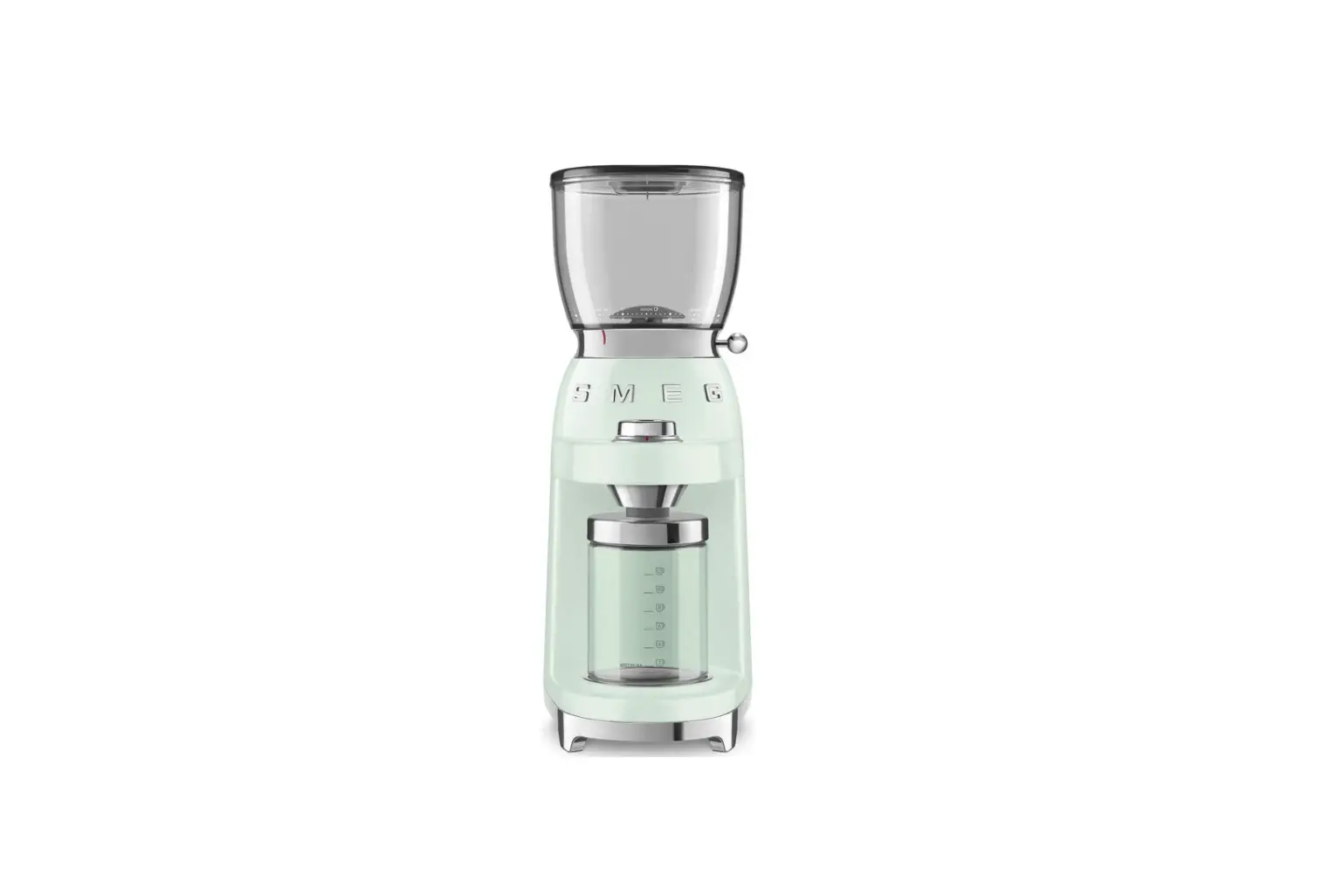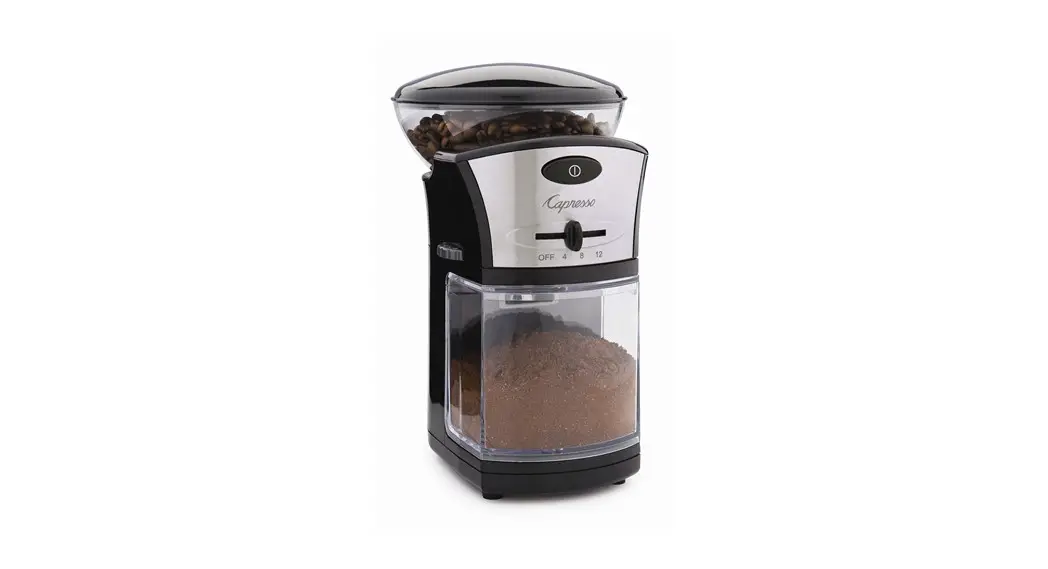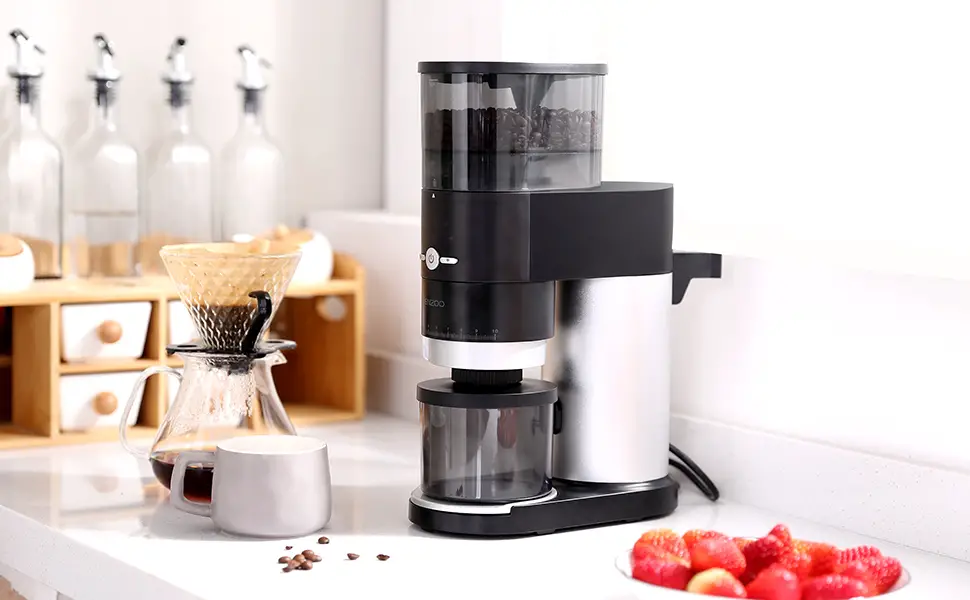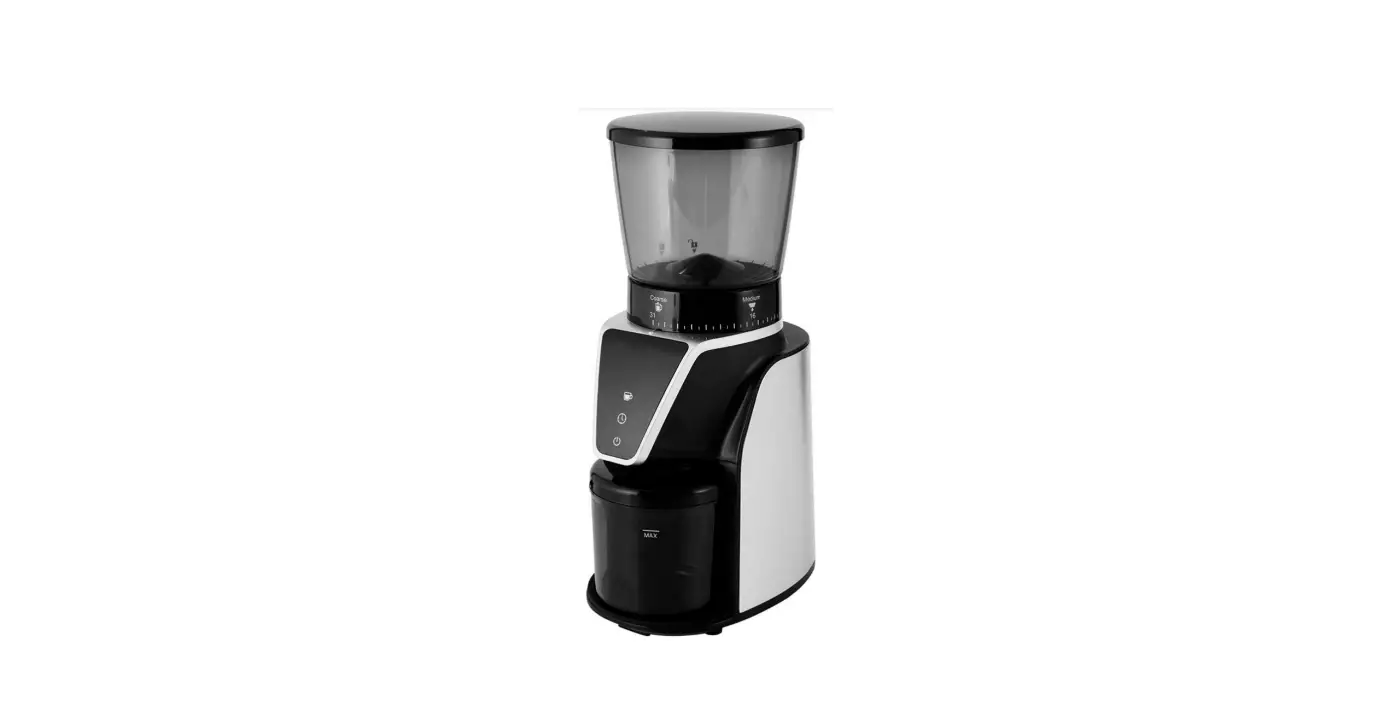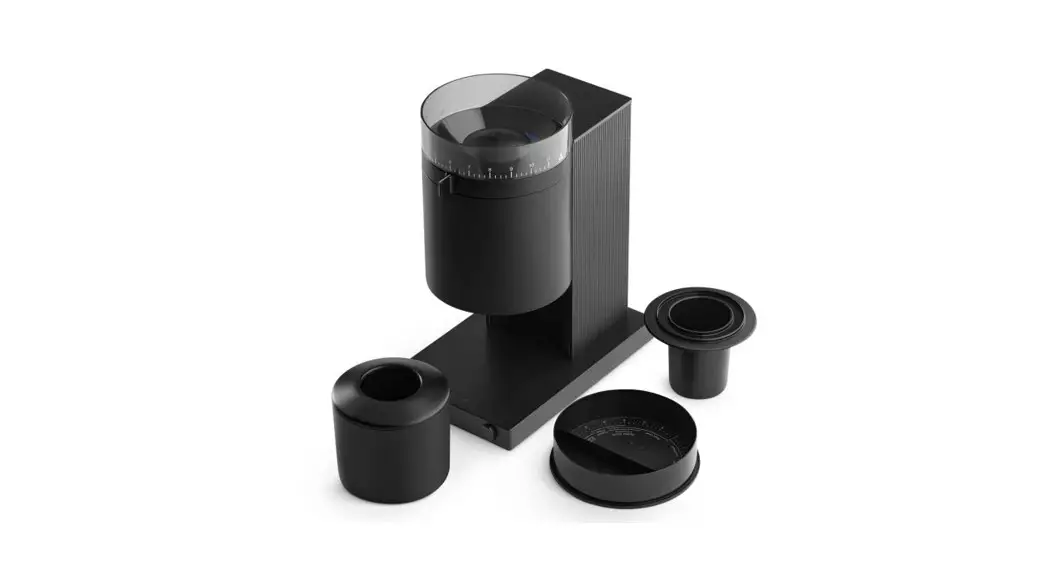
 64mm Flat Burr Coffee Grinder
User Manual
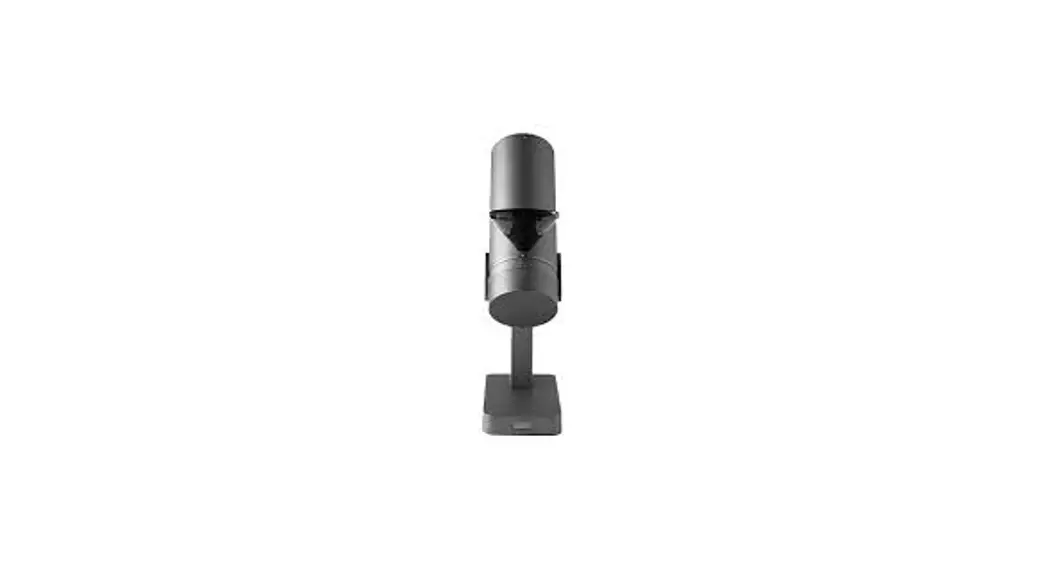
Orbit 64mm Flat Burr Coffee Grinder
Welcome to your new Acaia Orbit.
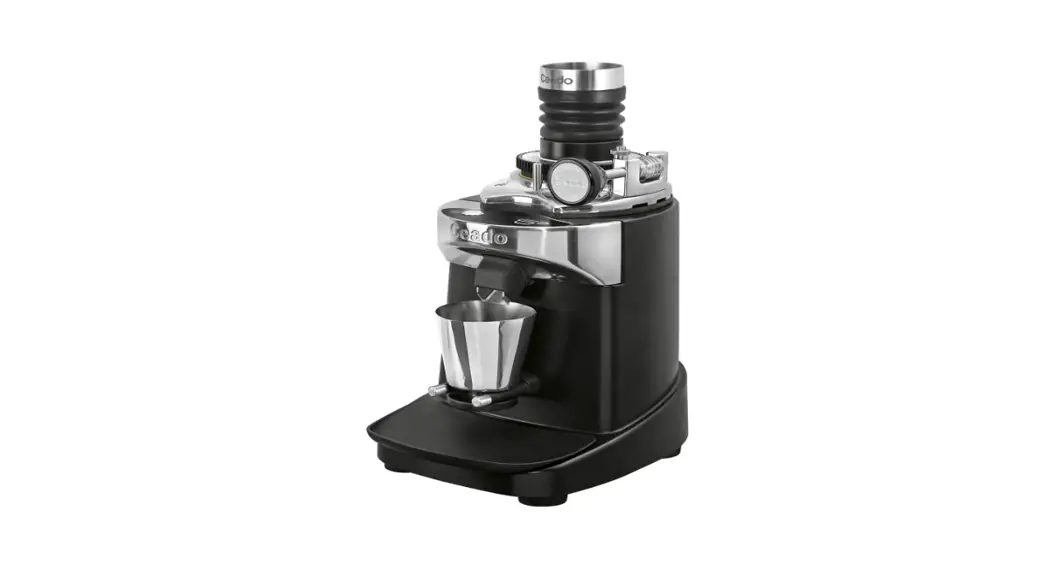
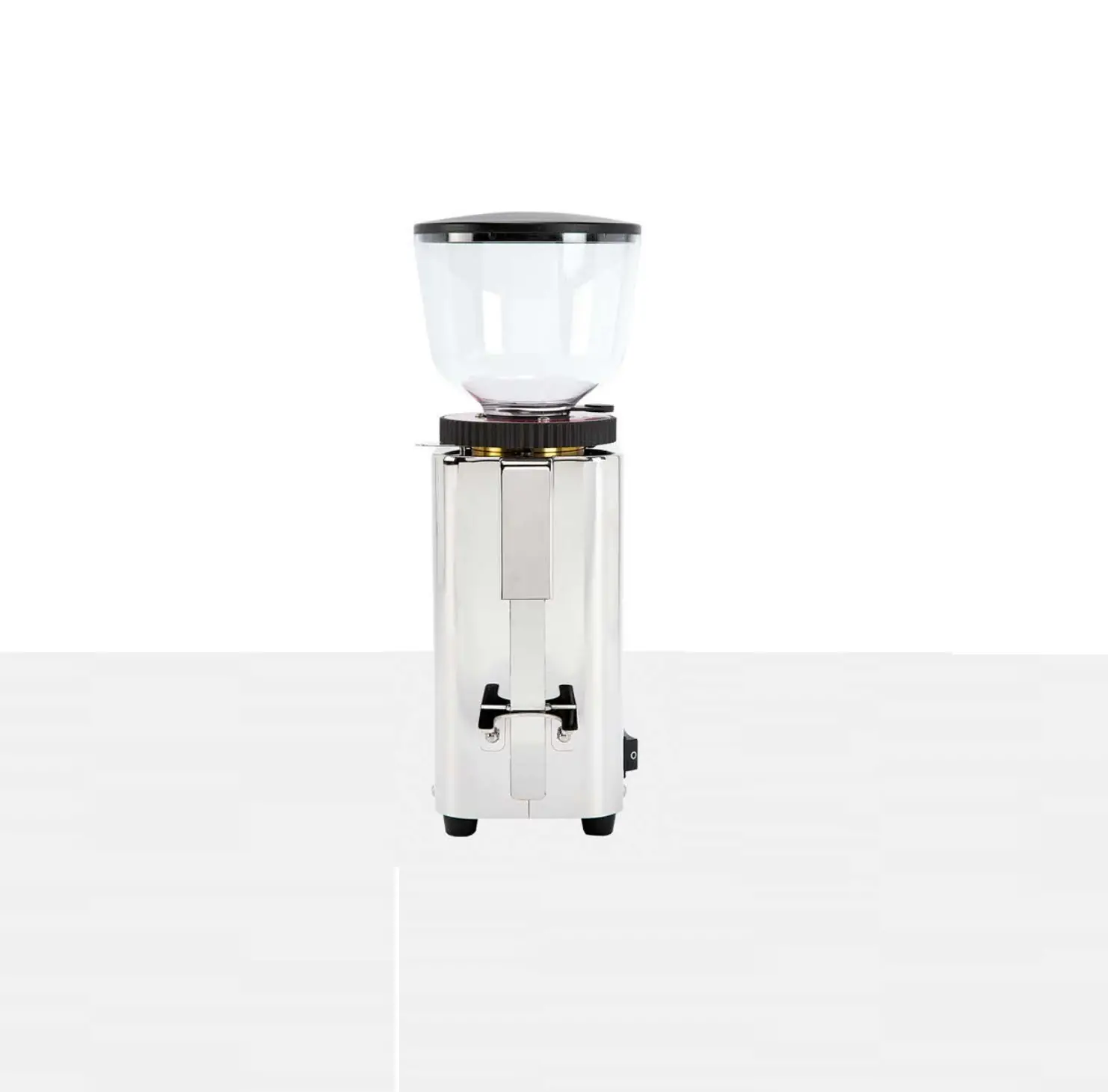
The Orbit is a 64 mm flat burr grinder built with the latest Acaia echnology from the ground up. Designed for home and light commercial spaces, the Orbit is convenient and versatile. It will optimize your workflow and offer a coffee grinding experience like never before.
The stepless grind size adjustment dial is intuitive and precise. With the built-in auto reverse cleaning process and a knocker, grind retention for single dosing is kept at a minimum.
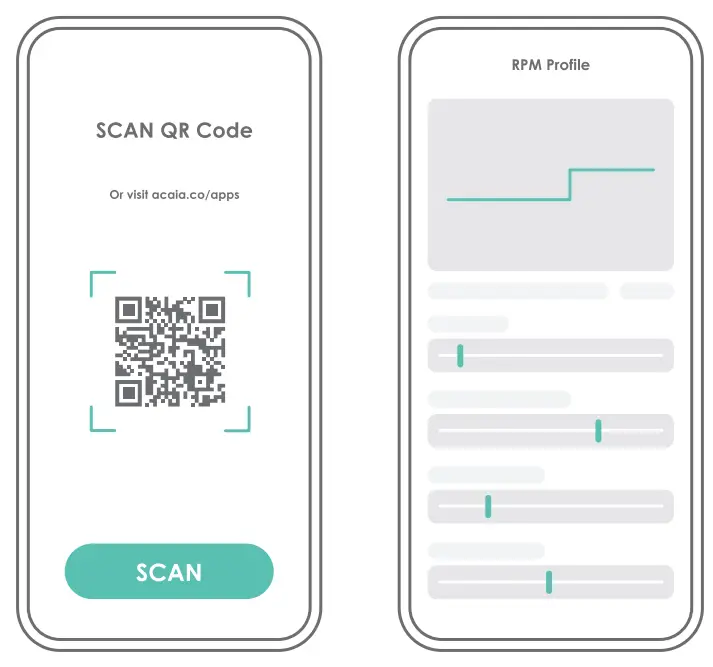
The companion Orbit app gives you full control of the Orbit. You can personalize the button behavior, experiment with RPM profiling, or even control the RPM manually through the app.
The Orbit can also connect with the Lunar and work as a grind-by-weight grinder.
With the Orbit, a new coffee grinding experience awaits. Follow this guide to explore all that it has to offer.
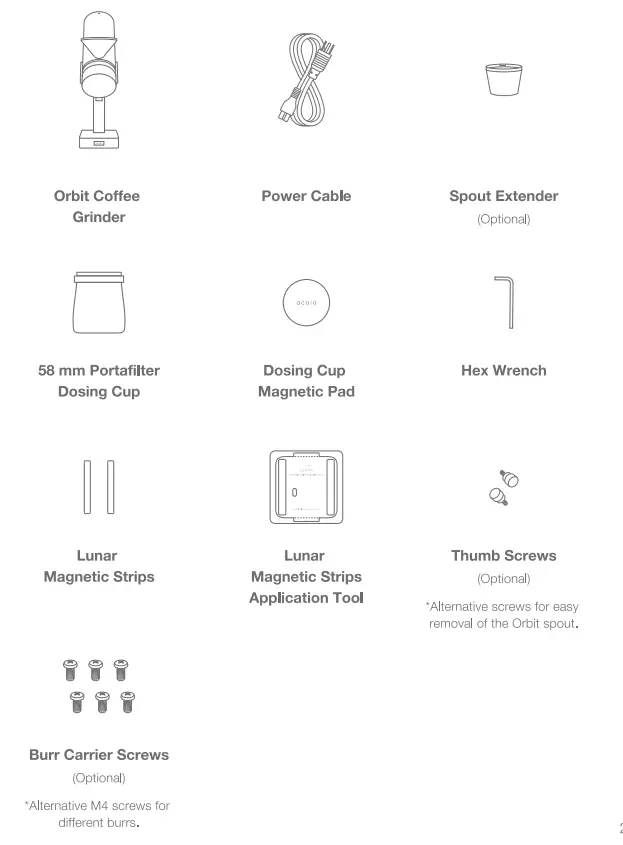
Inside the Package
Setting Up the Orbit
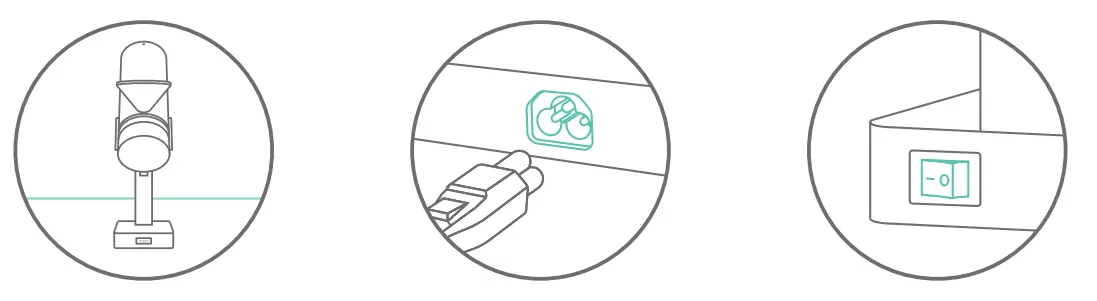 | ||
| Place the Orbit on a flat, stable surface. | Plug into a 100V~240V AC power source. | Turn on the main power switch at the back. |
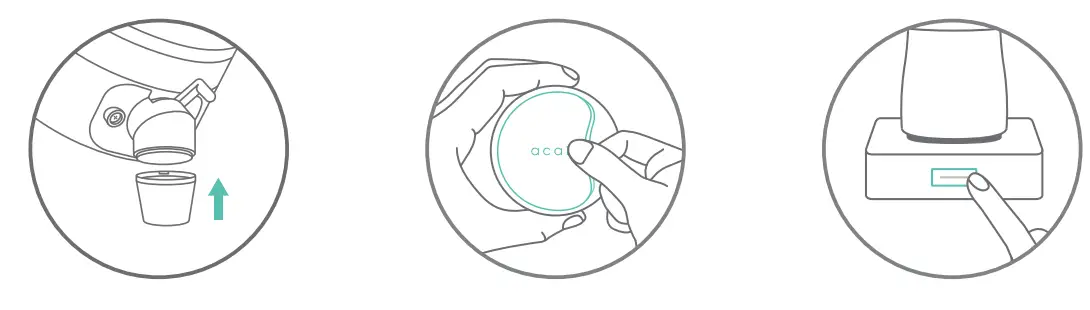 | ||
| Attach the spout extender to the Orbit spout. | Apply the Dosing Cup Magnetic Pad under the 58 mm dosing cup and place the cup on the base of the Orbit. | Click the Orbit button in the front. When the button light is on, you are ready to go. |
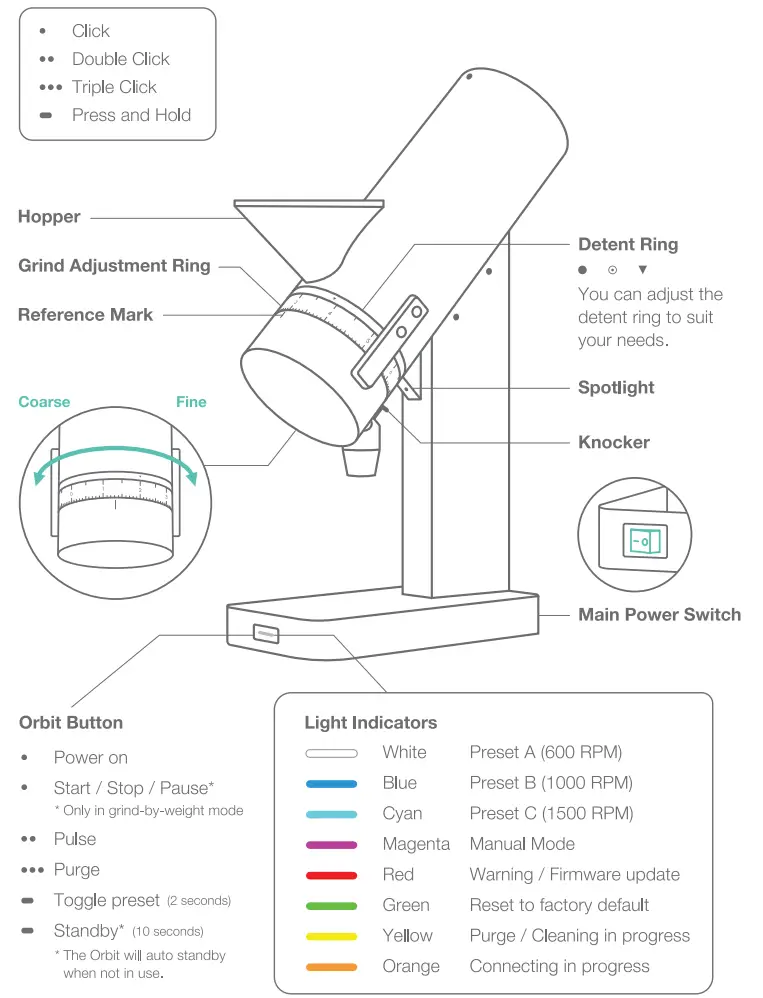
Orbit Overview
Orbit Grinding
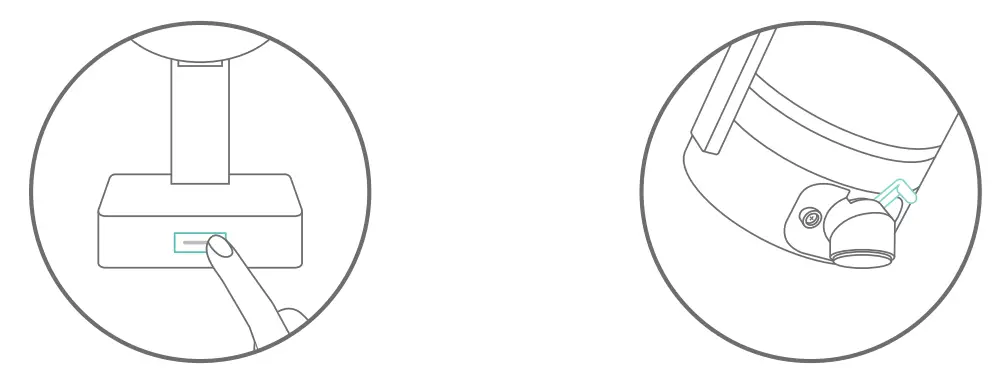 | |
| ¢ Press and hold the Orbit button to toggle between presets A, B, and C. The default RPM of the presets are 600, 1000, and 1500. | ¢ Use the knocker 2 to 3 times to knock out as much retention as possible. |
 | |
| Triple click to purge after grinding. | Use the Orbit App to customize the RPM, auto-purge, and auto-stop settings. |
Note:
To see our single-dose grinding workflow, go to the Orbit videos list on the Acaia YouTube Channel.
Advanced Control with the Orbit App
The companion Orbit App gives you advanced control over the Orbit. You can fully customize your Orbit by adjusting button actions, RPM profiles, and other settings.
Download the Orbit App here:
Grind-by-Weight with the Acaia Lunar
Apply Lunar Magnetic Strips
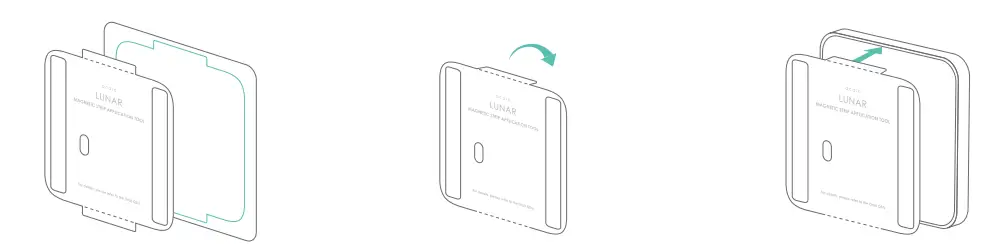 | ||
| 1Remove the Lunar magnetic strips application tool along the dotted line. | 2 Fold the flaps at the top and bottom of the application tool along the dotted line. | 3 Align and insert the application tool flaps into the Lunar base gap. |
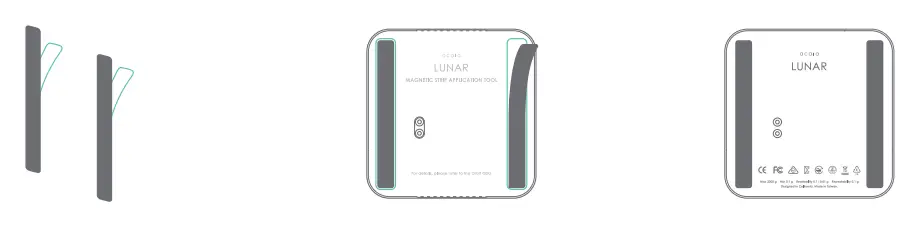 | ||
| Peel off the backing paper of the magnetic strips. | Attach the magnetic strips to the empty slots of the application tool. | 6 Remove the application tool. |
Pairing with the Lunar for the First Time
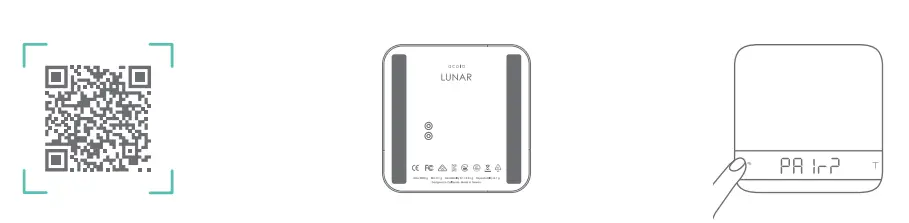 | ||
| Make sure both the Lunar and the Orbit are using the latest firmware via the Acaia Updater App. | 2 Check if the Lunar has the magnetic strips aligned correctly. | 3 When the Lunar is off, press and hold the © button for 10 seconds until the LED displays ‘Pair?’. |
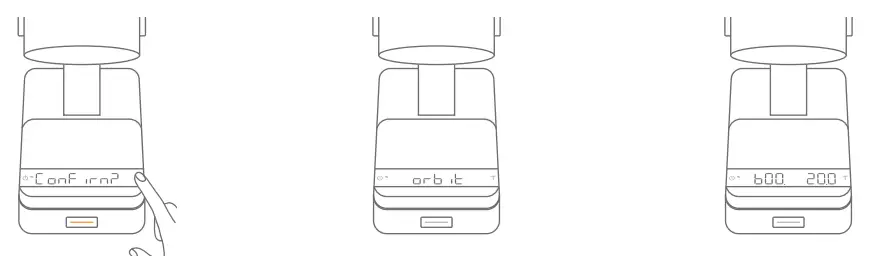 | ||
| Place the Lunar on the Orbit. When the Orbit button turns orange and the Lunar displays ‘Confirm?’, tap T on the Lunar to confirm pairing. | When the Lunar displays ‘Orbit’, the pairing is complete. | You will only need to pair the Lunar once. The Lunar will automatically connect with the Orbit next time it is placed on the Orbit. |
Weight-Based Grinding
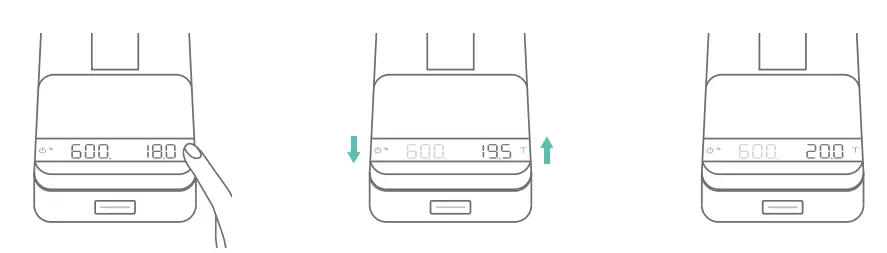 | ||
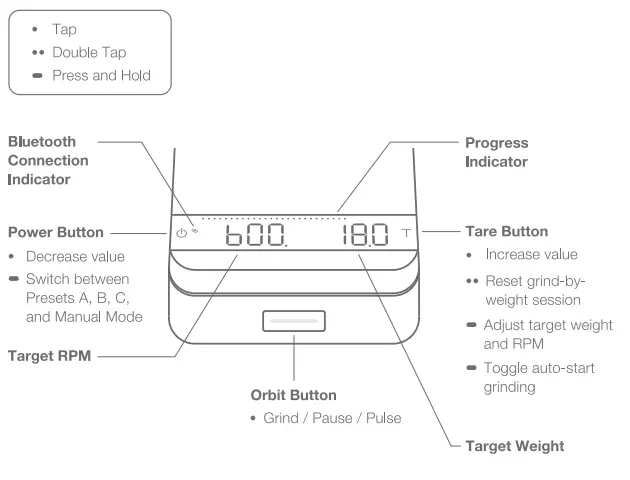
| 1 To adjust the target weight and RPM, press and hold T until the weight starts blinking. | 2 When the weight starts blinking, tap T to increase and tap ¢b to decrease. | 3 When you reach the desired target weight, wait 5 seconds to move on to the RPM adjustment. |
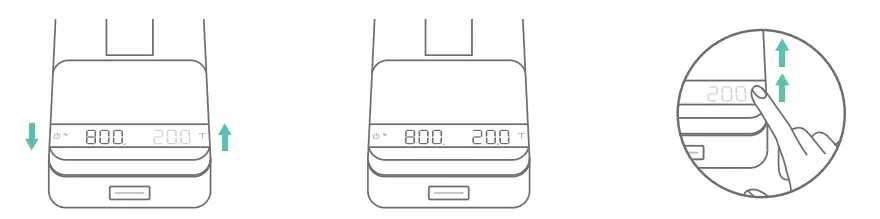 | ||
| 4 When the RPM starts blinking, tap T to increase and tap to decrease. | 5 When you reach the desired RPM, wait 5 seconds to save. | 6 When adjusting target weight and RPM, press and hold T/ to speed up the adjustment. |
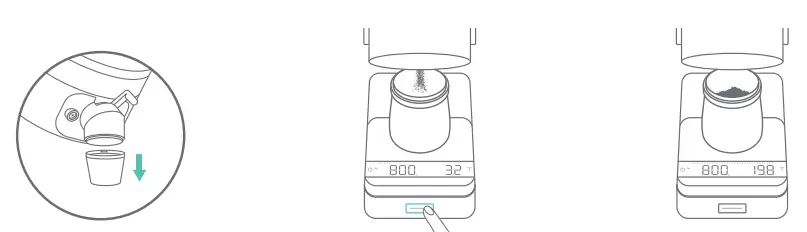 | ||
| 7 Make sure to remove the spout extender from the Orbit spout and place the dosing cup on the Lunar. | 8 To begin the grinding session, click the Orbit button. The Orbit will start grinding until the target weight is reached. | 9 When the target weight is reached, the Orbit will automatically stop the motor. |
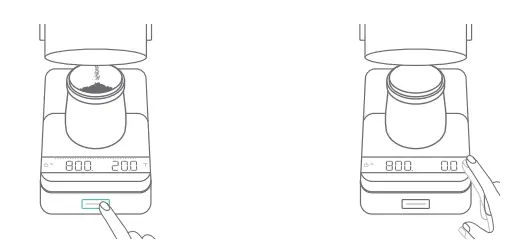 | |
| 1 0 At the end of each session, you can click the Orbit button to pulse a small mount of coffee if needed. | 11 Remove the dosing cup or double tap T to reset the current grind-by-weight session. |
Note: Please check the Orbit Manual for further weight-based grinding information.
Cleaning and Maintenance
Do not immerse the Orbit in water. Use a soft cloth with warm water only to clean the product. Do not use detergent or other chemicals for cleaning as this can damage the product.
- Remove the spout extender and use the knocker multiple times.
- Clean the Orbit spout with a brush and activate purge by triple clicking the Orbit button.
- For more thorough cleaning, please refer to the Orbit Manual.
Reset to Factory Default
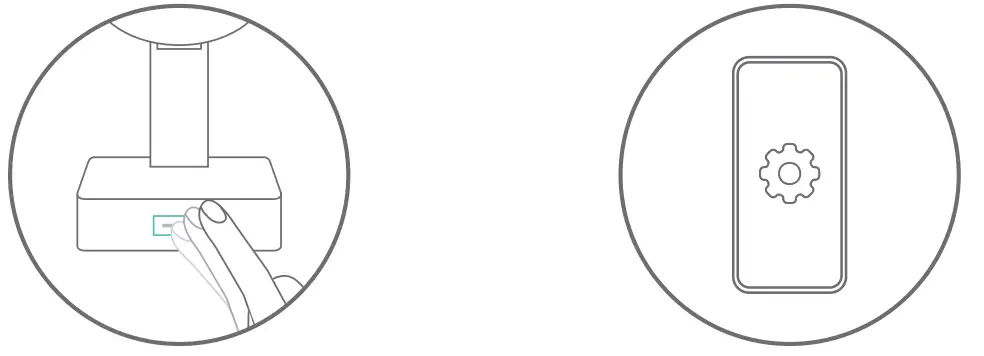
To reset the Orbit to factory default, press and hold the Orbit button in the front while the Orbit is in standby mode.
Hold for about 10 seconds and release the Orbit button when the button turns Green  . Once released, the Orbit will be reset to factory default. You can also reset the Orbit to factory default with the Orbit App.
Enter the Orbit Firmware Update Mode
To enter the Orbit firmware update mode, press and hold the Orbit button in the front while the Orbit is in standby mode.
Hold for about 15 seconds and release the Orbit button when the button turns from Greento Red  . Once released, the Orbit will enter firmware update mode.
1-Year Limited Warranty
Acaia products that are purchased in the US have a limited 1-year warranty. This warranty covers all defects in materials and workmanship (parts and labor) including free ground transportation to and from our repair facility within the US. This warranty does not apply to damage that results from improper use, lack of cleaning, abuse, or normal wear and tear. Purchases from unauthorized dealers will not be covered by warranty.
E-mail us at [email protected] if you need any assistance. Acaia will contact you to determine the problem and see if it can be fixed quickly and easily.
Register online at acaia.co/product-registration
For products that are purchased in the US and shipped or taken out of the country, the customer has to contact the original vendor for repair or service in case the grinder fails. The customer is responsible for paying the international freight charges and any duties for replacement parts or grinders that Acaia may send. The customer is also responsible for any labor required to repair their grinder if it is outside warranty coverage.
For products that are purchased outside the US, the warranty, support, and service will be provided by the international reseller you purchased from. If you purchase a grinder from a reseller outside of the country you live in, you may be responsible for any cost related to shipping and/or repair service. The customer is also responsible for paying the freight charges and any duties for the replacement products that the original vendor or Acaia may send to you.
The high-quality workmanship of Acaia products bearing the Acaia trademark is guaranteed by Acaia Corporation, USA.
Find Help in Your Language
 acaia.co/manuals/orbit
Need help? Contact us at [email protected]