
Google Assistant Set-Up Guide

Google Assistant
a. To set up Google Assistant
- Connect your headphones to your mobile device
- Set up Google Assistant using your mobile device*:
On your AndroidTM device, press and hold the home button to open Google Assistant and follow the on-screen instructions. *Only available on Android.
NOTE:
Google Assistant is available on eligible Android 6.0* devices or later. *Works on Lollipop, Marshmallow, and Nougat Android Phones with Google Play Services, >1.5GB of memory and 720p or higher screen resolution.
For more information on what Google Assistant can do, visit: assistant.google.com/platforms/headphones
b. To use Google Assistant
Function | What to do |
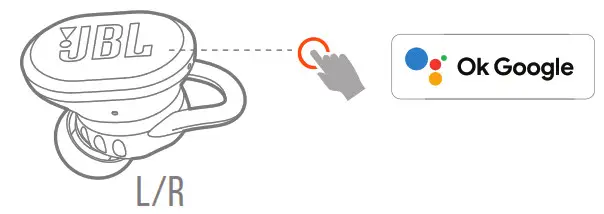
| Talk to Google Assistant | TAP AND HOLD THE ACTION BUTTON TO BEGIN. Requires pairing with eligible phone and internet connection. For examples of questions and things you can do, visit: https://assistant.google.com/platforms/headphones |
| Get your notifications | DOUBLE-TAP THE ACTION BUTTON. |
| Stop Google Assistant | TAP ONCE THE ACTION BUTTON. |
| Reply to a message (where available) | AFTER RECEIVING A MESSAGE NOTIFICATION, TAP AND HOLD THE ACTION BUTTON TO RESPOND. When you’re done, release the button. |
NOTE:
- Google, Android, and Google Play are trademarks of Google LLC.
- Google Assistant isn’t available in certain languages and countries.
- If you want to turn on or off Google Assistant, please download our JBL Headphones App. You can select under Settings > Voice assistant.