
QUICKSTART GUIDE
SETUP
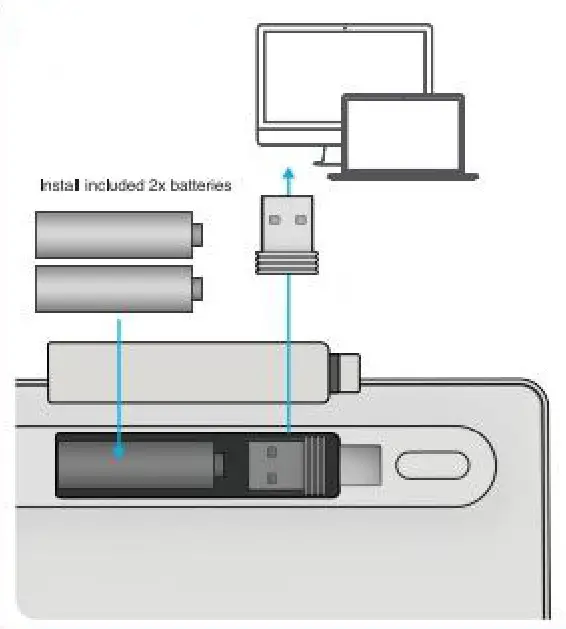
Install 2.40 USS dangle. Press Fn+ 1, then CONNECT (Purple LED will flash until earreeted1 OR Fallow Soo 2 to connect via Bluetooth.
CONNECT
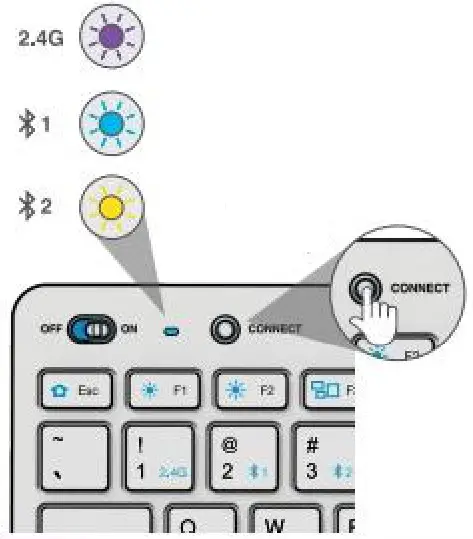
BLUETOOTH PAIRING: Press Fn +2, then CONNECT Blue LED will flash). Then select JLab GO Keys In device Monteath settings
 Press Fn 3, then CONNECT {Yellow LED will (lash). Then select JLab GO Keys In device Blueleath settings
SYRITCH CONNECTION:
(Wicaled by Blue LED flash)
Fn 1 = 2.4G
Fn 42=
Fn 4 3
KEYS
Ent-1/213:
Outlet connection switch
Fn+O/W/E:
Switch so Mac /Android / Windows keyboard layout
MEDIA DIAL
Vol-/+:Rotate
Play/Pause: Stile press
Track Forward: Double press
Track Sack: Press Fold
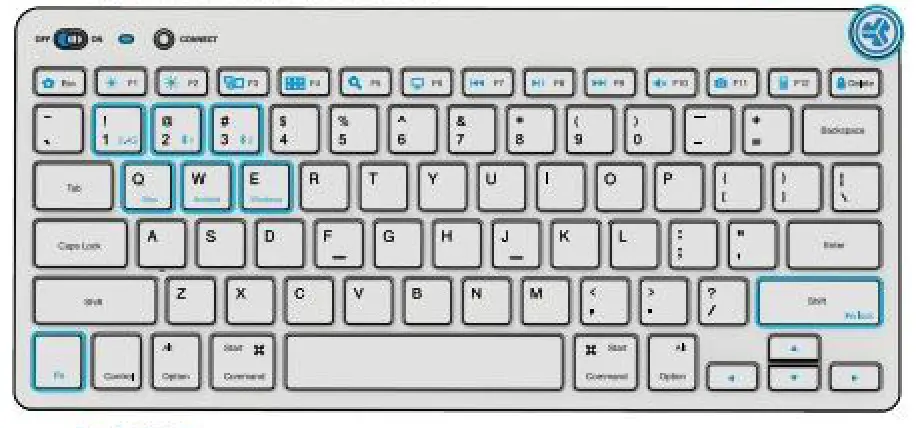
Fn + Right Shin
Lucke Unlock Fn key (SItxtcui key tet on the back’ Calder devises Lasing Bluetooth 3.0 or earlier may simply Go Keys r settings as a series of numbers and letters like 54-46-6a-84-CB-b1 Connect as usual and your device name should update automatically
SHORTCUT KEYS
Fn + | MAC | PC | Android |
Est | WA | Homepage | Hornelmles |
Ft | Brightness – | Brightness – | Brightness – |
F2 | anginas; + | BrgMness+ | Brightness+ |
F3 | Task Control | Task Control | N/A |
F4 | Show Applications | Notification Center | WA |
FS | Search | Search | Such |
FS | Desktop | Dewdrop | N/A |
F7 | TrackBack | TrackBack | TrackBack |
FS | Play/Pause | Play/Pause | Play/Pause |
F9 | Track Forward | Track Forward | Track Forward |
F10 | Mute | Mute | Mute |
Fil | Screcusthor | Screenshot | Screenshot |
F12 | Dashboard | Calculator | WA |
DOS | Screen lock | Screen lock | Screen lock |
QUICK TIPS
- Whey connecting through Bluetooth on Mac/PC/Arktrod. GO Keyboard should be in Bluetooth 1 Of f3luetooth 2 Besting. Press the hold CONNECT button until the 1gM starts blinking. Enter your Bluetooth device settings to connect.
- b is the device is not connecting, Forget me JUib GO Keys’ n you device settings. Ilan oft end the GO Keyboard. Press the hold Me CONNECT button and blink the light to enter pairing mode. Reenter your device settings to repair.
- II the 2.40 USB dongle is not registering my connection, unplug the denote and hen of the GO Keyboard. Turn on the 00 Keyboard and CHICK Press the CONNECT Gordon. LED will flash purple. Plug Me doggie bar* In until LED shows sold due to light.
- Keys We remove. Do not try to remove In any circumstance.
- To clean the keyboard, do not use spray cleaner directly on the keyboard. LighllY NSW a bath or micro**, fabric, and then woe my keyboard
- To completely disconnect all wireless dances and return to factory settings, the press holds “I″+″H″,+″J″+3 second.
FREE GIFT
when you register this product
jlab.com/register
Product updates I How-to tips
FAQs A more
Get for us only No APROVPODPO address
3 MONTHS FREE TIDAL
TIDAL
With productivist controlar
FCC ID:2AYHV-OKEYB
Instrucational videos at:
JLAB.COM/MANUAL
FCC Caution:
This device complies with part 15 of the FCC Rules. Operation is subject to the following two conditions: (1) This device may not cause harmful interference, and (2) this device must accept any interference received, including interference that may cause undesired operation.
Any changes or modifications not expressly approved by the party responsible for compliance could void the user’s authority to operate the equipment.
NOTE: This equipment has been tested and found to comply with the limits for a Class B digital device, pursuant to Part 15 of the FCC Rules. These limits are designed to provide reasonable protection against harmful interference in a residential installation. This equipment generates uses, and can radiate radio frequency energy and, if not installed and used in accordance with the instructions, may cause harmful interference to radio communications. However, there is no guarantee that interference will not occur in a particular installation.
If this equipment does cause harmful interference to radio or television reception,
which can be determined by turning the equipment off and on, the user is encouraged to try to correct the interference by one or more of the following measures:
— Reorient or relocate the receiving antenna.
— Increase the separation between the equipment and receiver.
— Connect the equipment into an outlet on a circuit different from that to which the receiver is connected.
— Consult the dealer or an experienced radio/TV technician for help.
The device has been evaluated to meet general RF exposure requirements. The device can be used in portable exposure conditions without restriction.
FCC ID: 2AHYV-GKEYB for Bluetooth Keyboard
FCC ID: 2AHYV-GODGL1 for Dongle