 Google Assistant
a. To set up Google Assistant
1. Connect your headphones to your mobile device
2. Set up Google Assistant using your mobile device*:
On your Android™ device, press and hold the home button to open Google Assistant and follow the on-screen instructions.
*Only available on Android.

NOTE:
Google Assistant is available on eligible Android 6.0* devices or later.
*Works on Lollipop, Marshmallow, and Nougat Android Phones with Google Play Services, >1.5GB of memory and 720p or higher screen resolution.
For more information on what Google Assistant can do, visit: assistant.google.com/platforms/headphones
b. To use Google Assistant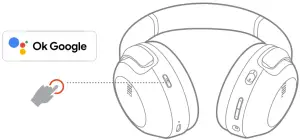
| Function | What to do |
| Talk to Google Assistant | TAP AND HOLD THE ACTION BUTTON TO BEGIN. Requires pairing with eligible phone and internet connection. For examples of questions and things you can do, visit: https://assistant.google.com/platforms/headphones |
| Get your notifications | TAP ONCE THE ACTION BUTTON. |
| Stop Google Assistant | DOUBLE-TAP THE ACTION BUTTON. |
| Reply to a message (where available) | AFTER RECEIVING A MESSAGE NOTIFICATION, TAP AND HOLD THE ACTION BUTTON TO RESPOND. When you’re done, release the button. |
NOTE:
AFTER RECEIVING A MESSAGE NOTIFICATION. TAP AND HOLD THE ACTION BUTTON TO RESPOND. WHEN YOU’RE DONE. RELEASE THE BUTTON.
1. Google, Android, and Google Play are trademarks of Google LLC.
2. Google Assistant isn’t available in certain languages and countries.
3. If you want to turn on or off Google Assistant, please download our JBL Headphones App. You can select under Settings > Voice assistant.
HP_JBL_TOUR ONE_Google Assistant Set Up Guide_Global_CR_V8