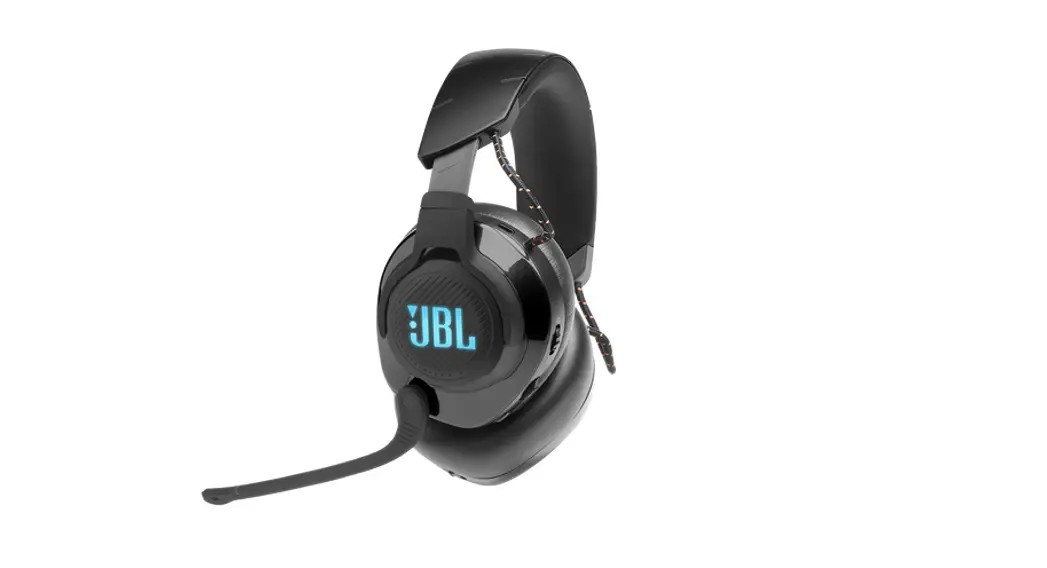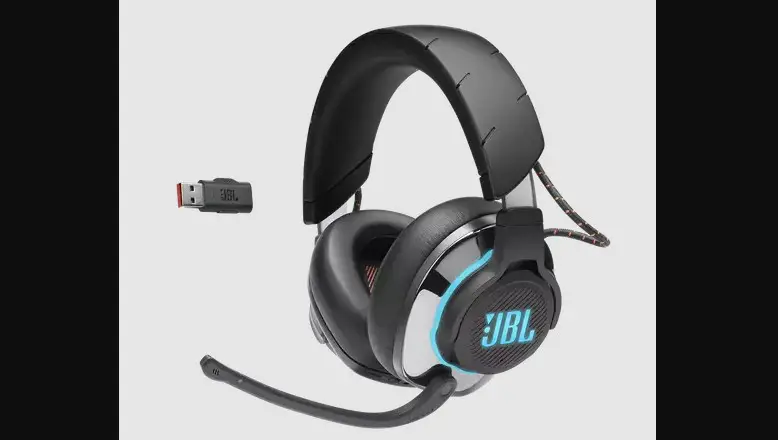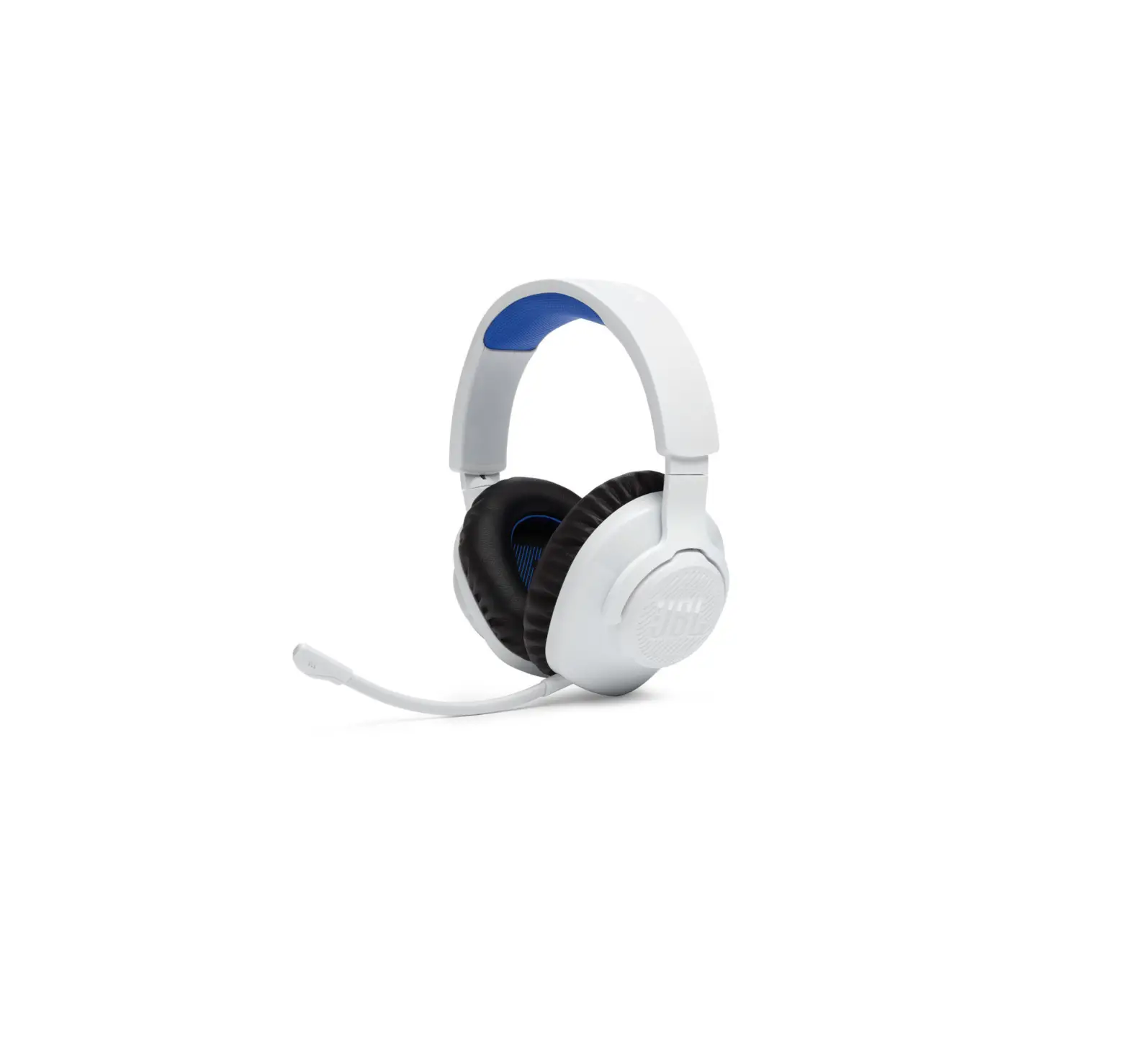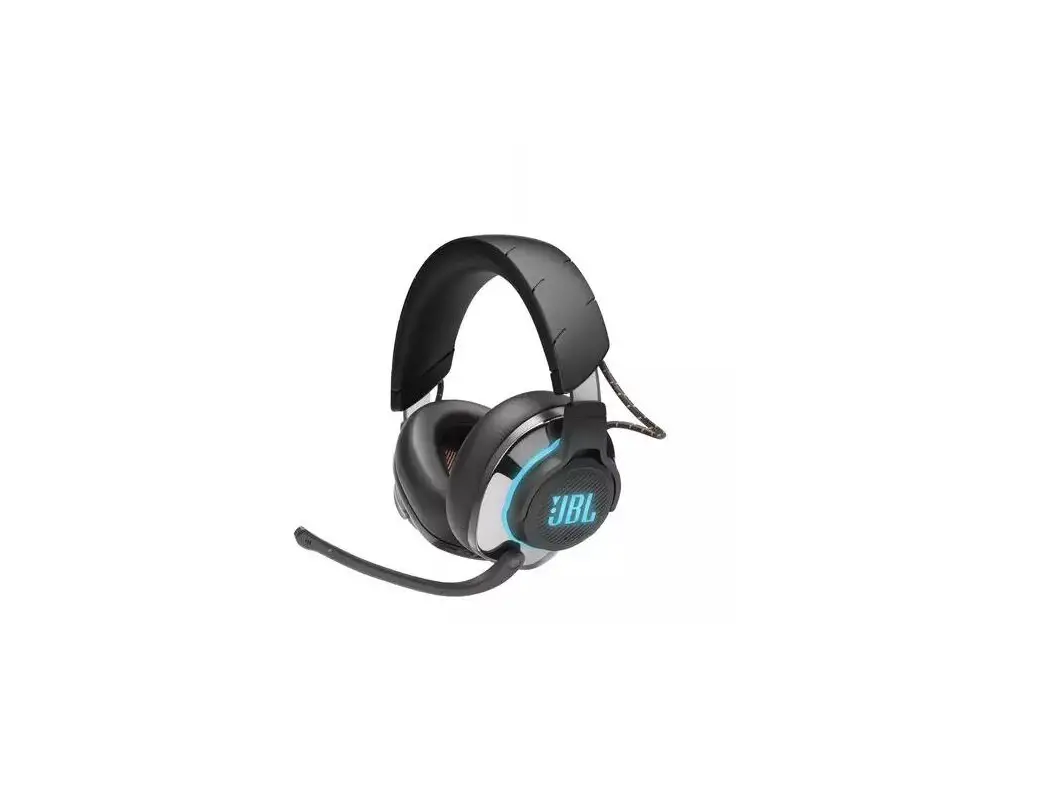
JBL Quantum One Wireless Headphone User Guide
JBL Quantum ENGINE
Download JBL Quantum ENGINE to gain full access to features on your JBL Quantum headsets – from headset calibration to adjusting 3D audio to suit your hearing, from creating customized RGB lighting effects to determining how the boom microphone side-tone works. JBLquantum.com/engine
Software requirements
PLATFORM: Windows 7 / Windows 10 (64 bit) only 500MB of free hard drive space for installation *Always use the latest version of Windows 10 for the most optimal experience on JBL QuantumENGINE
*JBL QuantumSPHERE 360 and DTS Headphone: X V2.0 available on Windows only. Software installation required.
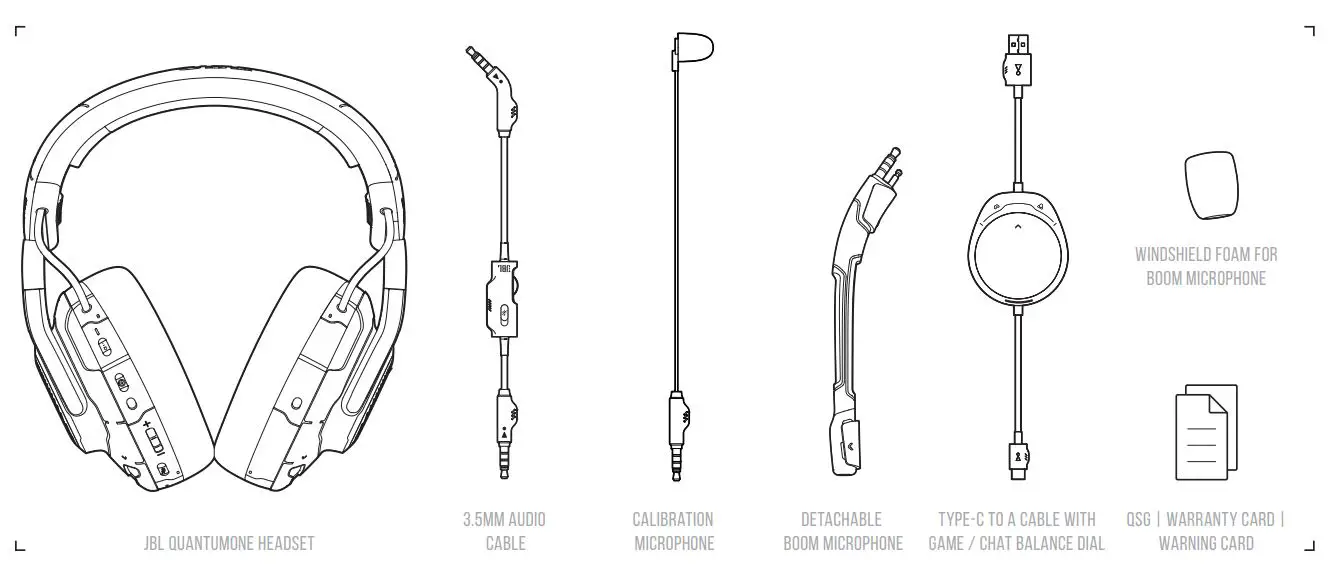
001 WHAT’S IN THE BOX
002 Requirements
JBL QuantumENGINE SOFTWARE REQUIREMENTS
PLATFORM: Windows 7 / Windows 10 (64 bit) only 500MB OF FREE HARD DRIVE SPACE FOR INSTALLATION
System compatibility
PC | Xbox™ | PlayStation™ | Nintendo Switch™ | Mobile | MAC | VR
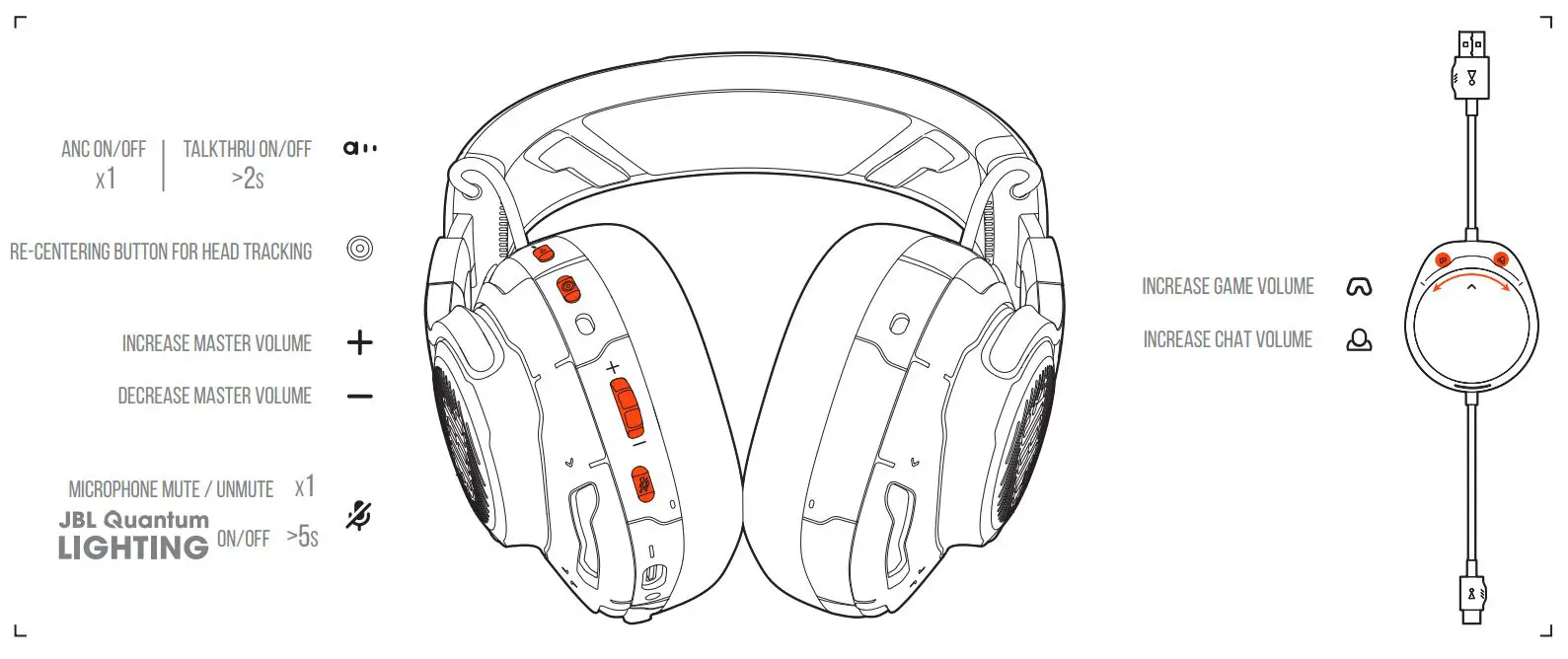
003 OVERVIEW
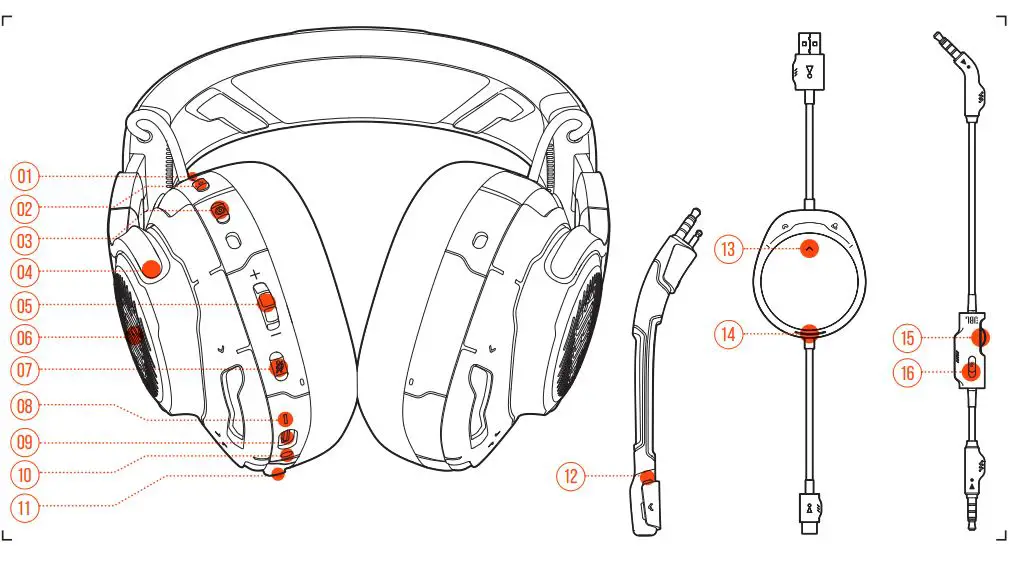
- ANC / TALKTHRU LED
- ANC / TALKTHRU button
- Re-centering button for head tracking
- Flat-fold ear cup
- Volume Control
- RGB Lighting Zones
- Microphone Mute/un Mute
- power status LED
- USB-C port
- 3.5mm Audio Jack
- Boom Microphone Jack
- Detachable boom microphone
- Game audio-chat balance dial
- power status LED
- Volume Control
- MIC MUTE BUTTON 09
004 Calibration microphone
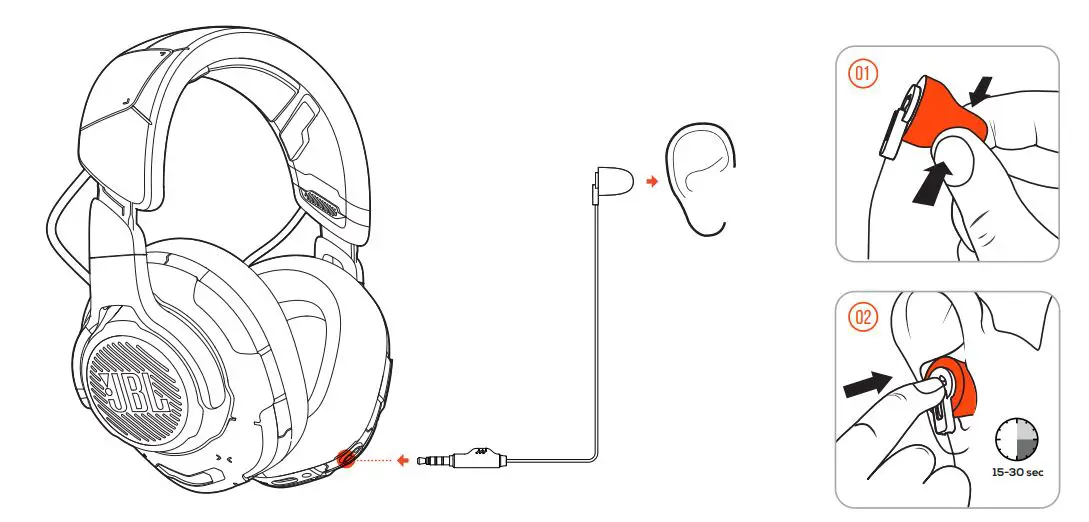
Go to JBL QuantumENGINE for detailed setup instructions.
005 SETUP
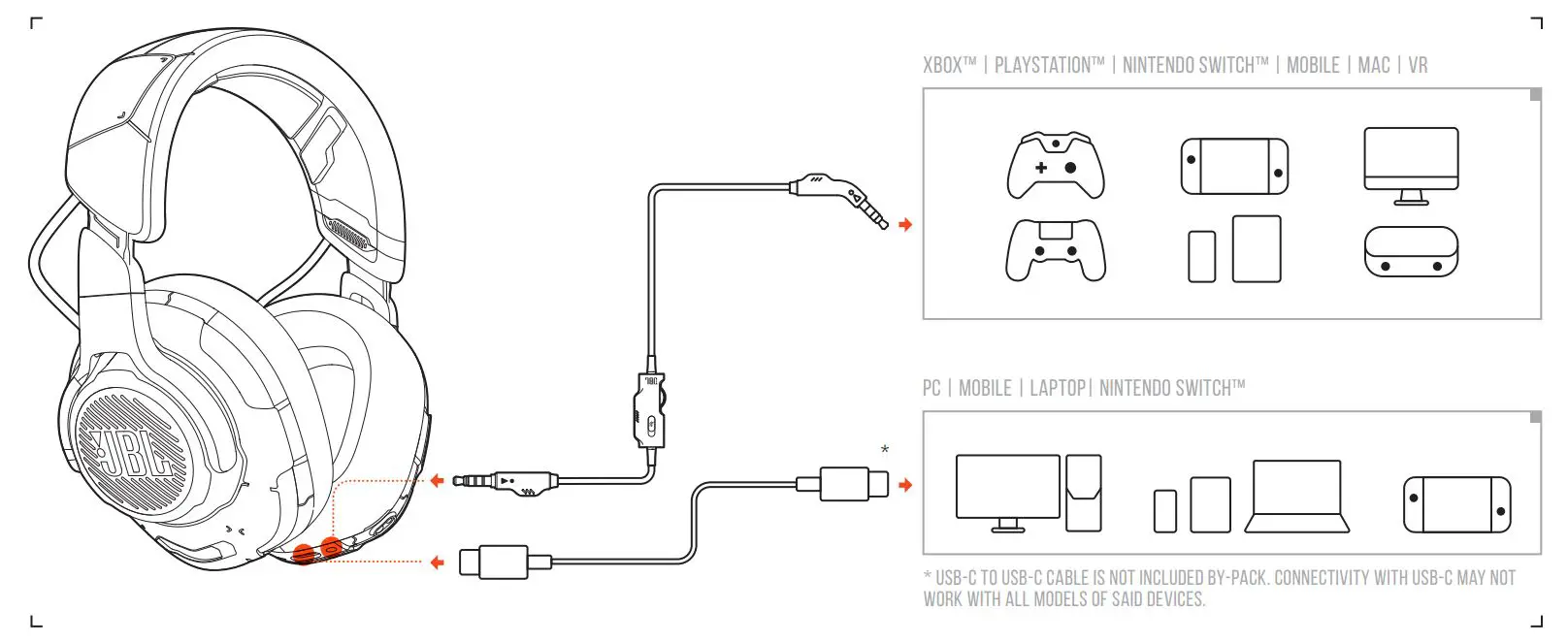
007 First time setup
7a Connect the headset to your PC via USB connection.
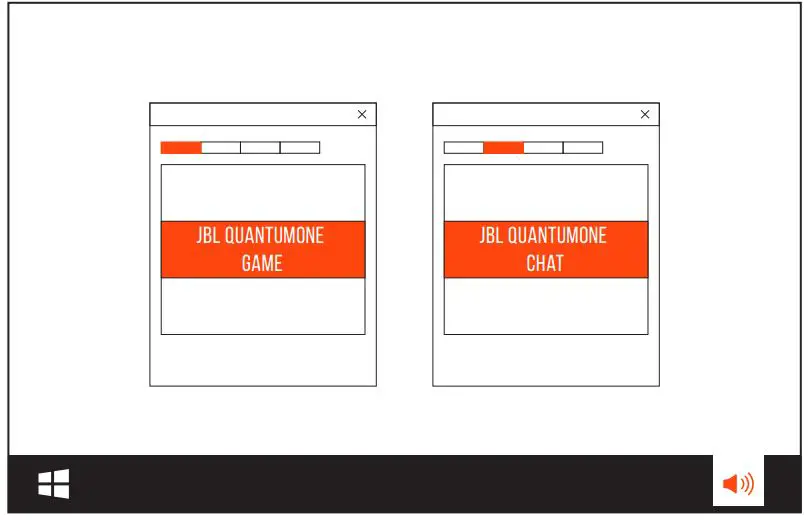
7b Go to “Sound Settings” -> “Sound Control Panel”.
7c Under “Playback” highlight “JBL QUANTUMONE GAME” and select “Set Default” -> “Default Device”.
7d Highlight “JBL QUANTUMONE CHAT” and select “Set Default” -> “Default Communication Device”.
7e Under “Recording” highlight “JBL QUANTUMONE CHAT” and select “Set Default” -> “Default Device”.
7f In your chat application select “JBL QUANTUMONE CHAT” as the default audio device.
7G Follow the onscreen instructions to personalize your sound settings.
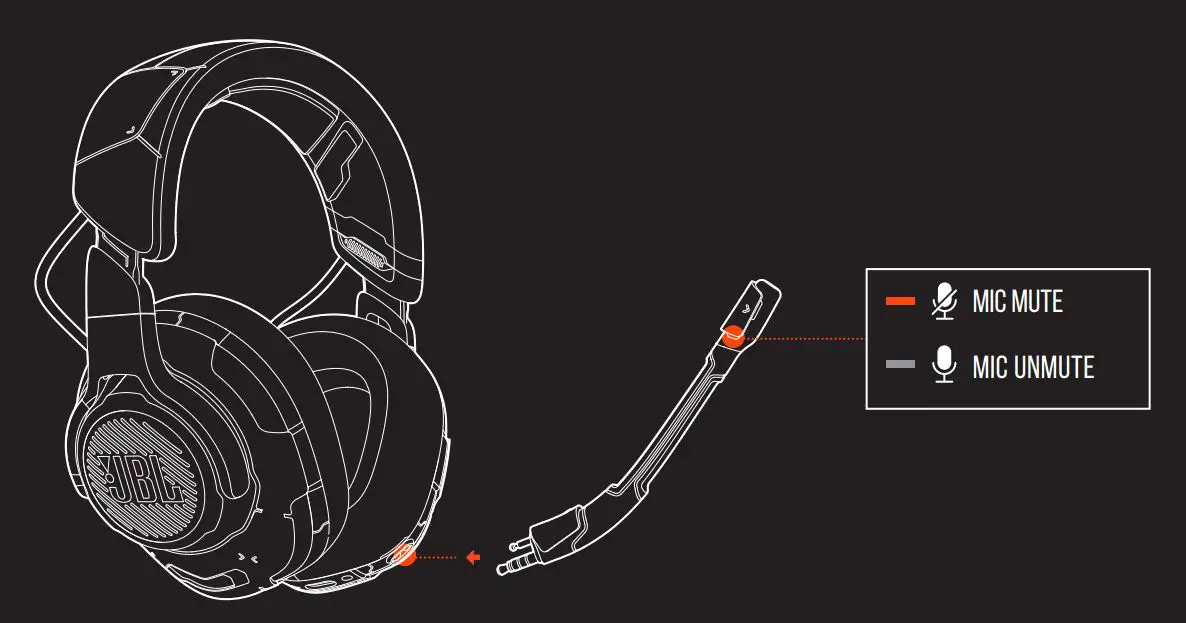
008 MICROPHONE
009 TECH SPEC
Driver size: 50 mm Dynamic drivers
Frequency response: 20 Hz – 40 kHz
Microphone frequency response: 100 Hz -10 kHz
Max input power: 20 mW
Sensitivity: 95 dB @ 1 kHz, 1 mW
Maximum SPL: 97 dB
Microphone sensitivity: -41 dBV @1 kHz / Pa
Impedance: 32 Ohm
Microphone pickup pattern: Unidirectional
Microphone size: 6 mm x 2.7 mm
Weight: 369 g

 JBL Quantum Support