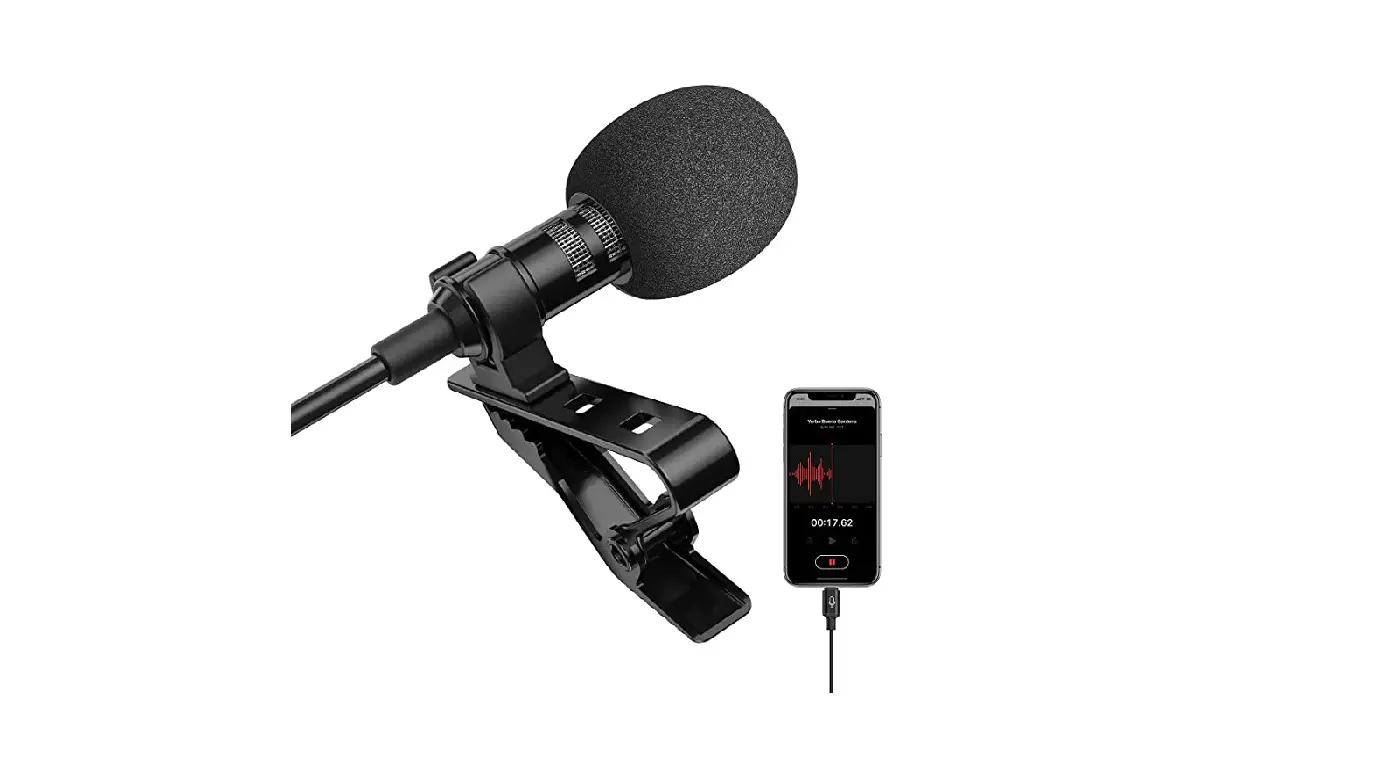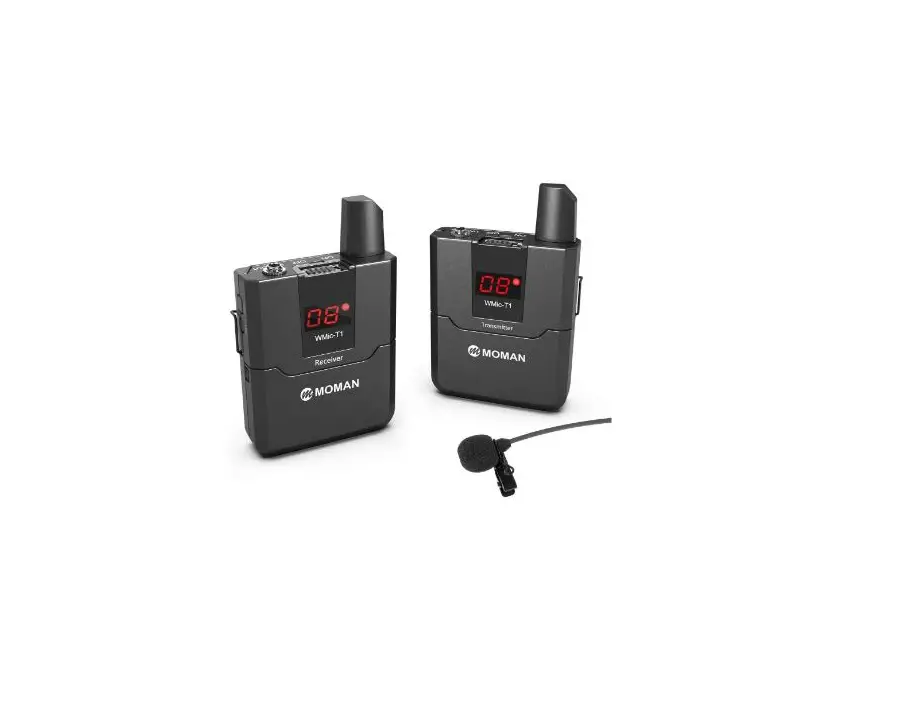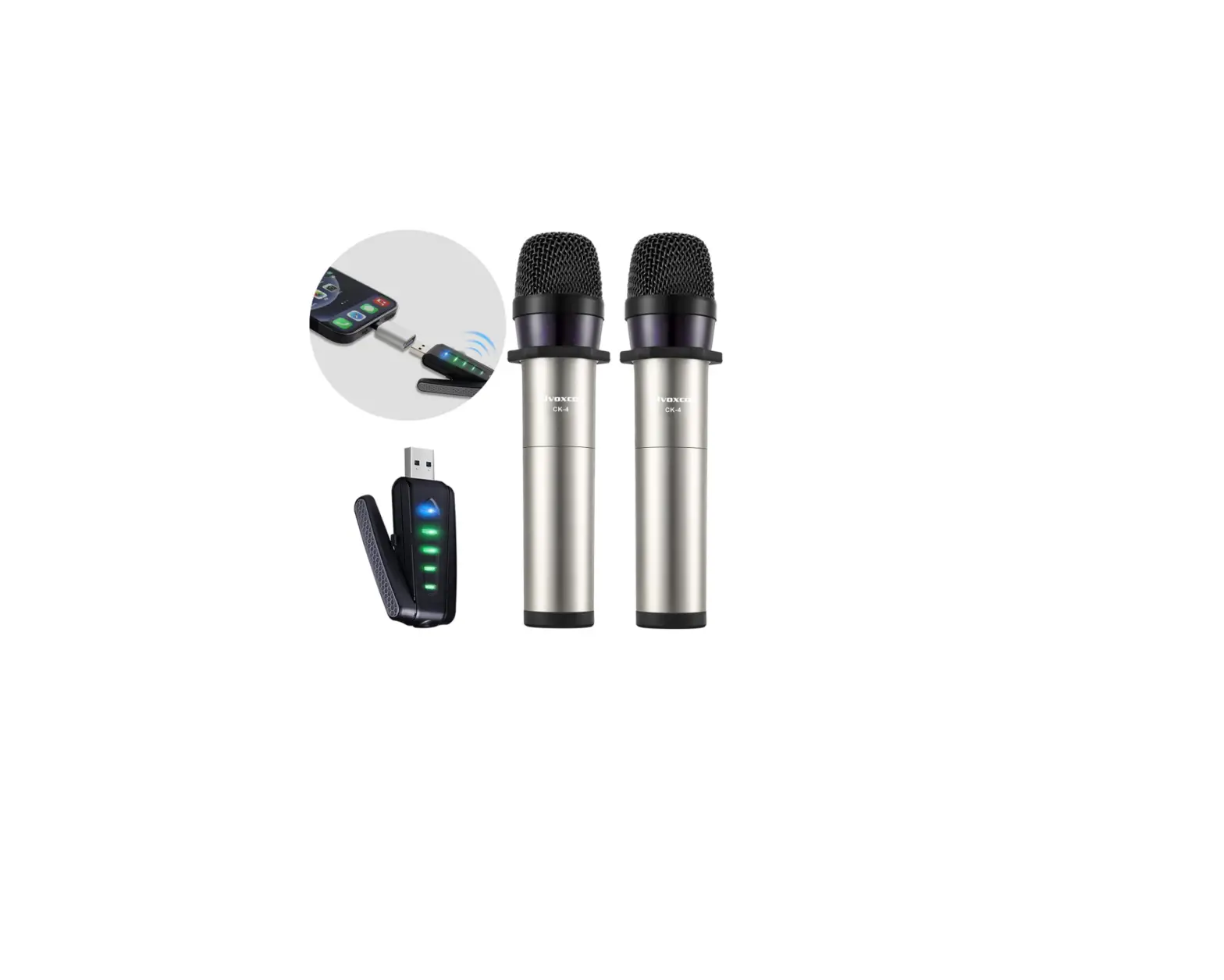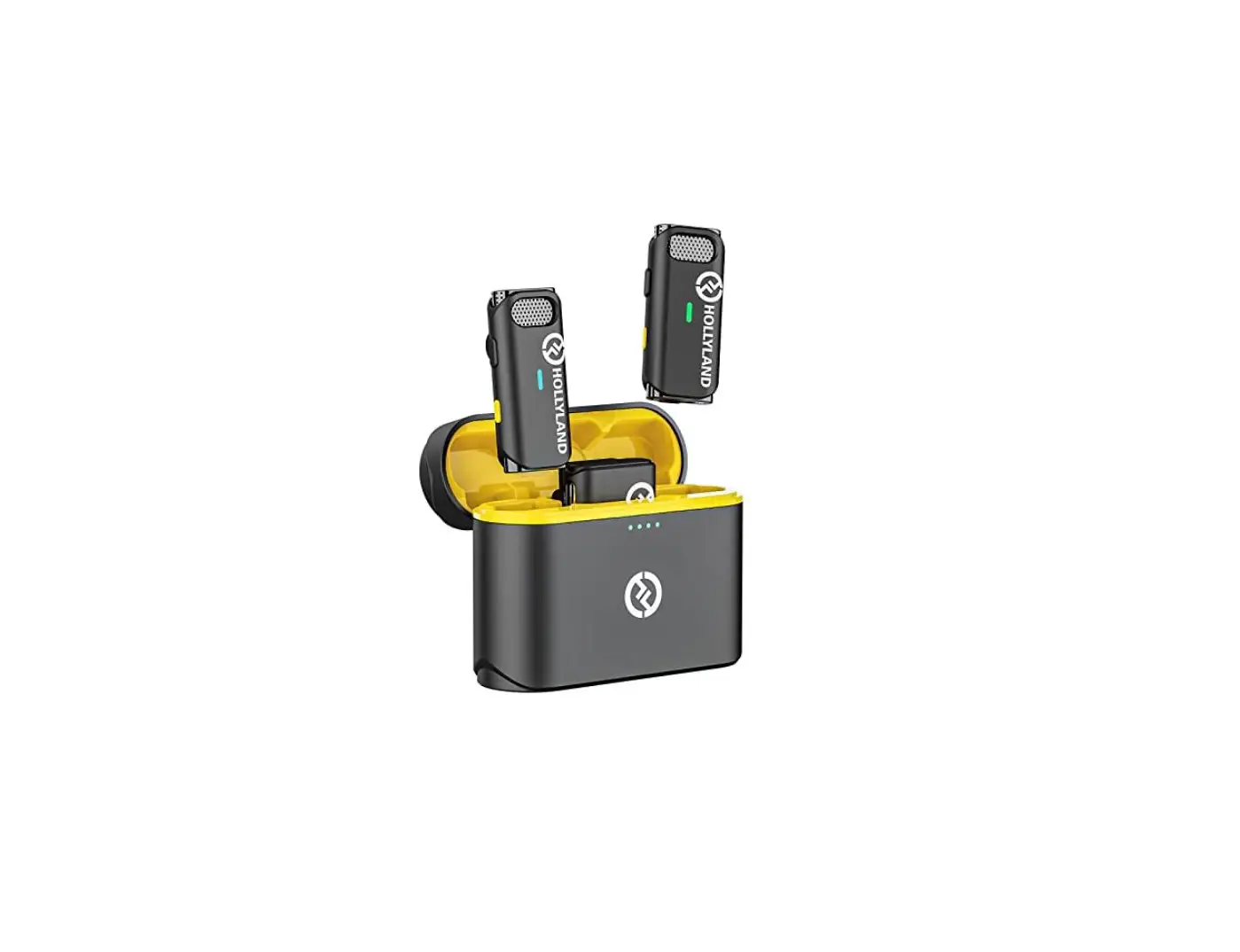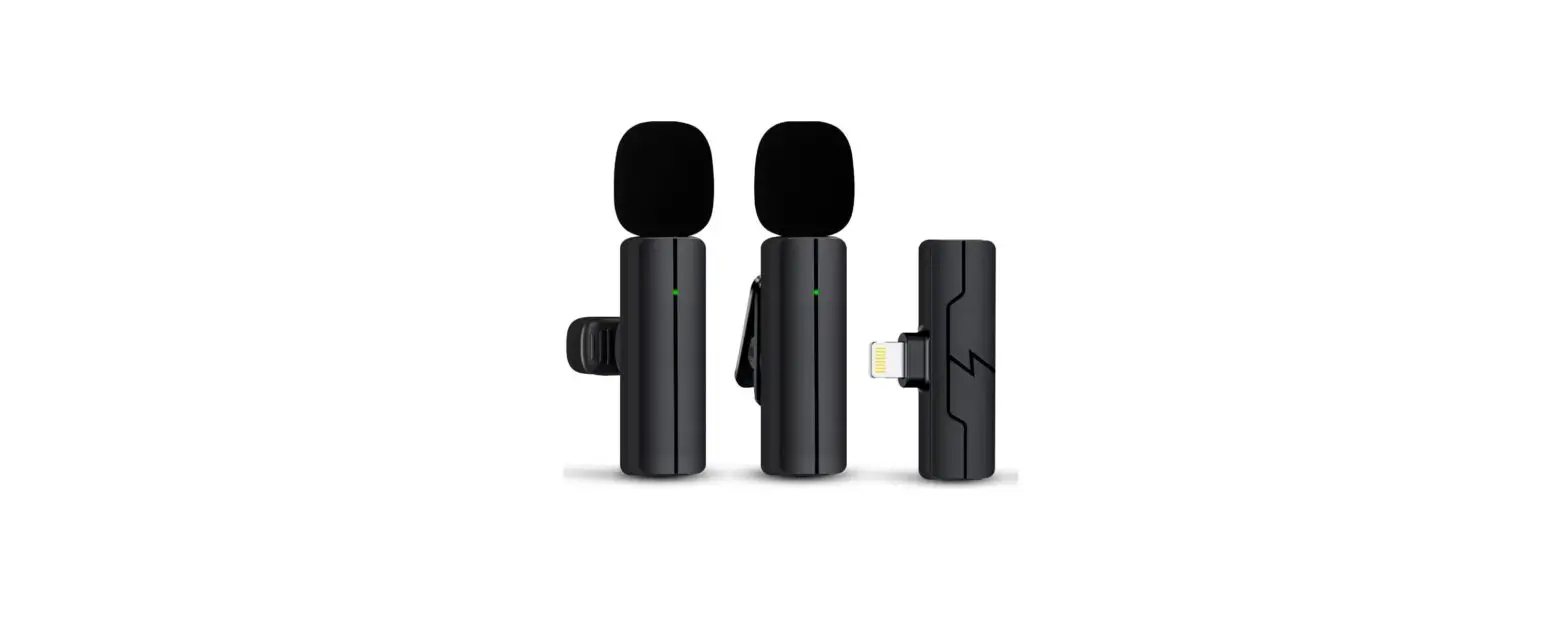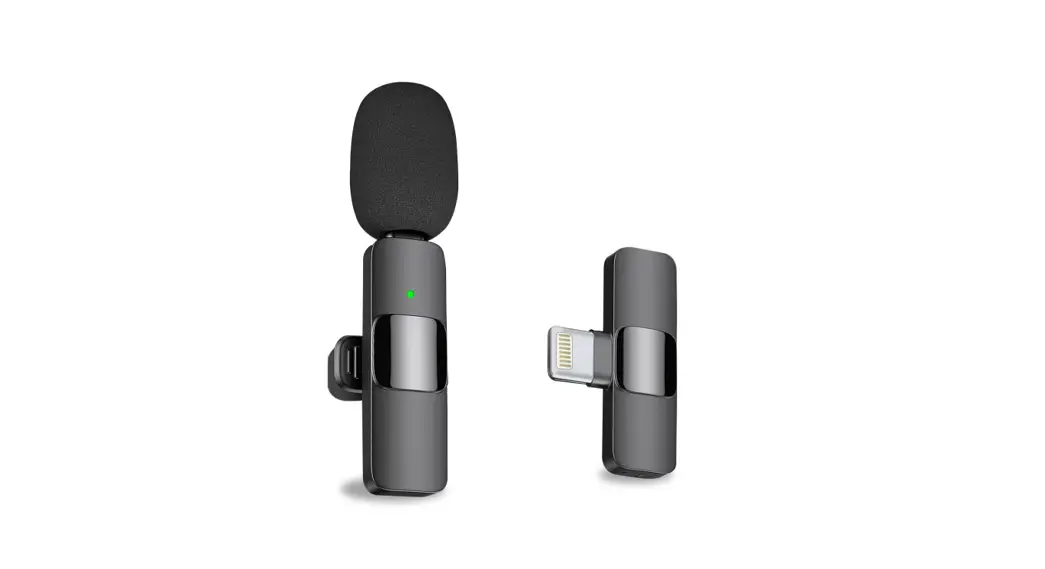
 Wireless Microphone
User Manual
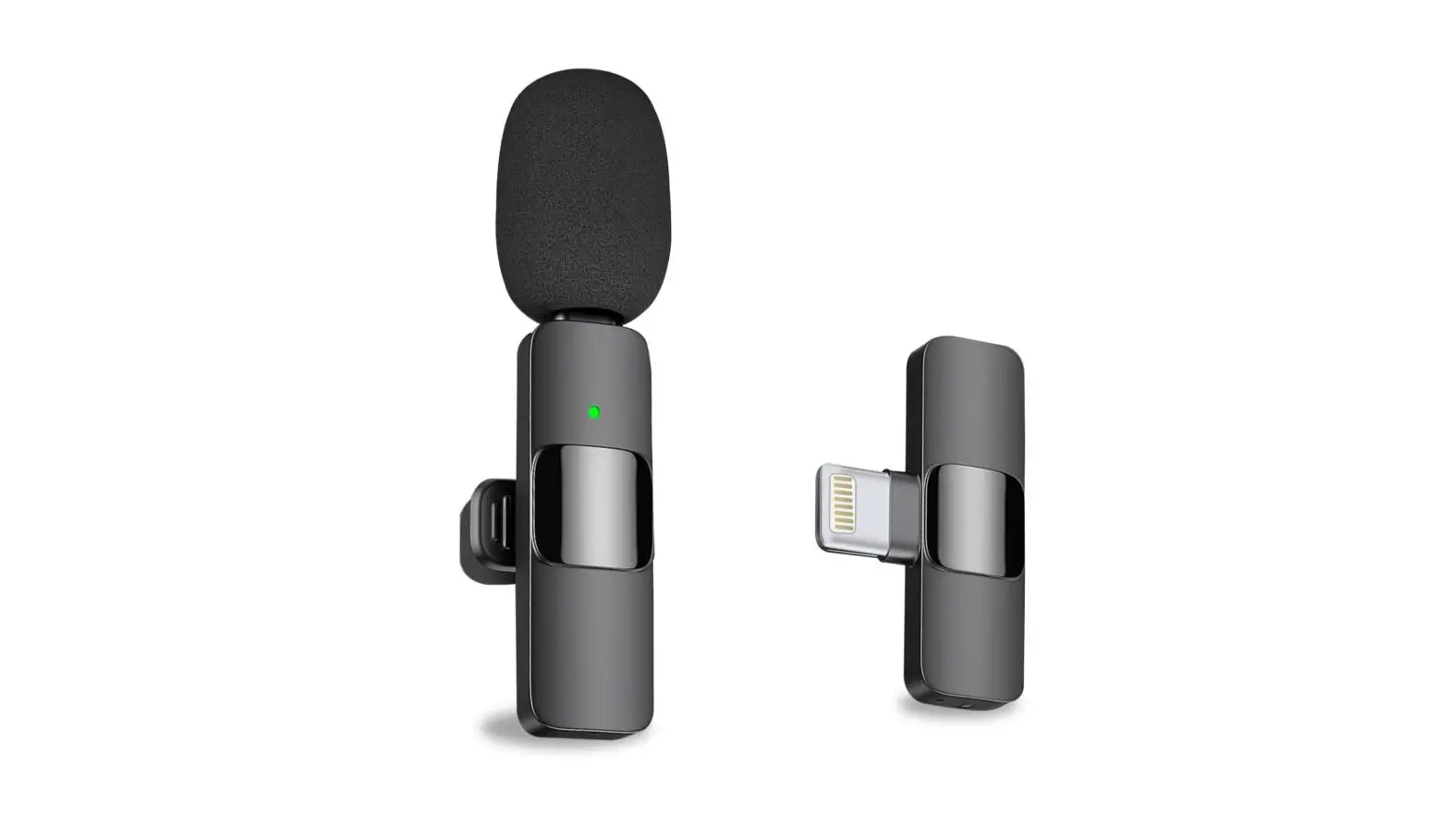
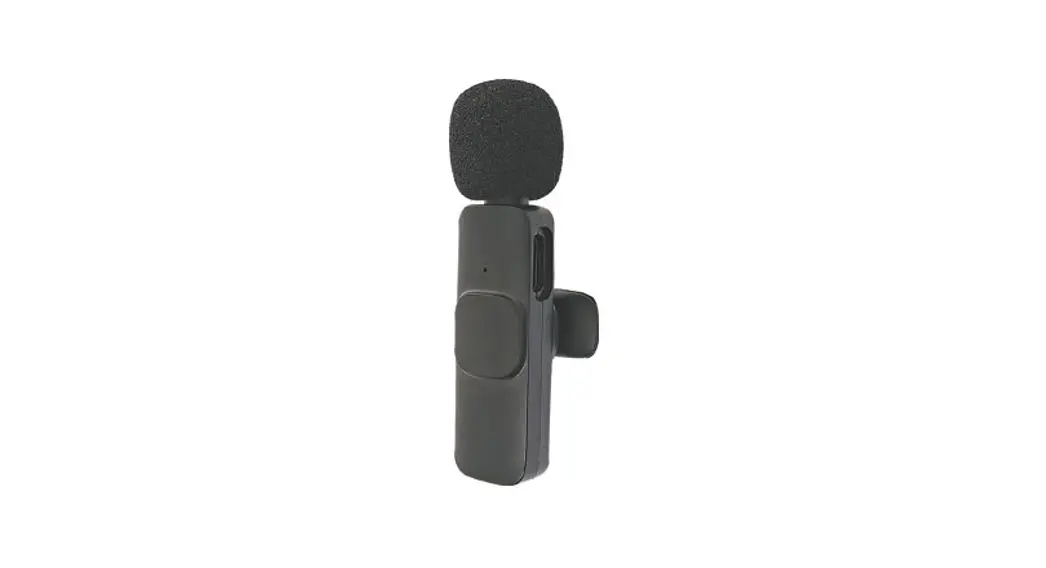
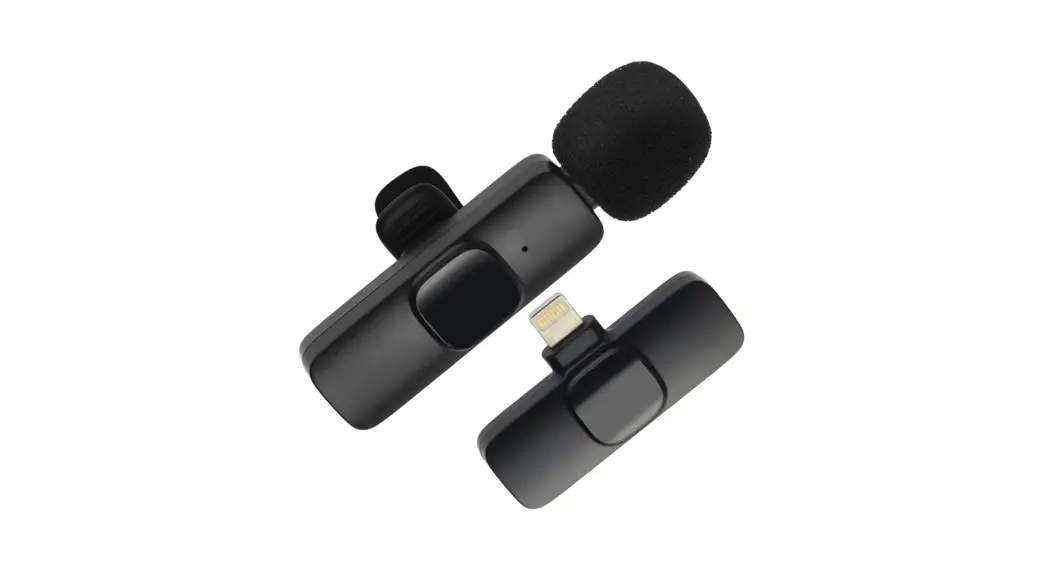
ID Diagram
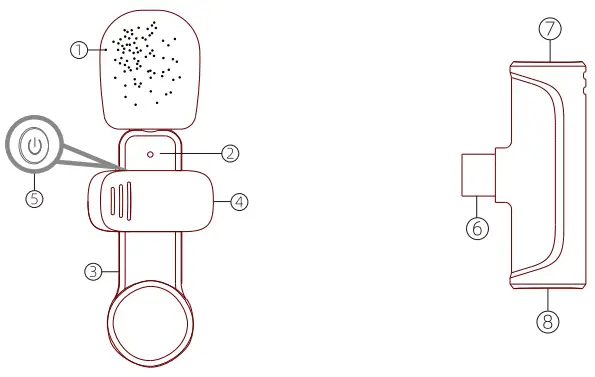
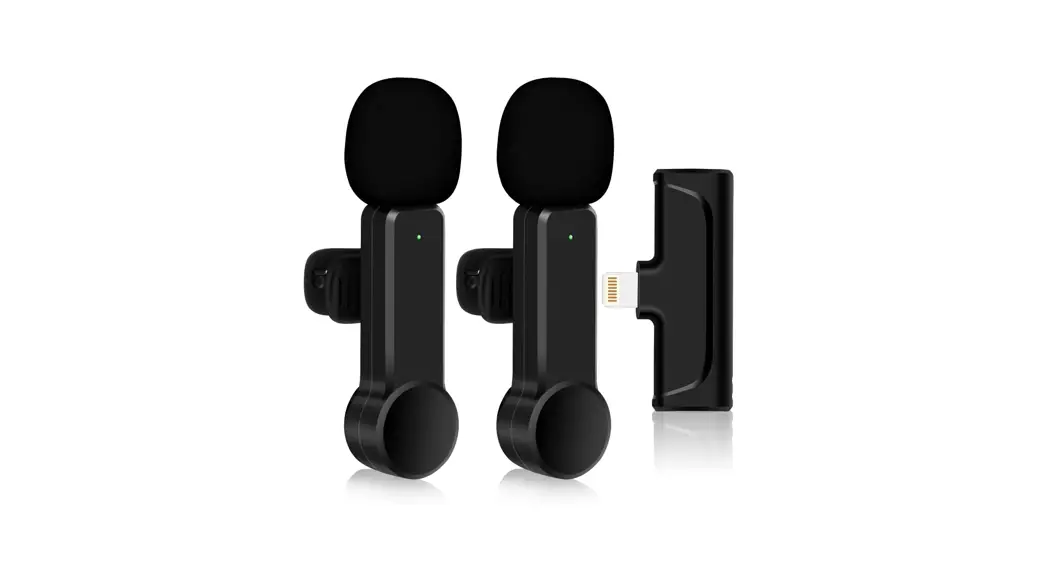
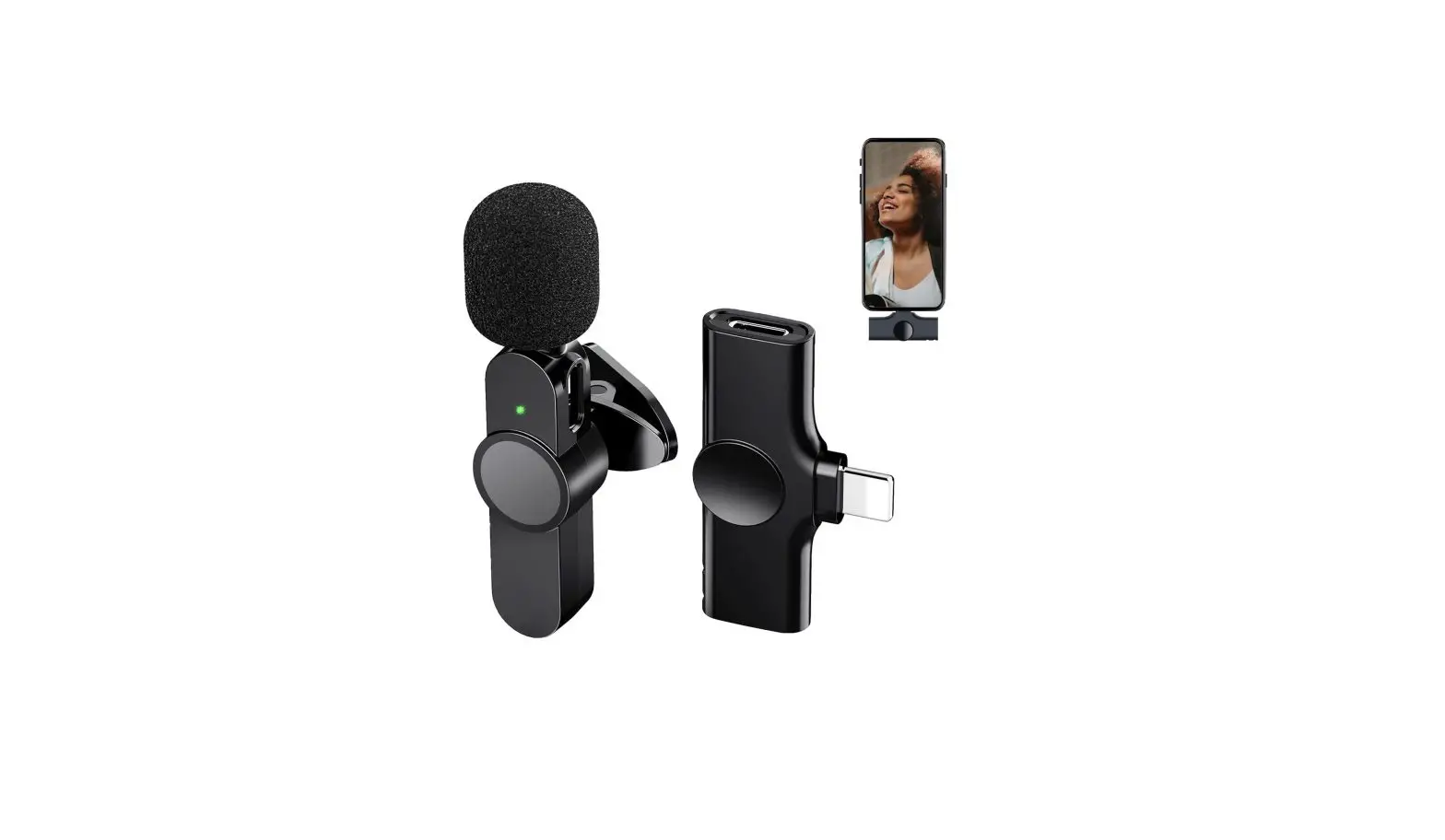
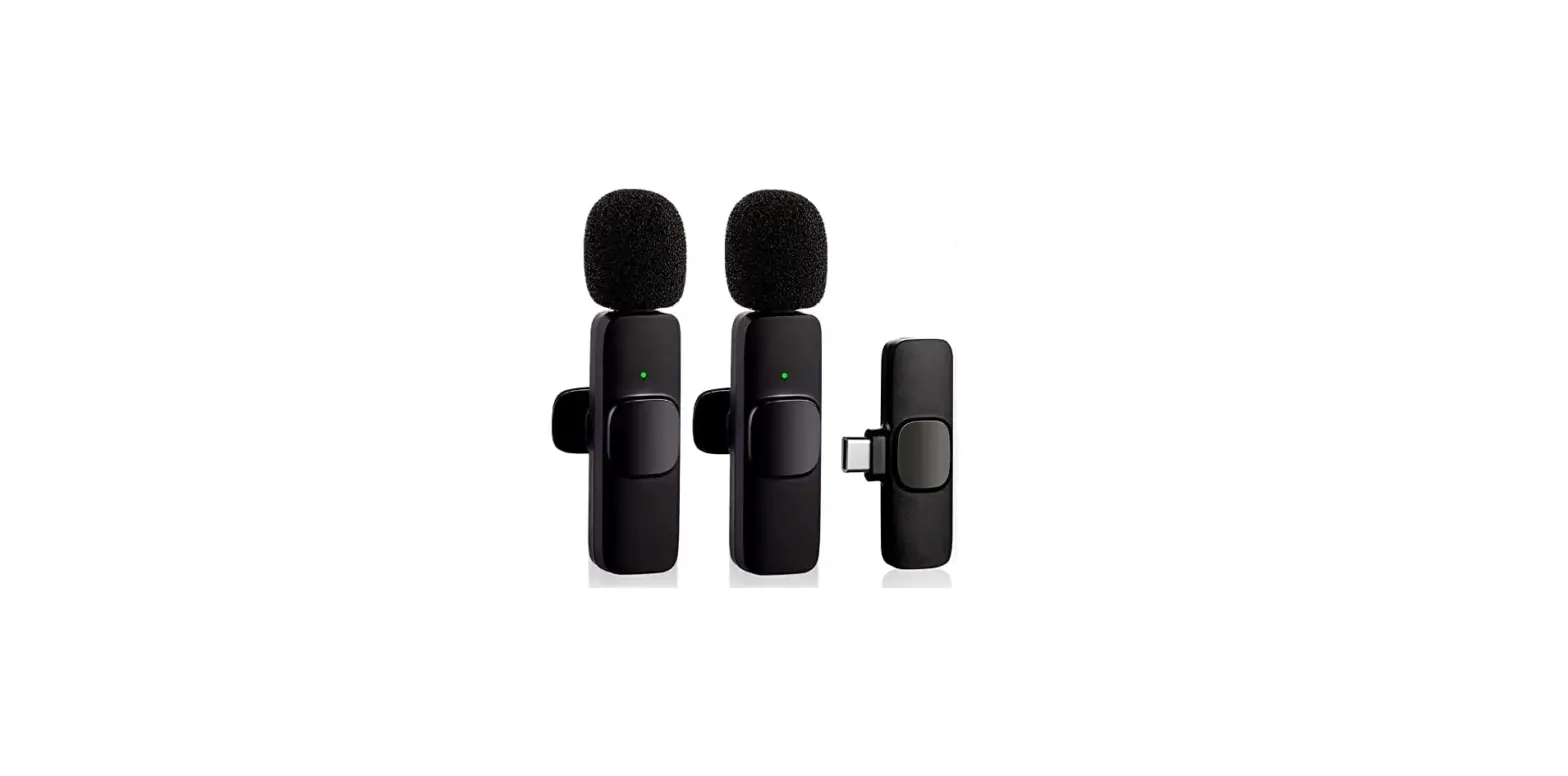
| 1. Windproof net 2. Microphone indicator 3. Microphone charging port 4. Microphone clip | 5. Turn on/Off/Pause 6. Type-C/lightning port 7. Receiver indicator 8. Type-C port of receiver |
*****Some Android phones may have incompatibility problems due to system , please consult your dealer for details*****
How to use
Step1 Plug the microphone receiver into the phone. After the plug-in, the receiver’s indicator turns red.
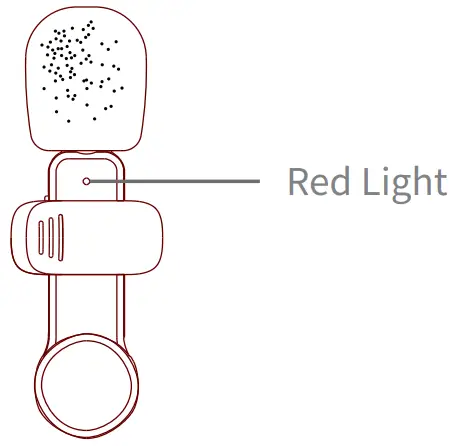
If the receiver’s indicator doesn’t turn red after plug-in, you need to (search “OTG” – turn on OTG power supply)
Step 2 Press the Turn on/Off/Pause button of the microphone. The indicator of microphone turns green.
Note, if it is the first time you use the microphone, it will take a few minutes to search the receiver. During searching, the indicator of the microphone turns between red and green. After successfully connected, the indicator turns green.
Now the microphone is ready to work.
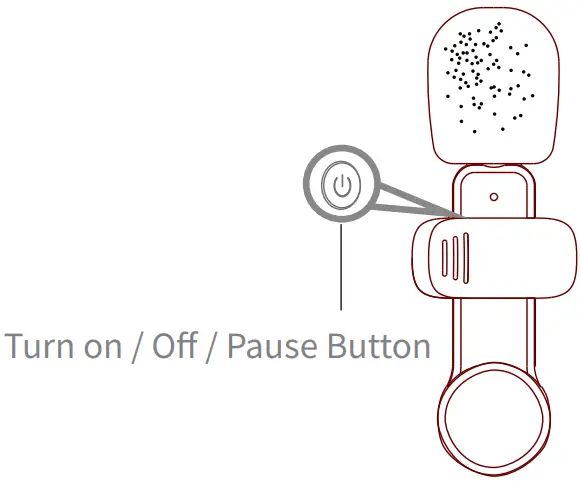 Note, to stop microphone from working, you can press the Turn on/Off/Pause button. The indicator of microphone flashes slowly.
When your phone is low battery, you can charge it through the type-c port of the receiver.
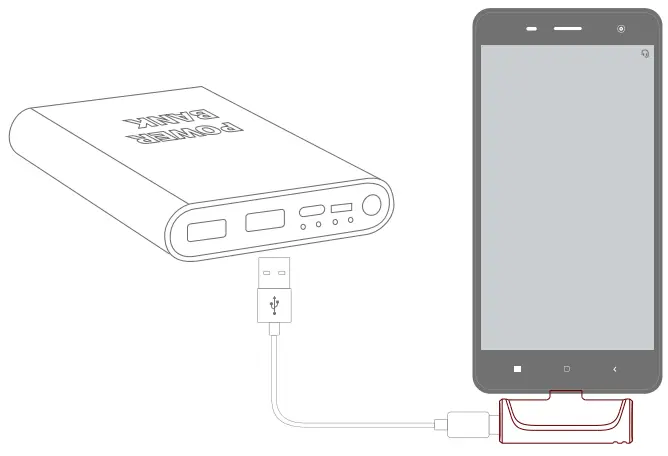
Note, some models may not have this function. The actual product shall govern.
About UI
Microphone Transmitter
| Function | How to use | Light | |
| Power on | Press button  | Red and green light flashing | |
| Power off | Press button for 3 seconds | Light off | |
| Pairing | Red and green flashing | ||
| Paired | Green light | ||
| Pause(Mute) | Press button | Green light flashing | |
| Low battery | Red light flashing | ||
| Charging | Charging with Type-c cable | Charging – red light Fully Charged – light off | |
Type-C Receiver
| Function | How to use | Light |
| Power on | Plug in the device | Red light |
| Power off | Plug off the device | Light off |
| Pairing | Red light flashing | |
| Paired | Red light |
Packing List
- Microphone transmitter
- Type-C/Lightning receiver
- Type-C charging cable
- User manual