 MAVIC AIR
Quick Start Guide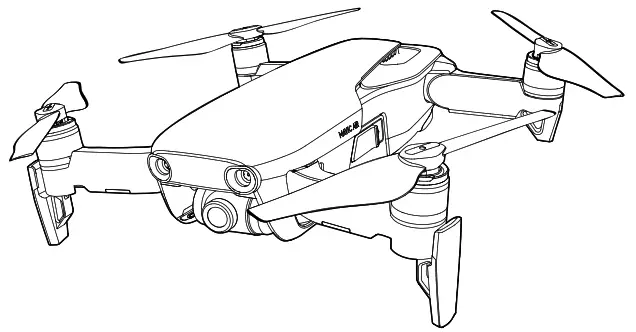
Aircraft
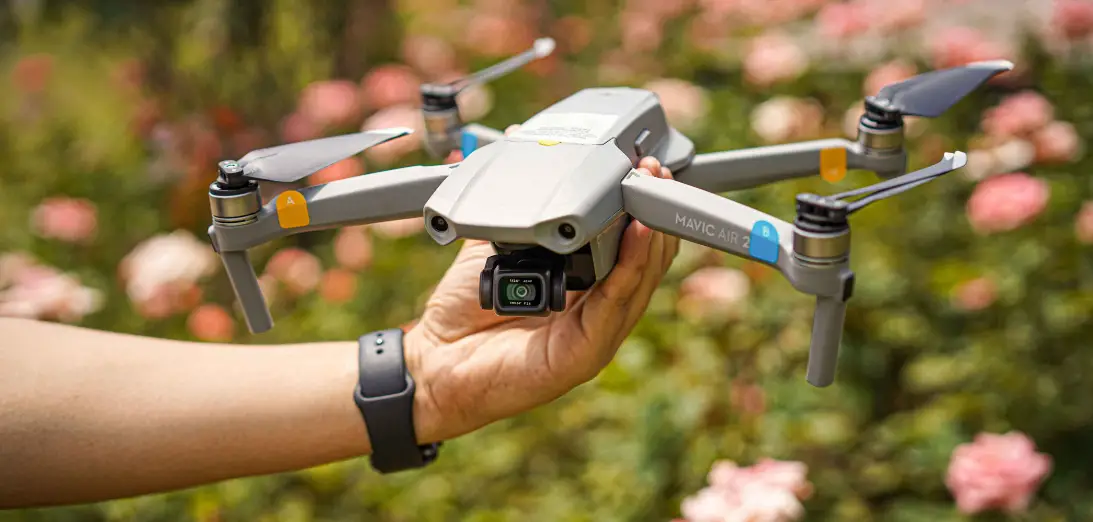
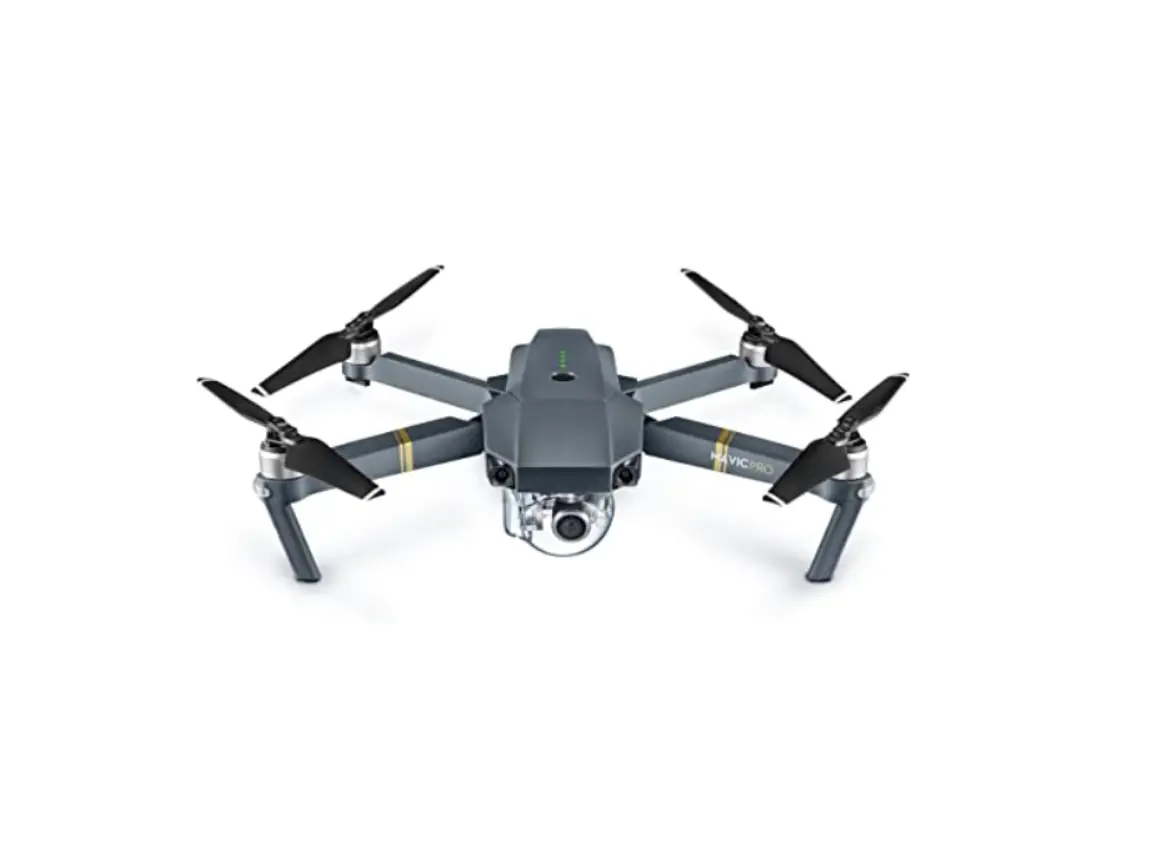
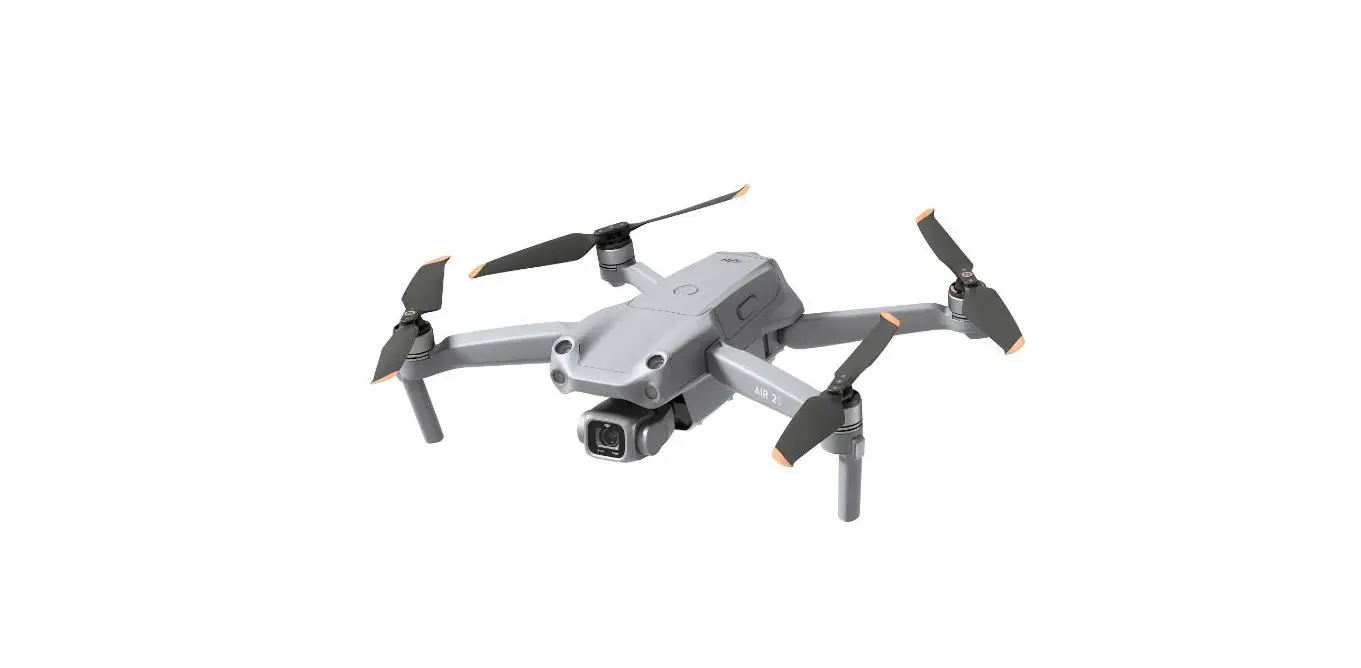
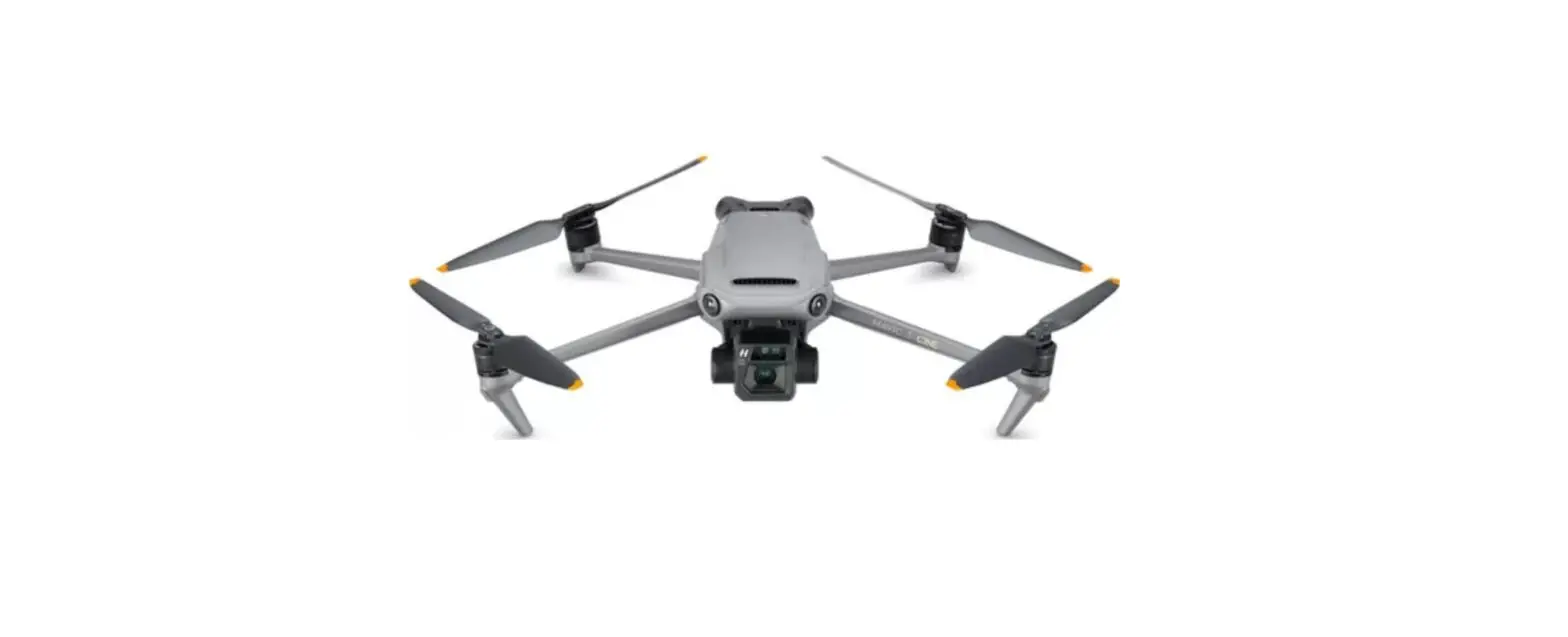
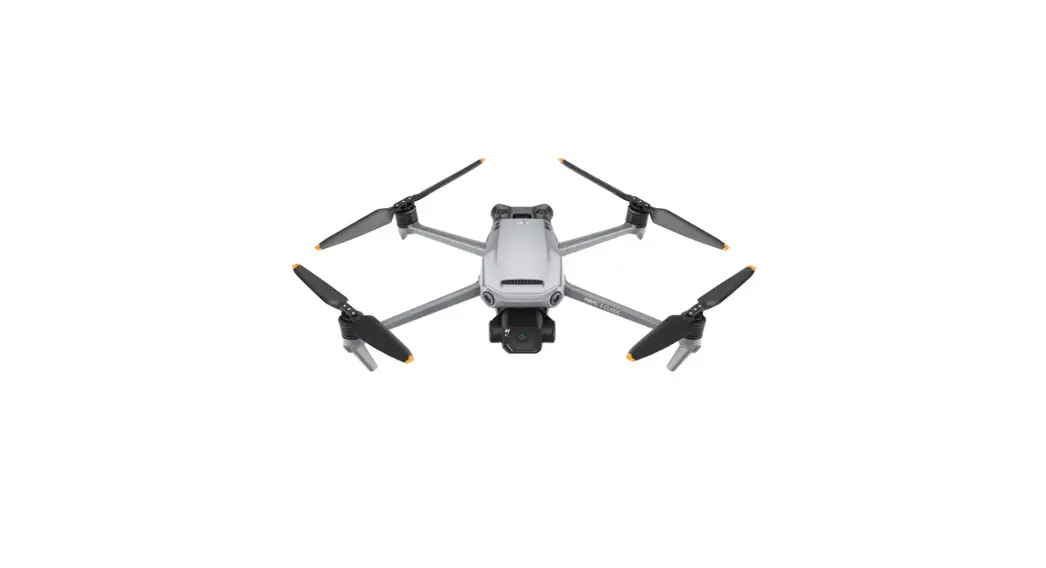
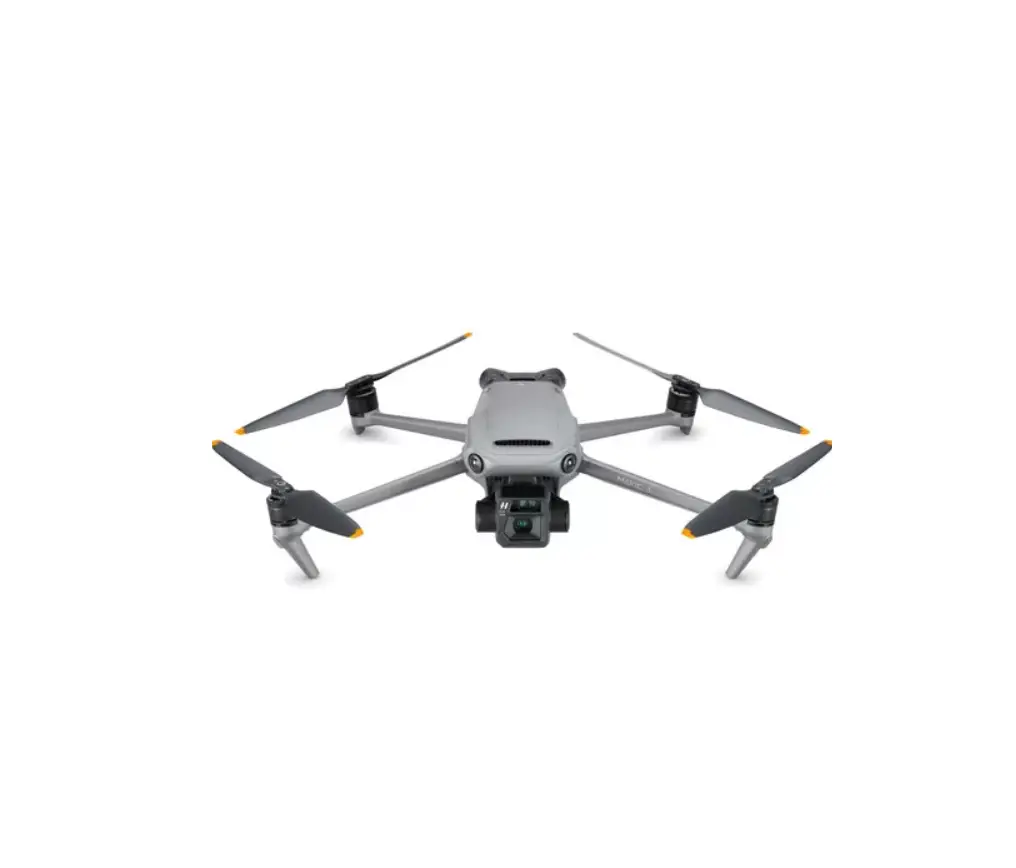
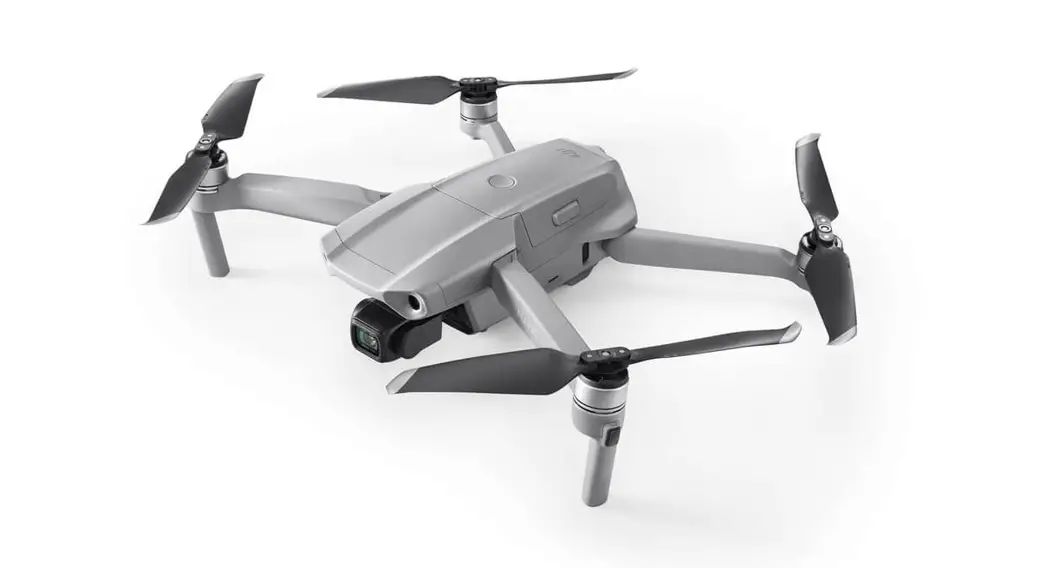
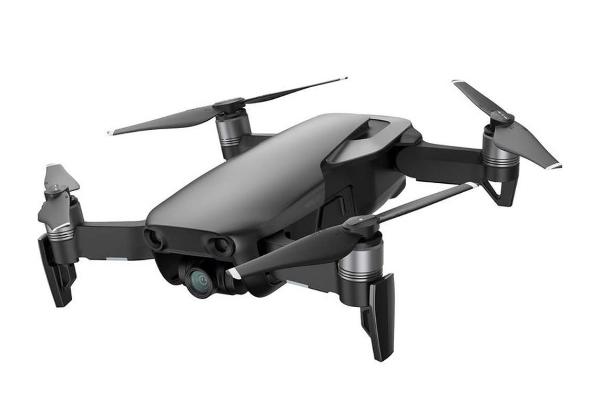
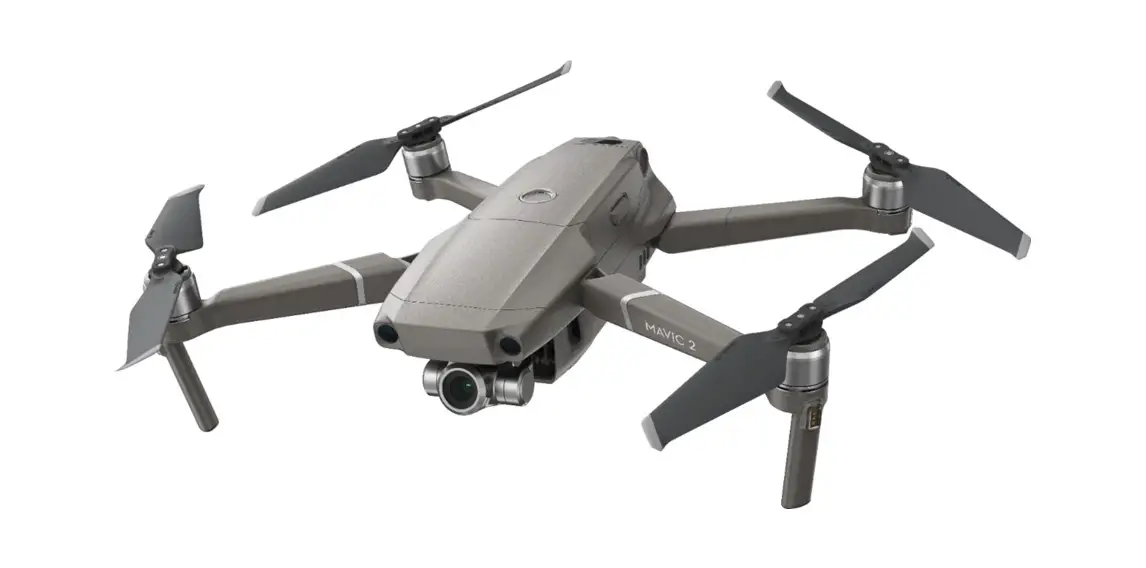
The DJI™ MAVIC ™Air features a new folding design and a fully stabilized 3-axis gimbal camera capable of shooting 4K video and 12 megapixel photos. DJI signature technologies such as Obstacle Avoidance and Intelligent Flight Modes like SmartCapture, Panorama, Advanced Pilot Assistance Systems, QuickShot, ActiveTrack™ , make capturing complex shots effortless and easy. The Mavic Air boasts a maximum flight speed of 42.5 mph (68.4 kph) and a maximum flight time* of 21 minutes.
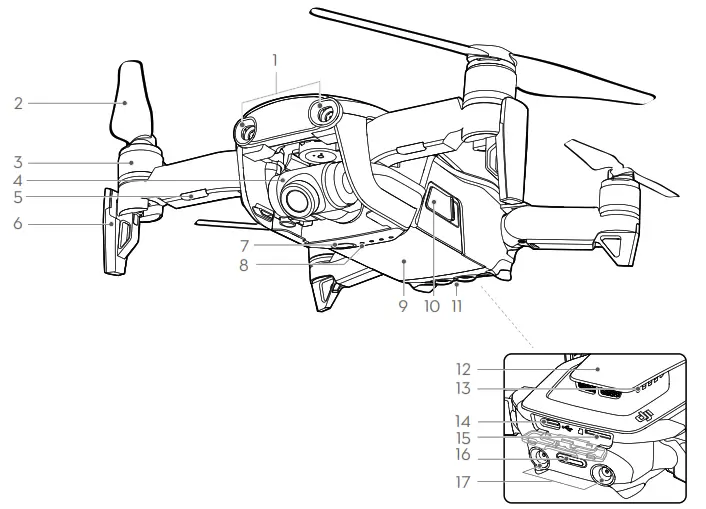
| 1. Forward Vision System** | 10. Battery Buckles |
| 2. Propellers | 11. Downward Vision System** |
| 3. Motors | 12. GPS Antennas |
| 4. Gimbal and Camera | 13. Vents |
| 5. Front LEDs | 14. USB -C Port |
| 6. Landing Gears (Built-in antennas) | 15. Camera Micro SD Card Slot |
| 7. Power Button | 16. Aircraft Status Indicator/Function Button |
| 8. Battery Level LEDs | 17. Backward Vision System** |
| 9. Intelligent Flight Battery |
* Maximum flight time was tested in 0 wind at a consistent 15.5 mph (25 kph). This value should be taken for reference only.
** The Forward, Downward and Backward Vision Systems are affected by surrounding conditions. Read the Disclaimer and Safety Guidelines and watch the tutorial in the DJI GO 4 app or on the Official DJI website to learn more. http://www.dji.com/mavic-air
Remote Controller
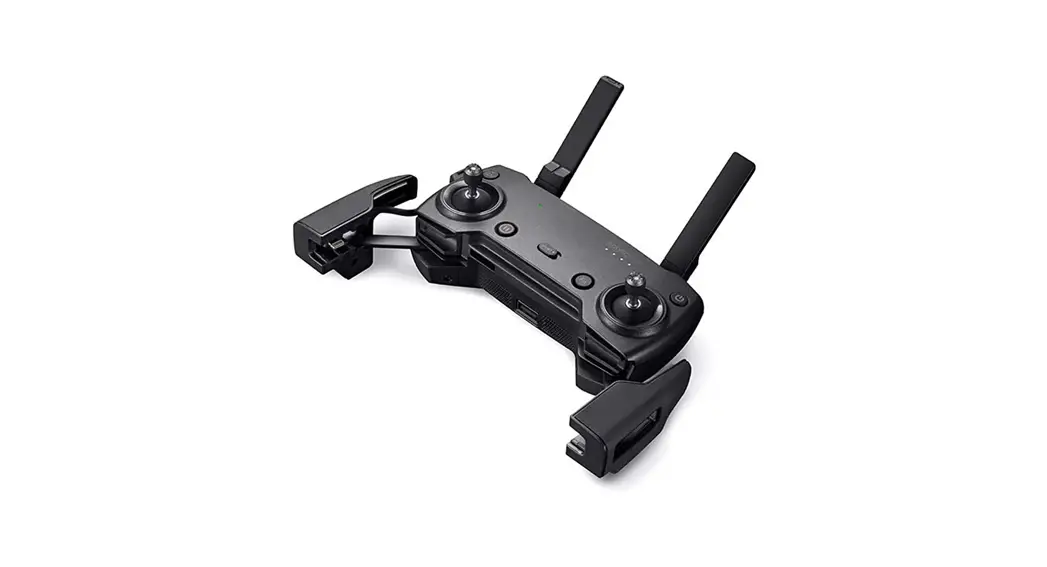
Built into the Remote Controller is the DJI enhanced Wi-Fi technology, offering a maximum transmission range of 2.49 mi (4 km) and video from the aircraft to the DJI GO™ 4 app on your mobile device at up to 1080p at close range, and 720p at longer ranges. The detachable control sticks make the remote controller easier to store. The Mavic Air also supports flying on your phone with Virtual Joysticks. Maximum run time: 2.5 hours*
| 1. Antennas | 7. Flight Mode Switch |
| 2. Status LED | 8. USB / Assistant Video Link Port |
| 3. RTH Button | 9. Battery Level LEDs |
| 4. Charging / Main Video Link Port (Micro USB) | 10. Power Button |
| 5. Control Sticks | 11. Function Button |
| 6. Flight Pause Button | 12. Mobile Device Clamp |
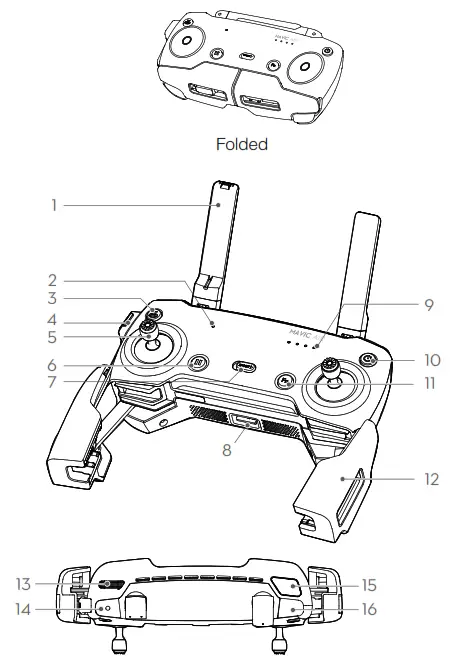
* The remote controller is able to reach its maximum transmission distance (FCC) in a wide open area with no Electro-Magnetic Interference, and at an altitude of about 400 feet (120 meters).
The maximum run time is tested under laboratory environment, only for your reference.
Downloading the DJI GO 4 App and Watching Tutorial Videos
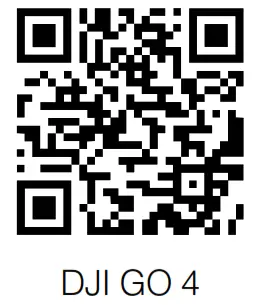
Search for ‘DJI GO 4’ in the App Store or Google Play, or scan the QR code to download the app on your mobile device.
Watch the tutorial videos at www.dji.com/mavic-air or in the DJI GO 4 app by tapping the icon in the top right corner of your screen.
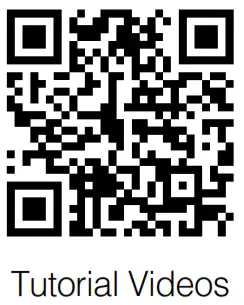 https://www.dji.com/mavic-air/info#video
 DJI GO 4 supports iOS 9.0 (or later) or Android 4.4 (or later).
Preparing the Aircraft
 | |||
| Remove the gimbal protector from the camera. | Unfold the rear arms. | Unfold the front arms and landing gears. | Unfolded |
It is recommended to mount the propeller guards when flying in Beginner Mode or indoors to ensure better safety. Refer to the Mavic Air Propeller Guards User Guide to learn more.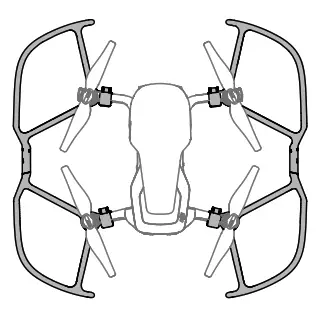
 It is recommended to have the gimbal protector attached when the aircraft is not in use. Make sure the gimbal is horizontal when mounting or removing the gimbal protector.
- Ensure the landing gear is properly unfolded before use. Otherwise, the built-in antenna may be affected causing serious problems to the video link. Make sure you fold the landing gears first before folding the aircraft arms.
Charging the Batteries
Use the provided charger to fully charge the Intelligent Flight Battery before first time use.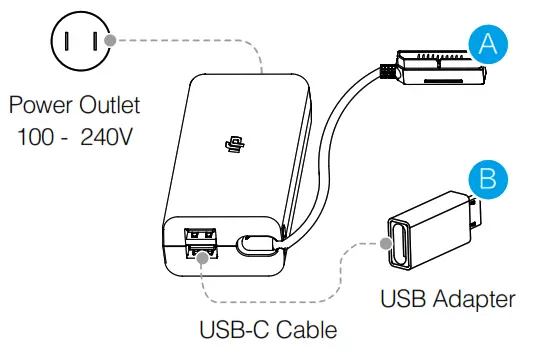
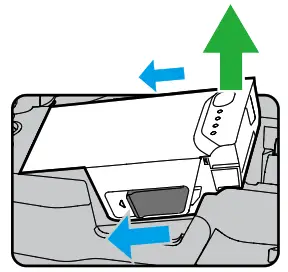
Remove the Intelligent Flight Battery from the aircraft.
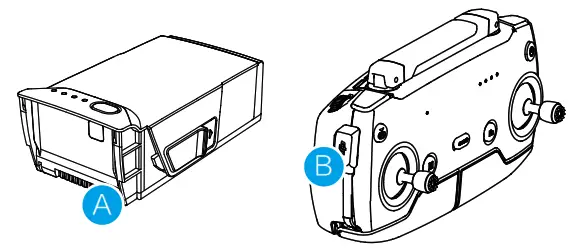
Attach the Intelligent Flight Battery to the battery charger via the port as shown above.
Intelligent Flight Battery Charging time:
53 minutes in environments at temperatures between 15° to 40° C; 1 hour and 40 minutes in environments at temperatures between 5° to 15° C.
Remote Controller Charging time: 2.5 hours
When fully charged, insert the Intelligent Flight Battery into the aircraft until you hear a click, ensuring that the battery is mounted firmly in place.
The optional Battery Charging Hub can charge up to four batteries simultaneously. Please visit the official DJI Online Store to learn more.
Remove the remote controller cable before charging. Connect the provided communication cable with the USB Adapter to the Charger.
Check the Battery Levels and Power On/Off
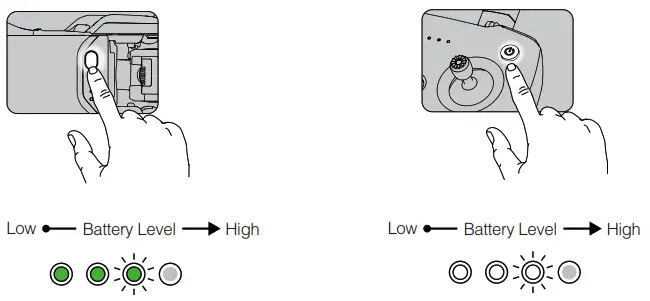 | |
| Press once to check the battery level. Press once, then again and hold to turn on/off. | Press the Power button once to check the current battery level. Press once, then again and hold to turn on/ off the remote controller. |
Preparing the Remote Controller
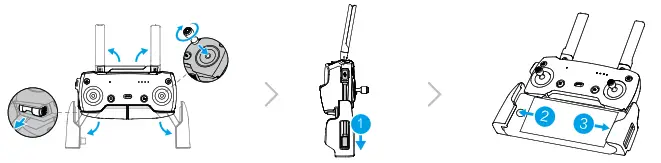 | ||
| Unfold the antennas and mobile device clamps, then attach the control sticks. | Place one end of the remote controller cable to the end of the slot on the side of the remote controller. | Attach your mobile device within the clamps. |
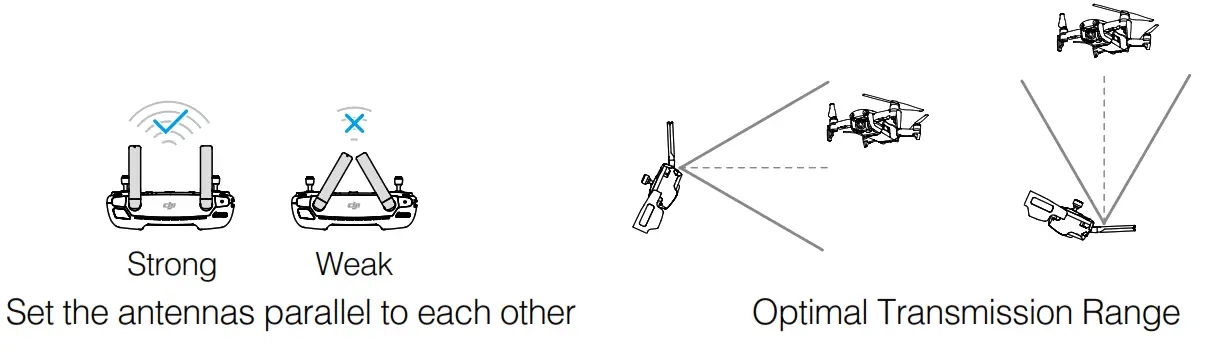
- Ensure the control sticks are firmly mounted.
- The remote controller cable with the Lightning Connector is mounted by default. Use the appropriate cable for your mobile devide to connect to the remote controller.
- When using an iPad or tablet, use the USB port on the remote controller.
- Do not use the Micro USB and the USB ports simultaneously for linking video. Disconnect one port from the video-linking device if the other port is in use.
Preparing for Takeoff
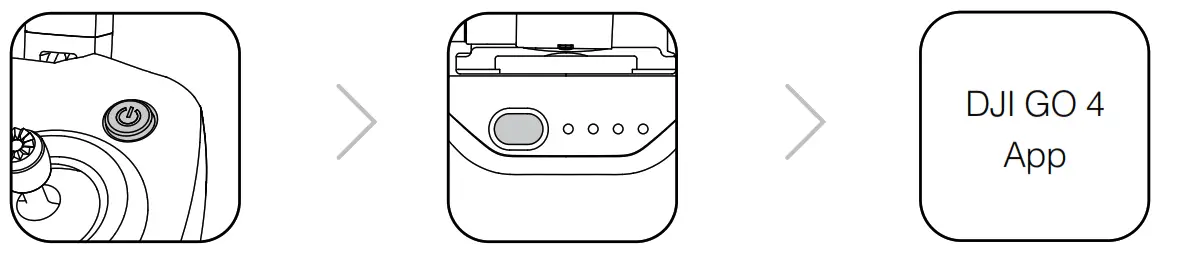 | ||
| Power on the remote controller | Power on the aircraft | Launch the DJI GO 4 app |
 Use your DJI account to activate the aircraft. Activation requires an internet connection.
Flight
Before taking off, make sure the Aircraft Status Bar in the DJI GO 4 app displays ‘Ready to Go’.
Ready to Go (GPS)
- Auto Takeoff / Landing
 Auto Takeoff Auto Landing
 - Manual Takeoff / Landing
Combination stick command to start/stop the motors

Left stick up (slowly) to take off 
Left stick down (slowly) until you touch the ground Hold a few seconds to stop the motors
 Auto Takeoff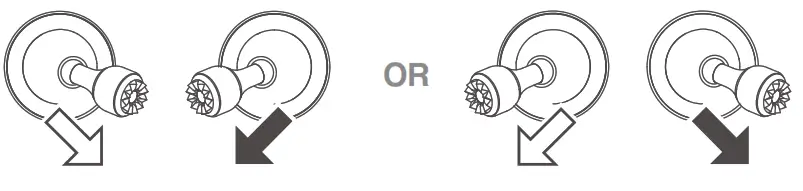
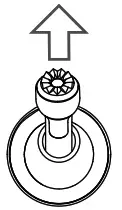
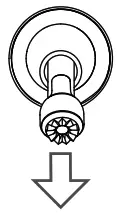
The motors can only be stopped mid-flight when the flight controller detects critical error.
Remote Controller Operation
The default flight control is known as Mode 2. The left stick controls the aircraft’s altitude and heading, while the right stick controls its forward, backward, left and right
movements. The gimbal dial controls the camera’s tilt.
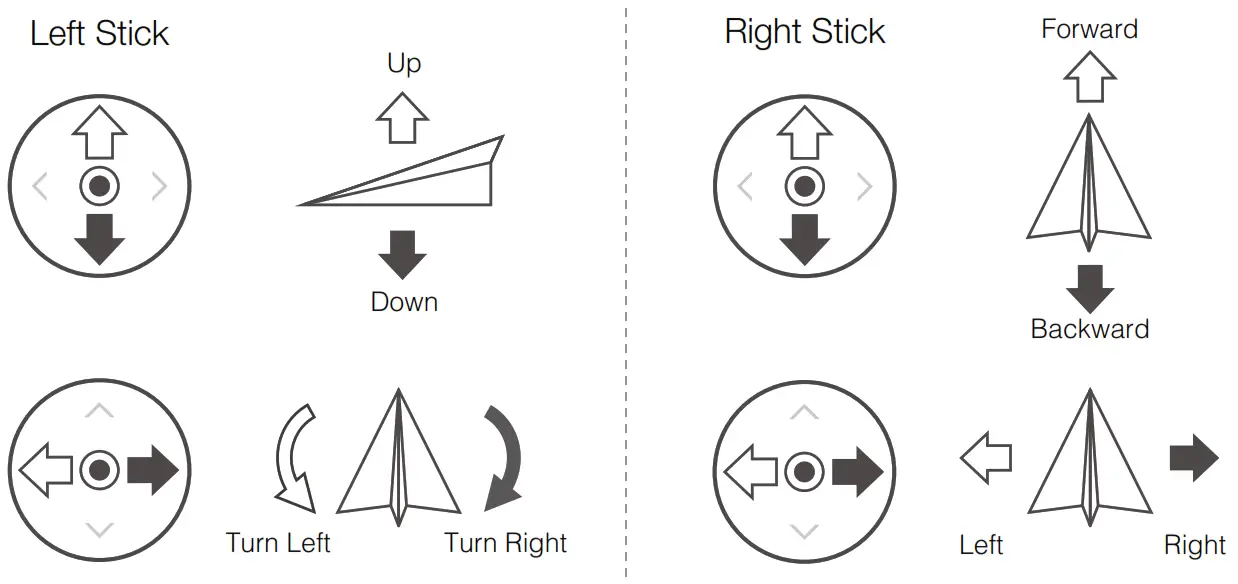
Press the Flight Pause button for emergency braking during flight.
- Controlling flight with Virtual Joysticks on your mobile device via Wi-Fi

- Power on the aircraft.
- Press and hold the Function Button on the aircraft for four seconds until you hear a double beep, switching to Wi-Fi control mode.
- Launch the DJI GO 4 app and tap the icon in the top right corner of your screen. Next, scan the Wi-Fi QR Code on the front arm to start the connection.
- Tap Auto Takeoff.
- Now you can fly the aircraft with touch control via Virtual Joysticks.
- Turn on your mobile device’s Wi-Fi and enter the Wi-Fi password shown on the aircraft to connect to the Mavic Air network if for any reason you cannot scan the QR code.
- When using Wi-Fi in a wide open area with no Electro-Magnetic Interference, transmission distance is approximately 262 ft (80 m) at an altitude of 164 ft (50 m).
- Linking is required when switching back to Remote Control mode. The Wi-Fi frequency of your mobile device can be set to 2.4 GHz or 5 GHz. Set your Wi-Fi to 5 GHz for less interference. Once connected to the Mavic Air, you can change your Wi-Fi password or reset your Wi-Fi connection. (Refer to the User Manual for more information)
In the DJI GO 4 App
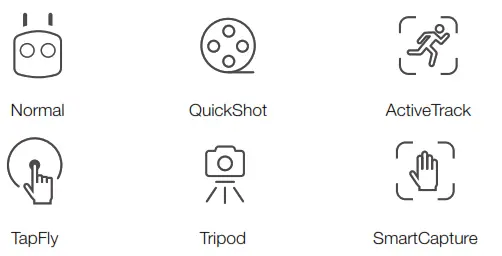
- Watch the tutorial in the DJI GO 4 app or on the Official DJI website to learn more.
- Always set an appropriate RTH altitude before takeoff. When the aircraft is returning to the Home Point, you should guide it with the control sticks.
Fly Safe
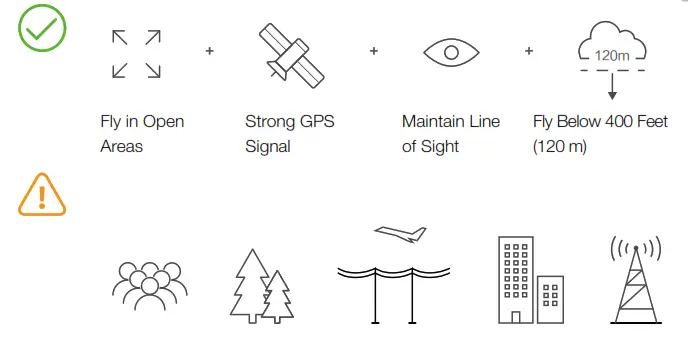
Avoid flying over or near obstacles, crowds, high voltage power lines, trees or bodies of water.
DO NOT fly near strong electromagnetic sources such as power lines and base stations as it may affect the onboard compass.
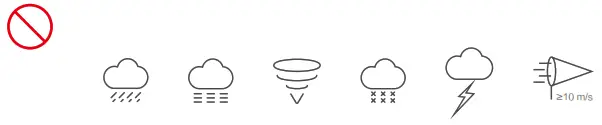
DO NOT use the aircraft in adverse weather conditions such as rain, snow, fog and wind speeds exceeding 10 m/s or 22 mph.
 | |
| Stay away from the rotating propellers and motors. | Learn more at: http://flysafe.dji.com/no-fly |
 It’s important to understand basic flight guidelines, for the safety of both you and those around you. Don’t forget to read the Disclaimer and Safety Guidelines.
Specifications
| Weight | 430 g |
| Max Speed | 42.5 mph (68.4 kph) in Sport Mode without wind |
| Max Flight Time | 21 minutes (0 wind at a consistent 15.5 mph (25 kph)) |
| Operating Temperature | 32° to 104°F (0° to 40°C) |
| GNSS | GPS / GLONASS |
| Operating Frequency | 2.4-2.4835 GHz; 5.725-5.850 GHz |
| Transmitter Power | 2.4 GHz: 28 dBm (FCC), 19 dBm (CE), 19 dBm (SRRC), 19 dBm (MIC) 5.8 GHz: 31 dBm (FCC), 14 dBm (CE), 27 dBm (SRRC) |
Gimbal
| Controllable Range | Pitch: -90° to +0° (Default settings) -90° to +17° (Extended) |
Camera
| Sensor | CMOS |
| Max Image Size | 4056 × 3040 |
| Still Photography Modes | Single shot HDR Burst shooting: 3 / 5 / 7 frames Auto Exposure Bracketing (AEB): 3 / 5 bracketed frames at 0.7 EV Bias Interval: 2 / 3 / 5 / 7 / 10 / 15 / 20 / 30 / 60 s Panorama (3 × 1, 3 × 3, 3 × 7, Sphere) |
| Video Recording Modes | 4K Ultra HD: 3840×2160 24 / 25 / 30p 2.7K: 2720 × 1530 24 / 25 / 30 / 48 / 50 / 60p FHD: 1920 × 1080 24 / 25 / 30 / 48 / 50 / 60 / 120p |
| Video Storage Bitrate | 100 Mbps |
| Photo | JPEG, DNG |
| Video | MP4, MOV (MPEG-4 AVC / H.264) |
| Supported SD Cards | microSD. Class 10 or UHS-1 rating required. |
Remote Controller
| Dimensions | 143.9×78.3×61.2 mm (Folded) |
| Operating Frequency | 2.4-2.4835 GHz; 5.725-5.850 GHz |
| Max Transmission Distance | 2.4 GHz: FCC: 2.5 mi (4 km); CE/SRRC/MIC: 1.2 mi (2 km) 5.8 GHz: FCC: 2.5 mi (4 km); CE: 0.3 mi (0.5 km) SRRC: 1.6 mi (2.5 km) (Unobstructed and free of interference) |
| Operating Temperature | 32° to 104° F (0° to 40° C) |
| Battery | 2970 mAh |
| Transmitter Power | 2.4 GHz: 26 dBm (FCC), 18 dBm (CE), 18 dBm (SRRC) 18 dBm (MIC) 5.8 GHz: 30 dBm (FCC), 14 dBm (CE), 26 dBm (SRRC) |
| Operating Voltage | 1000 mA @ 3.7 V |
| Supported Mobile Device Size | Thickness supported: 6.5 – 8.5 mm, Max length: 160 mm Supported USB port types: Lightning, Micro USB (Type-B), USB-C |
Power Adapter
| Voltage | 13.2 V |
| Rated Power | 50 W |
Intelligent Flight Battery
| Capacity | 2375 mAh |
| Voltage | 11.55 V, Max 13.2 V |
| Battery Type | LiPo 3S |
| Energy | 27.43 Wh |
| Net Weight | Approx. 140 g |
| Charging Temperature Range | 41° to 104° F (5° to 40° C) |
| Max Charging Power | 60 W |
For more information, read the User Manual:
http://www.dji.com/mavic-air
※ This content is subject to change without prior notice.
MAVIC is a trademark of DJI.
Copyright © 2018 DJI All Rights Reserved.
Designed by DJI.
www.dji.com
Printed in China.
 Mavic Air - DJI
 Mavic Air - DJI