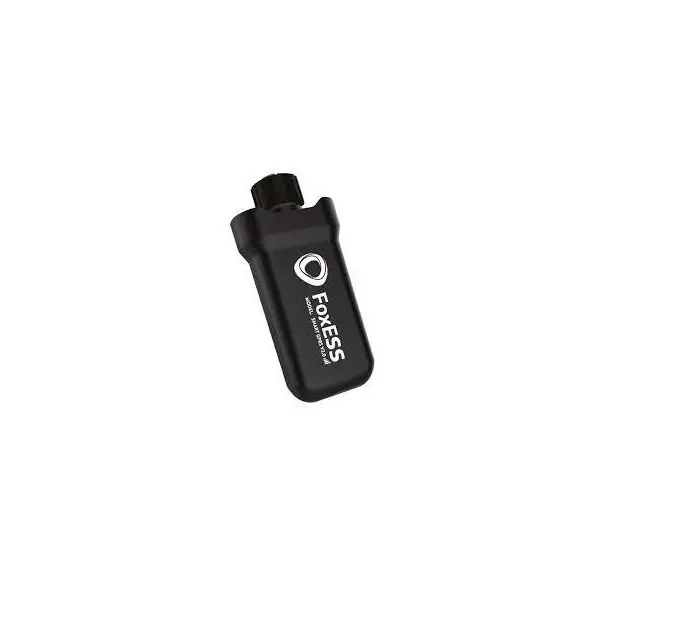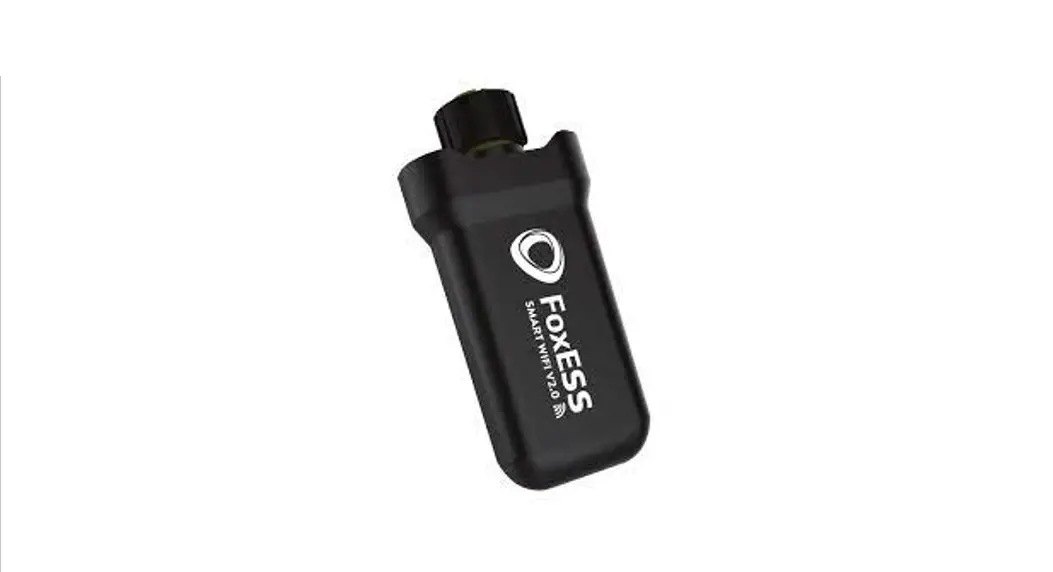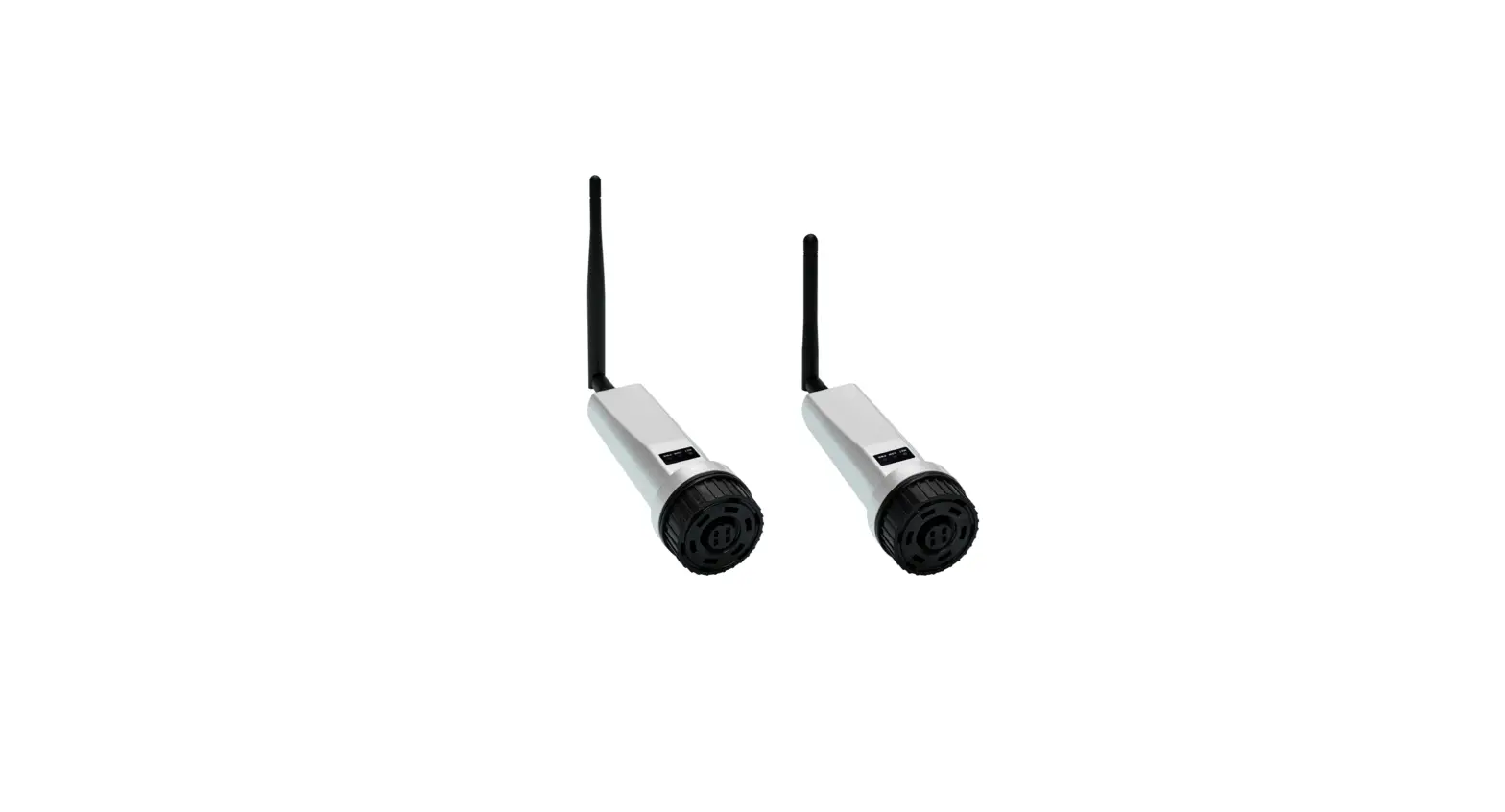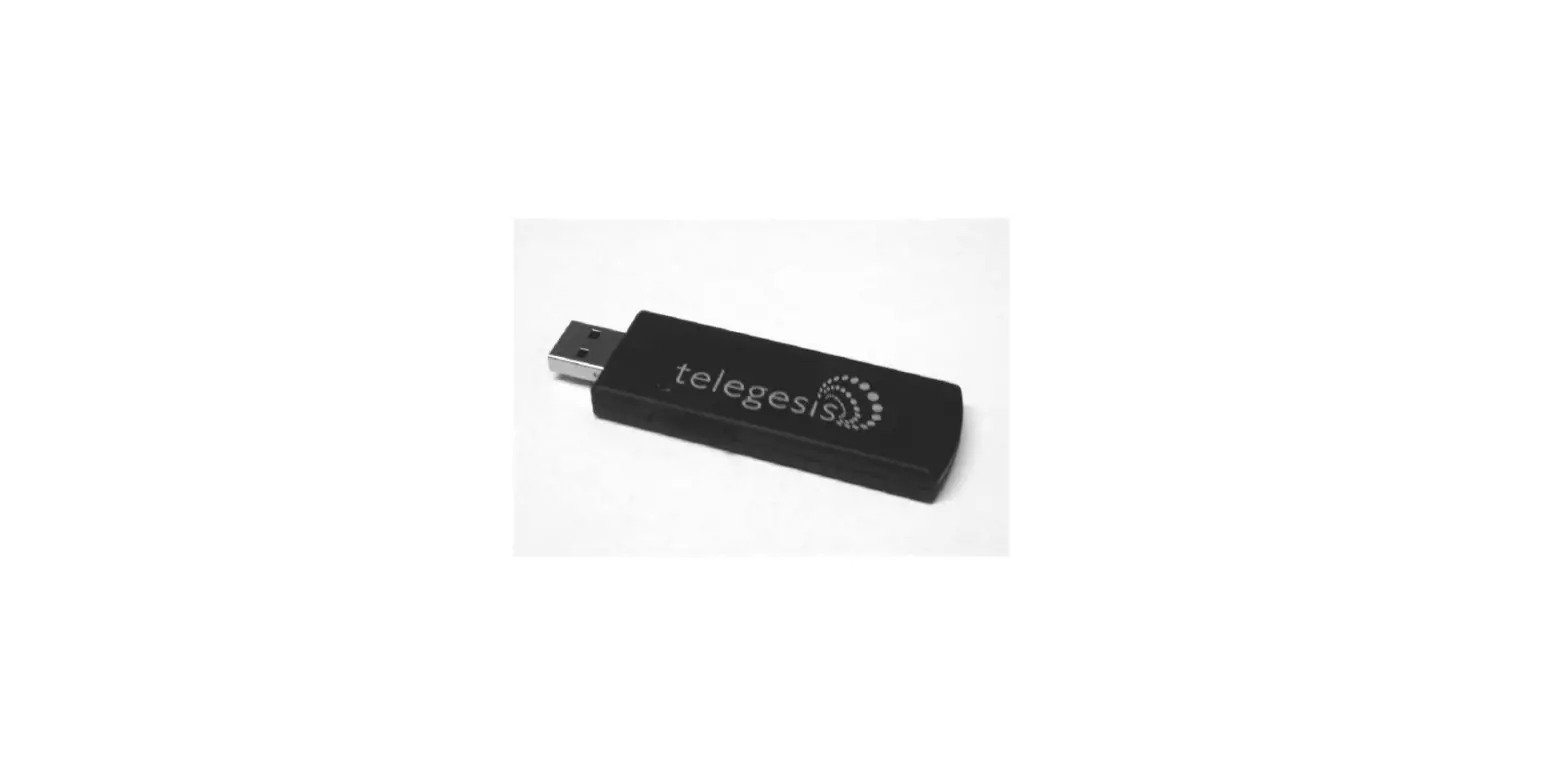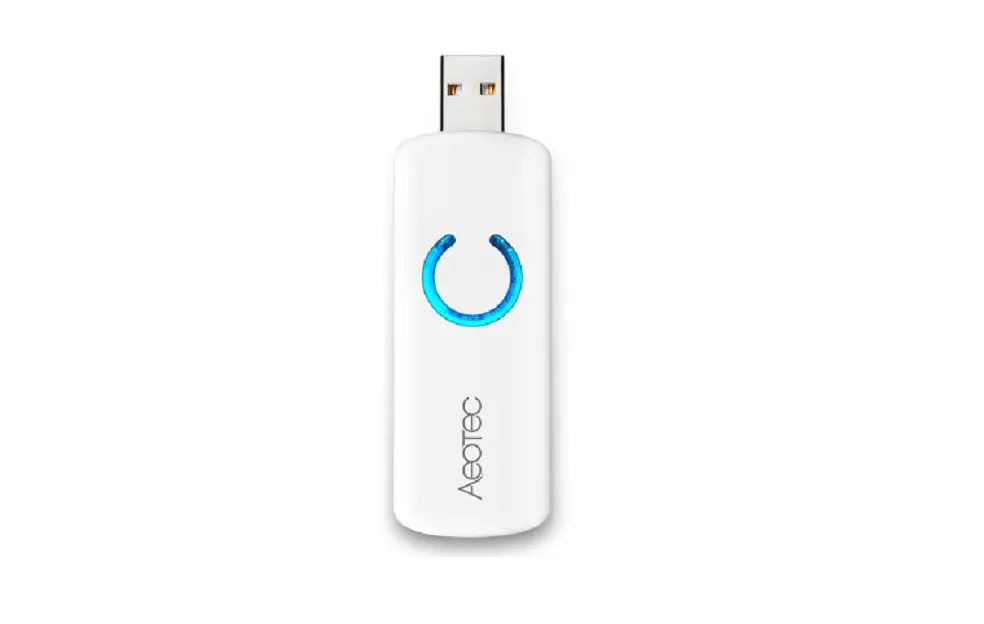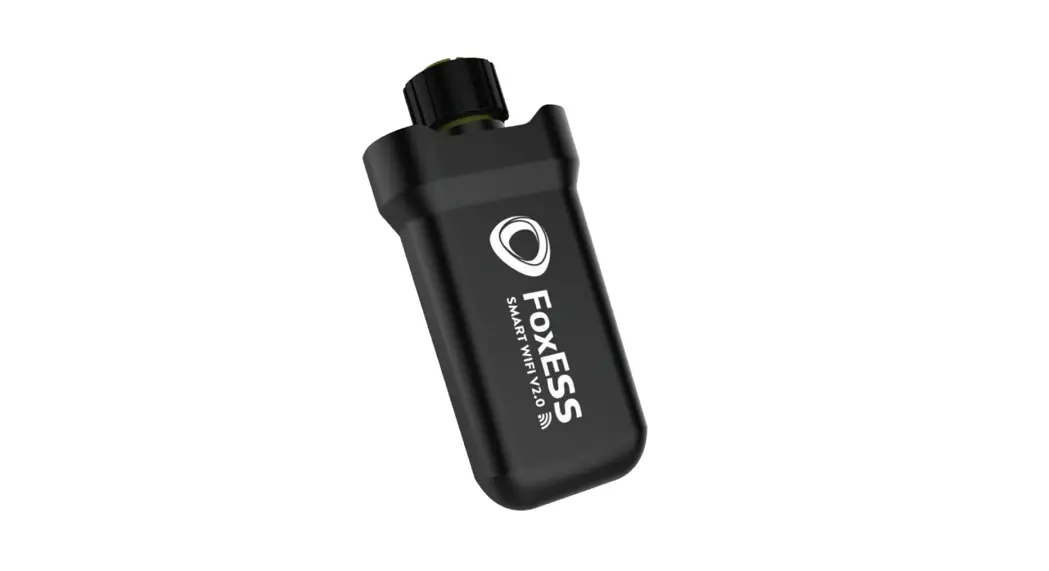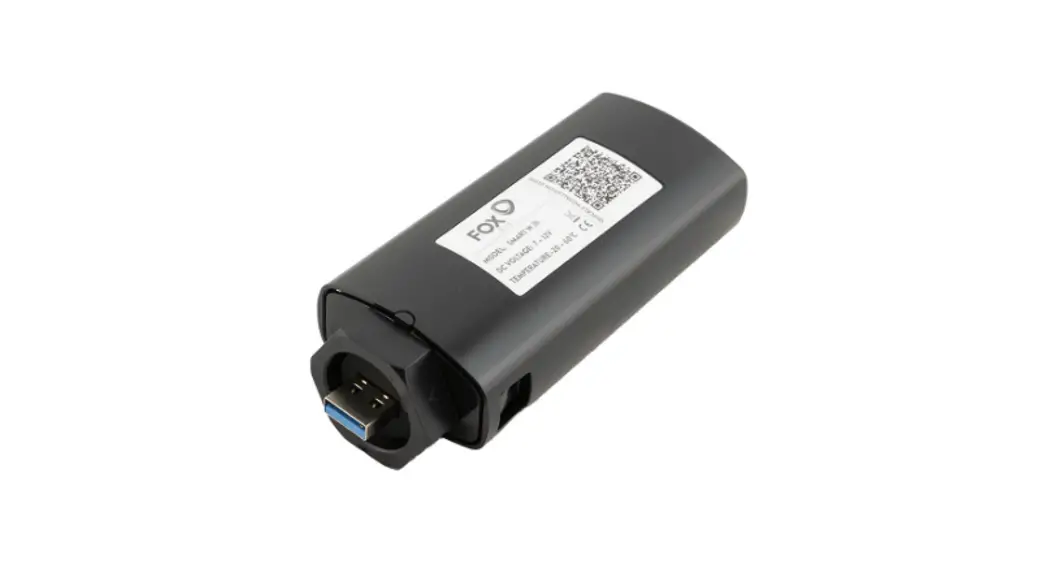
 GPRS USB Stick Installation Guide
GPRS Stick Installation
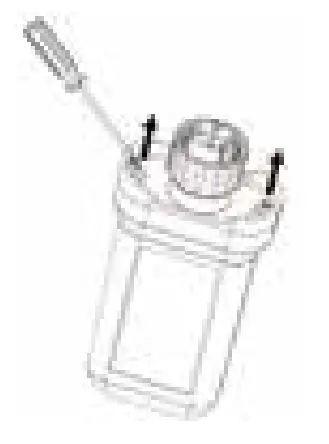
Step 1:
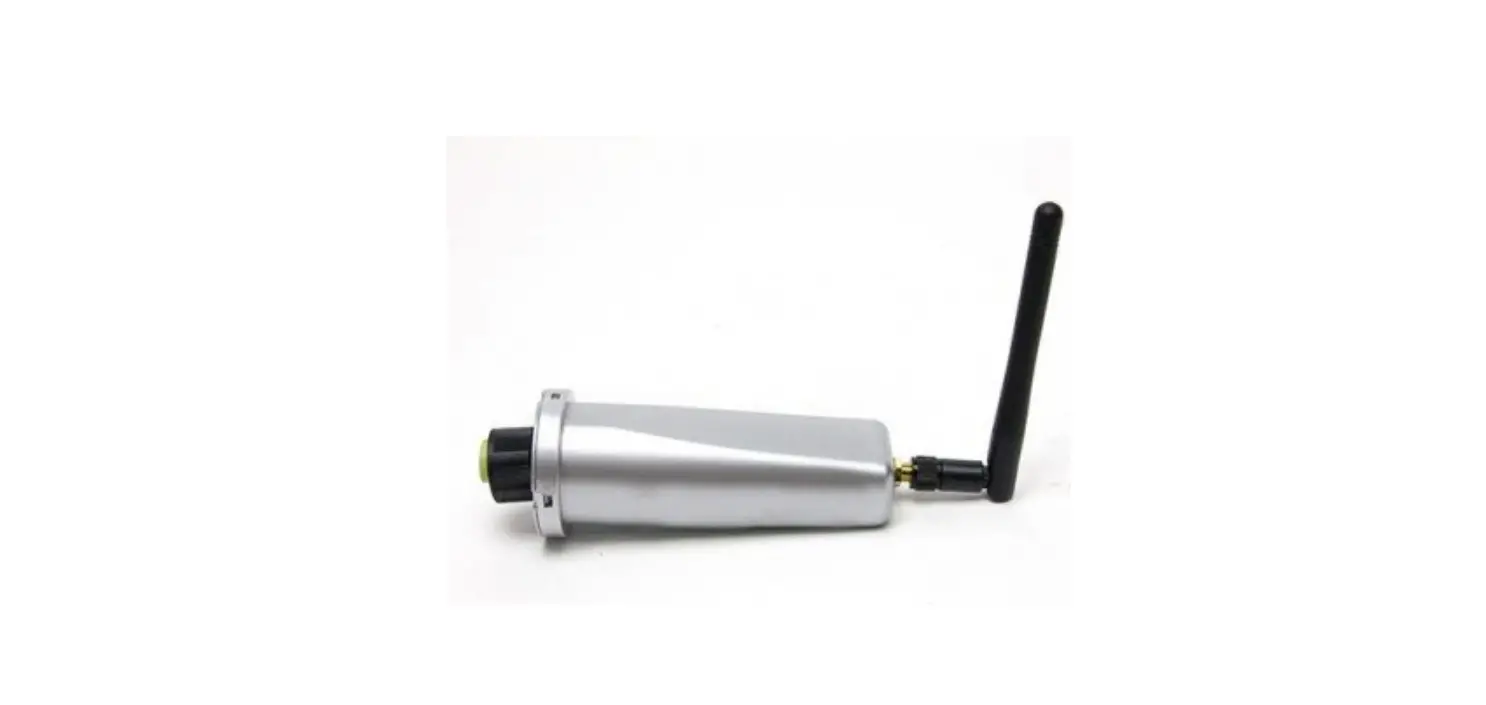
Use a screwdriver to open the Smart GPRS.
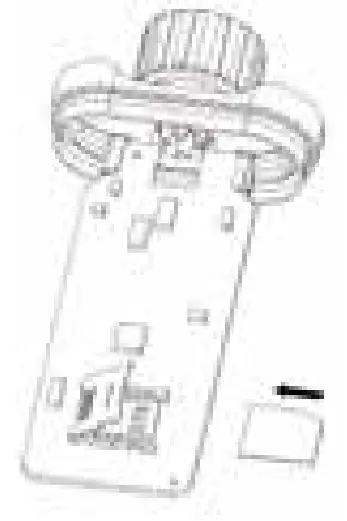
Step 2:
- Slide cover to the left to unlock and open;
- Insert the card into the slot (Make sure the core is facing down);
- Close the cover;
- Slide cover to the right side to close.
Note:
- Please check from the side of the slot to make sure the SIM card core has sufficient contact with the card slot.
- Please make sure the cover has been slide properly, otherwise the signal might be reduced.
Step 3:
Insert the Smart GPRS board into the shell.
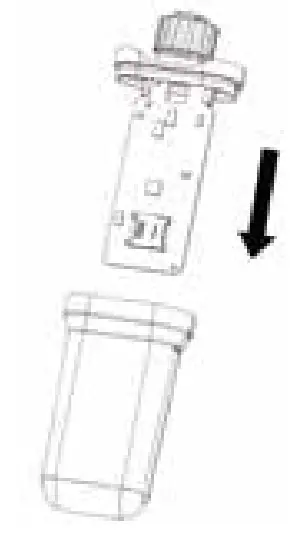
Step 4:
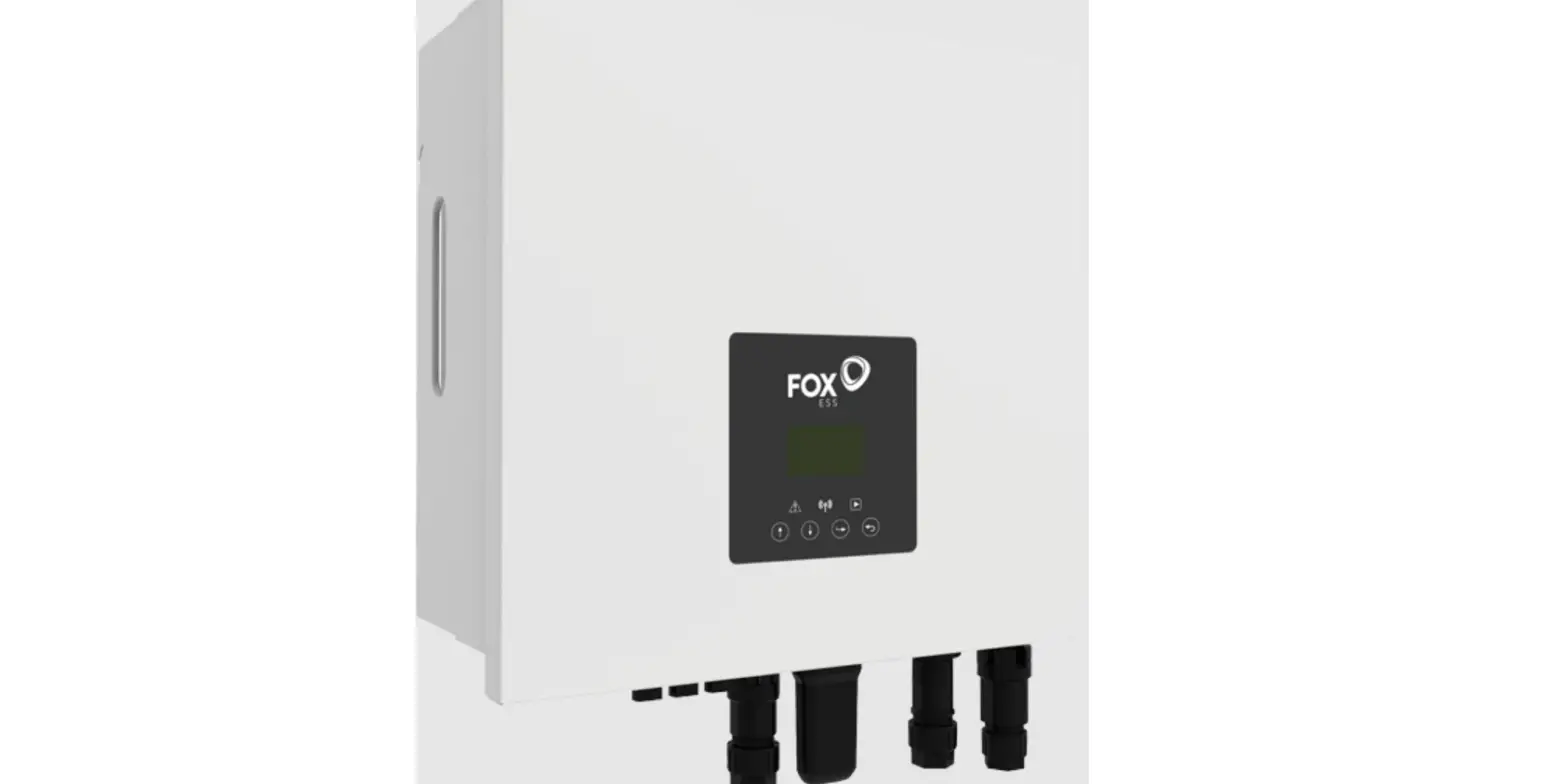
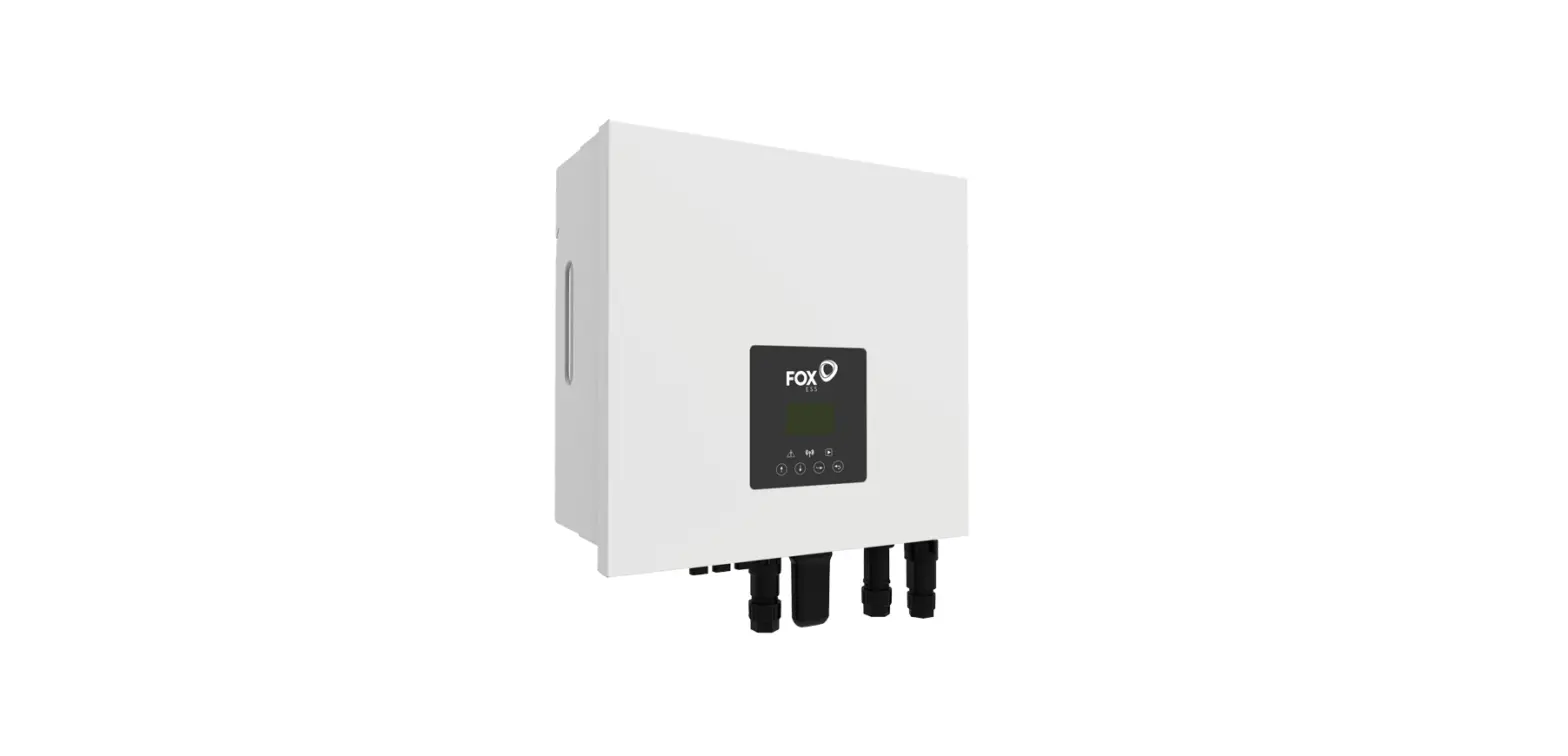
Insert the Smart GPRS into the inverter WiFi/GPRS interface and tighten the dongle.
Note: lable face to front.
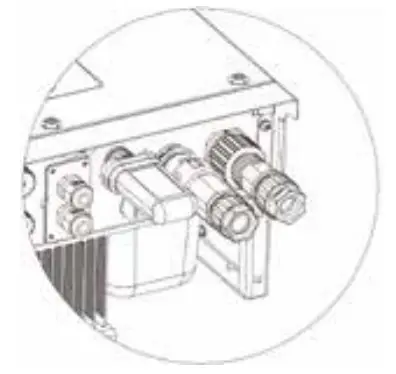
Note: The device must be away from strong magnetic fields generated by large electrical equipment, such as microwaves stoves, refrigerators, wireless phones, photovoltaic panels and metal walls to ensure communication quality. Communication quality might be affected by lightning.
APP Installation
Scan the QR Code below to download and install the FoxCloud APP on your smartphone.
Please choose from below operator:
- Tata
- Aircel
- Airtel
- Vodafone (Please contact Vodafone service to activate the SIM card before use.)
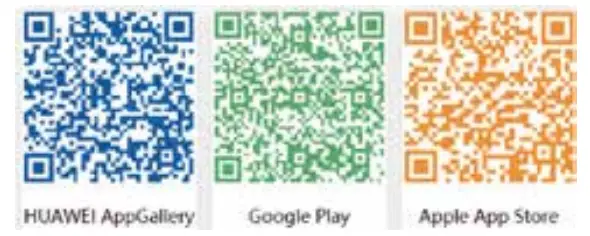 https://apps.apple.com/us/app/id1512581978
Register An Account
 For Installer
Step 1:
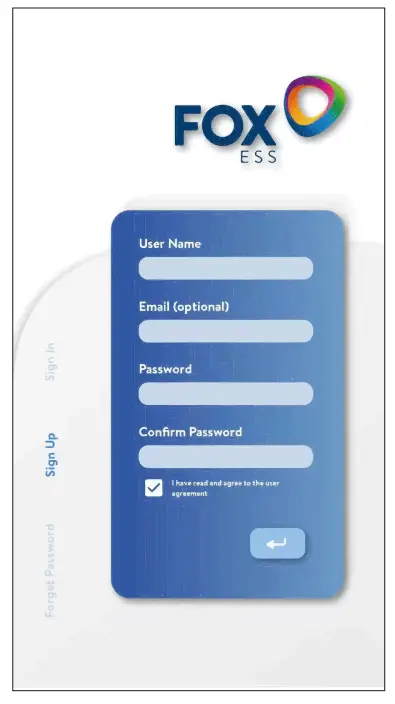
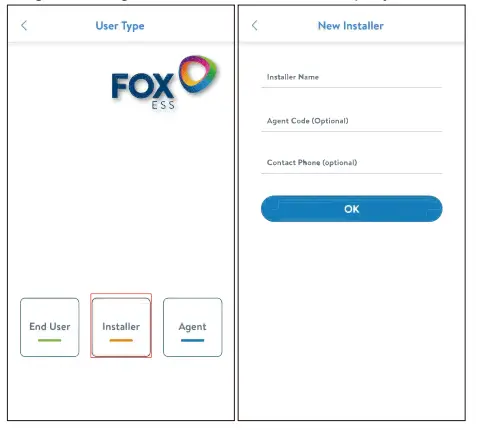
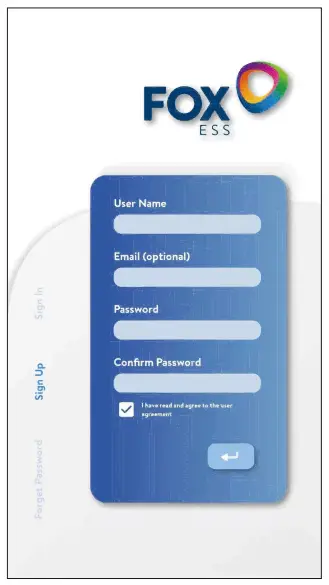
Please click ‘Sign Up’, enter installer’s information to complete the installer account registration.
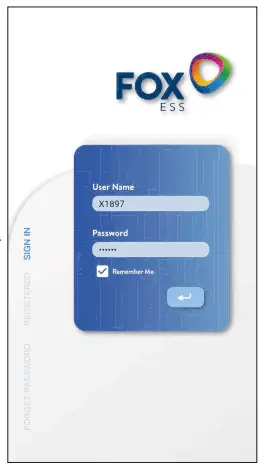
Note: If you already have an installer/agent account, please press ‘Sign In’ and login with your installer/ agent account directly.
 Step 2:
Select ‘Installer’ and enter Installer name, then click ‘OK’.
We suggest you complete all information to ensure after-sales service.
Note:
Installer: The installer Agent: The agent/distributor/installation company.
Step 2:
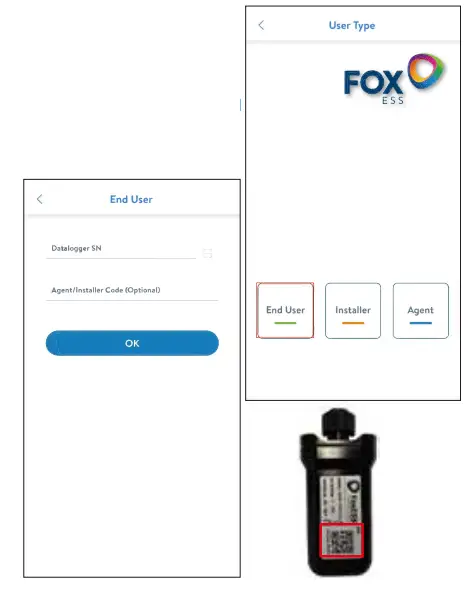
Select ‘End User’ then scan the GPRS bar code on the Smart GPRS, and click ‘OK’. We suggest you complete all information to ensure after-sales service.
 For End User
Step 1:
Please click ‘Sign Up’, enter end user’s information to complete the end user account registration.
 Create A Plant
 Create A Plant
 For Installer
Step 1:
Open the APP, login with your Installer/agent account.
Step 2:
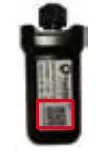
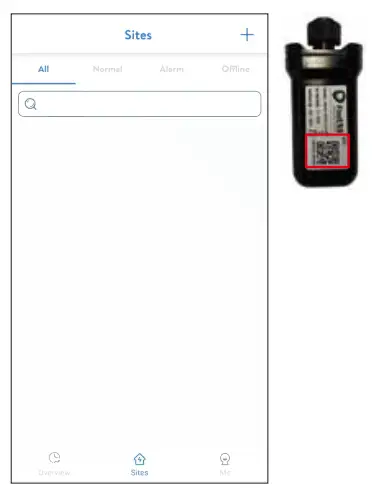
Press the ‘+’ icon on the homepage to add plant. Press the scan icon next to the ‘Datalogger List’ to scan the QR code label on front side of the Smart GPRS.
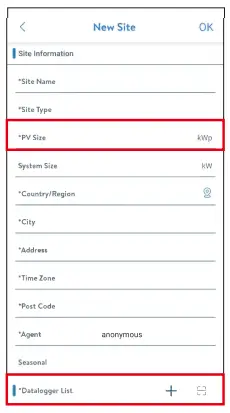
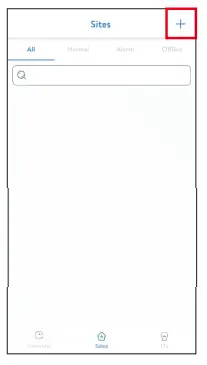
Note: After starting the APP, it will pop-up a message ‘Whether to allow positioning permissions’, please select ‘Allow’. For the PV Size, please fill in the actual capacity of the installed solar panels.
For End User
Step 1:
Open the APP, login with your end user account.
Step 2:
Press the ‘+’ icon on the homepage to add plant. Press the scan icon next to the ‘Datalogger List’ to scan the QR code label on front side of the Smart GPRS.
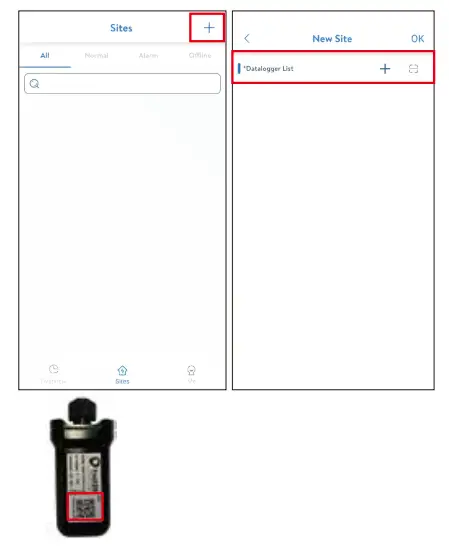
Note: After starting the APP, it will pop-up a message ‘Whether to allow positioning permissions’, please select ‘Allow’. For the PV Size, please fill in the actual capacity of the installed solar panels.
Note: If SN has been bound to the plant already, APP will go to the page as beside. If SN has not been bound before, please refer to step 3.
Step 3:
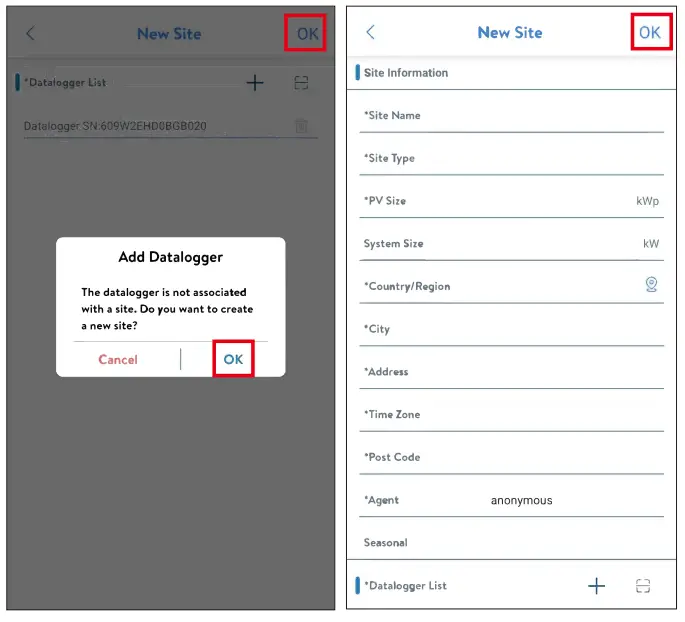
After scanning code successfully, click ‘OK’ on the top right corner of the page, APP will pop-up a message ‘Add Datalogger’, please click ‘OK’. Complete all required information and click ‘OK’ on the top right corner of the page.
The manual is updated frequently. Please scan the code to download the latest version.
 http://www.foxesscloud.com/manual/SmartGPRSQuickGuide2_0.pdf
E [email protected]
W www.foxesscloud.com
 ESS | K-12 Education Staffing & Management Solution
 FoxESS