IS20 Networked Multifunction Instrument
IS20 Manual
IS20 Manual
NETWORKED MULTIFUNCTION INSTRUMENT
Features
Sunlight-viewable 4.3″ LCD display Intuitive graphical user interface that allows for comprehensive customization Day & Night mode for improved visibility Data views include wind, speed, position, depth, engine, environment, fuel and navigation NMEA 0183, NMEA2000 and WiFi network data inputs Efficient power consumption Versatile mounting options, with both dash mount and flush mount kits available Audible and visual alarms, providing real-time monitoring of input data to ensure it remains
within the defined safety range
V 1.0
1 of 24
2023
IS20 Manual
Contents
1. Introduction ……………………………………………………………………………………………………………………….. 3 2. Mounting …………………………………………………………………………………………………………………………… 3
2.1. Dash mounting………………………………………………………………………………………………………… 4 2.2. Flush mounting ……………………………………………………………………………………………………….. 5 3. Front Panel and buttons………………………………………………………………………………………………………. 6 4. Connecting the display………………………………………………………………………………………………………… 7 4.1. Power and NMEA 0183 input/output connector …………………………………………………………… 8 4.2. Type-C connector ……………………………………………………………………………………………………. 9 4.3. NMEA 2000 connector …………………………………………………………………………………………….. 9 4.4. WiFi antenna…………………………………………………………………………………………………………… 9 5. Getting Started …………………………………………………………………………………………………………………… 9 5.1. Turning the unit on and off………………………………………………………………………………………… 9 5.2. Adjust the brightness ……………………………………………………………………………………………… 10 5.3. Setup …………………………………………………………………………………………………………………… 10 6. Display settings ………………………………………………………………………………………………………………… 10 6.1. Data Source ………………………………………………………………………………………………………….. 10 6.2. Unit ……………………………………………………………………………………………………………………… 11 6.3. Display …………………………………………………………………………………………………………………. 12
6.3.1. Language ………………………………………………………………………………………………………….. 12 6.3.2. Colour scheme……………………………………………………………………………………………………12 6.3.3. Theme……………………………………………………………………………………………………………….12
6.4. Time …………………………………………………………………………………………………………………….. 13 6.5. WiFi……………………………………………………………………………………………………………………… 14 6.6. Alarm …………………………………………………………………………………………………………………… 15 6.7. General ………………………………………………………………………………………………………………… 16 6.8. Firmware ………………………………………………………………………………………………………………. 18
6.8.1. Online firmware update ……………………………………………………………………………………… 18 6.8.2. Updating firmware from a Windows computer ……………………………………………………… 18
7. Favourite Pages ……………………………………………………………………………………………………………….. 19
V 1.0
2 of 24
2023
IS20 Manual 7.1. Digital Pages…………………………………………………………………………………………………………. 20 7.2. Heading page ……………………………………………………………………………………………………….. 21 7.3. Rolling road page…………………………………………………………………………………………………… 21
8. Supported sentences. ……………………………………………………………………………………………………….. 21 8.1. NMEA 0183 sentences …………………………………………………………………………………………… 21 8.2. NMEA 2000 PGNs…………………………………………………………………………………………………. 22
9. Specification…………………………………………………………………………………………………………………….. 23 10. Limited Warranty and Notices ………………………………………………………………………………………… 23
1. Introduction
The IS20 is a networked multifunction instrument that provides you with the flexibility to display vital instrument and navigation data. It consolidates multiple marine instrument functions into a single display, thereby simplifying your on-board experience with the IS20.
Equipped with a high-brightness screen, the IS20 delivers a user-friendly and easily customizable solution for displaying information from one of the following interfaces: NMEA 0183, NMEA 2000 bus or WiFi network. It effortlessly presents a wide range of crucial data, including battery status, depth readings, engine metrics, environmental conditions, fuel management details, GPS positioning, heading information, navigation cues, rudder position, speed measurements, tank levels, time, weather updates, and wind data.
To ensure seamless operation and continued support, the IS20 offers firmware updates that can be conveniently maintained by connecting the device to the internet. This enables the addition of new supported information and features over time. Furthermore, the instrument boasts programmable audio and visual alarms, allowing you to create up to four alarms to guarantee optimal safety and situational awareness while on board your vessel.
2. Mounting
The IS20 was designed with industrial level requirements in mind and is aimed at the commercial, leisure, fishing boat and vessel monitoring markets. It is suited to both indoor and outdoor use and can be dash or flush mounted.
When selecting a mounting location, the following considerations must be observed:
· Sturdy mounting surface – The mounting surface must be strong enough to support the weight of the device and protect it from excessive vibration or shock. Although the display unit is waterproof from the front when installed correctly, it is good practice to mount it in a protected area, away from prolonged and direct exposure to rain and salty seawater.
· Convenience – the mounting location should allow easy access to the buttons on the device.
V 1.0
3 of 24
2023
IS20 Manual
· Viewing angle – To be mounted at a suitable angle to ensure best visibility of the monitor. The mounting location should be at or below eye level to provide optimal viewing as you operate your vessel.
· Access – There must be suitable room behind the device to allow for the rear mounted connections, to avoid sharp bends in any cables.
· Interference – the selected location should be far enough away from devices that may cause interference, such as motors, generators, and radio transmitters.
· Magnetic compass – To avoid interference with a magnetic compass, the IS20 should not be installed within the compass-safe distance value listed in the product specifications. For example, the AS08 needs 0.6 meters minimum distance.
· Airflow – to prevent overheating, do not restrict airflow at the rear of the display unit; ensure that there is adequate ventilation, particularly if the display unit is pod-mounted.
2.1. Dash mounting
When dash mounting, the unit will be mounted on a flat surface with the provided bracket. If you are mounting the bracket on fiberglass with screws, it is recommended to use a countersink bit to drill a clearance counterbore through only the top gel-coat layer. This will help to avoid cracking in the gel-coat layer when the screws are tightened.
Figure 1 IS20 dimension in mm
V 1.0
4 of 24
2023
IS20 Manual
Figure 2 Dash mounting
2.2. Flush mounting
Be careful when cutting the hole to flush mount the device. There is only a small amount of clearance between the case and the mounting holes, and cutting the hole too large could compromise the stability of the device after it is mounted.
Do not use the device as a template when drilling the mounting holes because this may damage the glass display and void the warranty. You must only use the included template to correctly drill the mounting holes.
V 1.0
Figure 3: Flush mounting 5 of 24
2023
IS20 Manual
Figure 4 Flush mounting cut off drawing
3. Front Panel and buttons
V 1.0
Figure 5 IS20 front panel 6 of 24
2023
IS20 Manual
Item
Description
1
POWER. Press and hold to power on. Press and hold 5 seconds to switch off.
Double click to enter setup page.
2
UP ARROW. Move up in menu, next favourite page, or increase a numeric
value.
3
DOWN ARROW. Move down in menu, previous favourite page, or decrease a
numeric value.
4
ENTER. Select a menu option and to enter the next menu level.
5
OK. Select menu item or save the setting.
4. Connecting the display
The IS20 has the following options for connection to inputs, outputs and host devices at rear (from left to right):
· Type-C USB connector · Power/ NMEA 0183 input & output connector · NMEA 2000 connector · WiFi antenna
V 1.0
Figure 6 IS20 connector view 7 of 24
2023
IS20 Manual
4.1. Power and NMEA 0183 input/output connector
The IS20 uses industry standard six-core screened M12 cable for power supply and NMEA 0183 input/output connection.
It operates on a 12V DC power supply. To properly connect the IS20, please follow these guidelines: Connect the red wire to the positive supply (12V) using a 2-amp fuse, and securely connect the black wire to the ground (GND). It is crucial to avoid connecting any of the other data wires to the 12V power source, as doing so could potentially damage the device. Rest assured, the IS20 is equipped with reverse polarity protection, ensuring the device remains safeguarded in the event of a faulty installation.
The IS20 can also be powered through the NMEA 2000 port using an N2K cable. When utilizing an NMEA 2000 cable, we advise leaving the red and black wires open (please use tape or a suitable protective measure to safeguard the header wire).
The NMEA 0183 input and output of the IS20 are galvanically isolated, in accordance with the NMEA standard. Galvanic isolation, also known as opto-isolation, effectively prevents the flow of unwanted currents between the instruments and the IS20. This protective feature against potential damage and significantly reduces interference with radio signals.
The NMEA 0183 input of the IS20 supports two different baud rates: 4.8kbps and 38.4kbps. These baud rates can be selected from the settings page, allowing you to choose the appropriate data source for the IS20. The selected data source provides real-time data to the IS20, which is then displayed on the screen for easy monitoring.
Furthermore, the IS20 has the capability to transmit (repeat) data from the NMEA 0183 input and send it to other devices using NMEA 0183 wires. The output baud rate can be configured via the settings page. If you wish to forward the data to a computer, you will need a TTL to USB adapter (not included). This enables the input data to be displayed on software running on your computer, enhancing data visibility and analysis capabilities.
4.2. Connecting to NMEA 0183 devices
The NMEA 0183 connector of IS20 works in the RS422 (differential) protocol. It can also work with RS232(differential end) devices.
For RS422 interface devices, these wires need to be connected.
IS20 wire
Connection needed on RS422 device
NMEA 0183 input
NMEA input+ NMEA input-
NMEA output+ NMEA output-
NMEA 0183 output
NMEA output+ NMEA output-
NMEA input+ NMEA input-
Swap NMEA input + and NMEA input wires if the IS20 does not work. Ensure you check the above table and your device’s documentation carefully before connection.
V 1.0
8 of 24
2023
IS20 Manual
Although the IS20 works with differential end RS422 interface, it also supports single end for RS232 interface devices, these wires need to be connected
IS20 wire
Connection needed on RS232 device
NMEA 0183 input
NMEA input+ NMEA input-
GND TX
NMEA 0183 output
NMEA output+ NMEA output-
GND RX
Swap NMEA `+’ and `-` wires if the IS20 does not work.
4.3. Type-C connector
The IS20 is supplied with a type-C USB connector and USB cable for settings and upgrade its firmware. The USB cable can be linked directly to a USB port on the Windows PC.
4.4. NMEA 2000 connector
The IS20 provides a standard male NMEA 2000 connector.
Data sources provide live data to the system. Apart from NMEA 0183 input port, the IS20 can also be connected to a NMEA 2000 network to receive NMEA 2000 data. The NMEA 2000 connector also provides the power supply to IS20.
4.5. WiFi antenna
The supplied WiFi antenna needs to be connected to the SMA connector on rear. Connectivity in Station Modes on 802.11 b/g/n provides WiFi input of all messages from a server (e.g. a wireless router). This WiFi connection can also be disabled by setup into standby mode.
Connect the antenna by screwing them in clockwise until hand tight.
5. Getting Started
5.1. Turning the unit on and off
The IS20 offers two options for powering the device: through the N2K connector or the power cable connected to the Power and NMEA 0183 input/output connector. Once power is supplied, press and hold the POWER button for 3 seconds to turn on the screen. The Quark-elec logo will be displayed, followed by a legal notice page upon completion of the initialization process. To proceed, simply tap ‘Accept’, and the default page will be presented.
To power off the IS20, press and hold the POWER button for 5 seconds while the display is active.
V 1.0
9 of 24
2023
IS20 Manual
5.2. Adjust the brightness
When the IS20’s screen is active, pressing and holding the central area of the screen will bring up the brightness setting page. From this page, you can conveniently adjust the screen brightness to your desired level, ensuring optimal visibility in different lighting conditions.
5.3. Setup
To access the setup page on the IS20, simply double tap the POWER button while the screen is turned on.
During the initial setup process, the most essential parameter to configure is the Data Source. The IS20 offers four different data source options: NMEA 2000, NMEA 0183 4.8K, NMEA 0183 38.4K, and WiFi. From the drop-down list, select the appropriate data source that best suits your requirements. Once selected, the system will automatically save the chosen data source. Press the ENTER button to confirm, and the screen will return to the display page. If there is valid data input from the selected input port, it will be promptly displayed on the screen.
6. Display settings
The Set-up menu provides settings to configure the display. It includes the following settings: · Data Source · Unit · Display · Time · WiFi · Alarm · General · Firmware
6.1. Data Source
Figure 7 IS20 Data source setting
The first tab opens the `Data Source’ menu on the display. The IS20 provides flexible options for data inputs, allowing the user to select one of the following four data sources from the dropdown
V 1.0
10 of 24
2023
IS20 Manual
list, including NMEA 0183 4.8kbps, NMEA 0183 38.4kbps, NMEA 2000 or WiFi. For instance, selecting NMEA 0183 38.4kbps configures the IS20 to utilize the NMEA 0183 input at a baud rate of 38.4kbps, displaying the corresponding data.
The IS20 is compatible with NMEA 2000, enabling seamless communication with NMEA 2000 sensors and devices when connected to a NMEA 2000 backbone. This integration empowers the display to present vital information such as speed, heading, position, environment, engine, and water depth on the screen.
In addition to wired connections, the IS20 supports WiFi connectivity, allowing it to connect to and receive marine navigation data from other WiFi-enabled devices. This wireless capability expands the display’s versatility and facilitates data integration from various sources.
6.2. Unit
Figure 8 IS20 Unit setting The Unit menu allows you to specify the preferred units of measure used for data items. Currently, the following units are supported by the IS20:
Depth: feet, meters or fathom Speed: m/s, knots or km/h Temperature: °C or °F Distance: km or NM
V 1.0
11 of 24
2023
IS20 Manual
6.3. Display
Figure 9 IS20 display setting The `Display’ menu allows the user to set the language, colour scheme, theme and the brightness of the display.
6.3.1. Language
The current firmware of IS20 only supports English. As IS20 allows user to connect to the Internet to upgrade the firmware, the following languages will be supported in the near future.
English (UK) Chinese English (US)
Danish
Dutch
Finnish
French
German
Greek
Italian Spanish
Norwegian Swedish
Polish
Portuguese
6.3.2. Colour scheme
The colour scheme and brightness settings allow the display to be set up to be easily visible in most weather conditions, from bright sunlight to night-time sailing. The IS20 supports black scheme (day mode) and red scheme (night mode) now. The brightness setting can be accessed by a simple press and hold of the screen for 3 seconds when the screen is activated.
6.3.3. Theme
The theme option allows the user to set the default data field arrangement. The IS20 provides 5 different page layout as below.
V 1.0
12 of 24
2023
IS20 Manual
Figure 10 IS20 favourite pages
6.4. Time
The Time & Date menu provides date and time format options and a time offset setting to compensate for any time zone difference between local time and the Universal Time Constant (UTC).
V 1.0
13 of 24
2023
IS20 Manual
Figure 11 IS20 Time and date setting
6.5. WiFi
The IS20 display instrument features WiFi connectivity, which allows the display to be connected to and to receive marine navigation data from other devices.
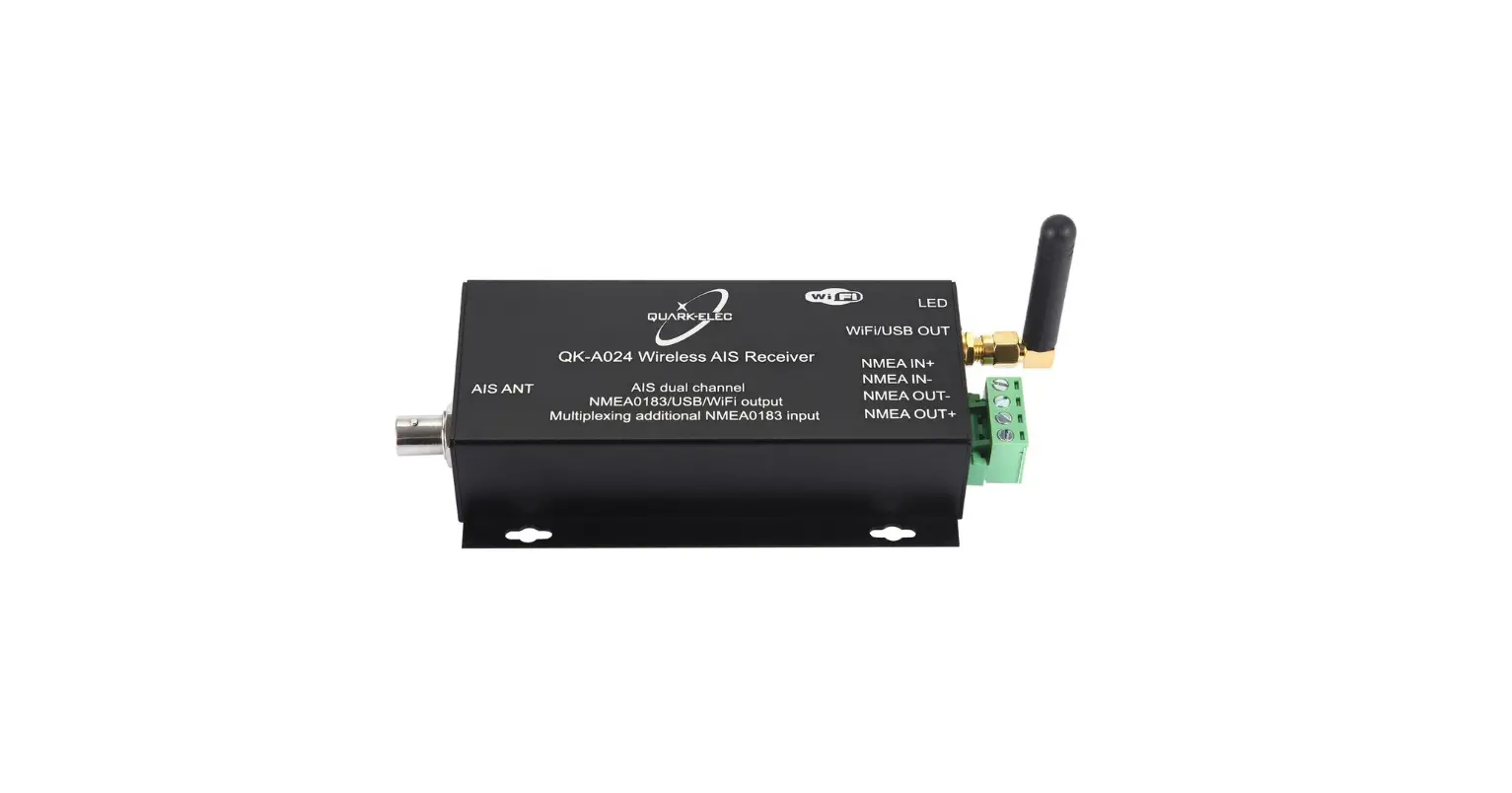
The IS20 can be set up to work in station mode, which means it can be connected to other devices working as a station (e.g. A026+, or wireless router installed on the vessel).
The WiFi adapter can also be switched off to save power if this feature is not required by setting the WiFi mode to Standby.
Figure 12 IS20 WiFi working mode setting To setup the IS20 to work in station mode, the followings need to be set up properly:
Mode: set WiFi working mode to `Station’
SSID: enter your wireless router’s SSID here.
Password: enter your router’s password
IP: enter an IP address here for your IP20 display. This has to be similar to the router’s IP address, apart from the last number, which should be unique to the IS20 on the network. For example, if your router’s IP address is 192.168.1.1, the IS20’s IP address should be 192.168.1.X, where X is a number from 2 to 255. Please ensure this IP address is not being used by the router or other devices on the network.
Gateway: please enter the router’s IP address here.
Mask: please enter the subnet mask here. Normally its 255.255.255.0
V 1.0
14 of 24
2023
IS20 Manual Below is a typical setup to a wireless router.
Figure 13 A typical WiFi setting The IS20 can connect with most of Quark-elec WiFi products to display the data from them. The following setting are for these products used the default settings.
Figure 14 WiFi setting for Quark-elec devices
6.6. Alarm
Alarms are used to alert the user to a hazard or situation requiring attention. The IS20 allows the user to set up alarms for navigation data from the Alarm page. Audible and visual warnings are triggered based on the specified thresholds of the alarm. This can be used to monitor all the input data within a safety range. So, you can feel relax during sailing.
V 1.0
15 of 24
2023
IS20 Manual
Figure 15 IS20 Alarm setting
To set up an alarm, the data type has to be selected first. The current firmware supports the following data types:
Depth, SOG, COG, heading, bearing, TWS, TWA, TWD, AWS, AWA, water temperature, water speed, ROT, XTE, TBS, roll, pitch, current, voltage, battery status.
After selecting the required data type, the comparator (>, = or <) and the desired value has to be added to the alarm rule. The final step in activating the alarm is to toggle the switch on the right to the ON position. If the alarm is no longer needed, it can be easily disabled at any time. When an alarm is triggered, a warning message as the one below will appear on the IS20 screen, alerting the user to the out-of-range condition.
Figure 16 Alarm page This warning message will automatically disappear once the measured data returns to the safety range. Alternatively, it can be disabled by tapping on the warning window. Additionally, users have the option to manually disable the warning message by clicking on the warning window itself, providing flexibility and control over alarm notifications.
6.7. General
You have the flexibility to select the desired baud rate for the output from the available drop-down menu, catering to various application requirements.
For your convenience, the whitelist feature allows you to specify and list preferred message types, ensuring optimal data handling and management.
V 1.0
16 of 24
2023
IS20 Manual
Figure 17 IS20 General Setting Within the general options of the IS20, users could configure the following settings: – NMEA 0183 Output Baud Rate: The IS20 offers a standard NMEA 0183 differential output,
allowing users to repeat the input data and transmit it to other devices such as VHF radios, autopilots, or computers. The baud rate for this output can be adjusted to align with the requirements of the connected devices. – NMEA 0183 Output Whitelist: The whitelist function enables users to specify the types of sentences that are permitted for output through the NMEA 0183 interface. By listing the desired message types, users can ensure that only the desired information is transmitted. Multiple sentence types can be specified, with each type separated by a comma. – Depth Offset Value: The IS20 also provides the option to apply an offset value to the depth measurement if necessary. This feature proves useful when precise depth value correction is required for specific applications. These configurable settings within the general options section of the IS20 empower users to tailor the instrument’s functionality to their specific needs and preferences.
V 1.0
17 of 24
2023
IS20 Manual
6.8. Firmware
Figure 18 IS20 Firmware setting
Quark-elec is committed to continuous development and enhancement of the IS20, regularly releasing new firmware updates to support additional features and improve the overall customer experience.
To ensure you have access to the latest advancements, the IS20 multifunction display offers firmware update capabilities. You can update the firmware by accessing the Firmware page, which can be found in the settings menu. There are two convenient methods available for initiating the firmware update process.
Before updating the instrument display’s firmware, please disconnect all devices connected to the IS20.
6.8.1. Online firmware update
To update the IS20’s firmware through the internet, the IS20 must be connected to a wireless router with internet access first. Once connected, you can easily check for new firmware availability by clicking on the ‘Check Firmware’ option.
Should a new firmware version be detected, simply tap ‘Update Firmware’ to initiate the update process It’s important to note that the duration of the process may vary, typically taking up to 5 minutes depending on the speed of the internet connection.
6.8.2. Updating firmware from a Windows computer
To upgrade the IS20 firmware without requiring an internet connection, you have the option to utilize the USB port and a Windows computer. Follow these steps to proceed:
1) Connect the IS20 to your Windows computer using the provided USB cable. 2) Ensure the IS20 is also connected to a 12V power supply.
V 1.0
18 of 24
2023
IS20 Manual
3) Press and hold the Power button for 2 seconds, then press the OK button. This action will bring up the ‘Boot Loader’ page on the IS20 screen. Simultaneously, a new window will appear on your computer displaying a drive named ‘DFU_APP’ (or similar). Please refrain from interacting with any other drive, such as ‘DFU_WiFi’.
4) Copy the new firmware file (in .hex format) to the ‘DFU_APP’ or similar drive. Wait for the copy process to complete, which typically takes around 10 to 15 seconds.
5) Close the window that displays the drive. 6) Turn off the power and disconnect the USB cable from the IS20. 7) Restart the IS20, which will now operate with the new firmware. You can verify the firmware
version on the setup page.
By following these steps, you can upgrade the IS20’s firmware using a Windows computer, providing a convenient alternative to updating via an internet connection.
7. Favourite Pages
The IS20 conveniently displays instrument data across a variety of pages, offering users a range of options to suit their preferences. With five distinct page layouts available, each can be personalized by selecting different data types to be displayed. Navigating between the available pages is simple, as users can utilize the UP or DOWN arrow buttons to switch seamlessly.
V 1.0
19 of 24
2023
IS20 Manual
Within each page of the IS20, every piece of information is thoughtfully presented within its own frame. These frames offer a versatile range of styles and formats to ensure the data is presented in a visually appealing and easily understandable manner.
7.1. Digital Pages
The IS20 offers data display options with support for 2×2, 2×3, and 3×3 layout configurations. These digital frames present data in a clear numerical format, allowing for easy and precise information reading.
V 1.0
20 of 24
2023
IS20 Manual 2×2 layout
7.2. Heading page
2×3 layout
3×3 layout
Figure 19 Heading page
The heading page on the IS20 presents the heading information in a clear and easily readable compass dial format. This dedicated page ensures the heading data is easily accessible and comprehensible at a glance. Moreover, the flexibility of the Heading page enables users to customize and display up to four additional data points in each corner, offering a comprehensive and personalized overview of relevant information for enhanced situational awareness.
7.3. Rolling road page
Figure 20 Rolling road page
The rolling road provides waypoint and course deviation information. This feature allows users to easily track their progress, navigate accurately, and maintain course alignment.
8. Supported sentences.
8.1. NMEA 0183 sentences
When the IS20 is connected to an optional NMEA 0183 or WiFi device, it has the capability to receive a wide range of NMEA 0183 sentences. These sentences can be selectively displayed on your preferred pages, providing you with convenient access to the information that matters most to you. The following
V 1.0
21 of 24
2023
IS20 Manual are the supported NMEA 0183 sentences with the current firmware.
NMEA 0183 sentence
Function
AAM ABM APB DBT DPT DSC DSE GGA GLL GSA GSV HDG HDM HDT HSC MTW MWD MWV RMB RMC* ROT RPM RSA THS VDR VHW VLW VTG* VWR XDR XTE ZDA
Waypoint Arrival Alarm AIS Addressed binary and safety related messages Heading/Track Controller (Autopilot) Sentence “B” Depth Below Transducer Depth Digital Selective Calling Information Expanded Digital Selective Calling Global Positioning System Fix Data Geographic Position Latitude/Longitude GNSS DOP and Active Satellites GNSS Satellites in View Heading, Deviation & Variation Heading, Magnetic Heading, True Heading Steering Command Water Temperature Wind Direction & Speed Wind Speed and Angle (True or relative) Recommended Minimum Navigation Information (Position) Recommended Minimum Specific GNSS Data (Position) Rate Of Turn Revolutions Rudder Sensor Angle True Heading and Status Set and Drift Water Speed and Heading Dual Ground/Water Distance Course Over Ground and Ground Speed Relative (Apparent) Wind Speed and Angle Battery information (Voltage, current and status) Cross Track Error, Measured Time & Date, Local Time Offset
8.2. NMEA 2000 PGNs
The following NMEA 2000 PGNs are supported by the IS20’s current firmware. Quark-elec remains dedicated to ongoing development and improvement of the IS20, consistently delivering firmware updates to enhance functionality, supporting more PGNs.
NMEA 2000 PGN
HEX code
126992 127237 127245 127250 127251 127258 128259 128267 128275 129025 129026 129029 129033
1F010 1F105 1F10D 1F112 1F113 1F11A 1F503 1F50B 1F513 1F801 1F802 1F805 1F809
Function
System Time Heading/Track Control Rudder Vessel Heading Rate of Turn Magnetic Variation Speed, Water referenced Water Depth Distance Log Position, Rapid Update COG & SOG, Rapid Update GNSS Position Data Time & Date
Converted to NMEA 0183Sentences
ZDA HSC RSA HDG, VHW, THS ROT HDG VHW DBT, DPT VLW GLL VTG GGA, GLL, GSA, RMC, ZDA ZDA
V 1.0
22 of 24
2023
IS20 Manual
129044 129283 129284 129291 129539 129540 129808 130306 130310 130311 130312 130577
1F814 1F903 1F904 1F90B 1FA03 1FA04 1FB10
1FD02 1FD06 1FD07 1FD08 1FE11
Datum Cross Track Error Navigation Data Set & Drift, Rapid Update GNSS DOPs GNSS Sats in View DSC Call Information Wind Data Environmental Parameters Environmental Parameters Temperature Direction Data
DTM APB, RMB, XTE AAM, APB, RMB VDR GSA GSV DSC, DSE MWV MDA, MTW MDA MDA, MTW THS, VDR
9. Specification
Item
Specification
DC supply
10V-16V
Average supply current
230mA@ 12V
Dimensions without sun cover(W*H*D) 142*112*45.5
Dimensions with sun cover(W*H*D)
143.4*113.4*54.3
Display size
4.3″ (diagonal). 4:3 Aspect ratio
Screen Resolution
800×480
Data input type
NMEA 0183, NMEA 2000, WiFi
NMEA 2000 load equivalency number (LEN)
5
Waterproof rating
IPx7
Humidity
100% RH
Operating temperature
-10°C to +60°C
Storage temperature
-20°C to +80°C
Operating humidity
10%90%RHnon-condensing
Recommended humidity
0 – 93% RH
Grounding protection
Screw
Waterproof level
IP40
10. Limited Warranty and Notices
Quark-elec warrants this product to be free from defects in materials and manufacture for one year from the date of purchase. Quark-elec will, at its sole option, repair or replace any components that fail in normal use. Such repairs or replacement will be made at no charge to the customer for parts and labour. The customer is, however, responsible for any transportation costs incurred in returning the unit
V 1.0
23 of 24
2023
IS20 Manual
to Quark-elec. This warranty does not cover failures due to abuse, misuse, accident or unauthorized alteration or repairs. A returns number must be given before any unit is sent back for repair. The above does not affect the statutory rights of the consumer.
Disclaimer
This product is designed to aid navigation and should be used to augment normal navigational procedures and practices. It is the user’s responsibility to use this product prudently. Neither Quarkelec, nor their distributors or dealers accept responsibility or liability either to the products user or their estate for any accident, loss, injury or damage whatsoever arising out of the use or of liability to use this product.
Quark-elec products may be upgraded from time to time and future versions may therefore not correspond exactly with this manual. The manufacturer of this product disclaims any liability for consequences arising from omissions or inaccuracies in this manual and any other documentation provided with this product.
Document history
Issue Date
Changes / Comments
1.0 01-06-2023
Initial release
Quark-elec (UK) Unit 3,Clare Hall, St. Ives Business Park Parsons Green, St Ives,Cambridgeshire PE27 4WY
V 1.0
24 of 24
2023