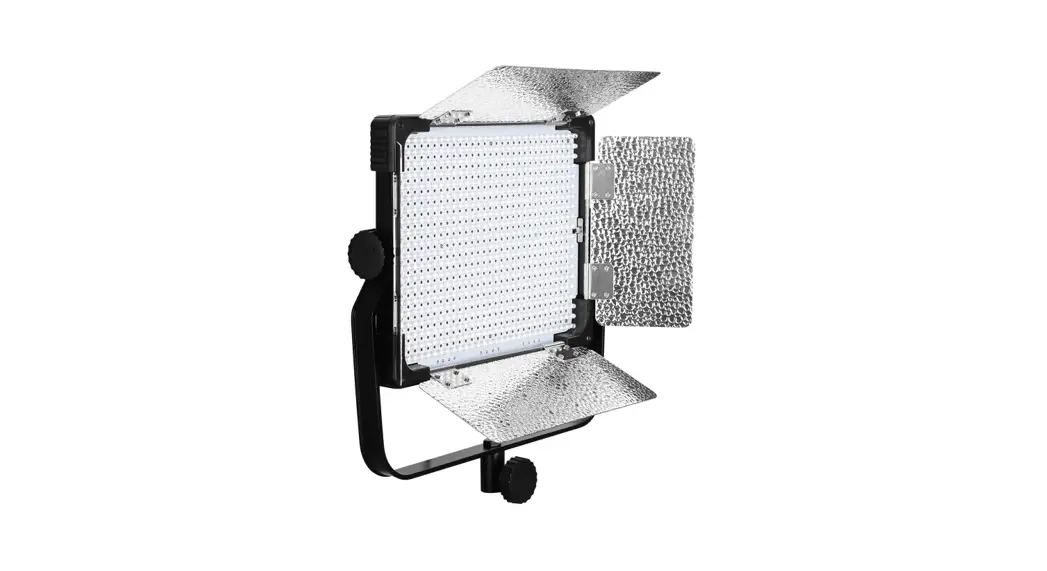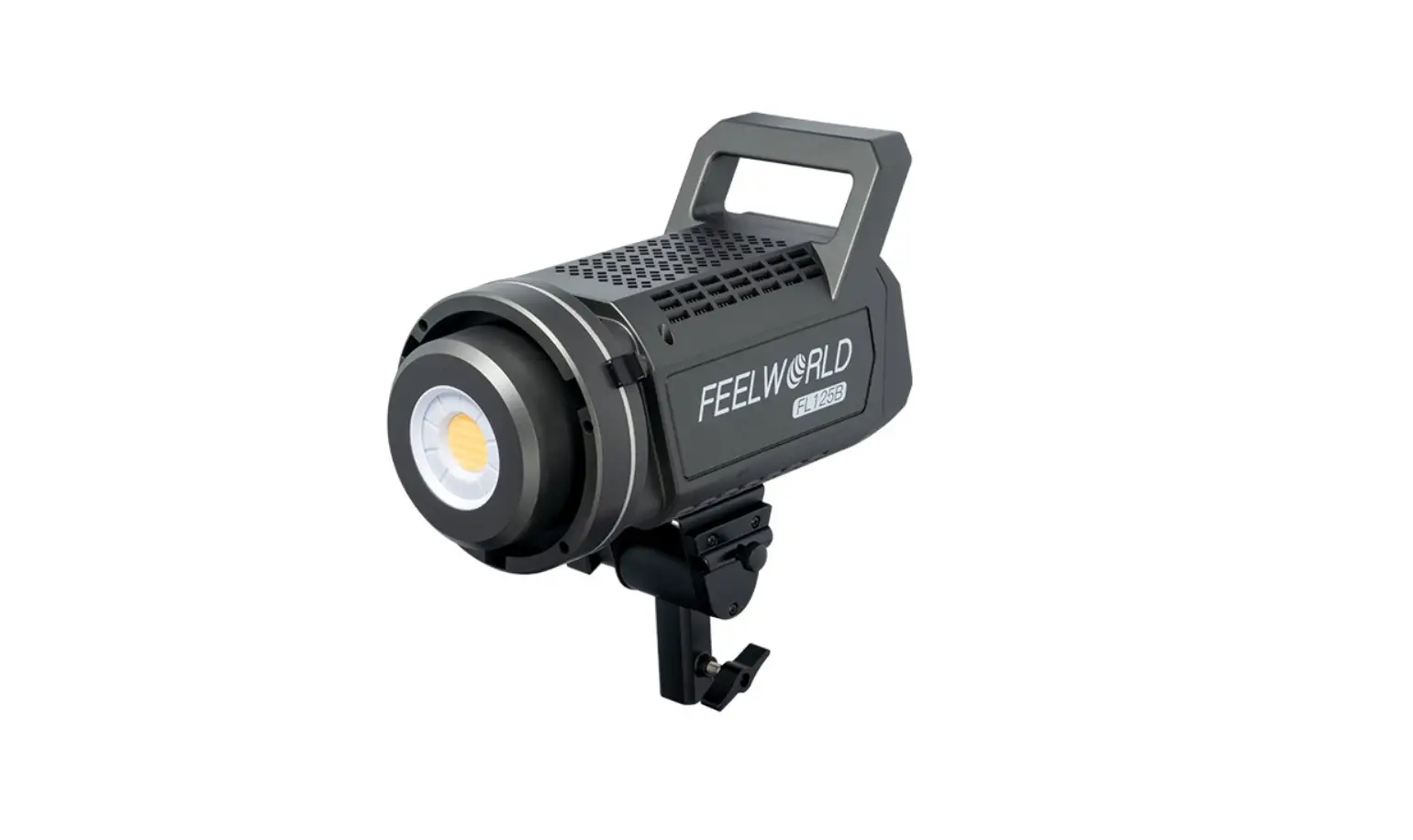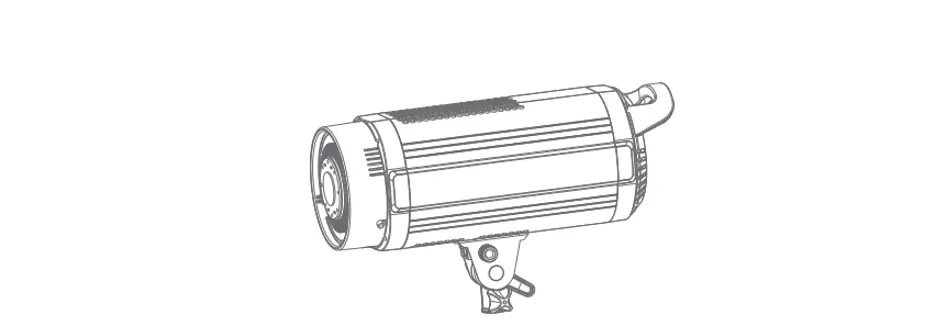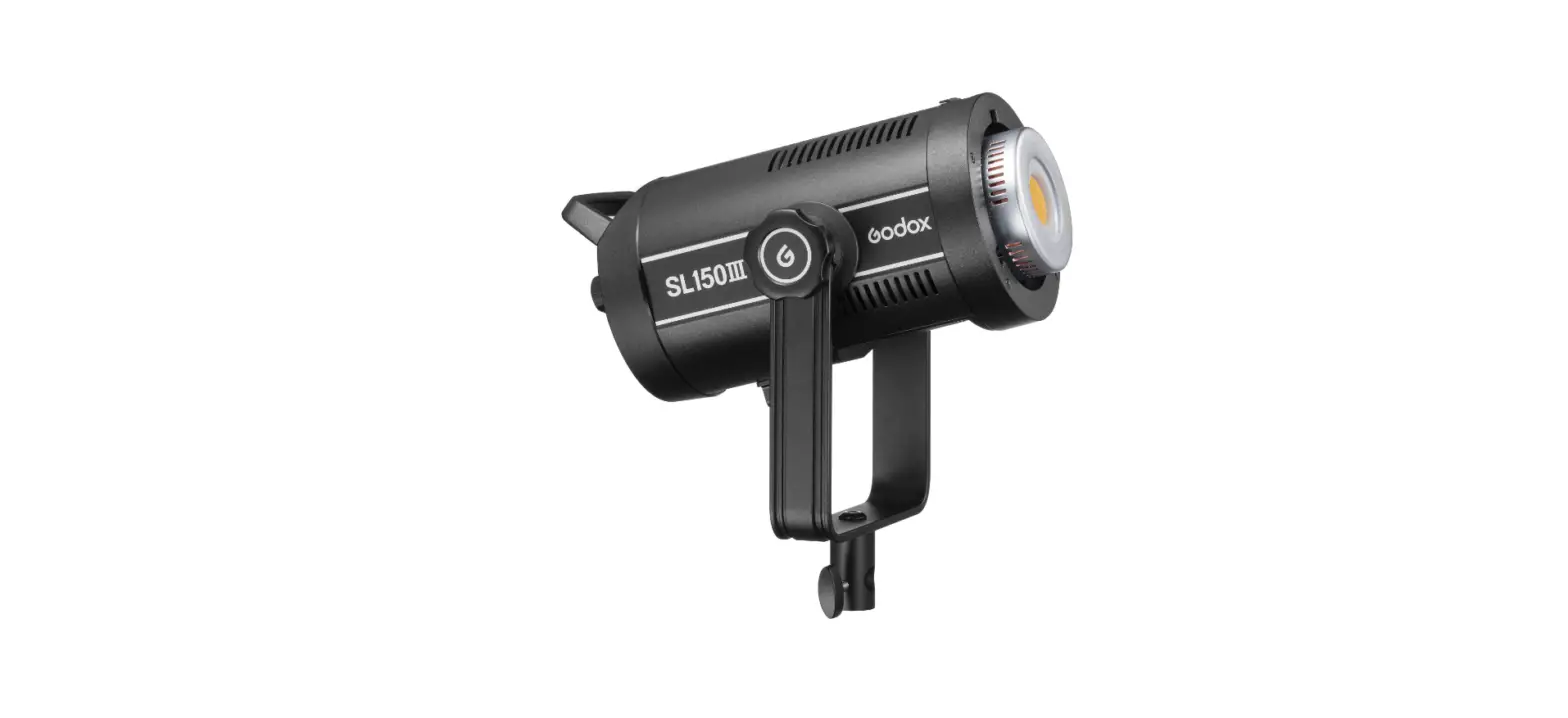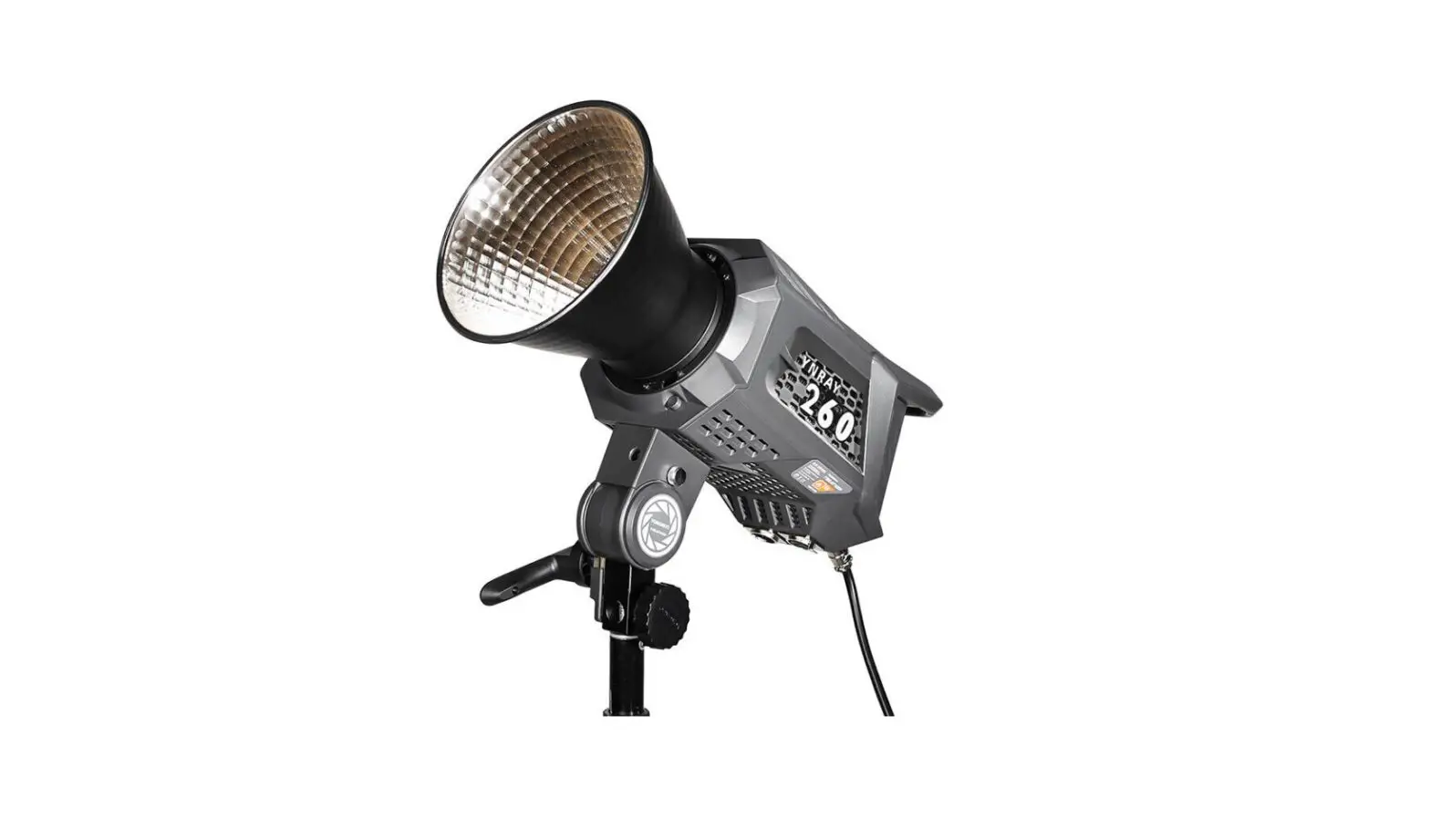
YONGNUO YNRAY260 250W LED Video Light User Manual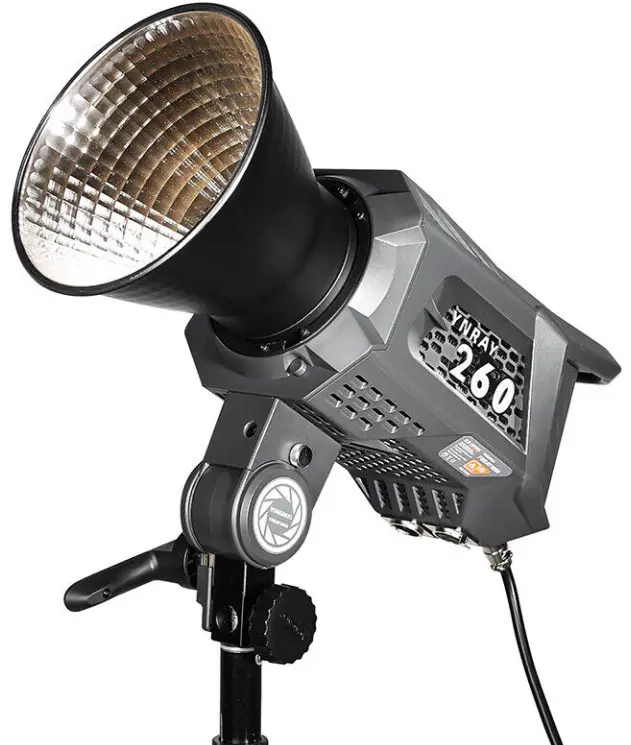
Introduction
Thank you for using YNRAY260 LED video light. Please read the ” carefully before you use it.
Precautions
- Do not put the product close to or throw it into the fire source to avoid the danger of fire and explosion.
- Do not disassemble the product, maintenance or repair of this product should be hand led by technical maintenance personal of our company or authorized technical maintenance personal .
- When the product is running, please do not look directly at the COB lamp beads, do not cover the heat emission hole, and do not touch the COB lamp beads; When the device is running, do not look directly at the light.
- Do not use this product in flammable and explosive place, or where it can be exposed to moisture.
Product specification
| ^°ty”¡\‘p ”^“’^‘”’“ | One COB lamp bead |
| 0utput power | LED: 250W |
| Size | 43 5”J 7 J ”32 J MM |
| ^^ ++9+ ^’++”*’^”* | 45”45”32.5CI*l |
| Control distance | <15s |
| Average ServiceLife | 50000H |
| Luminance Angle | ]]0° |
| Contents: video light (1) Power adapter (1) standard cover (1). Porta ble bag (1) . User Manual (1).Note: Please contact yout dealer if anything missing. | |
- Note: When using V- lock battery with 14.BV,the peak-power limitation is 160W. When using V-lock battery with 26V,the peak -power limitation is 250W.
- The temperature displayed on the screen is the COB working temperature.
Photometrics
Sing le color temperature version (non -adjustable): 5600K Bi-color temperature version (adjustable): 3200-5600K
| Single color temperature version | DistanceIlluminnation | Single light | Standard Reflector | Dragon – scale Armor |
| 5600K | 1 m | 121001ux | 150001ux | 803001ux |
| 2m | 32001ux | 36001ux | 146001ux | |
| 3m | 1600lux | 18001ux | 58001ux |
| Bi-color temperature version | Distance Illuminnation | Single light | Standard Reflector | Dragon-scale Armor |
| 3200K | lm | 68001ux | 8500lux | 467001ux |
| 2m | 19001ux | 22001ux | 85001ux | |
| 3m | 1000lux | 11001ux | 36001ux |
| Bi-color temperature version | DistanceIlluminnation | Single light | Standard Reflector | Dragon-scale Armor |
| 5600K | lm | 76001ux | 96001ux | 535001ux |
| 2m | 21001ux | 25001ux | 99001ux | |
| 3m | 11001ux | 13001ux | 43001ux |
| Bi-color temperature version | Distance Illuminnation | Single light | Standard Reflector | Dragon-scale Armor |
| 4000K | lm | 116001ux | 148001ux | 789001ux |
| 2m | 30001ux | 34001ux | 137001ux | |
| 3m | 1500lux | 17001ux | 57001ux |
”This is an averaged result,the number might be slightly different on each lig ht
Product Structure
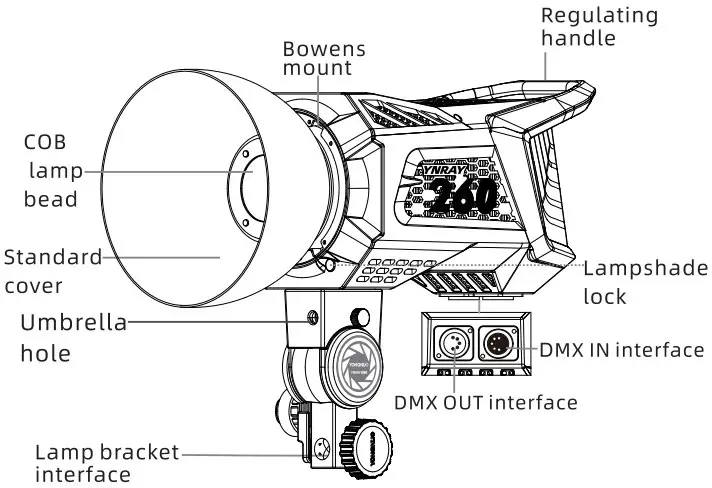
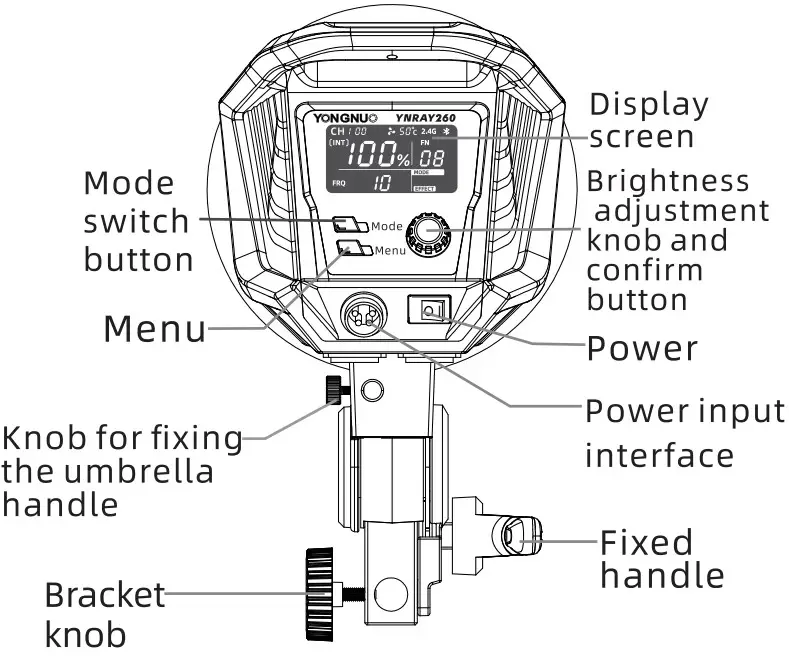
Installation and use
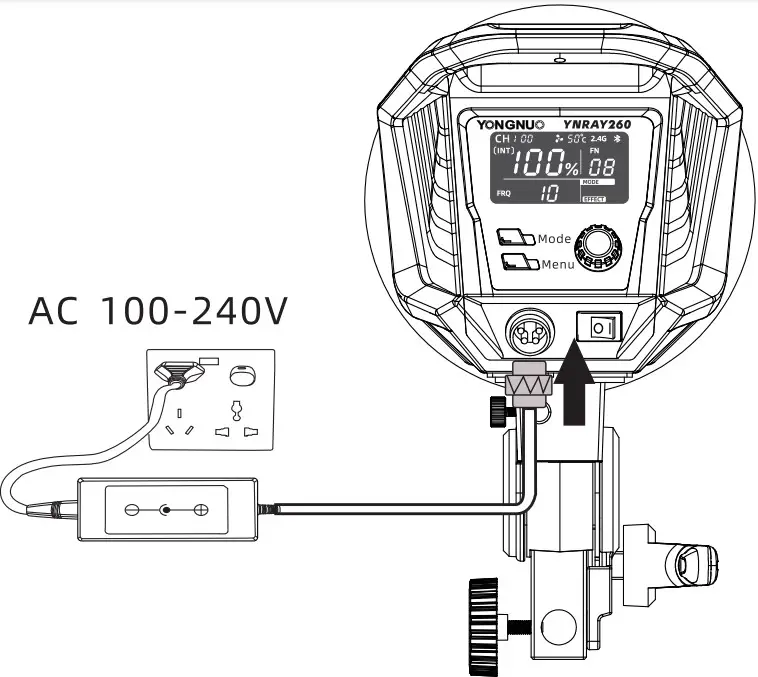
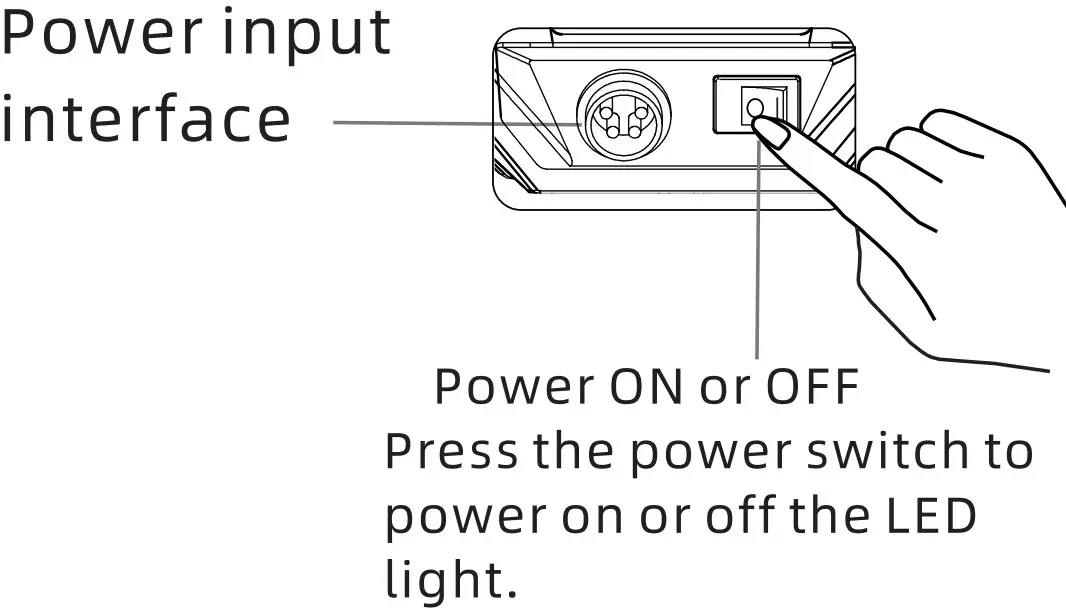
- The power supply to use. Use two equipped power adapters for power supply.


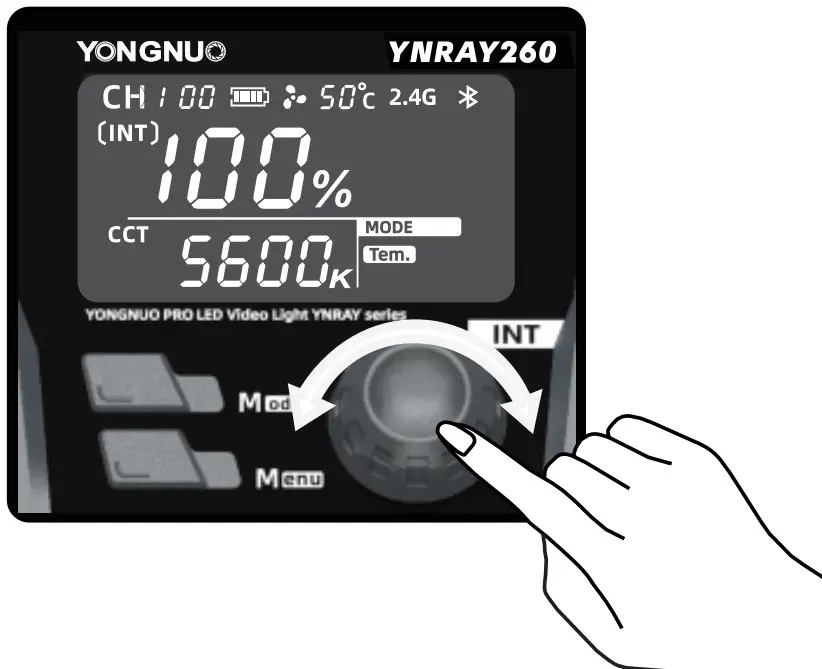
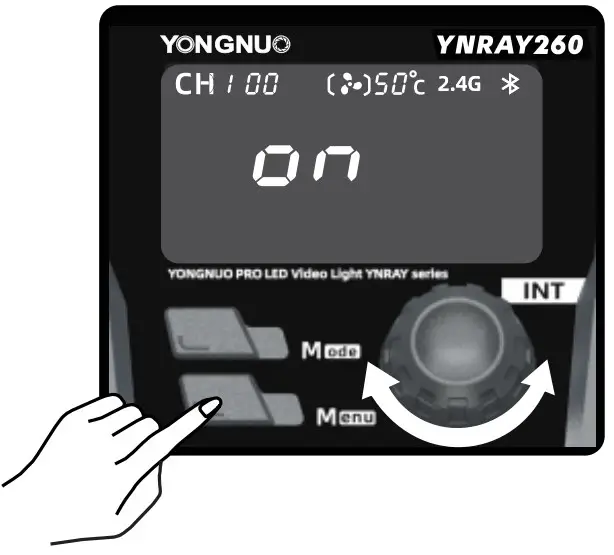
- Color temperature and brightness a djustment Press the power button to turn o n the light, and press the knob to switch the color temperature and brightness optio ns, rotate the knob to adjust the parameters.

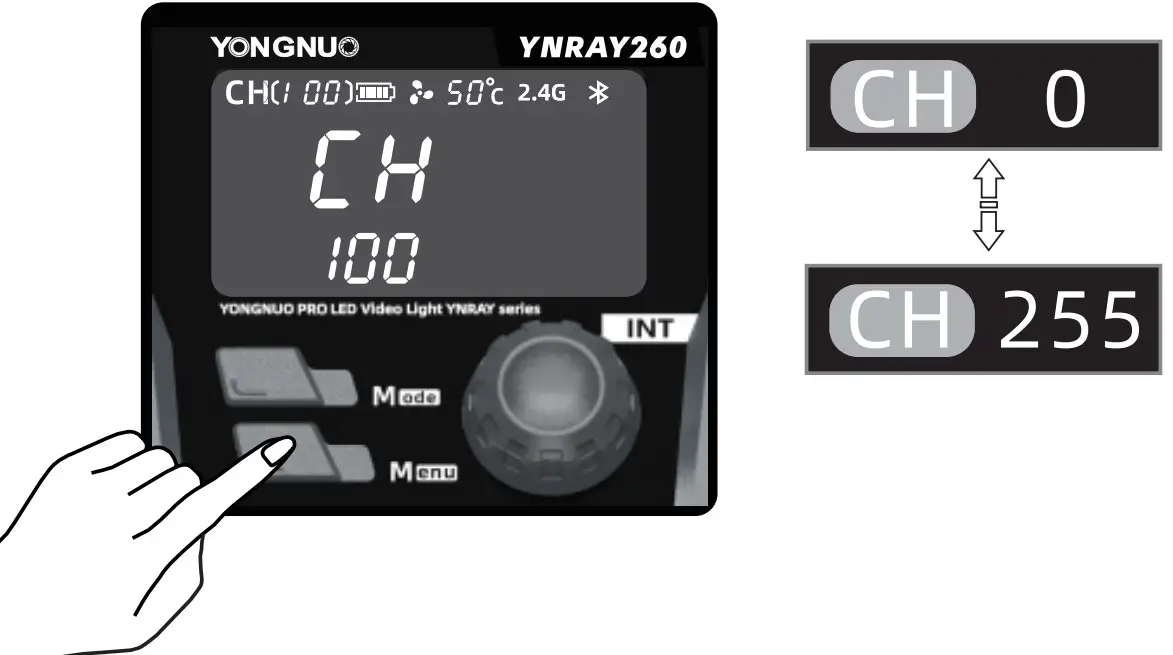
- Switch channels Press the button and toggle the confirm button to select the channel [CH] menu, then turn the knob to adjust the channel you want; press OK to complete the switch.(Note: The product provides 256 channels.)

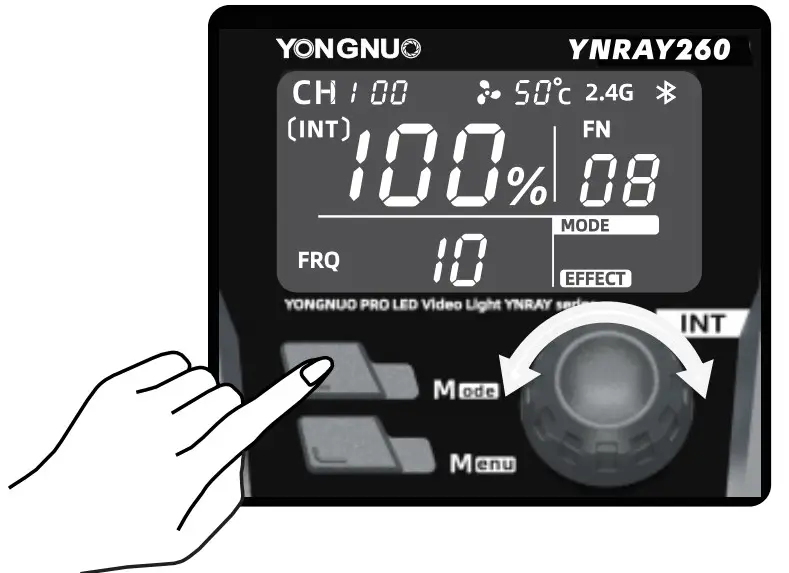
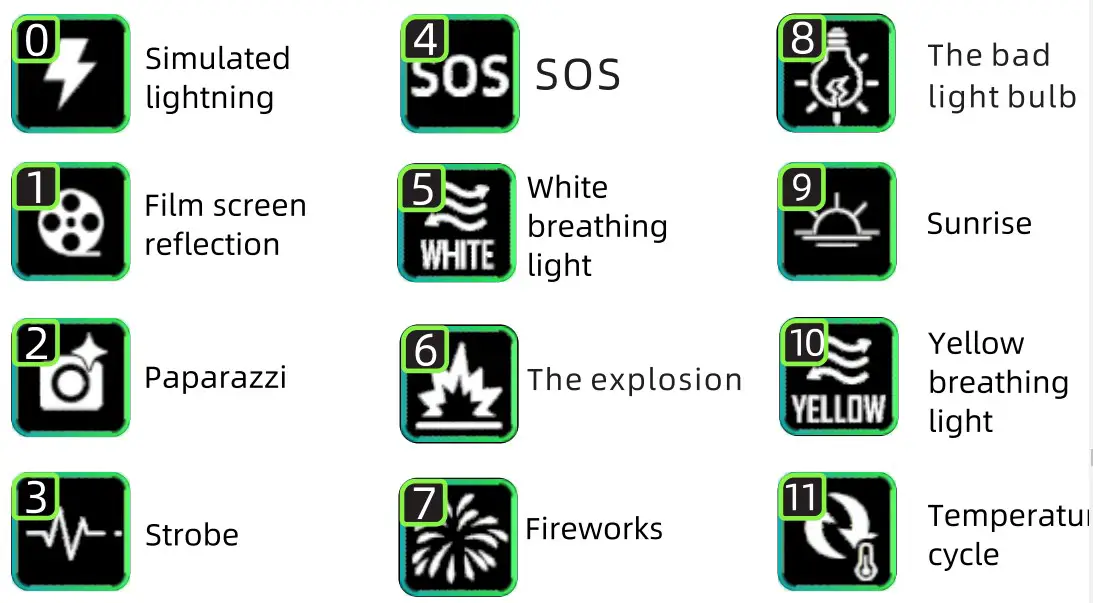
- Special effect mode Pres sbuttonto enter special effect mode, press confirm button to switch the special effect mode, speed and briqhtness options, turn the knob to adjust the para meter. Pressaqai n to switch to the color temperature mode.


- Fan switch setting Press <Menu» button, turn the knob to choose the fan icon, press confirm button to select the switch. ON: The power reaches 250W when the fan is on.OFF: The power is reduced to 72W when the fan is off. The fan icon will blink when the brightness adjustment parameter is over 20%.

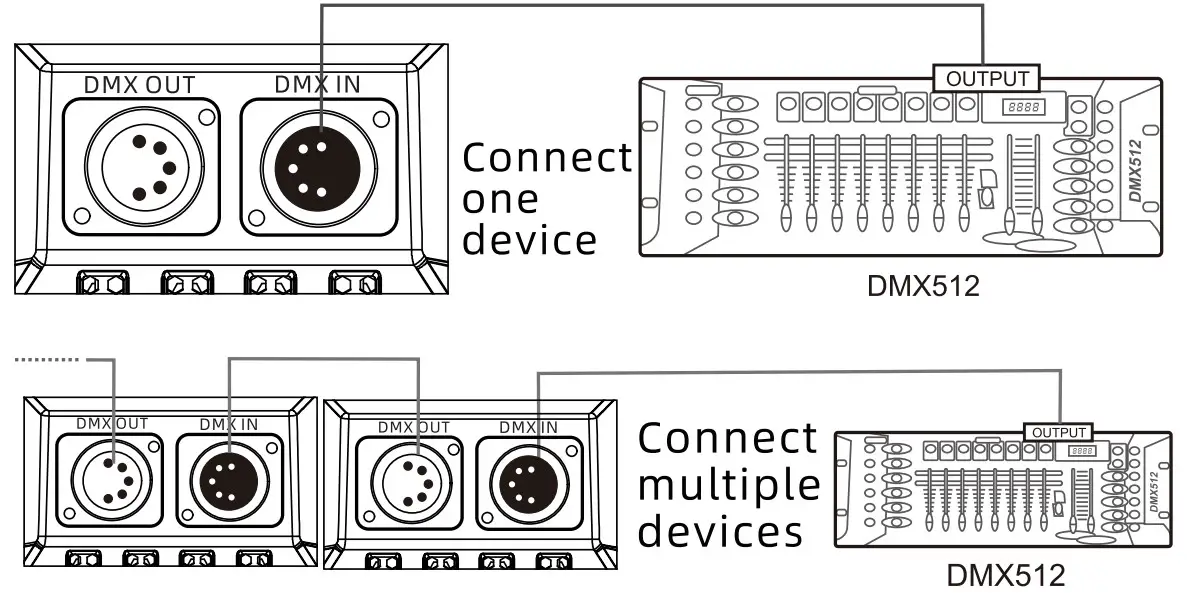
- DNlX mode J ) .Connect the standard DMX console with YNRAY3260.

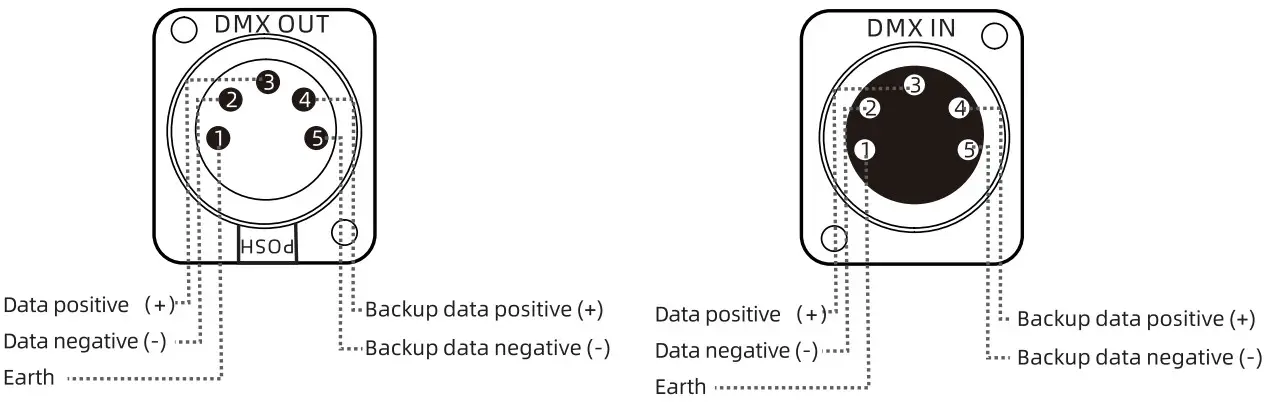
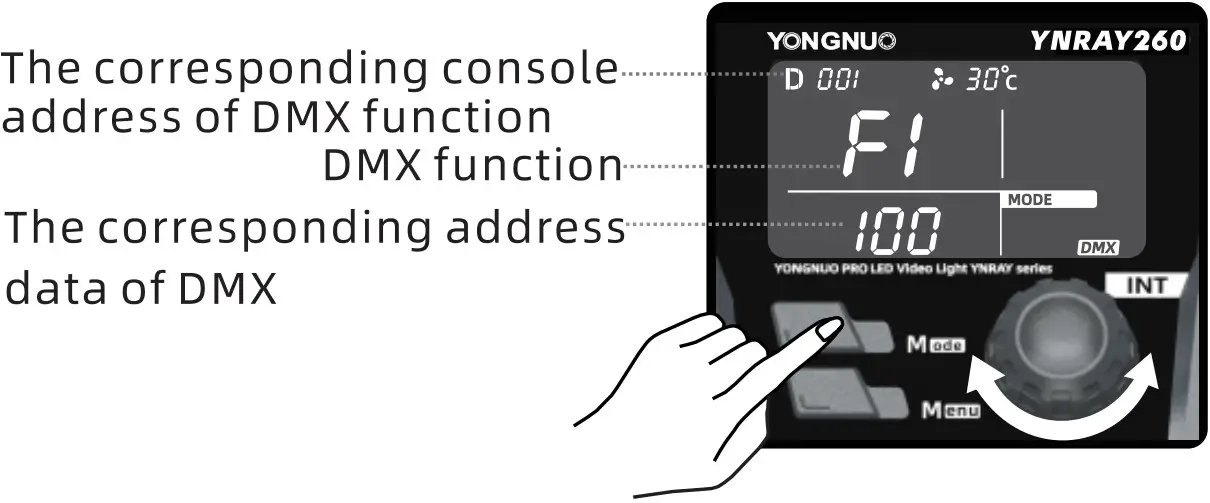
- The definition of DMX interface is shown in the picture:

- Connect DMX console with YNRAY3260. Long press the <Mode» button for 4 seconds to enter the DMX control mode. Press the confirm button to switch the «D>DMX address and DMX function selectio n, rotate the confirm button to adjust the parameters. Short press the «Mode> button to exit DMX mode.

- DMX function utility tables
DMX utility tables (Bicolor)
DMX channel value – function corresponding tables ( 5 channels
| DMX Function | Channel (address code) | Value | Function | |
| Fl | If set 001 | 0-255 | Total Wightness adjustment | |
| 0-100% | ||||
| F2 | If set002 | 0-255 | 5600K Linear dimming | |
| 0-100% | ||||
| F3 | If set003 | 0-255 | 3200K Linear dimming | |
| 0-100% | ||||
| Linear | Lighting effect | |||
| vaatestment | control | |||
| 1-20 | Simulated lightning | |||
| 21-40 | Film screen reflection | |||
| 41-60 | Paparazzi | |||
| 61-80 | Strobe | |||
| 81-100 | sos | |||
| F4 | If set004 | 101-120 | white breathing light | |
| 121-14() | The explosion | |||
| 141-160 | Fireworks | |||
| 161-180 | The bad light bulb | |||
| 181-200 | Sunrise | |||
| 201-220 | Yellow breathing light | |||
| 221-255 | Temperature cycle | |||
| N.N. | Speed adjustment | |||
| F5 | If set005 | (lighting effect) |
DMX utility tables (White)
DMX channel value – function corresponding tables ( 4 channels)
| DMXFunction | Channel (addresscode) | Value | Function | |
| Fl | If set 001 | 0-255 | TotaibrightnessadJustment | |
| 0-100% | ||||
| F2 | If set002 | 0-255 | Linear dimming | |
| 0-100% | ||||
| Linear | Lighting effect | |||
| adjustment value | control | |||
| 1-20 | Simulated lightning | |||
| 71-40 | Film screen reflection | |||
| 41-60 | Paparazzi | |||
| 61-80 | Strobe | |||
| 81-100 | sos | |||
| F3 | If set003 | 101-120 | White breathing light | |
| 121-140 | The explosion | |||
| 141-160 | Fireworks | |||
| 161-180 | The bad light bulb | |||
| 181-255 | NN. | |||
| –-…NN | Speed adjustment | |||
| F4 | If set004 | (lighting effect) | ||
| 0-255 | 1-10 gears |
Install the soft light umbrella for use Mount the soft light umbrella via umbrella hole, then tighten the fixed knob to use. ( Note: The soft light umbrella needs to be purchase separately. )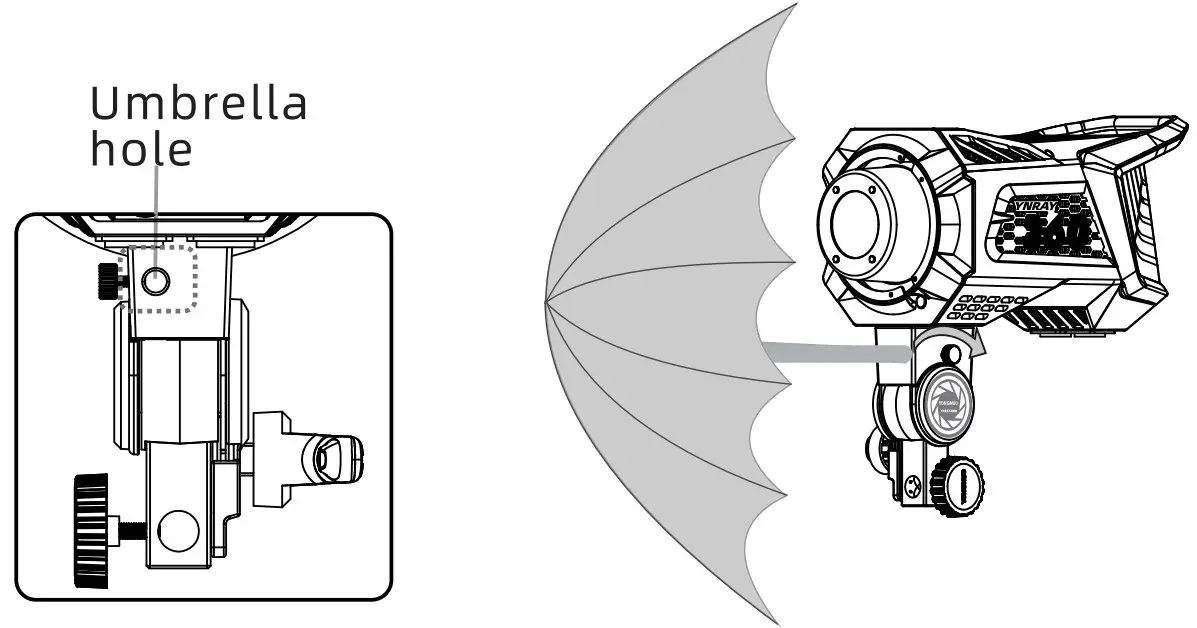
Use via mobile APP and remote control for wireless control
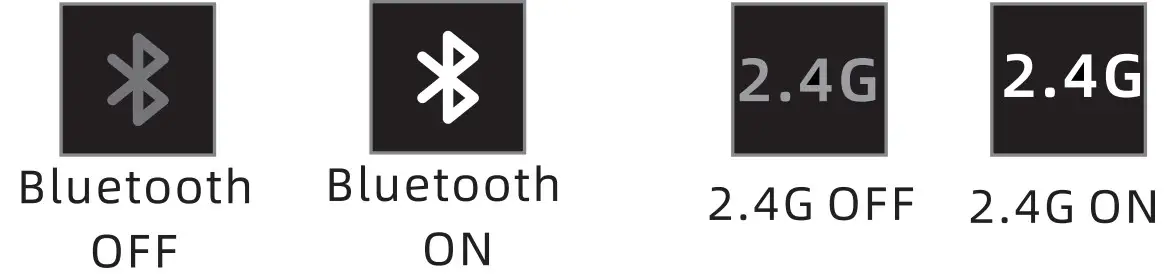
- Press the menu button < :g > and toggle the OK button to select bluetooth, press OK button to turn on bluetooth; open the mobile APP ,at this time the video light is connected automatically to realize wireless control.
- .2.4G wireless contro I mode can be selected to turn on or
- The APP can be downloaded from the YONGNUO official website or scanning the 0R code on the gift box

- The functions in this manual are based on the test conditions our company. Further notice will not be given if the design and specifications change.