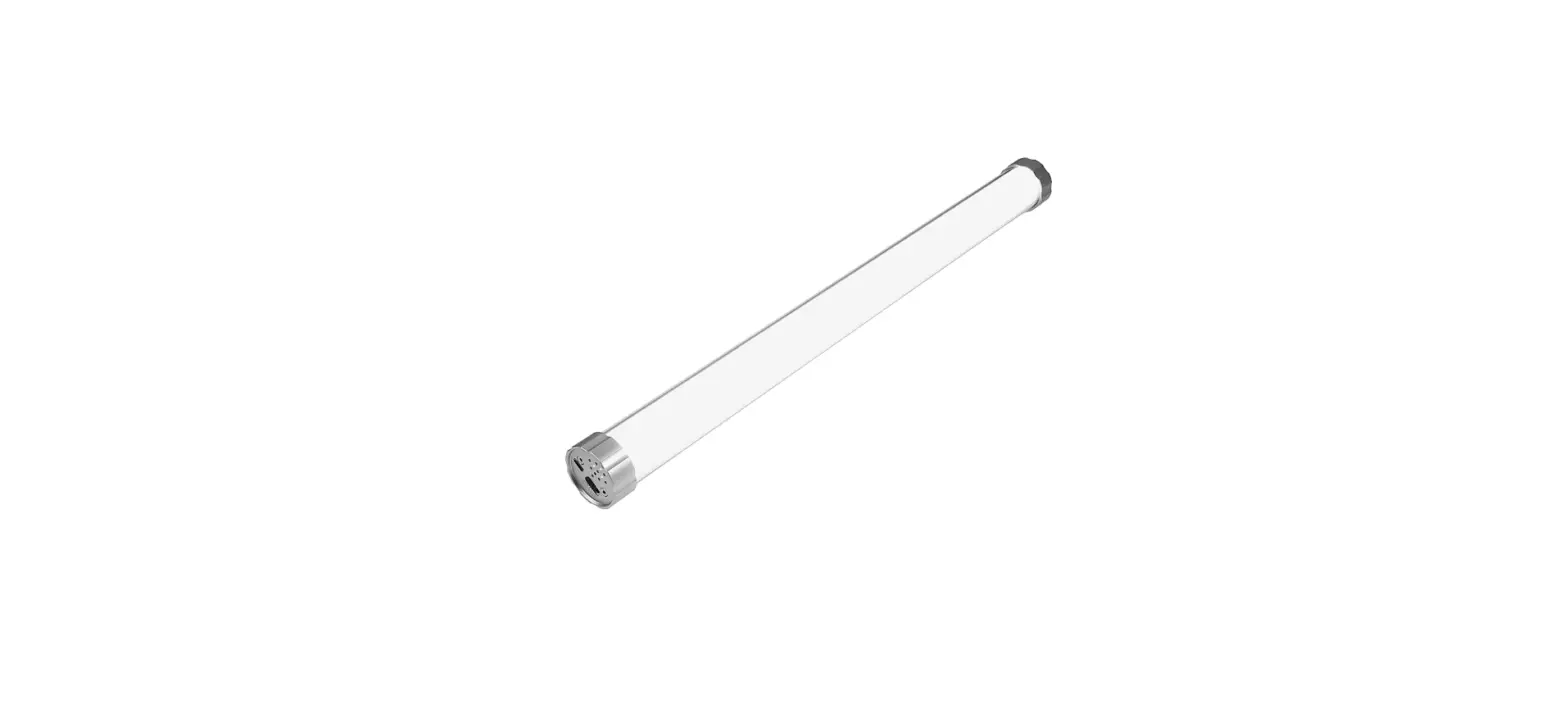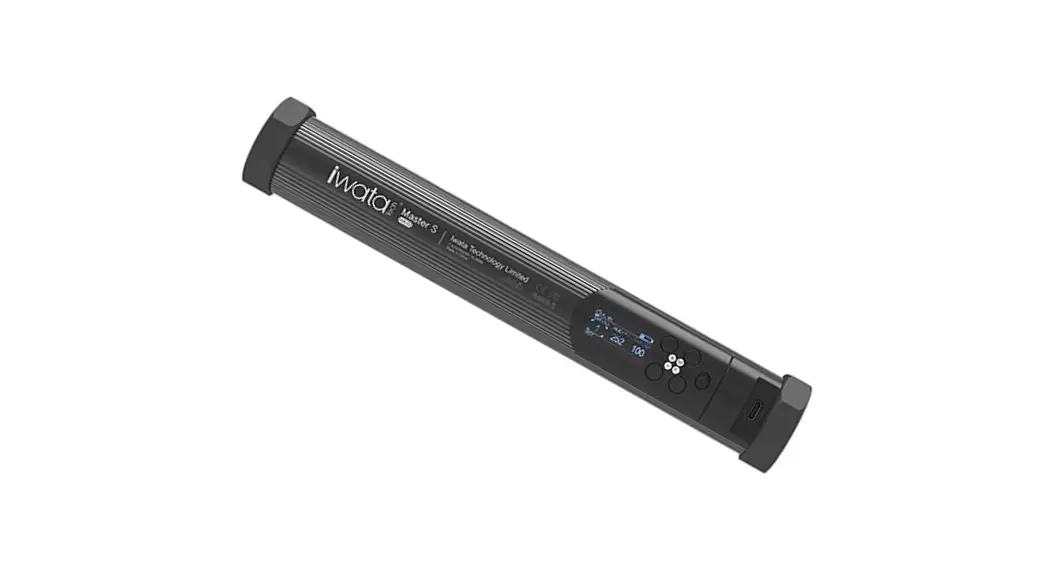
 Master S
Model:MA03
User Manual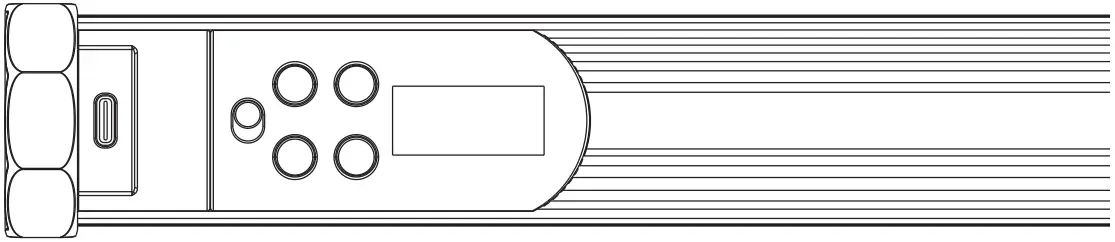
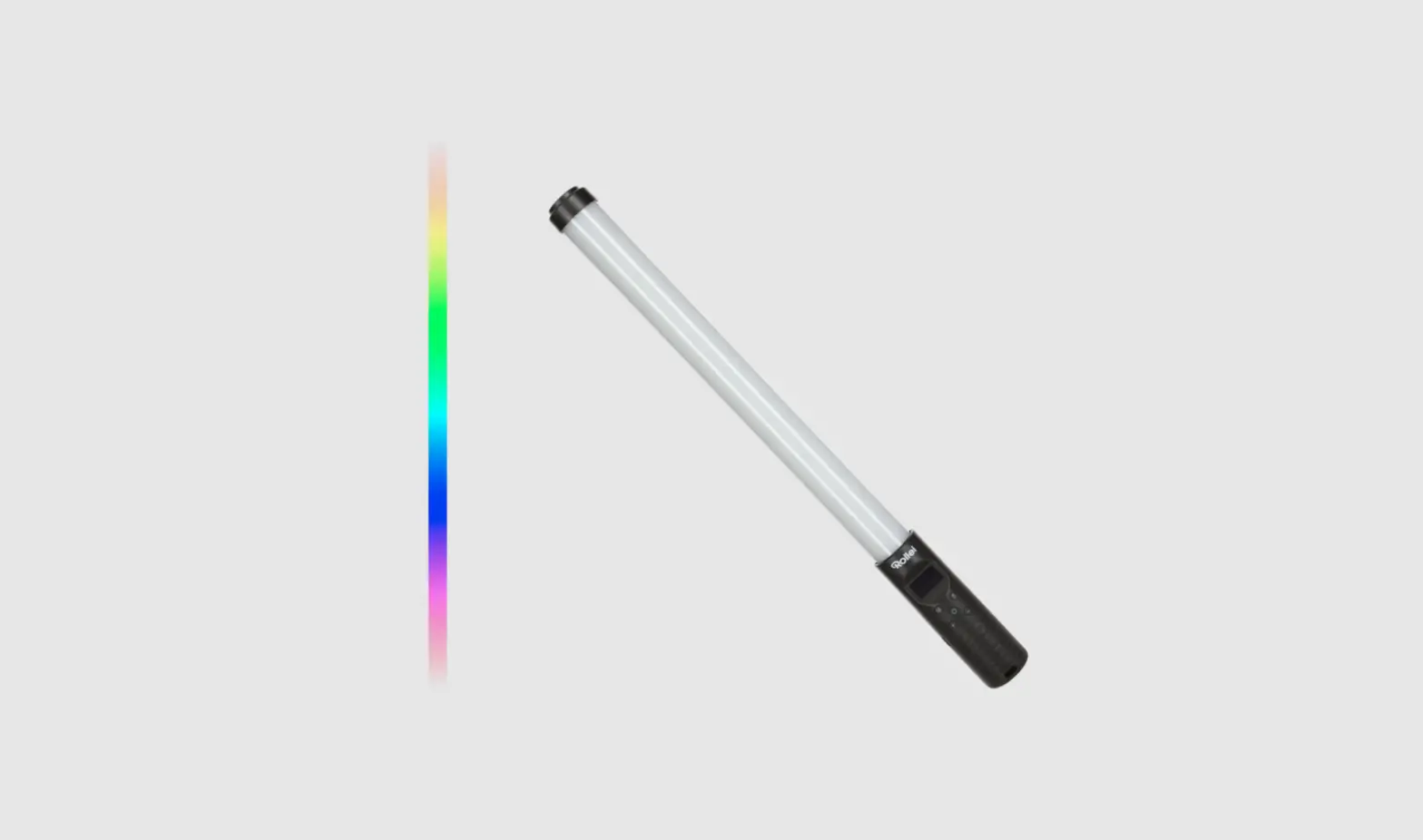
MA-03 Master S RGB Light Stick LED Video Light
Thank you for purchasing iwata Master S photography light!
Please read this Quick Start Guide carefully before using the product and keep it for reference.
Package Contents
| Master S | Charging Cable x1 |
 | 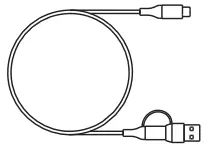 |
| Silicone Ring x2 | Iron sheetsx3 |
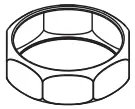 |  |
| Bag x1 | Quick Start Guide x1 |
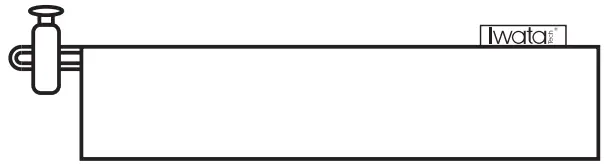 |  |
| 1/4″ Screw x2 | Hook & Loop x1 |
 |  |
Specifications
- CCT Range: 2000K-10000K(±200K)
- CCT Color Rendering Index CRI96,TLCI98
- Maximum Power: 6W
- LED Beam Angle: 120°
- Illuminance (Ix/fc): 1ft: 1586/147; 2ft: 418/39; 3ft: 193/18
- Operating Mode: CCT/ HSI/ EFFECT 7. Internal Lithium Battery Capacity:
- 4V/2200mAh
- Battery Life: about 2 hours at 100% power, about 50 hours at 1% power
- Input Voltage and Current: 5V/1A ,5V/2.1A 9V/2A,12V/1.5A(quick charge/work with a power source)
- Dimensions: 260mmxcl)38mm
- Weight: 370g
- Allowable Temperature Range: In use between -5-35°C
During charging between 0-35°C
Storage between -20-60°C
Layout of MA-03
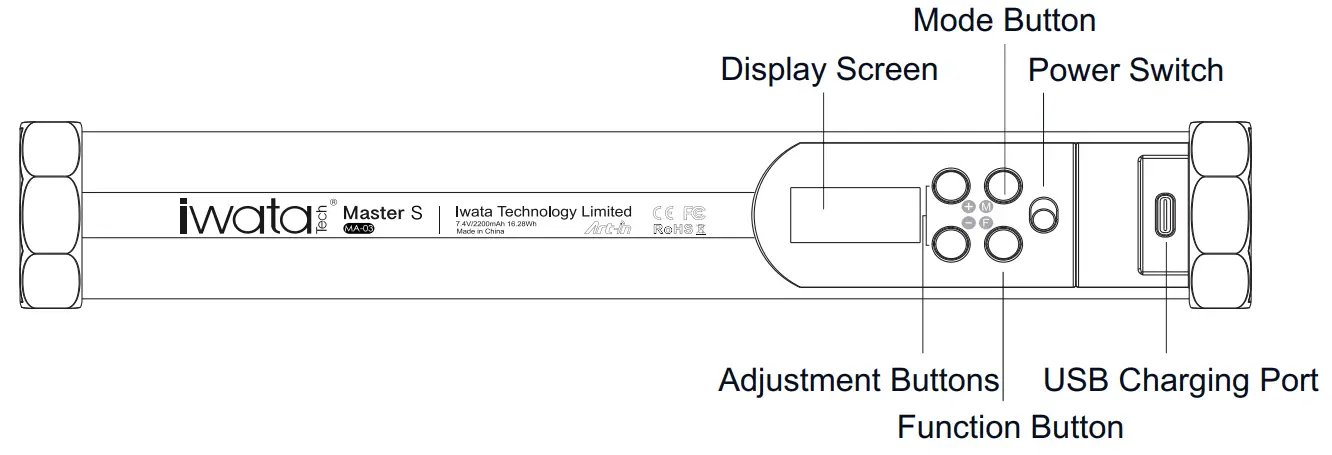
Description of power switch
Slide the power switch to “green”/”red” to turn on/off the power.
+- Description of ButtonsM Adjustment Button: press and hold to change continuously, tap to change step by step.
Mode Button: press and hold to cycle through CCT , HSI and EFFECTmodes; tap to change current adjustment parameters.F Function Button : press and hold to enter setting; tap to turn on/off the light.
Screen Icons
CCTMode
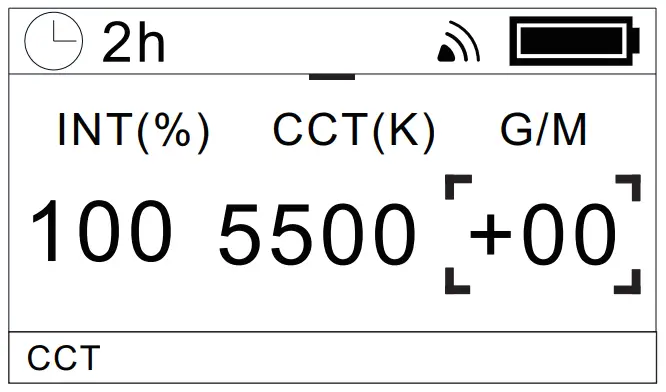
Tap M button to select or adjust between INT(%), CCT(K) and G/M, tap or press and hold -+ buttons to adjust the parameters.
INTrange: 1%-100%;
CCTrange: 2000K-10000K;
G/M range: Under different color temperatures, the adjustment range of G/M is different.
HSI Mode
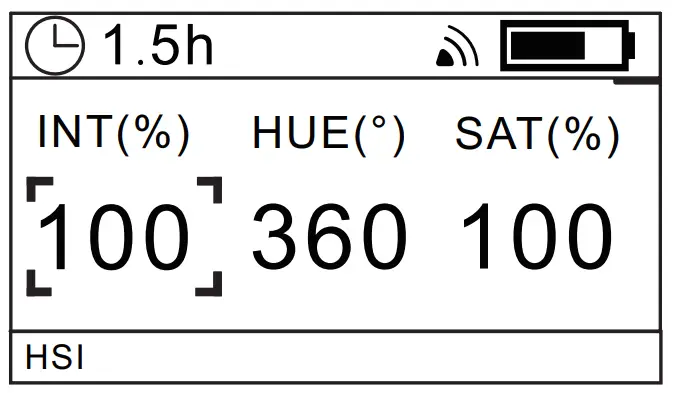
Tap M button to select the INT(%), HUE(°) or SAT(%), tap or press and hold -+ buttons to adjust the parameters.
INTrange:1%-100%;
HUE range:0-360°;
SATrange:0-100%.
EFFECT
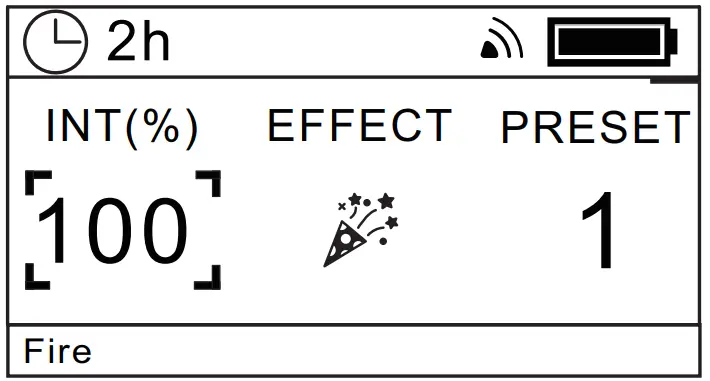
Tap M button to select the INT(%), EFFECT or PRESET , tap or press and hold -+ buttons to adjust the parameters.
INTrange:1%-100%;
PRESETrange:1-3.
Scene Effect Description
 | Fire | 1:Candle | 2:Fireplace | 3:Bonfire |
 | Lightning | 1:Intermittent Lightning | 2:Frequent Lightning | 3:Continuous Lightning |
 | Firework | 1:Short Fireworks | 2:Continuous Fireworks | 3:Fireworks Show |
 | WarningLight | 1:PoliceCar | 2:FireTruck | 3:Ambulance |
 | Color Chase | 1:Slow | 2:Medium | 3 :Fast |
 | Party | 1:Birthday Party | 2:Home Party | 3:Club |
 | Photoflash | 1:Product Launch | 2:Press Conference | 3:Paparazzi |
Status Icon Description
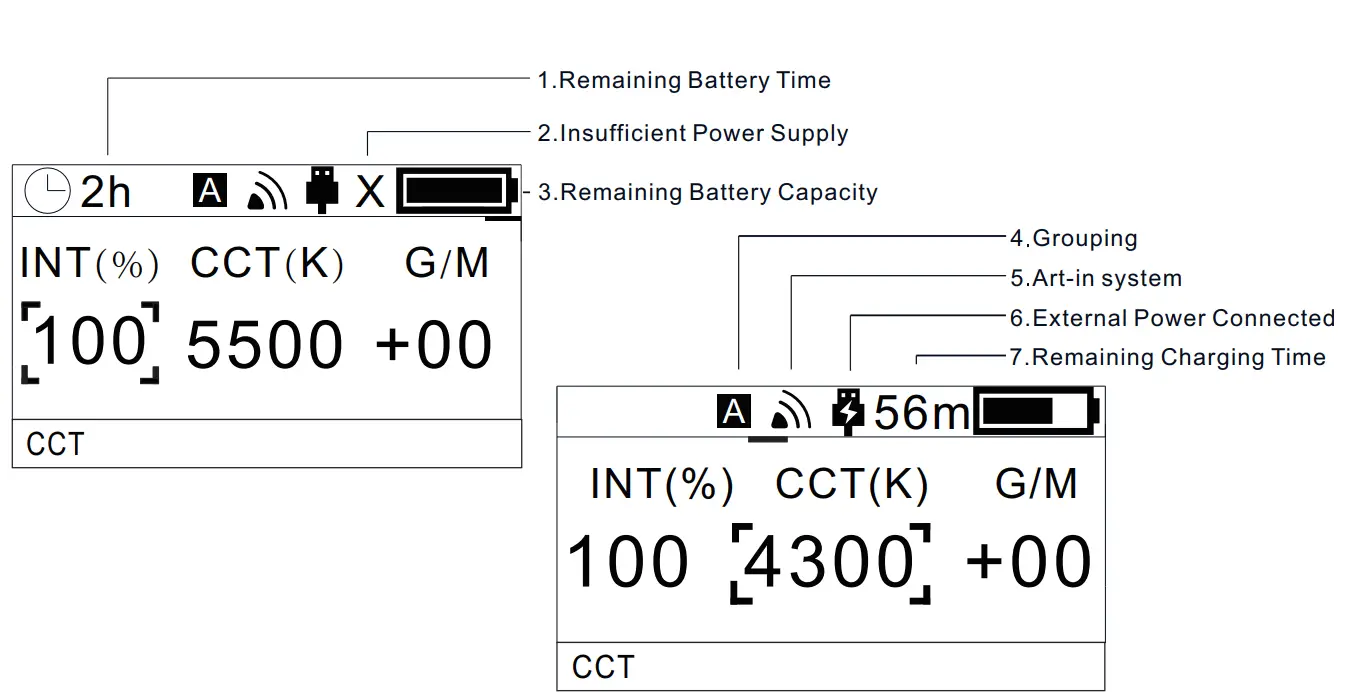
- Remaining Battery Time : “m ” for minute andh “” for hour.
Xicon comes out, When Master S works with insufficient power supply, for example, connected to a 5V / 1Acharger or a charging cable of low quality. It is recommended to use a quick charger and the original charging cable.- Remaining Battery Capacity is shown in the display screen.
- The remote control/APPsets the grouping mode, displays
A,and the grouping range:A-Z. for devices with the same remote control orAPPconfiguration, the photography light status under the same group is synchronized. - After the remote control orAPPconfigures the network,Art-in icon
 is displayed.
 - This icon is displayed when an external power supply is connected.The icon
 willappear whenusing a fastcharger.
 - Remaining ChargingTime: It shows the estimated remaining time for full charge, “m” for minute and “h” for hour. When it is full, the “OK” icon will be displayed.
 is displayed.
 willappear whenusing a fastcharger.
Temperature Icon Description
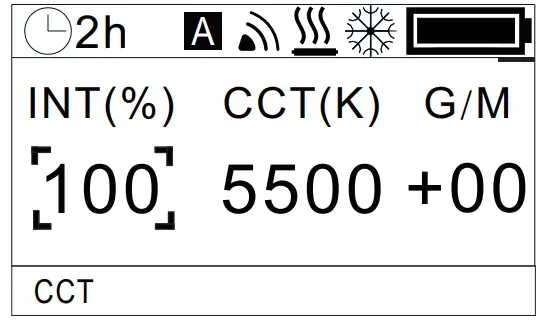
The low temperature warning icon  appears when ambient temperature is below the lowest allowable temperature. Master S maynot work properly under this circumstance.
The high temperature warning icon  appears when ambient temperature is above the highest allowabletemperature. If the temperature keeps rise,Master S will be automatically switched off.After turning off the light,Y ou need to press any key to clear the warning icon.
Setting Interface Description
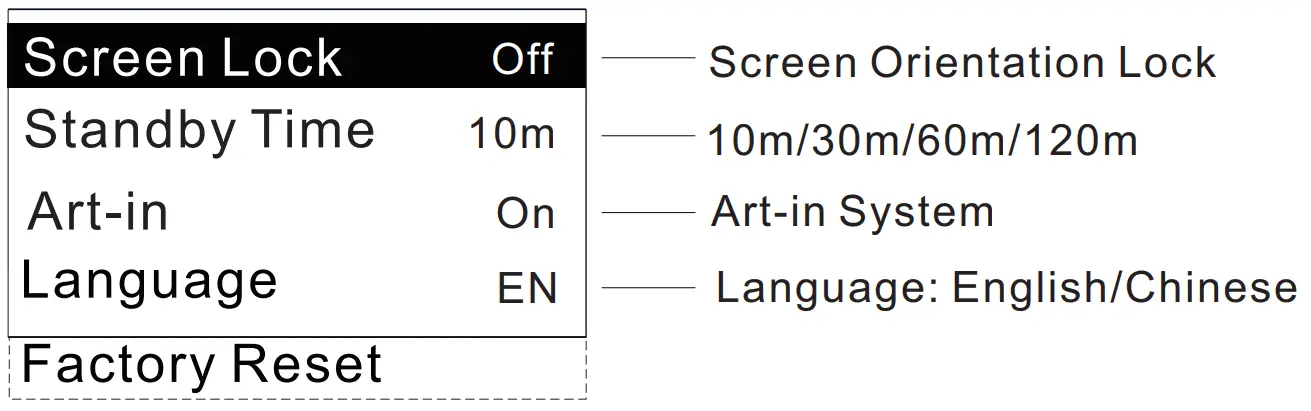
Tap or press and hold F button to enter or exit setting menu.
Tap -+ buttons to select the current menu item.
Tap M button to enter the setting, exit the menu to save.
| Screen Lock | On-current screen orientation is fixed. |
| StandbyTime | When the light is off and not operated, system will be automatically standby. |
| Art-in | On/Off/Reset.(Reset :Clear network configuration and information) |
| Language | Select “English” or “Chinese” |
| Factory Reset | Select “Yes” and tap M button to reset default settings. |
Battery Use and Maintenance
- When the battery of Master S is fully charged, please detach Master S from the USB cable.
- Please do not charge the battery, when the ambient temperature is beyond the allowable range, otherwise Master S can be damaged or battery life can be shortened.
- The battery may gradually run down and not be switched on properly, if the product is long-term unused. Please recharge the battery in this circumstance and recharge the battery at least once three months.
- If the battery capacity indicator has an error in displaying the actual capacity, please fully discharge and recharge the battery to correct it.
- The echargeable battery has a limited lifespan and should only be replaced by the manufacture. When the performance of battery is obviously decreased after years, please contact the local distributor.
NOTE
- Do not disassemble or modify this product.
- Not immerse this product in water or put it into the fire.
- Do not hit or hammer this product with hard objects.
- Master S’s temperature may increase, when it works. Please make room for heat dissipation.
- Do not expose this product to the environments with drastic changes in temperature and humidity.
Disposal Information
(Waste electrical appliancesand equipment) The left symbol indicates that your product and/or its battery must be treated separately from household waste, in accordance with local laws and regulations.
When the service life of this product is at an end, please send it to the collection point designated by the local management. When handling your products and/or their batteries, separate collection and recycling will help conserve natural resources and ensure recycling in a way that protects human health and the environment.
Artin App Download
– Please scan the QR code below and click the “Download” button to download theArt-in app.