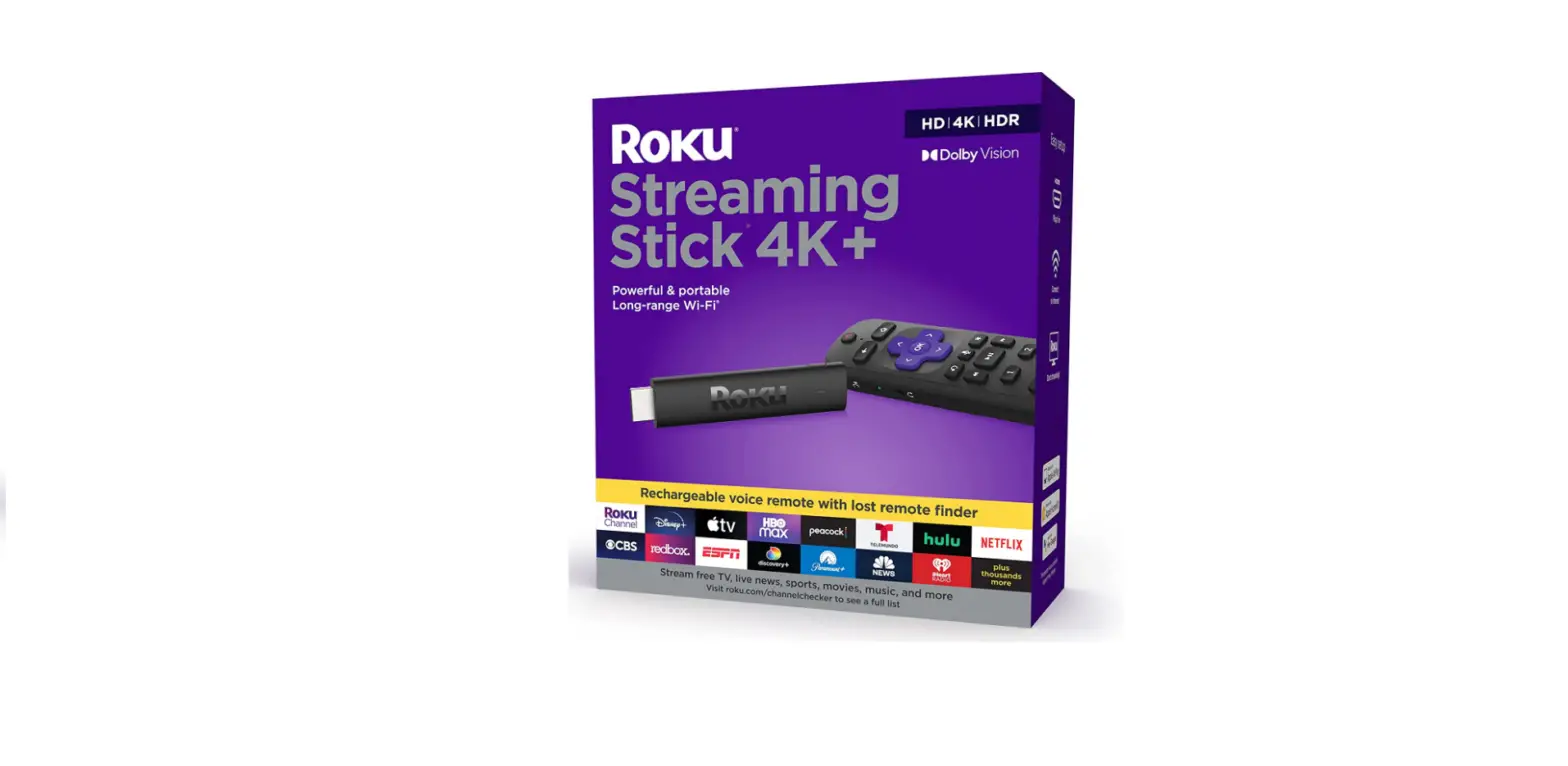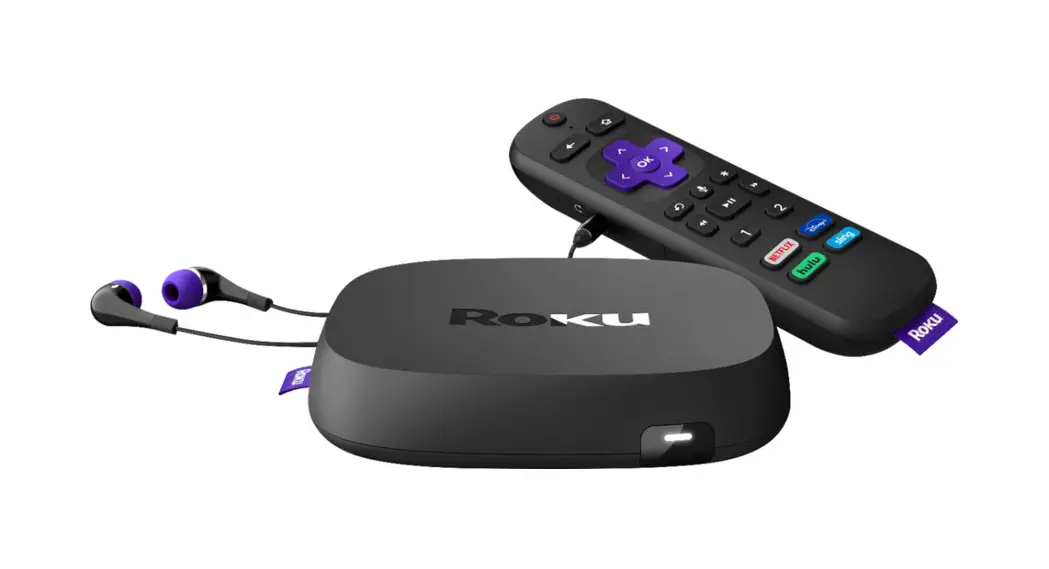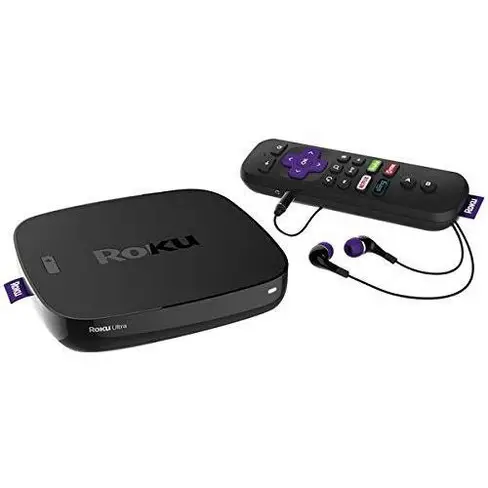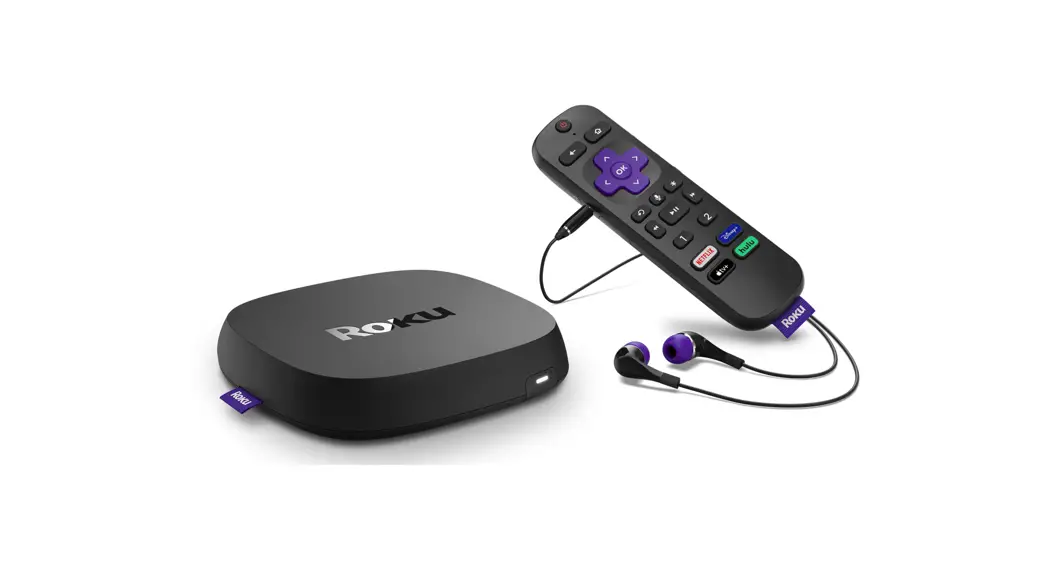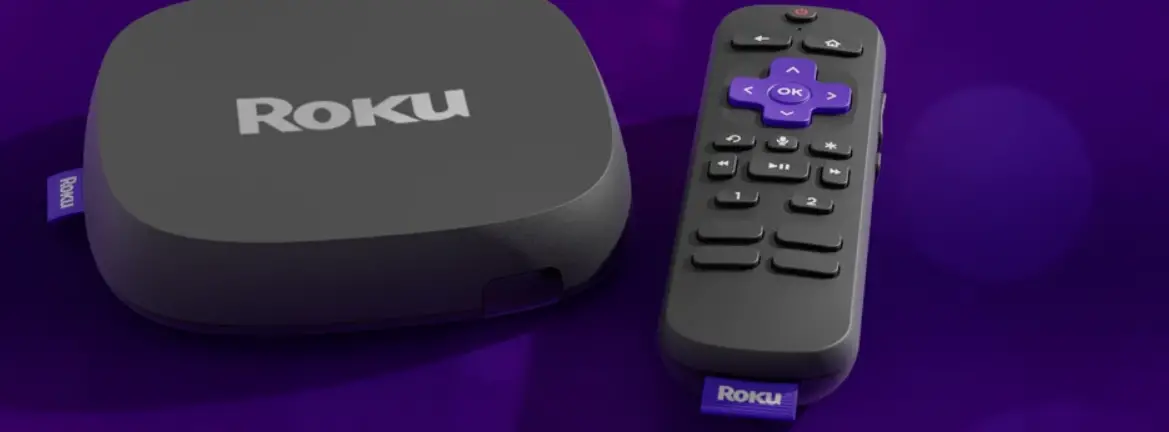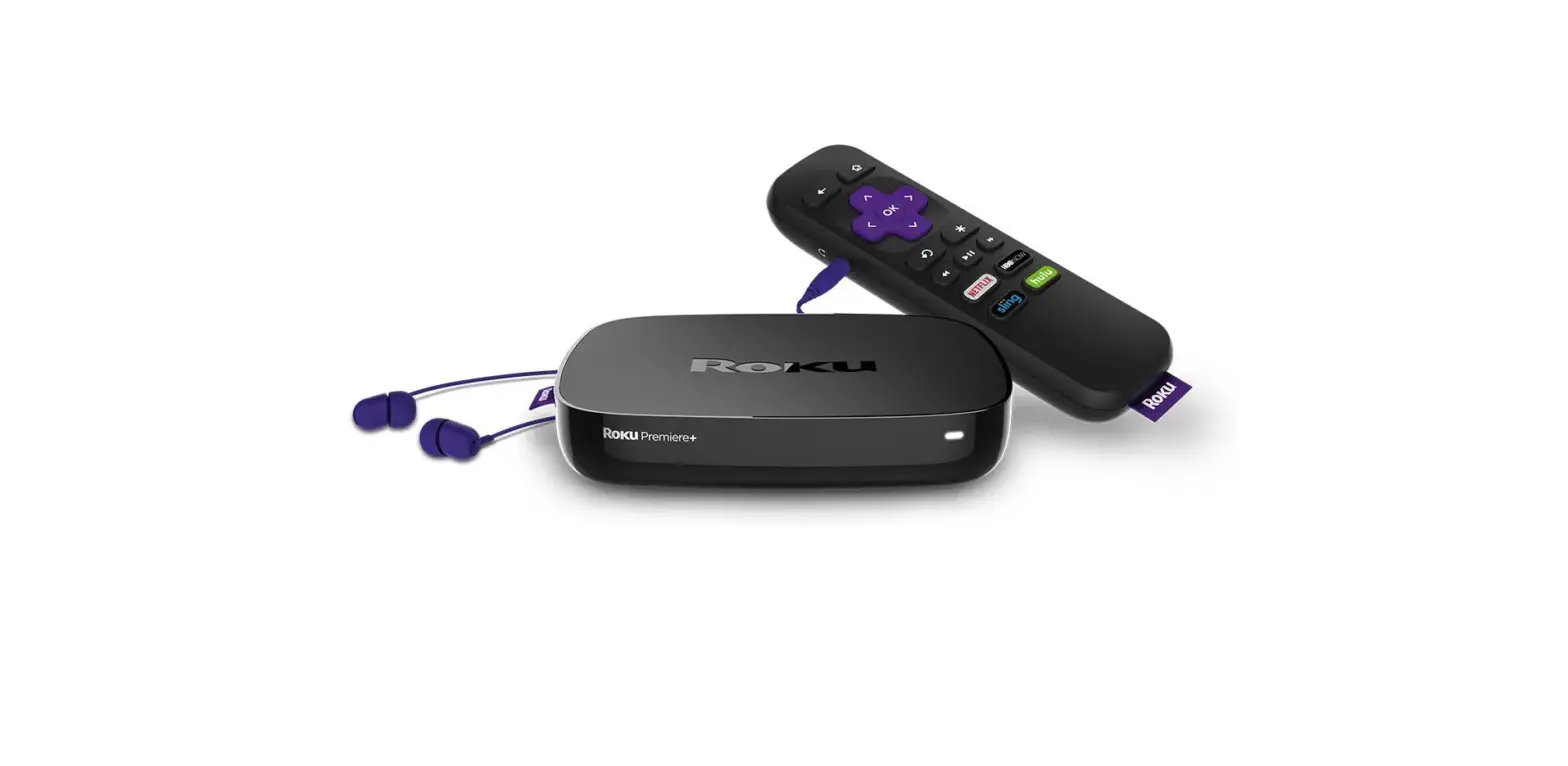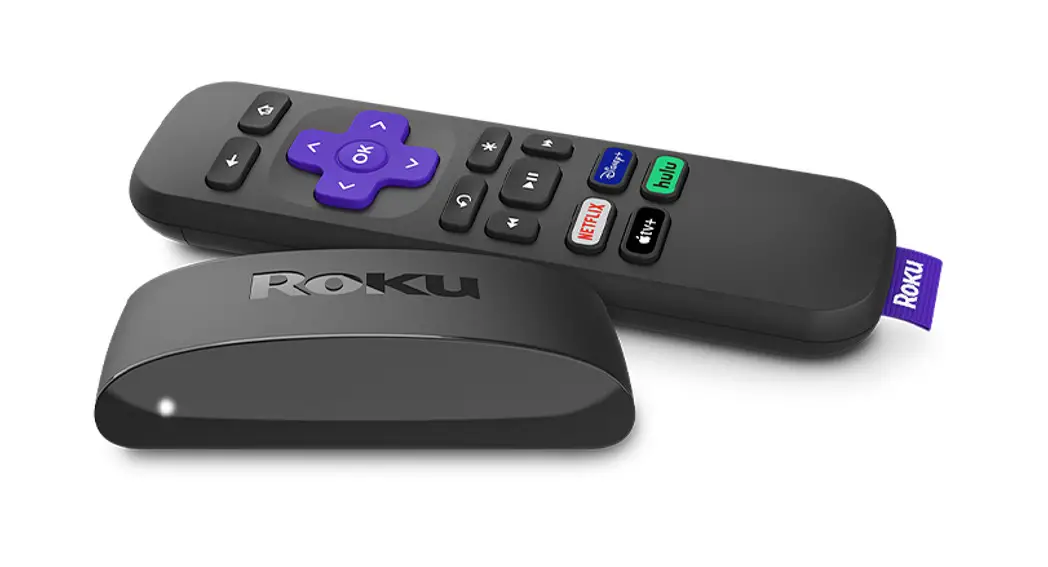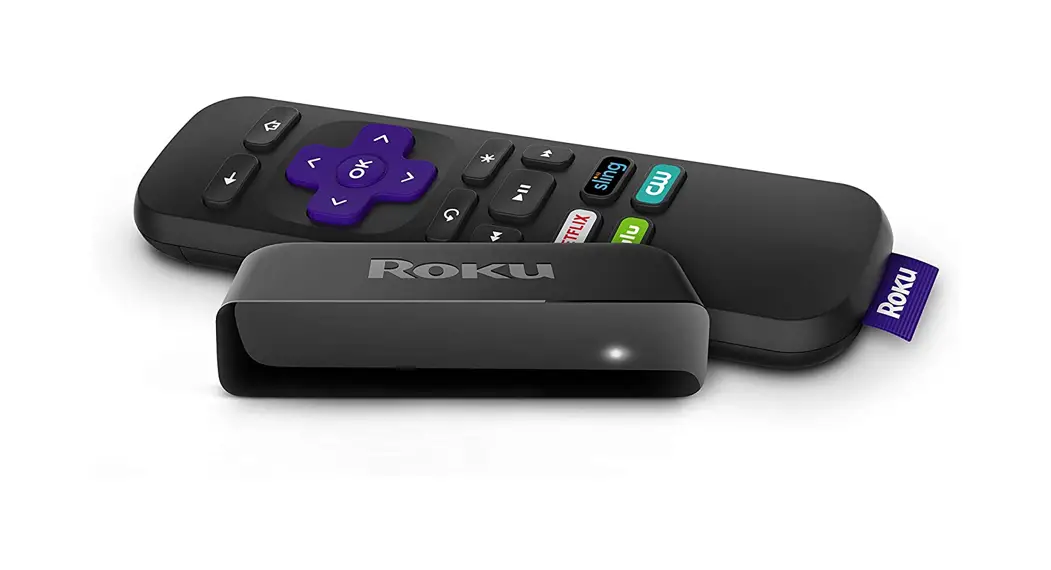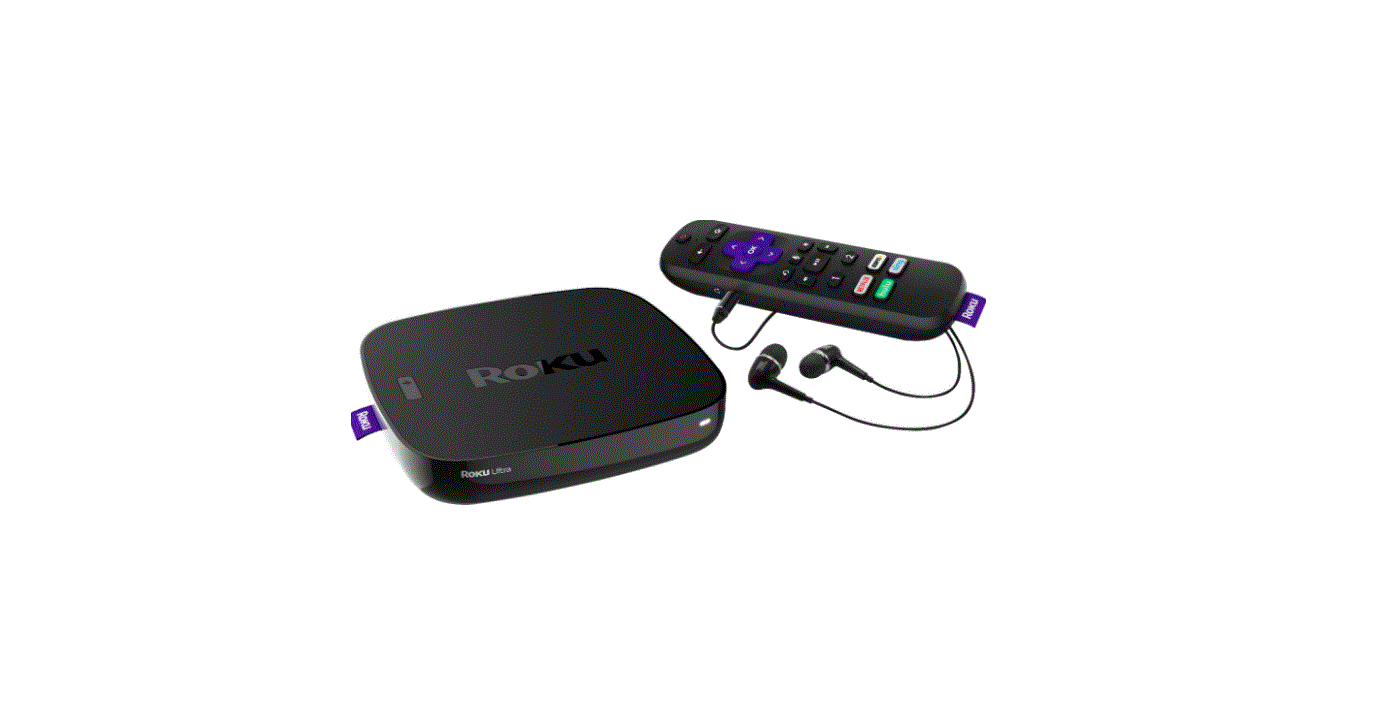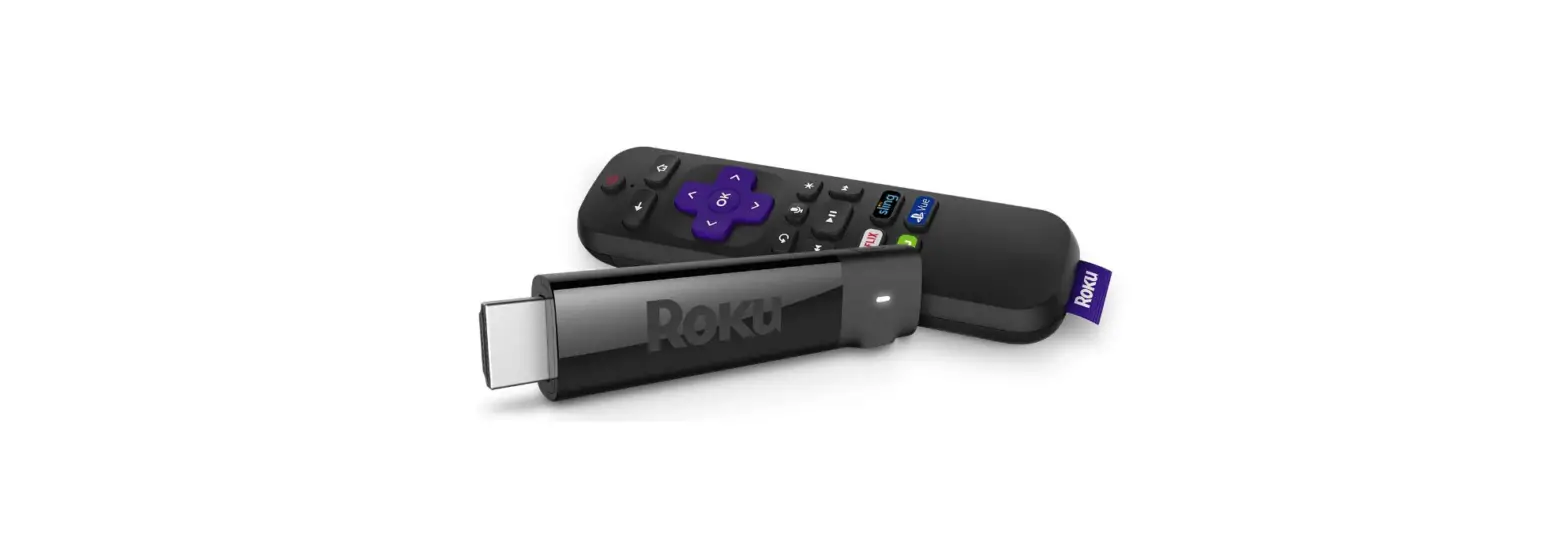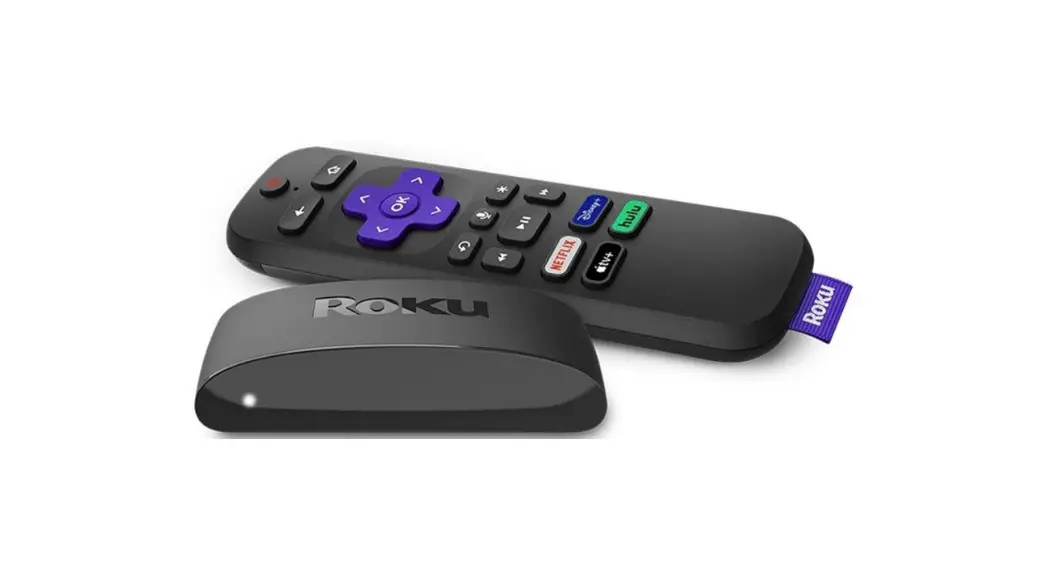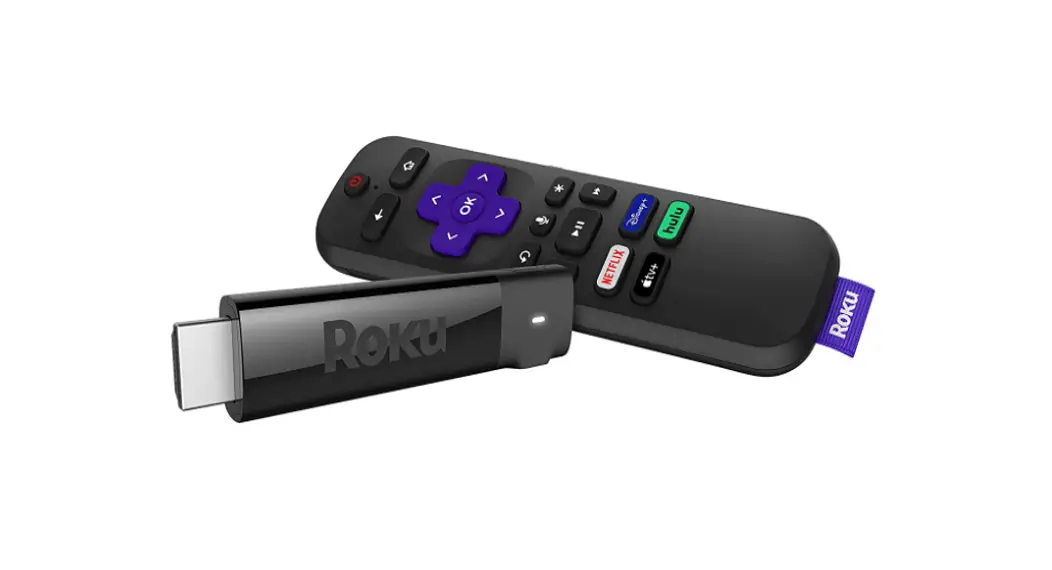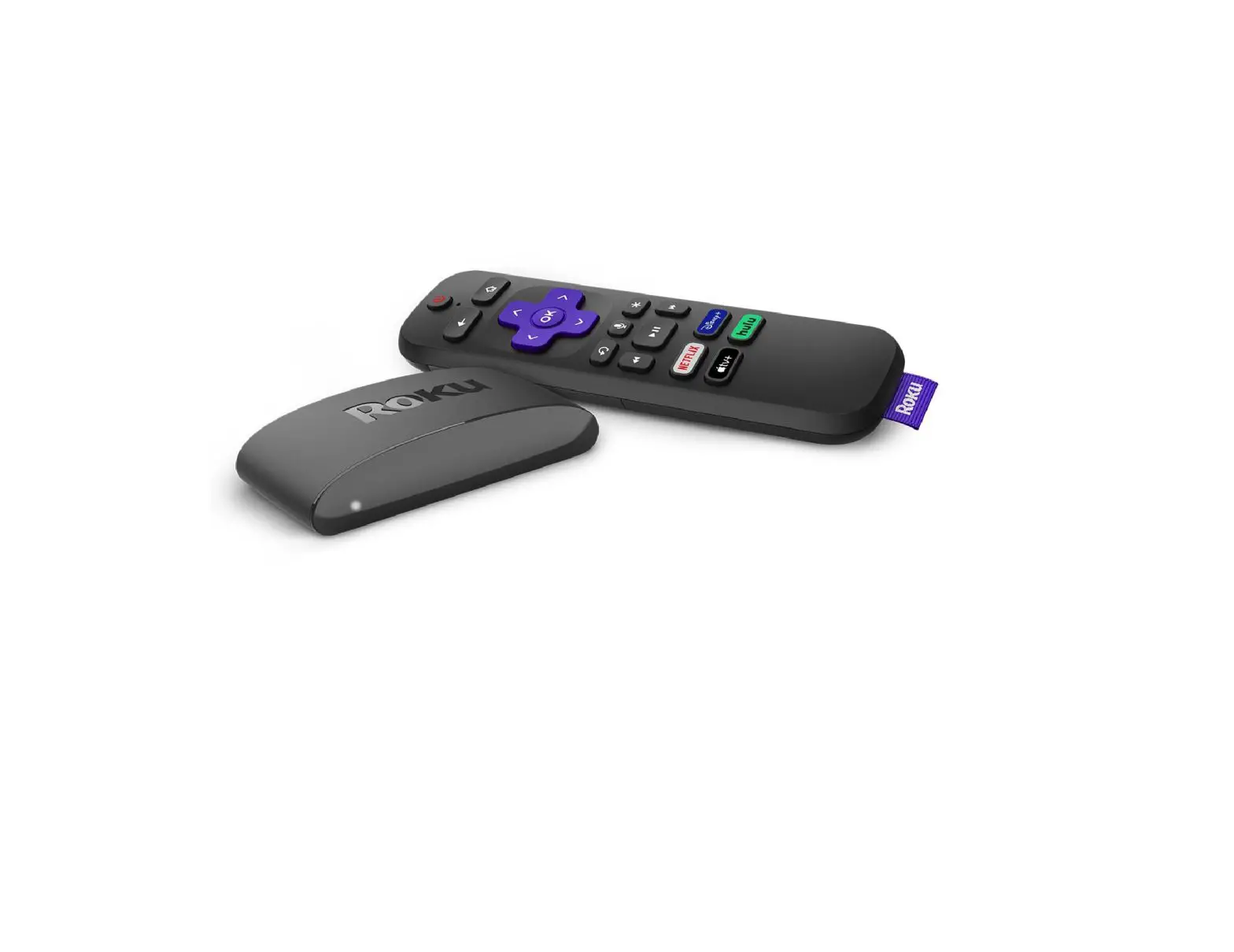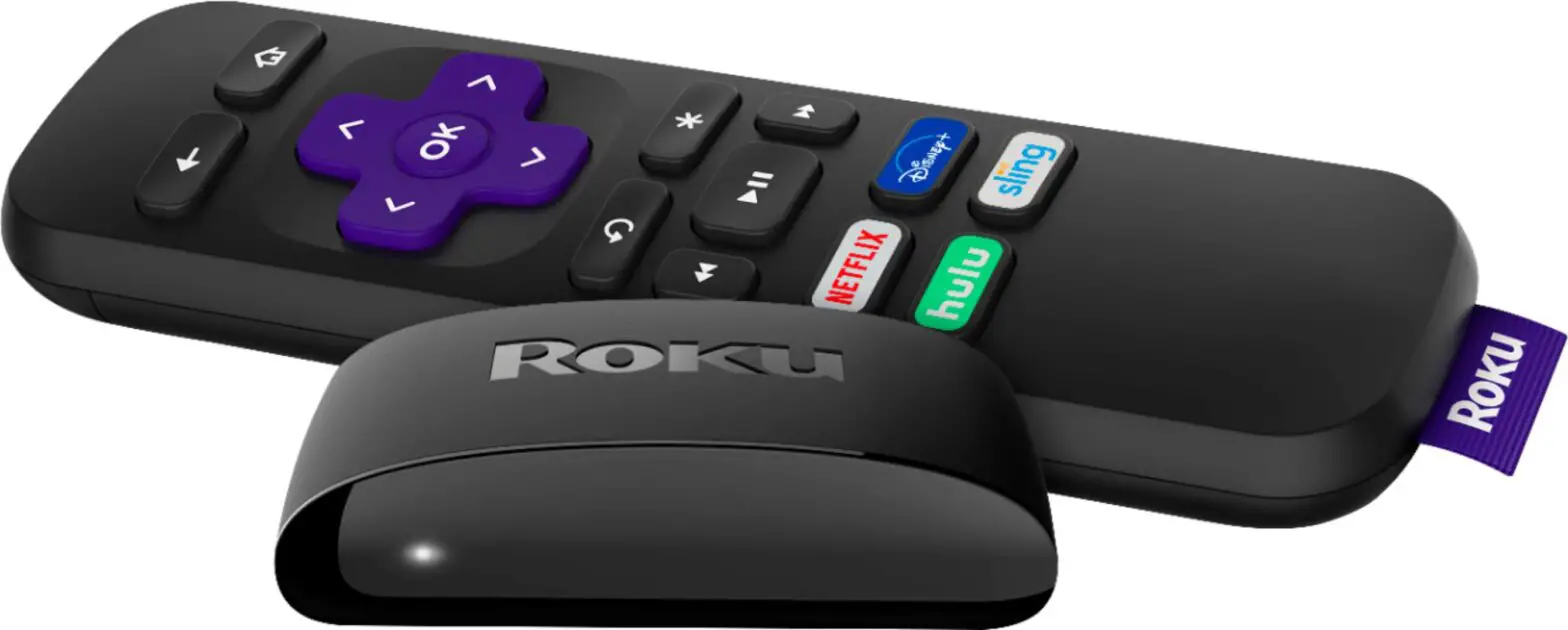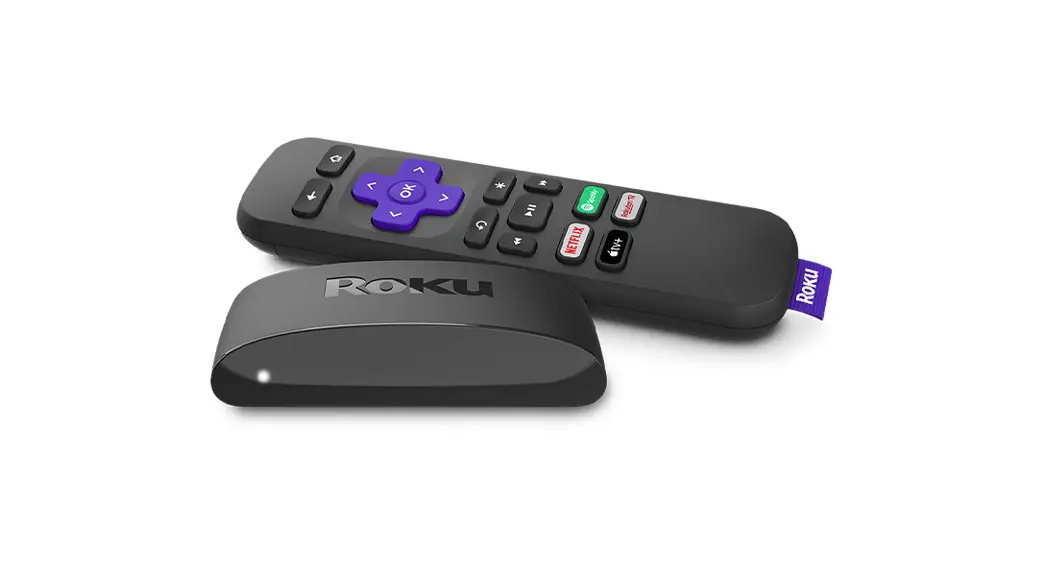
Roku 4660R Ultra 4K/HDR/HD Streaming Player
Specifications
- ITEM WEIGHT: 1 pound
- PRODUCT DIMENSIONS: 4.9 x 4.9 x 1 inches
- BATTERIES: 2 AAA batteries
- NUMBER OF components: Outputs HDMI, USB, Ethernet
- SPEAKER TYPE: Single Speaker
- CONNECTIVITY TECHNOLOGY: Built-in Wi-Fi
- RESOLUTION: 4k
- SUPPORTED INTERNET SERVICES: Netflix, Vudu, Amazon Instant Video, Hulu Plus, YouTube
- CONTROLLER TYPE: Voice Control
- COMPATIBLE DEVICES: Television
- VIDEO OUTPUT RESOLUTION: 1920×1080 Pixels
- BRAND: Roku
Introduction
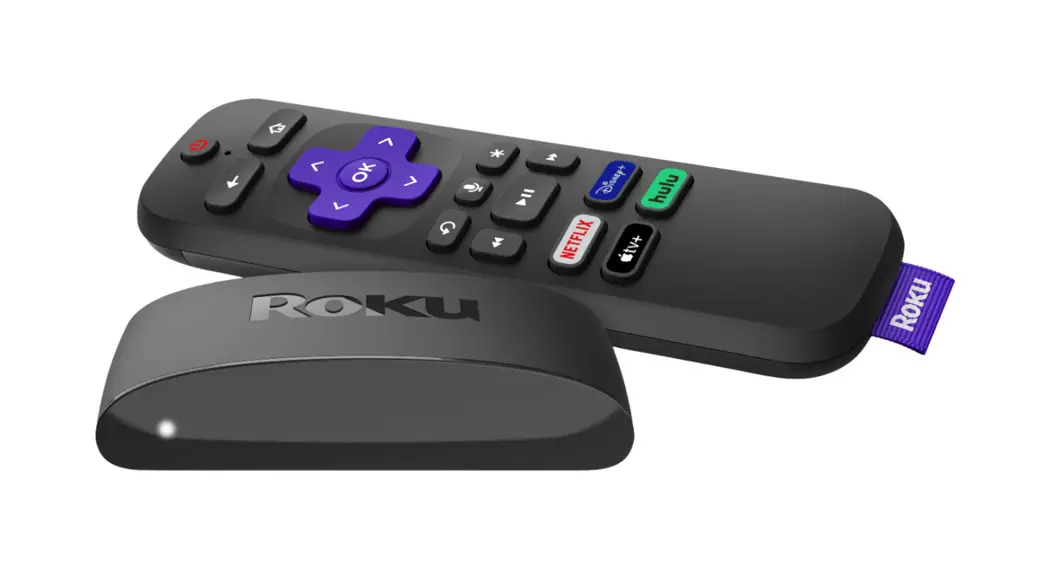
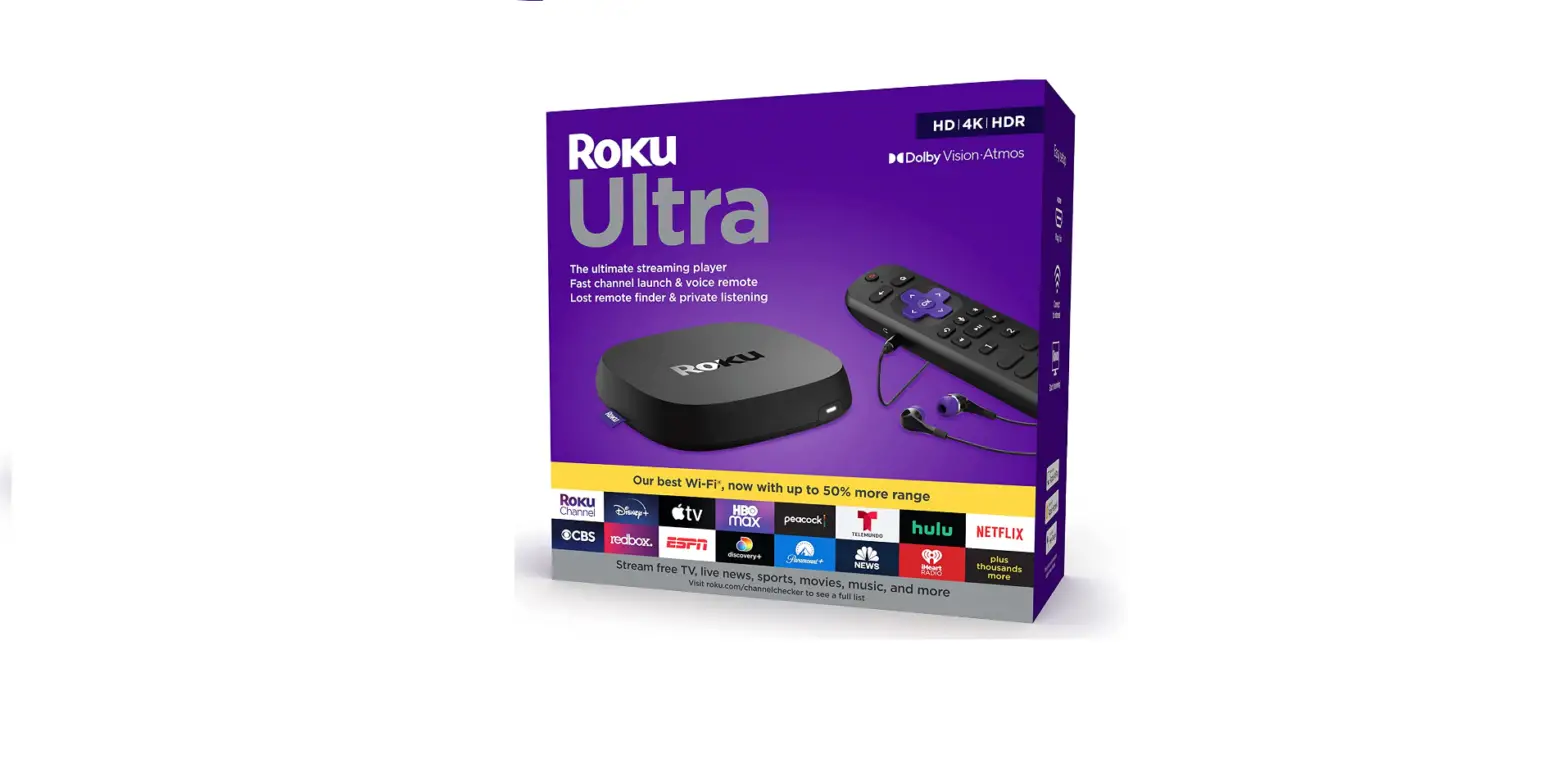
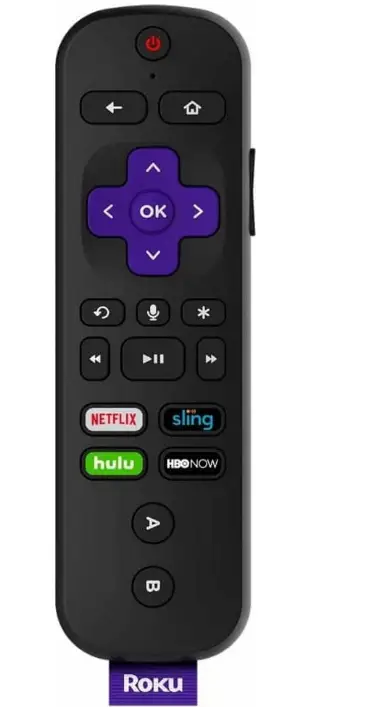
Our best streaming encounter. With a quad-core processor and our finest wifi performance, the newest Roku Ultra is our most potent player. A fantastic option for those who stream frequently and use services like DirecTV NOW, Sling TV, and others that replace cable. Roku Ultra will optimise your video for the finest picture quality regardless of whether your TV is 4K or HD. Enjoy the visual thrill of sharp details and vibrant HDR color. Additionally, the Roku Ultra is jam-packed with wonderful features. With the help of buttons for TV power and volume, you can easily operate your TV with our new voice remote. With headphones, you may listen in silence. And we won’t be destroying the family room with our misplaced remote finder any longer.
Enjoy 500,000 Plus movies and TV episodes in addition to live network TV, blockbusters, award-winning original series, children’s programming, and more across thousands of free or paid channels including Netflix, Amazon Video, HBO NOW, and PBS KIDS.
How to set up your Roku® Ultra
Going through Guided Setup
- Choose a language
The first screen you see will allow you to choose a language. All text and dialog within the Roku application will be displayed in the selected language.
Scroll up and down the list and press the OK button on your Roku remote to choose a language.
Note: It is the responsibility of the channel publisher to translate their channel and some channels may not support your chosen language. - Connect your Roku Ultra to the internet
Choose your wireless network from the list of available networks and enter your password. This is most often the same network you use to connect your computer or smartphone to the internet. If you do not see your network, select Scan again to see all networks. For more assistance, see help finding your wireless network and password.
If you want to see your password as you type, choose Show password. This can help prevent entering the wrong password. Remember, passwords are case-sensitive – use the shift button on the on-screen keyboard to enter a capital letter.
Once you have entered your password and selected Connect, your Roku Ultra will automatically connect to the internet. Alternatively, you can get more help if you are unable to connect to your wireless network.
- Wait for your Roku Ultra to download the latest software
Once connected to the internet, your Roku Ultra will download the latest version of Roku OS software and then reboot. - Set the display type
Select Auto detect display type and your Roku Ultra will analyze the HDMI connection to determine the supported video resolutions. To have your Roku Ultra automatically choose the best display resolution so you don’t have to manually configure the settings, choose OK, go to automatic. To change the display type at a later time, go to Settings > Display type.
If support for 4K or 4K HDR is not detected and you are using a 4K compatible TV or a 4K HDR-compatible TV, make sure all HDMI cables are firmly attached and all connections support HDCP 2.2. For more help, review the steps for 4K setup or 4K HDR setup.
- Set up your Roku Enhanced remote to control your TV
Select Check remote settings to automatically set up your Roku Enhanced remote to control the power and volume for your TV. If you prefer, you can set up your remote at any time from the settings menu. Go to Settings > Remote > Set up remote for TV control.
Notes: This step only appears if you are using a Roku Enhanced Remote with TV power and volume buttons. Roku Streaming Stick model 3800 includes this remote, or it can be purchased from the Roku accessories store.
With some TV models, your Roku Enhanced remote may only be able to control the volume, and not the power on/off.
- Create a Roku account and activate your Roku Ultra
In order to activate your Roku Ultra, it must be linked to a Roku account. Your Roku account keeps track of which Roku devices you own and allows you to add free and purchase channels from the Roku Channel Store.
Note: There is NEVER a charge to create a Roku account.
Instructions for activating your Roku Ultra will be displayed on your TV, including an activation code; e.g. “XCV5TG”. You will be required to visit roku.com/link on your computer or smartphone, enter the code and follow the instructions to activate your Roku Ultra.
Note: Roku does NOT charge for device activation. When entering roku.com/link into your web browser, type it carefully to avoid fraudulent websites. - You are done!
Once you have completed all of the activation steps, your Roku Ultra will be ready to use.
Tips
You can personalize your Roku Ultra by changing your theme or screensaver. You can use the Roku Channel Store to add new streaming channels, games, themes, screensavers, and other apps.
FAQs
No USB cable is provided. The use of a USB cable is not necessary. The USB port is not used to connect to your computer or television. It is a USB port for external storage devices, such as flash drives and portable hard drives. Roku is connected with an HDMI wire.
One remote at a time can only be synced. I haven’t tried the Roku remote app for mobile devices, but it may function as a second remote.
It functions on mine. The drive and the files must be in one of the compatible formats.
YES! After using them just once in the evening the following day, I must replace the batteries. The next evening it is dead as a doornail because I never use the headphones and always return it to the home screen when I am finished (Roku advised me to do this). I finally settled on removing the batteries after each use and replacing them when I wanted to use it again. I’ve owned every Roku model over the years, and because of the battery problems, this one is not worth the plastic it is housed in. There are no complaints because the picture is excellent. Just a little irate Due to a manufacturing flaw, I must remove batteries after each use.
Any headphones can be plugged into the Roku control. normal jack size. Bluetooth is not the case. I bought a Bluetooth gadget from Best Buy that plugs into the TV sound outlet. Headphones could now be connected to your TV.
I’m not aware of the previous Ultra model, but this one has a wonderful remote that can turn your TV on and off and control the volume. You can also give remote vocal commands. Of course, you can use the remote’s 1/8-inch socket to attach a standard pair of headphones or the earbuds that come with it. Additionally, the Ultra offers a wider selection of screensavers. Only HDMI can be used to connect it (cable not included in the set). Newer 4K HDTVs are compatible with the Ultra.
Any TV equipped with an HDMI connector ought to function.
Yes, you can. Your 4K quality might suffer, but your HD 1080 video won’t be affected.
This gadget does not record or store anything. It offers to offer the choice of Channels like Plex or one sponsored by Roku that can access your computer for shows or television that has been downloaded to your computer.
It ought to. A DLNA media server is available on Roku, and Plex is another option. The device’s setup requires an internet connection. If you have media in the right format and codec, you can also play directly from a USB drive.
Any smart TV is fine, as is conventional TV—not a smart TV.