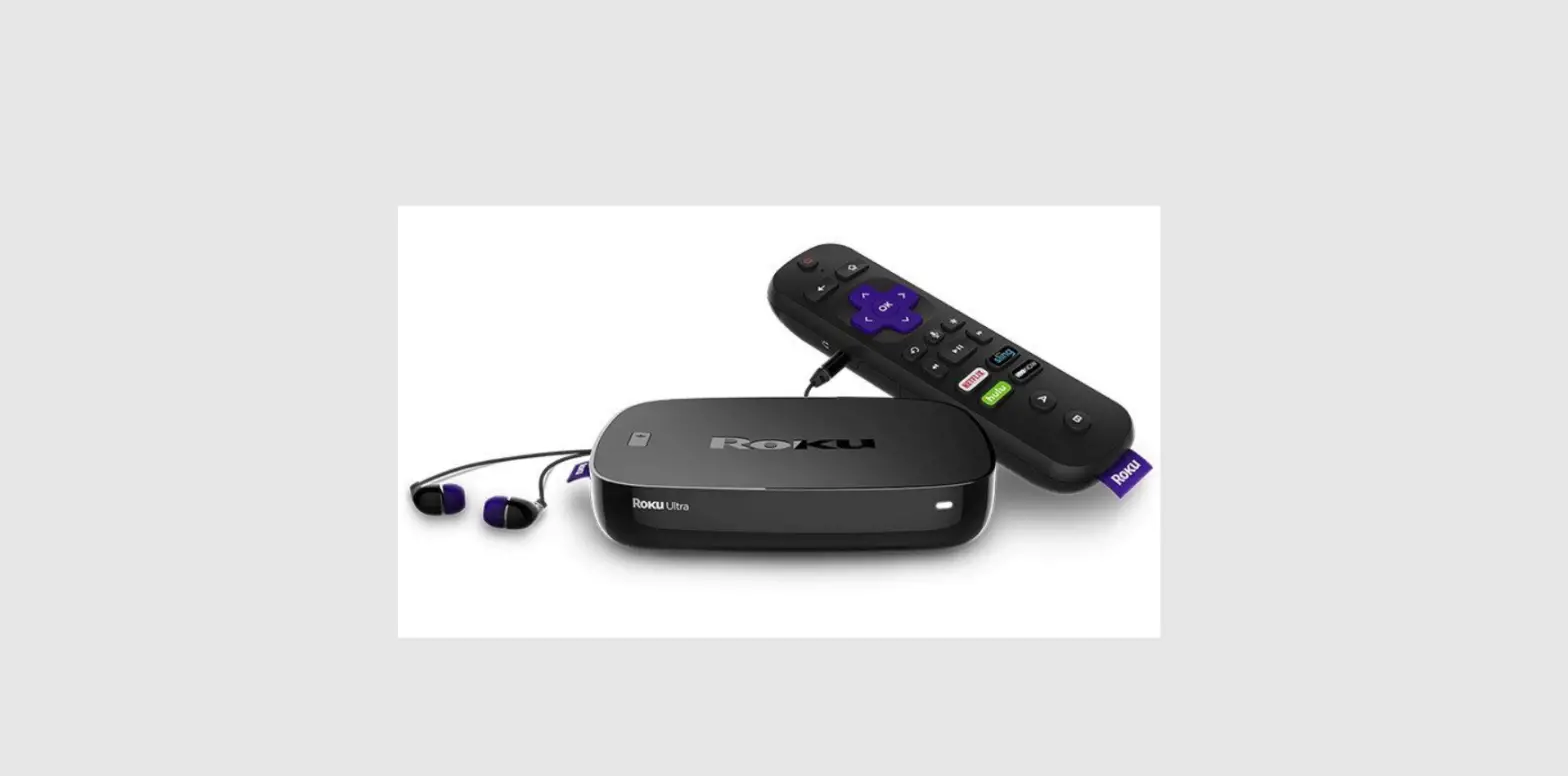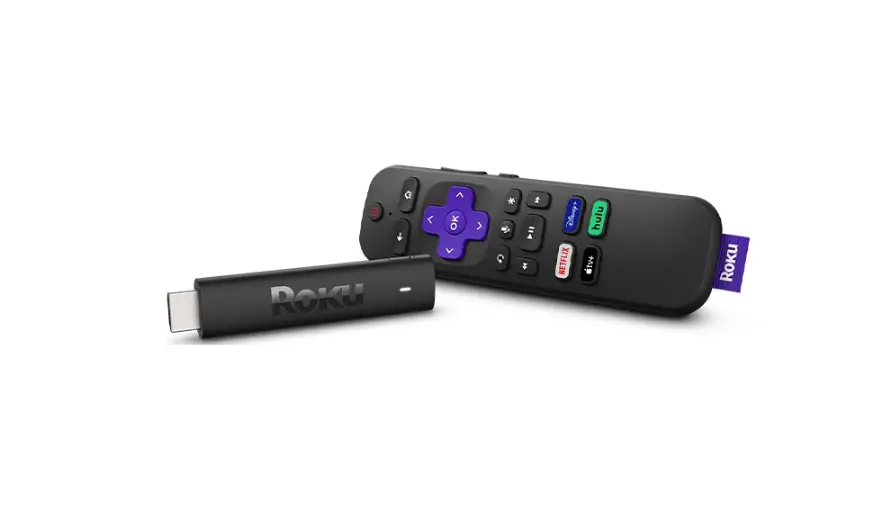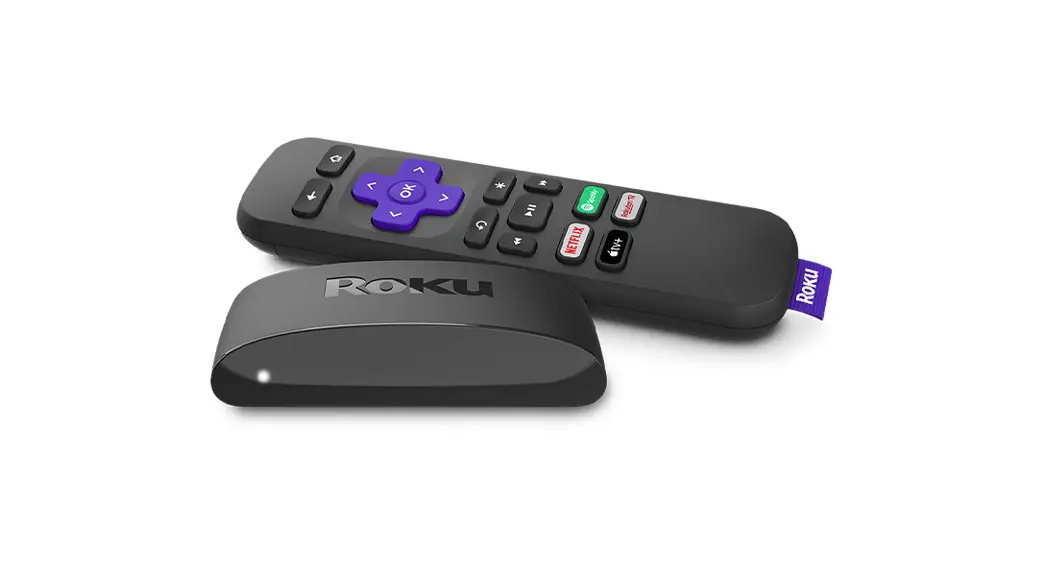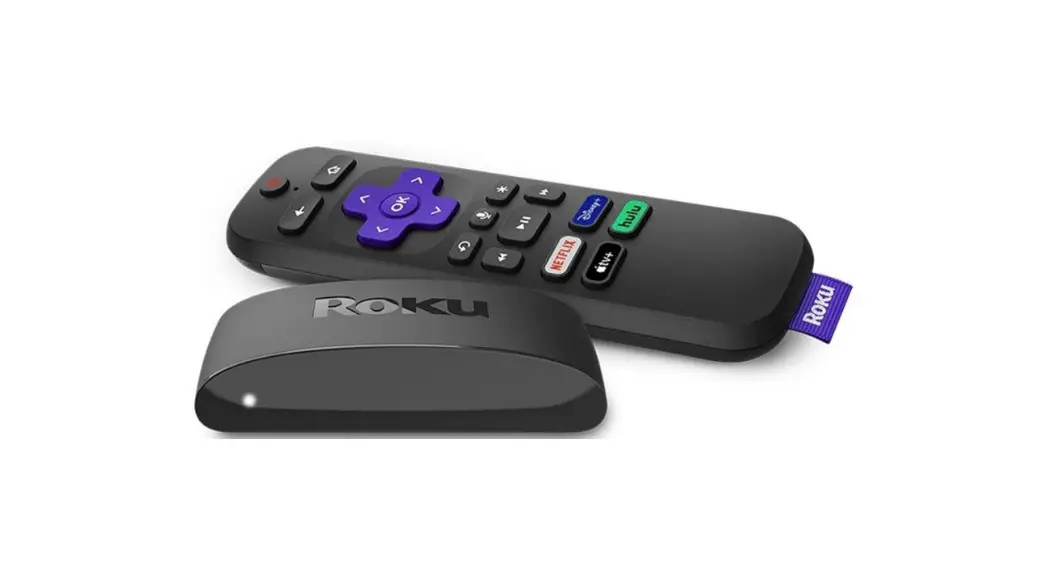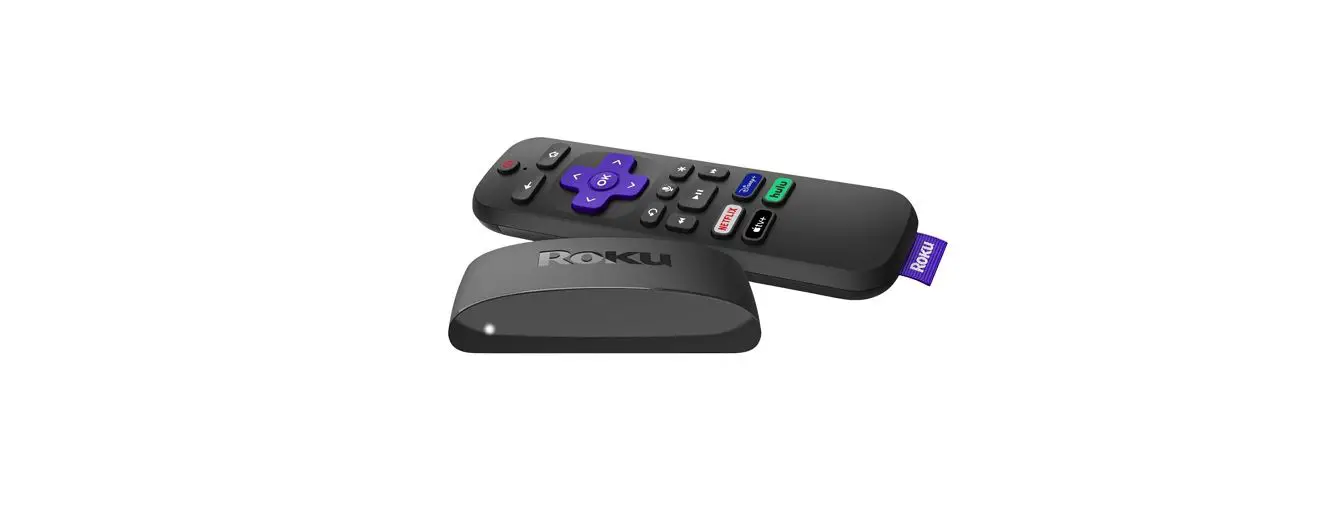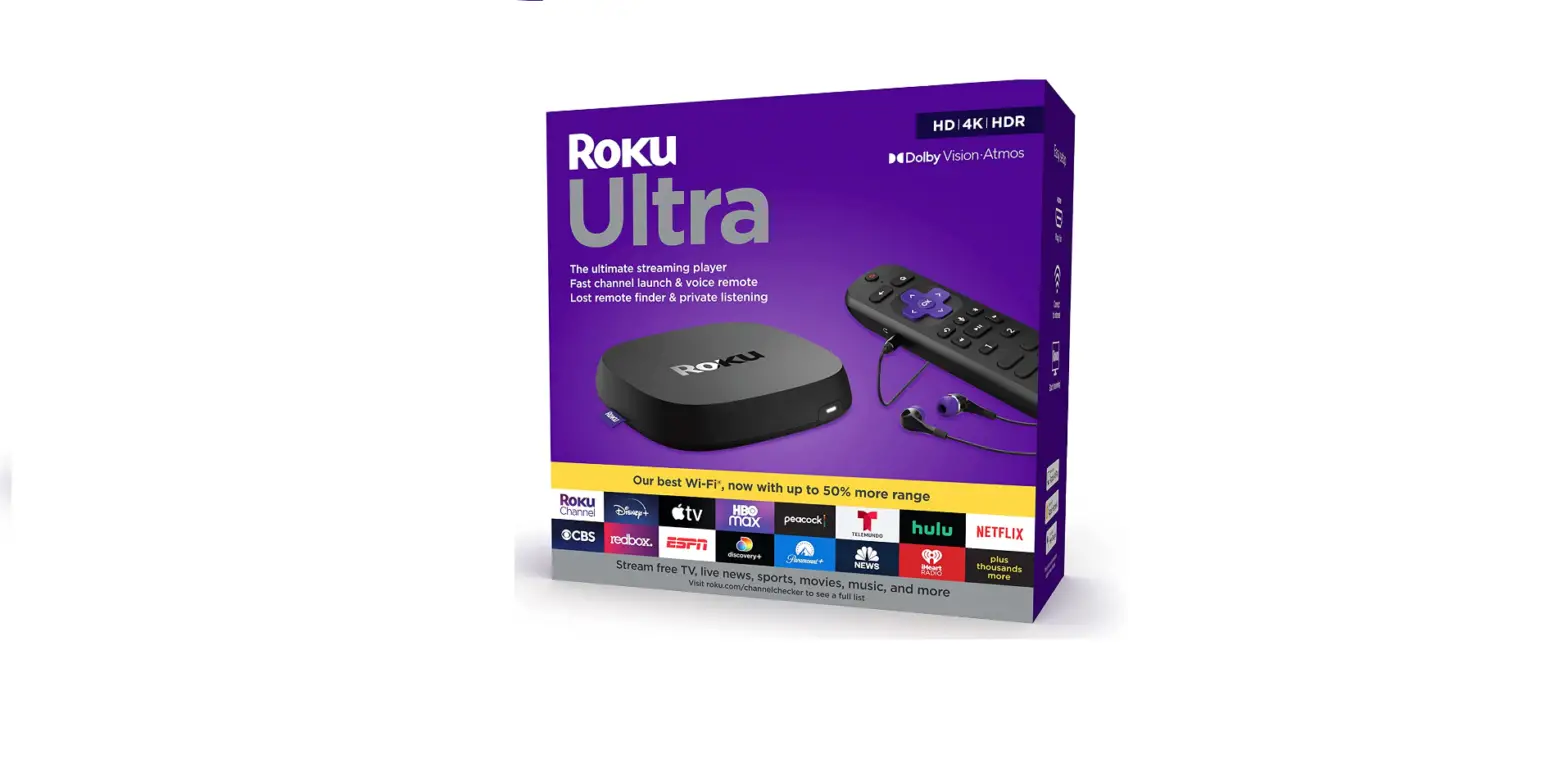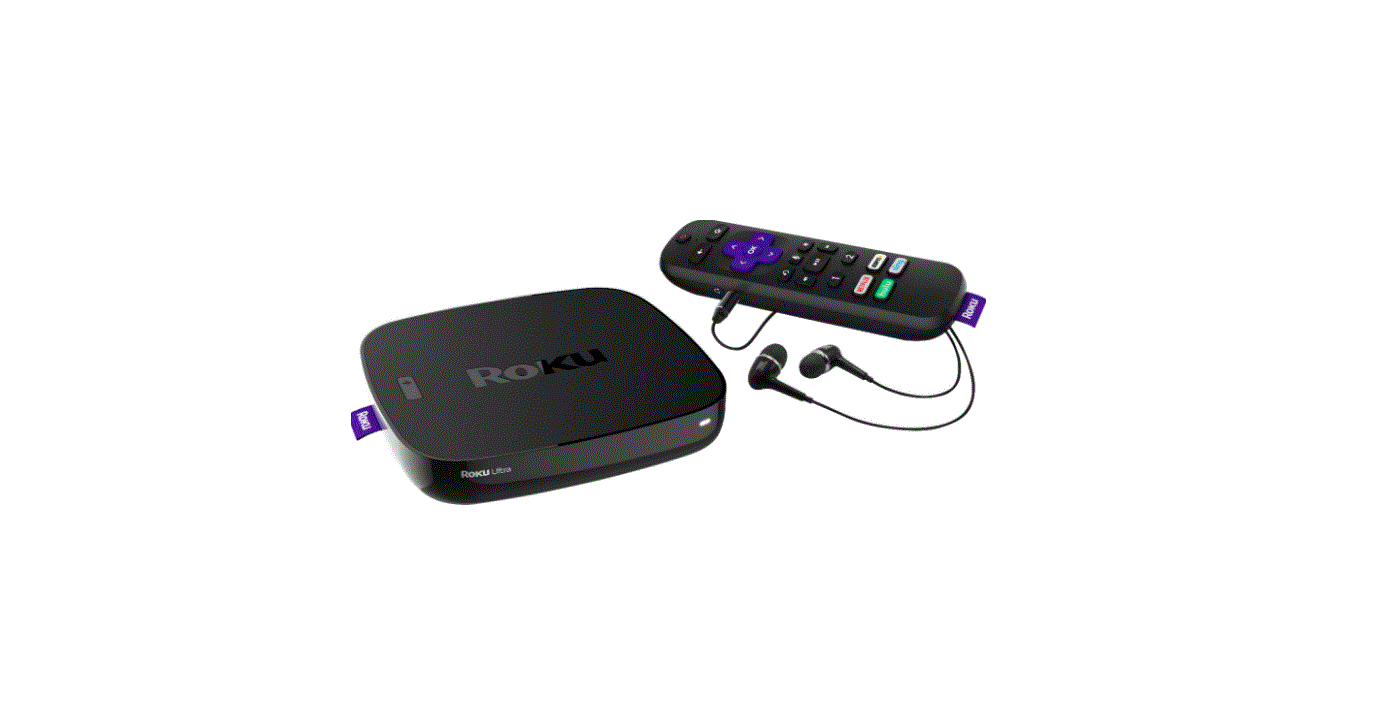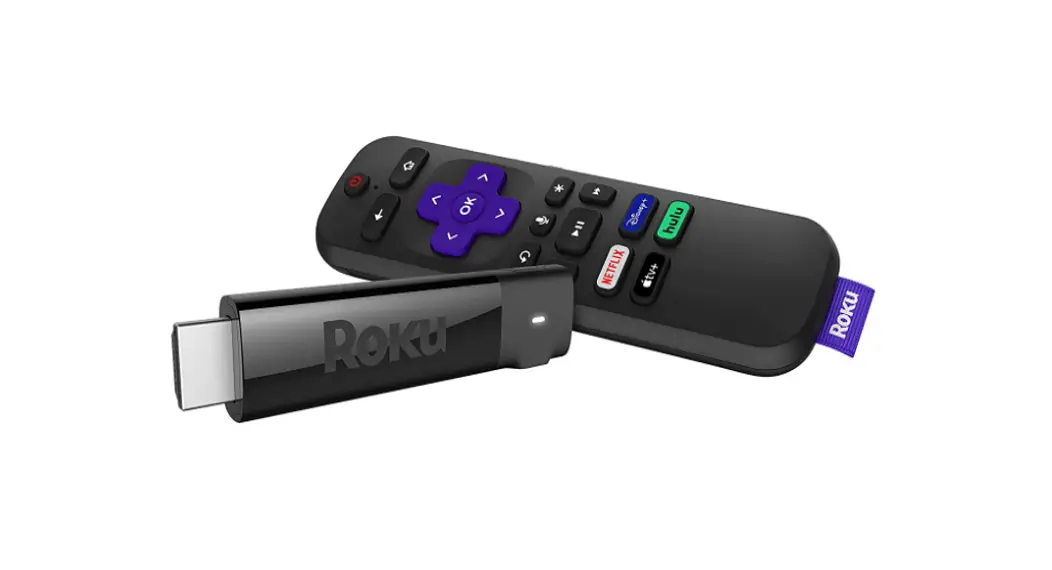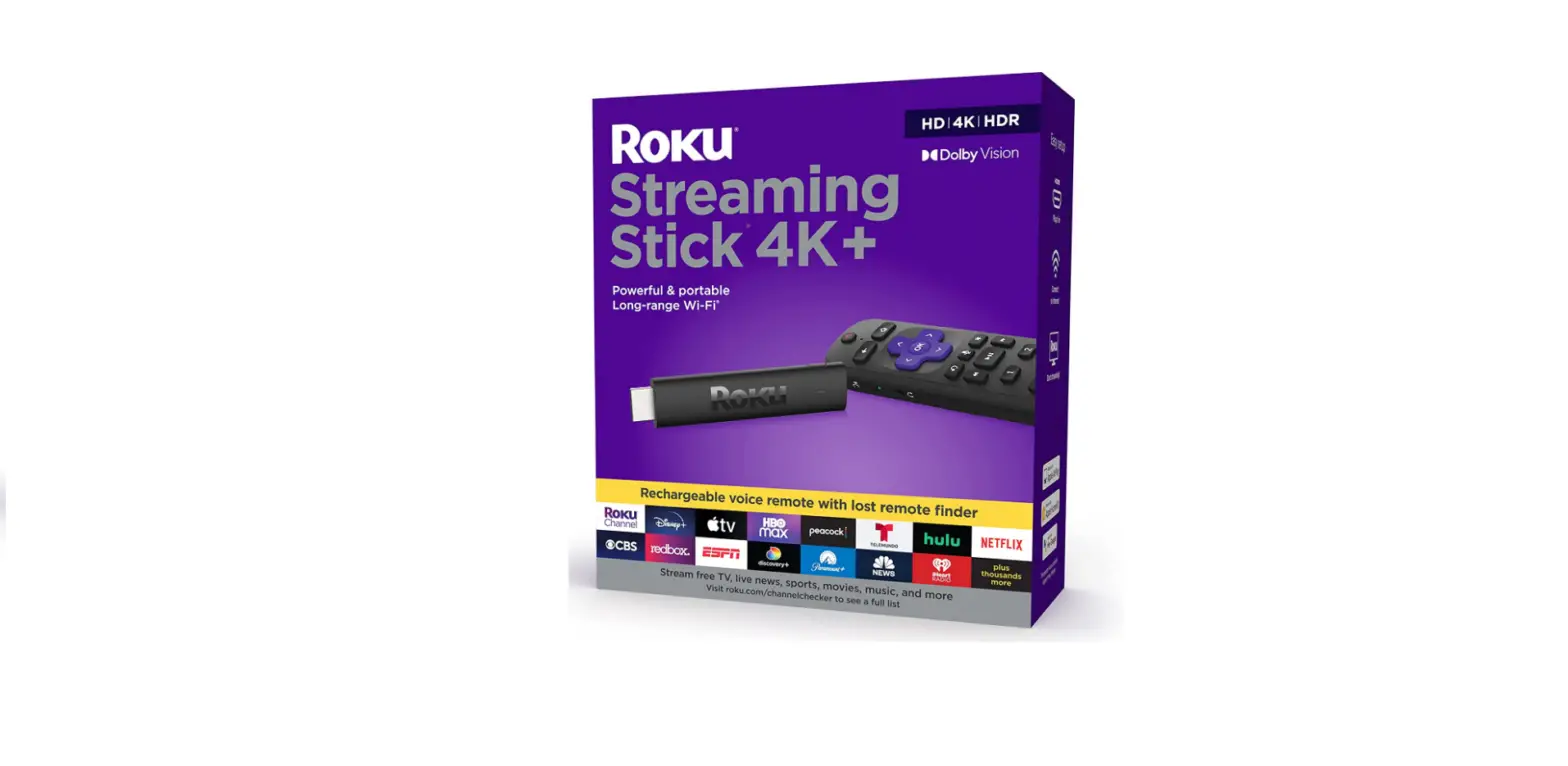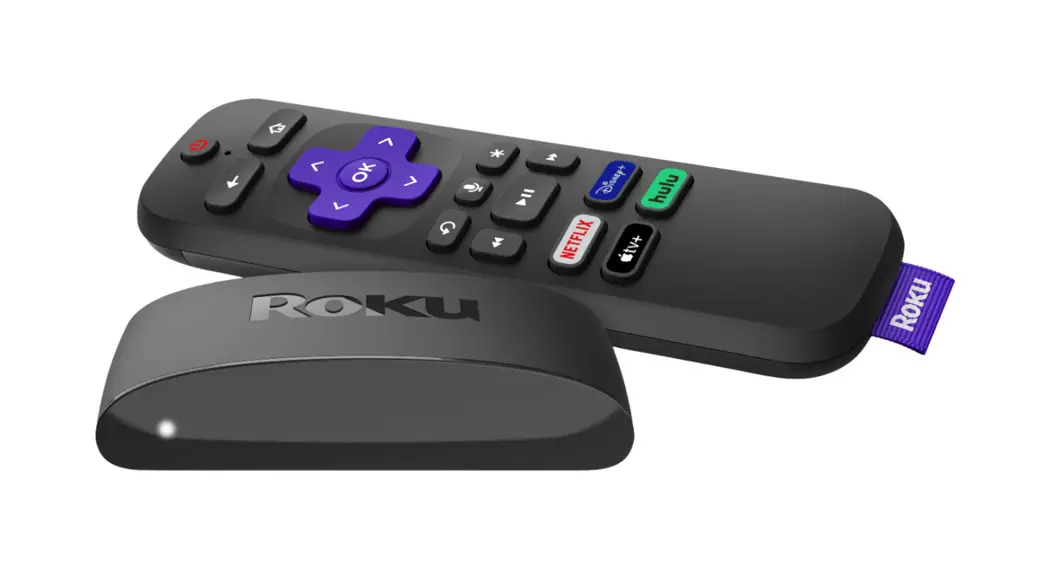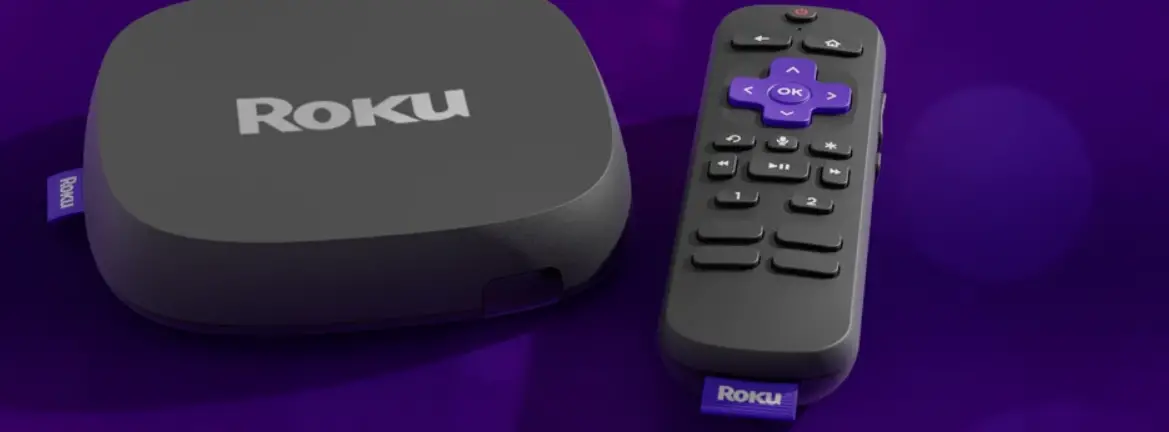

Roku 4802R Ultra 4K UHD Streaming Media Player
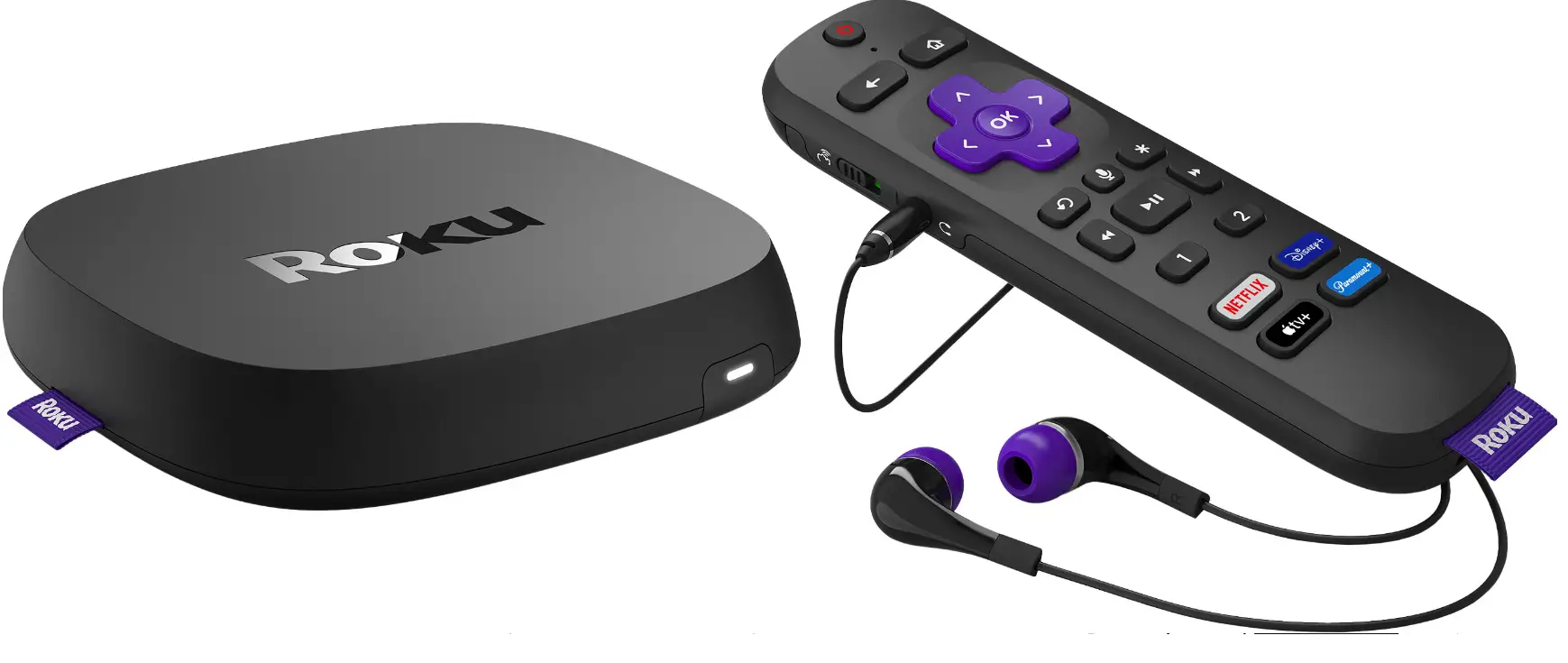
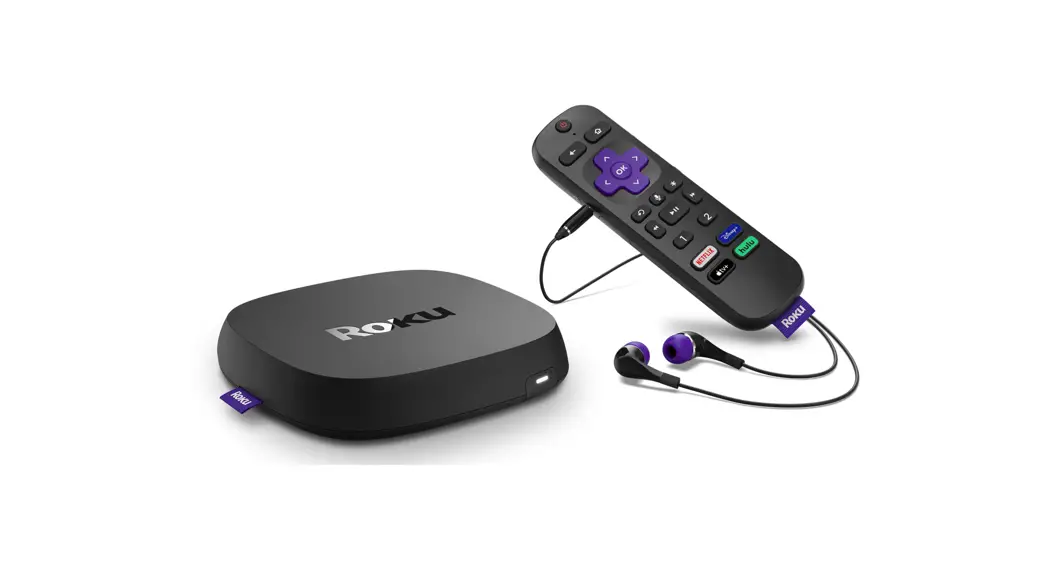
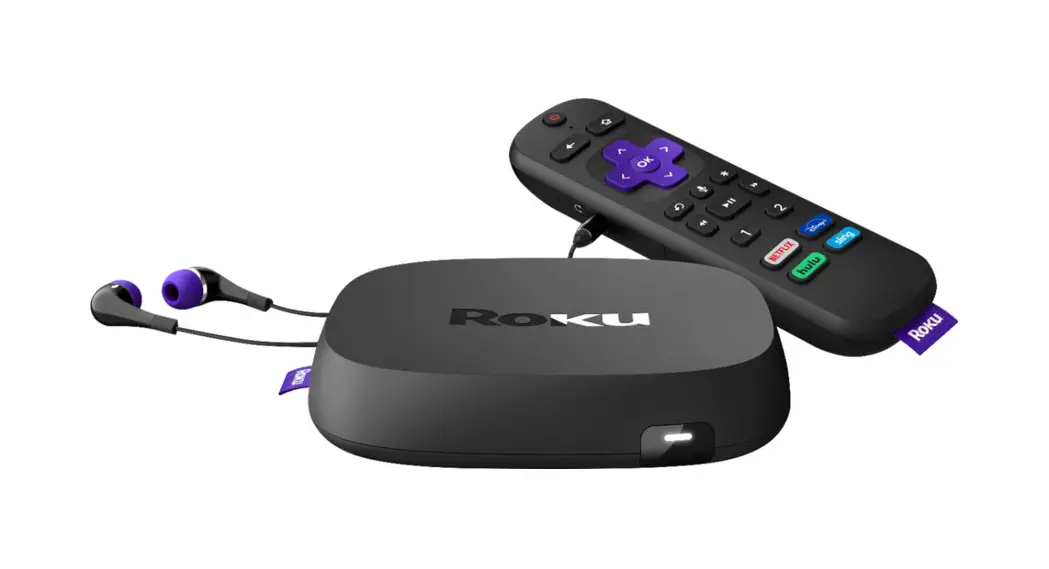
What’s included
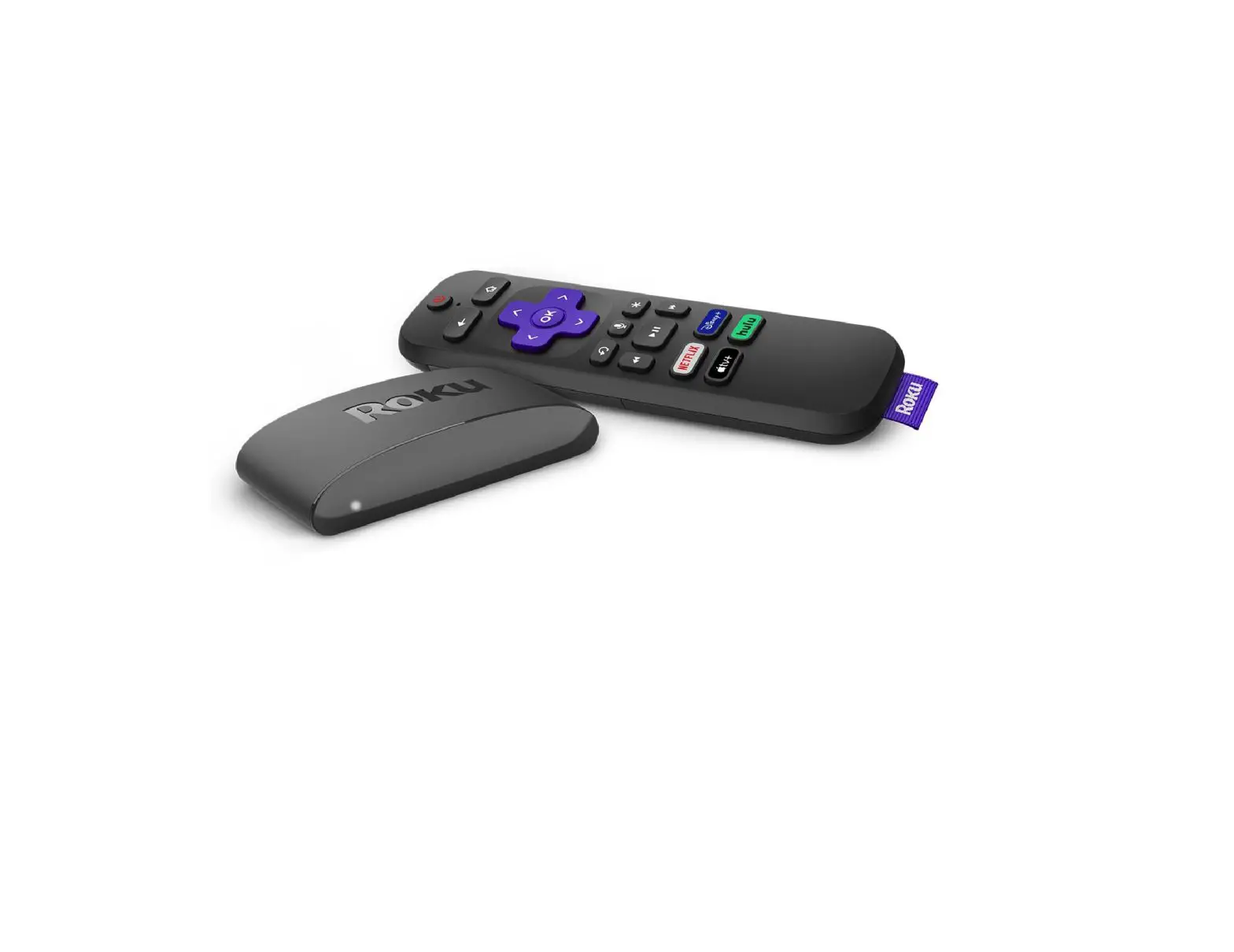
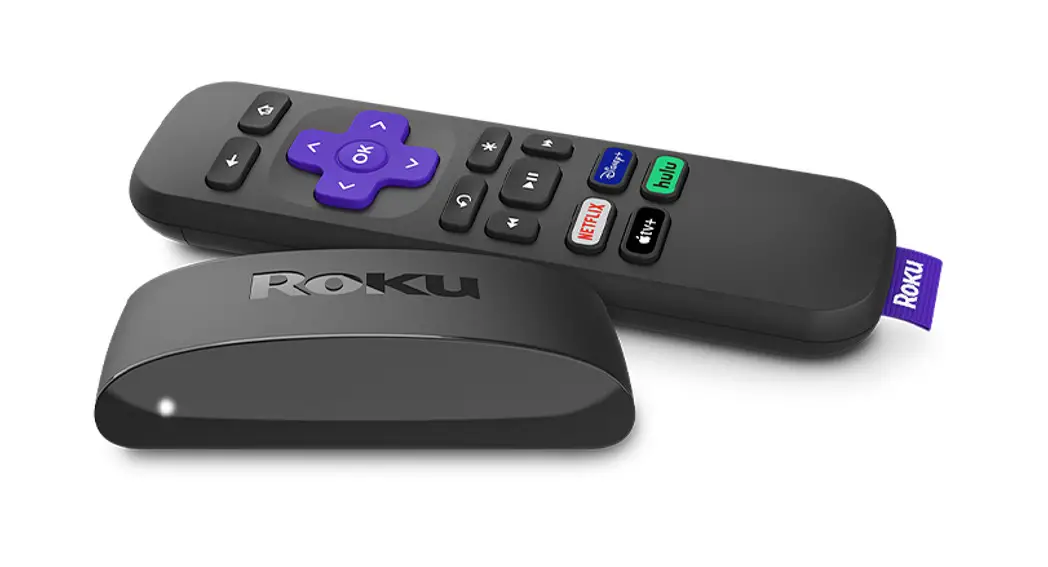
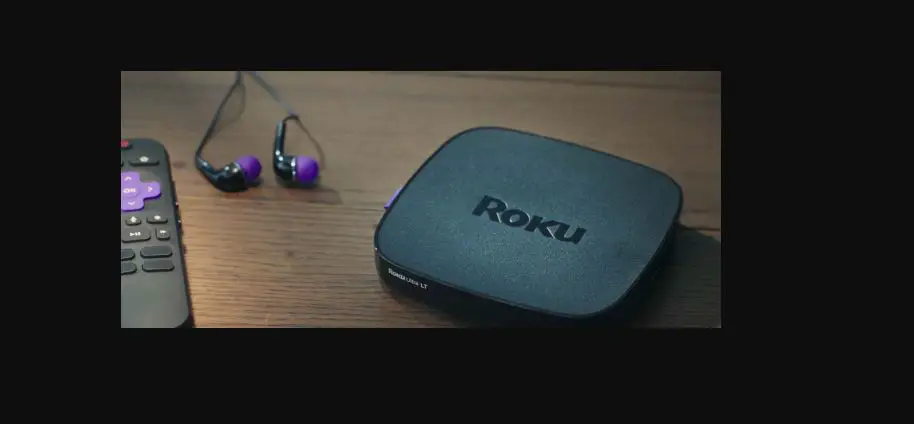
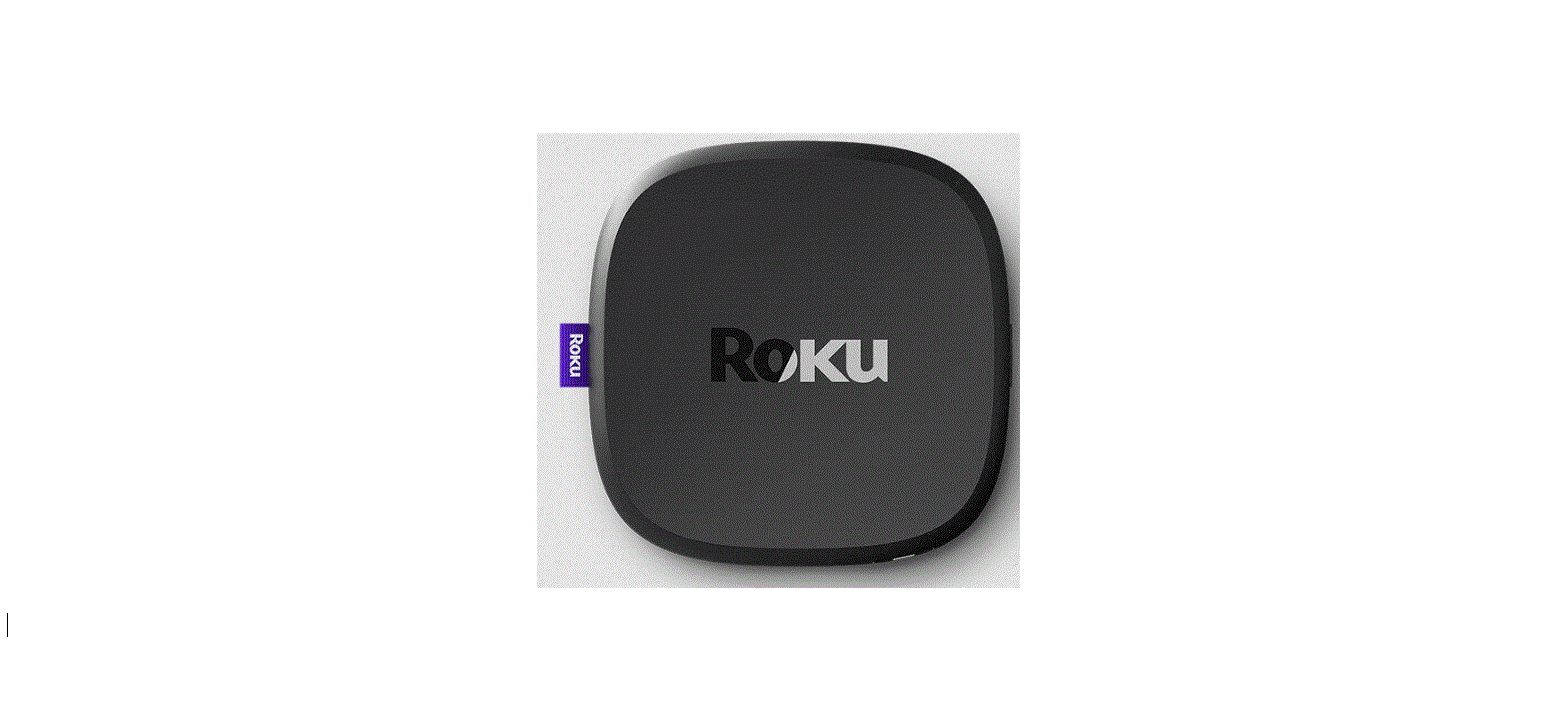
- Roku Ultra streaming player

- Remote

- Headphones for private listening

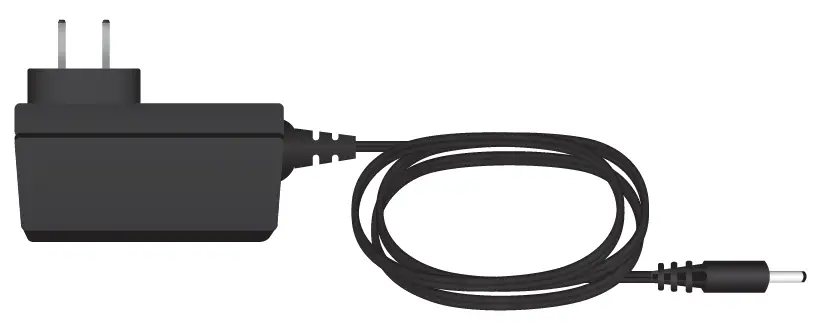
- Power adaptor

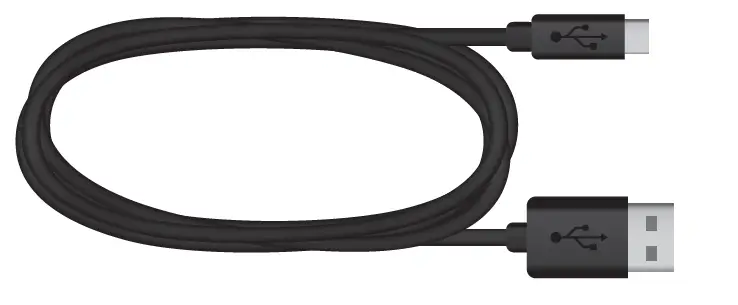
- USB charging cable

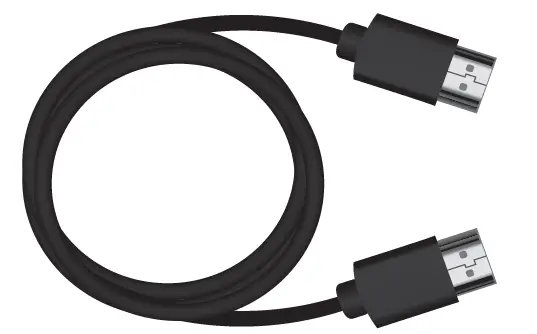
- Premium High Speed HDMI® Cable

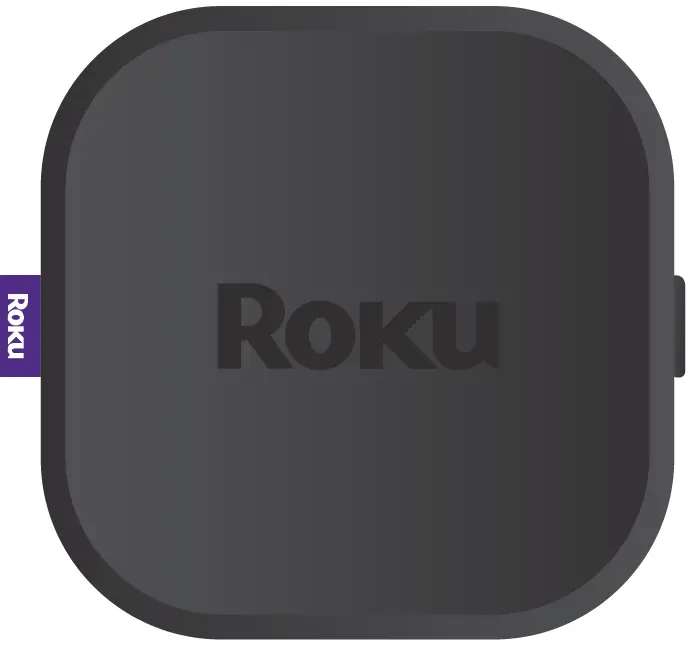
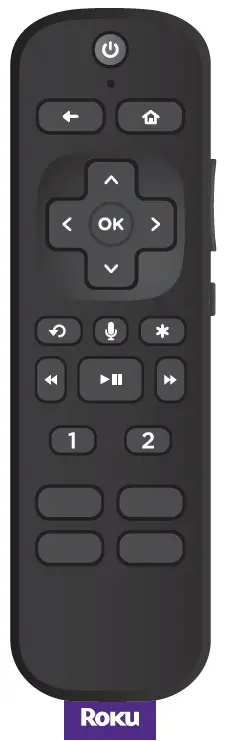
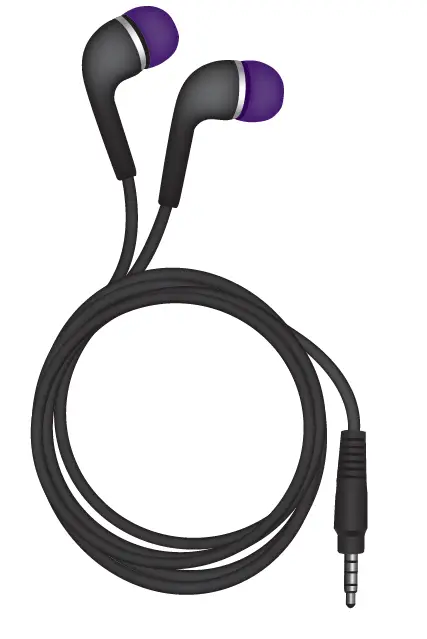
Details
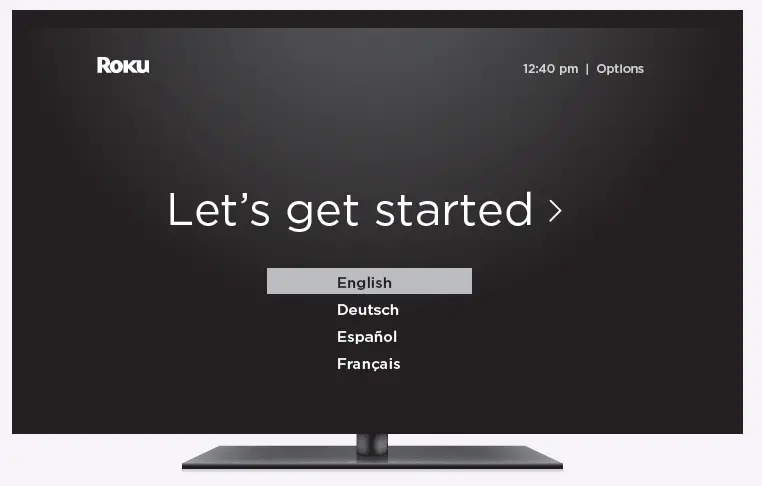
Let’s get started
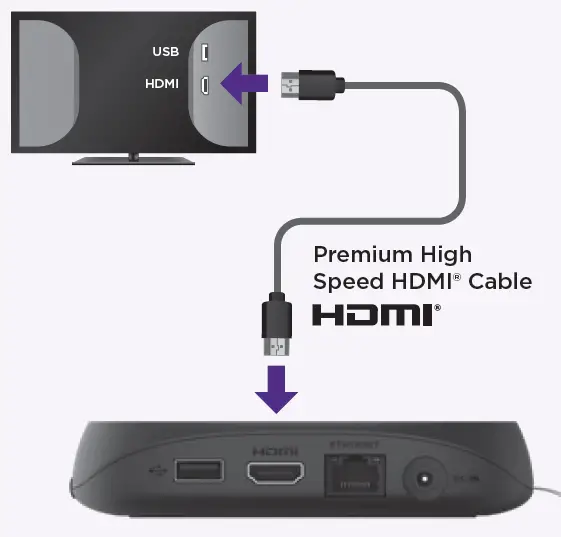
- Connect to TV
Connect your streaming player to an HDMI port on the back of your TV with the included cable.
TIP:
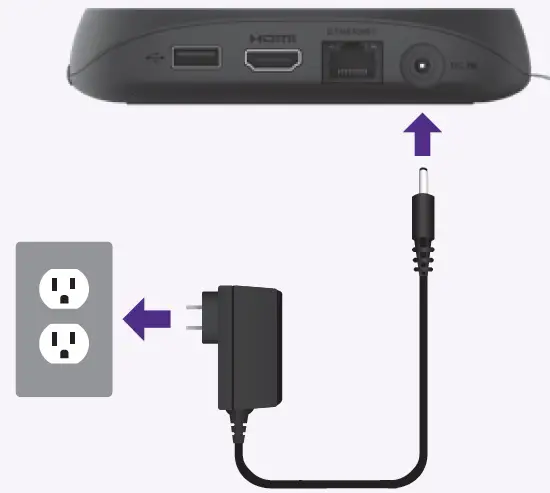
For help setting up your device, visit go.roku.com/ultra - Connect to power
Use the included power adaptor to connect your streaming player to a wall outlet.
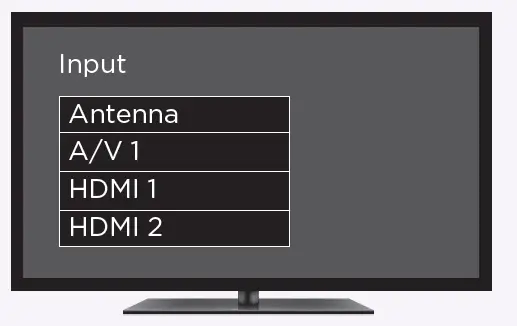
- Select input
Use your TV remote to power on your TV and select the input (source) you used to connect your streaming player.
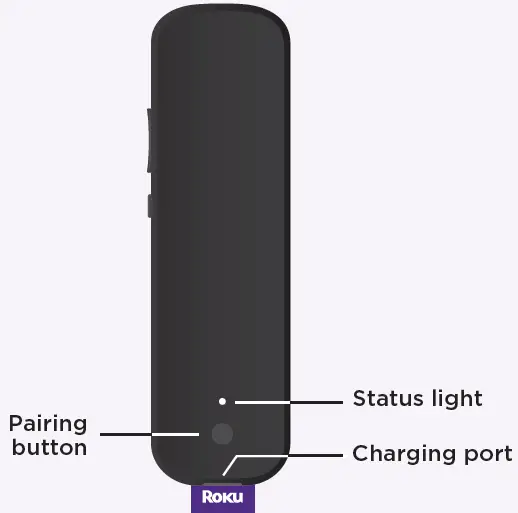
- Pair your remote
Press and hold the pairing button on your remote for 5 seconds until the status light turns green and starts blinking. Your remote will pair automatically.
- Follow the on-screen setup
Follow the instructions on your TV screen. Activate your streaming player by using your computer or smartphone to link a Roku account. IMPORTANT:
Roku never charges for activation support.
 IMPORTANT:
Common questions
Why do I need to create a Roku account?
You’ll need a Roku account to stream, add channels, easily manage subscriptions, rent movies, and more.
Why should I enter a credit card?
Saving a payment method makes it easy to rent or buy movies, subscribe to popular channels, and start free trials in just a click. No charges will be made without your authorization.
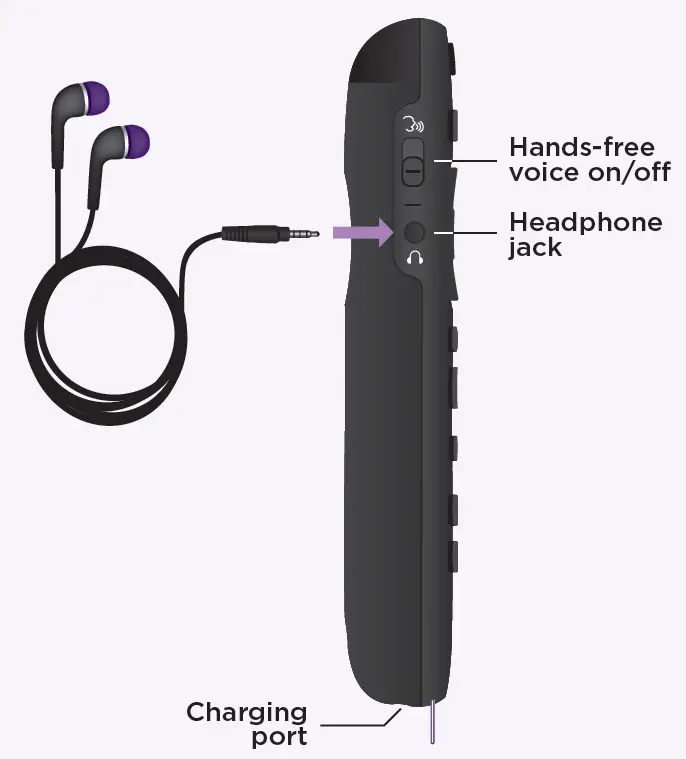
Can I still give voice commands if I turn off hands-free voice?
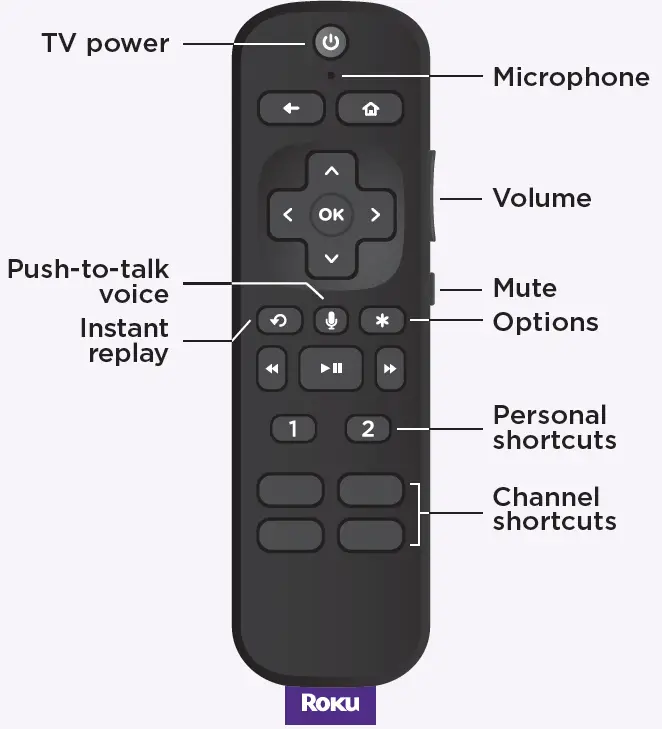
Yes you can! Just press and hold the voice button to give a command instead. You don’t need to say “Hey Roku” when using push-to-talk voice.
Visit go.roku.com/ultra for more information
Remote features
- Private listening
Plug headphones into your remote to use private listening. Your TV will mute automatically.
- Lost remote finder
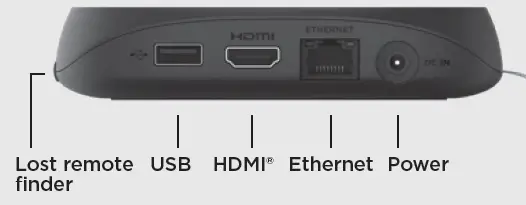
Say “Hey Roku, where’s my remote?” or press the button on your streaming player to locate it.
- Personal shortcuts
Quickly launch a channel, play your favorite playlist, and more in a tap.
To set: Press a personal shortcut button for on-screen instructions.
Just talk to it. It’s that easy.
- Play entertainment
“Hey Roku, launch The Roku Channel” “Hey Roku, play classic rock”
- Control your streaming
“Hey Roku, pause” “Hey Roku, turn captions on”
- Control your TV
“Hey Roku, turn my TV off” “Hey Roku, turn it up”
- Find more to watch
“Hey Roku, show me the news” “Hey Roku, search for comedies”
TIP:
For the best experience, keep the remote near you and speak towards it when giving a command.
Charging your remote
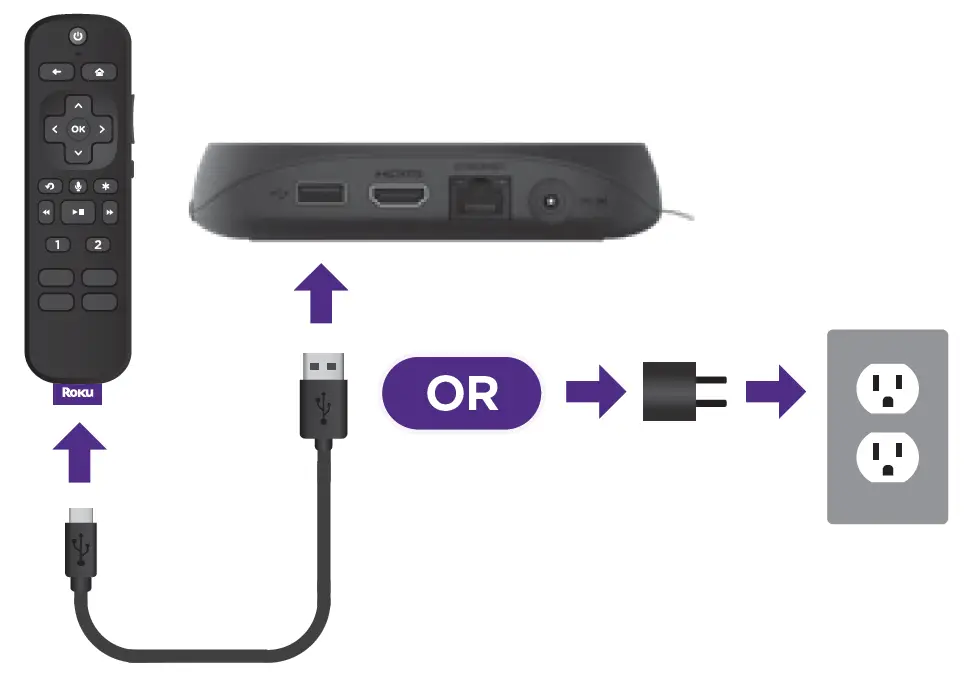
Connect your remote to the USB charging cable and either:
- the USB port on the back of your player \
- a wall outlet using a standard USB adaptor (like your phone charger)
The status light will stop blinking once your remote is finished charging.
You’ll see a message on your TV when it’s time to charge again.
Need more help?
support.roku.com
Cut cable , Save money ,Stream big.
streamandsave.com
See what’s streaming for free, tips, and more
Visit roku.com/blog
 Roku
Roku Roku
Roku Roku
Roku Roku
Roku