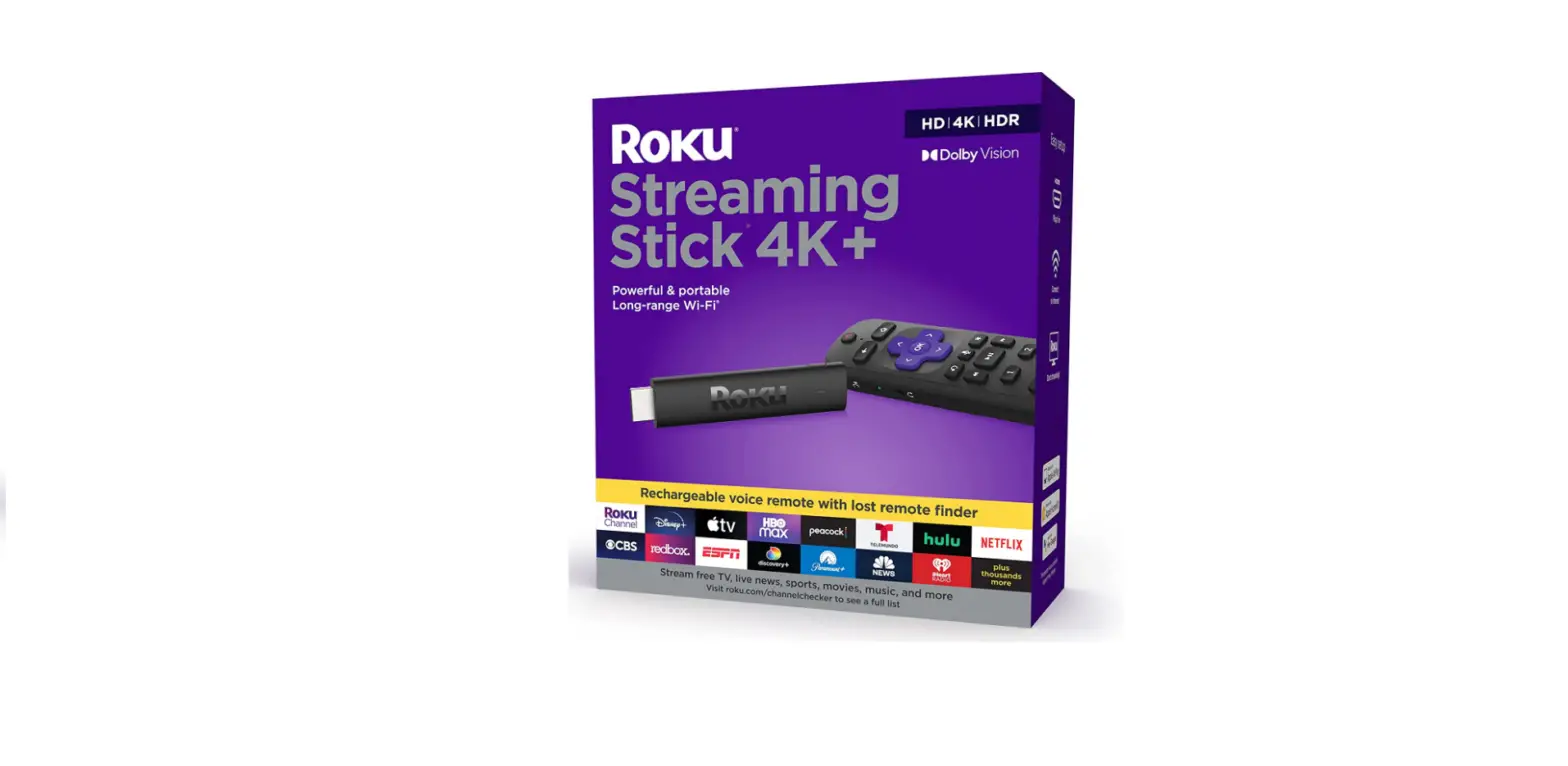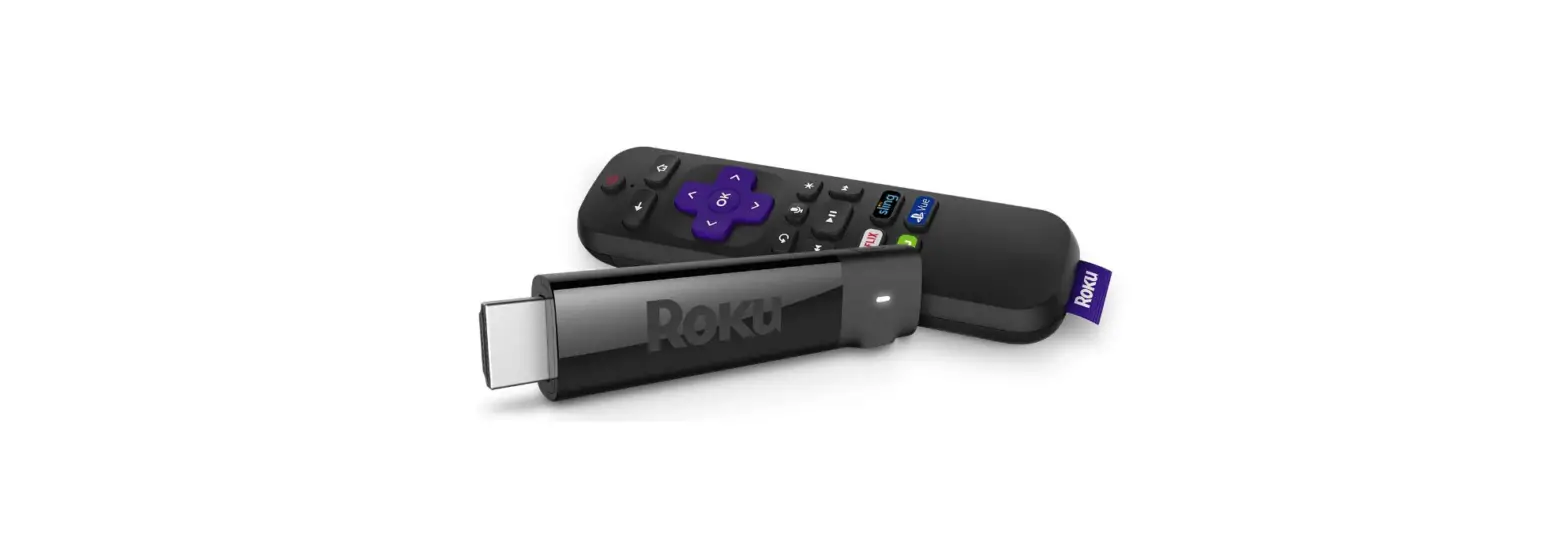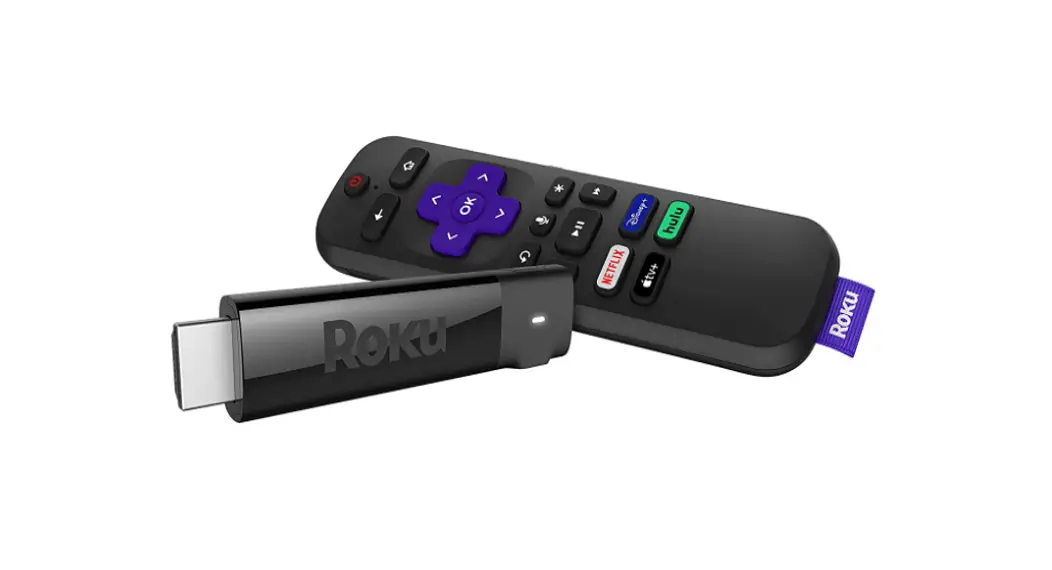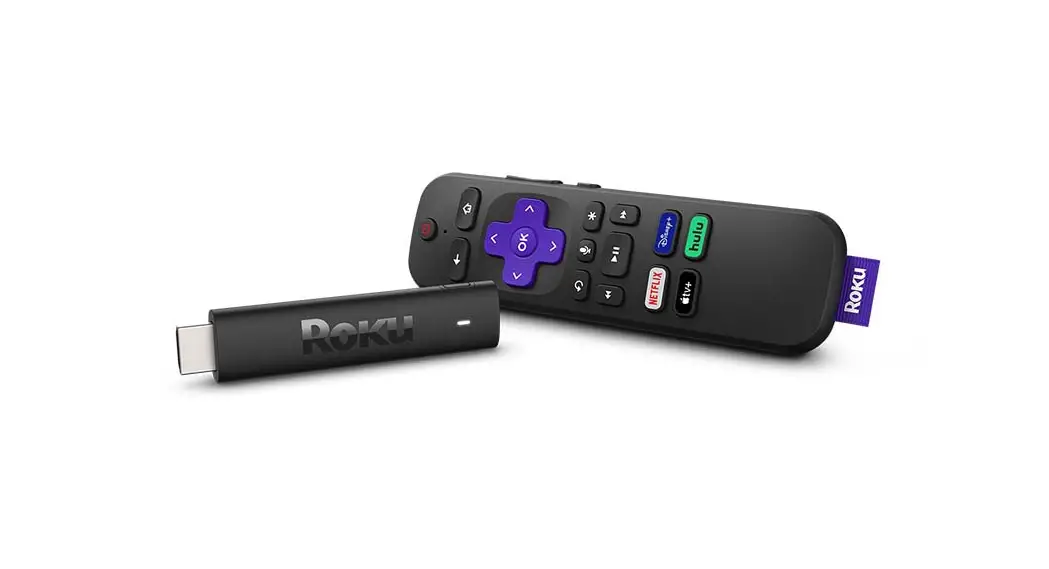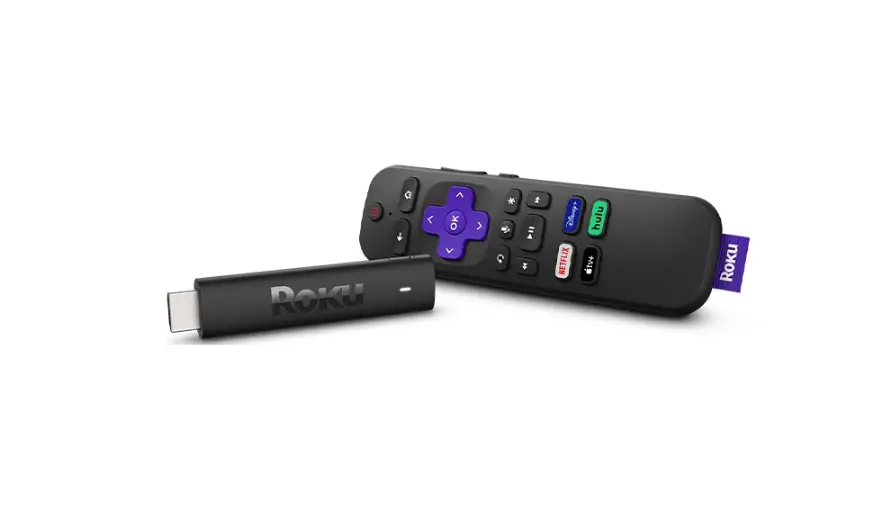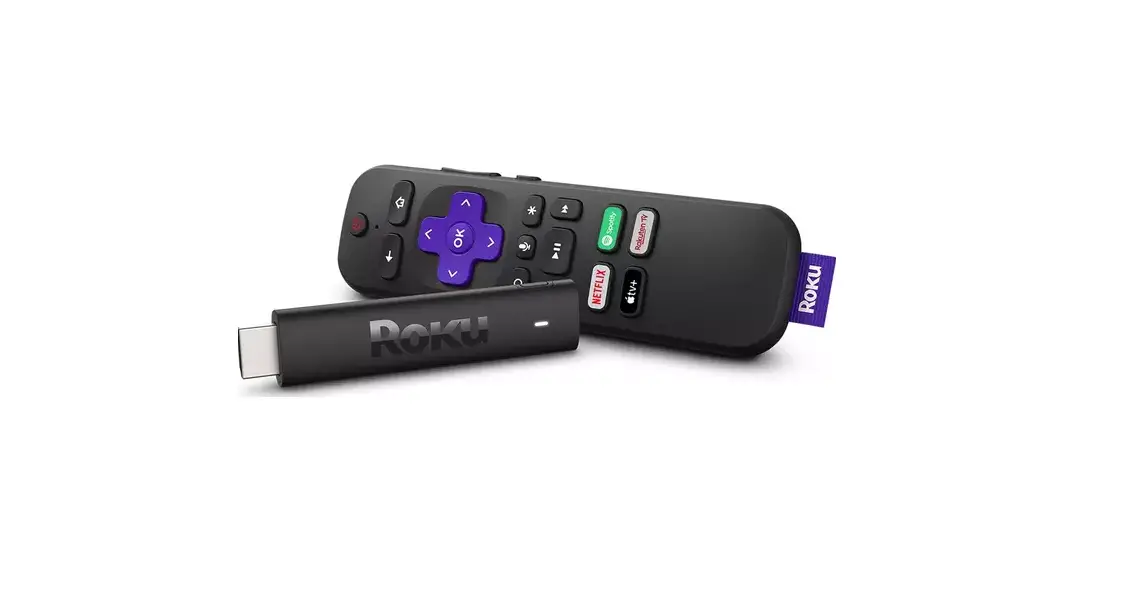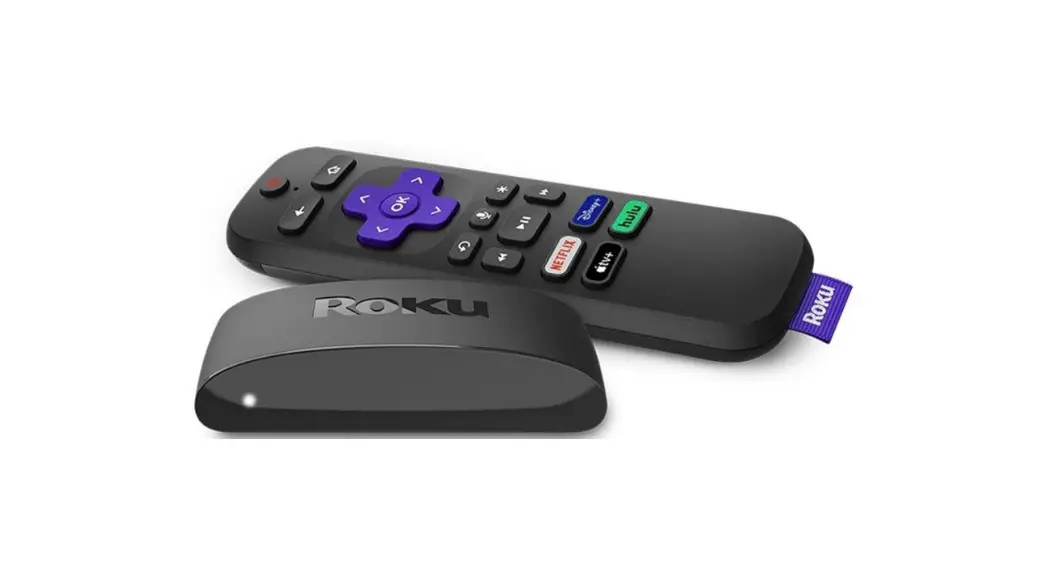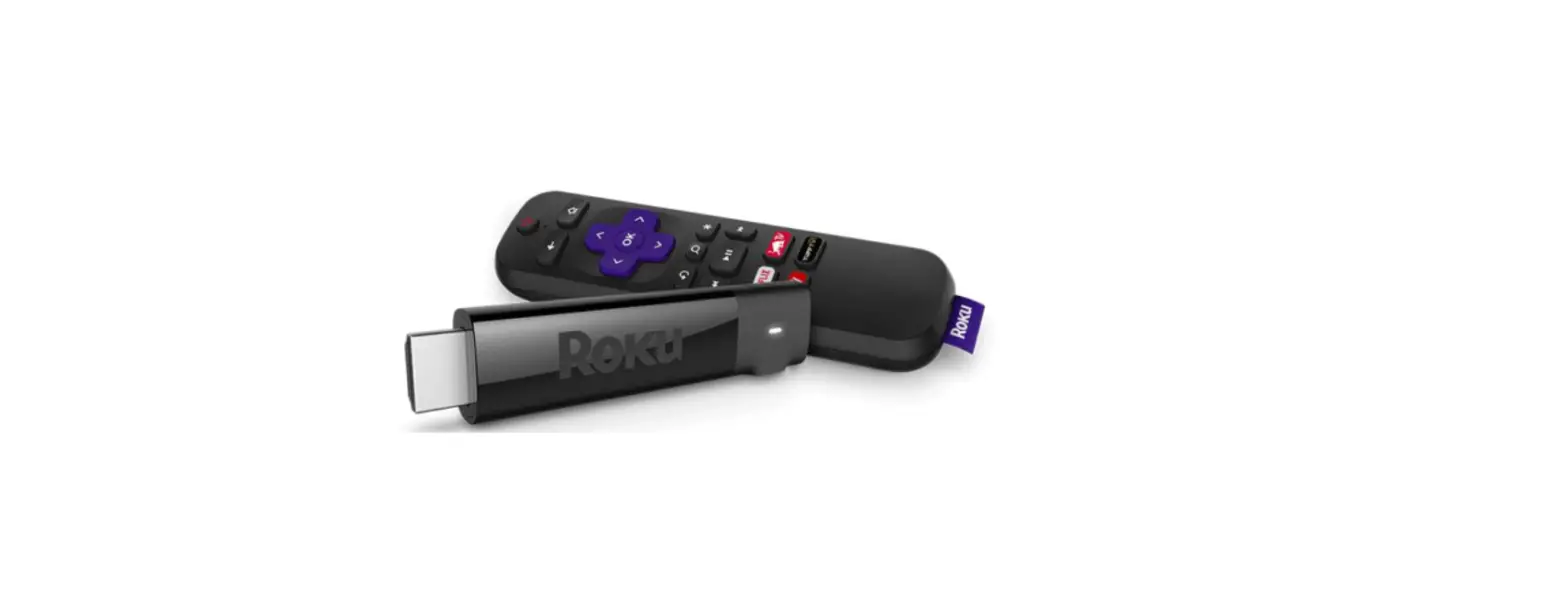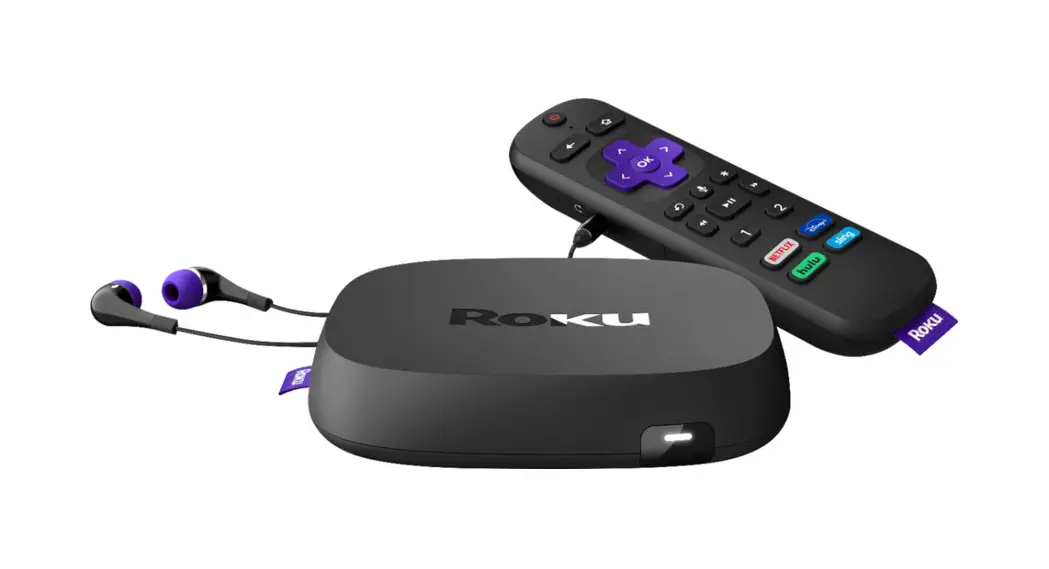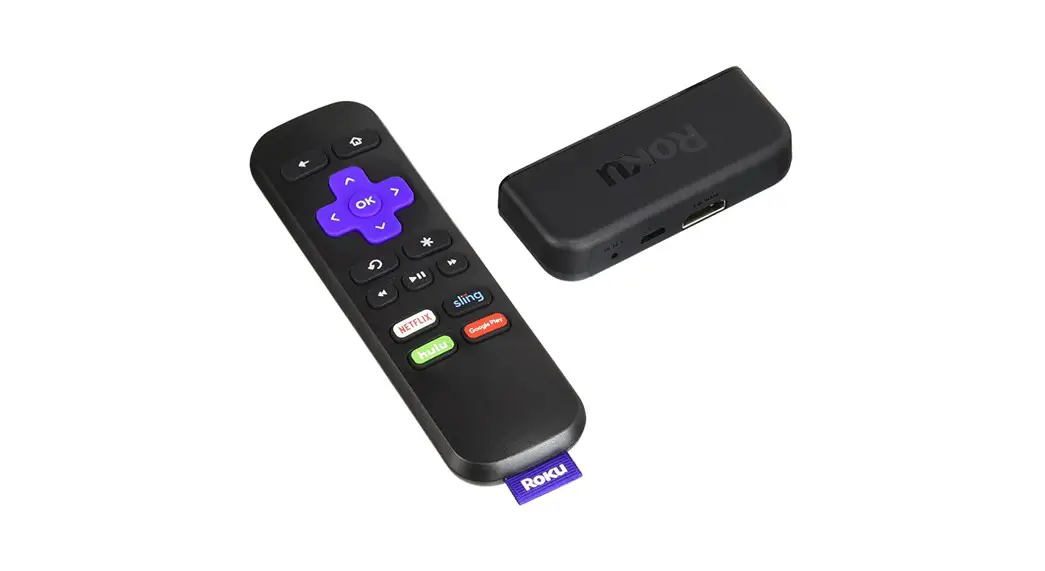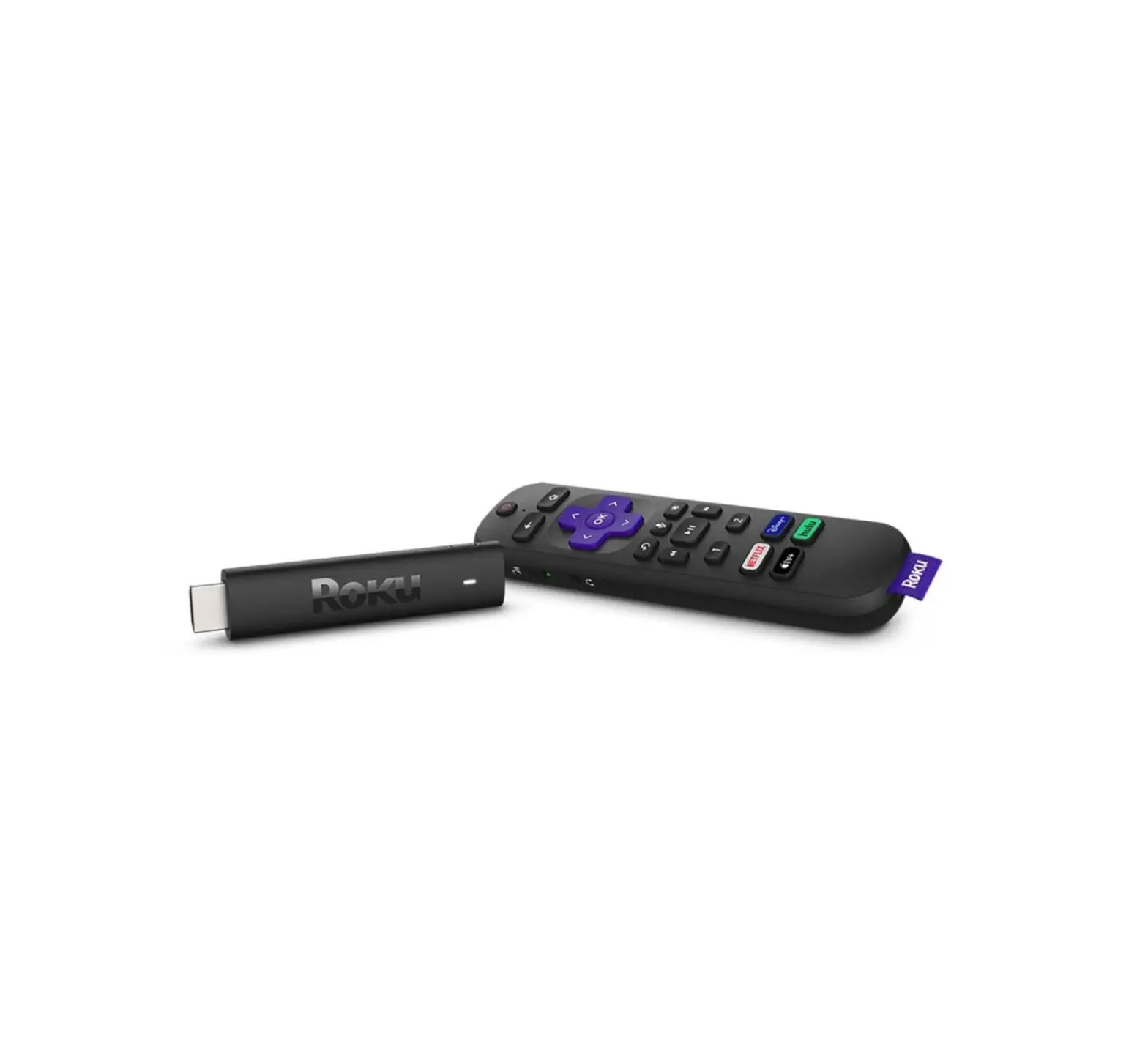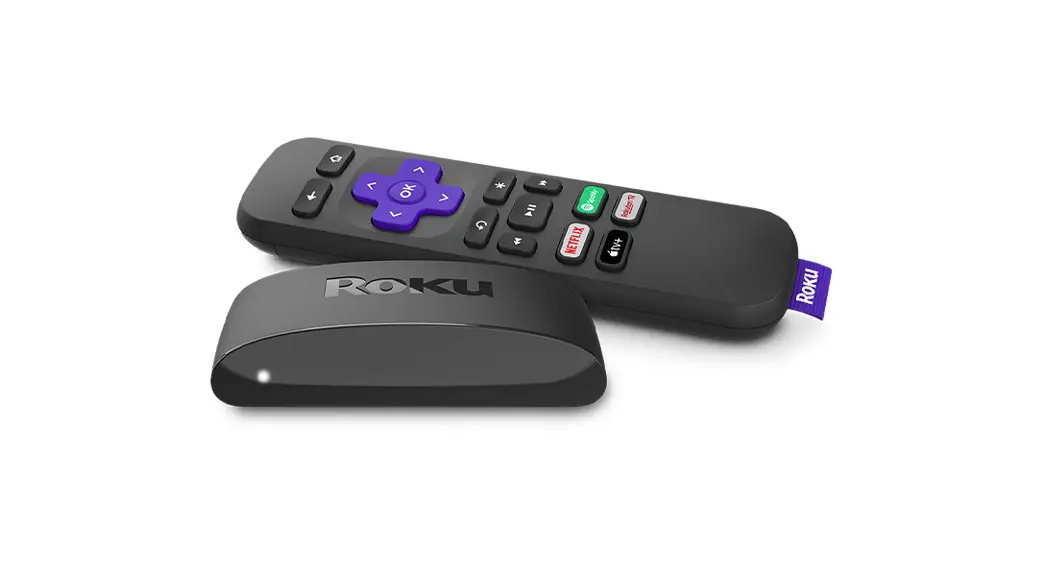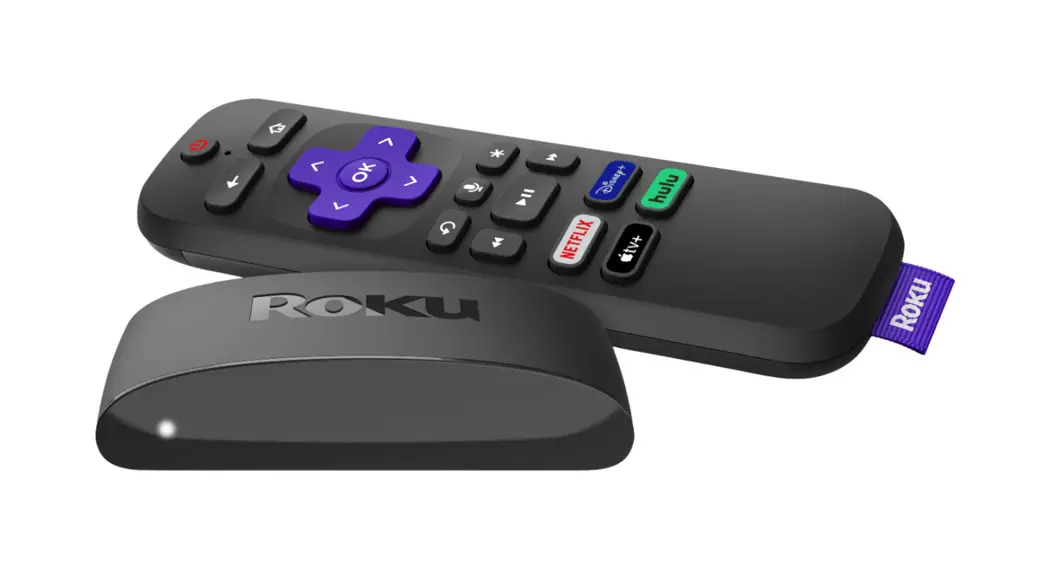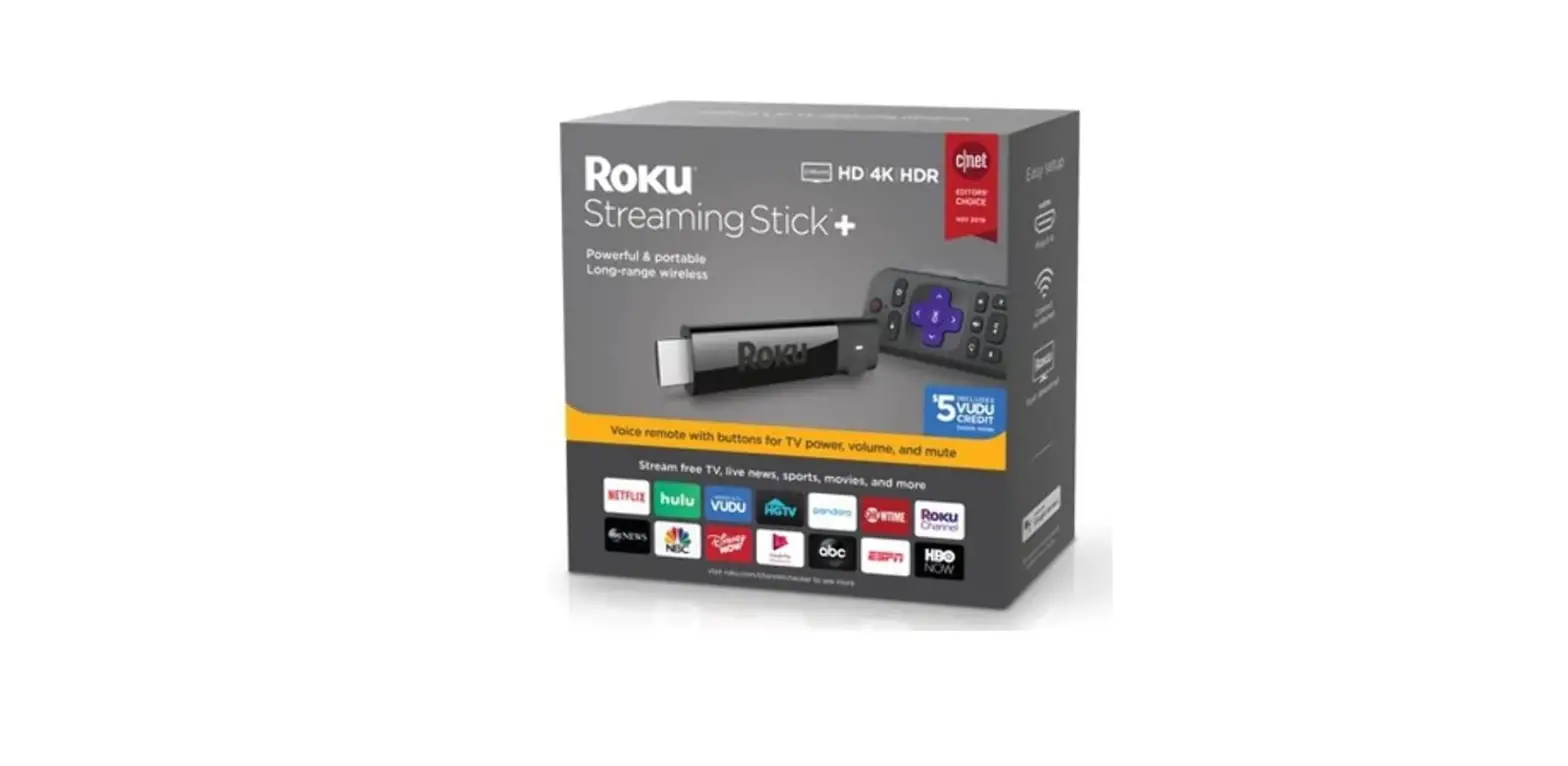
Roku Streaming Stick+ | HD/4K/HDR Streaming Device
What’s included
Features
Setup
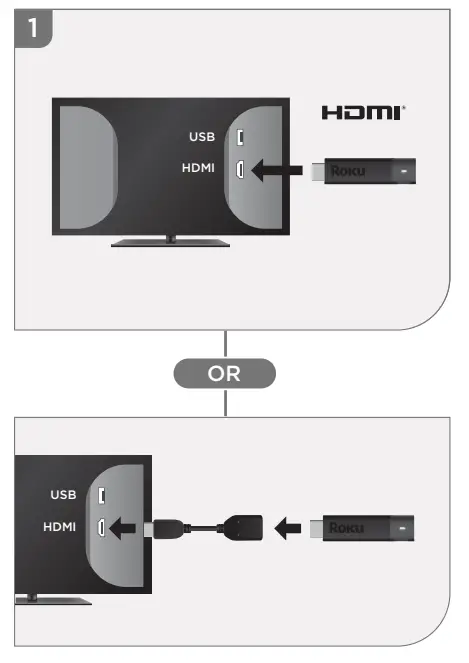
STEP 1:
Connect to TV
HDTVs
Plug your streaming player into an HDMI® port on your TV.
4K and HDR TVs
To stream 4K or HDR, choose an HDMI port that supports HDCP 2.2 For help determining which port supports HDCP 2.2, visit go.roku.com/hdcp
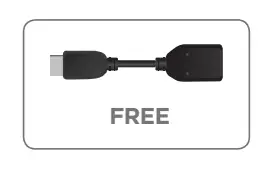
Doesn’t fit?
Order a free HDMI extender cable at my.roku.com/HDMI
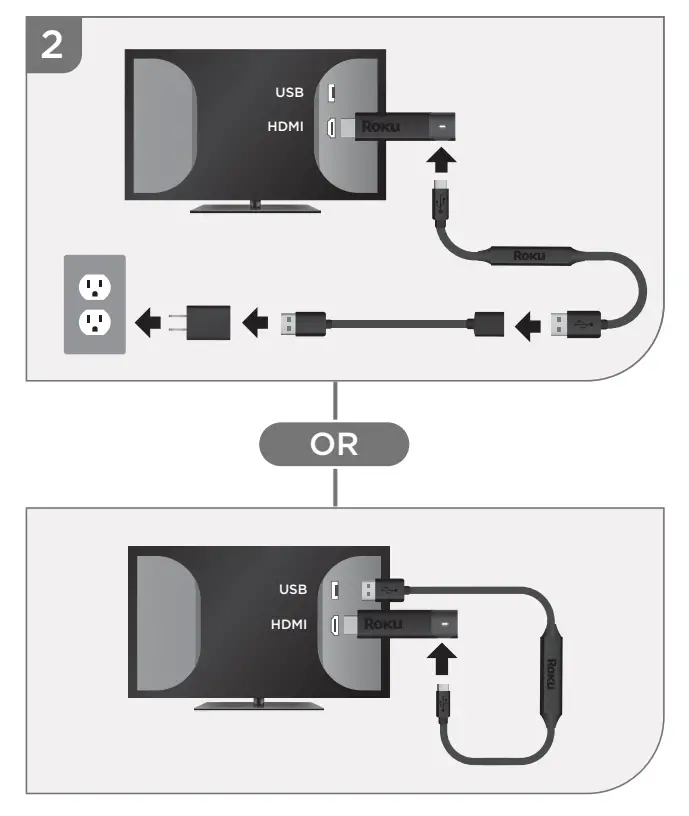
STEP 2
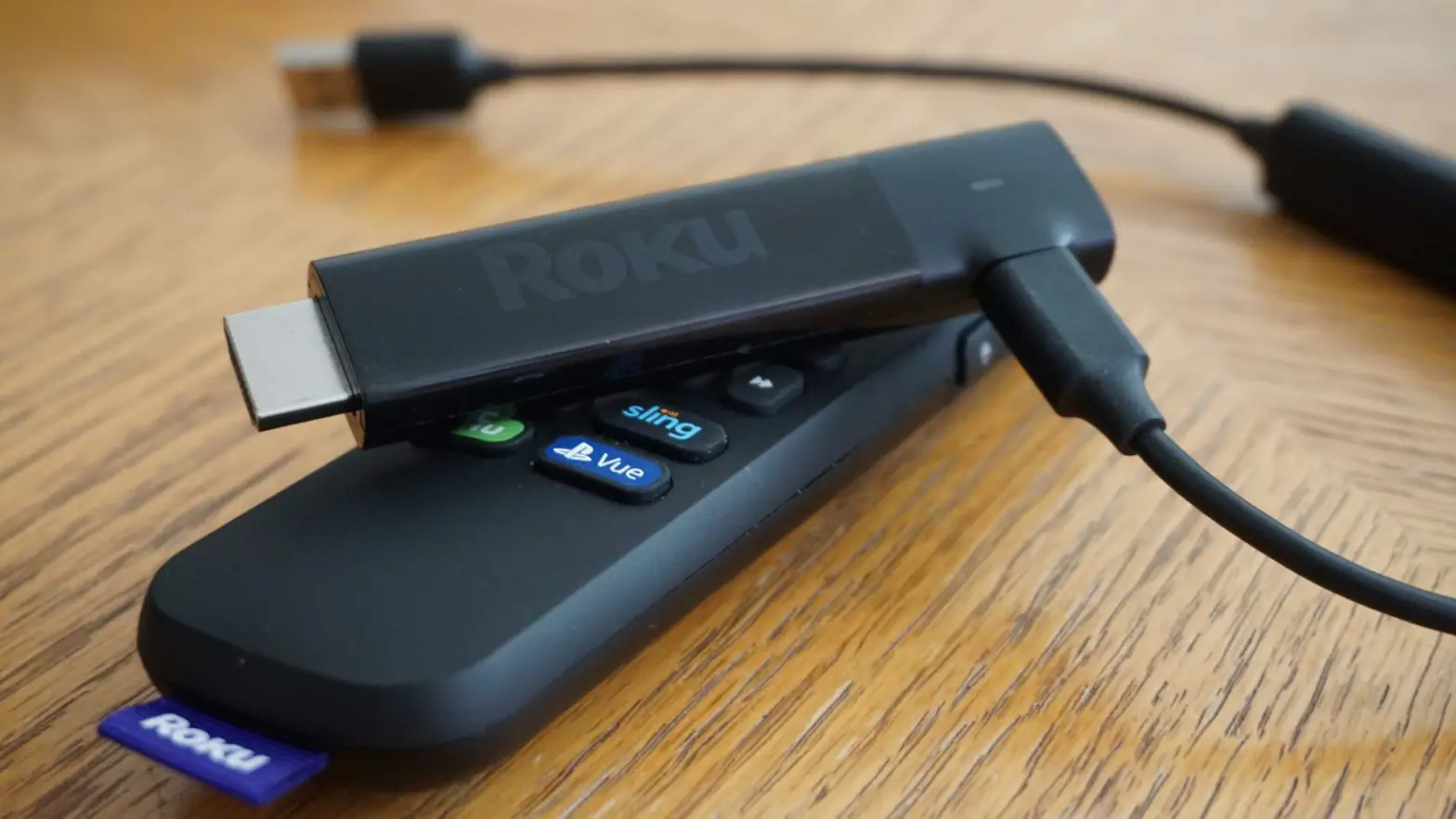
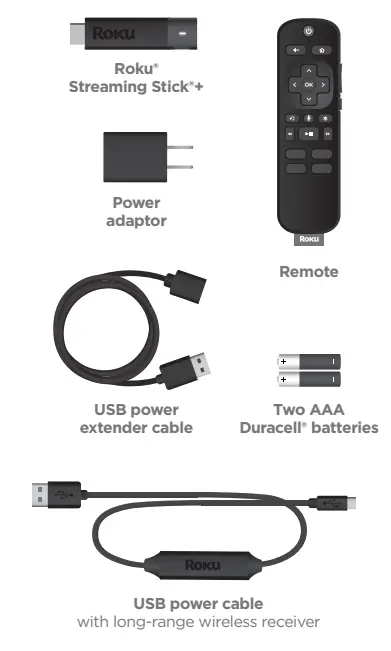
Connect to power For the best streaming experience, use the included USB power cable, power extender cable and power adaptor to connect your streaming player to a wall outlet.
Or use the included USB power cable to connect to the USB port on your TV.
NOTE
See a red light on your streaming player? That means the USB port on your TV is not providing enough power. Use the included power adaptor instead. For help, visit go.roku.com/lowpower

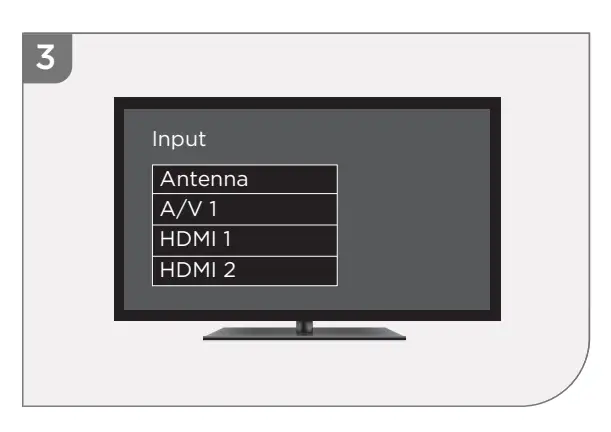
STEP 3
Power on the TV and select input Use your TV remote to power on your TV and select the input you used to connect your streaming player.
For help on how to select the correct input, visit go.roku.com/selectinput
STEP 4
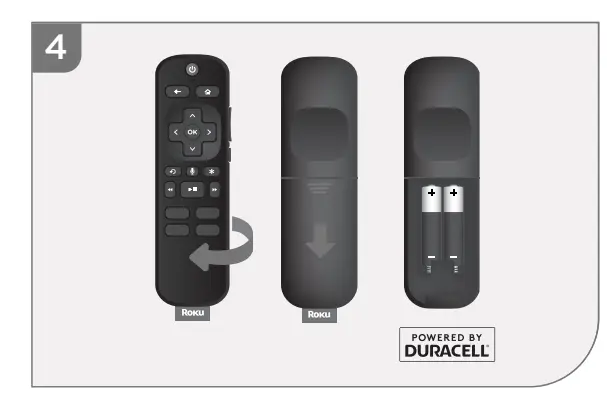
Insert batteries On the back side of the remote, and slide open the battery cover. Insert included Duracell® batteries placing the negative (-) ends in first.
Your remote should pair with your streaming player automatically. For help pairing your remote, visit go.roku.com/remotehelp
STEP 5
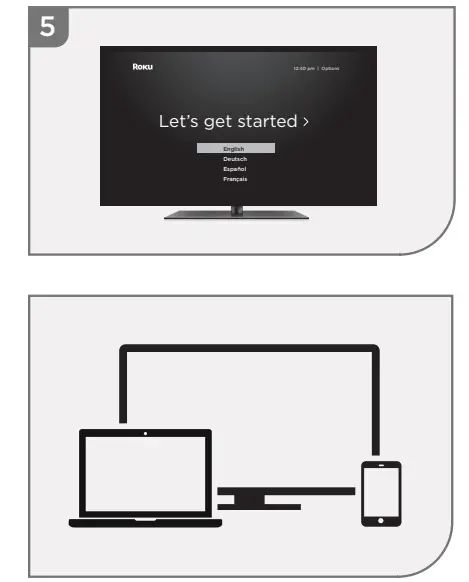
On-screen setup and activation Follow the instructions on your TV screen. Activate your streaming player by using your computer or smartphone to link to a Roku account.
NOTE
Roku does not charge for activation support – beware of scams.
Common questions
Why do I need to create a Roku account?
Before you can start streaming, channels must be downloaded and installed on your streaming player. You’ll need a Roku account to access the Roku Channel Store, manage your subscriptions, view your purchase history, and add a payment method. For more info, visit
Why do I need to enter a credit card?
Saving a payment method makes it easy to rent or buy movies on demand, subscribe to popular services, and enroll in free trials. Charges will not be made without your authorization. For more information, visit go.roku.com/paymenthelp
What should I do if my streaming player is not connecting to my wireless network?
Your streaming player connects to your wireless network the same as your laptop or smartphone. If these other devices can access the internet, then your streaming player should be able to do the same. Make sure to select the same network name, and enter the same password you use with the other devices. Remember that passwords are case-sensitive and easy to enter incorrectly. For more help, visit go.roku.com/wireless
Can I take my Roku streaming player with me when I travel?
Yes. You can bring your streaming player and watch your favorite entertainment when you travel. Remember to also bring a USB power adaptor (like your phone charger), remote, and any cables you use to connect your streaming player at home. Make sure your destination has a good internet connection. You may need a computer or smartphone to help connect your streaming player to a new wireless network. For more details, visit go.roku.com/travelwithroku
Need more help getting started?
go.roku.com/rssplus
Getting the most out of your Roku streaming player.
go.roku.com/usingroku
Tips, what’s streaming for free, and more.
blog.roku.com
Frequently Asked Questions
Make sure you’re pointing the remote at your streaming player. Also, make sure the batteries are installed correctly.
Make sure your remote is pointed at your streaming player and that the batteries are installed correctly.
The included USB power cable may not be providing enough power to maintain a connection. Try using the included power adaptor instead.
Some channels require you to subscribe through a cable or satellite TV provider. To learn more about how to watch live TV on your Roku device.
If you see an error message on the screen, try these steps: Unplug your Roku device from power for 30 seconds and plug it back in.
Through Roku, you can download the app.
Your Wifi is used to operate this. The Roku has all of the content. Just connect it to an HDMI port on your television and an outlet.
Yes! We frequently use this Roku Streaming Stick to view Prime Video, one of our favorite streaming services.
The bandwidth utilized by this program would most likely be charged for if you have a metered Internet connection.
Without the echo dot, it functions. I have two sticks for streaming. After plugging it in, set it up as directed, and then you may use it. Easy.
If a channel is added for that. Depending on whether your TV provider offers a Roku app
Yes, a Roku streaming stick channel list includes YouTube TV. There are plenty, including Showtime’s cable TV networks, among others.
A power cable is included. Roku stick is connected by mini-USB, and your TV is connected via HDMI. You require two HDMI ports—one for the stick and one for the power supply.