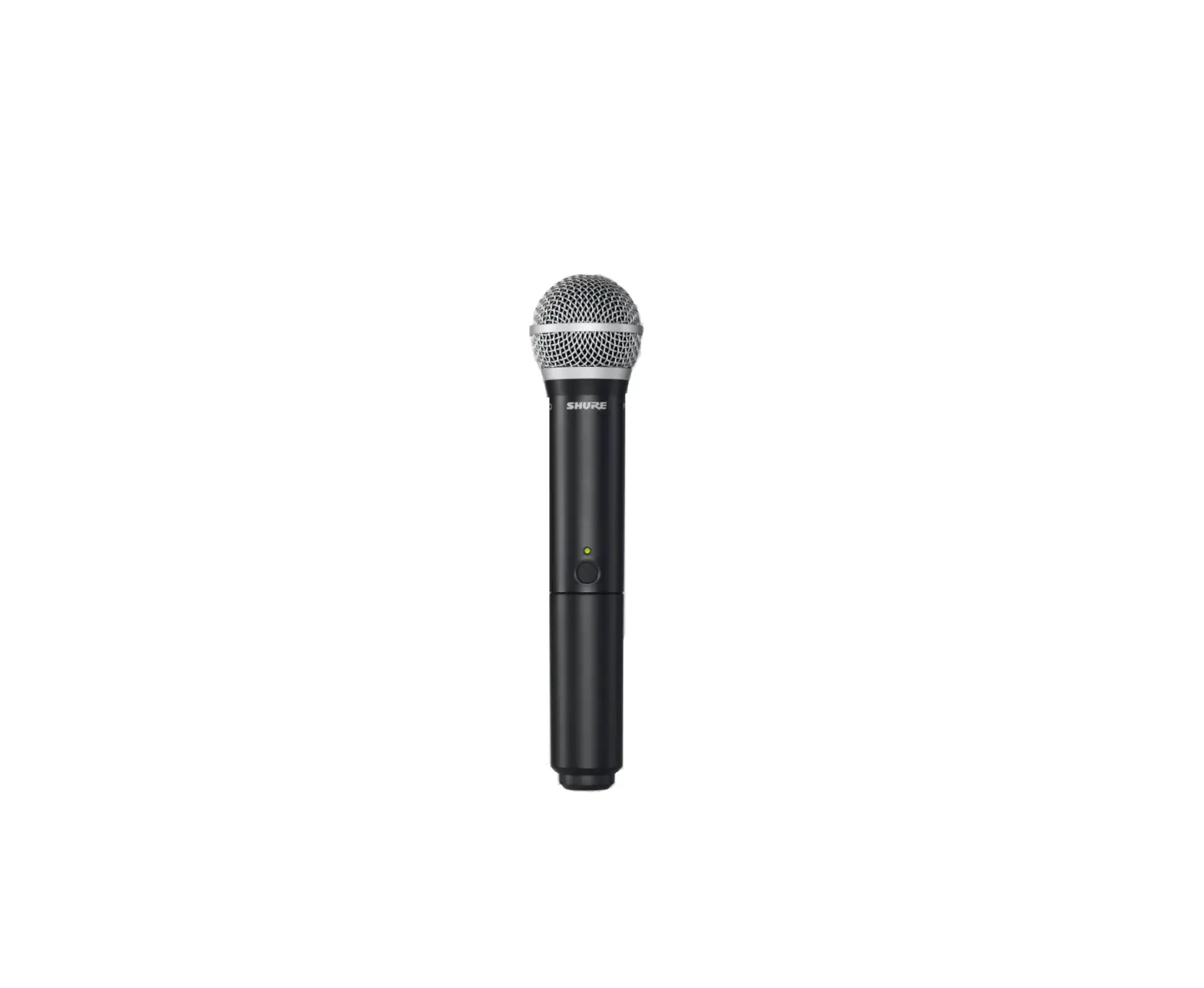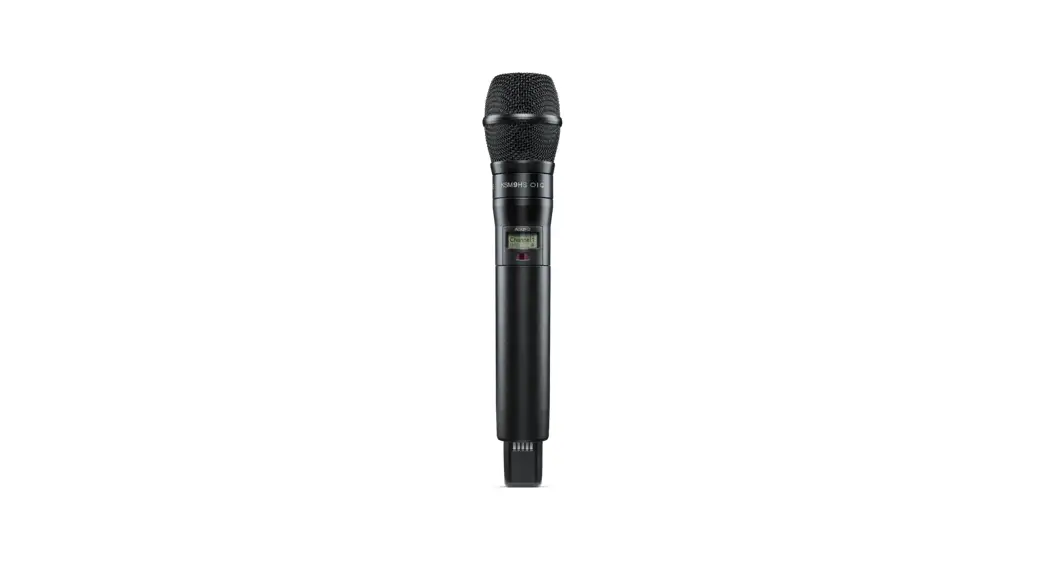

ADX2FD
Handheld Transmitter
User guide for the Shure ADX2FD Frequency Diversity handheld transmitter
Version: 11.0 (2020-K)
ADX2FD Handheld Transmitter
WARNING
- Battery packs may explode or release toxic materials. Risk of fire or burns. Do not open, crush, modify, disassemble, heat above 140°F (60°C), or incinerate.
- Follow instructions from the manufacturer
- Only use Shure charger to recharge Shure rechargeable batteries
- WARNING: Danger of explosion if battery incorrectly replaced. Replace only with the same or equivalent type.
- Never put batteries in your mouth. If swallowed, contact your physician or local poison control center
- Do not short circuit; may cause burns or catch fire
- Do not charge or use battery packs other than Shure rechargeable batteries
- Dispose of battery packs properly. Check with a local vendor for proper disposal of used battery packs.
- Batteries (battery pack or batteries installed) shall not be exposed to excessive heat such as sunshine, fire or the like
- Do not immerse the battery in a liquid such as water, beverages, or other fluids.
- Do not attach or insert the battery with polarity reversed.
- Keep away from small children.
- Do not use abnormal batteries.
- Pack the battery securely for transport.
Note: Use only with the included power supply or a Shure-approved equivalent.
ADX2FD Handheld Transmitter
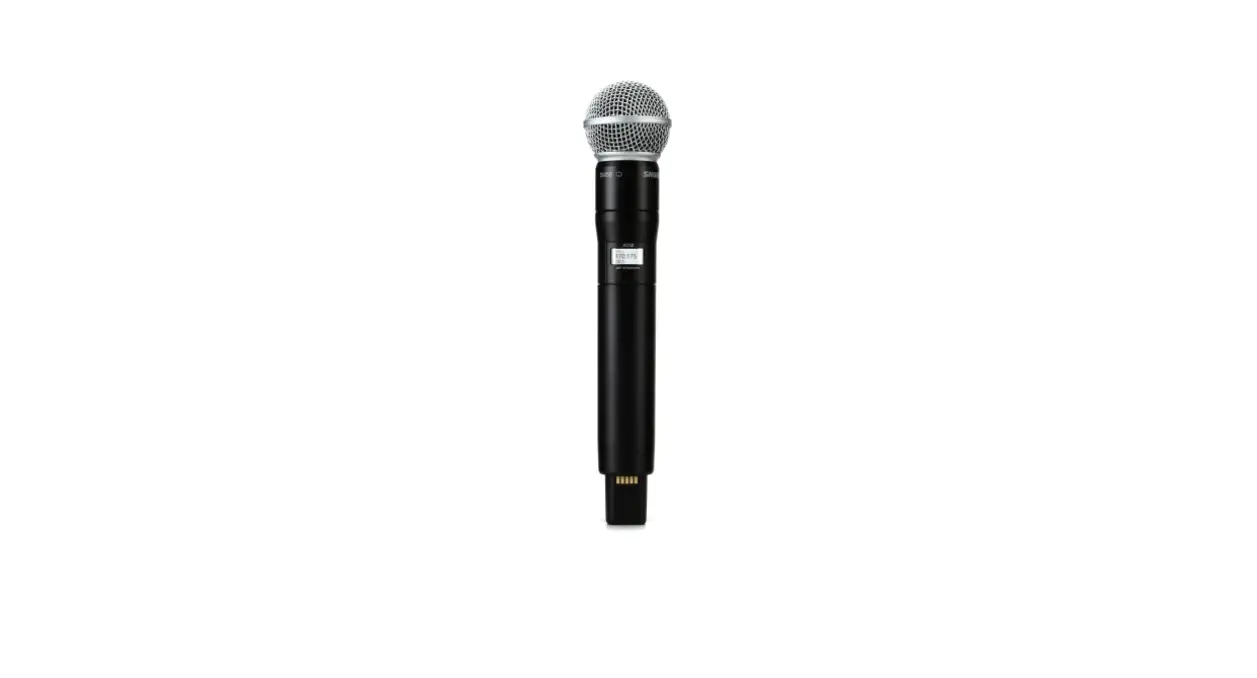
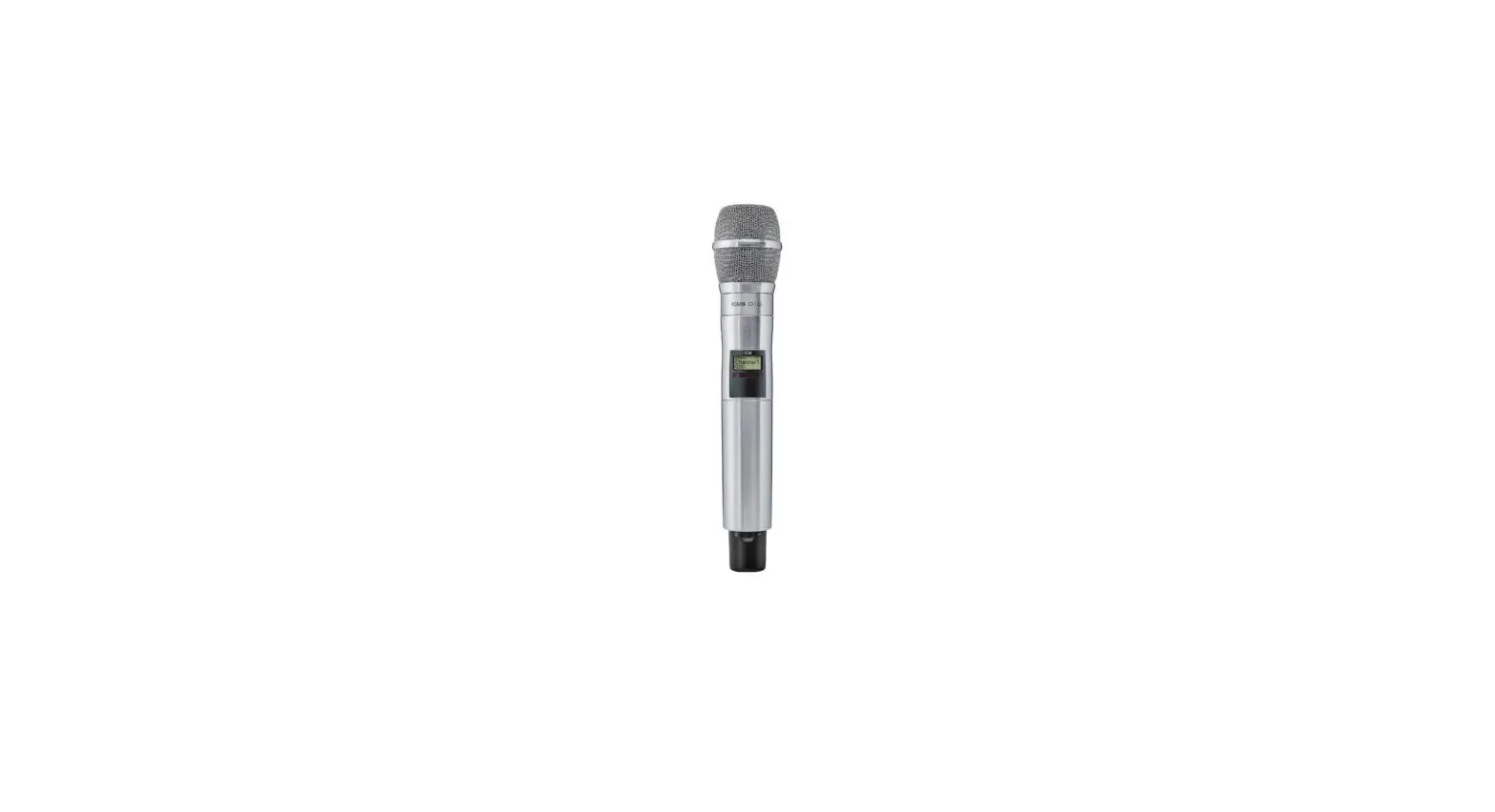
ADX series transmitters deliver impeccable audio quality and RF performance and are equipped with ShowLink remote con tool for real-time parameter adjustments and interference avoidance. This transmitter additionally features Frequency Diversity for seamless audio in even the most challenging environments. Lightweight aluminum construction, SB920 rechargeable pow er options (with dockable charging).
Features
Performance
- 184 MHz tuning range
- Frequency Diversity enables simultaneous transmission on two independent frequencies to ensure seamless, uninterrupt ed audio for mission-critical applications. Single carrier mode is available if Frequency Diversity is not required.
- 20 Hz to 20 kHz range with a flat frequency response
- Automatic input staging optimizes gain setting
- Diversity ShowLink-enabled for remote transmitter control and automatic interference avoidance
- AES 256-bit encryption-enabled for secure transmission
>120 dB, A-weighted, System Gain @ +10 - Digital output: >125dB, A-weighted (Dante, AES3, AES67)
- 100 meter (300 feet) line-of-sight operating range
- Selectable modulation modes optimize performance for spectral efficiency or audio quality:
- Standard – optimal coverage, low latency
- High density – a dramatic increase in max system channel count
- Switchable Power Levels (region dependent):
- 2/10/50 mW (single carrier mode)
- 2 x 20 mW (Frequency Diversity mode)
- Built-in tone generator and RF markers to facilitate range-testing
Design
- Interchangeable Shure microphone cartridges
- Backlit LCD with easy to navigate menu and controls
- Rugged metal construction
- Menu and power lockout
Power
- Shure SB920 rechargeable batteries offer precision metering and zero memory effect
- External charging contacts for docked charging
- Battery Runtime with Shure SB920:
- Up to 9 hours in single carrier mode @ 10 mW
- Up to 6.5 hours in Frequency Diversity mode @ 10 mW x 10 mW
- Up to 5 hours in the single carrier, high-power mode @ 50 mW
Included Components
| SB920 Shure Rechargeable Battery | 95A25763 |
| Zipper Bag | 95B2313 |
| Threaded Adapter | 31B1856 |
| Swivel Adapter, black | 90F4046 |
Choice of (1) of the following Shure microphone cartridges:
| SM58 (RPW112) | KSM9 Nickel (RPW188) |
| BETA 87C (RPW122) | BETA 87A (RPW120) |
| BETA 58A (RPW 118) | KSM9 Black (RPW184) |
| KSM8 Black (RPW174) | KSM8 Nickel (RPW170) |
| KSM9HS Black (RPW186) | KSM9HS Nickel (RPW190) |
Optional Accessories
| SB920 Shure Rechargeable Battery | 95A25763 |
| Battery Contact Cover (part number varies by frequency range) | WA619-A (470-636 MHz), WA619-B |
| AD651B Talk Switch Button (black) | (606-810 MHz), WA619-C (750-960 MHz) |
| Microphone stand adapter | 90A37347B |
| Shure Networked Docking Charger 2-Up | WA371 |
Optional Shure microphone cartridges:
SM58 (RPW112)
SM86 (RPW114)
SM87A (RPW116)
BETA 58A (RPW118)
BETA 87A (RPW120)
BETA 87C (RPW122)
VP68 (RPW124)
KSM9 Nickel (RPW188)
KSM9HS Nickel (RPW190)
KSM9 Black (RPW184)
KSM9HS Black (RPW186)
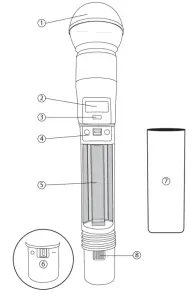
ADX2FD Transmitter Overview
① Microphone Cartridge
See Optional Accessories for a list of compatible cartridges.
② Display
View menu screens and settings. Press any control button to activate the backlight.
③ Infrared (IR) Port
Align with the receiver IR port during an IR Sync for automated transmitter programming.
④ Control Buttons
Use to navigate through parameter menus and change values.
⑤ Battery Compartment
Requires Shure rechargeable battery.
⑥ On/Off Switch
Powers the unit on or off.
⑦ Handle
Unscrew to access controls and batteries.
⑧ Battery Charging Contacts
Charging contacts for use with docking battery chargers.
Transmitter Controls
Use to navigate through parameter menus and change values.
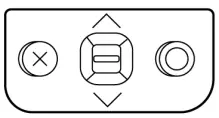
| X | Acts as a ‘back’ button to return to previous menus or parameters without confirming a value change |
| O | Enters menu screens and confirms parameter changes |
| ∨∧ | Use to scroll through menu screens and to change parameter values |
Tip: Use the following shortcuts for quick setup:
- Hold the ∧ button while powering on to lock or unlock the transmitter controls.
- Hold the X button while powering on to enter the Safe Start menu.
Home Screen Display
The home screen shows transmitter information and status.
There are four pieces of information that you can choose to see on the home screen. Use the arrow buttons to select one of the following choices:
| Name F1 and F2 Frequency Settings F1 and F2 Group (G) and Channel (C) Device ID | 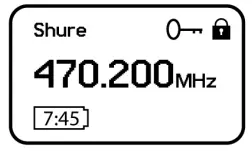 |
The following icons indicate transmitter settings:
 | Battery runtime in hours and minutes or bar display |
 | Key: Displayed when encryption is enabled |
 | Displayed when controls are locked. The icon will flash if access is attempted to a locked control (power or menu). |
 | ShowLink signal strength displays 0 to 5 bars |
 | STD: Standard Transmission Mode |
 | HD: High-Density Transmission Mode |
 | RF Mute Engaged: Displayed when RF output is muted |
Locking the Interface
Lock transmitter interface controls to prevent accidental or unauthorized changes to parameters. The lock icon appears on the home screen when the interface lock is enabled.
- From the utility menu, navigate to Locks and select one of the following lock options:
- Note: The controls are unlocked
- Power: The power switch is locked
- Menu: The menu parameters are locked
- All: The power switch and menu parameters are locked
2. Press O to save.
To quickly unlock a transmitter: Press O twice, select None and press O.
Shure Rechargeable Batteries
Shure lithium-ion batteries offer a rechargeable option for powering the transmitters. Batteries quickly charge to 50% capacity in one hour and reach full charge within three hours. Single chargers and multiple bay chargers are available to recharge the Shure batteries.
Caution: Only charge Shure rechargeable batteries with a Shure battery charger.
Checking Battery Info
When using a Shure rechargeable battery, the receiver and transmitter home screens display the number of hours and minutes remaining.
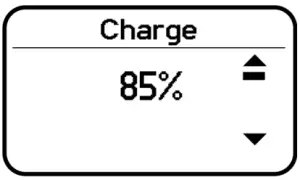
Detailed information for the battery is displayed Battery menu of the transmitter: Utilities > Battery
- Battery: The chemistry type of for the installed battery (Shure, Alkaline, Lithium, NiMH)
- Bars: Indicates the number of bars displayed
- Time: Battery runtime
- Charge: Percentage of charge capacity
- Health: Percentage of current battery health
- Cycle Count: Total of the number of charging cycles for the installed battery
- Temperature: Battery temperature reported in Celsius and Fahrenheit
Important Tips for Care and Storage of Shure Rechargeable Batteries
Proper care and storage of Shure batteries results in reliable performance and ensures a long lifetime.
- Always store batteries and transmitters at room temperature
- Ideally, batteries should be charged to approximately 40% of capacity for long-term storage
- Periodically clean the battery contacts with alcohol to maintain ideal contact
- During storage, check batteries every 6 months and recharge to 40% of capacity as needed
For additional rechargeable battery information, visit www.shure.com.
Battery Installation
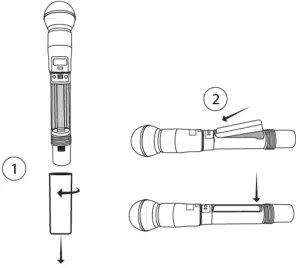
① Accessing the Battery Compartment
Unscrew and remove the handle as shown.
② Inserting the Battery
Insert the battery, contacts first into the battery compartment. Press down on the tab to fully seat the battery, and then rein stall the handle.
Tip: To remove the battery, pull up the tab on the bottom of the battery.
ADX2FD SB920 Battery Runtime
Note: Higher RF power levels decrease battery runtime. Battery runtime varies with battery age and environmental conditions.
| Signal Carrier Mode | Frequency Diversity Mode | ||||
| 2 mW | 10 mW | 50 mW | 2 mW x 2 mW | 10 mW x 10 mW | 20 mW x 20 mW |
| 8.5 to 10.5 hours | 7.5 to 9.5 hours | 5.0 to 7.0 hours | 5.5 to 7.5 hours | 5.0 to 7.0 hours | 4.5 to 6.5 hours |
Installing the Battery Contact Cover
Use battery contact covers to prevent reflections from the battery contacts during broadcasts or live performances.
The Main menu organizes the available transmitter parameters into three categories:
- Radio
- Audio
- Utilities
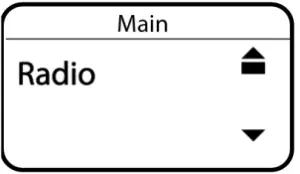
- To access the menu options from the home screen, press O . Use the arrow buttons to access additional menus and para meters.
- A menu parameter will blink when editing is enabled
- To increase, decrease or change a parameter, use the arrow buttons
- To save a menu change, press O
- To exit a menu without saving a change, press X
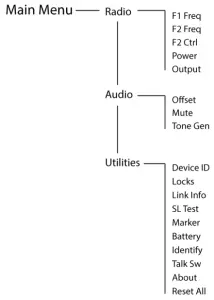
Radio Menu
F1 Freq
Press the enter button to enable editing of a group (G:) channel (C:) or frequency (MHz). Use the arrow buttons to adjust
the values. To edit the frequency, press the O button once to edit the first 3 digits, or twice to edit the second 3 digits.
F2 Freq
Press the enter button to enable editing of a group (G:) channel (C:) or frequency (MHz). Use the arrow buttons to adjust the values. To edit the frequency, press the O button once to edit the first 3 digits, or twice to edit the second 3 digits.
F2 Ctrl
Turns F2 (F2 Freq) On or Off.
Power
Higher power settings can extend the range of the transmitter.
Higher power settings can extend the range of the transmitter.
Note: Higher RF power settings decrease battery runtime. Higher RF power settings decrease battery runtime.
- On: RF signal is active
- Mute: RF signal is inactive
Offset
Adjust the Offset level to balance mic levels when using two transmitters or when assigning multiple transmitters to receiver slots. Adjustment range: -12 dB to +21 dB.
Mute
When enabled, the power switch is configured as a mute switch for the audio:
- Power switch on the audio signal on
- Power switch off: audio signal muted
Device ID
Assign a device ID of up to 9 letters or numbers.
Locks
Locks the transmitter controls and power switch.
- Note: The controls are unlocked
- Power: The power switch is locked
- Menu: The menu parameters are locked
- All: The power switch and menu parameters are locked
Link Info
Displays the following information about the link between a transmitter and receiver:
- Not Linked: The transmitter is not linked to a receiver
- Linked: The transmitter is linked to a receiver. Select Unlink? to free the transmitter from the receiver link.
- Unlinked: The transmitter is not linked to a receiver
SL Test
ShowLink test tool to measure the boundaries of ShowLink coverage.
Marker
When enabled, press the enter button to drop a marker in Wireless Workbench.
Battery
Displays battery information:
- Battery Life: Runtime reported in bar display and time (hours: minutes)
- Charge: Percentage of charge capacity
- Health: Percentage of current battery health
- Cycle Count: Total of the number of charging cycles for the installed battery
- Temperature: Battery temperature reported in Celsius and Fahrenheit alk Sw
Talk Sw
Press ENTER to add control from a talk switch. Press the button on the talk switch twice to complete the link.
Identify
When enabled, Identify flashes the transmitter icon in Wireless Workbench Inventory or Monitor tabs.
About
Displays the following transmitter information:
- Model: Displays the model number
- Band: Displays the tuning band of the transmitter
- FW Version: Installed firmware
- HW Version: Hardware version
- Serial Num: Serial number
Reset All
Restores all transmitter parameters to factory settings.
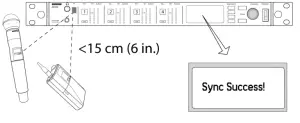
IR Sync
Use IR Sync to form an audio channel between the transmitter and receiver.
Note: The receiver band must match the band of the transmitter.:
- Select a receiver channel.
- Tune the channel to an available frequency using group scan or manually turn to an open frequency.
- Power on the transmitter.
- Press the SYNC button on the receiver.
- Align the IR windows between the transmitter and the receiver so that the IR LED illuminates red. When complete,
- Sync Success! appears. The transmitter and receiver are now tuned to the same frequency.
Note:
Any change to the encryption status on the receiver (enabling/disabling encryption) requires a sync to send the settings to the transmitter. New encryption keys for the transmitter and receiver channel are generated on every IR sync, so to request a new key for a transmitter, perform an IR sync with the desired receiver channel.
Setting the Frequency Manually
The transmitter can be manually tuned to a specific frequency, group, or channel.
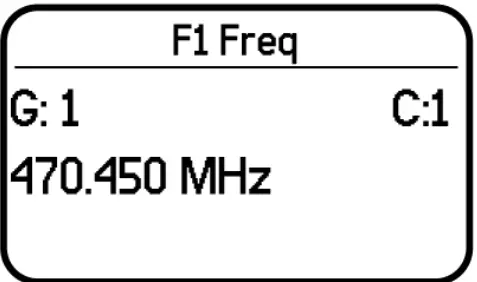
- Navigate to the Radio menu and select F1 Freq or F2 Freq.
- Scroll to select G: and C: to edit the group and channel, or select the frequency parameter (MHz). When editing the frequency, press O one to enable editing of the first three digits, or twice to edit the last three digits.
- Use the ∧∨ buttons to adjust the group, channel, or frequency.
- Press O to save, and then press X when finished.
RF Mute
RF Mute prevents transmission of the audio by suppressing the RF signal while allowing the transmitter to remain powered on. The home screen displays RF MUTED in this mode.
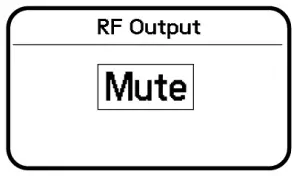
- From the Radio menu, navigate to Output.
- Choose one of the following options:
- On: RF signal is active
- Mute: RF signal is disabled
3. Press O to save.
Turning the transmitter off and on, or replacing the battery will restore Output to On.
Safe Start
Power on in Safe Start mode to prevent interference with other devices. Hold the X button while powering on your device until the Safe Start menu appears.
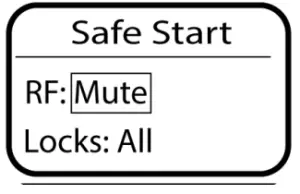
Safe Start menu options:
- RF: Mute or On
- Locks: None, Pwr, Menu, All
Use the navigation buttons to make changes.
To exit the Safe Start menu, cycle the power or momentarily remove the battery.
Previous settings for locks and RF will be retained when the transmitter is powered on in Safe Start.
Operating in Frequency Diversity Mode
Operating the AXDFD2 in frequency diversity mode with an Axient Digital receiver enables simultaneous transmission of audio on 2 independent frequencies.
- Select a channel and navigate to the Frequency Diversity setting: Advanced > Frequency Diversity.
- Use the control wheel to select the Combining option.
- Press ENTER to confirm and save.
- Perform an IR sync to link the transmitter to the receiver.
In Frequency Diversity, the transmitter will operate on two adjacent receiver channels (1 and 2 or 3 and 4).
Turning Off Frequency 2 (Freq 2)
If a problem develops with one of the frequencies being used by the transmitter, you can lock on to a single frequency by turn ing off frequency 2. Turning off one frequency allows the transmitter to continue passing audio while a clear frequency can be found for the second channel.
- From the Radio, menu navigates to F2 Ctrl.
- Use the controls to set F2 to On or Off. When set to On, the transmitter will pass audio using Freq 2.
Input Overload
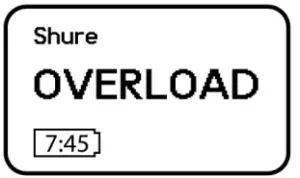
The OVERLOAD message appears when the audio input experiences a highlevel signal. The power LED turns red as an additional indicator of an overload. Reduce the input signal or enable the input pad to remove the overload condition.
Tip: To enable the input pad, navigate to Audio > Pad and select 12 dB.
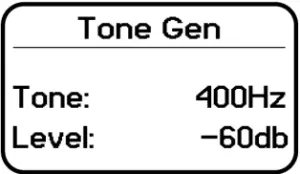
Tone Generator
The transmitter contains an internal tone generator that produces a continuous audio signal. The tone is helpful when conduct ing a sound check or for troubleshooting the audio signal chain. The level of the tone is adjustable from -60 dB to 0 dB and the frequency can be set to 400 Hz or 1000 Hz.
Always start with the level set to -60 dB to avoid overloading speakers or headphones.
- From the Audio menu select Tone Gen.
- Set the frequency to 400 Hz or 1000 Hz.
- Select Level and use the arrow buttons to adjust the value between -60 dB and 0 dB.
Turn off the tone by selecting Off from the menu or by cycling the transmitter power.
Matching Audio Levels with Mic Offset
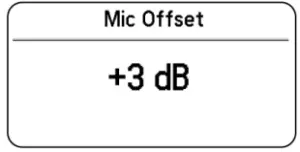
When linking two or more transmitters to a receiver, there may be a difference in volume levels between microphones or instruments. If this occurs, use the Offset function to match the audio levels and eliminate audible volume differences between trans matters. If using a single transmitter, set Offset to 0 dB.
- Turn on the first transmitter and perform a soundcheck to test the audio level. Turn off the transmitter when finished.
- Turn on the second transmitter and perform a soundcheck to test the audio level. Repeat for any additional transmitters.
- If there is an audible difference in the sound level between the transmitters, navigate to the Offset menu (Audio > Offset) in the transmitter to increase or decrease the Offset in real-time to match the audio levels.
ShowLink Test
The ShowLink Test is a tool to find the boundaries of the ShowLink coverage area. When the ShowLink test is activated, a five-bar display indicating the link quality is shown on the screen. As the transmitter moves away from the access point, the number of bars will decrease. ShowLink control is maintained as long as 1 bar is displayed. If the transmitter is beyond the coverage range, ShowLink control will not be possible. However, the audio signal will not be af fected or interrupted as long as the transmitter is within range of the RF signal. To improve coverage, adjust the location of your access points or place additional access points to extend coverage.
To activate the ShowLink Test:
- From the utility menu, navigate to SL Test.
- Press the O button to start the test and walk the transmitter around the coverage area. Monitor the number of bars dis played and the state of the ShowLink icon. Coverage boundaries are indicated by 0 bars displayed or the ShowLink icon is empty.
- Press the X button to exit the ShowLink test.
Tip: During a ShowLink test, press O (enter) to drop a marker in Wireless Workbench.
Updating Firmware
Firmware is embedded software in each component that controls functionality. Periodically, new versions of firmware are devel oped to incorporate additional features and enhancements. To take advantage of design improvements, you can upload and in stall new versions of the firmware by using the Shure Update Utility. The Shure Update Utility is available for download from http://www.shure.com/.
Firmware Versioning
When performing an update, first download firmware to the receiver, and then update transmitters to the same firmware version to ensure consistent operation.The firmware numbering for Shure devices uses the following format: MAJOR.MINOR.PATCH (e.g., 1.2.14). At a minimum, all devices on the network (including transmitters), must have the same MAJOR and MINOR firmware version numbers (e.g., 1.2.x).
Updating the Transmitter
- Download the firmware to the receiver.
- Access the following menu from the receiver: Device Configuration > Tx Firmware Update.
- Align the IR ports between the transmitter and the receiver. IR ports must be aligned for the entire download, which can take 50 seconds or longer. The red alignment LED will turn on when the alignment is correct.
- Press ENTER on the receiver to begin the download to the transmitter. The receiver will display the progress of the up date as a percentage.
Mic Offset Range
-12 to 21 dB (In 1 dB steps)
Battery Type
Shure SB920 Rechargeable Li-Ion
Battery Runtime
Shure SB920 @ 10 mW
| Single Carrier Mode | Up to 9 hours |
| Frequency Diversity | Up to 6.5 hours |
Dimensions
254 mm x 51 mm (10.0 in. x 2.0 in.) L x Dia.
Weight
338 g (11.9 oz.), Without Battery
Housing
Cast Aluminum
Operating Temperature Range
-18°C (0°F) to 45°C (113°F)
Storage Temperature Range
-29°C (-20°F) to 74°C (165°F)
Audio Input
Configuration
Unbalanced
Maximum Input Level
1 kHz at 1% THD
145 dB SPL (SM58), typical
RF Output
Antenna Type
Integrated Dual-Band Helical
Occupied Bandwidth
<200 kHz
Channel-to-Channel Spacing
| Standard Mode | 350 kHz |
| High-Density Mode | 125 kHz |
Modulation Type
Shure Axient Digital Proprietary
Power
See Frequency Range and Output Power table varies by region
| Single Carrier Mode | 2 mW, 10 mW, 50 mW |
| Frequency Diversity | 2×20 mW |
Specific Absorption Rate (SAR)
< 0.21 W/kg
ShowLink
Network Type
IEEE 802.15.4
Antenna Type
Zigbee Dual Conformal
Frequency Range
2.40 to 2.4835 GHz (24 Channels)
RF Output Power
10 dBm (ERP)
Frequency Range and Transmitter Output Power
| Band | Frequency Range ( MHz) | Power Single Carrier( mW)*** | Power Frequency Diversity( mW Per Channel)*** |
| G53 | 470 to 510 | 2/10/50 | 2/10/20 |
| G54 | 479 to 565 | 2/10/20 | 2/10/20 |
| G55† | 470 to 636 | 2/10/50 | 2/10/20 |
| G56◇ | 470 to 636 | 2/10/50 | 2/10/20 |
| G57 | 470 to 608 | 2/10/50 | 2/10/20 |
| G62 | 510 to 530 | 2/10/50 | 2/10/20 |
| H54 | 520 to 636 | 2/10/50 | 2/10/20 |
| K53 | 606 to 698 | 2/10/50 | 2/10/20 |
| K55 | 606 to 694 | 2/10/50 | 2/10/20 |
| K56 | 606 to 714 | 2/10/50 | 2/10/20 |
| K57 | 606 to 790 | 2/10/50 | 2/10/20 |
| K58 | 622 to 698 | 2/10/50 | 2/10/20 |
| L54 | 630 to 787 | 2/10/50 | 2/10/20 |
| L60 | 630.125 to 697.875 | 2/10/50 | 2/10/20 |
| P55 | 694 to 703, 748 to 758, 803 | 2/10/50 | 2/10/20/50 |
| R52 | to 806 | 10 | 10 |
| X55 | 794 to 806 | 2/10/50 | 2/10/10 |
***Power delivered to the antenna port.
Country Code
A, B, BG, CH, CY, CZ, D, DK, EST, F
FIN, GB, GR, H, HR, I, IRL, IS, L, LT
M, N, NL, P, PL, RO, S, SK, SLO, TR
all other countries
* This equipment may be capable of operating on some frequencies not authorized in your region. See Licensing Information.
Didn’t find what you need? Contact our customer support to get help.