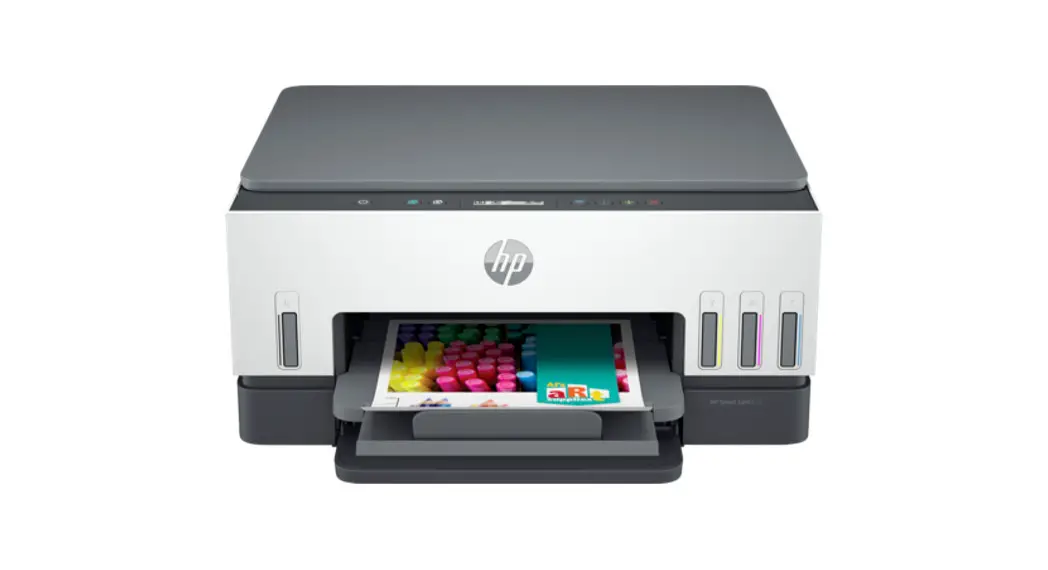
 Setup and Reference Guide
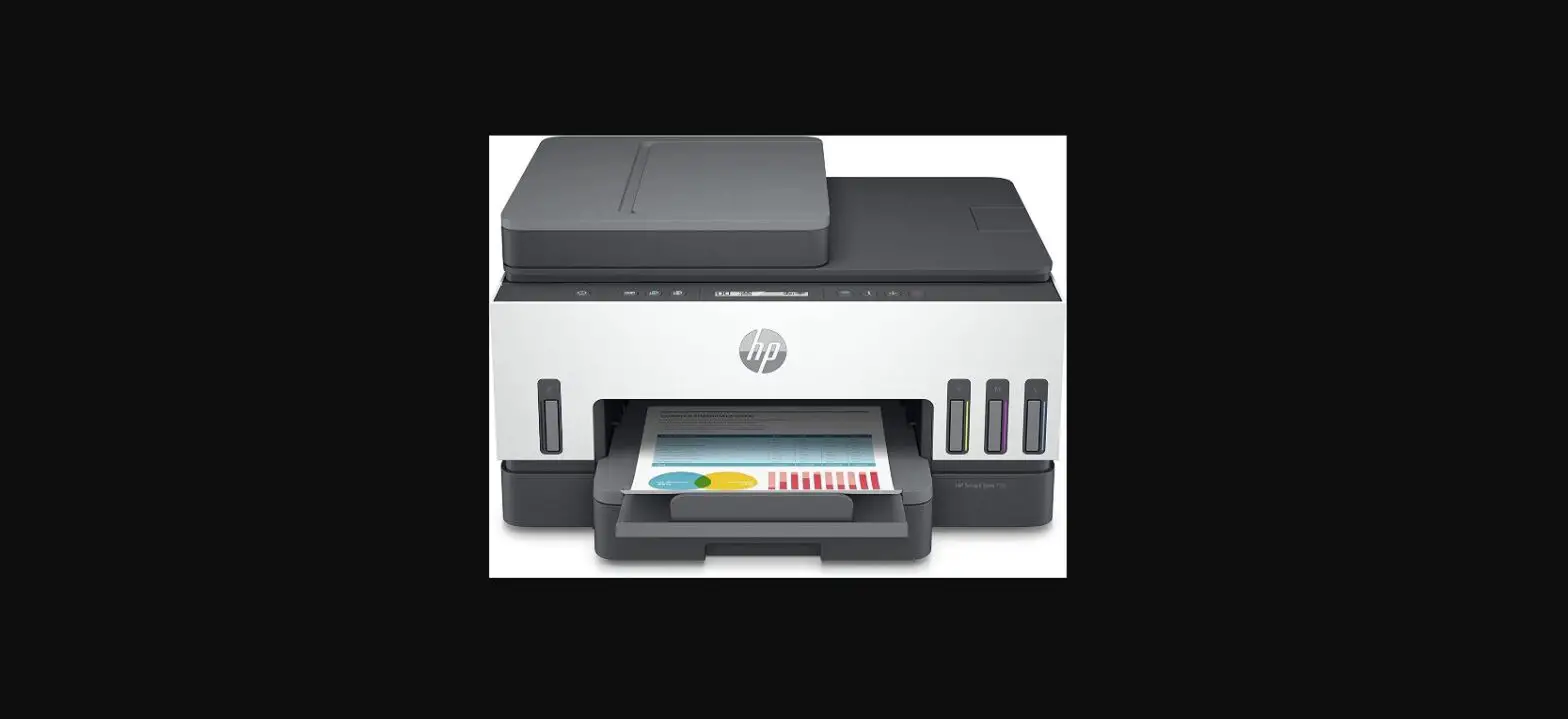
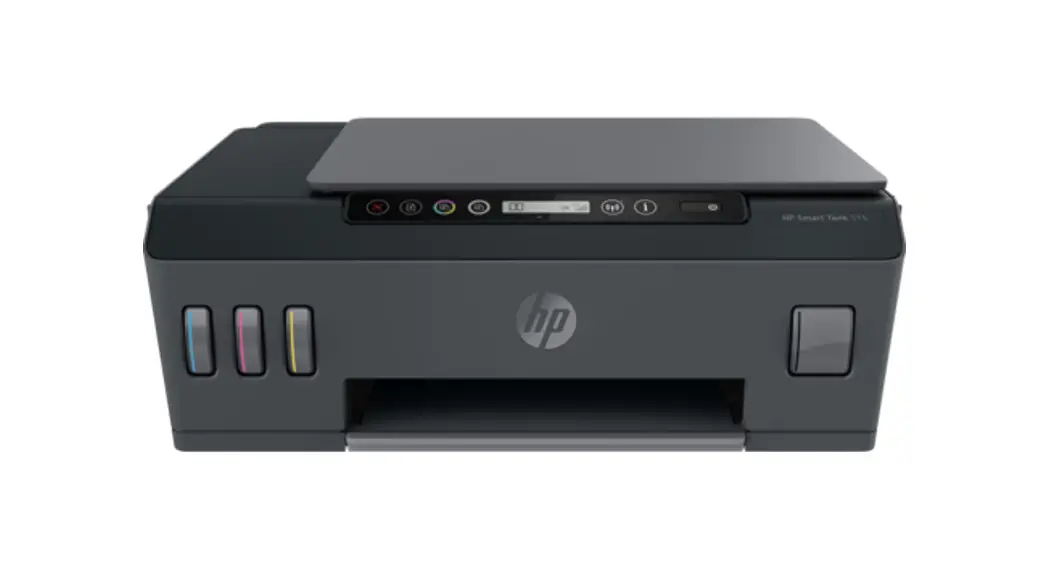
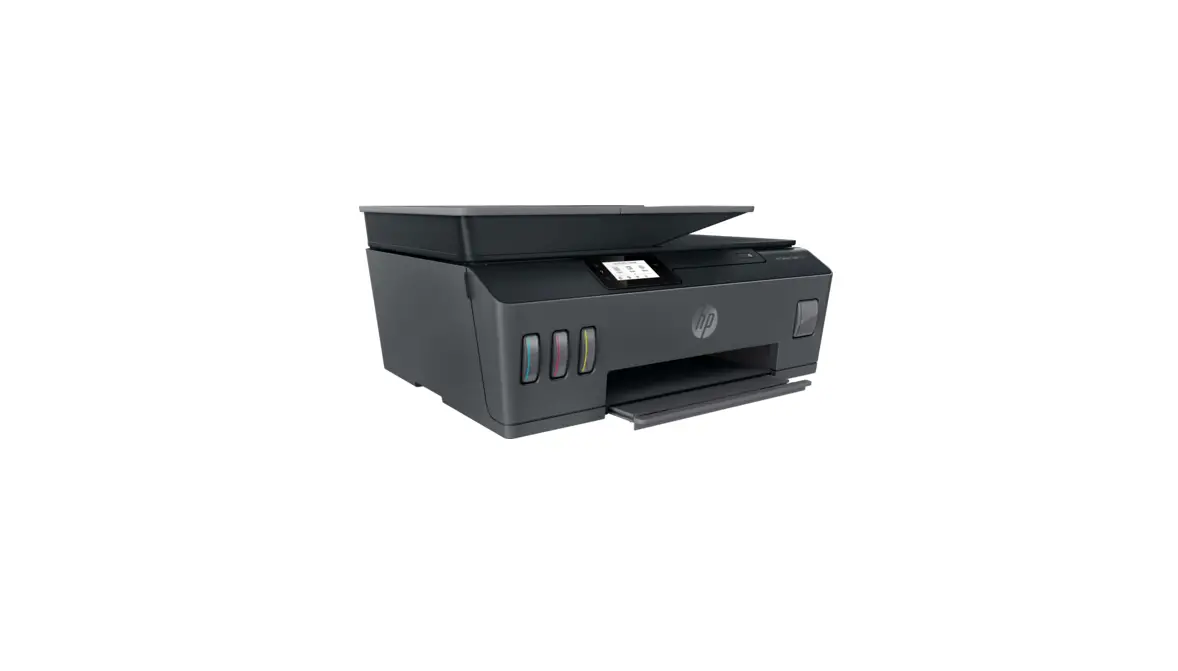
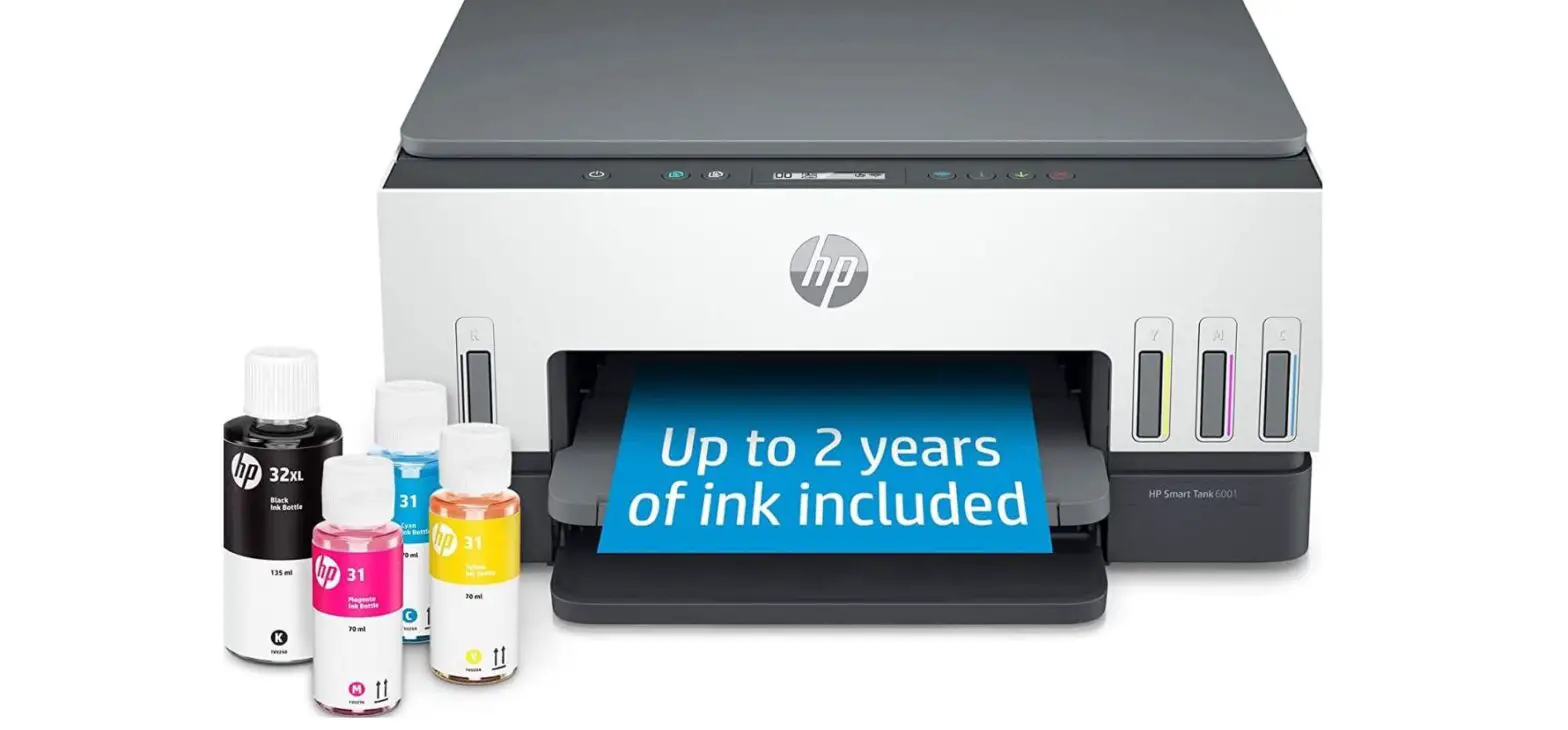
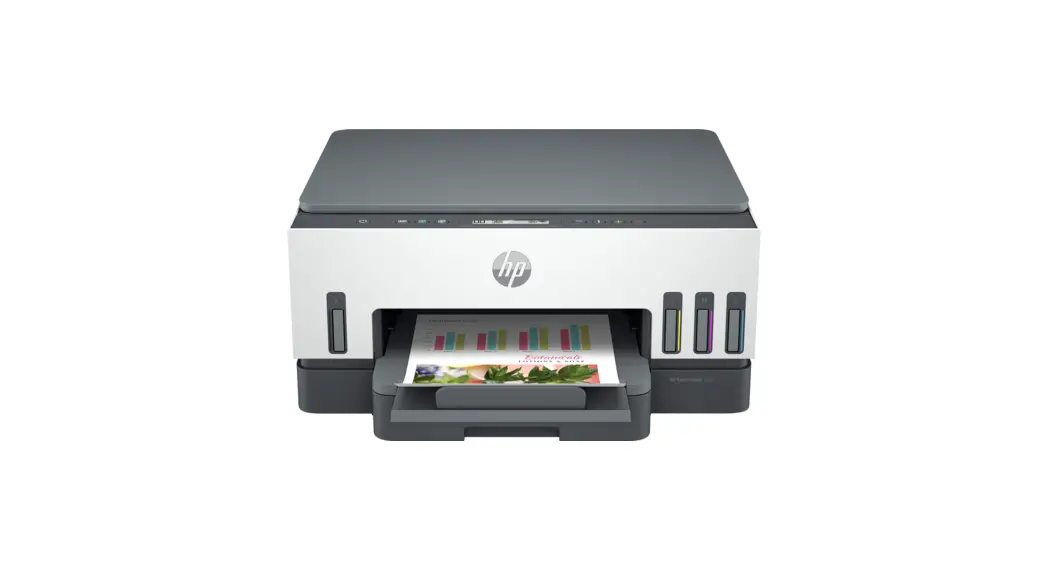
HP Smart Tank
660-670 series
User Guide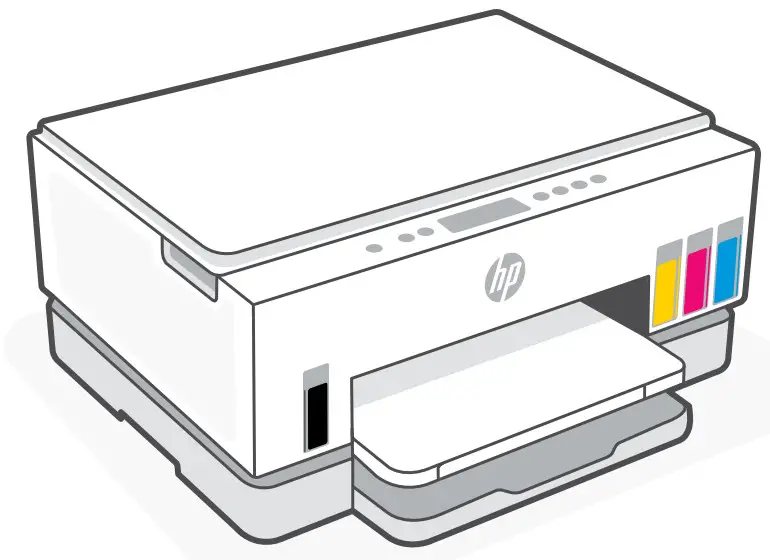
 Printer Setup
 Printer Setup
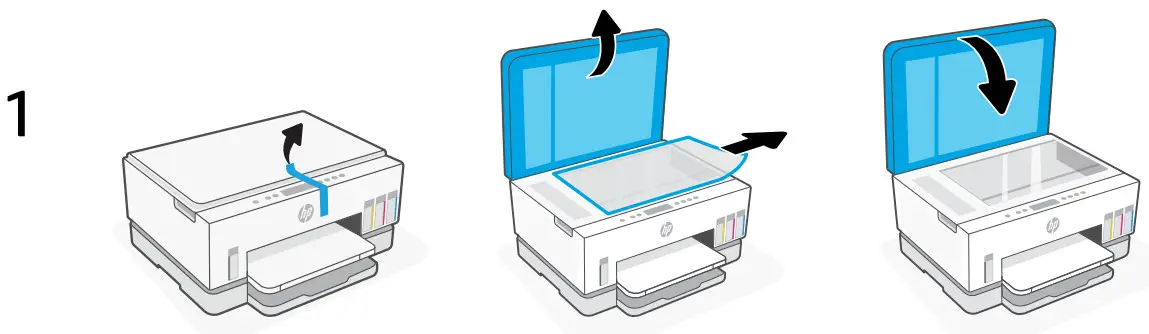
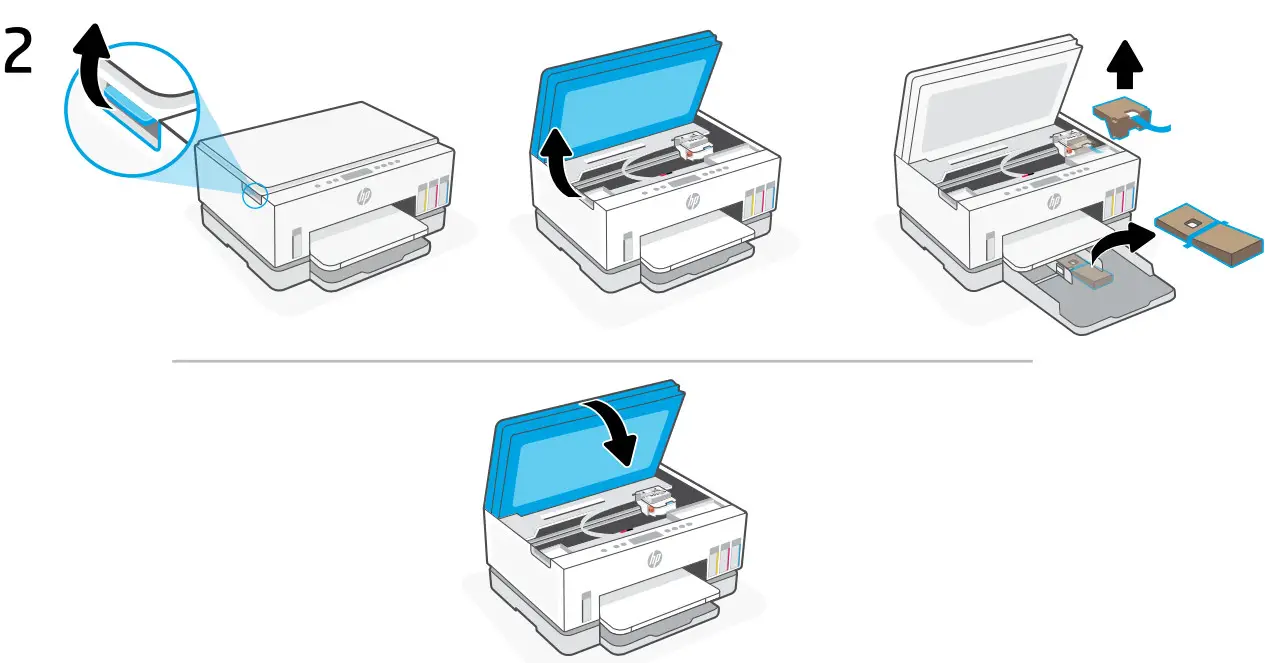
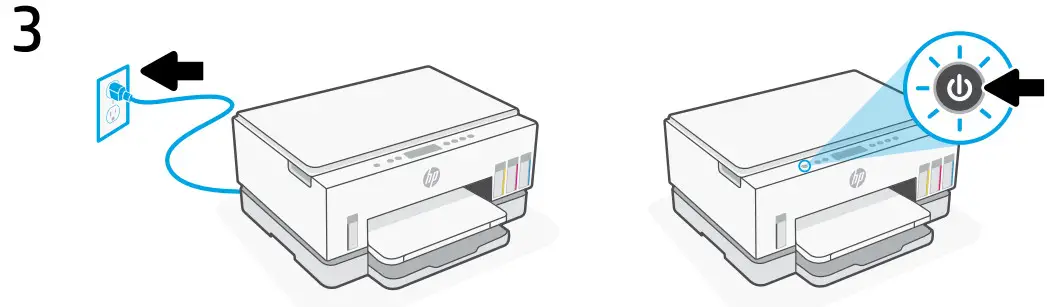
Prepare printer
- Remove all tape and packing materials. Close the scanner lid after opening.

- Lift the ink access door by the side latch. Remove all cardboard, then close the ink access door.

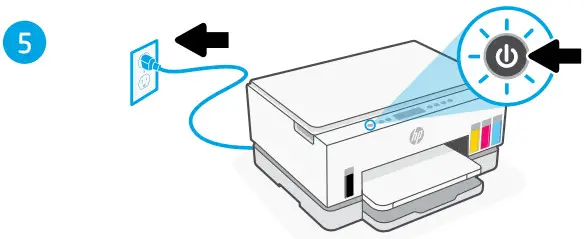
- Plug in and turn on the printer.

Choose an option to continue printer setup
Recommended
Option 1: Guided setup with HP Smart
Go to 123.hp.com on a mobile device or computer to install HP Smart.
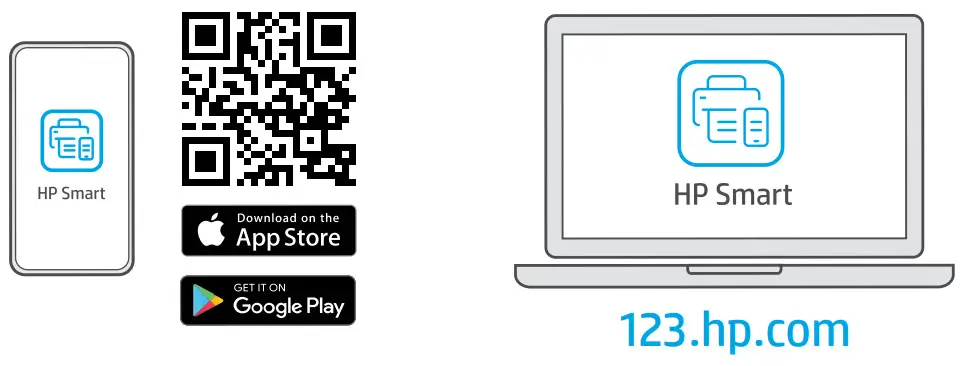
View animations to connect to Wi-Fi, fill ink tanks, install printheads, load paper, and perform printheads alignment in the HP Smart software. HP Smart has everything you need to finish setup.
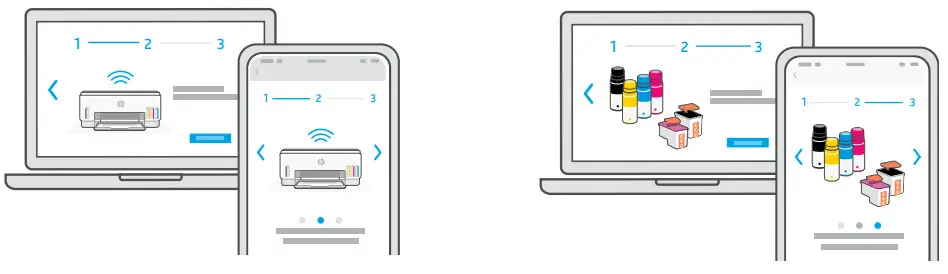
Option 2: Manual setup
Follow illustrations in this guide to set up the hardware, then use HP Smart software to connect to Wi-Fi and finish setup.
 Manual Setup
 Manual Setup
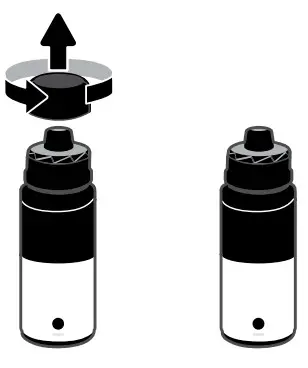
- Open the ink bottles
For ink bottles with screw-cap: Twist open the cap. For ink bottles with flip-cap:
Twist open the cap and remove the seal.
Replace the cap. Flip open the top of the cap.
- Fill the ink tanks
1. Open the ink access door and tank covers.
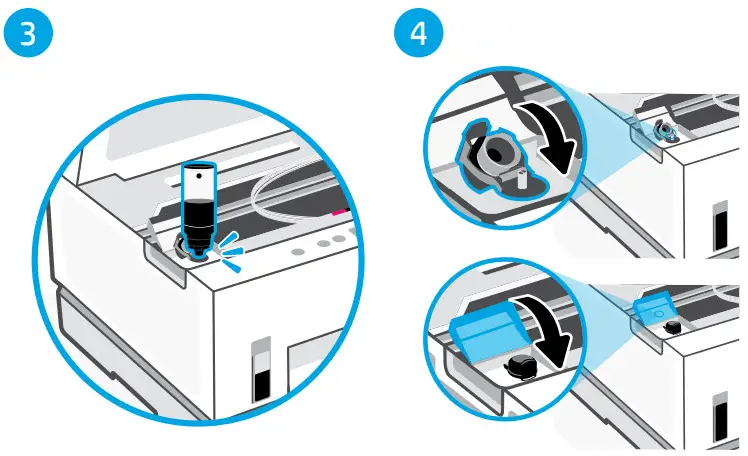
2. Open the cap of the ink tank to be filled. 3. Place the opened bottle upside down on the tank.
The screw-cap bottle will click into place.
Let the ink drain into the tank.
4. Close the bottle cap, tank cap, and tank cover.
Repeat the above steps as needed to fill other tanks. When tanks are filled, close the ink access door securely and wait for approximately 15 seconds.
 Make sure to close the ink access door so the printer can detect ink, before you install printheads.
Note: If there is leftover ink, keep the bottle upright in a cool and dry place.
- Install printheads You must fill the ink tanks before installing printheads. Install the printheads when prompted on the printer control panel.
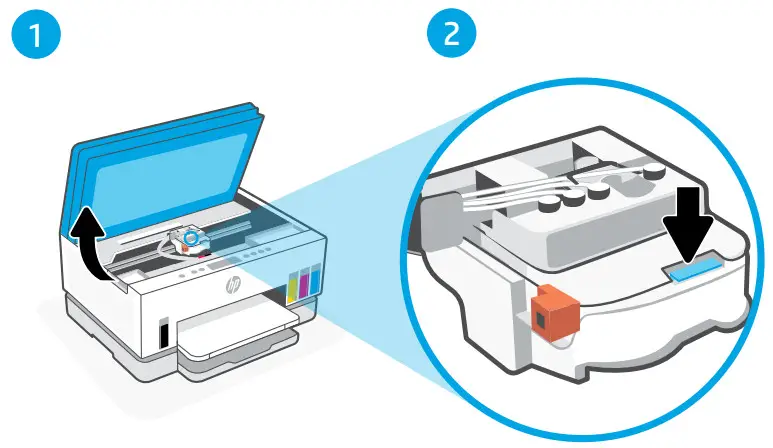
1. Lift the ink access door and wait for the carriage to move to center and stop.
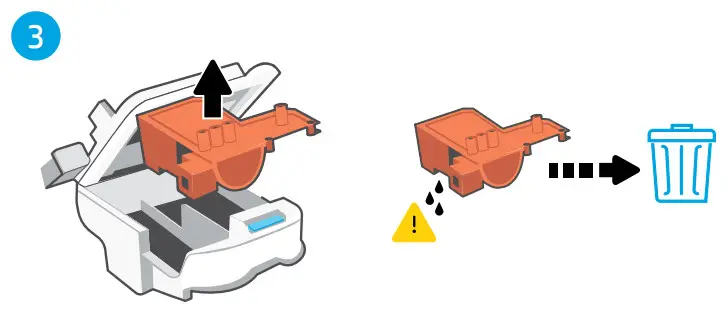
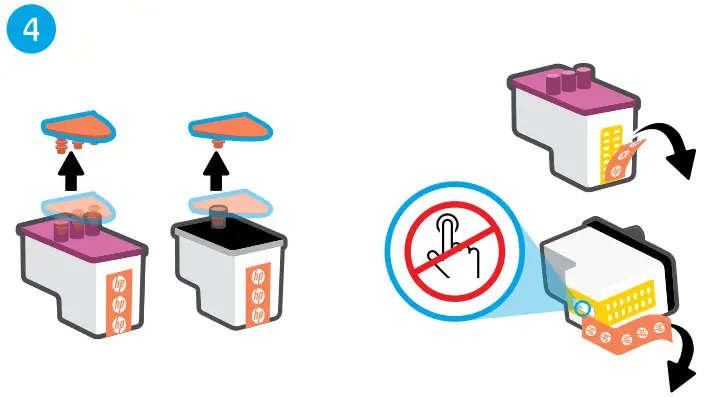
2. Press the blue button to open the printhead cover. 3. Remove and discard the orange guard.
Handle carefully to avoid ink stains. 4. Remove the orange cap and protective tape on both printheads.
Caution: Do not touch the electric contacts or print nozzles under the tape. 5. Insert the printheads and click into place.
 6. Close the printhead cover and the ink access door.
- Load paper
 1. Open the paper tray.
2. Slide out the guides.
3. Load unused Letter or A4 paper and adjust the guides. Close the tray. - Print and scan alignment page
Wait for the printhead alignment page to print. Open the scanner lid and place the printed page face-down on the scanner glass, aligned to the indicated corner. Close the scanner lid. Press the blinking copy button on the printer control panel to scan the page.
- Install HP Smart software
Install HP Smart software from 123.hp.com on a computer or mobile device.
HP Smart will help you connect to a network and start printing.
 For ink bottles with flip-cap: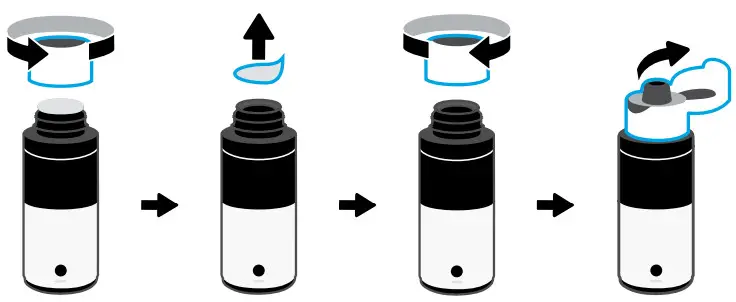
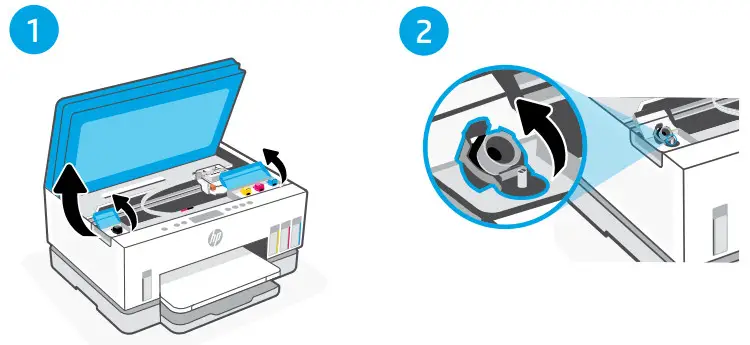 3. Place the opened bottle upside down on the tank.
 When tanks are filled, close the ink access door securely and wait for approximately 15 seconds.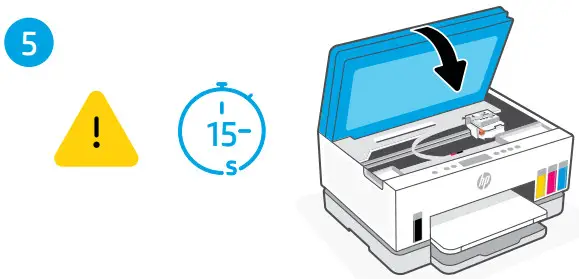
 3. Remove and discard the orange guard.
 4. Remove the orange cap and protective tape on both printheads.
 5. Insert the printheads and click into place.
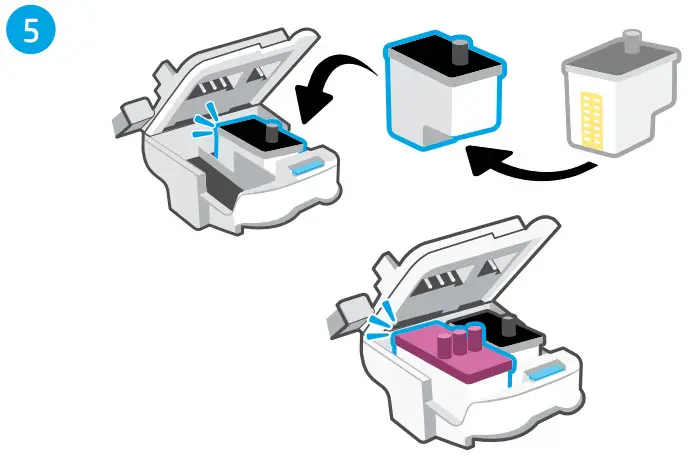 6. Close the printhead cover and the ink access door.
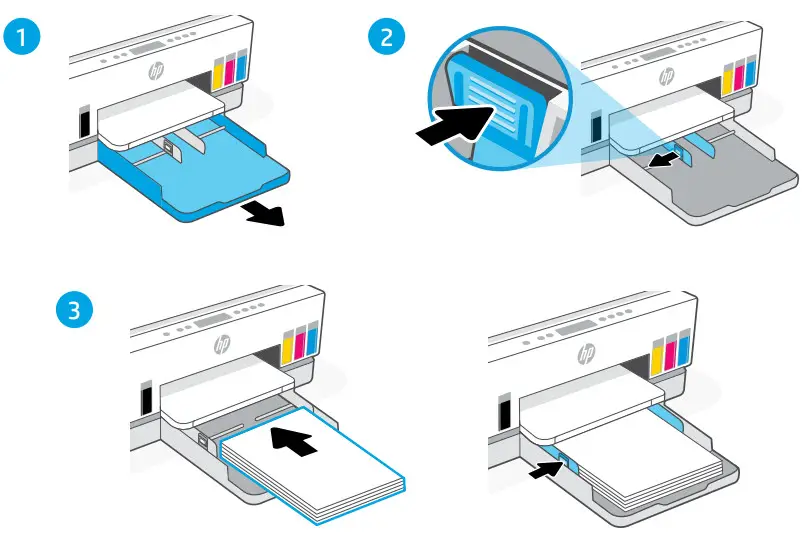 1. Open the paper tray.
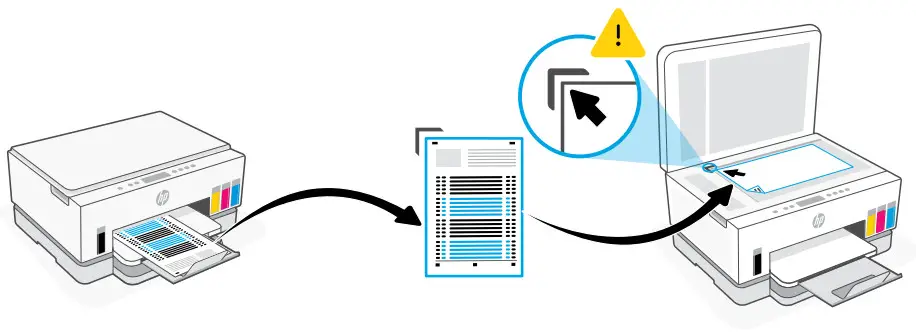 Close the scanner lid. Press the blinking copy button on the printer control panel to scan the page.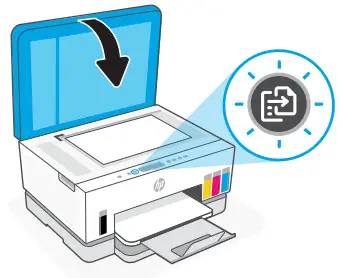
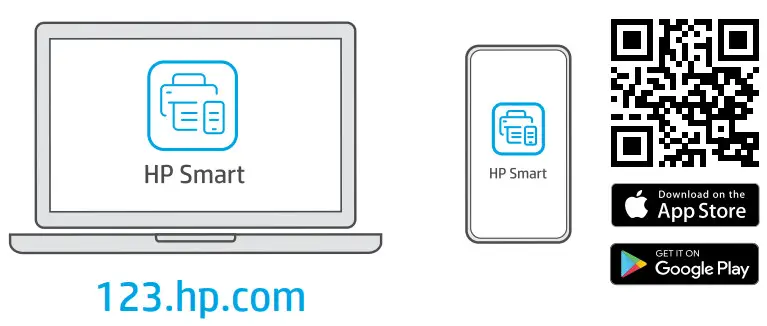
Install HP Smart software from 123.hp.com on a computer or mobile device.
HP Smart will help you connect to a network and start printing.
Get help with setup
Find setup information and videos online.

 Printer Reference
Printer features
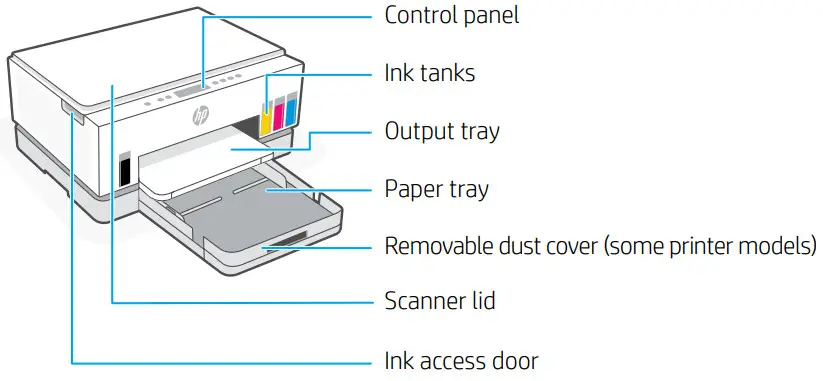
Control panel

 | Power button/light |
 | Color Copy button/light Press to start a color copy job. |
 | Black Copy button/light Press to start a black-and-white copy job. Note: To increase number of copies, press the desired button multiple times or press and hold. |
 | Open Lid light Open the scanner lid to copy or scan. |
 | Attention light Indicates problems with paper, ink, or printheads. |
 | Wi-Fi button/light Turn on or off Wi-Fi capability. Wi-Fi light shows the wireless status. |
 | Information button/light Press to print a summary of printer settings and status. |
 | Resume button/light |
 | Cancel button |
Display icons
 | Media related issues, including out of paper. |
| E1/E2 | Paper size mismatch. |
| E3 | Carriage jam. |
| E4 | Paper jam. |
| E7 | Out of ink. |
 | Wi-Fi is disconnected. Restart setup mode. |
 | Ink related issues, including low on ink. |
 | Printheads related issues. |
Note: Do not open the printhead cover unless instructed to do so.
For more information on lights and errors, visit hp.com/support
Help and tips for Wi-Fi and connectivity
If the software is unable to find your printer during setup, check the following conditions to resolve the issue.
| Potential Issue | Solution |
Printer Wi-Fi setup mode timed out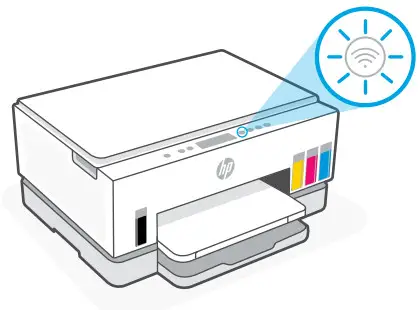 | If the Wi-Fi light is off, the printer might not be in Wi-Fi setup mode. Restart Wi-Fi setup mode: 1. If the control panel is not lit, press any button to wake the printer. 2. Press and hold for 5 seconds until the control panel buttons light up.3. Press and hold and for 5 seconds until the Wi-Fi light blinks blue.4. Wait for one minute. Close and reopen HP Smart, and then try connecting again. |
| Computer or mobile device too far from printer | Move your computer or mobile device closer to the printer. Your device might be out of range of the printer’s Wi-Fi signal. |
| Computer connected to a Virtual Private Network (VPN) or remote work network | Disconnect from a VPN before installing HP Smart software. You can’t install apps from the Microsoft Store when connected to a VPN. Connect to the VPN again after finishing printer setup. Note: Consider your location and the security of the Wi-Fi network before disconnecting from a VPN. |
| Wi-Fi turned off on computer (computer connected by Ethernet) | If your computer is connected by Ethernet, turn on the computer’s Wi-Fi while setting up the printer. Disconnect the Ethernet cable temporarily to complete setup over Wi-Fi. |
| Bluetooth is turned off on your computer or mobile device Location is turned off on your mobile device | Turn on Bluetooth for the computer or mobile device being used to complete printer setup. For mobile devices, turn on Location services also. Bluetooth and Location help the software find your network and printer. Note: Your location is not being determined and no location information is being sent to HP as part of the setup process. |
Move printer properly
To move the printer to a different location outside of your home or office after initial setup, follow these instructions to prevent ink leaks or printer damage.
- Turn off the printer and remove the power cord.

- Lift the ink access door. Pull the gray tab (toward the front of the printer) and lift the printhead cover until the red label is visible. Close the ink access door.

- Pack the printer in a box (if available).
While moving the printer, keep the printer horizontal to prevent ink leakage.
- After unpacking the printer, push down on the printhead cover to close.
Make sure the cover is properly closed.
- Connect the power cord and turn on the printer.

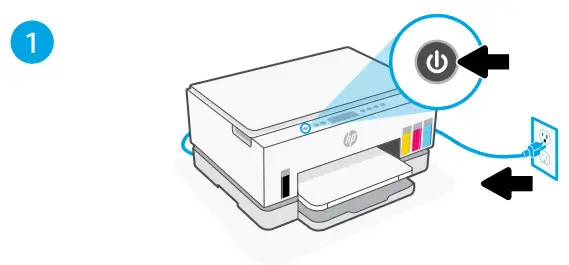
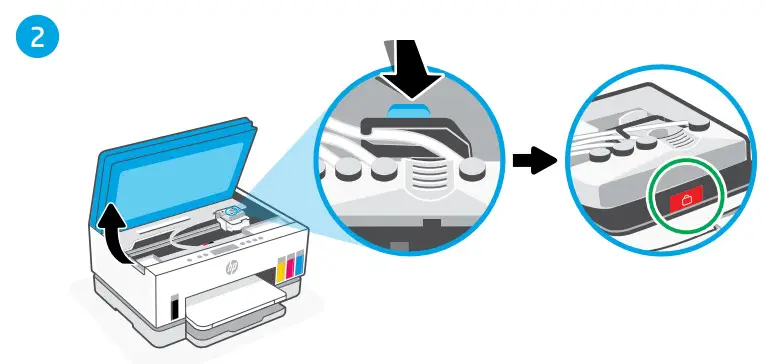
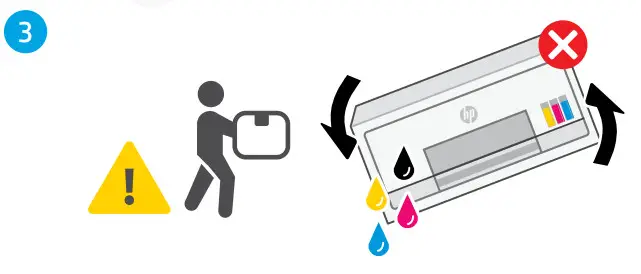
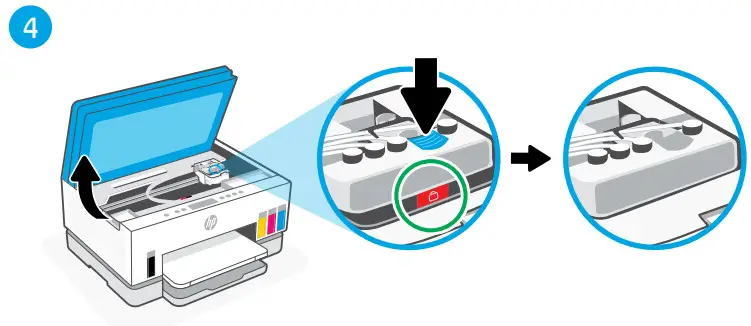
 hp.com/support/transportsmarttank
 Help and Support
For printer troubleshooting and videos, visit the HP support site. Enter your model name to find the printer.
 https://www.hp.com/support
© Copyright 2021 HP Development Company, L.P.
The Apple logo is a trademark of Apple Inc., registered in the U.S. and other countries.
App Store is a service mark of Apple Inc.
Google Play and the Google Play logo are trademarks of Google Inc.
Microsoft is a registered trademark of Microsoft Corporation in the United States and/or other countries.
All third party trademarks are the property of their respective owners Printed in China
 123.hp.com - HP Smart
 hp.com/support