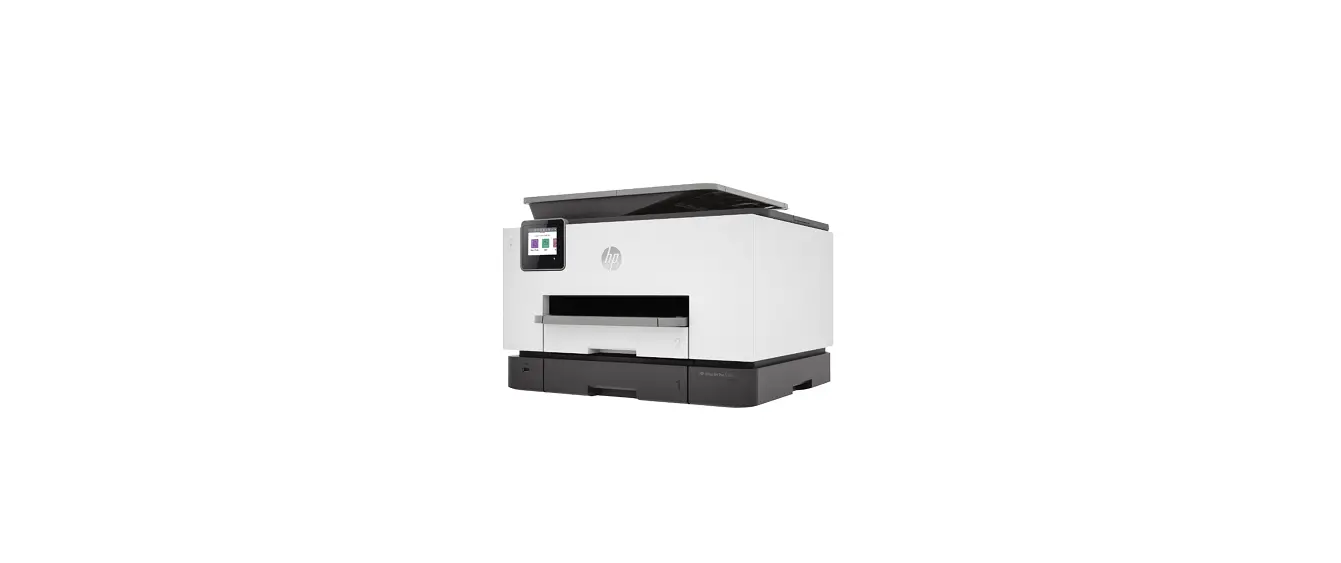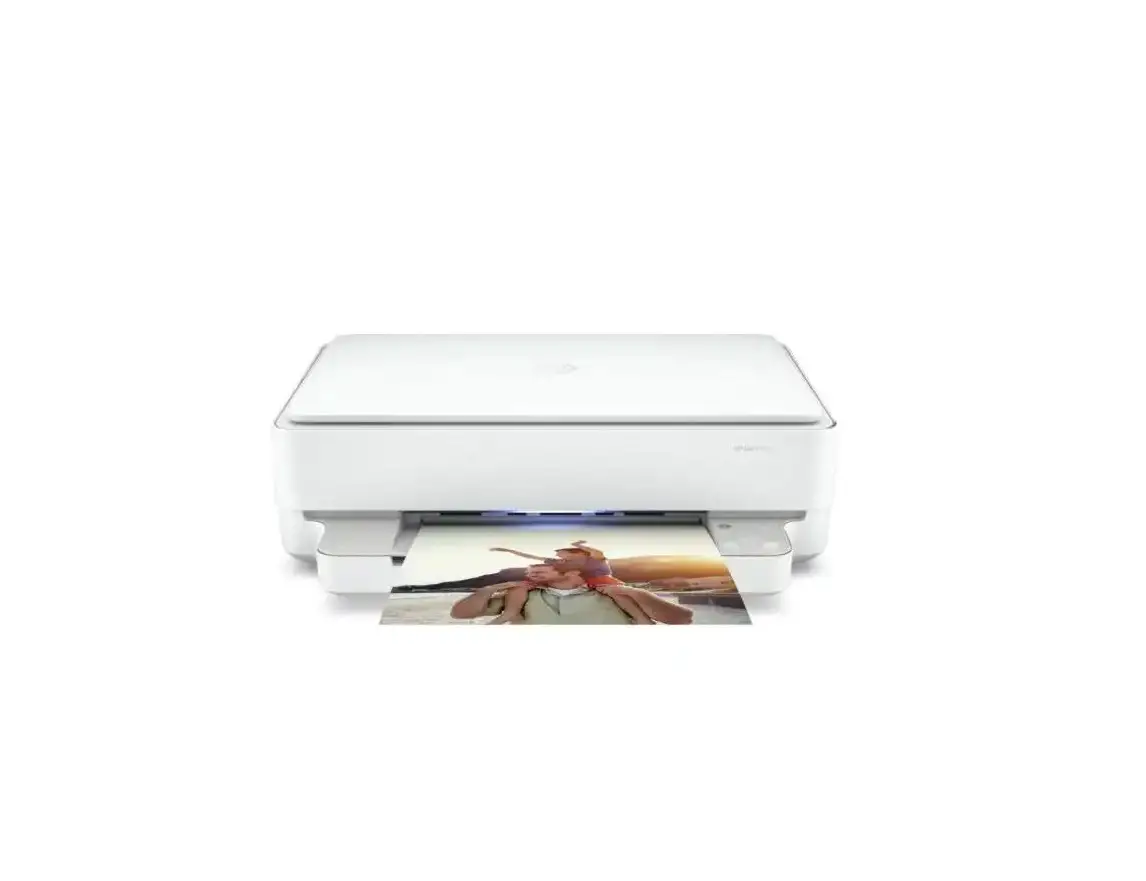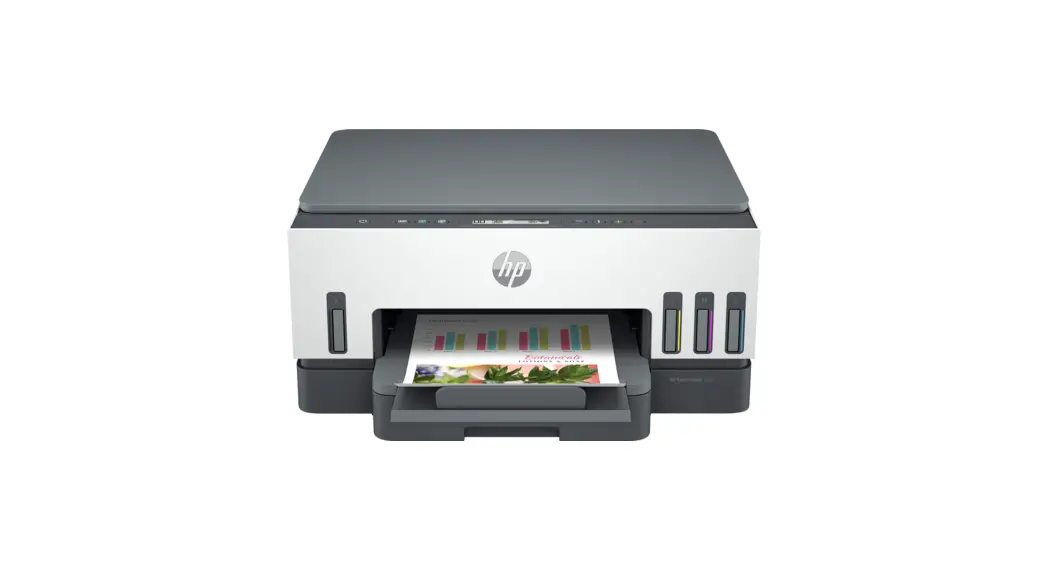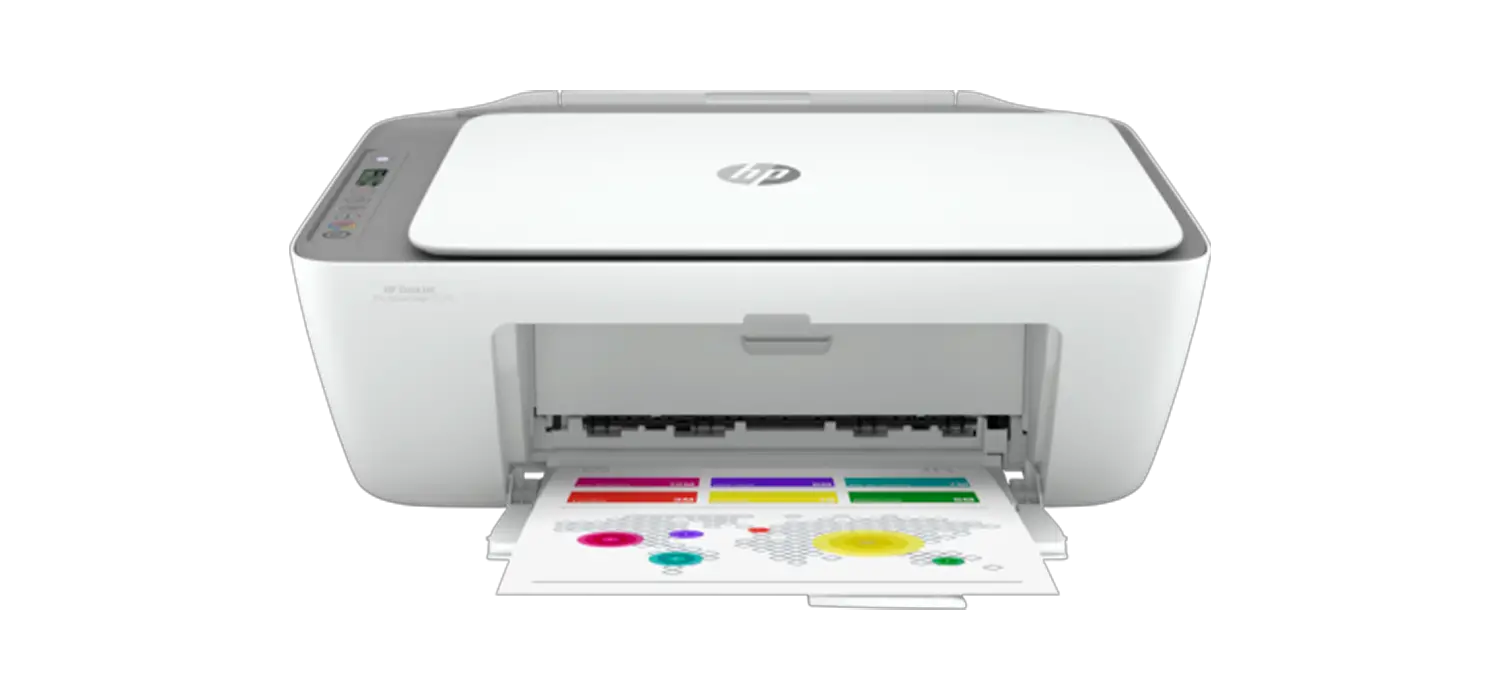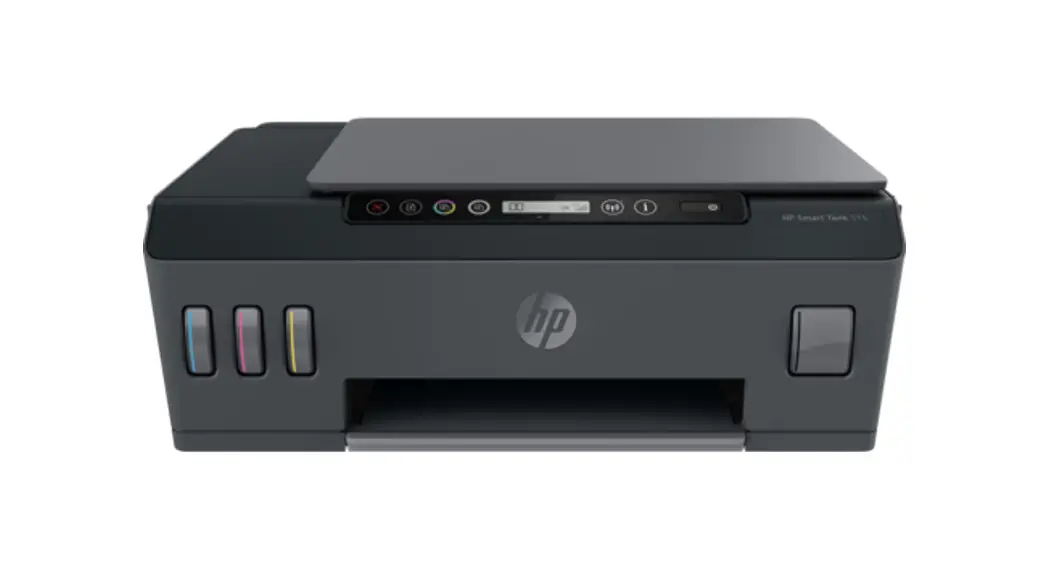

Hp 510 Series All-in-one Smart Tank Printer User Guide

Hp 510 Series All-in-one Smart Tank Printer User Guide

hp - logo

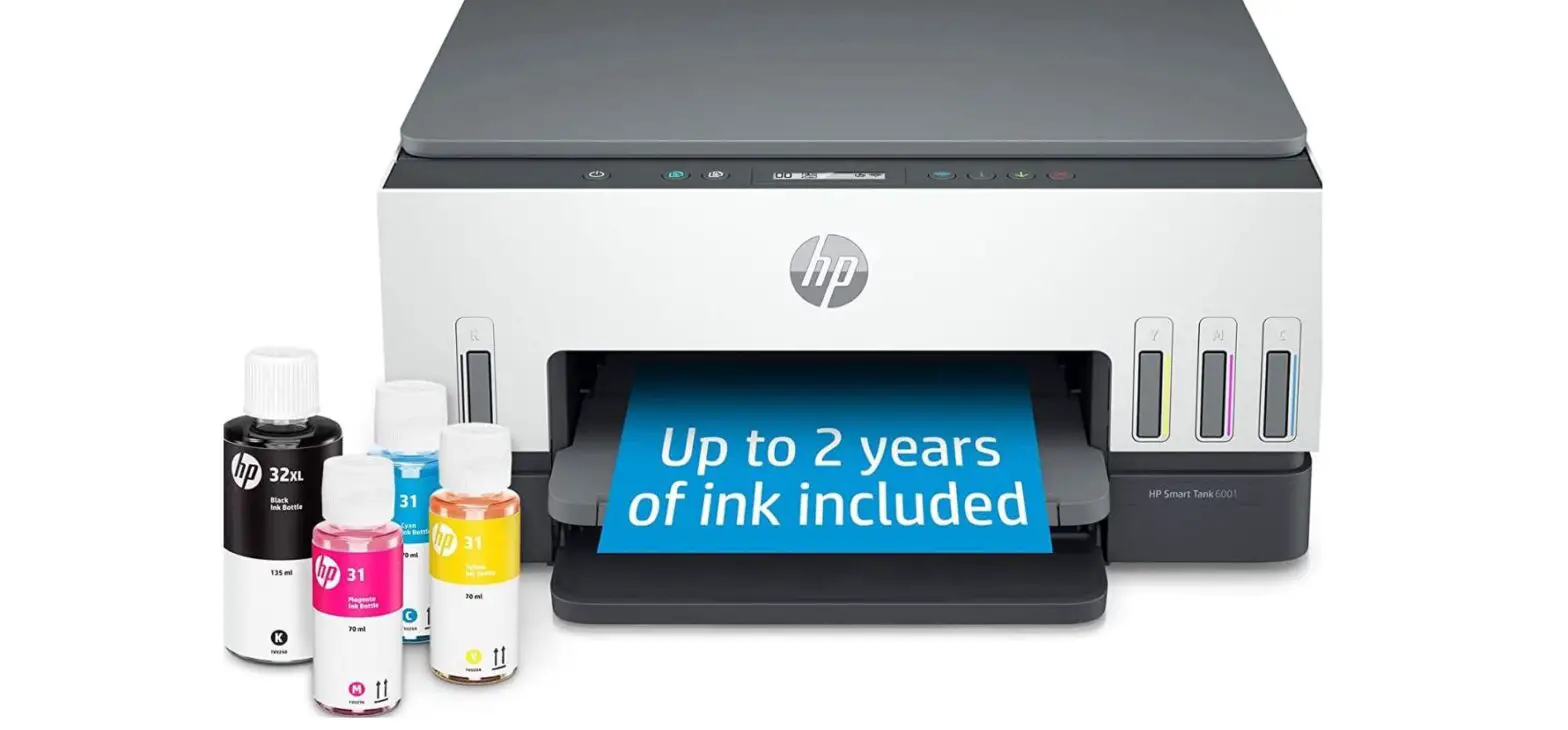
HP Smart Tank 510 series
hp 510 Series All In One Smart Tank Printer - fig7

Setup Guide

1hp 510 Series All In One Smart Tank Printer - 2

hp 510 Series All In One Smart Tank Printer - 3hp 510 Series All In One Smart Tank Printer - 4

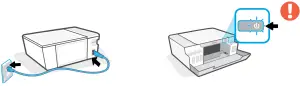
Turn on the printer.

hp 510 Series All In One Smart Tank Printer - fig

hp 510 Series All In One Smart Tank Printer - fig1hp 510 Series All In One Smart Tank Printer - fig2

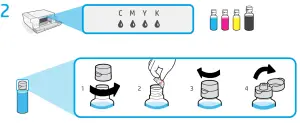
Fill ink tanks.

hp 510 Series All In One Smart Tank Printer - fig3

Close doors.hp 510 Series All In One Smart Tank Printer - fig4

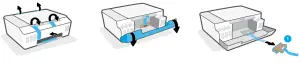
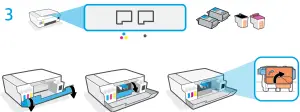
Open doors. Wait for the carriage to move to the center and stop. Turn the orange handle.hp 510 Series All In One Smart Tank Printer - fig5
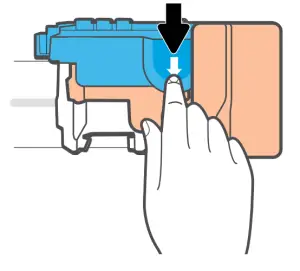
Press down on the blue latch to open.

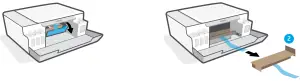
Remove and discard orange plastic pieces. Handle carefully to avoid ink stains.hp 510 Series All In One Smart Tank Printer - fig7
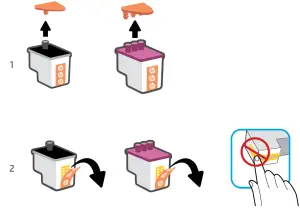
hp 510 Series All In One Smart Tank Printer - fig8

hp 510 Series All In One Smart Tank Printer - fig9

Install printheads. Close blue latch and doors.
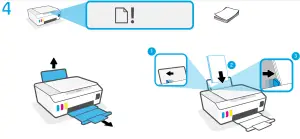
Load paper.hp 510 Series All In One Smart Tank Printer - fig 11
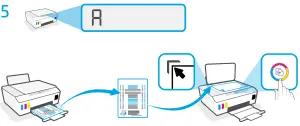
Scan the alignment page printed by pressing hp 510 Series All In One Smart Tank Printer - icon(Color Copy button).hp 510 Series All In One Smart Tank Printer - fig12hp 510 Series All In One Smart Tank Printer - qr code

https://123.hp.com

hp 510 Series All In One Smart Tank Printer - icon 1

Install HP Smart software from 123.hp.com or your app store (required). Use a computer or mobile device.


hp.com/support/printer-setup
hp 510 Series All In One Smart Tank Printer - qr code 2hp 510 Series All In One Smart Tank Printer - 8

Trouble getting started? Find setup information and videos online.hp 510 Series All In One Smart Tank Printer - icon2 After setup, do not open the blue latch unless instructed to do so.hp 510 Series All In One Smart Tank Printer - icon3
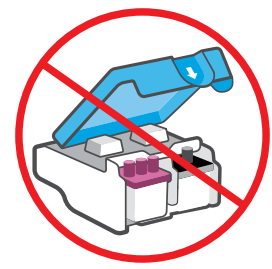

If moving printer outside home or office with ink tanks filled, see “Moving printer?” guide to prevent ink leakage or printer damage.
Note: When unpacking the printer for the first time, retain the packing materials for repacking.hp 510 Series All In One Smart Tank Printer - qr code 3

hp.com/support/smarttankmoving

hp - logo

hp 510 Series All In One Smart Tank Printer - br code

The Apple logo is a trademark of Apple Inc., registered in the U.S. and other countries. App Store is a service mark of Apple Inc.
Android, Google Play, and the Google Play logo are trademarks of Google Inc.
Printed in China
Impreso en China
Impresso na China
© Copyright 2020 HP Development Company, L.P.

Documents / Resouces

Download manual
Here you can download full pdf version of manual, it may contain additional safety instructions, warranty information, FCC rules, etc.


Related Manuals