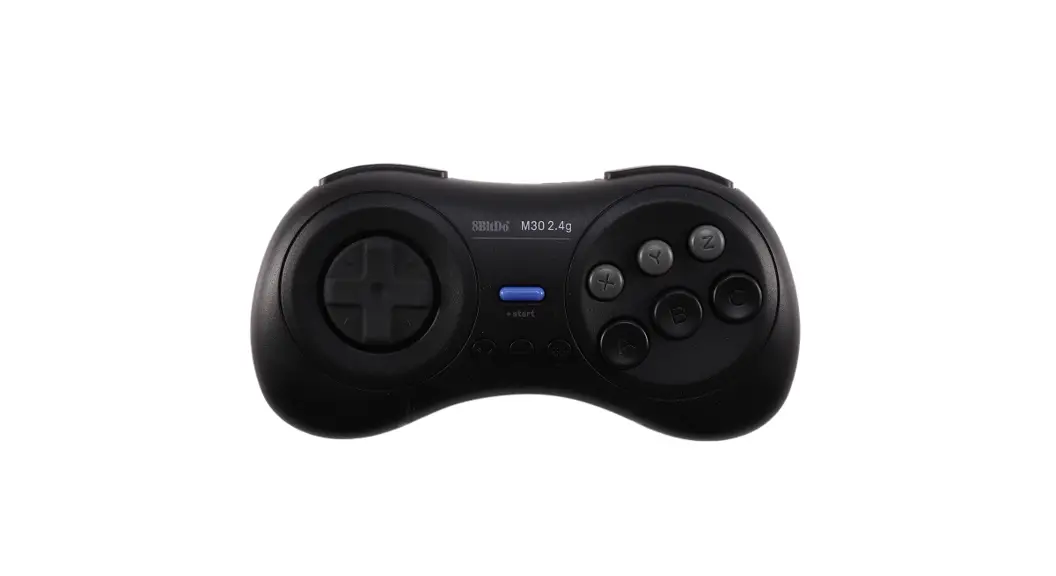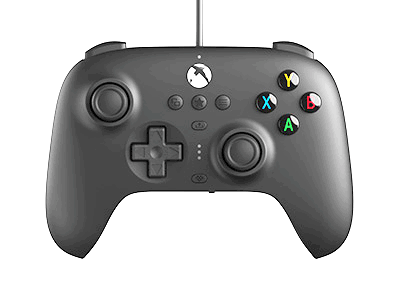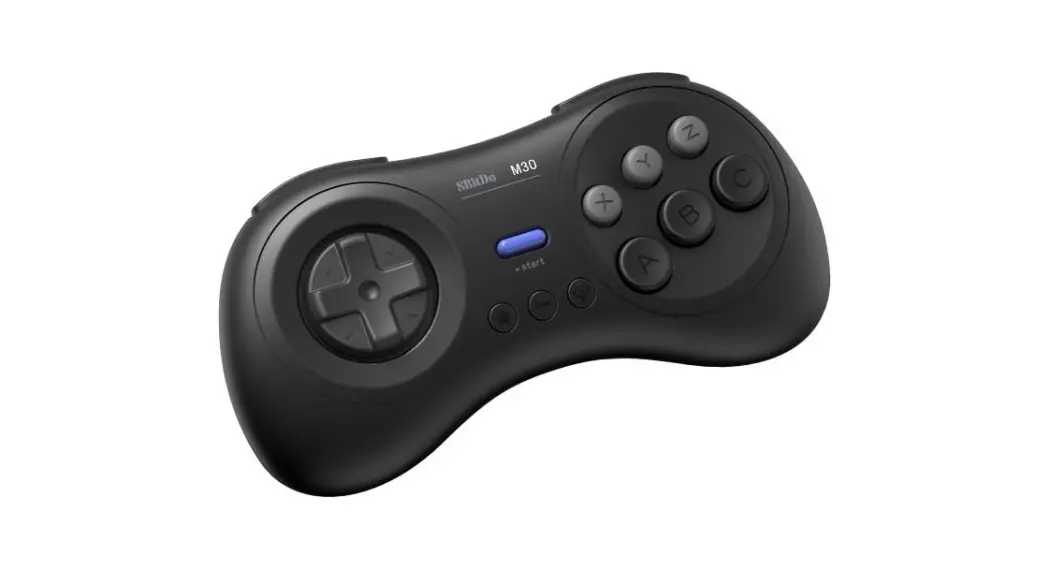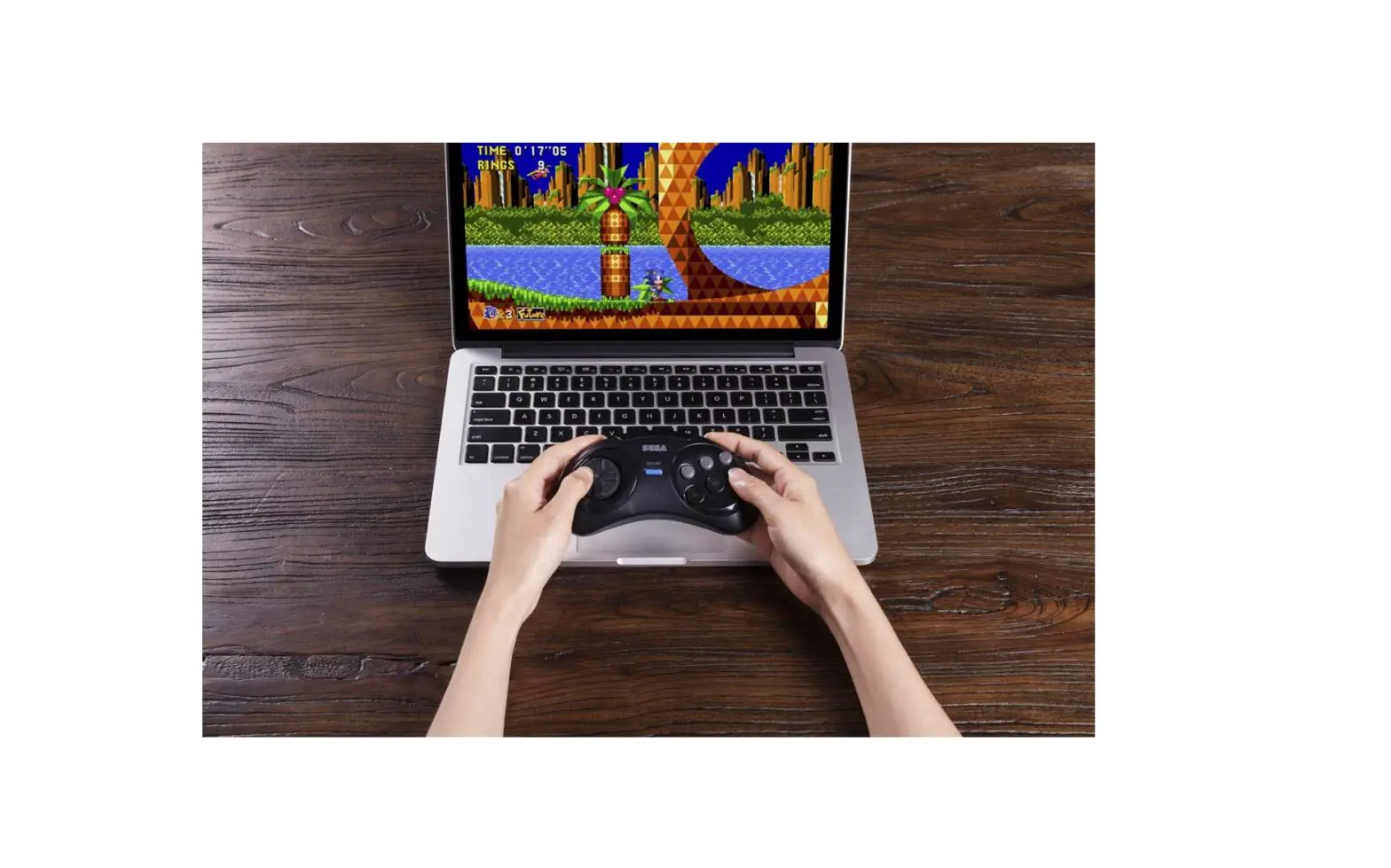

8BitDo M30 Mod Kit for MD Controller

InstructionS-M30Modkit
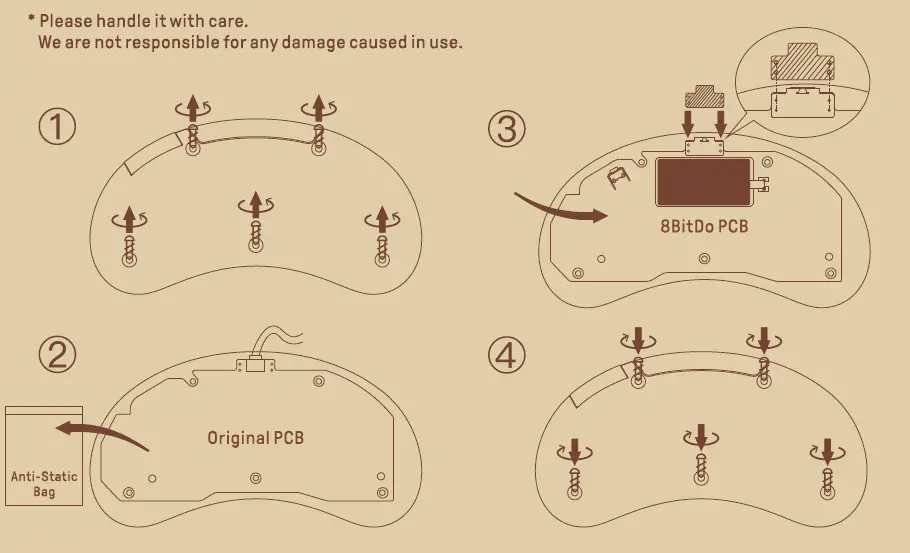
- Please handle it with care.
- We are not responsible for any damage caused in use.
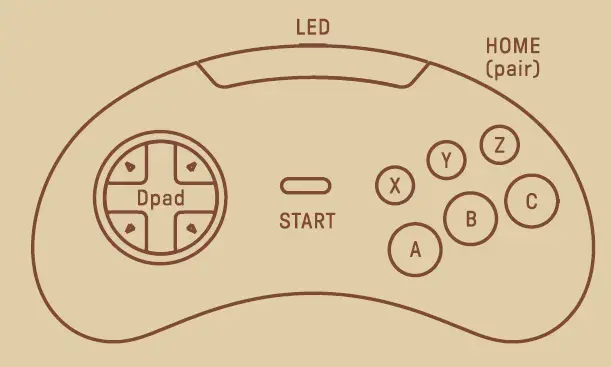
Press start to turn on the controller
Press and hold START for 3 seconds to turn off the controller Press and hold START for 8 seconds to force turn off the controller
Bluetooth connection
Switch
- Press START +Yto turn on the controller, LED will blink4 times per cycle.
- Press and hold MODE for 3 seconds to enter pairing mode. LED will rapidly blink.
- Go to your Switch Home Page to click on Controllers, then click on Change Grip/Order and wait for the controller to sync up. LED will become solid when the connection is successful.
- The controller will auto-reconnect to your Switch with the press of START once it has been paired.
When connected to your Switch, DOWN+HOME = Switch HOME button.
Android
- Press START +B to turn on the controller, the LED will blink once per cycle.
- Press and hold MODE for 3 seconds to enter pairing mode. LED will rapidly blink.
- Go to your Android device’s Bluetooth setting, and pair with [8B it do M30 Mod kit]. LED will become solid when the connection is
- The controller will auto-reconnect to your Android device with the press of START once it has been paired.
WINDOWS
- Press START +X to turn on the controller, LED will blink twice per cycle.
- Press and hold MODE for 3 seconds to enter pairing mode. LED will rapidly blink.
- Go to your windows device’s Bluetooth setting, and pair with [8Bitdo M30 Modkit]. LED will become solid when connection is successful.
- The controller will auto-reconnect your Windows device with the press of START once it has been paired
macOS
- Press and hold START +A to turn on the controller, LEO will blink 3 times per cycle.
- Press and hold MOOE for 3 seconds to enter pairing mode. LEO will rapidly blink.
- Go to your macOS device’s Bluetooth setting, pair with [Wireless Controller]. LEO will become solid when connection is successful.
- The controller will auto-reconnect to your Windows device with the press of START once it has been paired.
8Bitdo Retro Receivers and use Adapter
- Press START +B to turn on the controller, the LED will blink once per cycle.
- Press both the PAIR button on the receiver/Adapter and MOOE on the controller to sync them.
- Both LEDs on the receiver/Adapter and controller will become solid when connection is successful.
Button Mapping
Press and hold HOTKEY for 3 seconds to map\ OPAD and other buttons, the LED will blink once in! red when successful:
- HOME+ UP: DPAD”‘ DPAO
- HOME+ LEFT: OPPO • LEFT JOYSTICK
- HOME+RIGHT: DPAO• RIGHTJOYSTICK
- HOME+ DOWN: Swap A-B and-Y
Battery
- Status-LEO Indicator
- Low battery mode- Red LED blinks
- Battery charging – Rad LEO stays solid
- Battery fully charged -LEO turns off
Support
Please visit http://support.bbitdo.com /for further information and additional support.