
ZUMspot RPi Elite 3.5” LCD Kit
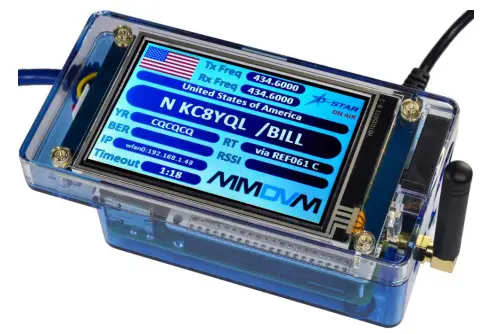
ZUMspot RPi Elite 3.5” LCD Kit User Guide
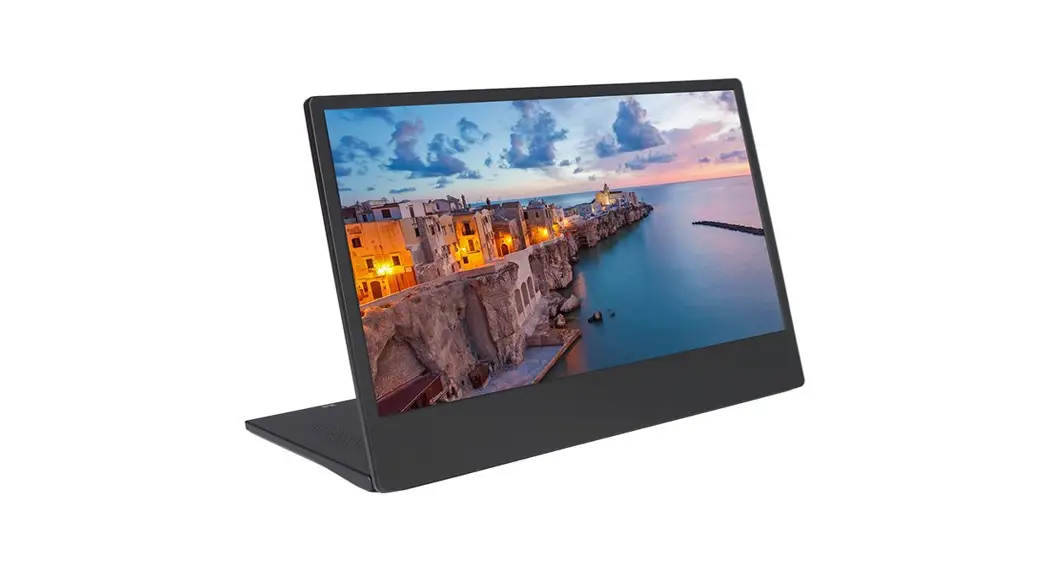
The ZUMspot RPi Elite 3.5” LCD kit has the capabilities of the ZUMspot all packaged in a clear case with a 3.5” LCD screen on top.
ZUMspot board specifications
- High performance 32-bit ARM processor
- ZUMspot Board Fully Assembled And Tested
- Supports DMR, P-25, D-Star, System Fusion, NXDN and POCSAG
- Onboard LEDs to show status (Tx, Rx, PTT, Mode)
- Up to 10mW RF power
- SMA antenna connector, UHF antenna included
- Mounted on Raspberry Pi 3B+
- The firmware is pre-loaded and is easily upgraded via software
The ZUMspot RPi Elite 3.5” LCD Kit Package Includes
- ZUMspot RPi UHF Board
- Raspberry Pi 3B+
- Custom case
- 3A power supply
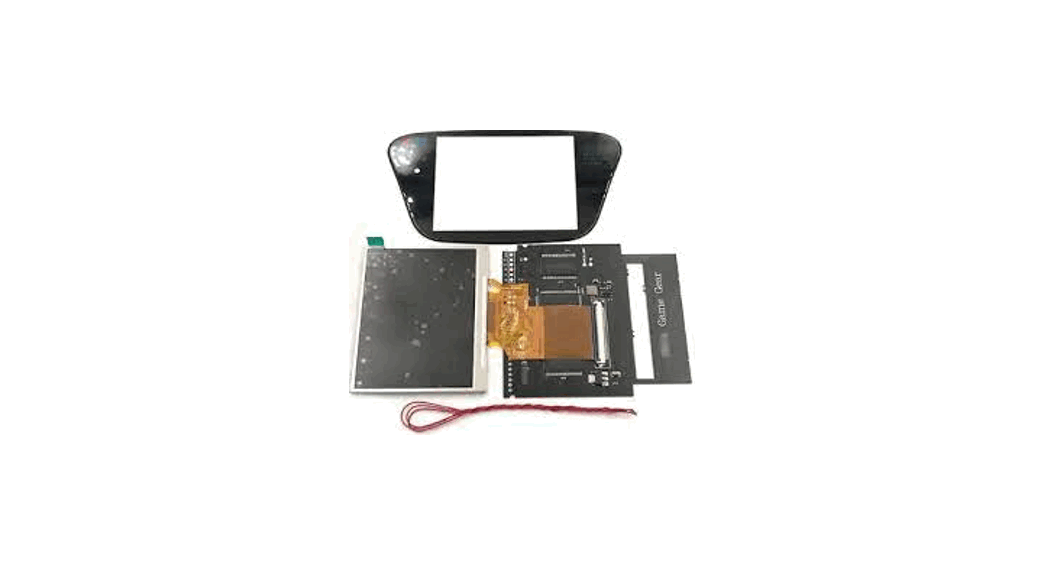
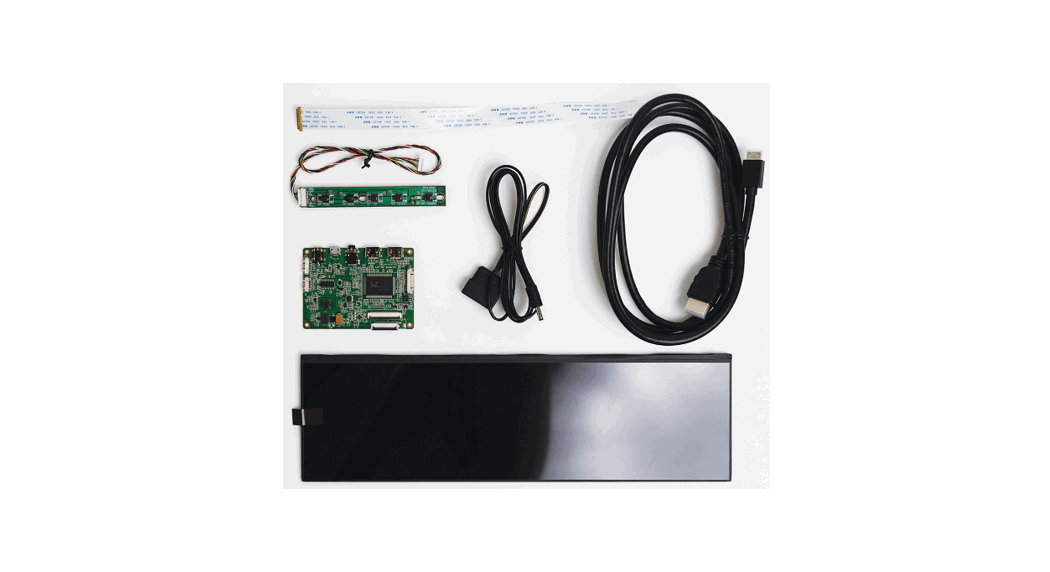
- 3.5″ LCD screen
- UHF Antenna
- Pre-Imaged 16 GB MicroSD Card with Pi-Star Software
- 1 Year Warranty
- Open source firmware (MMDVM)
Setup
- Make sure the SD card is installed in the Raspberry Pi 3B+
- Install the antenna onto the RF connector

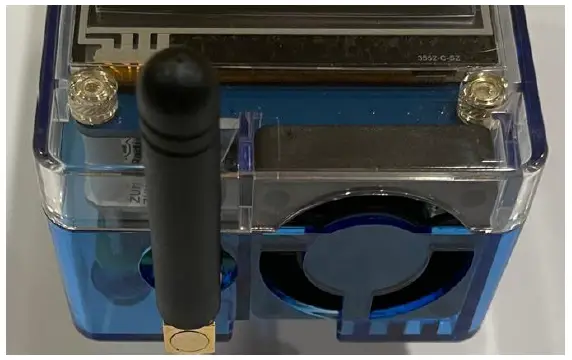
Powering up:
- Plug in the USB micro power cable to your ZUMspot Elite 3.5” LCD kit. Then plug the cable into the wall adapter and insert that into an AC outlet.
- If the ZUMspot Elite 3.5” LCD kit doesn’t power up, then press the switch on the cable and it should power up now.

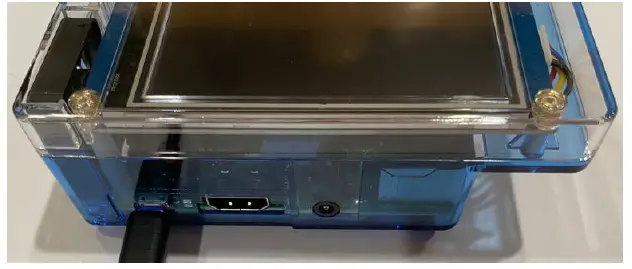
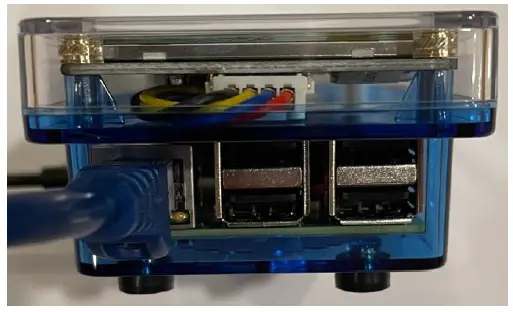
Ethernet
- If you are going to use Ethernet, plug the cable into the RJ45 connector on the end of the case.

Setup Pi-Star
Configure display type:
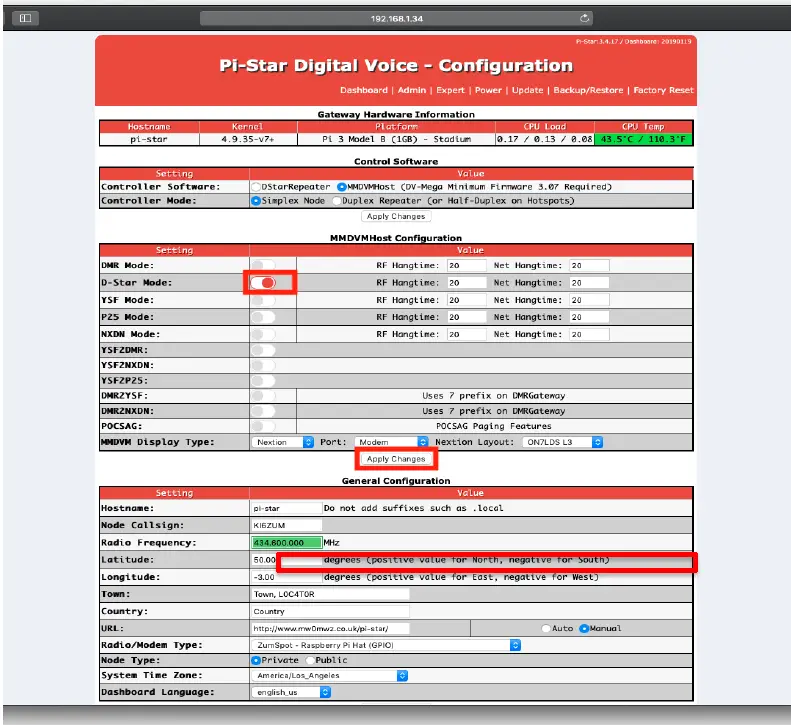
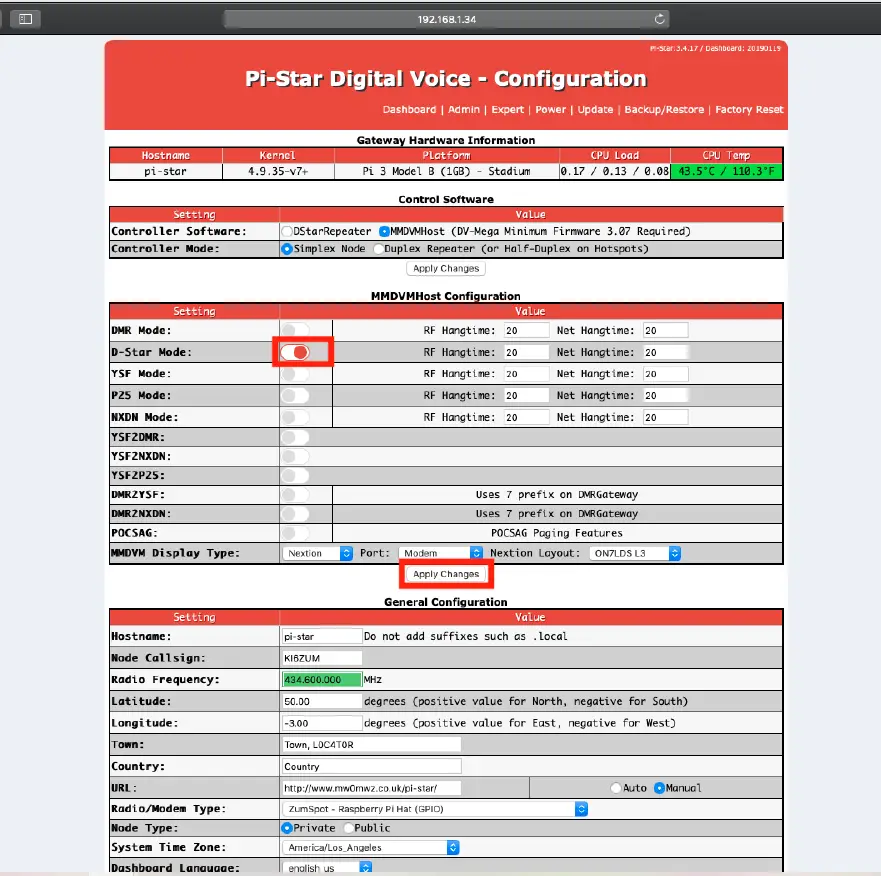
- In the “MMDVMHost Configuration” section
- Make sure “MMDVM display Type” is set to “Nextion”
- Make sure “Port” is set to “Modem”
- Make sure “Nextion Layout” is set to “ON7LDS L3”

Ethernet
- If you are using Ethernet, the IP address should automatically be retrieved by the DHCP system built into the PiStar software. No other configuration should be needed.
Wi-Fi
- Power up the ZUMspot Elite 3.5” LCD kit.
- After 3 minutes, scan for Wi-Fi access points from your phone or laptop. One should appear with the name “Pi-Star-Setup”
- Connect to it. When asked for the Wi-Fi password type in: raspberry
- After 3 minutes, go to your web browser (Chrome, Firefox, etc.) and connect to the website:
- http://pistar (for Windows, Linux and Android devices
- http://pi-star.local (for OS X and iOS devices)
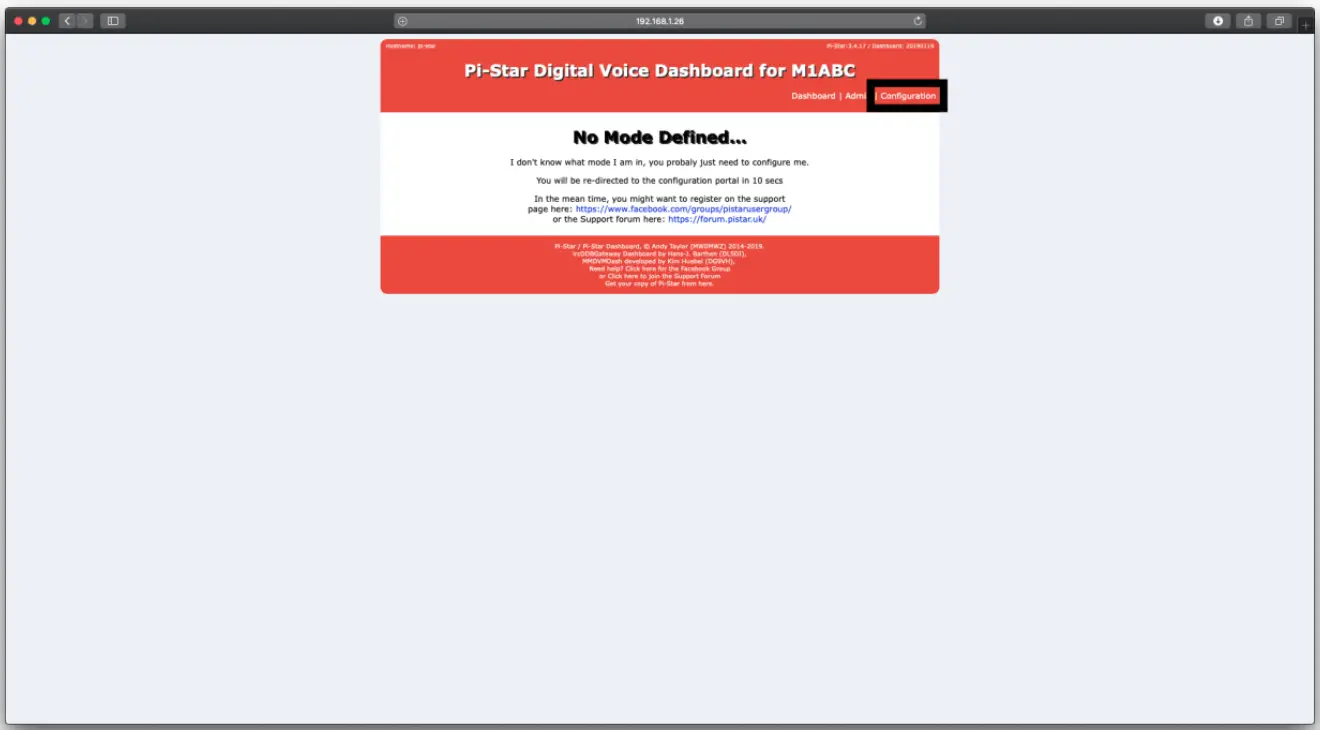
- You should see this page:

- Go to Configuration
- You will be asked to put in the default username which is “pi-star” and the default password which is “raspberry”
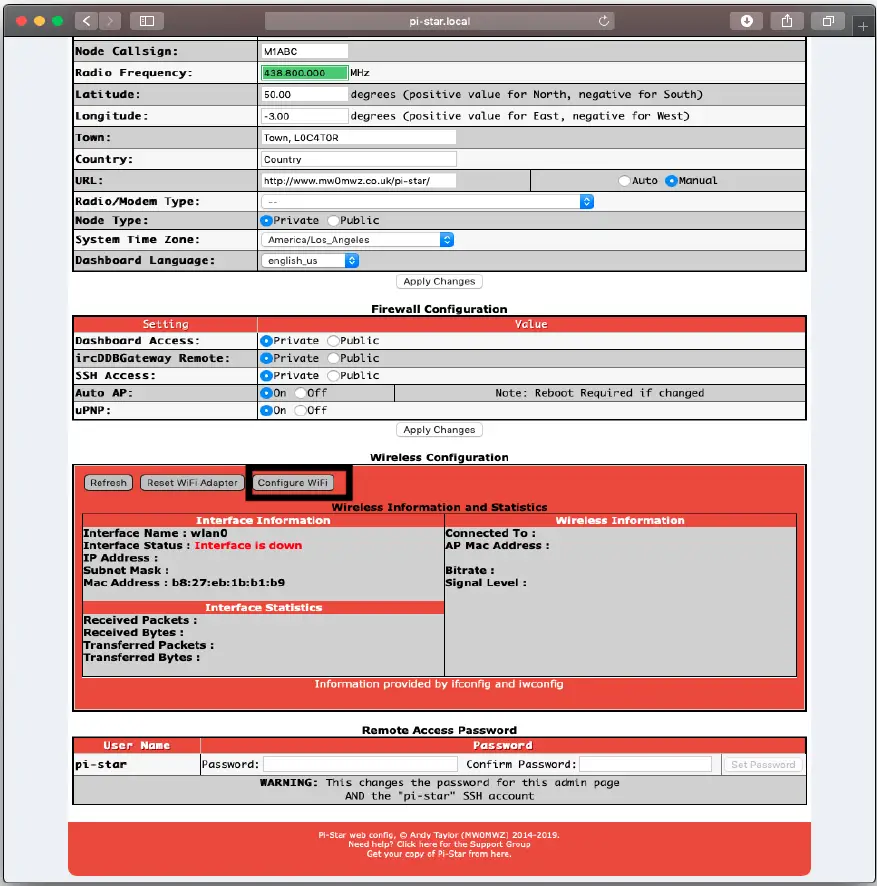
- Select “Configure WiFi

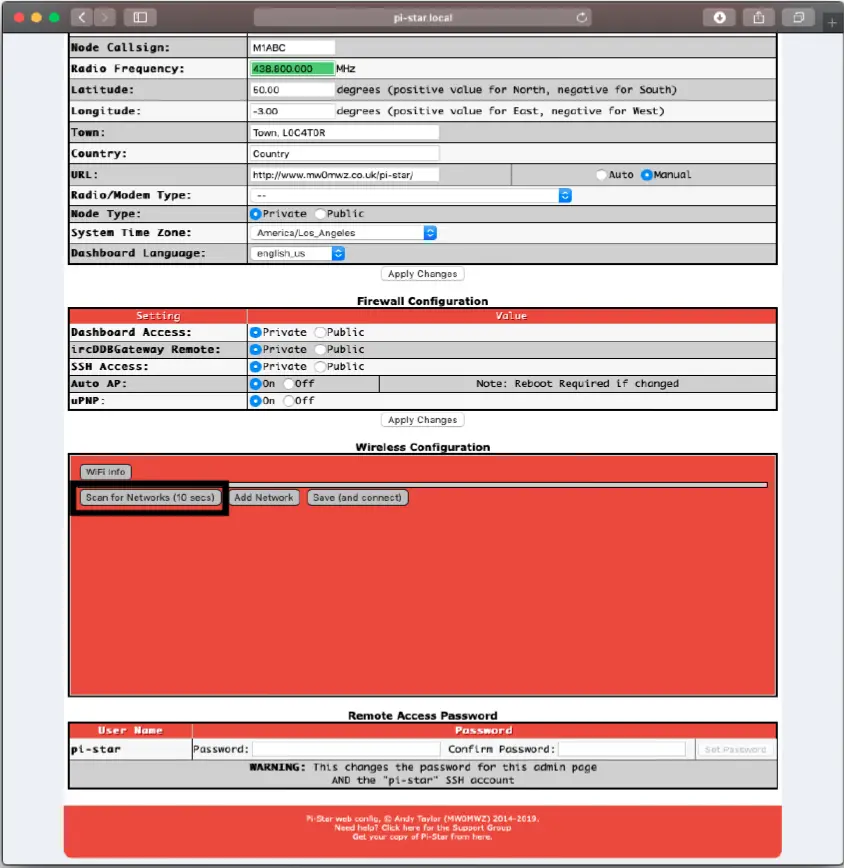
- Click on “Scan for Networks (10 secs)”

- Select your Wi-Fi SSID and enter your password.
- Click on “Save (and connect)” to save the Wi-Fi configuration

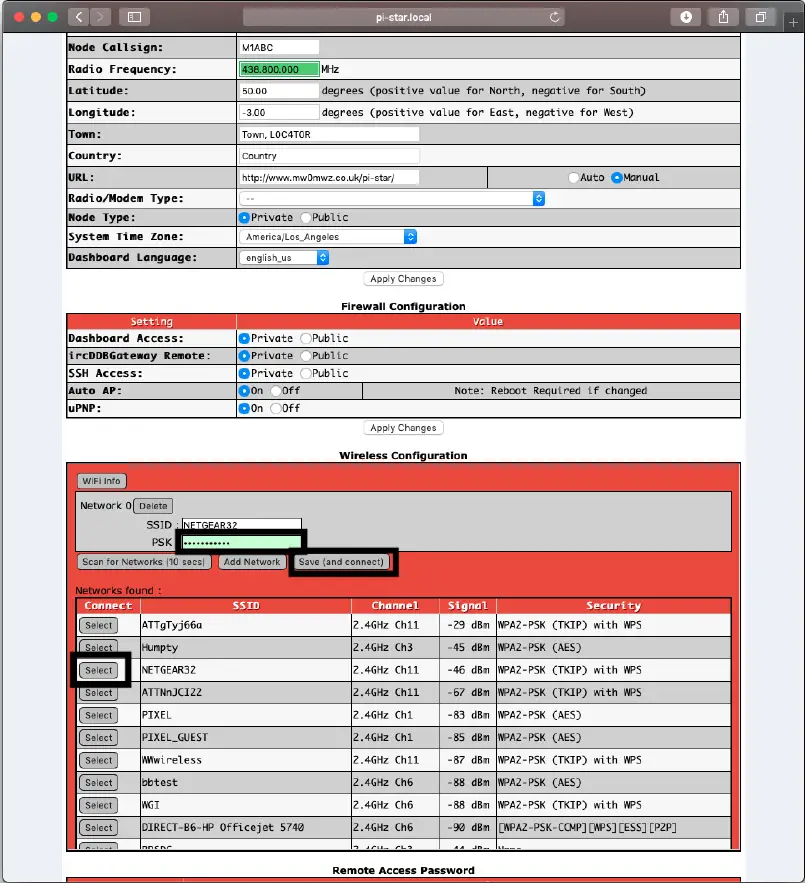
Configuration
- Change the Node Callsign to your own, set the “Radio Frequency” to match your radio and make sure the “Radio/Modem Type” is set to “ZUMspot – Raspberry Pi Hat (GPIO)”, set the
“System Time Zone” to your time zone, and set the “Dashboard Language” to the language you prefer.
- Click “Apply Changes” when you are done
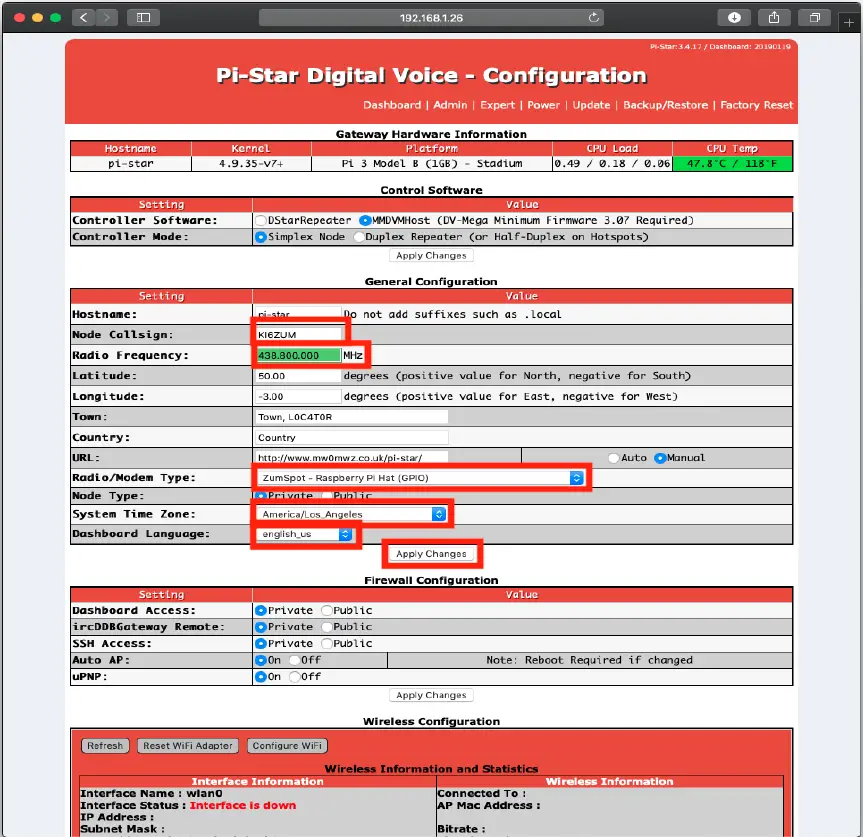
Configuration (example to enable D-Star)
- Now you can turn on D-Star by selecting the “D-Star Mode” switch and clicking “Apply Changes”

Finished
Once you have completed the Pi-Star configuration you can start using the ZUMspot Elite 3.5” LCD kit to connect to DSTAR, DMR and other networks.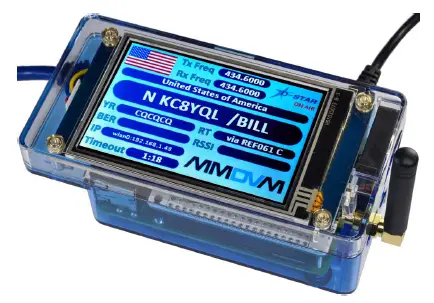
There is more information on configuring and using Pi-Star in this document. https://amateurradionotes.com/images/1-Playing_with_Pi-Star.pdf
Support:
- MMDVM groups.io group: https://groups.io/g/OpenDV
- Pi-Star support forum: https://forum.pistar.uk/
- Pi-Star Facebook support group: https://www.facebook.com/groups/pistar/
- Pi-Star Wiki: http://wiki.pistar.uk
- ZUM Radio Facebook group: https://www.facebook.com/groups/249802742395450/
 Groups.io: Email Groups, Supercharged
 Welcome to nginx!
 forum.pistar.uk - Index page