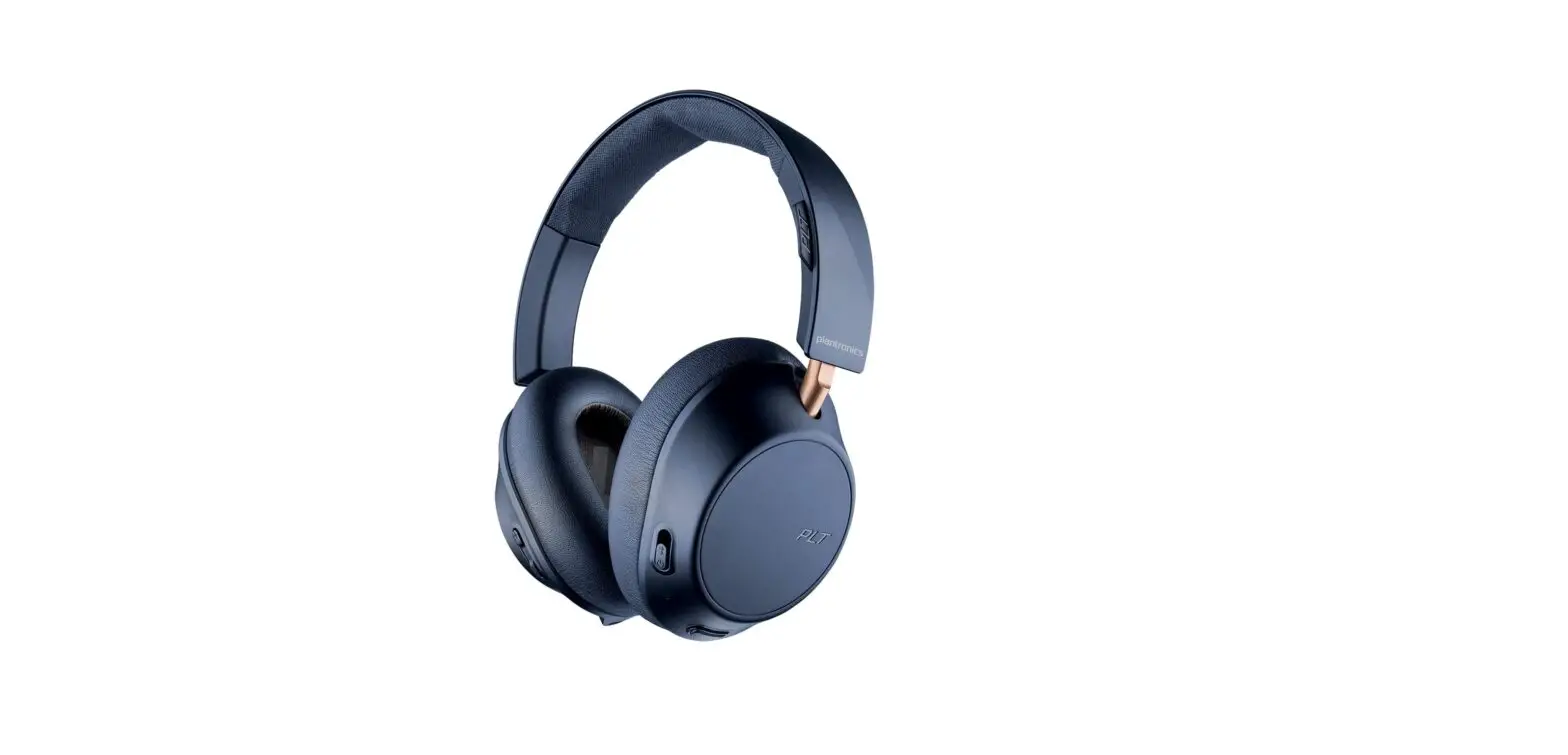

Plantronics BackBeat GO 810 Wireless Headphones
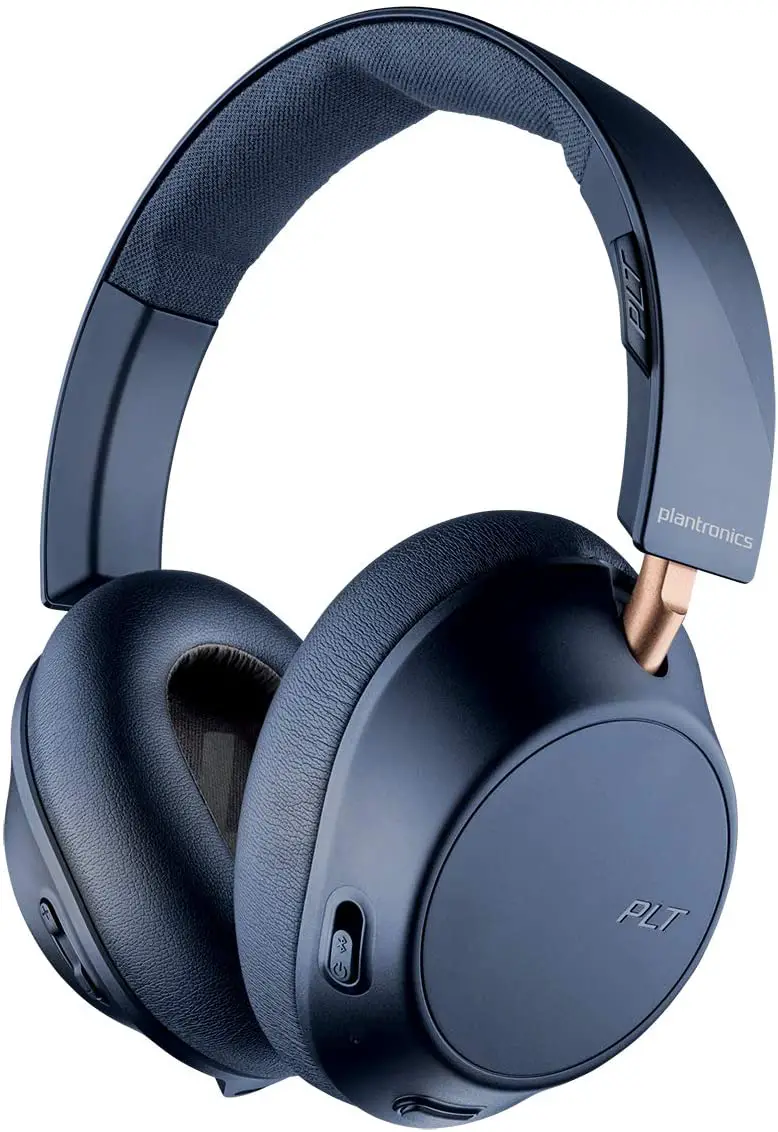
Specifications
- BRAND: Poly (Plantronics + Polycom)
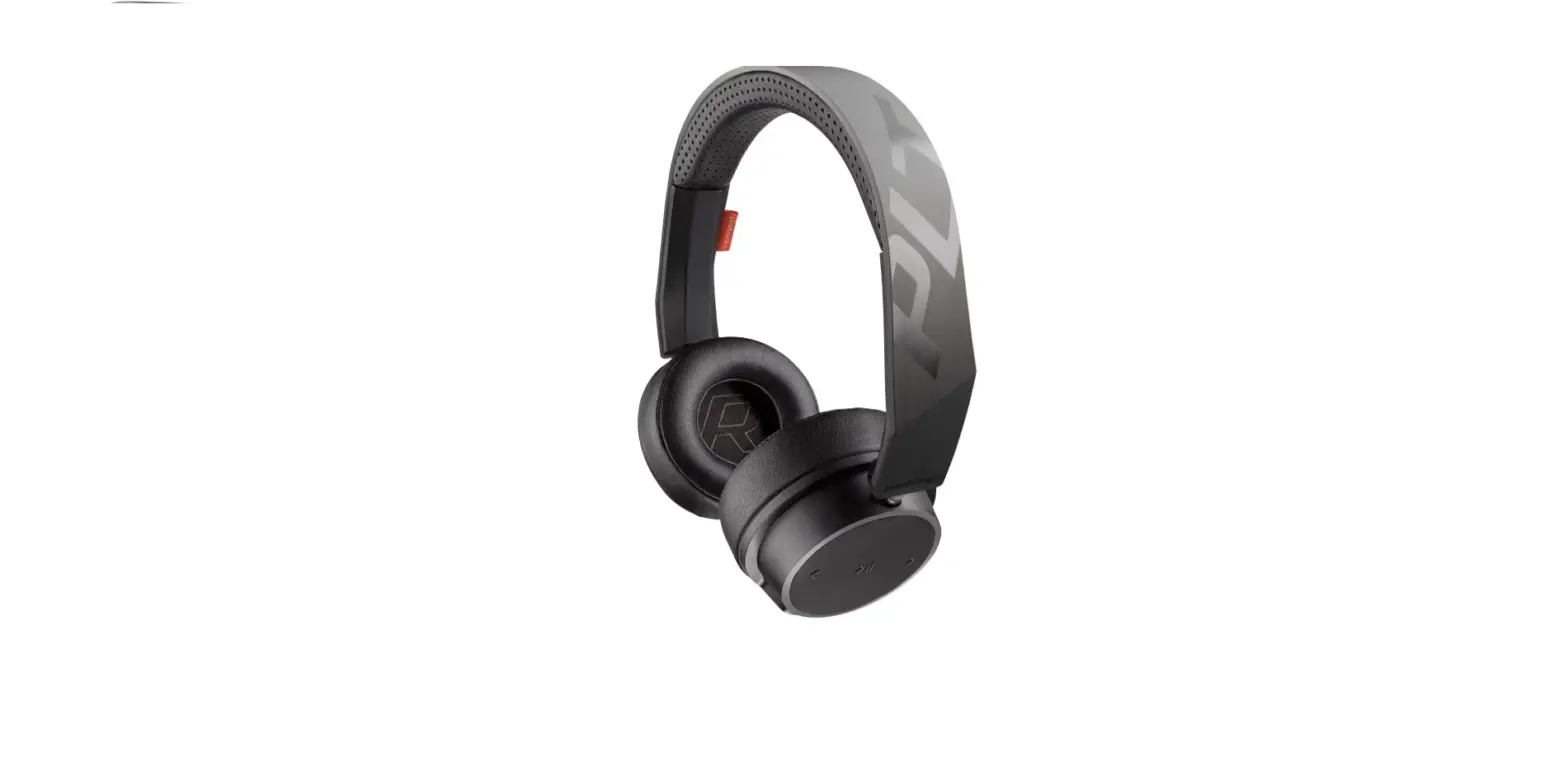
- EAR PLACEMENT: Over-Ear
- CONNECTIVITY TECHNOLOGY: Wireless
- MODEL NAME: 211821-99
- PRODUCT DIMENSIONS: 8.1 x 2.2 x 1.65 inches
- ITEM WEIGHT: 10.2 ounces
- SPECIAL FEATURES: Noise-Canceling
Introduction
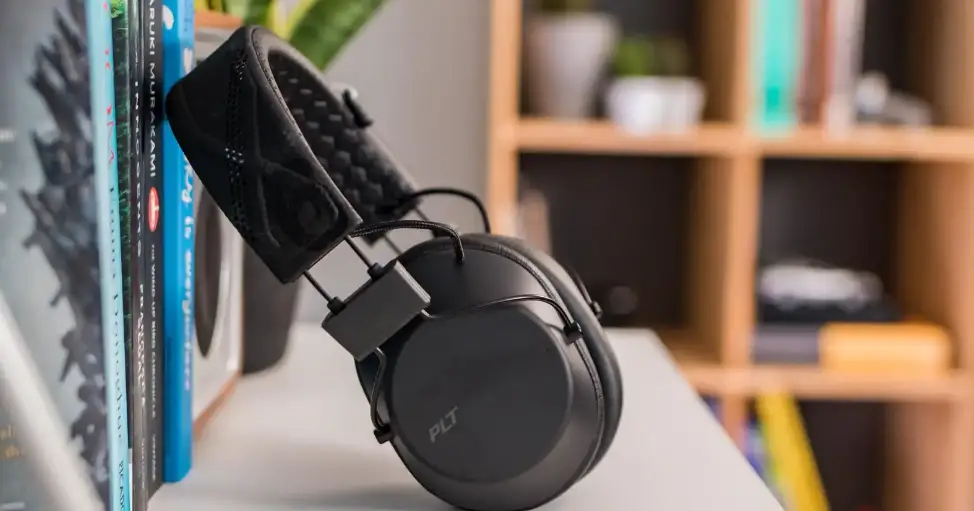
Over-ear headphones with 40 mm drivers from Plantronics provide rich, detailed music so you can appreciate every note. Headphones with active noise cancellation are available through the BackBeat FIT app and offer clean audio in both high- and low-noise settings.
Bluetooth headphones offer a maximum wireless listening time of 22 hours with ANC and up to 28 hours without ANC. The Plantronics BackBeat app offers balanced and bright EQ presets that you may use to alter the sound of your music. Memory foam is used in these stylish, over-ear headphones to provide all-day comfort.
PAIRING
The first time you power on your headphones, the pairing process begins.
- Slide the power switch on. You hear “pairing” and the LEDs flash red and white.

- Activate Bluetooth® on your phone and set it to search for new devices.
iPhone Settings > Bluetooth > On*
Android Settings > Bluetooth: On > Scan for devices*
NOTE *Menus may vary by device. - Select “PLT BBGO800 Series.”
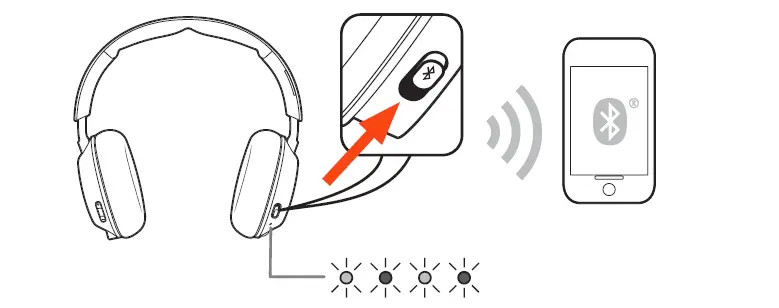
If necessary, enter four zeros (0000) for the passcode or accept the connection. Once successfully paired, you hear “pairing successful” and the LEDs stop flashing.
PAIR SECOND DEVICE
- Slide and hold the power button towards the Bluetooth icon until the LEDs flash red and white.
- Select “PLT BBGO800 Series” in your device’s Bluetooth Settings.
If your Mac is Bluetooth enabled, you can pair your headset to it. Place your headset in pair mode (slide and hold the power button towards the Bluetooth icon). You will hear “pairing” and the LEDs will flash red and blue. - On your Mac, choose Apple menu > System Preferences > Bluetooth.
- Click Set Up New Device or “+”, select “PLT BBGO800 series stereo” and follow the onscreen instructions.
CHARGING
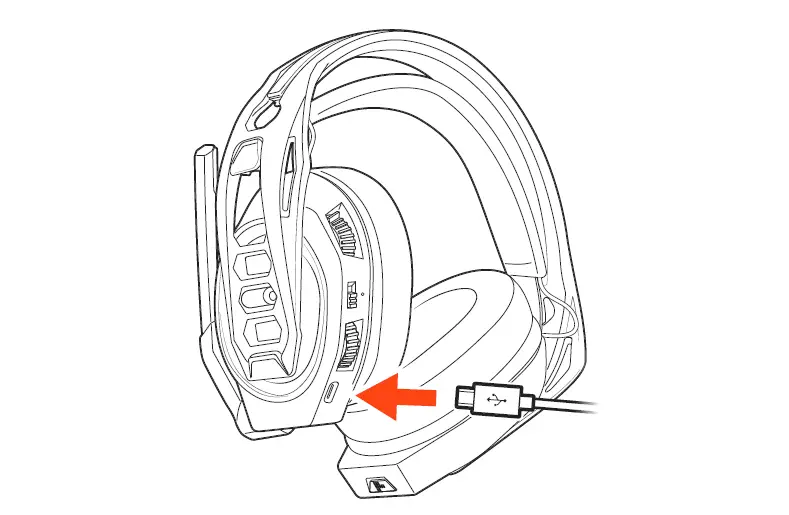
It takes up to 120 minutes to fully charge your headset. The LEDs turn off once charging is complete.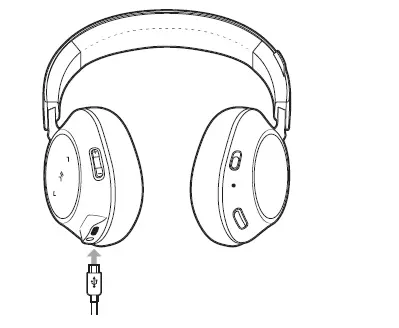
TIP To check the headset battery status, press the Power/Bluetooth button while wearing your headset. The headset must be in an idle state. Your headset has up to 22 hours of listening time with ANC on and 28 hours with ANC off.
HEADSET OVERVIEW
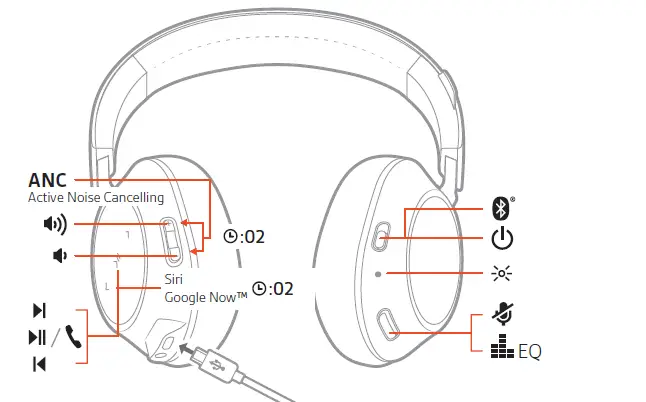
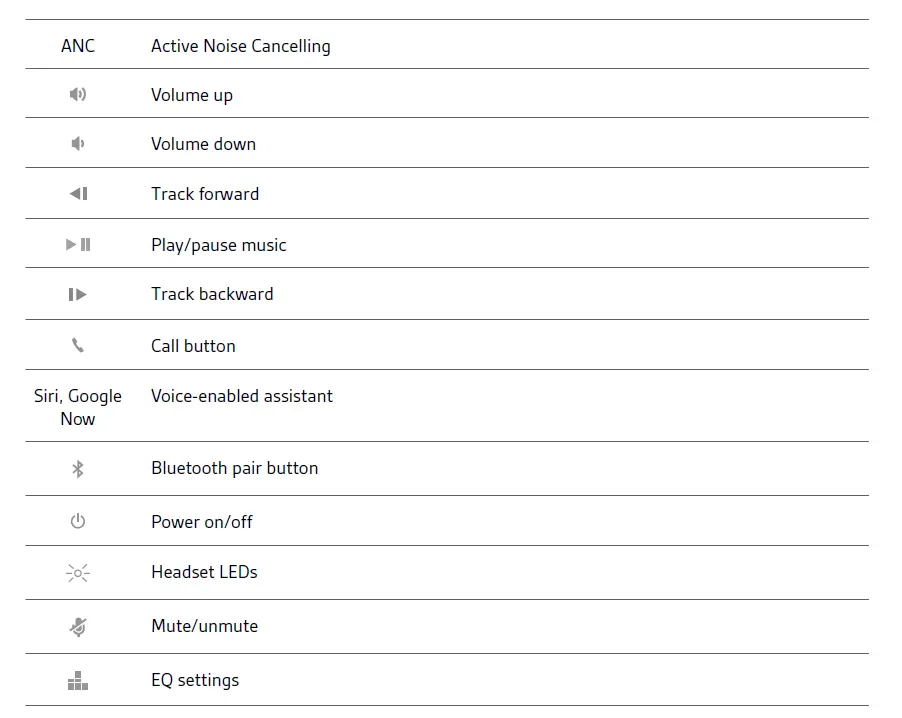
POWER ON/OFF
Slide the switch to power on or off.
PLAY/PAUSE MUSIC
Tap the Play/pause button.
TRACK SELECTION
Tap the Forward button or Back button to control the track selection.
ACTIVATE THE ASSISTANT
If your smartphone has a voice-enabled assistant, press and hold the Play/pause button for 2 seconds and wait for the phone prompt.
MAKE AND TAKE CALLS
Answer or end a call
Tap the Play/pause button.
Decline a call
Press and hold the Play/pause button for 2 seconds.
Call back last call (smartphone)
To dial the last number you dialed, double-tap the Play/pause button.
MUTE
While on an active call, tap the EQ/Mute button.
ANC
Active Noise Canceling (ANC) reduces external noise and enhances your music and sound quality.
- Press and hold the volume up and down buttons for two seconds to turn ANC on or off.
- You can further customize ANC in the BackBeat app by chooosing:
- Low: recommended for office
- High: recommended for airplane
SET EQ
Customize your audio and cycle through the EQ modes by tapping the EQ button. You can also change the EQ thru the BackBeat app.
- Balanced (default) Tune frequencies to sound best across multiple genres of music with balanced lows, mids and highs.
- Bright Boost treble frequencies to enhance the detail and clarity of music and make speech-based content more intelligible. Most headsets are found under car seats, in pockets or on a messy desk. For less obvious locations, locate your headset by sending a tone to find it.
- Download the BackBeat app by visiting the Apple Store, Google Play or plantronics.com/software.
- Locate your lost headset by using Find My Headset within the app.
FAQ’s
- Sennheiser vs. Plantronics: Which is superior?
Our Opinion. Compared to the Sennheiser HD 4.50, the Plantronics BackBeat Pro 2 is a superior wireless headset. The physical controls on the BackBeat Pro 2 are simpler to use, the wireless range and battery life are longer, and the default sound quality is better and has more bass. It also has a more durable and comfortable design. - What distinguishes BackBeat Fit 3150 from 3200?
The BackBeat Fit 3200 has a noise-isolating construction that helps increase the sound quality, especially the bass, while the BackBeat Fit 3150 has an open design that lets ambient sounds in (a safety feature for runners). - How can I activate pairing mode on my Plantronics Bluetooth?
After turning on your Plantronics device, hold down the dedicated Bluetooth button until the LED begins to flash red and blue. When you turn on Bluetooth on your phone and look for new devices, the Plantronics device will show up with “PLT” and the model name. - What is the most recent Bluetooth headphone from Plantronics?
With features that will keep you focused and on task throughout the day, whether you’re in an office setting or your favorite loud café, the Plantronics Voyager 8200 includes the most recent technology. Join in the fun by connecting your PC and smartphone! - What distinguishes the Plantronics 3100 and 3200 models?
The new Fit 3200 maintains much of the same form factor as the earlier Fit 3100 but switches to soft noise-isolating eartips. The original Fit 3100 had a non-sealing construction for outdoor activities and awareness. Due to this, they are a wonderful choice if you want truly wireless earphones that stay in place throughout vigorous exercise. - Why isn’t my Bluetooth working?
Go to Settings > System > Advanced> Reset Options > Reset Wi-fi, mobile, & Bluetooth on Android devices. For iOS and iPadOS devices, you’ll need to unpair every device first, then restart your phone or tablet by going to Settings > Bluetooth, selecting the info icon, then selecting Forget This Device for each device. - Why won’t my Plantronics headset pair?
Locate and expand the Sound, Video, and Game Controllers option in the Device Manager box. You may “Uninstall” by doing a right-click on your Plantronics device. Restart the PC after unplugging the headset. Reconnect the headset when the computer has restarted. - How can I use my Plantronics headset to answer a call?
The call control button should be momentarily pressed to accept or reject a call. You don’t need to push the call control button when placing a call; simply input the number on your phone, hit submit, and the call will be immediately transferred to your headset. - Why isn’t the connection on my Plantronics headset working?
The Sound, Video, and Game Controllers option may be found in the Device Manager window. Expand it. Select “Uninstall” from the context menu when you right-click on your Plantronics device. Restart your computer after unplugging the headset. Reconnect the headset after the PC has restarted. - My Plantronics headset won’t let me answer a call.
Press the call control button just once to answer or end a call. No need to push the call control button; simply dial the number on your phone, hit send, and the call will be instantly transferred to your headset.