PLANTRONICS + POLYCOM. NOW TOGETHER AS
Savi 8240/8245 UC
Wireless Headset System
User Guide
DECT Information
DECT Enhanced Security – DECT products should never be used outside the region in which they were originally purchased and intended to be used. The enclosed DECT wireless product uses restricted wireless radio frequencies which vary by country. Use of this DECT product in unauthorized countries is a violation of law, may disrupt telecommunications networks and devices, and can subject you to fines and penalties by regulatory agencies.
Plantronics is a member of the DECT Forum and has fully adopted its recommendations for enhancements to security within all DECT products.
Plantronics DECT-based products now fully incorporate the latest recommendations on Enhanced Security from the DECT Forum and ETSI. These improvements cover registration, authentication, authorization, and encryption procedures. Plantronics DECT products are now secure against all the known vulnerabilities that were highlighted by the public announcements of the Chaos Council in 2009.
Plantronics DECT products have been tested against and passed the DECT Forum security certification requirements and consequently have been granted the ‘DECT Forum security’ logo certification.
Plantronics products using the new enhanced version of DECT that includes this security improvement are marked on the base with the DECT Forum security logo.

Overview
Headset Basics
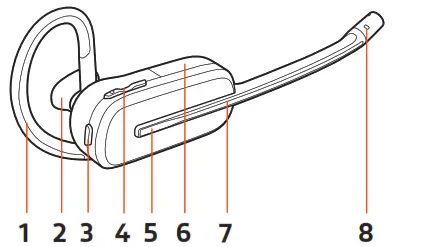
Be safe
Please read the safety guide for important safety, charging, battery, and regulatory information before using your new headset.
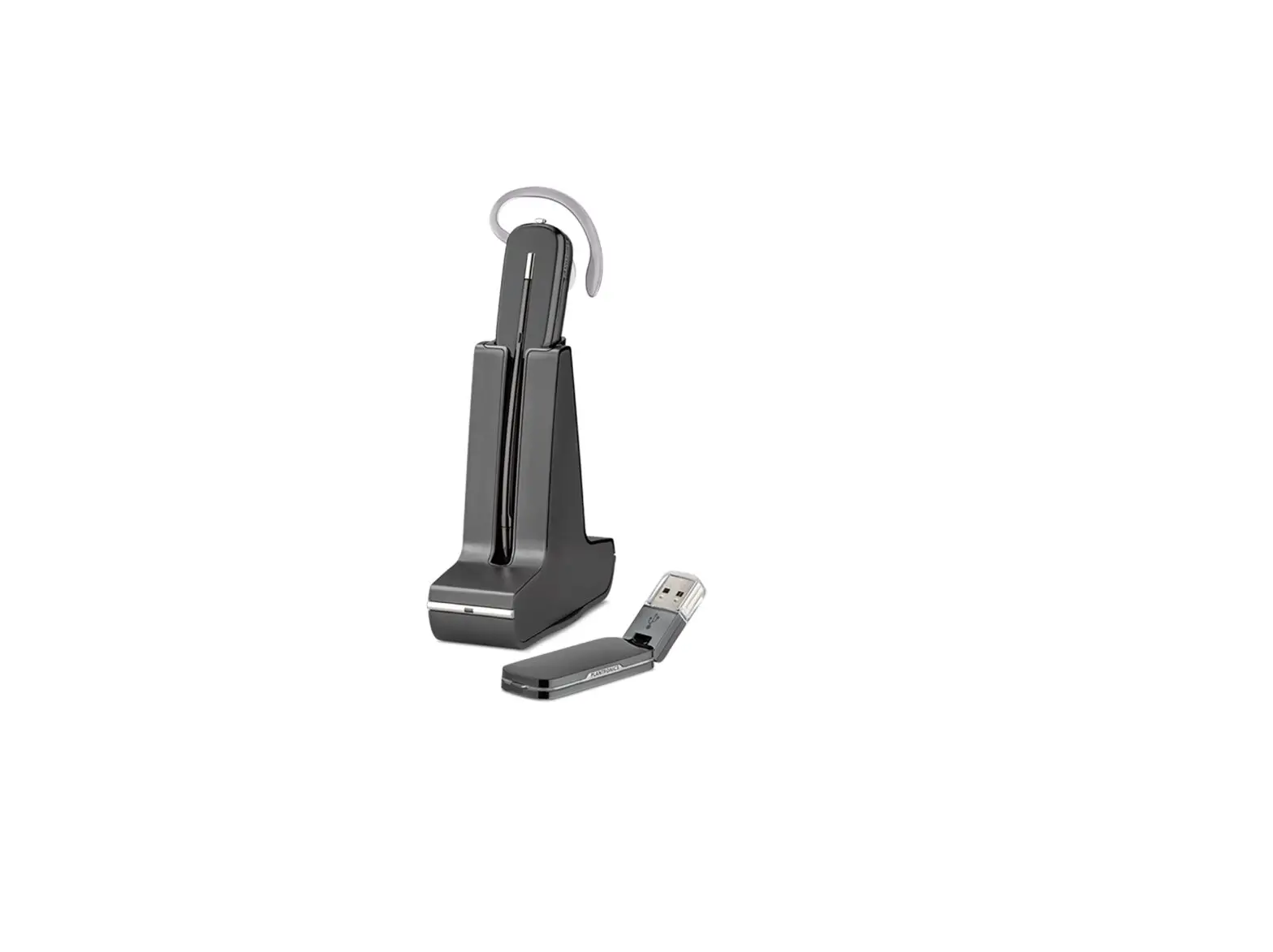
DECT USB adapter
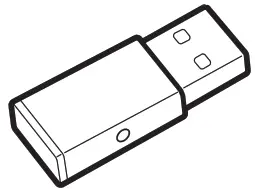
NOTE USB connection may vary but the function is the same
USB LEDs | Status |
| Solid red | Headset is powered off |
| Solid red | Headset is not subscribed (if headset is powered on) |
| Red and blue flashes | Subscribe mode |
| Solid blue | Subscription successful; connected |
| Triple blue flashes | Incoming call |
| Blue flashes | On a call or streaming media |
| Solid red | Call is muted |
| Red flashes | Call on hold |
| Red flashes | Update in progress |
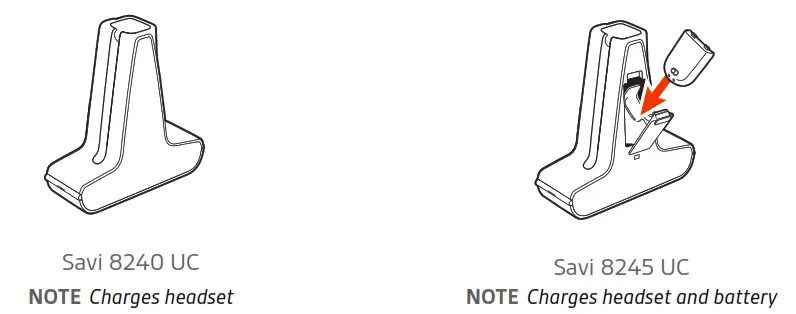
Charge stand
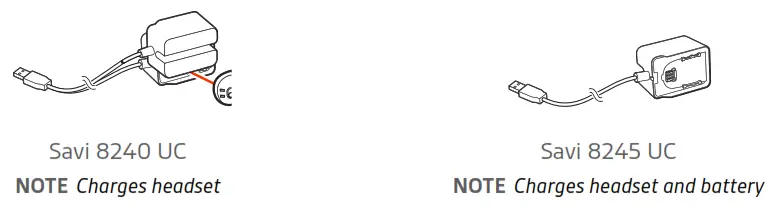
Charge accessory
Fit and charge
Customize Your Headset
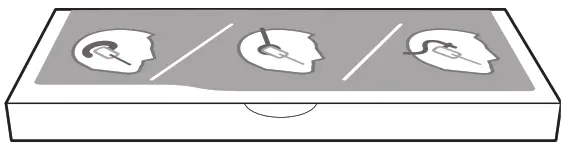
After you install the headset battery, choose one of the three headset wearing styles, over-the-ear, over-the-head or behind-the-head. Use the fit kit to assemble it and optimize the position of the microphone.
Install the Headset Battery
Position the battery as shown on the headset and slide into position until the battery snaps into place.
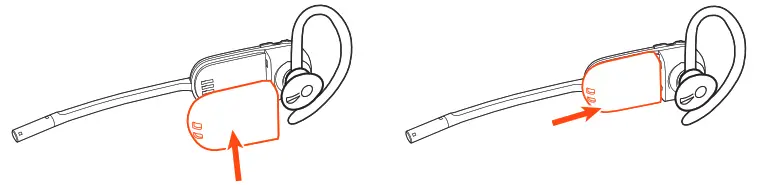
NOTE This product has a replaceable battery. Use only the battery type supplied by Plantronics.
Use the Fit Kit to Assemble Your Headset
Choose a headset wearing style and use the fit kit to assemble it over-the-ear, over-the-head or behind-the-head.
Right Over-the-Ear Assembly
Choose the size of earloop that fits most comfortably. Align the earloop as shown and insert it onto the headset. Rotate the earloop up 90°.
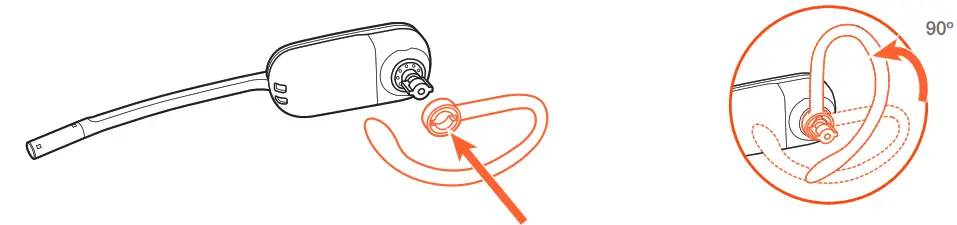
NOTE Ensure the earloop is flat against the headset before rotating.
Choose the size and style of eartip that fits most comfortably. Align the eartip with the notch facing the microphone as shown. Press on to attach.
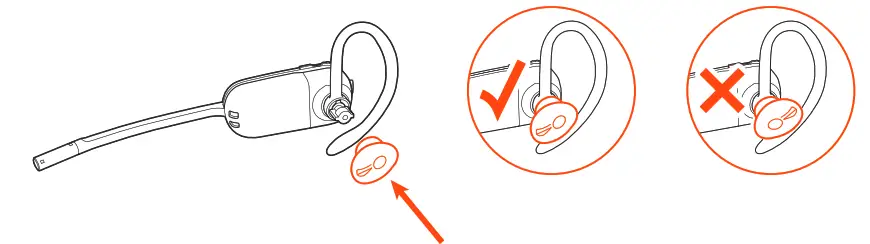
NOTE Ensure the large end of the eartip points to the microphone
To correctly position your headset, see Position Your Headset.
Left Over-the-Ear Assembly
Choose the size of earloop that fits most comfortably. Align the earloop as shown and insert it onto the headset. Rotate the earloop up 90°.
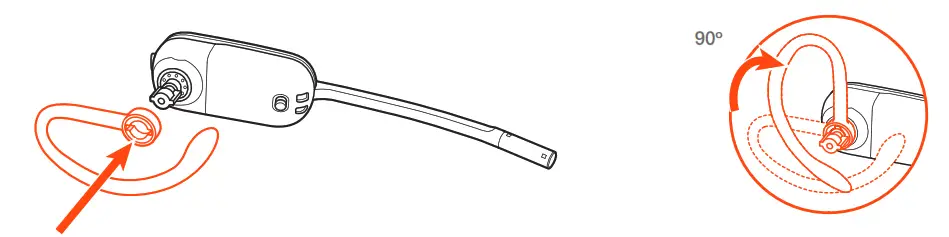
NOTE Ensure the earloop is flat against the headset before rotating.
Choose the size and style of ear tip that fits most comfortably. Align the ear tip with the notch facing the microphone as shown. Press on to attach.
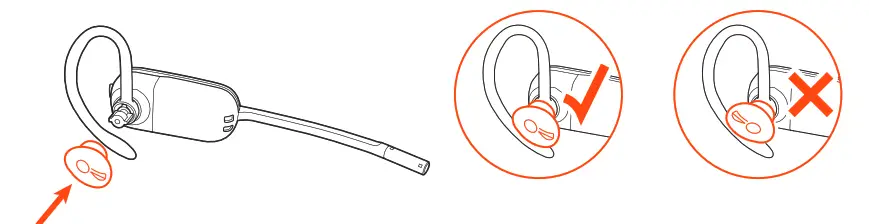
NOTE Ensure the large end of the eartip points to the microphone. To correctly position your headset, see Position Your Headset.
Position Your Headset
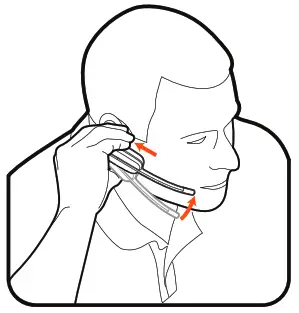
When you wear the headset, the microphone should rest as close to your cheek as possible without touching it. The microphone can be adjusted inward by the pivoting earpiece to optimize the position of the headset.
Slide the headset over and behind your ear and fit the ear tip into your ear.
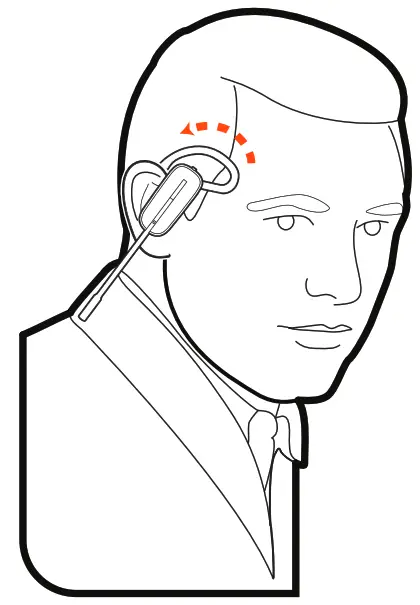
Holding the base of the headset, push it in and back towards your ear to allow the pivoting earpiece to bring the microphone close to your mouth. As the base of the headset moves backward, you will feel soft clicks until the microphone rests close to your cheek.
Over-the-Head Assembly
Hold the headband so it is aligned to receive the headset as shown and insert the headset into the headband.
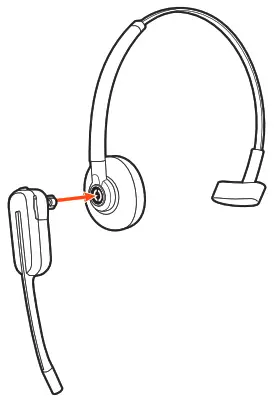
Rotate the headset up. The headband can be worn on the right or left side.
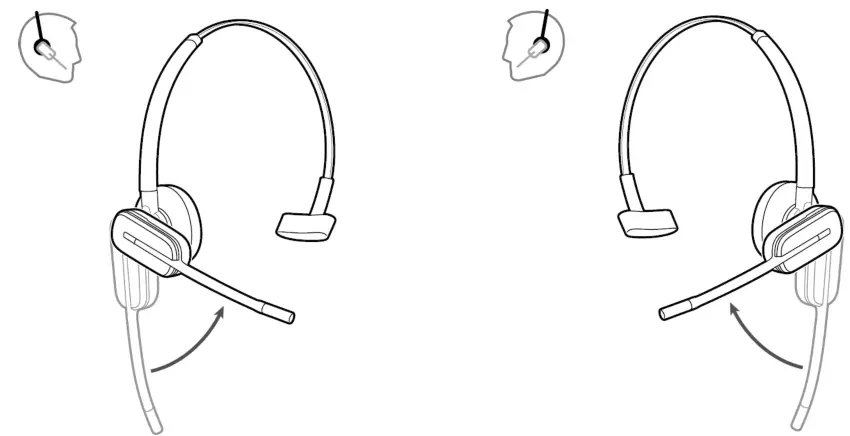
To optimize the position of the headset, push the headset in so the microphone is close to your mouth.
Behind-the-Head Assembly
Align the headband as shown. Ensure the headband sits flat against the headset, then rotate it up 90°. If you want to wear it on the left, switch the stem to the left side of the headband.
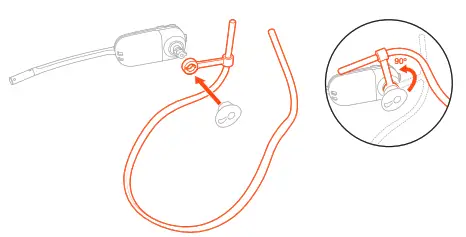
Choose the size and style of the eartip that fits most comfortably. Align the eartip with the notch facing the microphone as shown. Press on to attach.
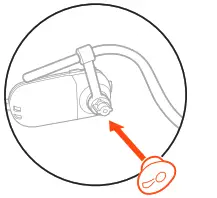
NOTE Ensure the large end of the eartip points to the microphone.
To position your headset correctly, first slide the stem of the headband so the headset fits comfortably.
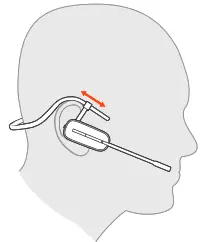
With a finger on the headset indicator light, push in until the microphone rests as close to your cheek as possible without touching.
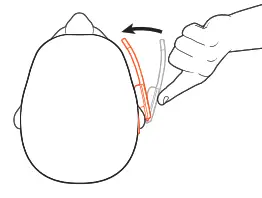
Charge Your Headset and Spare Battery
Charge your headset
Place the headset in the charging cradle. The headset charging LED flashes when charging the headset and turns off when the headset is fully charged. Charge for at least 20 minutes prior to the first use. A full charge takes 3 hours.
Charge spare battery
Charge spare battery, if applicable, by placing it in the battery compartment of your charge stand or charge accessory and connecting to a USB power source.
Replace battery during a call
You can replace your headset battery even during active calls.
1 While on a call, remove your headset battery. Your headset mutes.
2 Replace with a charged spare battery.
3 Ensure that the battery’s power switch is in the on position, revealing green color.
4 You hear “base connected” and “mute off” when the battery is replaced and you are reconnected to your call.
Talk time
With a full charge, the headset provides up to 4.5 hours of continuous talk time in wideband mode and up to 6.5 hours in narrowband mode. Changing batteries mid-conversation provides unlimited talk time.
Headset battery status
Determine your headset battery status:
• Listen to the voice prompts after powering on the headset
• Hover over the Plantronics Hub system tray icon
• View in Plantronics Hub app
Connect to PC
Your DECT™ USB adapter comes pre-subscribed to your headset.
Turn on your headset and insert the DECT USB adapter into your laptop or PC.
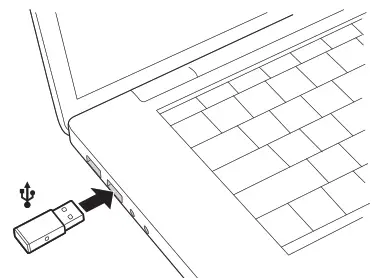
The USB adapter LED is solid red when inserted and then turns solid blue to indicate the headset is connected to the USB adapter. If you are wearing your headset you will hear “Base connected” to indicate the connection has been established. When on a call, the LED on the USB adapter flashes blue. When not on a call the LED is solid blue.
OPTIONAL Load Plantronics Hub for Windows and Mac by visiting plantronics.com/software. This will allow you to customize your headset behavior through advanced settings and options.
Subscribe USB adapter again
Typically, your DECT USB adapter is subscribed (connected) to your headset. In the event that your adapter is disconnected or bought separately, you will need to subscribe to the adapter to your headset.
Insert the DECT USB adapter into your laptop or computer and wait for the LED to light up.
Put your headset in subscribe mode by holding Volume up for 4 seconds. Your headset LED lights up.
Put your DECT USB adapter into subscribing mode by double-pressing the recessed subscription button with a pen or paperclip until the USB adapter flashes red and blue.
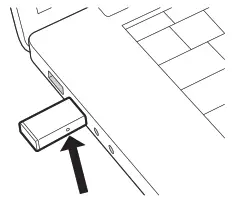
NOTE USB connection may vary but the function is the same
Subscription is successful when you hear “pairing successful” and “base connected” and the DECT USB adapter LED is solid blue.
NOTE If the USB adapter LED goes solid red after flashing red and blue, the subscription attempt has failed and should be repeated.
End Subscription
If the USB adapter is in subscription mode and you want to stop the adapter from searching for a headset, press the recessed subscription button once with a pen or paperclip. The subscription light will be solid red for four seconds and then go to its previous state.
Disabling over-the-air subscription
The Savi system ships with the over-the-air headset subscription enabled. In a multi-shift environment, you may want to disable this mode of subscription.
Adjust the over-the-air subscription setting in Plantronics Hub Settings > Wireless.
Configure USB adapter
Your DECT USB adapter comes ready to take calls. If you want to listen to music, you will need to configure your DECT USB adapter.
Windows
To configure your DECT USB adapter to play music, go to Start menu > Control Panel > Sound >Playback tab. Select your headset and set it as the Default Device and click OK.
To pause music when you place or receive calls, go to Start menu > Control Panel > Sound >Communications tab and select the desired parameter.
Mac
To configure the DECT USB adapter, go to Apple menu > System Preferences > Sound. On both the Input and Output tabs, select your headset.
Load software
Plantronics Hub for Windows/Mac is an invaluable headset tool.
1 Download Plantronics Hub for Windows/Mac by visiting plantronics.com/software.
2 Using Plantronics Hub, manage your headset settings.
• Call control for softphones
• Change headset language
• Update firmware
• Turn features on/off
Plantronics Hub configurable settings
Feature | Plantronics Hub tab |
| Answering Call Alert Audio channel tone Audio sensing Close conversation limiting Online indicator Second incoming call Mute on/off alerts Mute reminder Headset to PC radio link Plantronics product improvement program Software log level | General |
| Change language of voice prompts Brazilian Portugese, Cantonese, Danish, English (UK, US), French, German, Indonesian, Italian, Japanese, Korean, Mandarin, Norwegian, Russian, Spanish, Swedish and Thai. | Language |
| PC ringtone Volume level tones Wearing preference for volume control (stereo audio) Ring location | Ringtone and Volume |
| Dial tone Target softphone Media player action on incoming call Softphones and media players (PLT enabled) | Softphones |
| Software settings (Aware for Microsoft) | Sensors and Presence |
| Audio quality Over-the-air subscription Range | Wireless |
| Anti-startle Noise exposure Hours on phone per day | Advanced |
The basics
Headset Controls
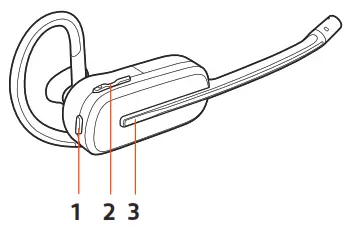
1 Mute button During a call, press to mute and unmute
2 Volume Toggle the Volume button up or down during a call to adjust the volume.
3 Call button Press to place, answer, or end a call
Power on/off To turn on the headset, slide the Power button to reveal green.
Make, answer, end calls
Make a call
Dial from your softphone.
Answer or end a call
Tap the Call button.
Answer a second call
While on a call, press the headset Call button for 2 seconds to answer the second call. This will place the first call on hold.
To switch between the calls, press the headset Call button for 2 seconds.
Adjust volume Fine-tune your headset volume by adjusting the volume controls.
Adjust headset microphone volume (softphone)
Place a test softphone call and adjust softphone volume and PC sound volume accordingly.
Mute During a call, tap the headset mute button. Tap again to unmute. When mute is on, the LED is solid red. Modify your mute settings in Plantronics Hub for Windows/Mac.
Set up a conference call
You can set up a conference call with 4 additional headsets.
Join Savi headsets manually
While on a call, press the USB adapter’s recessed subscription button with a pen or paper clip.
The adapter subscription LED flashes red and blue.
Hold the guest headset’s Volume up until the headset LED turns on.
The primary user will hear a request “Conference requested.” To accept the request, press the primary user’s headset Call button. Both users hear “Conference accepted.” View conference call status by going to Plantronics Hub About > Connections > Conferenced headsets.
Exit a conference call
Guest headsets can remain as guests through multiple calls. To remove a guest headset, either press the guest headset’s Call button or dock the primary user’s headset in the charge cradle.
More Features
Change voice prompt language
To change the voice prompt language on your headset, open Plantronics Hub and go to Settings >Language
You can choose from: Cantonese, Danish, English (UK, US), French, German, Indonesian, Italian, Japanese, Korean, Mandarin, Norwegian, Russian, Spanish, Swedish and Thai.
Optimize audio quality
There are 2 audio modes: wideband (conversation) and narrowband.
To optimize your audio quality for your activity, with the system idle, press the headset Mute button for 4 seconds. The headset cycles through the modes with each 4 second press. Also configurable in Plantronics Hub.
Limit office noise
You can limit the amount of nearby conversation that is transmitted during your calls.
Open Plantronics Hub. Go to Settings > General > Close Conversation Limiting. Changes take effect with the next call. The default is Standard mode which is optimized for most environments.
Set the range
Changing the range can help with PC audio quality, improve user density or restrict range of users.
You can adjust the range setting in Plantronics Hub Settings > Wireless > Range.
Setting | Range |
| High (Default) | up to 300 ft. |
| Medium | up to 150 ft. |
| Low | up to 50 ft. |
Troubleshooting
| Headset | My headset is unstable. | When you wear the headset, the microphone should rest as close to your cheek as possible without touching. The microphone can be adjusted inward by the pivoting earpiece to optimize the position of the headset. See Position Your Headset. |
| Talk time performance is significantly degraded even after a full recharge. | Battery is wearing out. Contact us at plantronics.com/support. | |
| I can’t hear anything in the headset. | Ensure your headset is powered on. Press the headset Call button. Make sure your headset is charged. Fine tune the listening volume. Ensure that your headset is the default sound device by going to your Sound Control Panel (Windows) or your Sound System Preferences (Mac). Make sure your headset is subscribed to the USB adapter. See Subscribe USB adapter again. | |
| Softphone | When I dial from my softphone application, nothing happens. | Ensure your headset is powered on. Press the headset Call button. Make sure your headset is charged. Fine tune the listening volume. Ensure that your headset is the default sound device by going to your Sound Control Panel (Windows) or your Sound System Preferences (Mac). Make sure your headset is subscribed to the USB adapter. See Subscribe USB adapter again. Ensure that the Plantronics Hub software is installed. To download, visit plantronics.com/software. Ensure that you are using a compatible softphone application. For a list of compatible softphones, visit plantronics.com/software. If the Plantronics software is not installed and you do not have a compatible softphone, you must first press the headset Call button and then use the softphone interface to place/answer/end calls. Restart your computer. |
| Speaking and/or listening volume is too low or too high. | Adjust headset listening volume. Adjust listening/speaking volumes in the computer’s sound control panel/system preferences. Adjust listening/speaking volumes in the softphone application. | |
| The sound is distorted or I hear an echo in the headset. | Reduce speaking and/or listening volume on the computer using your softphone application. Point microphone towards your chin. If the distortion is still present, lower the volume on the headset. | |
| I can no longer hear any audio through my PC Speakers. | Change the default sound device by going to your Sound Control Panel (Windows) or your Sound System Preferences (Mac) and selecting your PC speakers or internal speakers. | |
| No audio connection to PC. | Unplug USB adapter and then reconnect it. Quit and then re-start your PC or softphone application. |
Support
NEED MORE HELP?
plantronics.com/support
Plantronics, Inc. Plantronics B.V.
345 Encinal Street Santa Cruz, CA 95060
United States Scorpius 171
2132 LR Hoofddorp Netherlands
© 2020 Plantronics, Inc. All rights reserved. Poly, the propeller design, and the Poly logo are trademarks of Plantronics, Inc. DECT is a trademark of ETSI. All other trademarks are the property of their respective owners. Manufactured by Plantronics.
216829-07 01.20

 Downloads & Apps | Poly, formerly Plantronics & Polycom