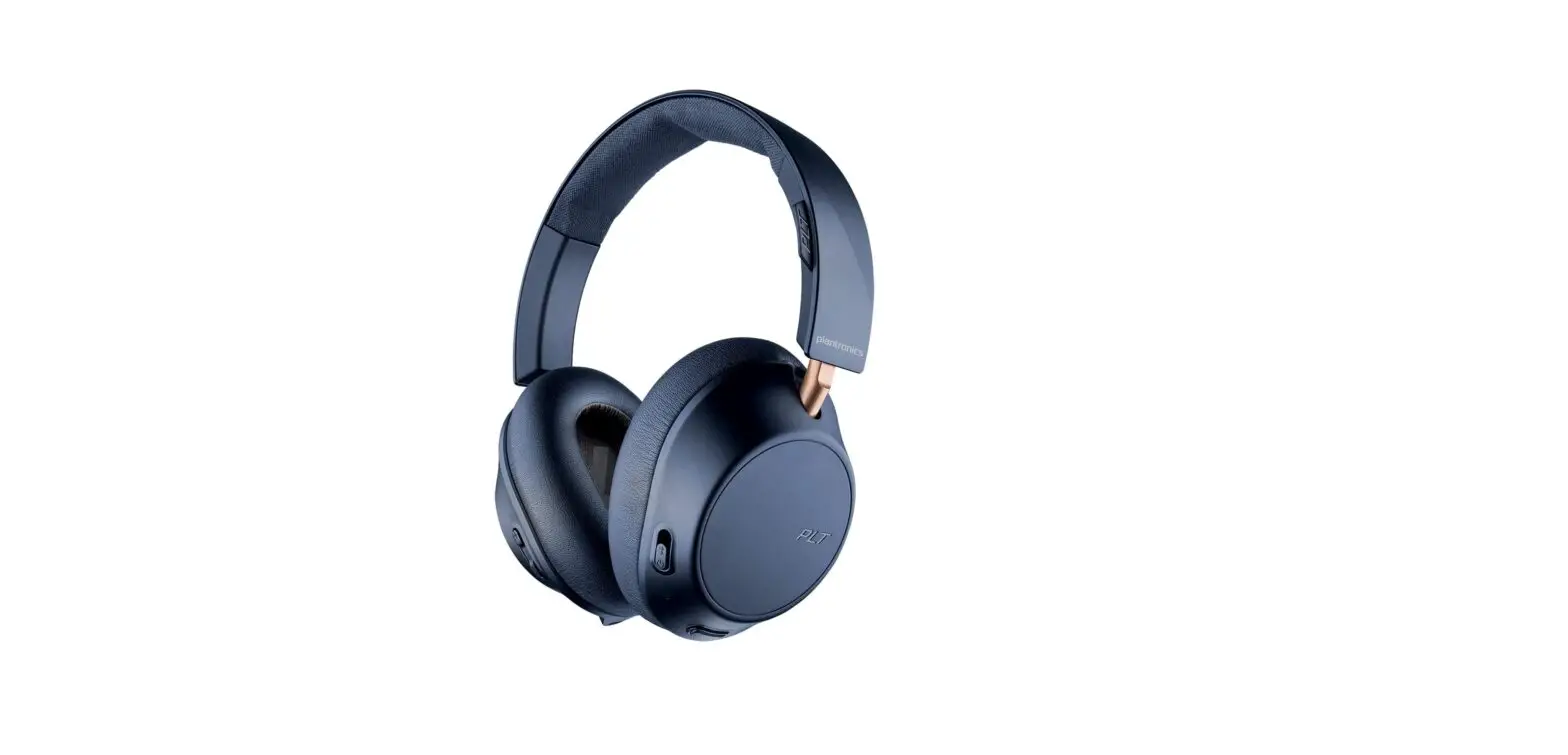
BackBeat PRO 2
BackBeat PRO 2 Special Edition
User Guide
Overview
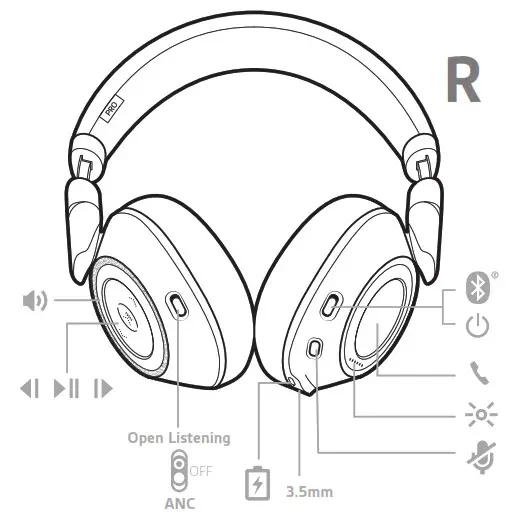
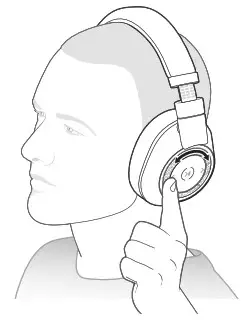
| Volume | Rotate the volume wheel forward (+) or backward (–) to control the volume. |
| Play/pause music | Tap the Play/pause  button. button.NOTE Because your headset is equipped with sensors, if you are playing music and you take off your headset, your music pauses. If you put on your headset, your music resumes (functionality varies by application and doesn’t function with web-based apps). |
| Track selection | Tap the Forward button  or or  Back button to control the track selection. Back button to control the track selection. |
| Open Listening | 1 To hear your surroundings, slide the switch to activate Open Listening mode when not on a call. 2 To increase or decrease the level, rotate the volume wheel  forward (+) or backward (–), when not on a call. forward (+) or backward (–), when not on a call. |
| Active Noise canceling | Slide the switch to activate or deactivate ANC to block out unwanted noise. |
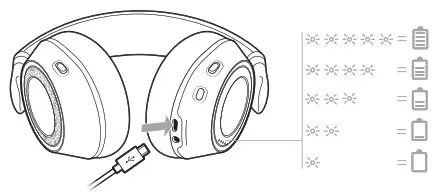
| Charge | It takes up to 3 hours to fully charge your headphones. The LEDs turn off once charging is complete. TIP To check the headphones battery status, tap the Call button while wearing your headphones. Headphones must be in idle state. |
| Mute/unmute | While on an active call, choose: • Tap the red Mute button |
| Answer a call | Choose: • Put on the headset to answer call, or • Tap the Call button  |
| End a call | Tap the Call button to end the current call. |
| Call back the last call | Double-tap the Call button |
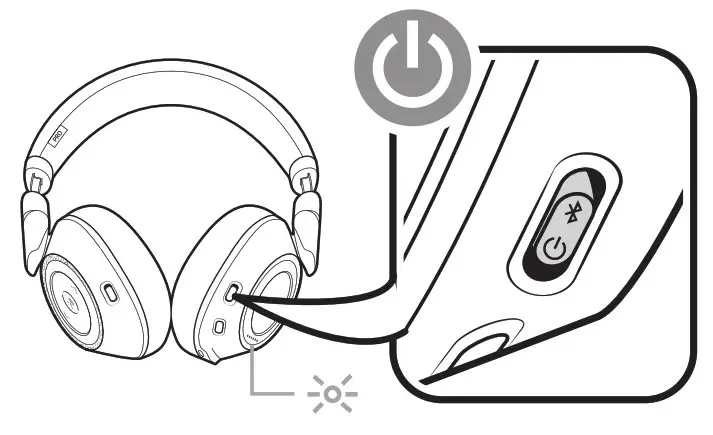
| Power on/off | Slide the switch  to power on or off. to power on or off. |
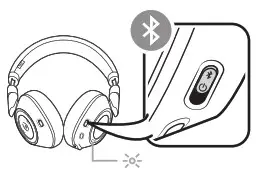
| Pair mode | Slide and hold the power button towards the Bluetooth icon until the LEDs flash red and blue. |
| Be safe | Please read the safety guide for important safety, charging, battery and regulatory information before using your new headset. |
Pair
Get Paired
The first time you power on your headphones, the pairing process begins.
NOTE If your phone supports Near Field Communication (NFC) go to NFC pairing (Android).
- Slide the power switch on. You hear “pairing” and the LEDs flash red and blue.

- Activate Bluetooth on your phone and set it to search for new devices.
• iPhone Settings > Bluetooth > On*®
• Android Settings > Bluetooth: On > Scan for devices*
NOTE *Menus may vary by device. - Select “PLT BB PRO 2.”
If necessary, enter four zeros (0000) for the passcode or accept the connection.
Once successfully paired, you hear “pairing successful” and the LEDs stop flashing.
NFC pairing (Android)
- BackBeat PRO 2 Special Edition only Ensure NFC is on and your phone’s display is unlocked. (Phones may vary.)
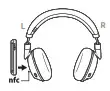
- Tap and hold the headphones to the phone’s NFC tag location until NFC pairing completes. If necessary, accept the connection.
NOTE The headphone’s NFC tag is located on the outside of the left ear cup. (Phone tag locations vary.)
Pair second device
- Slide and hold the power button towards the Bluetooth icon until the LEDs flash red and blue.

- Activate Bluetooth on your second device and follow steps 2 and 3 in “Get Paired.”
More Features
Use sensors
Smart sensors respond when you put on or take off your headphones.
Putting on your headphones will:
- Resume paused music
- Answer an incoming mobile call
Taking off your headphones will:
- Pause music (while music is playing)
Enabling or disabling sensors
When your headphones are powered on and in an idle state, press and hold the Mic button and the Call button for more than 4 seconds until you hear “Smart sensors off.” Repeat to reactivate.
Reset Sensors
You may need to reset the sensors if they are not working as expected.
To reset the headset sensors, connect it directly to your computer’s USB port, and place it, with the ear cups up, on a flat, non-metallic surface for more than 10 seconds.
Get Plantronics HUB
 Discover how Plantronics Hub applications bring additional functionality to your headset. Go to plantronics.com/software and download Plantronics Hub to:
- Change language (Plantronics Hub for Windows and Mac only)
- Receive firmware updates (Plantronics Hub for Windows and Mac only)
- Personalize headset settings
- Find a lost headset
Support
Tel: 0800 410014
For warranty details, go to plantronics.com/warranty.
NEED MORE HELP?
plantronics.com/support
Plantronics, Inc.
345 Encinal Street
Santa Cruz, CA 95060
United States
Plantronics BV
South Point Building C
Scorpius 140
2132 LR Hoofddorp, Netherlands
© 2016 Plantronics, Inc. All Rights Reserved. Bluetooth is a registered trademark of Bluetooth SIG, Inc. and any use by Plantronics is under license. All other trademarks are the property of their respective owners.
208216-06 (10.16)
 Downloads & Apps | Poly, formerly Plantronics & Polycom