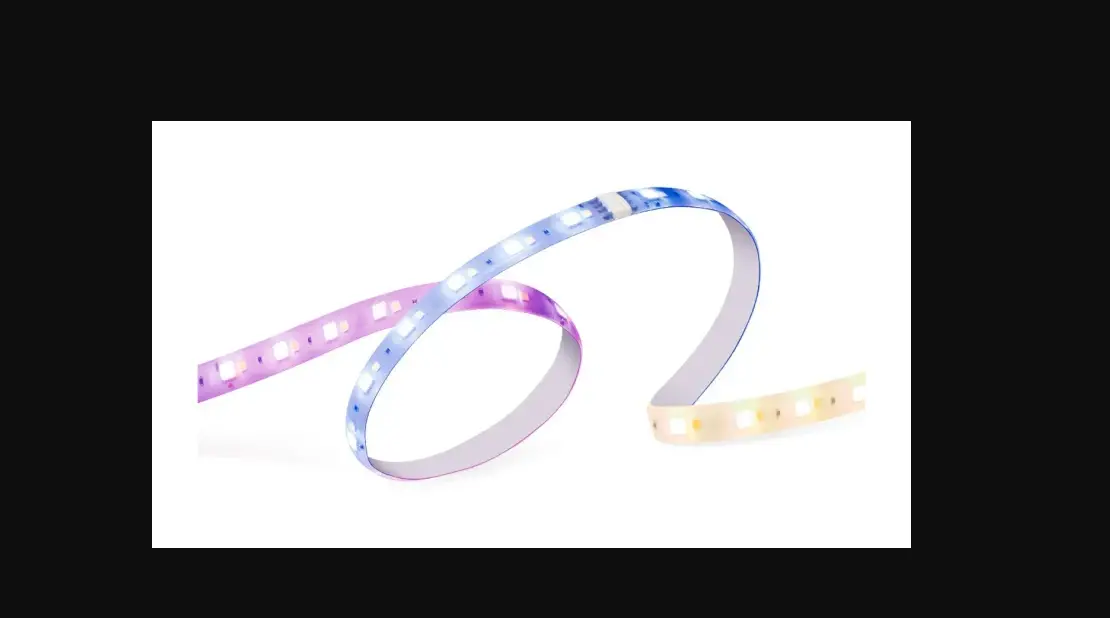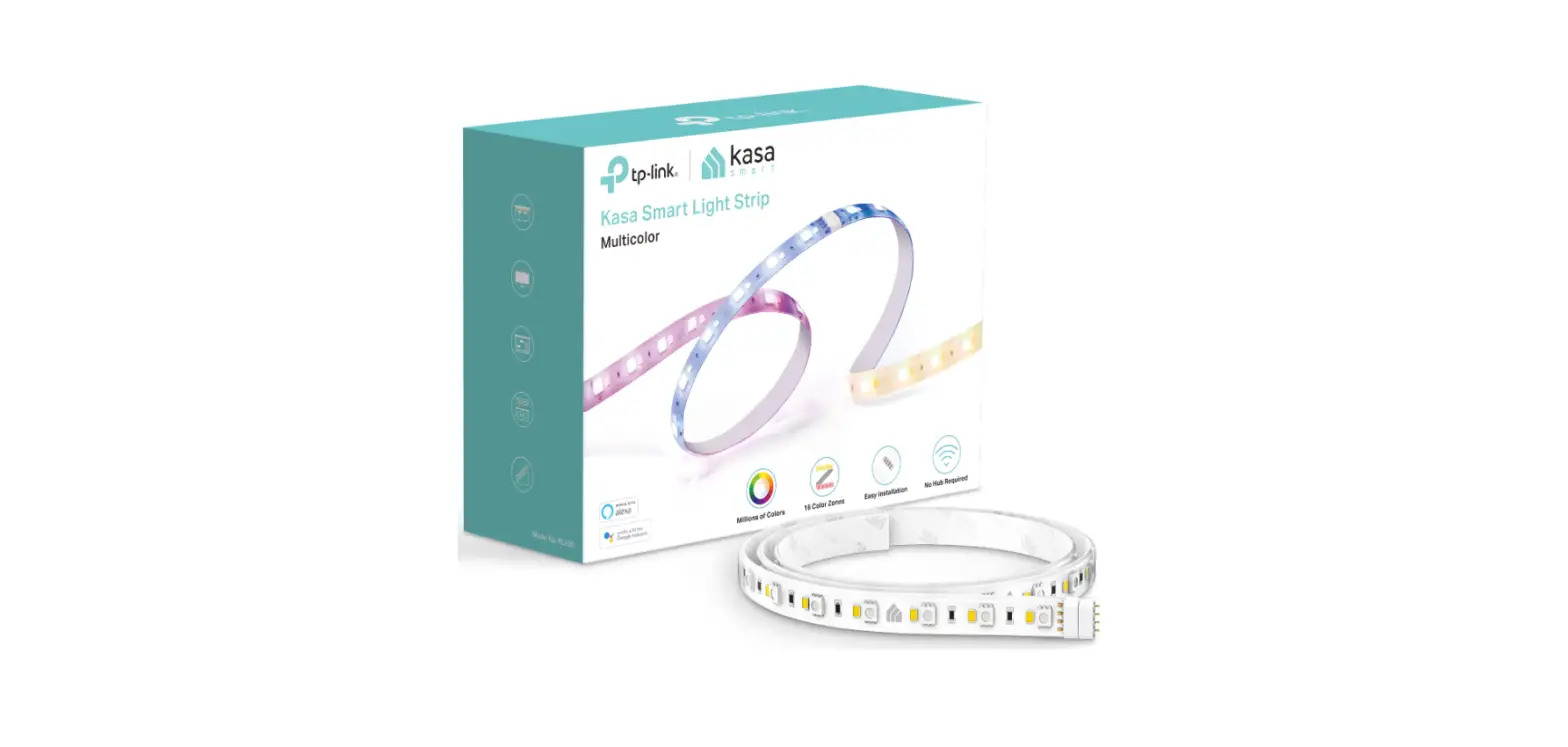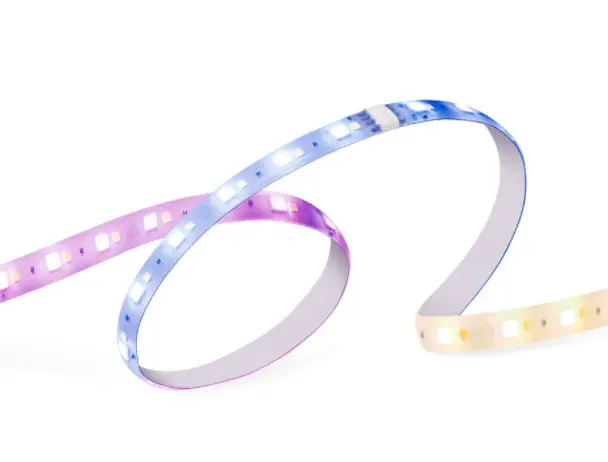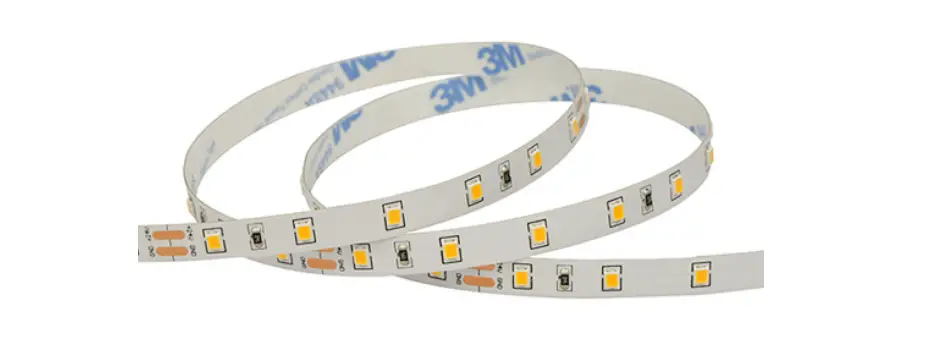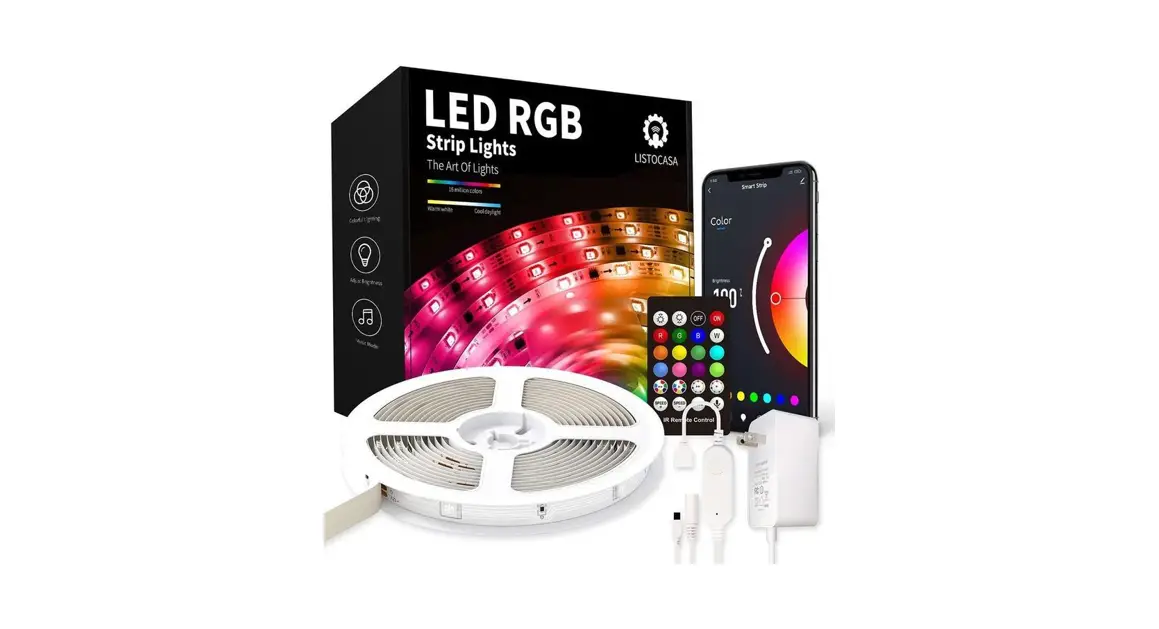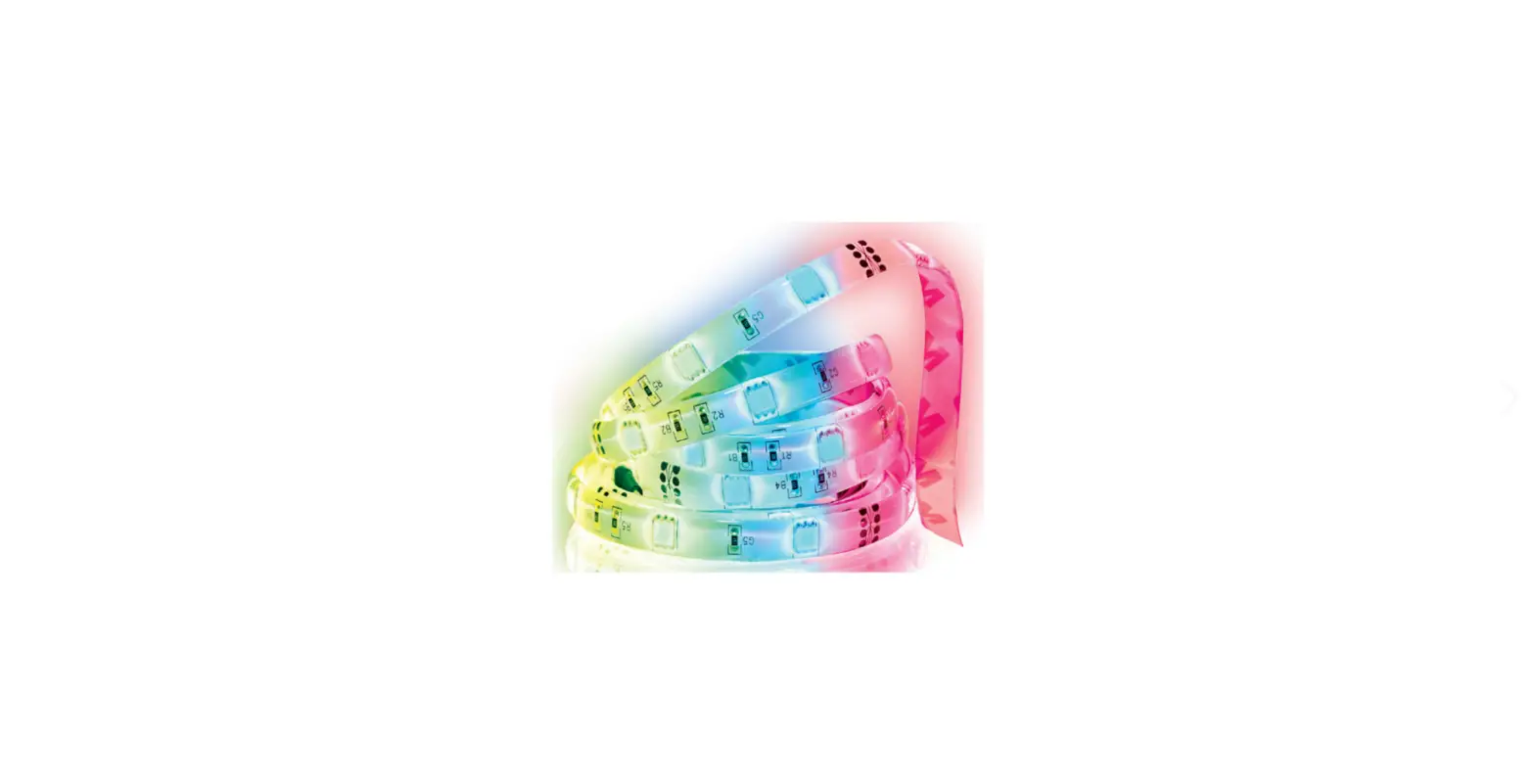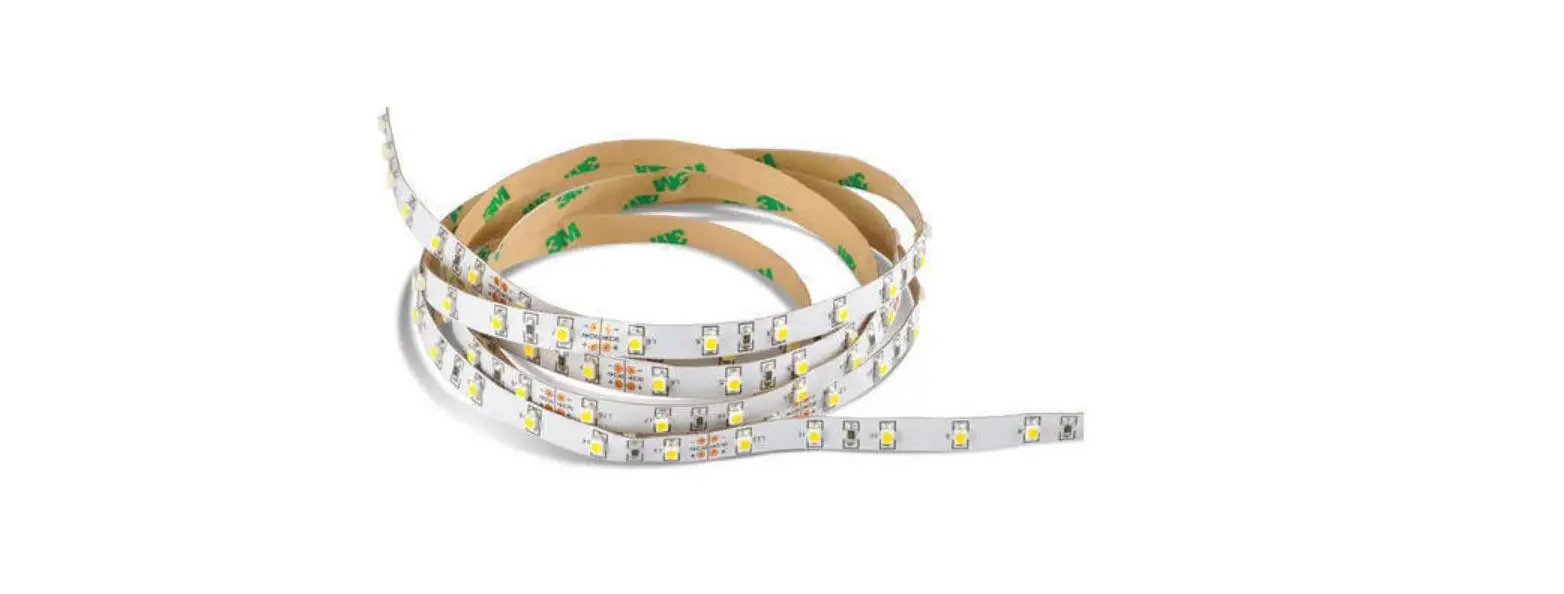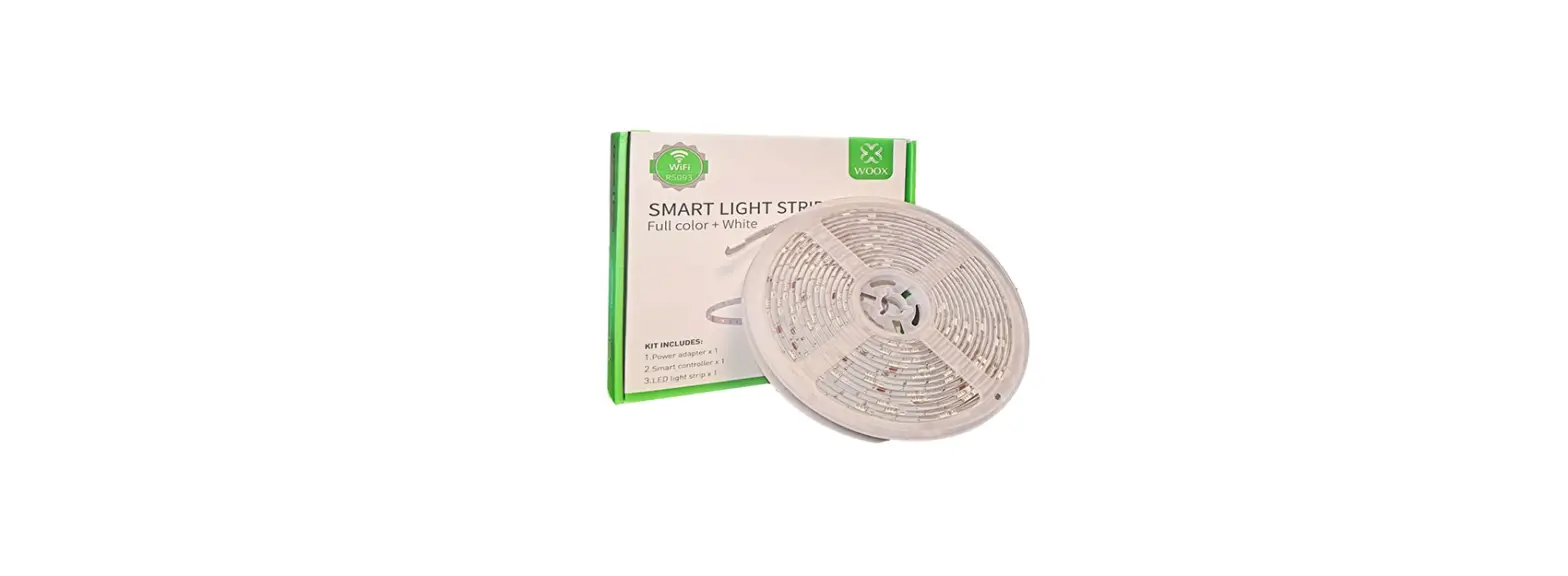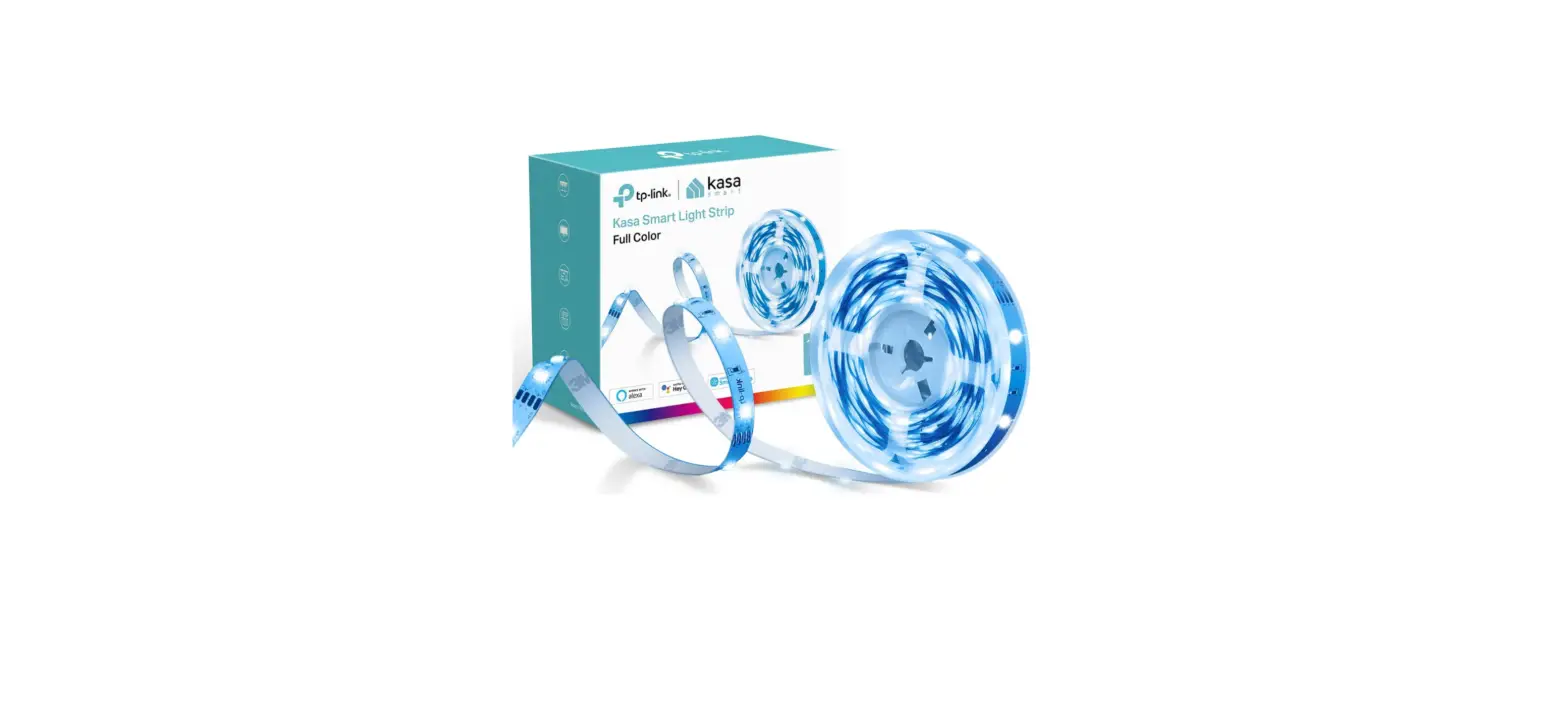
 Kasa KL400L5 Smart LED Light Strip
 Kasa
Kasa 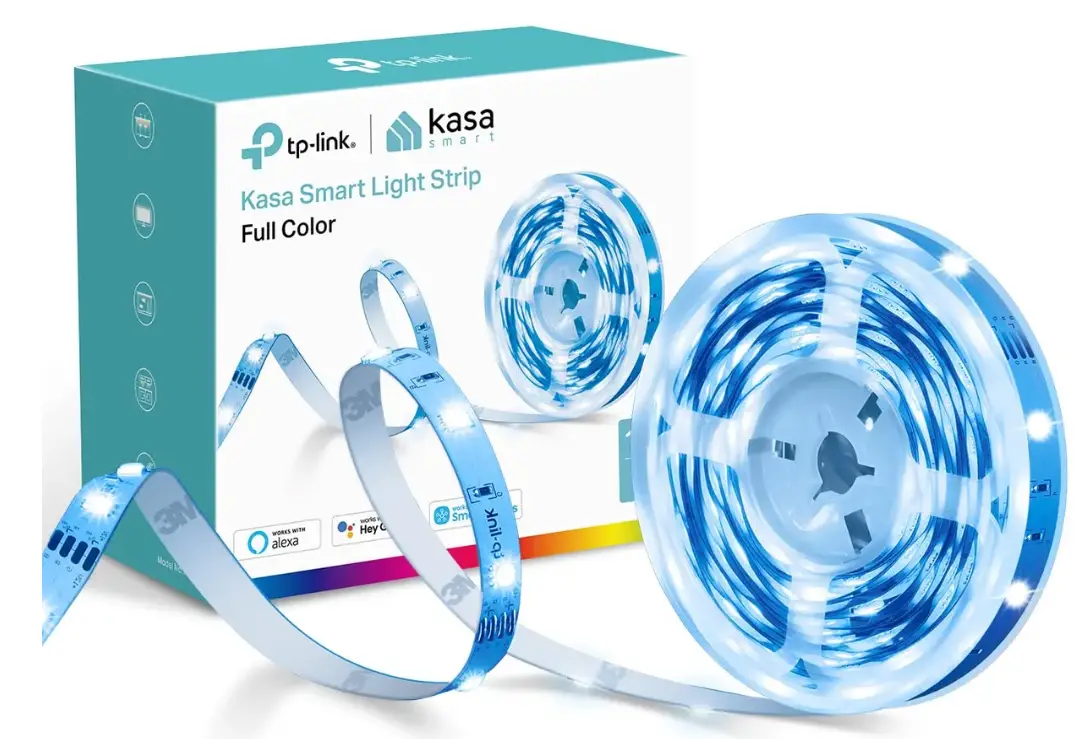
SPECIFICATION
- COLOR: Multicolor
- BRAND: Kasa Smart
- INDOOR/OUTDOOR USAGE: Indoor
- SPECIAL FEATURE: timer, color-changing, Dimmable, Adjustable, remote-controlled
- LIGHT SOURCE TYPE: LED
- POWER SOURCE: AC
- LIGHT COLOR: RGB
- THEME: Movie
- OCCASION: Halloween Christmas Gaming TV
- STYLE:4 ft
- MATERIAL: Polyimide
INTRODUCTION
With the Kasa Smart multicolor light strip, you can paint your house in any color you want. With features like LED strip lights, you can turn your house into the ultimate entertainment space. Take control of your light strip with just your voice or the Kasa app, and choose from 16 million colors with great brightness & saturation to fit any mood and setting. This gadget complies with part 15 of the FCC Rules, which is important information. The following two requirements must be met for operation:
- This device cannot produce harmful interference; and
- This device must accept all interference, including interference that might result in undesirable operation.
The Light Strip is part of the Kasa smart home family of products, including plugs, switches, cameras, and more. You can simply download the Kasa Smart app, connect to Wi-Fi and enjoy. No special hardware is needed. 16 color zones and millions of colors are available for you to pick from and create your own scenes.
- You can also control multiple smart home devices with the Kasa Smart app or use your voice for added convenience. With Kasa, your home is never more than a few taps away.
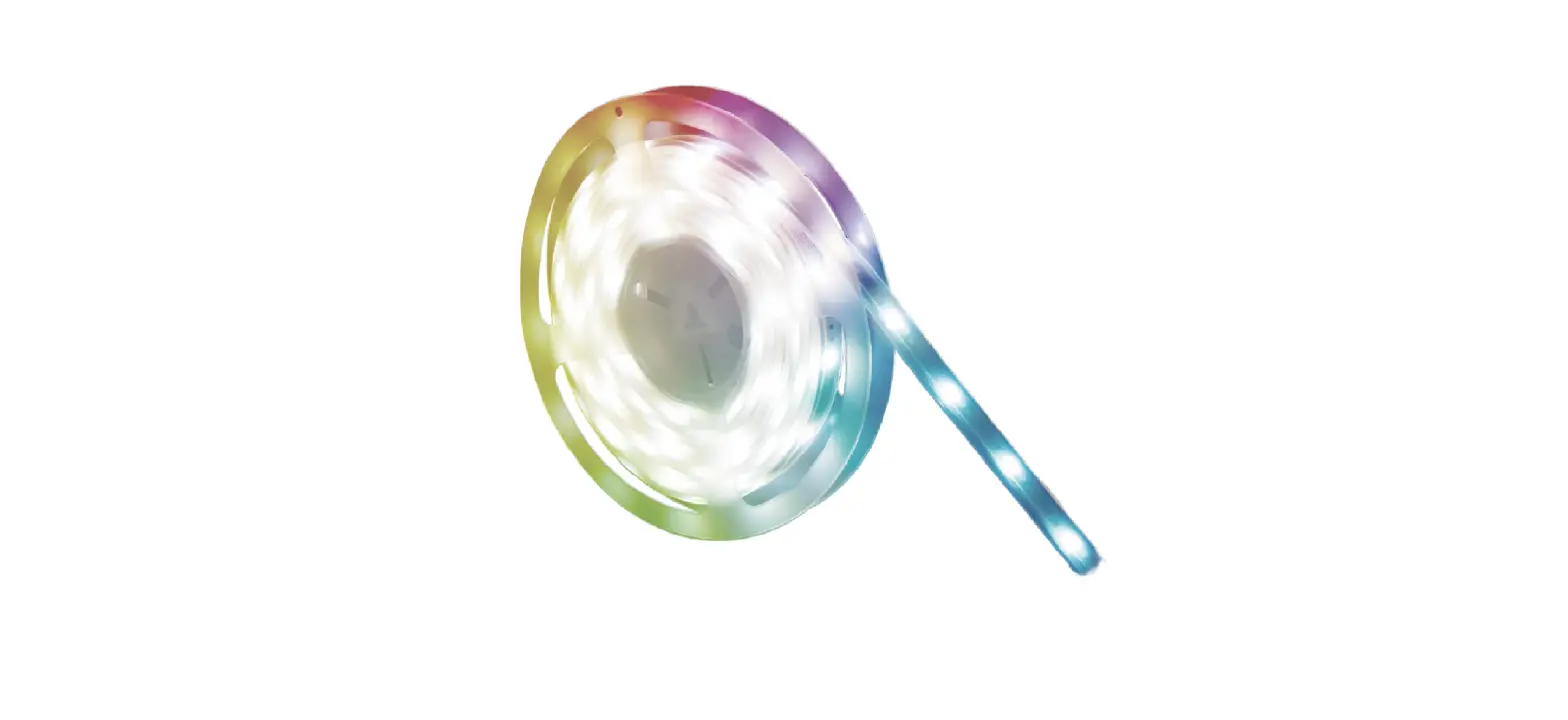
- Multicolor – Offers endless lighting possibilities with 16 million colors and dimming capabilities.
- Voice Control – Turn on or off, and change colors with simple voice commands.
- Set Schedules – Run your Light Strip automatically to fit any event with the Kasa Smart app.
- Flexible and Easy Install – The flexibility to bend and cut* allows you to stick it or place it in the exact spot you desire.
- Once cut, it cannot be reattached. Prevent accidental shocks by removing its power and then cutting along the strip’s indicator lines.
- Group and Scenes – Combine your strip with other Kasa devices for seamless control with a single tap.
SET UP YOUR SMAR T LIGHT STRIP
Follow the steps below to set up your Light Strip via the Kasa Smart app.
- STEP 1. DOWNLOAD KASA SMART APP
Go to Google Play or the App Store or scan the QR code below to download and install the Kasa Smart app. - STEP 2. LOG IN TO KASA SMART APP
Open the app and use your TP-Link ID to log in. If you don’t have a TP-Link ID, tap Create Account and the app will guide you through the rest. - STEP 3. ADD YOUR DEVICES
Tap the + button in the app and select Device to add your new Light Strip. Follow app instructions to complete the setup. - STEP 4. CONNECT ALL THE PARTS
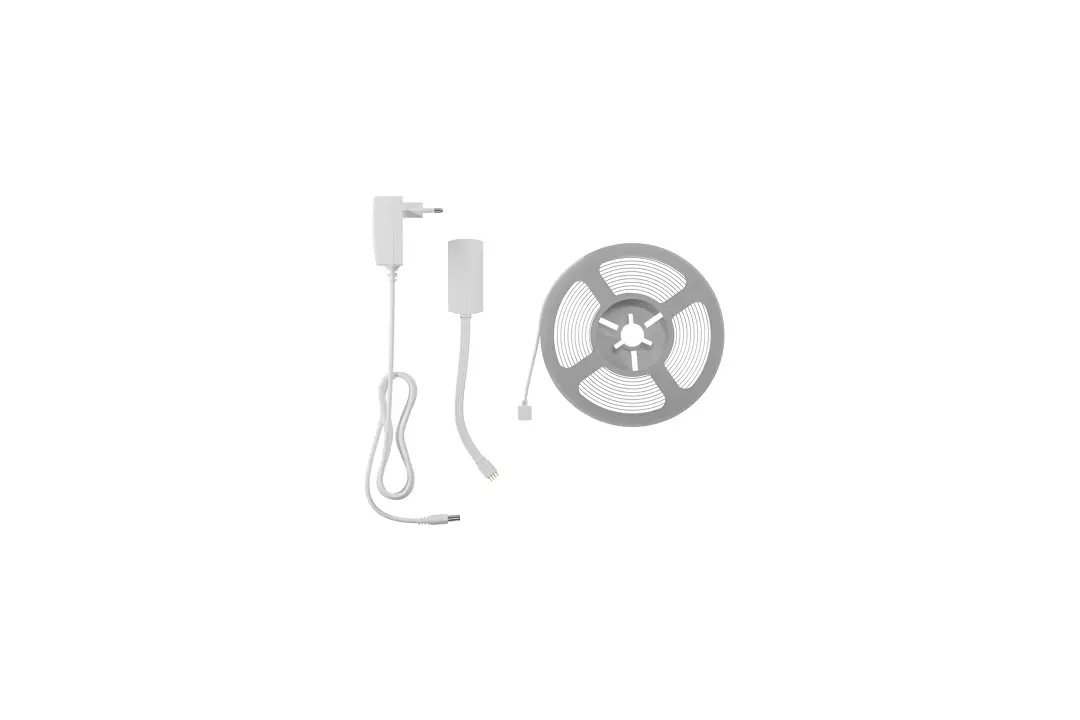
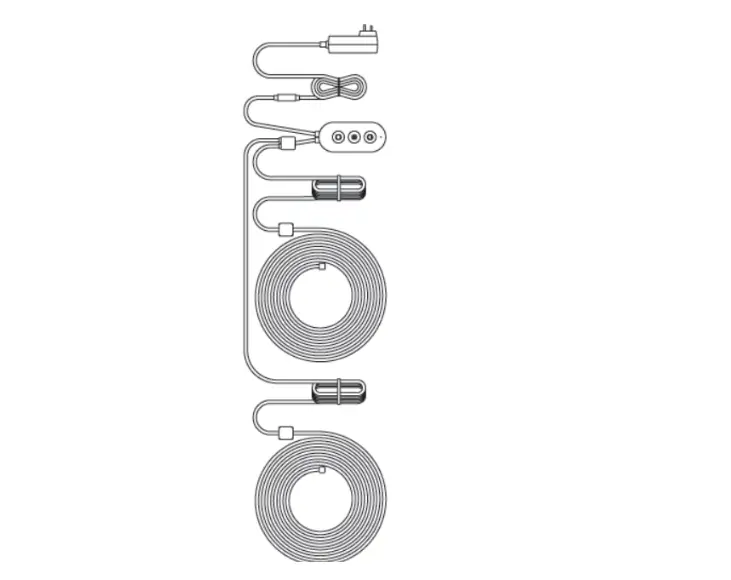
Connect the Power Adapter, Controller and the Light Strip before powering it up. - STEP 5. POWER UP LIGHT STRIP
Plug in the power adapter and wait until the Light Strip animates orange and green.
NOTE: Do not roll up when using. Spread out the Light Strip before connect the power supply. - STEP 6. JOIN YOUR LIGHT STRIP’S WI-FI
Join your Light Strip’s Wi-Fi to continue the setup. - STEP 7. JOIN YOUR HOME’S WI-FI
Select your home Wi-Fi to connect. - STEP 8. SETUP COMPLETE
Now you can start using your Light Strip.
INSTALL YOUR SMART LIGHT STRIP
After you have set up the Light Strip via the Kasa Smart app, you can cut it to length-fit and attach it to any surface with the 3M adhesive. To avoid damaging your Light Strip, please note the following Installation Tips before installing the Light Strip.
- CUT ONLY ON SPECIFIC AREAS OF LIGHT STRIP
You can custom tailor the length of your Light Strip with scissors. Unplug the Light Strip and cut only on these specific areas or your Light Strip will no longer function. - AVOID BENDING ON LED BEADS
The bend should be avoided just in the position of the LED components, so as not to damage the product and affect the life of the product. - AVOID SHARP TURNS
Carefully roll the Light Strip into a clover or use a gentle hill when making 90° turns like those need behind a TV. Sharp bends can damage your Light Strip. - AVOID SHARP CORNERS
Use gentle weeps when bending Light Strip around corners and avoid creases as they may cause damage.
- STEP 1. CHOOSE LOCATION
Choose a dry, clean, and smooth surface. Wipe off the dust. Otherwise, the Light Strip will be easily fall off.
NOTE: Choose a location that avoids static and stays away from water splashing. - STEP 2. REMOVE ADHESIVE TAPE
Unplug the Light Strip first. Peel away the 3M adhesive backing bit by bit and stick your Light Strip to the surface.
NOTE: Do not peel off the tape under the 3M adhesive backing. - STEP 3. STICK LIGHT STRIP
Stick the Light Strip and press over it about 10-15 seconds. Secure the controller with the adhesive pads. Do not move it to another place after it is attached. - STEP 4. POWER UP LIGHT STRIP
Plug in the power adapter to power on your Light Strip.
MAIN DEVICE CONTROL
After you successfully set up your Light Strip, you will see the Devices page on the Kasa Smart app. You can add new devices, control multiple devices simultaneously in a group, configure account settings, and more.
- DEVICES PAGE
On the Devices page, you can instantly turn on/off the Light Strip, adjust brightness or change colors. - ADD A GROUP
Tap + and select Group to add a group for controlling multiple devices simultaneously.
CONFIGURE KASA SETTINGS
Swipe right and you can configure settings for your Kasa account or get more information about Kasa.
CONFIGURE YOUR SMART LIGHT STRIP
On the Devices page, tap a Light Strip and you can adjust the light brightness or color, set schedules, save a shortcut for a light effect, track energy consumption and configure the Light Strip settings.
- POWER ON/OFF AT ONE TAP
Quickly power on or off your Light Strip with a single button. - ADJUST BRIGHTNESS
Dim your Light Strip with a range from 1% to 100%. - ADJUST COLOR
Choose a preferred color for your Light Strip. - ADD ONE-TAP PRESETS
To save a shortcut for a color effect, choose a color and brightness you want, then tap + and the current effect will be saved for quick access. - DELETE PRESETS
To delete a preset, just select one and tap ×, and then tap Delete. - ADD EFFECTS
Tap EDIT icon and tap any color effect, then your Light Strip will go to the certain light effect instantly. You can also customize the color effect and apply it to your Light Strip in Customized Effects.
CUSTOMIZED EFFECTS
Your Light Strip provides you with multiple default lighting effects. You can select any of them and customize it as you want. Follow the steps below to customize a lighting effect.
- Tap Create New.
- Select an effect to customize, then tap Next.
- Customize the effect name, color effect and the animation speed as you want, then tap Save.
ADD SCHEDULES
Tap the SCHEDULE icon to add schedules to simplify your daily routine by creating automatic On/Off actions.
TRACK ENERGY USAGE
Tap USAGE icon to view and track energy consumption of your Light Strip.
CONFIGURE DEVICE SETTINGS
Tap the SETTINGS icon to configure device settings and check device information.
CREATE SCENES
A scene is a preset group of smart devices that can be customized and activated simultaneously at the touch of a button from your smartphone or tablet, allowing you to easily set your mood, activity or fit any special occasion. This page allows you to preset how your smart home devices should act automatically at special occasions.
- On the Scenes page, tap +.
- Choose a default one or customize a new scene.
- Tap the Light Strip and set what would you like it to do when the scene is run.
- Pick an icon for your Light Strip.
- Set a name for the scene.
- After creating the new scene, tap the scene to apply it.
SCHEDULE A SCENE
After you created a scene, you can schedule it to be applied automatically at the time specified. For example, if you want to automatically apply your scene “TV Time” at 7:33 PM every weekday, follow the steps below.
- Go to Smart Actions page and tap Add an Action.
- Select Schedule a Scene.
- Select a scene and set a time schedule for the scene.
- Give this schedule a name to help you remember.
AUTO-OFF TIMER
Whenever your smart bulb is turned on, you can turn it off after the designated amount of time by setting an auto-off timer for the device. For example, if you want your Light Strip to turn off automatically after being turned on for 21 minutes, follow the steps below:
- Go to Smart Actions page and tap Add an Action.
- Select Auto-Off Timer.
- Select a device and set the auto-off timer for the device.
- Give this timer a name to help you remember.
RESET YOUR SMART LIGHT STRIP
There are two types of reset available: a soft reset which resets the Wi-Fi settings only, and a factory reset that erases all of your custom settings and restore them to factory defaults.
- SOFT RESET
Press and hold the light switch controller for more than 5 seconds but no more than 10 seconds and release. The Light Strip animating orange and green after that indicates a successful soft reset. - FACTORY RESET
- METHOD 1:
Press and hold the light switch controller for 10 seconds or more and then release. The Light Strip animating orange and green after that indicates a successful factory reset.\ - METHOD 2:
On the Devices page on Kasa Smart app, swipe left the Light Strip and tap Delete.OR
On the Devices page on Kasa Smart app, tap the Light Strip and tap SETTINGS icon > Remove Device.
- METHOD 1:
WORKS WITH KASA
Use the Kasa app to pair your Light Strip with Amazon Alexa, Google Home Assistant, Samsung SmartThings, and other third-party services to enjoy a full hands-free experience. Kasa helps manage the rest of your smart home too, working with Nest to trigger changes when you arrive home or leave for the day.
Launch the Kasa Smart app, swipe right and you can go to Works with Kasa for detailed instructions.
FAQs
Why can’t the extension clips be used so you can run a small section to one cabinet, extension wires behind to another, and extend with more lights?
Sounds like you want to cut the one length into various sections and use multiple extension wires. The answer is yes.
How many lumens are these? Please do not answer “I don’t know” as that is useless; only answer if you know the answer!
Since the KL400 doesn’t utilize white LEDs, there is no technically no measured value of lumens.
why don’t you show the power supply in the pictures?
It’s a standard “wall wart” type of supply. It’s black.
Can this product dynamically change the backlighting to match what’s happening on the screen?
On a TV screen, I do not believe so, they are just an LED light strip to per say decorate a room. You need look into lights made specifically for TVs.
Can you buy just the white power button cord as one of our 4 pins snapped and now doesn’t work?
No, the power cord is not sold separately. However, you can contact our TP-Link support team to inquire about a part replacement request if your product is under warranty.
Where can I buy more controllers?
Each KL400L5 comes with one controller. The strips are not extendable, so each strip must be connected to a controller (e.g., the one it comes with).
What is the wattage of each bulb?
The KL400L5 Smart LED Light Strip has the following power specifications:
- Voltage: 120 VAC 60 Hz
- Input Power (actual Power Draw In Watts): 13.5 W Max.
Can you connect two together?
No, but try creating a “group” in the Kasa app with two or more light strips in the group. I only have one so I can’t be sure that would work, however.
Can someone tell me the difference between? the 16ft kl400l5 and the kl420ls
The primary differences are:
- The KL420L5 supports 50 color zones, whereas the KL400L5 only has one color zone.
- The KL420L5 is also PU coated, whereas the KL400L5 is not.
Can I buy multiple strips and attach them together so they all use one plug in?
I don’t know the limitations as to how many strips can be connected to one power module, but with the proper splice connector they can be connected.
Want to lay several 30″ strips side by side. Once cut to 30″ can these short strips be hooked together to work as one unit?
I was successful in splitting it across different sections of kitchen cabinets with these https://www.amazon.com/gp/product/B072KRCJLD and then cut the wires and extended them to the necessary length.
Can these do circadian models like the bulbs?
Yes.
Is there 16.4 ft. 1100 lumen? comparison tables for b09bg9b2jq and b09sbqyjdy contradict each other.
No, each 16.4 ft. strip offers approximately 550 lumens. The other table you are referencing is for the double strip option that is comprised of two 16.4 ft. strips, which results in double the number of LEDs, thus approximately doubling the luminance (1100 lumens approx.).
can I connect multiple strips to each other?
No, but see other answers.
Can this one display different colors at the same time?
It can cycle through colors, but the entire strip will display the same color as it cycles.