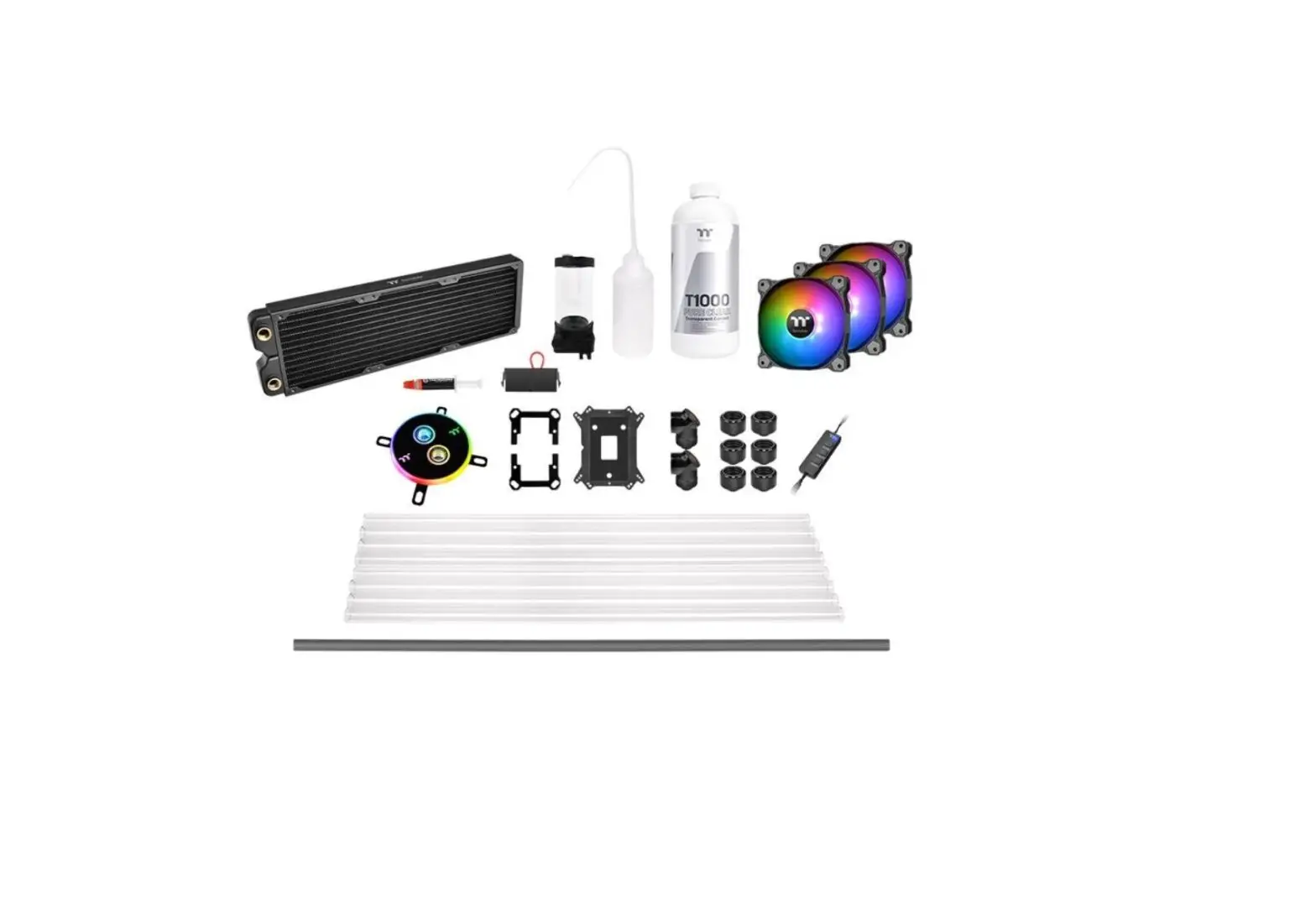
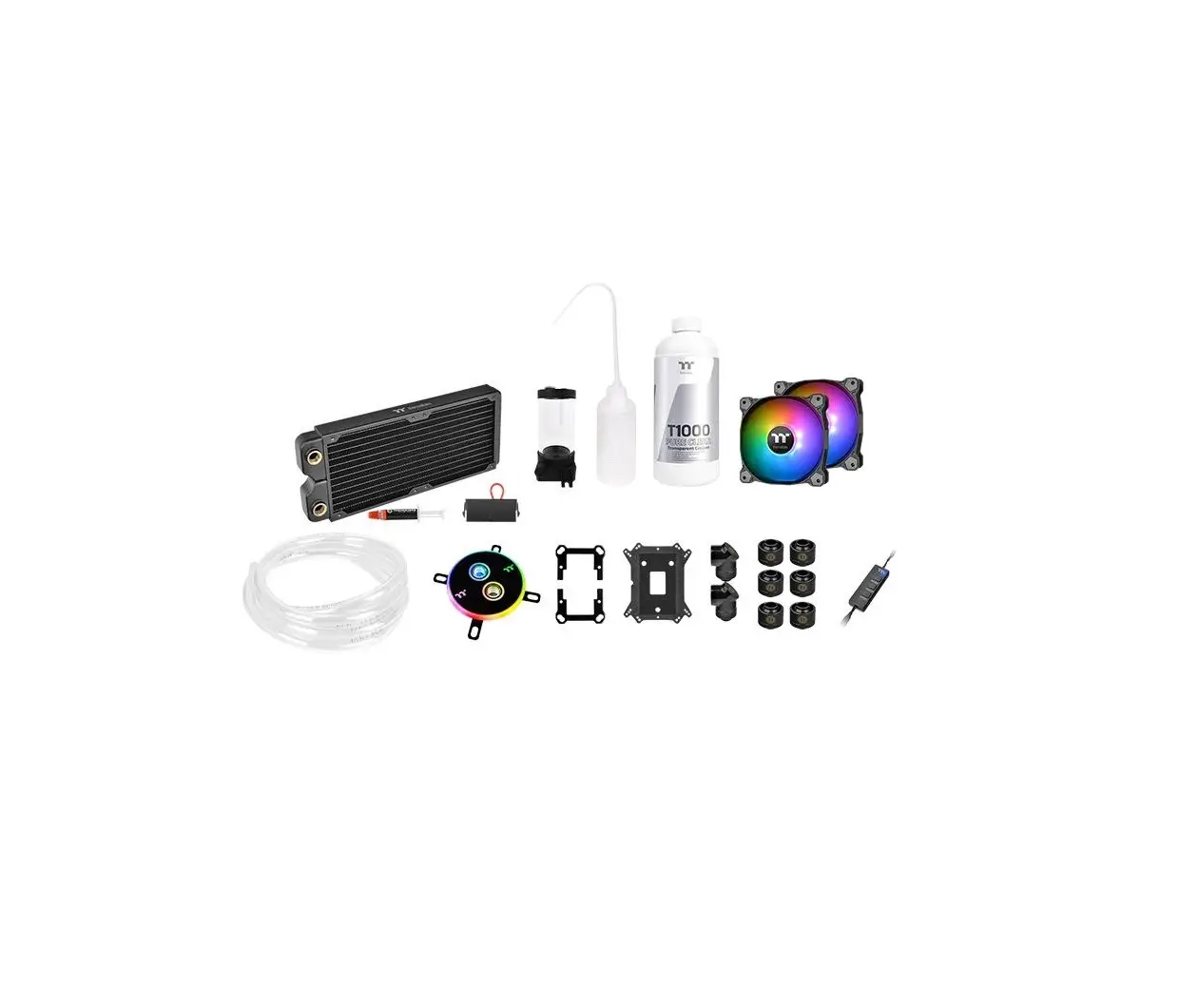
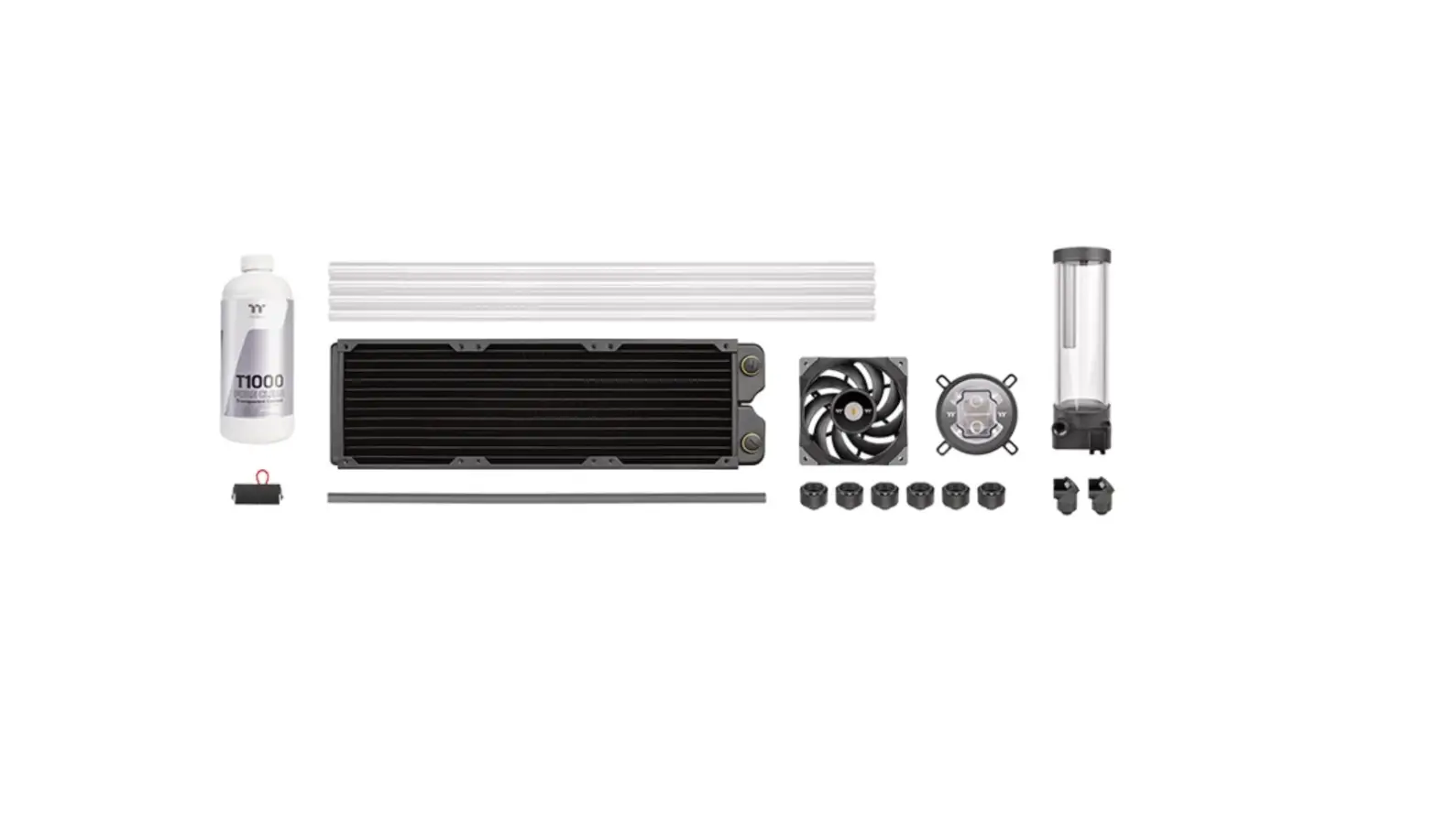
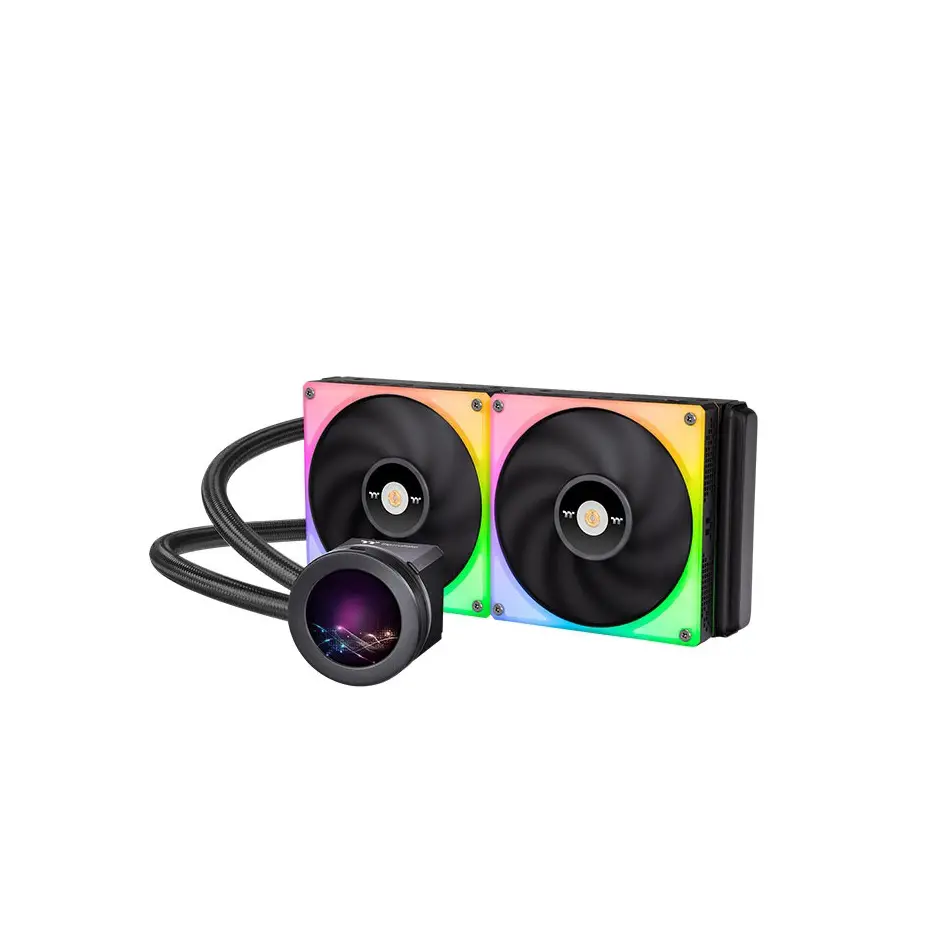
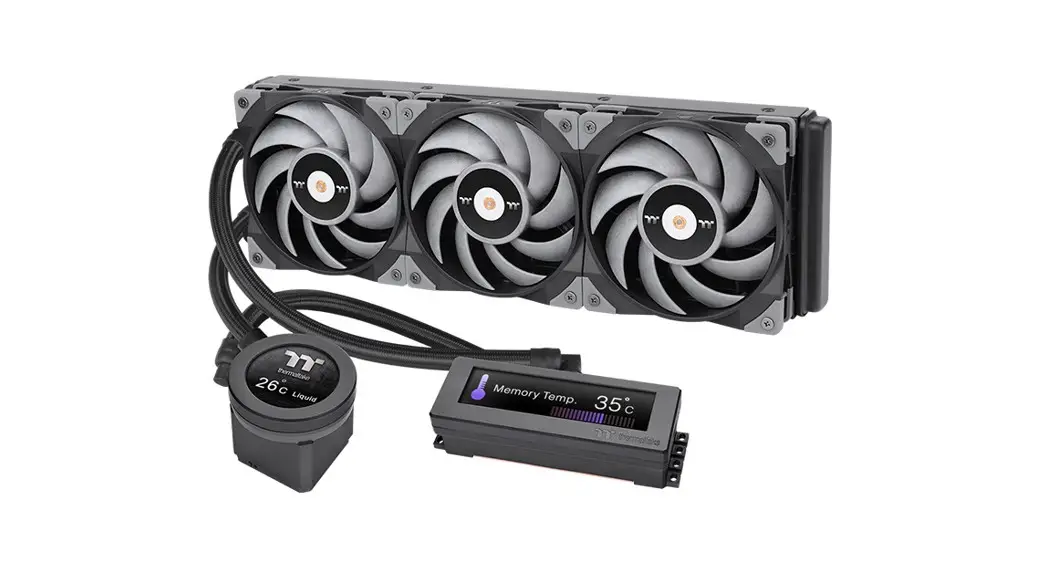
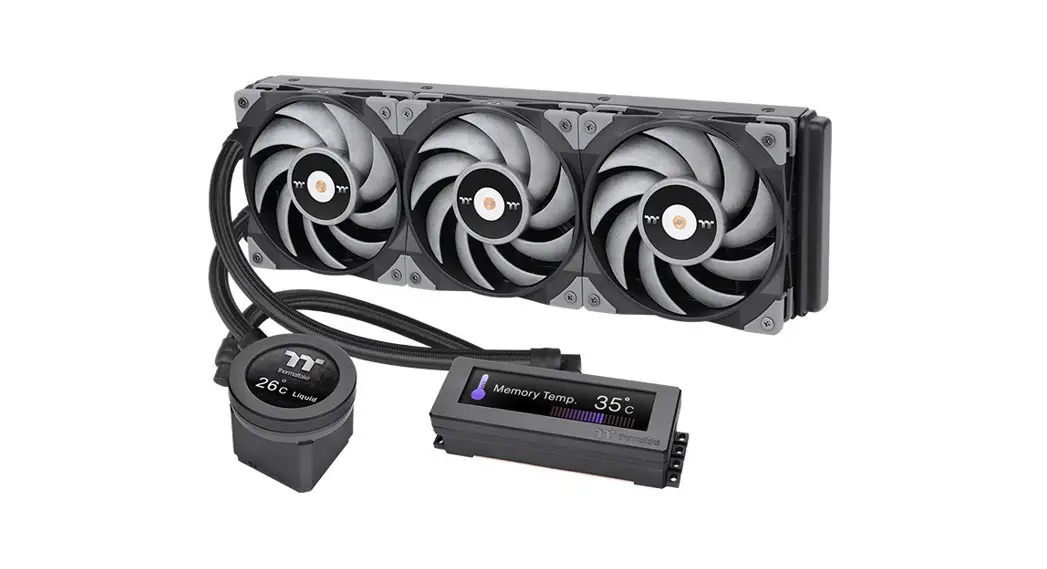
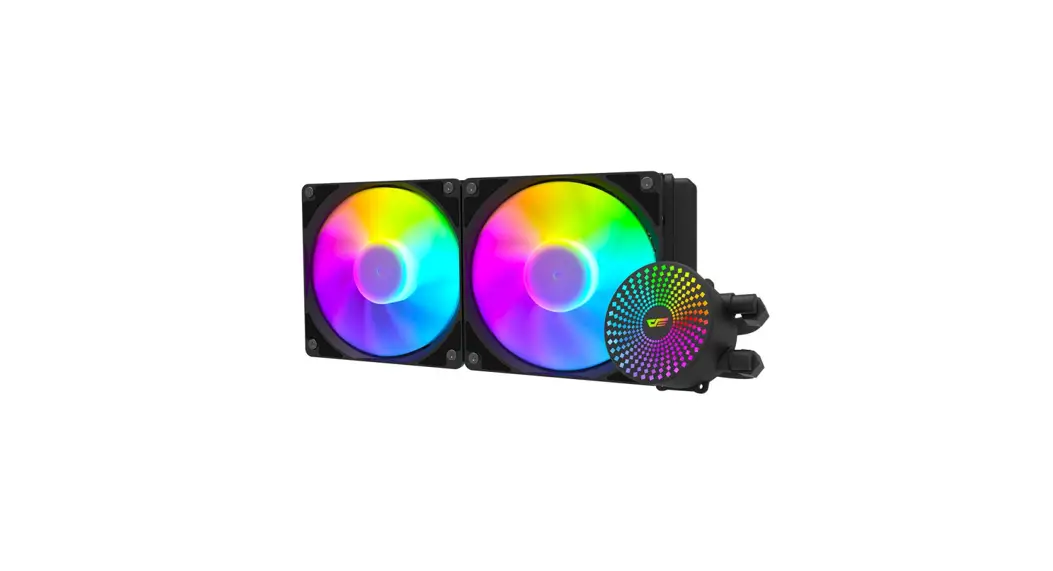
CL-W249-CU12SW-A Pacific C240 DDC Soft Tube Liquid Cooling Kit
Product Information:
The C240 DDC Soft Tube Liquid Cooling Kit is a CPU water cooling
kit designed for both Intel and AMD processors. It includes a
radiator, water block, pump/reservoir, case fan, and necessary
fittings for installation. The kit is compatible with Intel
LGA1200/1156/1155/1151/1150, LGA1700, LGA2066, 2011-3, and 2011
sockets, as well as AMD AM3/AM2/FM2/FM1, AM4, and AM5 sockets.
Product Usage Instructions:
- CPU Water Block Installation:
- For Intel processors:
- a) For LGA1200/1156/1155/1151/1150 sockets, refer to step 03 in
the manual. - b) For LGA1700 socket, refer to step 03 and 04 in the
manual.
- a) For LGA1200/1156/1155/1151/1150 sockets, refer to step 03 in
- For AMD processors:
- a) For AM3/AM2/FM2/FM1 sockets, refer to step 03 in the
manual. - b) For AM4 socket, refer to step 09 in the manual.
- a) For AM3/AM2/FM2/FM1 sockets, refer to step 03 in the
- Ensure there is enough space for radiator installation.
- Before use, flush and rinse radiators and water blocks with
distilled water for a clean loop. - Screw the fittings securely when placing them onto the
radiator.
- Attach the fittings to the inlet and outlet of the water
block.
- Choose the proper way to mount the pump and reservoir (suggest
vertical placement) by referring to the manual. - Attach fittings onto the pump and reservoir.
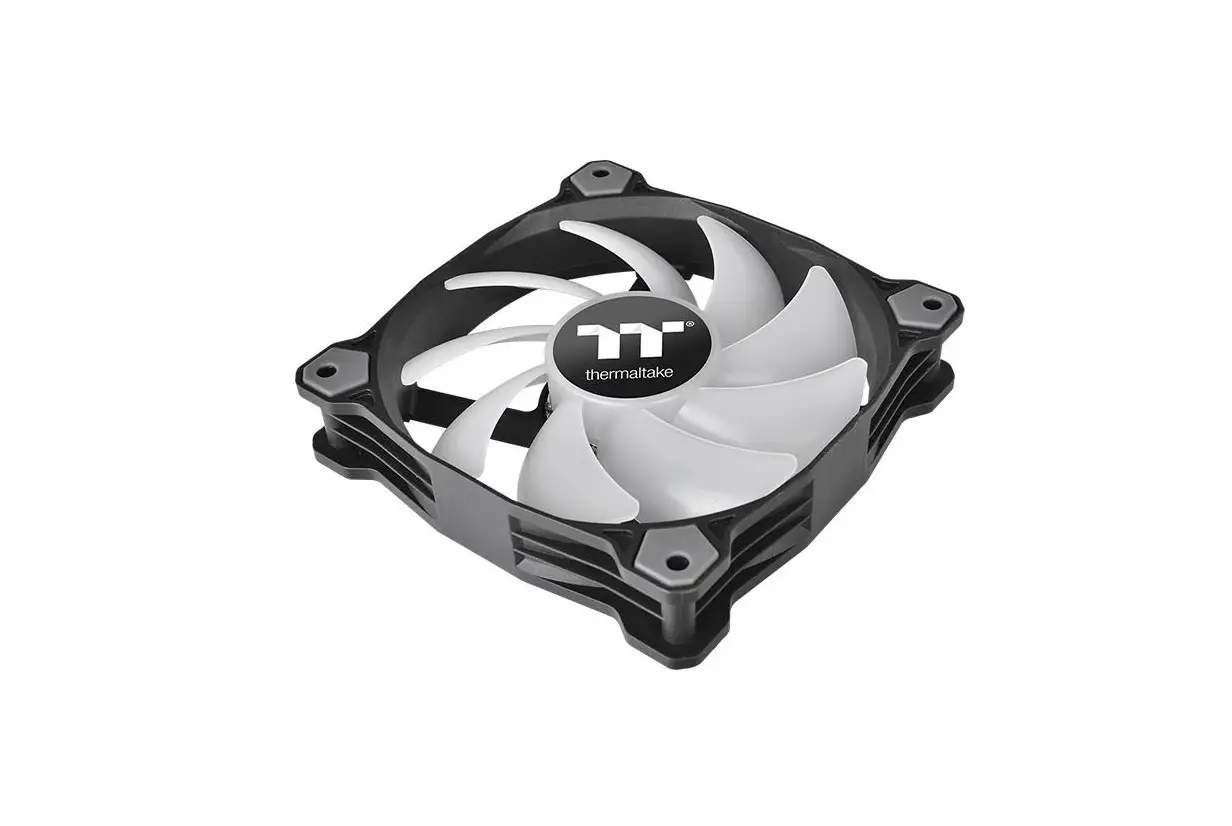
- Attach the fans to the radiator.
- Connect the fan power cable when the liquid cooling system is
completely finished. - Connect the PWM cable to the motherboard.
- Connect the fan power cable to the PWM cable.
- Place the motherboard into the case.
- Position the radiator.
- Attach the pump and reservoir into the chosen locations.
- Take out the cap from the fittings and place the cap of the
compression fitting over the tubing. Push the end of the tubing
over the barb and rotate the cap clockwise until sealed in
place. - Measure the tube length based on the fitting and cut the tubes
in the following loop order:- a) Pump Outlet > Water Block
- b) Water Block > Radiator
- c) Radiator > Reservoir inlet
- Switch off the power supply and connect the PSU power cord and
product cables. - Use the refill bottle to fill coolant into the reservoir.
- Place the PSU outside of the case and attach it to the pump’s
4-pin molex connector. Turn on the PSU power to fill the rest of
the system.
- Before connecting the cable to the motherboard, power off the
PC and check the positive and negative ends on the connector.
Connecting the wrong end can damage the LEDs.
1
C240 DDC SOFT TUBE LIQUID COOLING KIT
CPU Water Block Installation Guide
Intel
a LGA1200/1156/1155/ 1151/1150
b LGA1700
03
ab
AMD
a AM3/AM2/FM2/FM1 b AM4
AMD 03
a b
INTEL
INTEL
AMD
Intel LGA 1700/1200/115X
06 05 07
10
03 04
Intel LGA2066,2011-3,2011
08
05 07 01 01 10
AMD
09
01
AM5
02 09
AM4/AM3/AM2/FM2/FM1
06
05
07
10
01 02
36
03
04
05
10
07
01 01
Please remove the stock AMD mounting bracket, use AMD backplate.
2
C240 DDC SOFT TUBE LIQUID COOLING KIT
Installation Guide
CAUTIONS: Make sure there is enough space when you start to set up the LCS product
Radiator
To ensure a clean loop, flush and rinse your radiators and water blocks with distilled water before using.
Make sure the fittings are screwed securely when placing them onto the radiator.
Water Block
Attach the fittings to the inlet and outlet of the water block.
27
21
26
01 27
Pump / Reservoir
Choose the proper way to mount the pump and reservoir by referring to the manual (suggest vertical placement)
12
12
15
16
or
16 14
14
18 13 15
Attach fittings onto the pump and reservoir 27
12 27 26
Case Fan
Attach the fans to the radiator 21
20 24
Connect the fan power cable when the liquid cooling system is completely finished
Connect the PWM cable to motherboard.
Connect the fan power cable to PWM cable 31
31
20
Installation Walkthrough (Example: A500 TG)
1 Place the motherboard into the case.
2 Position the radiator.
23 22
3 Attach the pump and reservoir into the chosen locations.
3
C240 DDC SOFT TUBE LIQUID COOLING KIT
Cutting and Attaching the Tubing
1 Take out the cap from the fittings and place the cap of the compression fitting over the tubing. Push the end of the tubing over the barb; make sure the tubing is a tight fit. Slide the cap over the fitting and rotate it clockwise until the tubing is sealed in place.
2 Measure the tube length based on the fitting, and make (cut) the tubes. The loop order : Pump Outlet > Water Block
3 Measure the tube length based on tfitting, and make (cut) the tubes. The loop order : Water Block > Radiator
4 Measure the tube length based on the fitting, and make (cut) the tubes. The loop order : Radiator > Reservoir inlet
CAUTIONS: 1. Before filling the system, please make
sure that each fitting as well as unused ports are completely sealed. 2. If there is any case of leaking, immediately turn off the power and clean the leak 3. If there is any related electronic parts stained on liquid coolant, make sure to completely clean and dry the components. And then make sure they all work well.
Filling the System
1 After switching off the power supply, connect the PSU power cord and product cables.
2 Use the refill bottle to fill coolant into the reservoir
34
35
3 Place your PSU outside of the case and attach it to the pumps 4pin molex connector, turn on the power of PSU and make the rest of the system fills up.
Thermaltake recommends the following steps to be taken after completing your water loop setup
1. It is strongly recommended to use market proven pre-mix coolant, such as Thermaltake Coolant 1000. It offers great performance while preventing the entire cooling system copper, brass, nickel, aluminum, and steel from corrosion.
2. Fill the reservoir with coolant and cycle the power on and off several times while the pump pushing the coolant into the loop. 3. DO NOT let the pump run dry, when there is no liquid entering the pump turn off your power immediately 4. Fill the reservoir to the top as it will prevent air from going into the pump 5. If necessary tilt the system slightly from side to side to bleed the air out of the loop. 6. Place some paper towels under fittings and joining points to test for leaks. 7. Run the loop with the fill port open for about 24 hours to completely bleed the air out of the loop.
© 2022 Thermaltake Technology Co., Ltd. All Rights Reserved. www.thermaltake.com
4
C240 DDC SOFT TUBE LIQUID COOLING KIT
Motherboard SYNC installation Guide
CAUTION
Please power off the PC and check the Positive and Negative ends on the connector before connecting the cable to motherboard. Connecting the wrong end can damage the LEDs.
Connect the Motherboard Signal Bridge Cable to fan led cable
30 29
11 20
01
ASUS
Aura Addressable Strip Header(s)
MSI
JRGB-strip Header(S)
ASROCK
GIGABYTE
Addressable RGB LED Header(s) AORUS RGB Fusion with Digital LEDs
29
29
29
30
G
+5V D G
JRAINBOW
ARGB Controller Installation Guide
1 Connect the ARGB controller to the Fans. 32
11
20
01
2 Connect the ARGB controller to the SATA connector.
32
1. Light Mode: Switch over between 7 LED modes.
Wave Full light RGB Spectrum Off Flow Radar Pulse Blink
2. Color Mode: When light mode is in Full Lighted, Pulse and Blink : Switch over 8 LED colors .
Red Yellow Green Teal Blue White Purple Rainbow
When light mode is in Ripple : Switch over 7 LED colors .
Red Yellow Green Teal Blue White Purple
When light mode is in RGB Spectrum: Click to memorize and lock the color you want, click again to unlock the 256 colors auto rotation.
When light mode is in Wave and Flow : LED color can not be adjusted.
3. Light Speed: Switch over between 4 light modes.
Slow Normal Fast Extreme
 Thermaltake