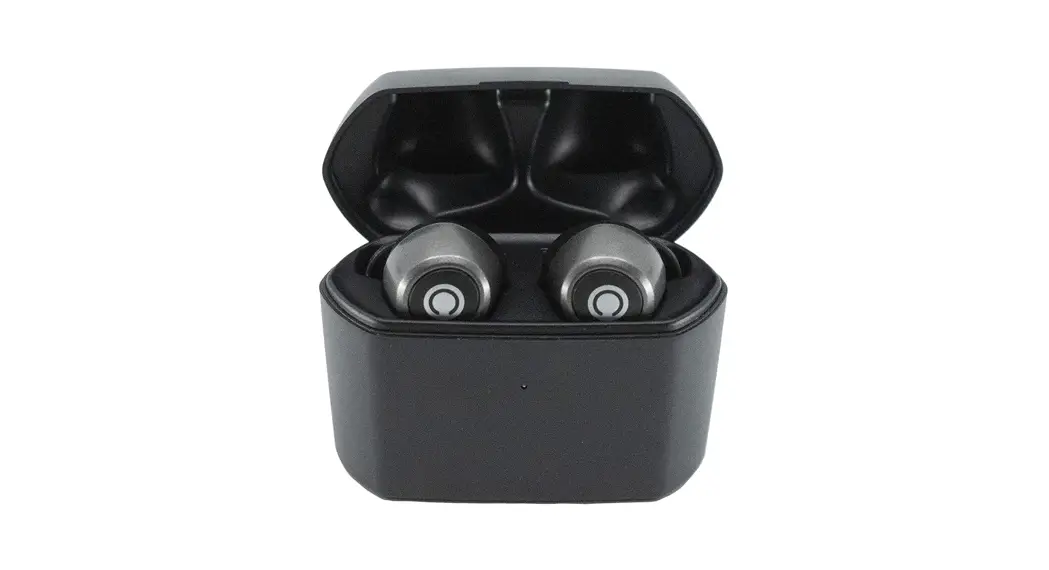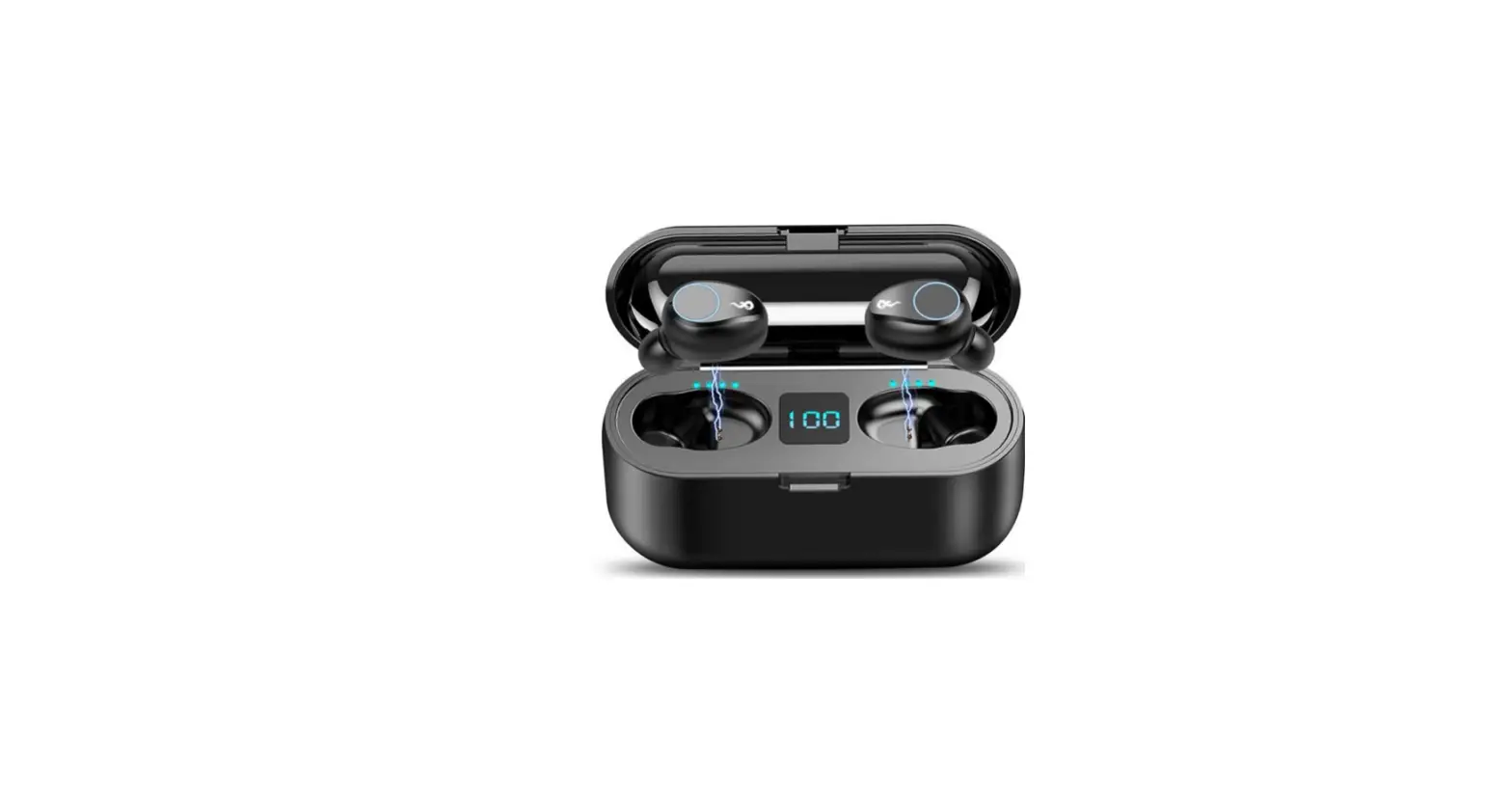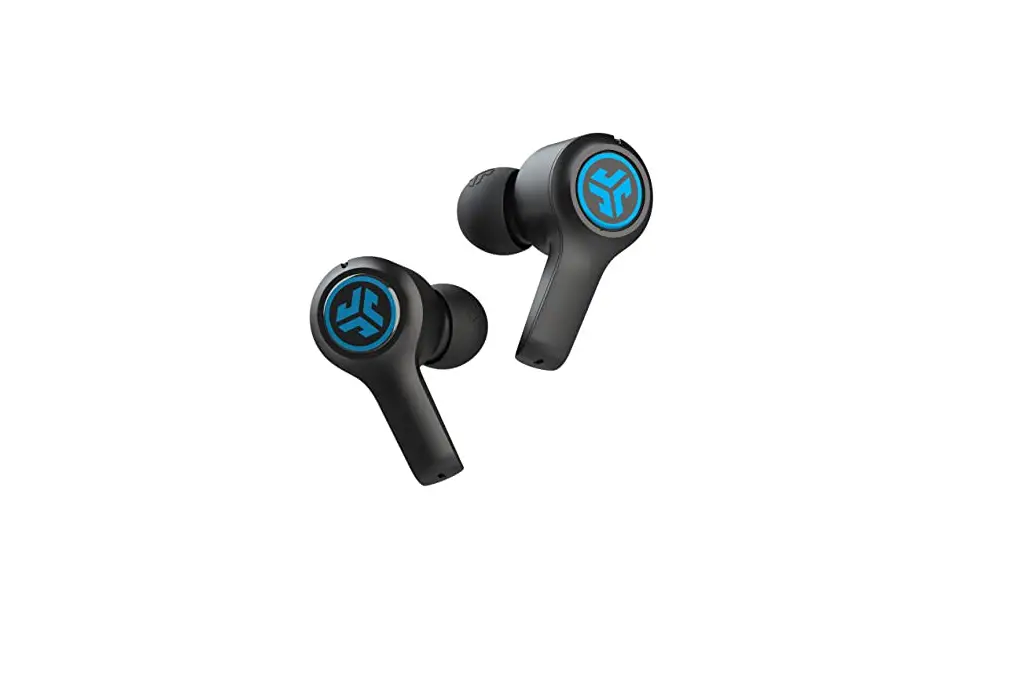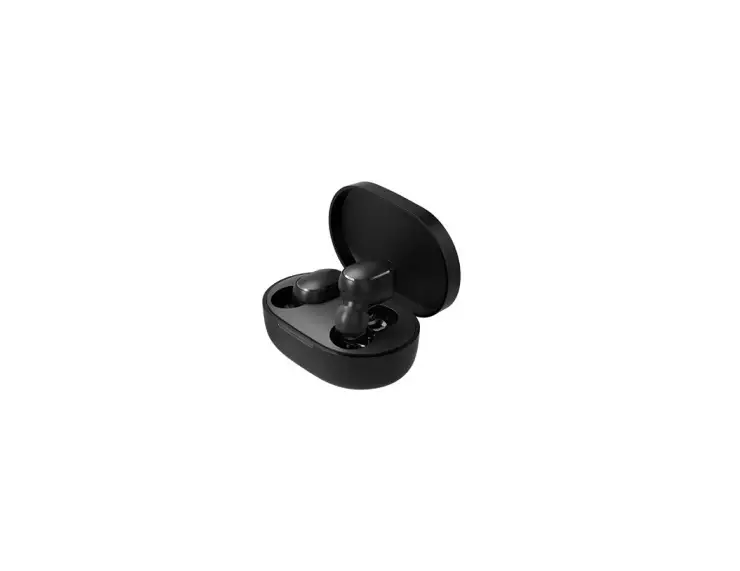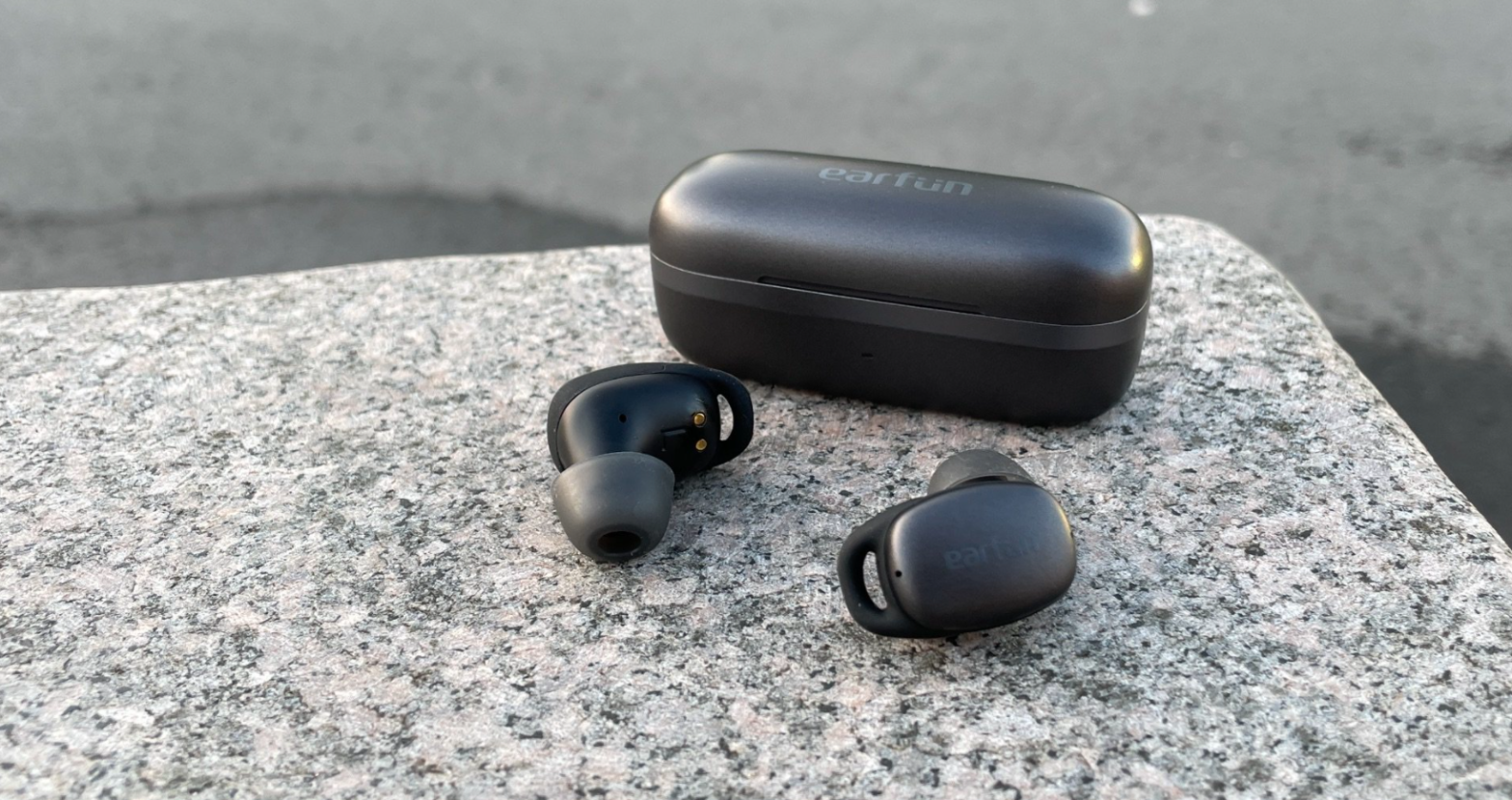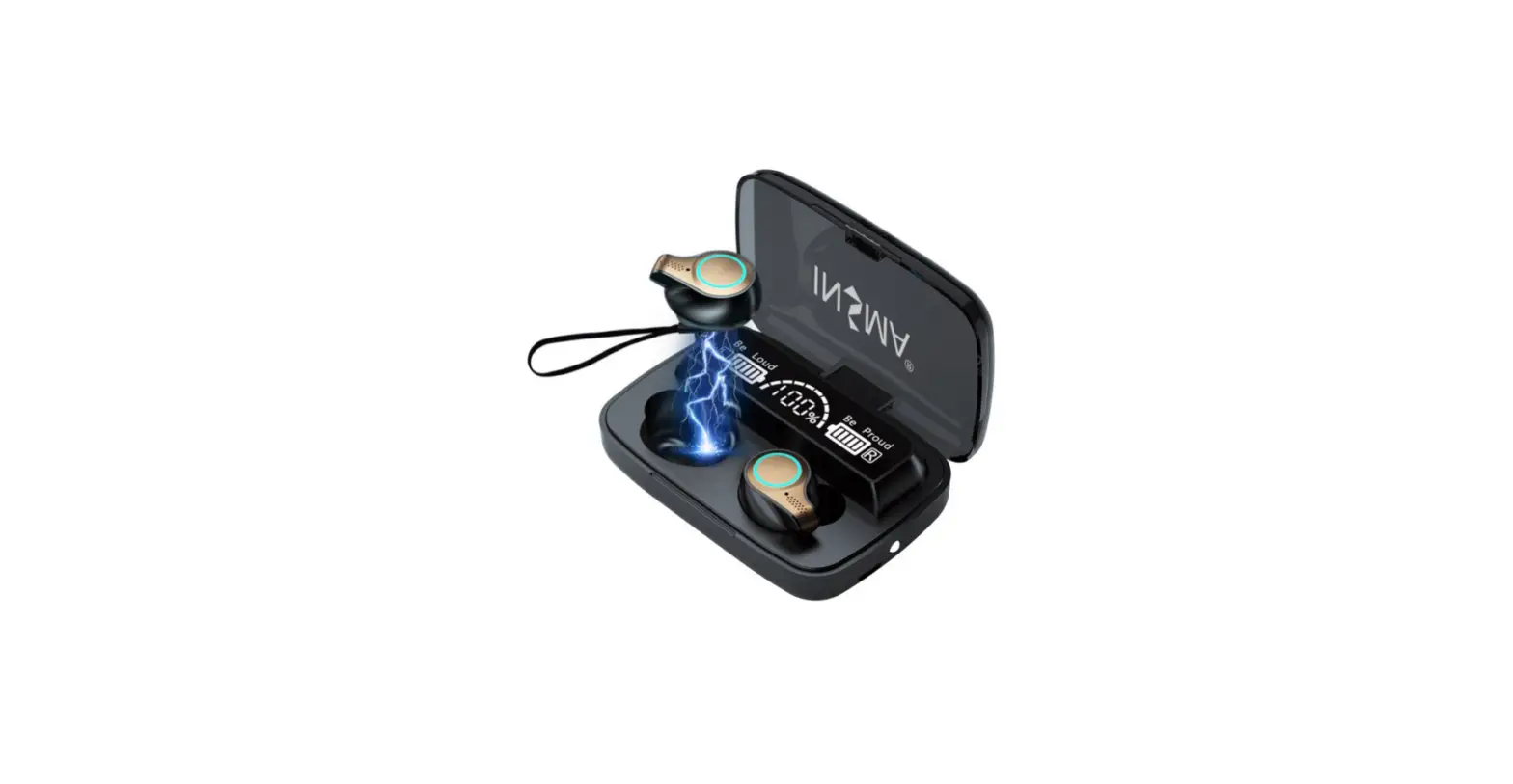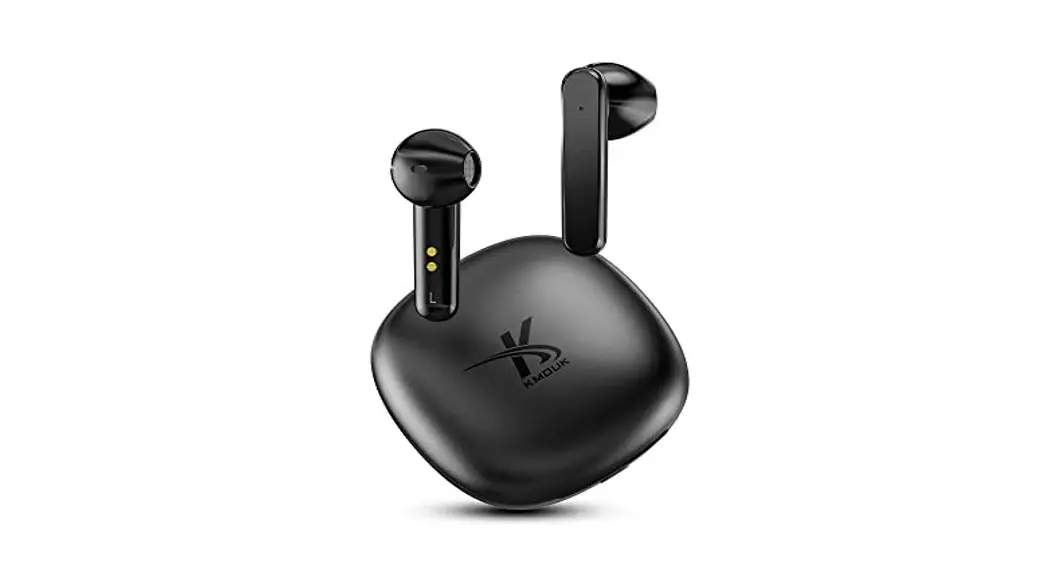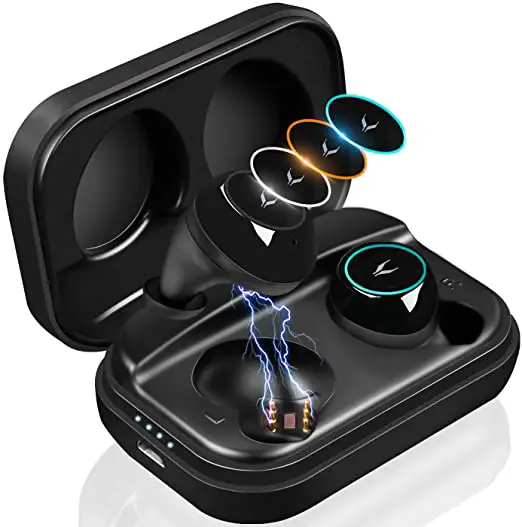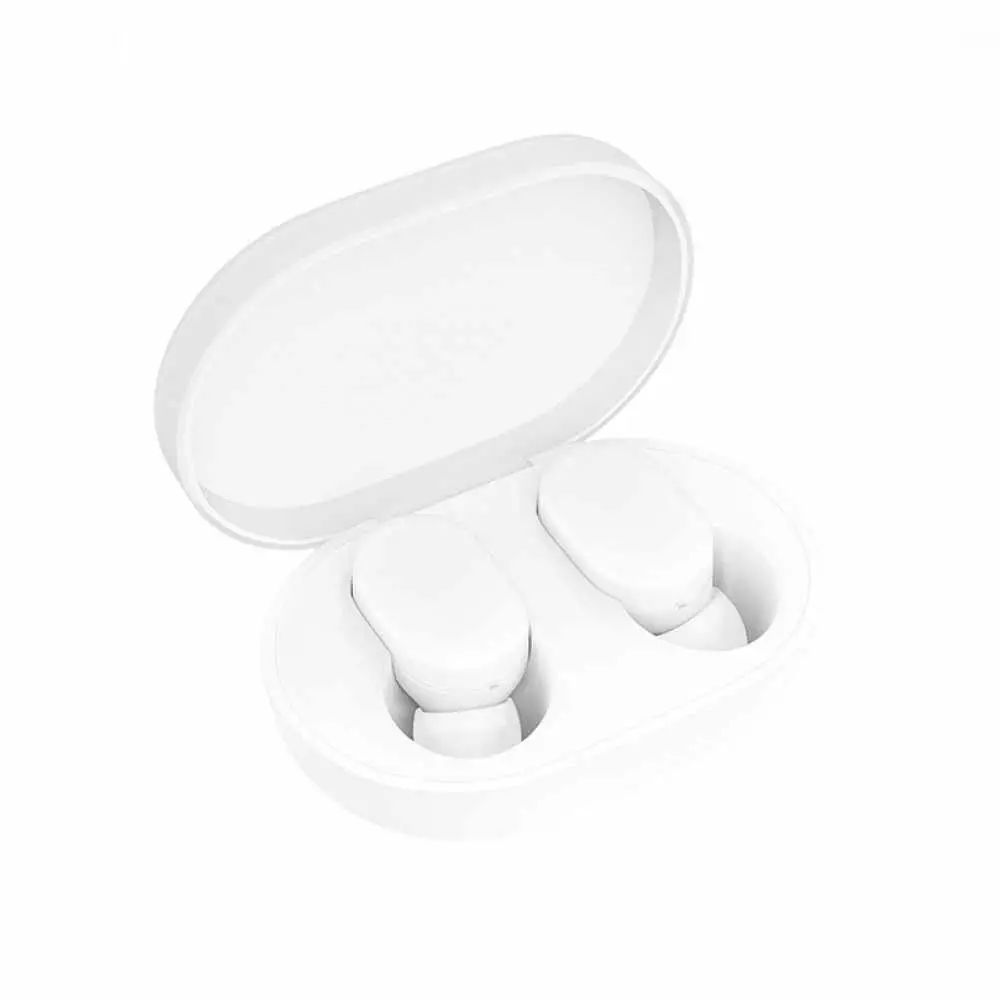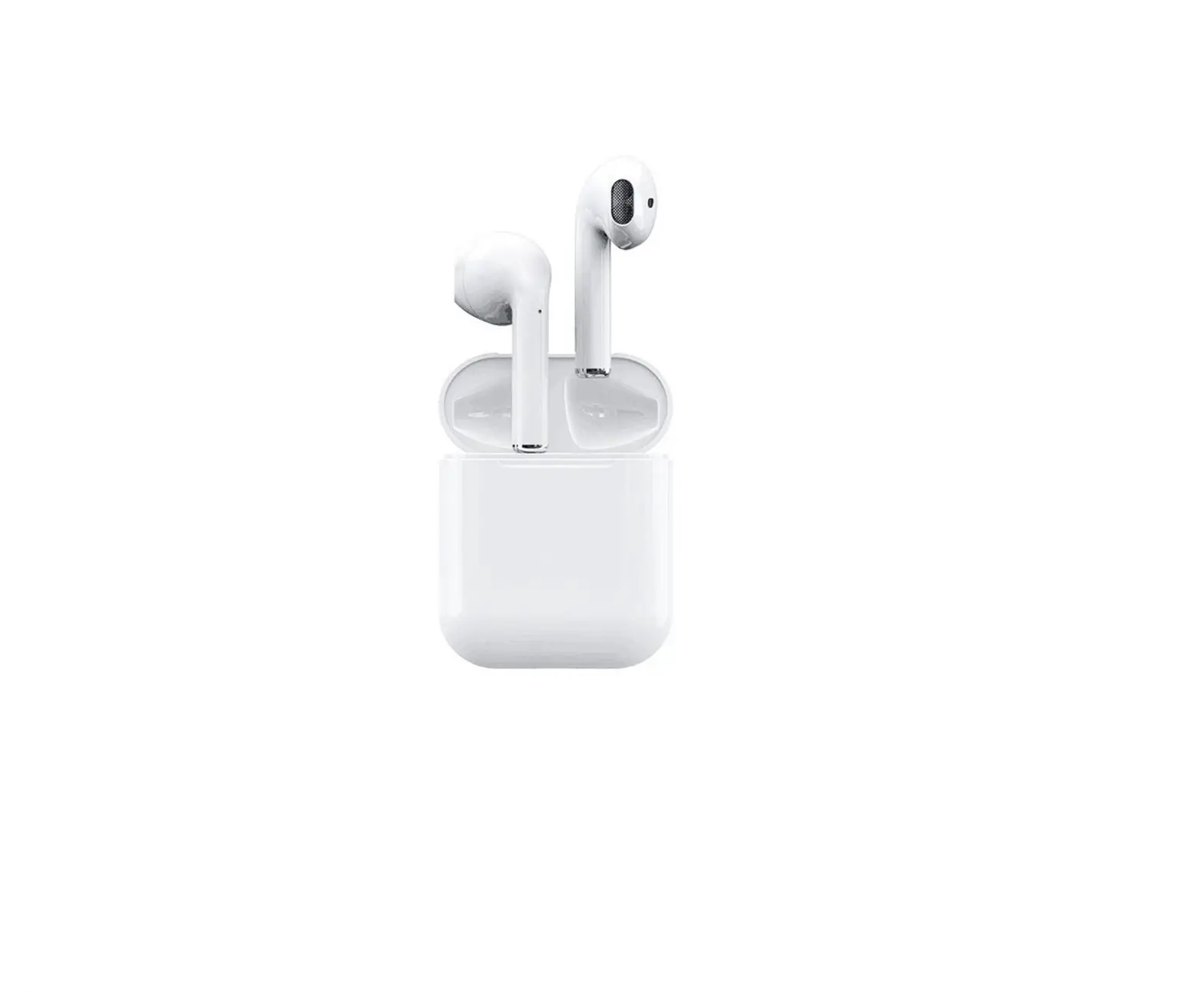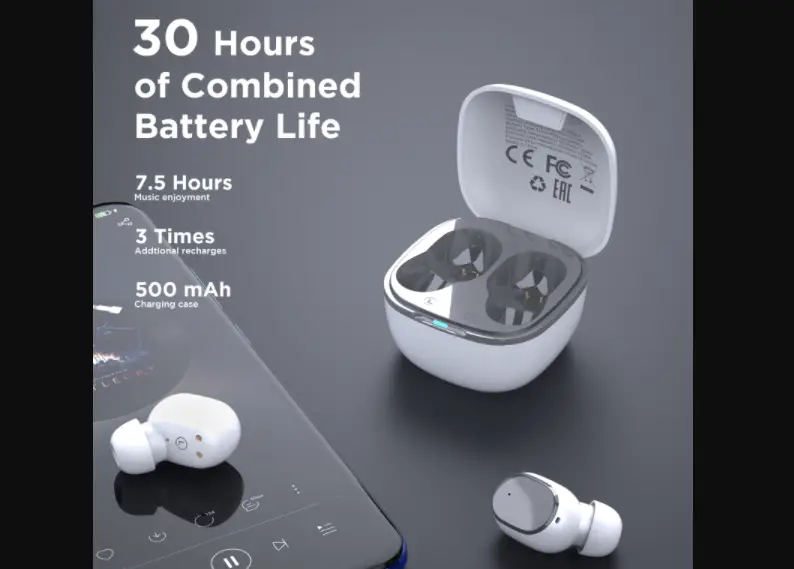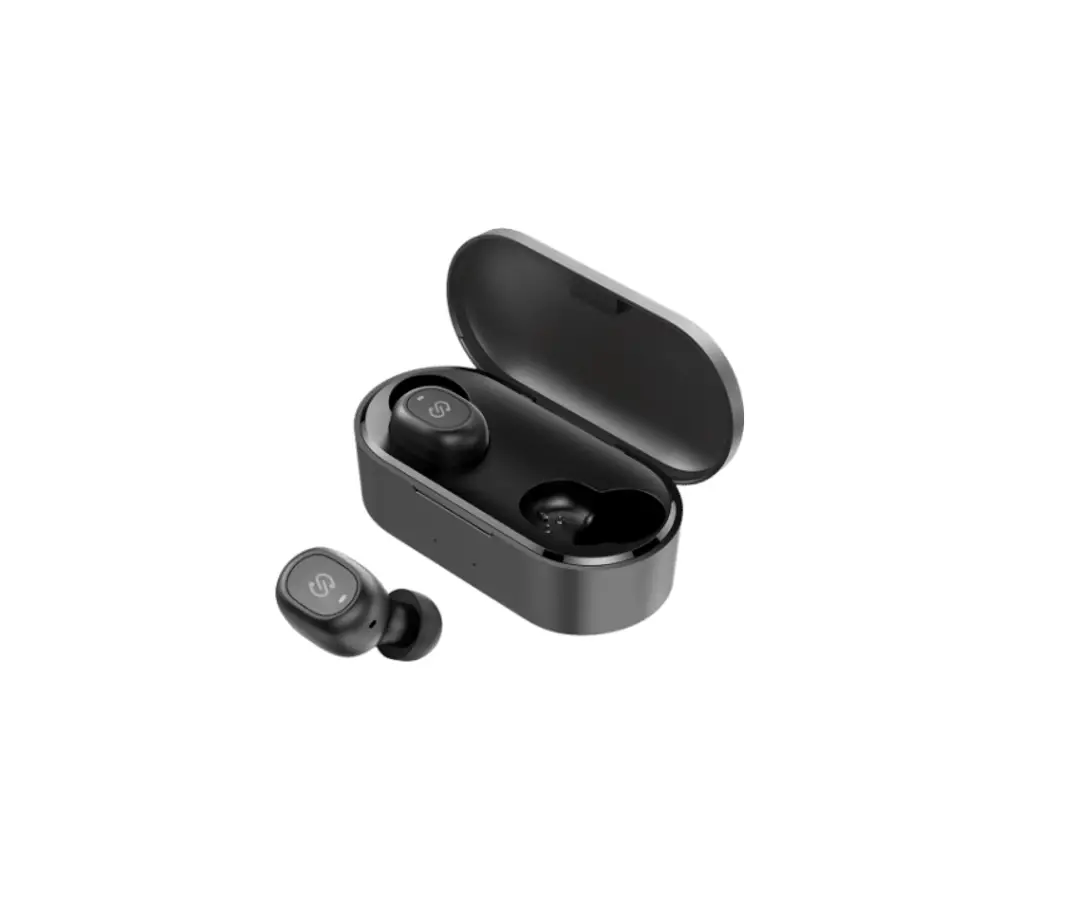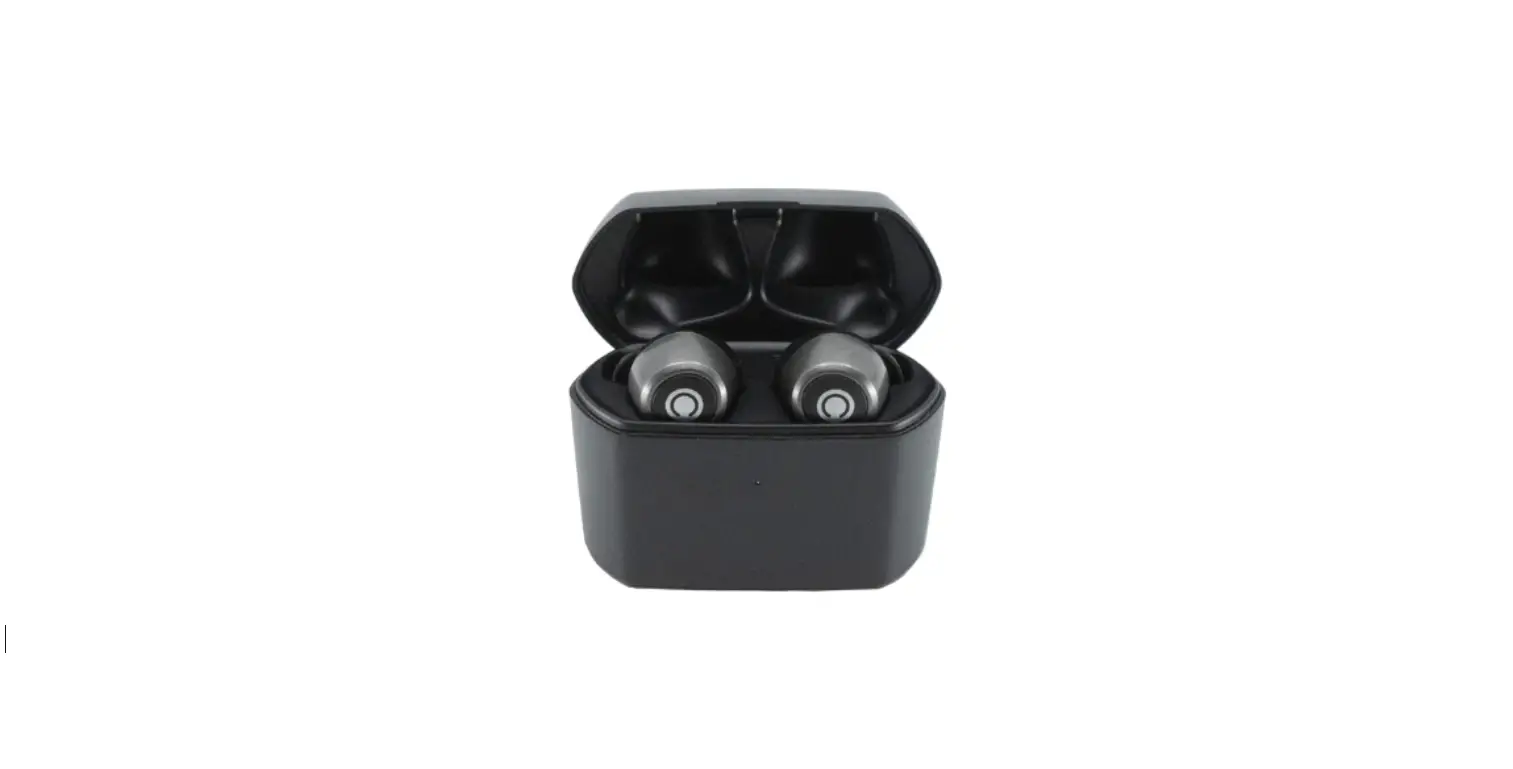

Spracht Zum-BT-TWS-2 Truly Wireless Earbuds
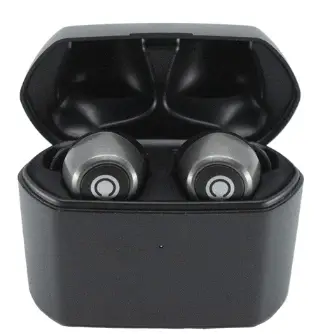
FEATURES
Thanks for choosing Zum-BT-TWS-2 Wireless Buds™. It’s important to read this User Manual: it will help you connect the Buds and pair them with your Bluetooth™ device.
- Bluetooth 5
- Case charges wirelessly.
- Charges earbuds in the case when not in use.
- 2 Mics per bud allow noise reduction to minimize background noise.
- Voice assistant calling feature (ie. Siri)
- IPx7 waterproof (up to 1m for 30 min).
- Qualcomm aptX® for quality audio
- Wireless for freedom of movement.
- Pairs with your Bluetooth® devices, such as smartphones and tablets.
- Music playback time up to 12 hours. Standby time is 130 hours, and recharge time is 1.5 hours.
- Sweat-resistant, use them for exercising/working out.
OVERVIEW
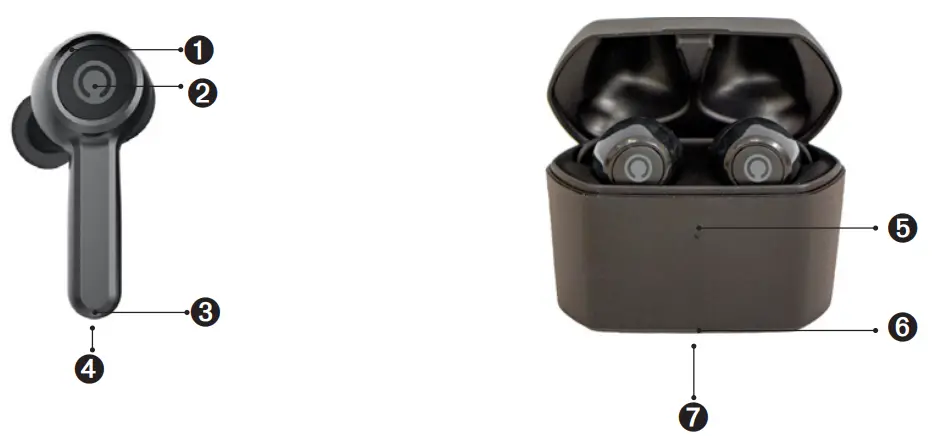
- Red and blue LED indicator
- Multi-Function Button (MFB)
- Microphone
- Charging contacts (another side)
- Charging Indicator LED
- Wireless charging base
- Micro USB charging jack (underside, center)
CHARGING
Charging the Buds
IMPORTANT Before using the Buds for the first time, make sure to fully charge the Buds. Place the Buds in the case, making sure that the contacts engage on both Buds. The Red LED on the Buds will blink while they are charging. When the Red LEDs on the Buds turn off, charging is complete. Charging should take roughly 1 ½ hours. Note that red LEDs should be on for both Buds if they are charging properly.
NOTE
- Close the cover on the case while the Buds are charging. This will help assure the contacts are making a solid connection.
- LED case status. While the Buds are out of the case, the LED on the case will be off. When then Buds are placed in the case the White LED on the front of the case will go on and indicate the charged status of the case.
- White LED flashing every 2 seconds – low battery in the case
- White LED flashes 3x every 2 seconds – battery in the case is charged White LED stays on – full battery in the case
- White LED is off – case battery needs charging
- When you remove the Buds from the case, the white LED on the case will go out after 1 minute.
NOTE The battery is recyclable. Keep the battery (inside the case) away from heat sources such as a fire, direct sunlight, or a closed car in summer. Before charging, confirm that the charging port is dry.
Charging the Case
When you put the Buds in the case, the White LED on the front of the case will indicate the battery status in the case (see above). If charging is indicated, you have 2 options for charging.
Using the USB cable
- Connect the Micro-USB end to the case’s Micro-USB jack. The jack is located on the underside of the case.
- Connect the USB end to a charging source such as a PC/Mac, or another 5V USB charger. Charging will take about 1 ½ hour.
Using a Wireless Charger
- Connect your Wireless Charger to a power source. You may not need to plug in the charger if it has a built-in battery.
- Place the Charging Case, with or without the Buds, in the center of the charger. The White LED will show:
- White LED flashes-battery is charging
- White LED solid on-charge is complete
- Charging will take a little longer than via USB. If the Buds are in the charging case, they will charge also.
Using the Earbuds
Wearing
- Choose the right size ear tips for your wearing comfort.
- Make sure the Buds are in the correct ear: R in the right ear and L in the left ear. The extension on the Buds will point downwards if they are correctly positioned.
Use
The Buds can be used together for stereo mode, or individually.
Using only one of the Buds
- Turn on the Bluetooth® device you want to pair, and navigate to the Bluetooth pairing function.
- Take the Buds out of the case: they will turn on automatically. If for some reason the Buds are off, press the MFB (center of the Buds) for about 3 sec until the White LEDs flash and the Buds say “Power on”. They should now be on.
- The Buds should enter TWS pairing mode automatically. The Red and White LEDs in the Buds will flash slowly and alternately Red and White. If you had previously paired with a Bluetooth device, they will re-pair. If the Buds are powered off prior to pairing, press the MFB for 8 sec, and release when the White and Red LEDs flash alternately. You will hear “Pairing”.
- On your phone’s Bluetooth list you should see Zum-TWS-L or Zum-TWS-R. Choose the one you want to pair. You should hear “Phone is connected”.
- The phone will show a pop-up dialog “Headset would like to pair with your phone”. If you click “Pair”, the second Bud will connect to the phone. The Buds will be able to switch primary/secondary functions.
- To power off, press the MFB for about 5 sec until you hear “Power off”. The Buds will automatically power off if you put them in the charging case.
- If you only want to use one Bud, just pair the L or R side and turn off the other side.
IMPORTANT If you use just one bud in Single Ear Mode and then want to use both Buds at the same time in Stereo Mode later, please note that you must pair the LEFT/Main Bud first. If you pair the Right Bud first, the Left one will not connect afterward in Stereo Mode. You will need to start over by deleting the 2 Bluetooth® entities in your phone/tablet (you will see Zum-TWS listed twice. Delete both). Turn off the Buds and restart them. Start the pairing process from the beginning.
NOTE
- When the earbuds are idle and not connected to a Bluetooth device, they will turn off automatically after 5 minutes to save power.
- Pairing mode lasts for 2 minutes. If the earbuds are not paired with any Bluetooth device after 2 minutes, the earbuds will enter standby mode, which lasts 3 minutes. They will turn off automatically after the standby mode ends.
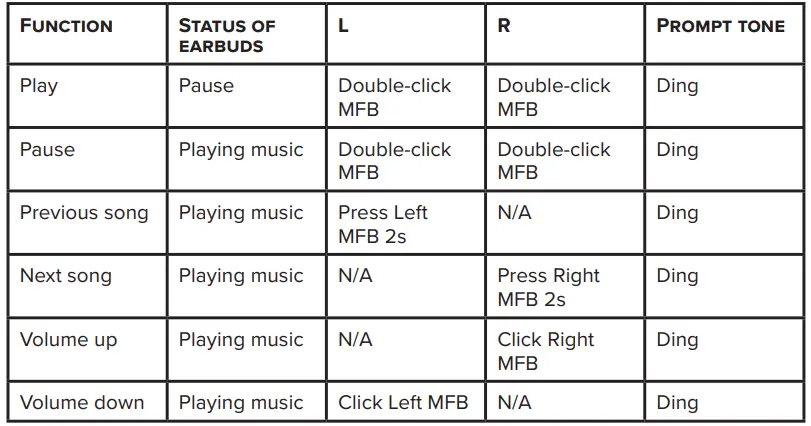
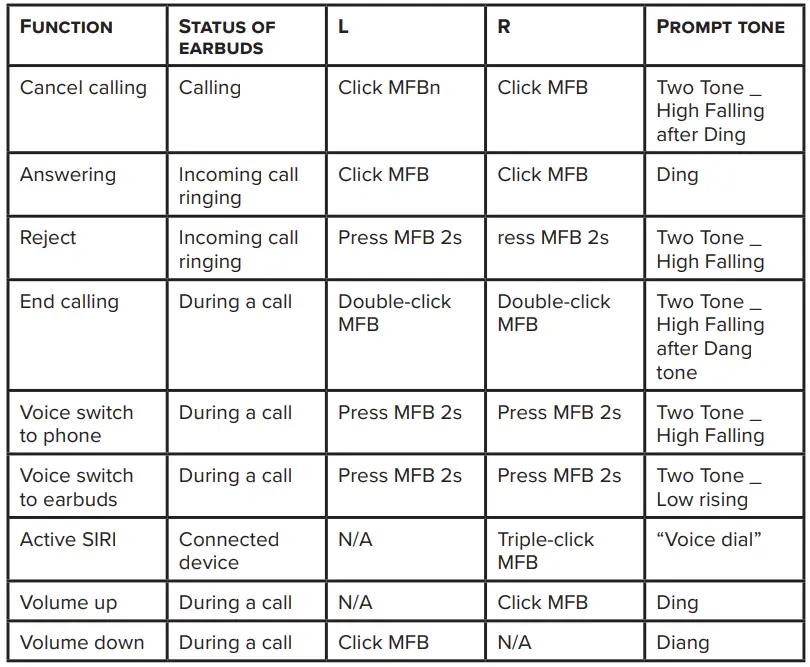
Functions with one earbud
- music

- Calling

Using Both Buds – Stereo Mode
- Turn on the Bluetooth® device you want to pair, and navigate to the Bluetooth pairing function.
- Turn on either earbud and connect it with your Bluetooth device, then power on the other earbud: they will connect with each other automatically.
- Primary/Secondary switch: When the primary earbud is successfully paired with the phone, the phone will Pop-up a dialog: “Headset would like to pair with your phone”. If you click “pair”, the secondary earbud will also be paired with the phone. Primary-secondary switching function will be on.
- In the following cases, the secondary earbud can automatically switch and connect to the mobile phone, so you continue to use it:
- In the process of use, if the primary earbud is automatically turned off due to low power, the secondary earbud will be automatically connected to the mobile phone.
- When the primary earbud is disconnected from the mobile phone at a distance, the secondary earbud will be automatically connected to the mobile phone.
- When the primary earbud is put into the charging case, the secondary earbud will be automatically connected to the mobile phone.
Function with two Earbuds Connecting to Cellphone Music
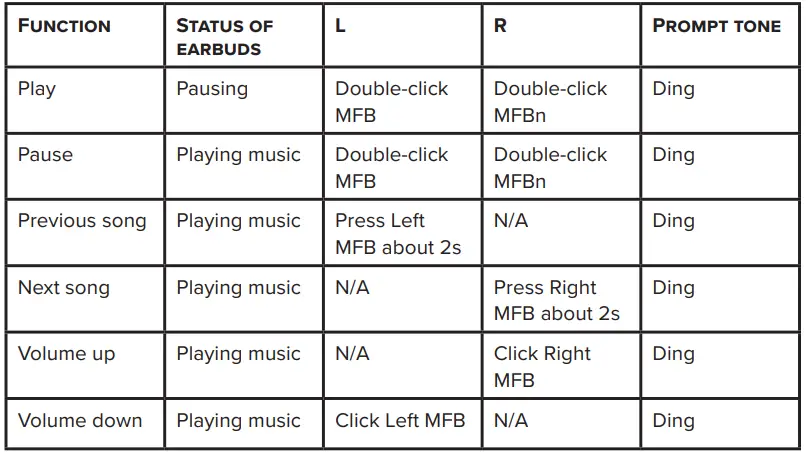
Calling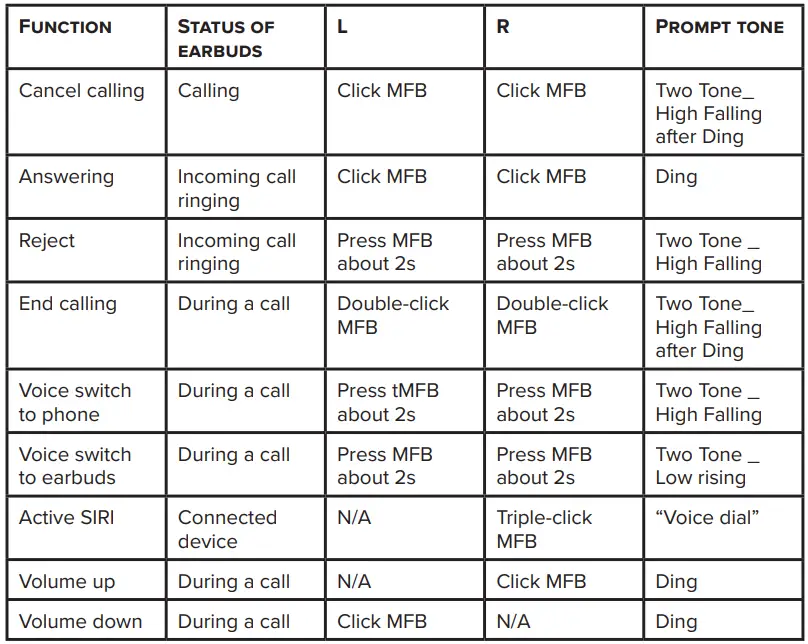
Earbud Pairing/Connecting
If the two Buds cannot connect with each other
- Turn off two earbuds individually (don’t turn them off by putting them into the charging case).
- Clear the pairing list Choose one of the earbuds. First, enter the pairing mode. Then hit the MFB button 5 times, while the Red LED and White LED turn on for 1 second. The pairing list will be cleared when you hear a prompt tone. Do the same thing with the other Bud.
- The earbuds will enter TWS pairing mode automatically when they are turned on (indicator light status: Red and White LEDs flash slowly). After successful connection, the primary earbud (L) will say “Pairing” after a “ding” tone. The LEDs will alternately flash Red and White, waiting to be paired with your phone. The secondary earbud(R) will sound a ‘Ding’ and the white LED will flash 2 times every 5 seconds.
Powering off
When using two earbuds, if either the Left or Right turns off, the other will also turn off. The earbuds will have corresponding indicator lights and prompts when they turn off.
Remarks
- In calling mode, both Buds are functional, but you will hear the call only in the Bud connected to the cellphone.
- When using two earbuds to talk, the transfer audio operation is on the Primary earbud. In other words, when the Left earbud is primary, press the Left MFB about 2s to transfer audio; when the Right earbud is Primary, press the Right MFB button about 2s to transfer audio.
Battery Status
When the earbuds are connected to an IOS device, it will display the battery status of the earbuds on the device. When the earbuds is low on power, the battery indicator will turn red and show a depleted battery icon. The Buds will also give an audio prompt to charge your headset. 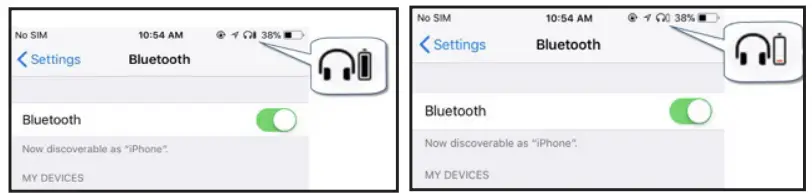
Factory Reset
When the earbuds are in pairing mode, click the MFB 5 times. The factory reset is indicated when the Red LED and Blue LED turns on for 1 second. At the same time, you will hear a prompt tone and turn off.
Remarks
- After factory reset, the paired list of the two Buds and mobile phones will be deleted. The Bud does not automatically reconnect with the mobile phone or the other Bud after turning it on.
- After factory reset, when the Bud turns on again, it will automatically enter the TWS pairing mode (Red and White LEDs flash slowly alternately). The two earbuds will be paired automatically. After the TWS connection, the Left Bud will continue to wait for pairing with the mobile phone (Red and White LEDs flash quickly alternately).
Care and Maintenance
Recommendations
- Keep the Buds dry. They are not meant for strenuous exercise. Try to keep sweat away from the Buds.
- Keep away from direct sunlight or heat. High temperatures will shorten the life of electronic devices, destroy the battery or distort certain plastic parts.
- Don’t expose to cold areas. It may damage the internal circuit board.
- Don’t try to disassemble the Buds.
- Try not to drop them on the floor or other hard surfaces. The internal circuit board might get damaged.
- Don’t use strong chemical products or detergent to clean the Buds.
- Don’t scratch the surface with sharp things.
Specifications
- Bluetooth version Bluetooth V5.0
- Bluetooth profiles HFP, HSP, A2DP, and AVRCP
- Operating distance 10 meters
- Working time(one earbud) Up to 10 hours(maximum volume); Up to 13 hours (50% volume)
- Working time(two earbuds) Up to 9 hours (maximum volume); Up to 12 hours (50% volume)
- Standby time About 130hours
- Charging time for earbud About 1.5 hours
- Charging time for case About 1.5 hours
- Times charging case can charge the earbuds More than 2 times
- Charging input for case USB charging DC5.0V 500mA
- Weight One earbud 6.5g
- Charging case 44.2g
- Dimensions Earbud 42*22.4*23mm
- Charging case 63*30.3*47.8mm
Warranty Information
Spracht warrants its products against defects or malfunctions in material and workmanship under normal use and service, with the exceptions stated below. This warranty lasts for one year from the original date of purchase. Coverage terminates if you sell or otherwise transfer the product. In order to keep this warranty in effect, the product must have been handled and used as prescribed in the instructions accompanying the product.
Spracht shall (at its option) repair or replace a defective unit covered by this warranty, or shall refund the product purchase price. Repair, replacement with a new or reconditioned unit, or refund, as provided under this warranty, is your exclusive remedy. This warranty does not cover any damages due to accidents, misuse, abuse, or negligence. Spracht shall not be liable for any incidental or consequential damages. Some states do not allow limitation or exclusion of incidental or consequential damages, so the above limitation or exclusion may not apply to you.
To make a warranty claim, the purchaser must obtain a return authorization number (RA) from Spracht (serial number and purchase date required), and then return the product to Spracht at the purchaser’s expense. A copy of the original dated receipt or shipping document must accompany the product. To obtain a return authorization, see “Warranty” on our website at www.spracht.com, send an e-mail to [email protected], or contact us at:
Spracht 974 Commercial Street, Suite 108 Palo Alto, CA 94303 USA
Ph 650-215-7500
Fx 650-485-2453
For repair or replacement of a failed product, allow 4 to 6 weeks for processing and shipment. This warranty gives you specific legal rights, and you may also have other rights which vary from state to state.
Trademarks
© Copyright 2020 Spracht®. All rights reserved. Spracht® and the logo, and Zum-BT-TWS-2 Buds are trademarks and registered trademarks of Spracht®. Any other trademarks are properties of their owners.
FAQs
The battery is low, and needs to be recharged.
The charging case may not have enough power to charge the headset. Please charge the charging case. Make sure the metal contacts of the earbud and charging case are free of obstacles. The battery may be low. Please charge the battery for 30 minutes, until the red LED goes on.
Make sure the volume is not too low or muted; Make sure the headset connects with the mobile phone correctly; Make sure the distance between the headset and the cell phone is in Bluetooth range (around 30’ max).
Make sure the mobile phone is in a strong signal area; Make sure the headset is in the available range. and nothing is in the way of the signal.
Make sure your Bluetooth device supports AVRCP (Audio/Video Remote Control profile).
After 10 seconds, the earbud’s indicator becomes red, and it turns off when the device is turned off. Fully Powered When electricity is cut off to the charging case, the white indicator on the charging case turns off. You will receive a voice message if the earphones’ battery is low.
roughly two hours The earphones need about two hours to fully recharge. If the battery is low, you can extend its life by 10 to 20 minutes by charging it in the charging case. Connect the charging case to an approved wall charger or USB power source.
The majority of cases have a lithium-ion battery that keeps the earphones charging until they are fully charged. The earbuds should always be kept on hand just in case.
Fortunately, you can charge your case and headphones simultaneously. Open the earphone charging case that was included with your headphones first. Place the buds into their proper places in the case. Next, secure the lid.
For a long-lasting battery, avoid placing your wireless headset in the hot sun or the bitter cold. When not in use, always remember to put the headset back into the charging base. We are accustomed to a charging regimen for phones because we have been using them for the longest time.
You must connect a Micro USB cable to your device and either a computer or a USB adapter in order to charge earbuds with a micro USB. After that, you must wait while your earbuds fully charge.
Depending on the audio settings on your headset, it might only play in one ear. So make sure the mono option is off in your audio properties by checking your audio properties. Make sure the voice levels on both earbuds are balanced as well.
Your wireless earphones might only work on one side since the initial setup of the earbuds may not have gone smoothly. Other causes include a glitch (which necessitates a manual reset), the necessity to Bluetooth reconnecting to your other device, and genuine hardware damage.
If an earbud still has juice, you can use it while charging it independently in the charging case.
To prevent overcharging, lithium batteries include a built-in auto-off feature that activates when a full charge is attained. Even if still plugged in, the battery level will have to drop below a particular point to activate the charging again.