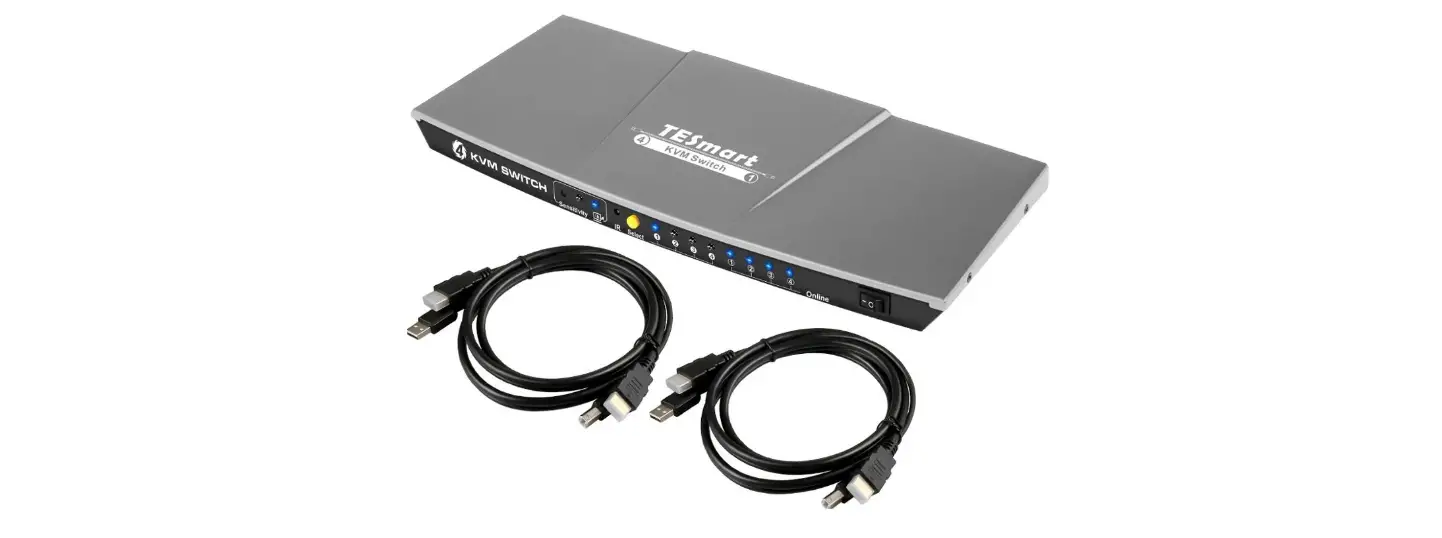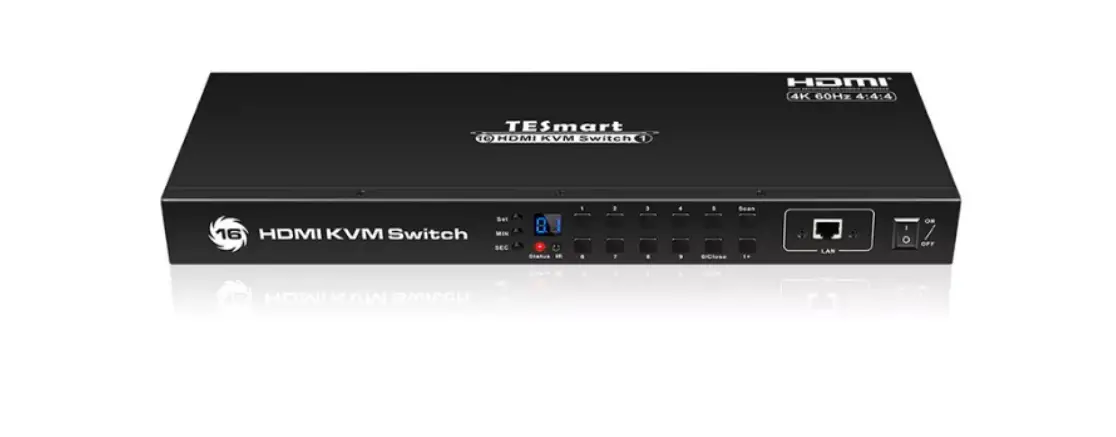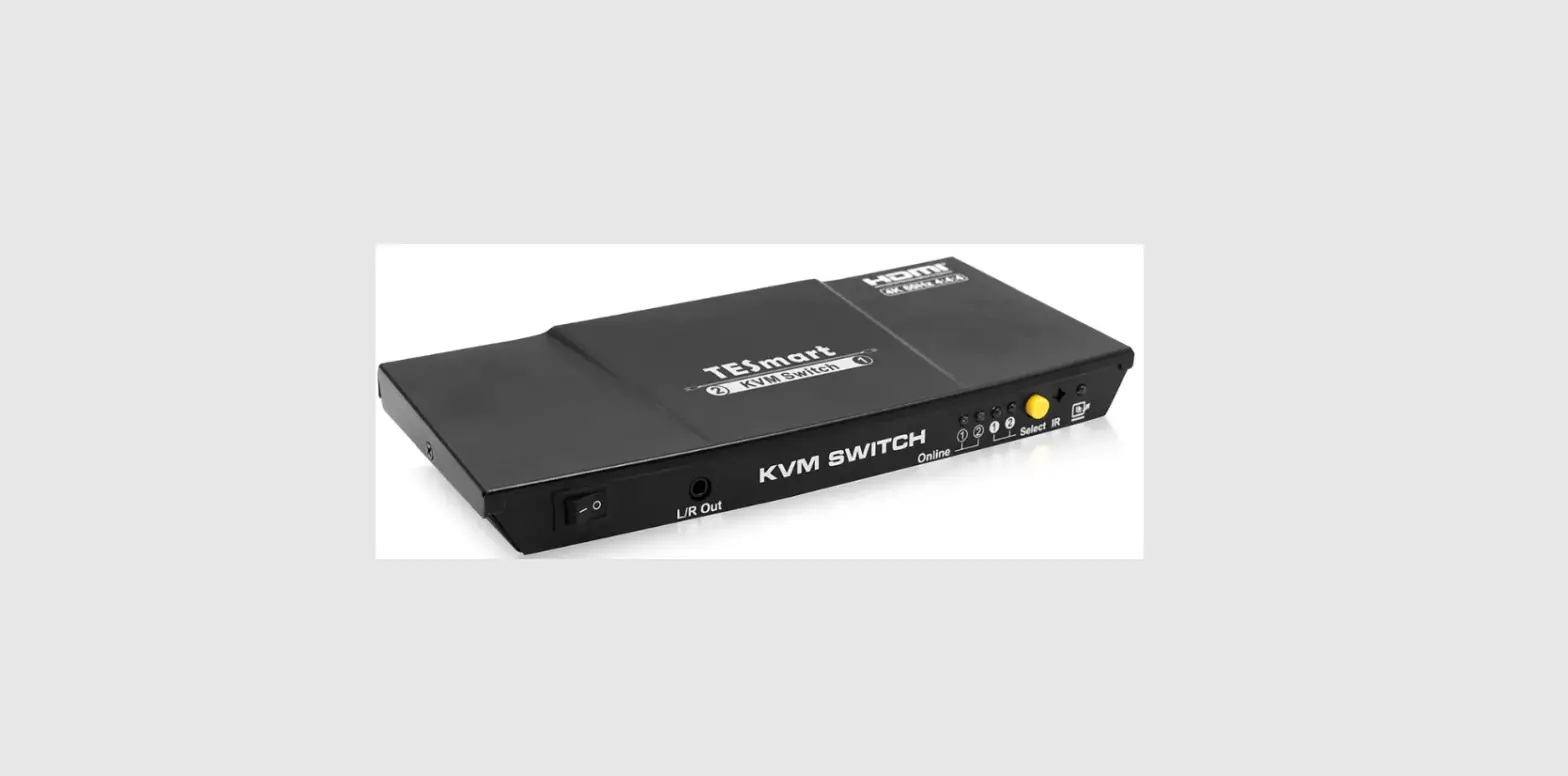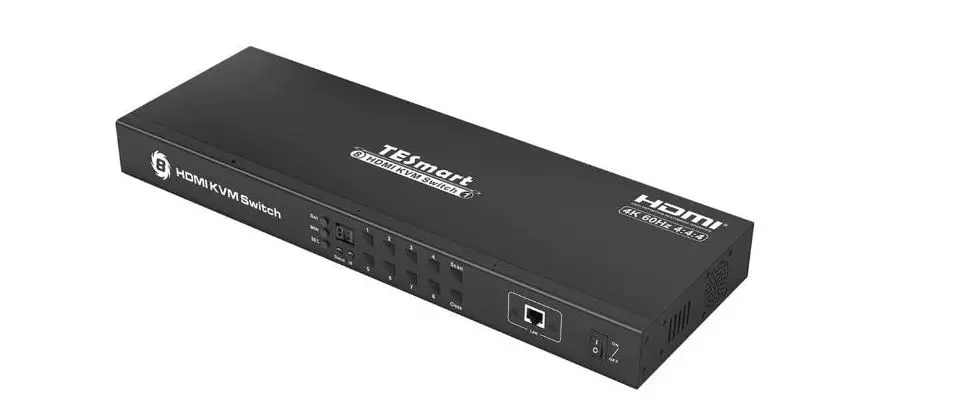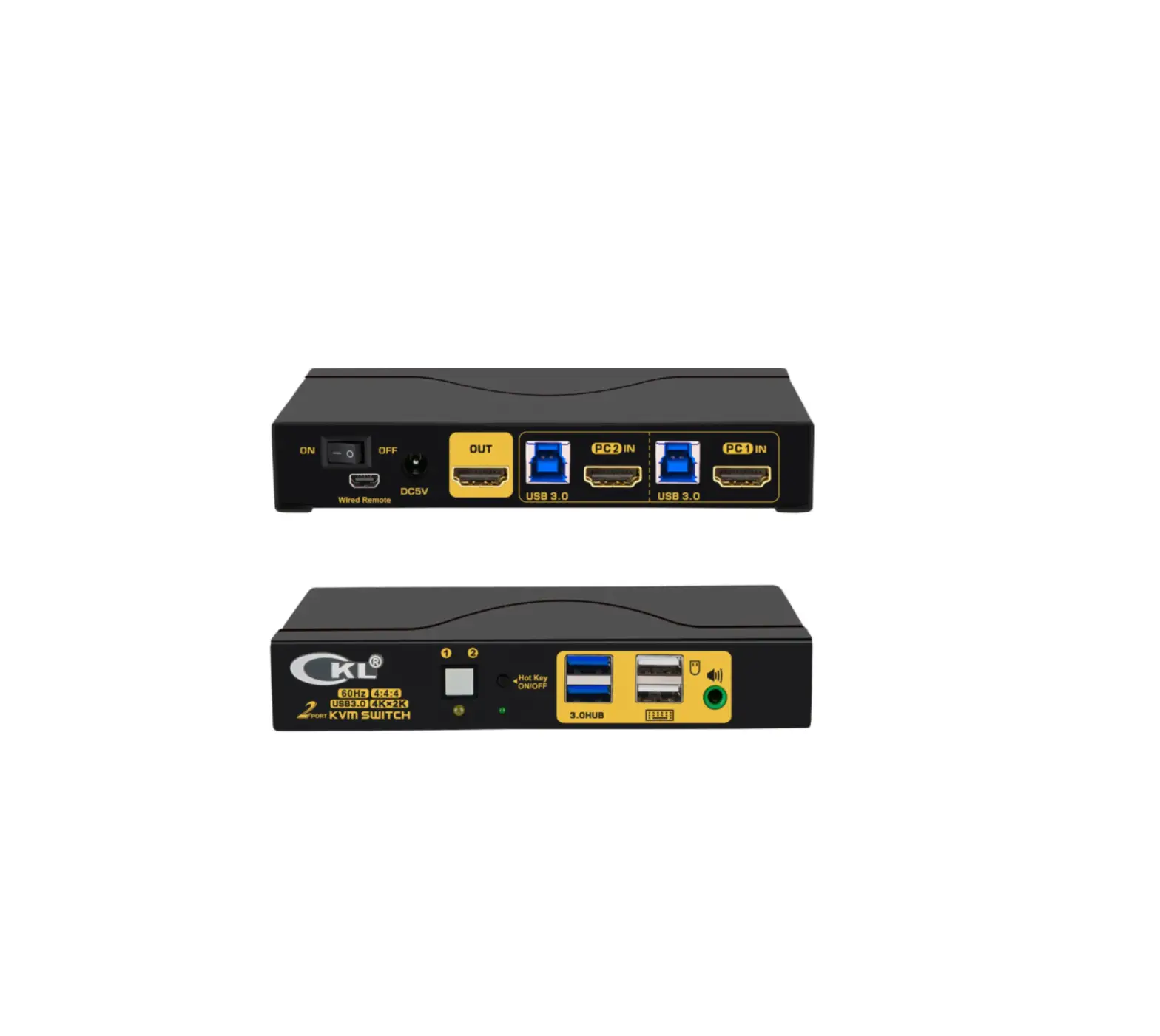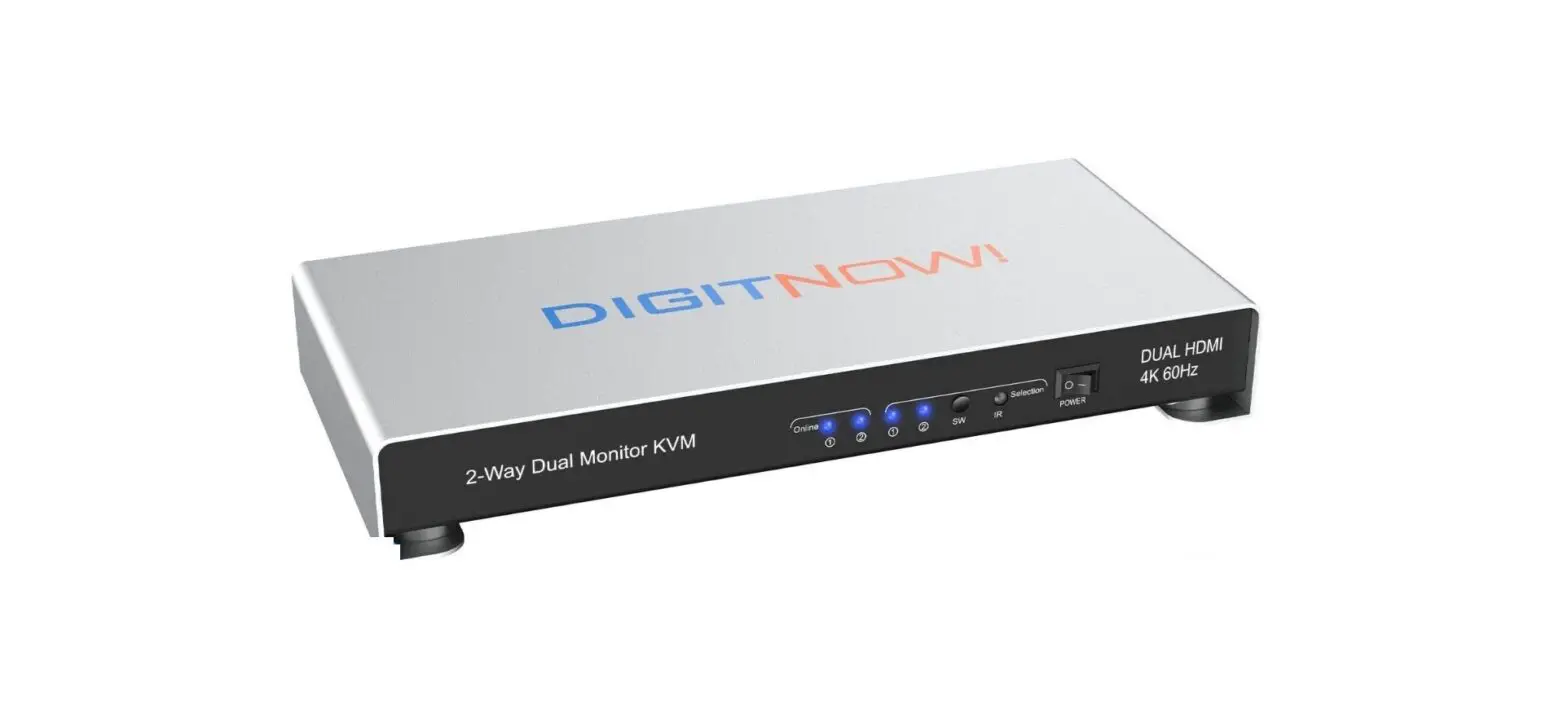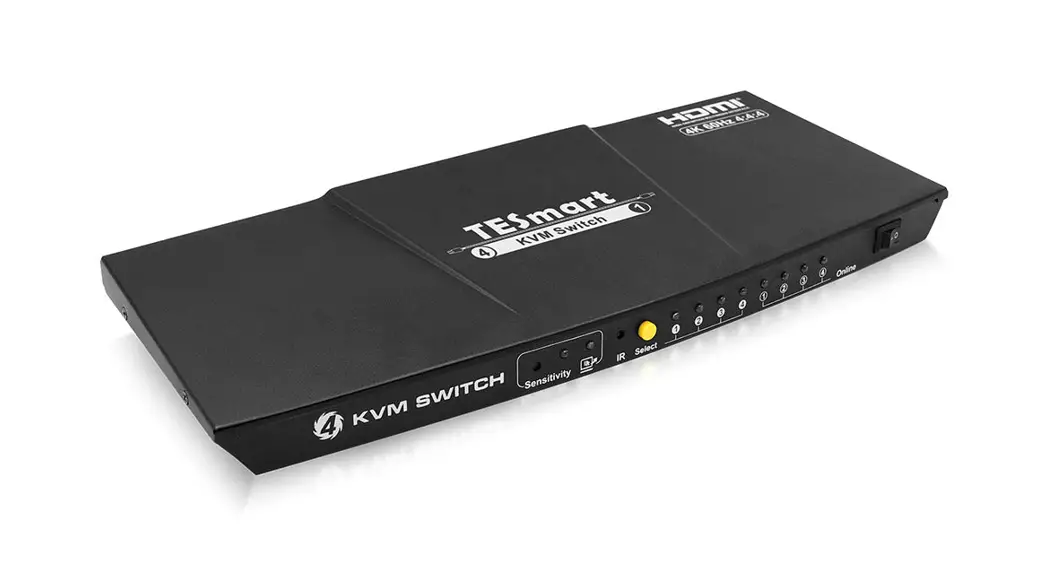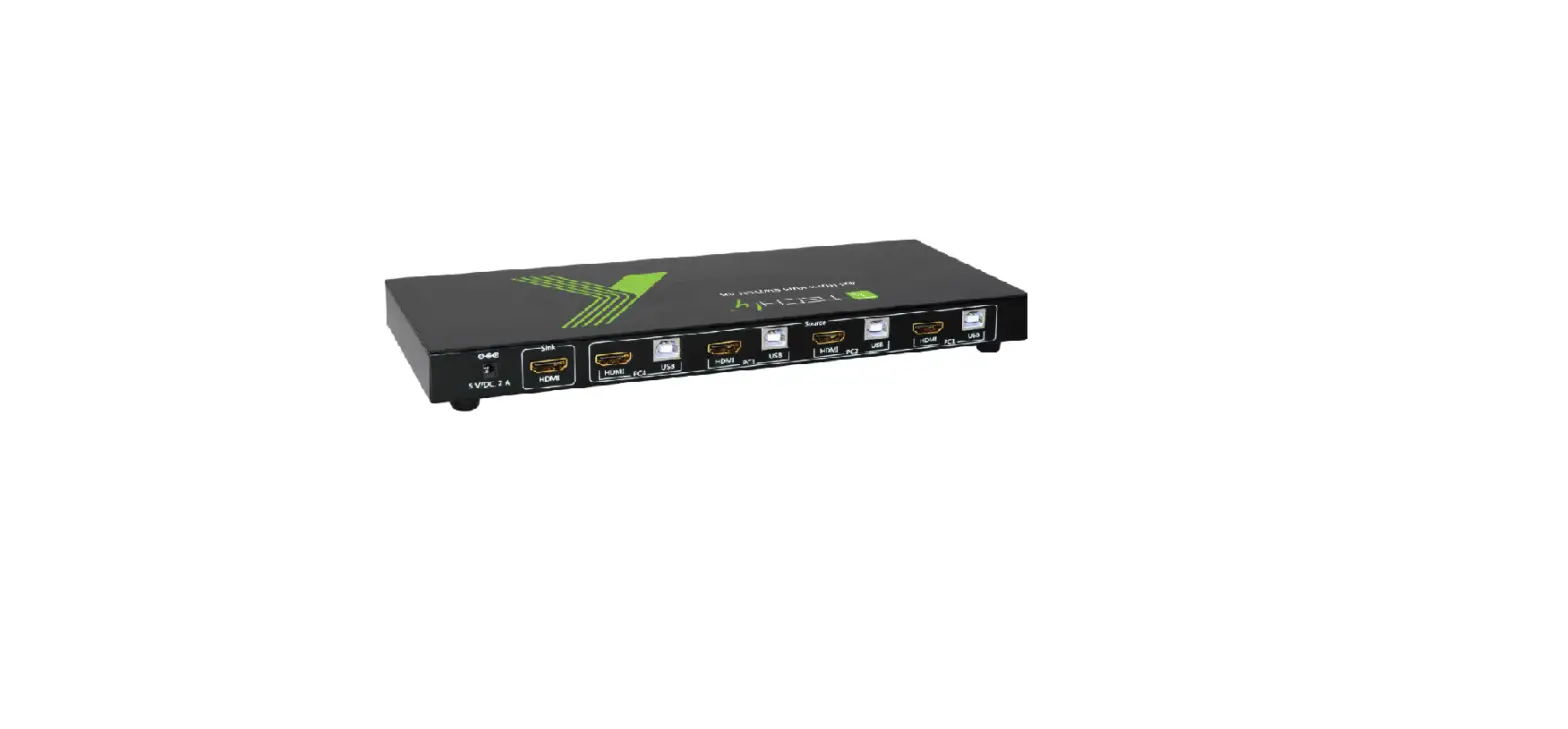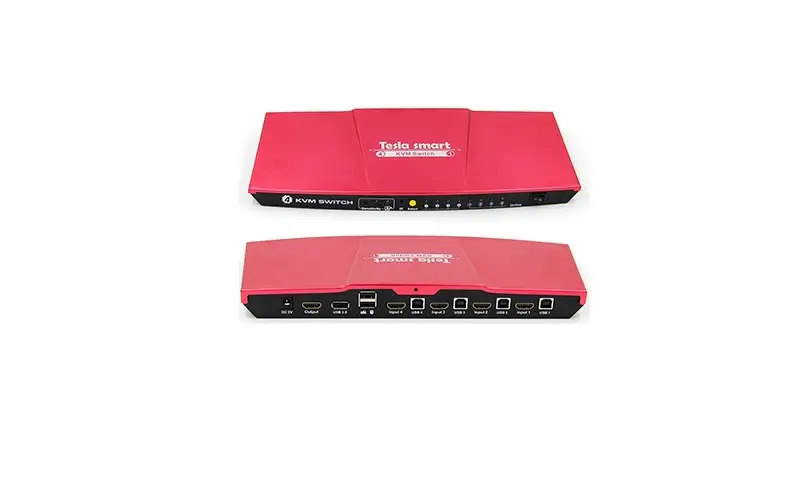
TESLA HKS0401A1U HDMI KVM Switch User Manual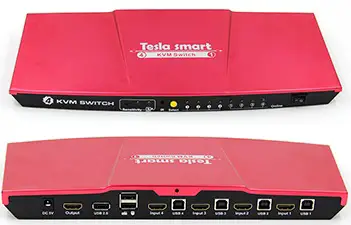
Features
- Using only 1 set of keyboard, mouse and monitor to control 2/4 computer devices
- Support Unix/Windows/Debian/Ubuntu/Fedora /Mac OS X/Raspbian/Ubuntu for Raspberry Pi and other Linux based system
- Support auto switching to monitor computers in a specified time interval
- Support front panel buttons, IR signals, keyboard hot keys and mouse gesture to control KVM to switch inputs
- Available to use keyboard and mouse without any delay after switch input sources
- Support resolution up to 3840*2160@60Hz 4:4:4
- HDCP 2.2 compliant
- With USB 2.0 hub port, it is possible to connect bar code scanner, USB hard drive or other USB devices to KVM
- With EDID emulators in each input port, keep PCs always having correct display information
- Support DVI-D single link sources and displays with the use of HDMI-to-DVI adapters
- Support analog L/R audio output
- Support HDR 10 and Dolby Vision
Packing List
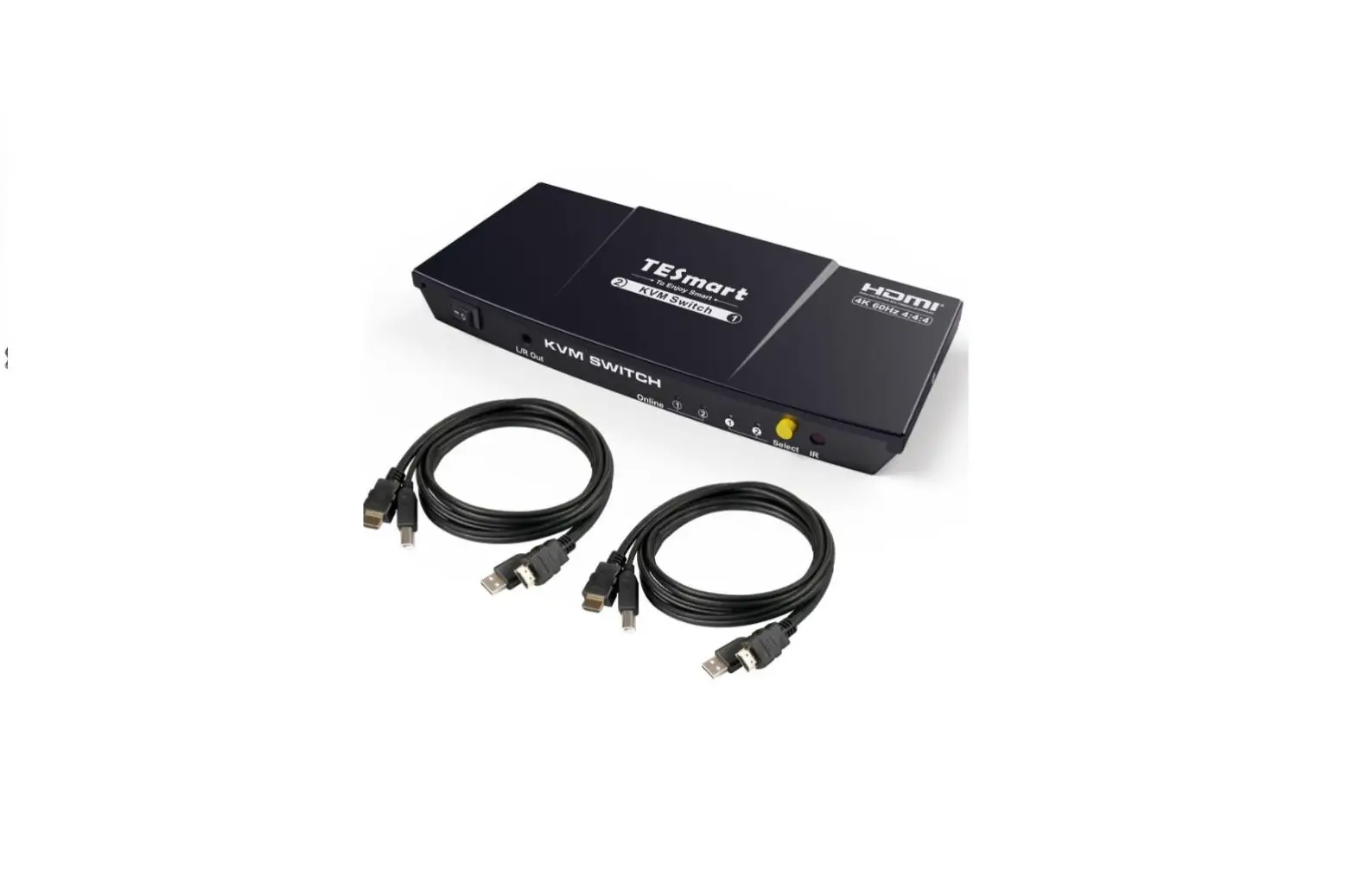
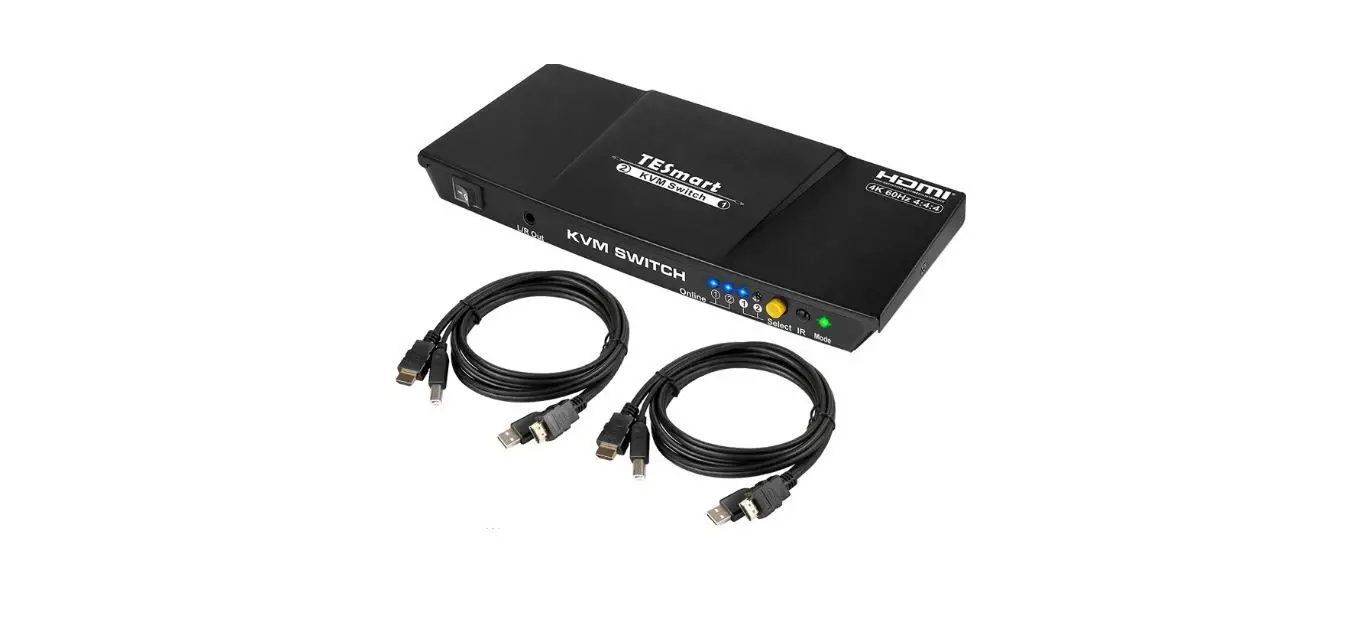
- 1 * HDMI KVM Switch
- 1 * DC 5V power adapter
- 1 * IR remote control
- 1 * User’s Manual
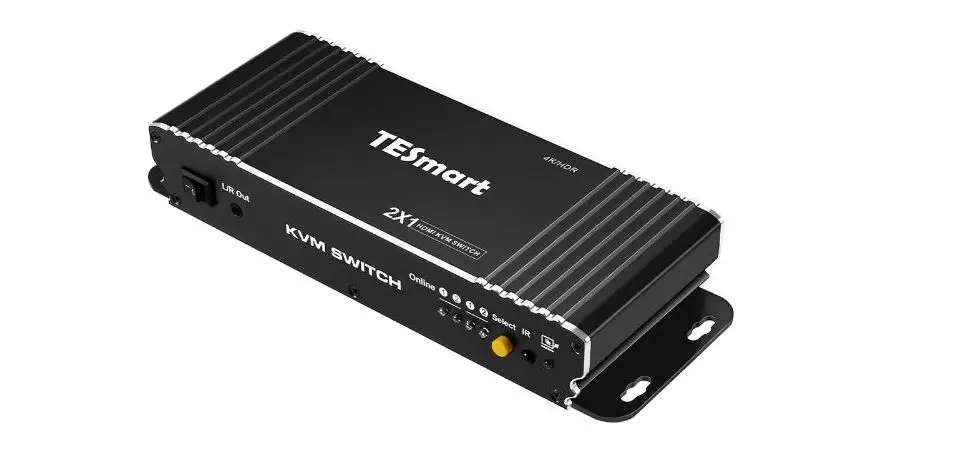
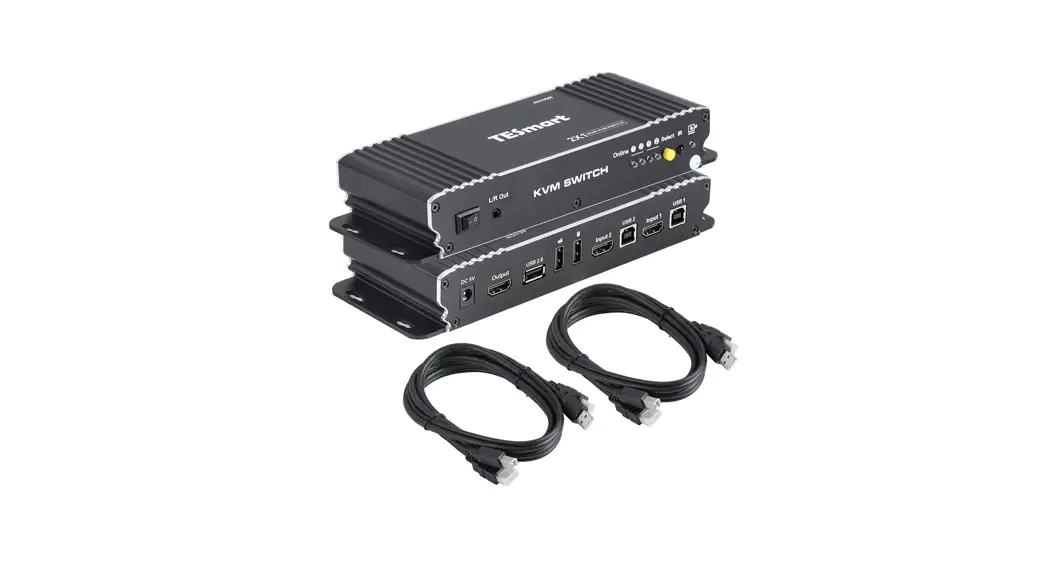
2×1 Panel Description
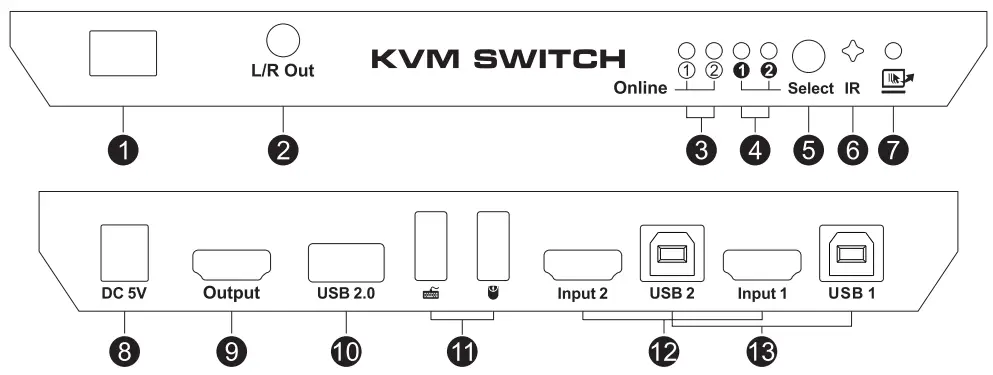
| ID | Name | Description |
| 1 | Power switch | Turn on or off power supply |
| 2 | L/R Out | Analog L/R audio output |
| 3 | USB connection status | LEDs will be lit if the USB data ports are connected to the computers’ USB port |
| 4 | I nput selection status | Indicate current selected inpu t source |
| 5 | Input selection button | Select input put sources |
| 6 | I R receiver | Receive IR remote signal |
| ID | Name | Description |
| 7 | Fast switching mode status | LED will be lit if fast switching mode (Mouse gesture) is activated |
| 8 | DC SV | 5V DC power supply |
| 9 | HDM I ou tput | Con nect to HDM I display |
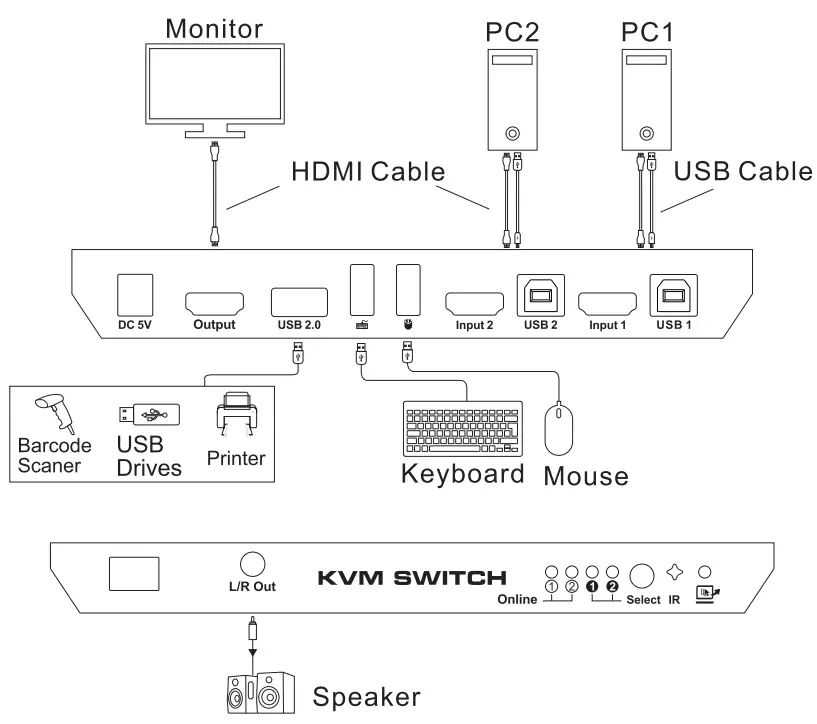
| 10 | Standard US B 2.0 port | Connect to US B 2.0 device, printers, USB drives, barcode scanner |
| 11 | Keyboard and mouse input | For USB keyboard and mouse input, including wireless keyboard and mouse |
| 12 | HDMI input | Connect to HDMI source devices |
| 13 | USB data ports | Connect to PC by USB type B to type A cable |
2×1 Connection Diagram
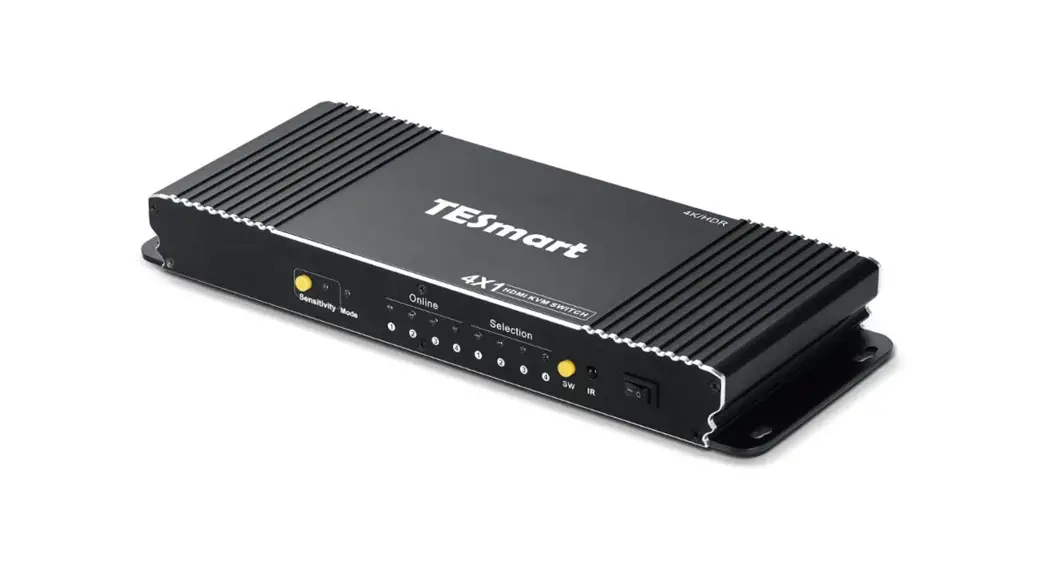
4×1 Panel Description
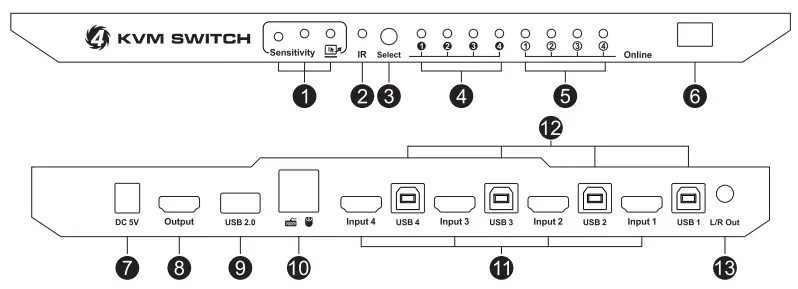
| ID | Name | Description |
| 1 | Fast switching mode indicator and sensitivity adjust button | LE D will be lit if fast switching mode (Mouse gesture) is activated. Press button to change the sensitivity of the mouse movement recognition |
| 2 | IR receiver | Rece ive IR rem ote signal |
| 3 | Input selection button | Select input sources |
| 4 | Input selection status | Indicate current selected input source |
| 5 | USB connection status | LE D will be lit if the USB type B port connected to computers and computers are on |
| 6 | Power switch | Turn on or off power supply |
| ID | Name | Description |
| 7 | DC SV input | DC 5V power supply |
| 8 | HDMI output | Connect to HDMI display |
| Standard USB 2.0 port | Connect to USB 2.0 devices, printer, barcode scanner, US B drives, etc | |
| 10 | Keyboard and mouse input | For USB keyboard and mouse input, including wireless keyboard and mouse |
| 11 | HDMI input ports | Connect to HDMI source devices |
| 12 | U SB data ports | Connect to PC by USB type B to type A cabIe |
| 13 | L/R Out | Analog L/R audio output |
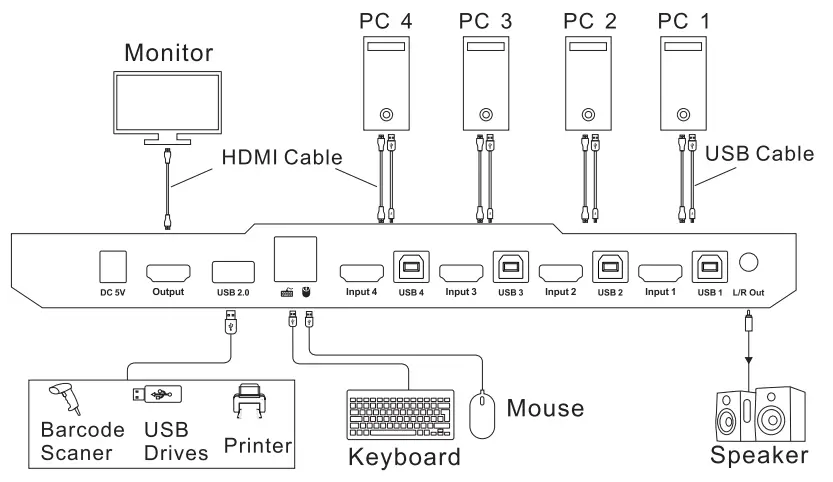
4×1 Connection Diagram
How To Use
- Setup the connection according to the connection diagram.
- After all the PCs are started in step 1, then you can switch to any PC by keyboard hot keys, IR keys or the key pad on the KVM front panel. (For example, if you want to control the PC connected to HDMI Input 2 just press the [Select] button on front panel, or press digit button [2] on remote control, or the keyboard hotkey commands described following)
How to Use Keyboard Hot Keys
- Hit [Scroll Lock] key twice within 2 seconds, the buzzer will beep twice.
- After step 1 enter following hot key commands within 3 seconds, the KVM will execute the corresponding commands.
 Select previous input port
 Select next input port
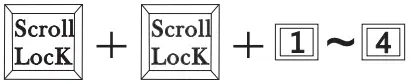 Select port by port number
Note: 3, 4 are for 4×1 KVM.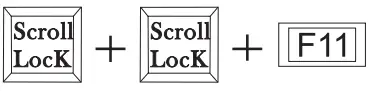 Enable or disable buzzer sound
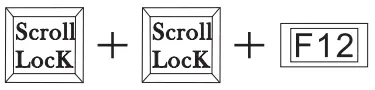 Enable or disable fast switching mode (Mouse gesture mode) If fast switching mode is activated, then double hit left or right bound of the screen with mouse pointer in 1 second, KVM will switch to previous or next input.
 Turn on auto switching mode
Note: default auto switching time interval is 6 seconds, you are able to change this value by following hot key commands: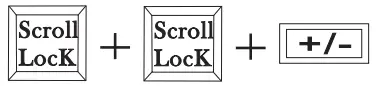 Increase or decrease auto switching time interval
Note: 1 second per step, the time is up to 250 seconds. Turn off auto switching mode
Note: Execute this hotkey command to exit auto switching mode.
HOW TO CHANGE THE HOT KEYS COMBINATION
If no [Scroll Lock] key on your keyboard or the [Scroll Lock] key is used for other functionality, you can take [Right-Ctrl] hotkey instead of [Scroll Lock] key by below two ways:
- Press front panel button [Select] until you hear the buzzer is beeping, then restart the KVM.
- Execute hotkey command [Scroll Lock]+[Scroll Lock]+[F1].
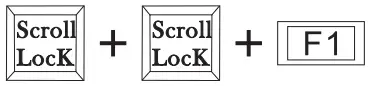 Switch the control hotkey to [Right-Ctrl]
After you had done either one of above, the hotkey combinations would be changed to: [Right-Ctrl]+[Right-Ctrl]+[xxx]. Note: xxx refers to keyboard key PageUp PageDown 1-4, F11 F12, SPACE, +/-.
The same if you want to change the hotkey from [Right-Ctrl] to [ScrollLock], you could do as follows:
- Press front panel button ‘Select’ until the buzzer is beeping, then restart the KVM.
- Execute hotkey command: [Right-Ctrl]+[Right-Ctrl]+[F1].
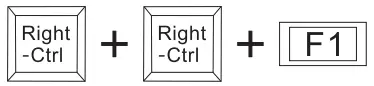 Switch the control hotkey to [ScrollLock]
IR Remote Control
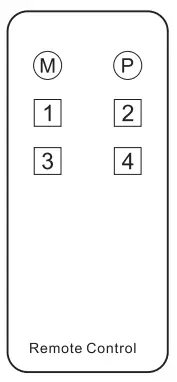
- Switch to input port 1
- Switch to input port 2
- Switch to input port 3
- Switch to input port 4
Note: 3,4 are only available for 4×1 HDMI KVM switch.
Note:
- For the safety request by some express company, the remote control is not equipped battery by default. Please install the button battery CR2025 before using it.
- Unspecified buttons at above are non-functional.
Warranty Information
We warrant this product as free of defects in material and workmanship for a period of one (1) year from the date of shipment.
If during the period of warranty this product proves defective under normal use, we will repair or replace this product, provided that this product has not been subjected to mechanical, electrical, or other abuse or modifications. If it fails under conditions other than those covered will be repaired at the current price of parts and labor in effect at the time of repair. Such repairs are warranted for six (6) months from the day of reshipment to the buyer.