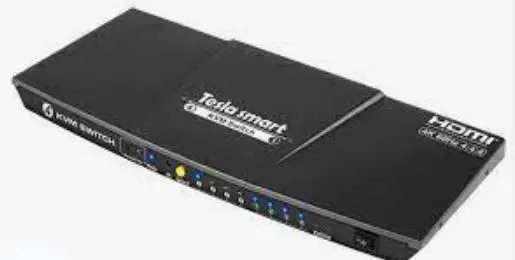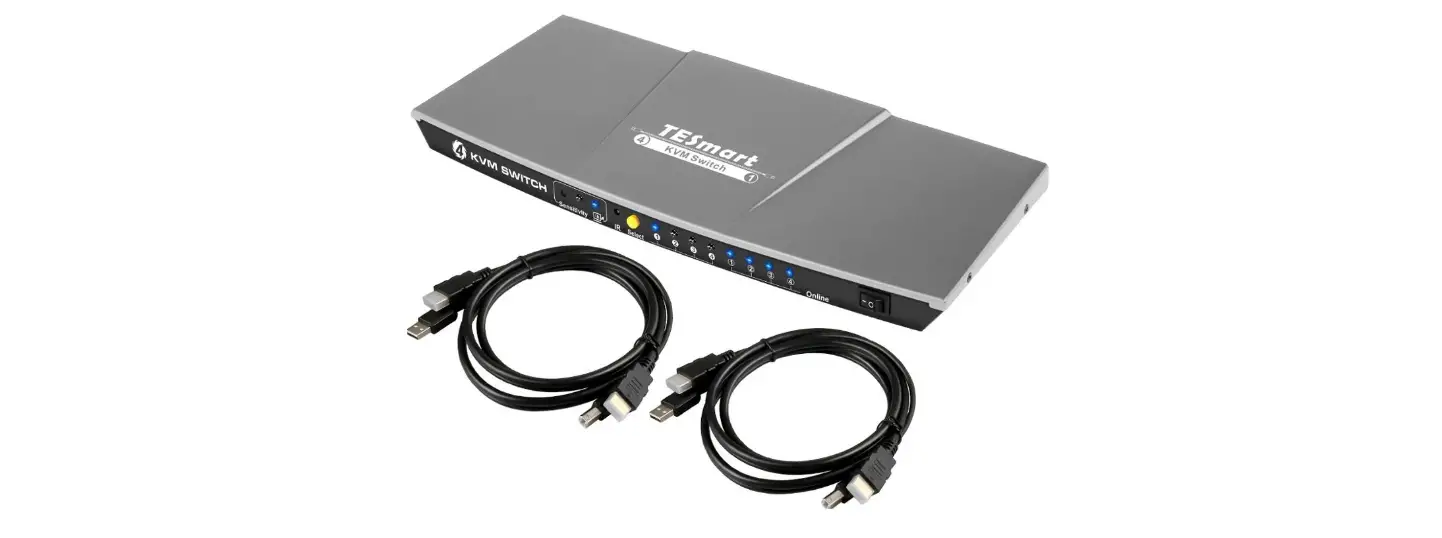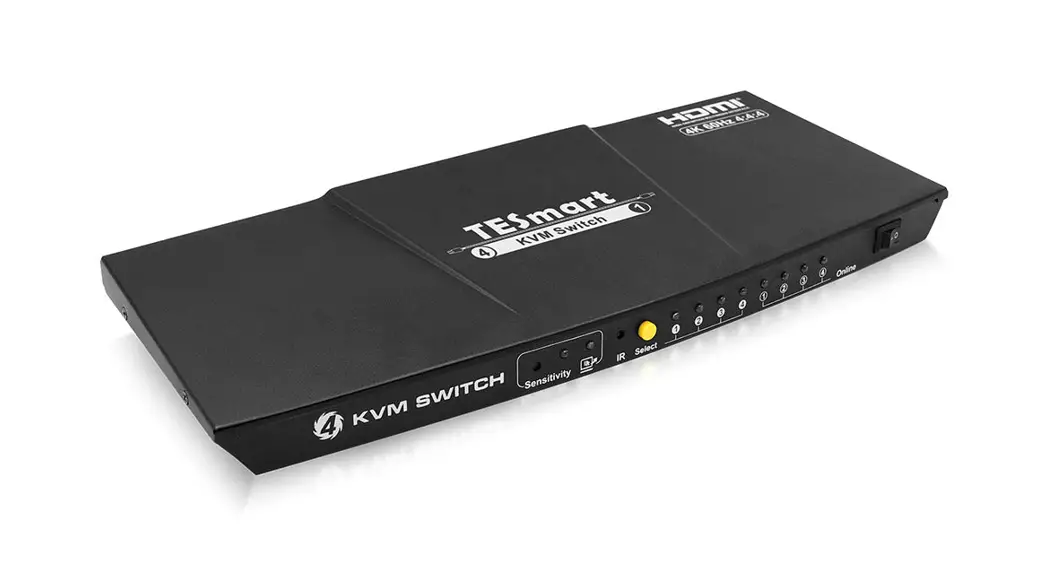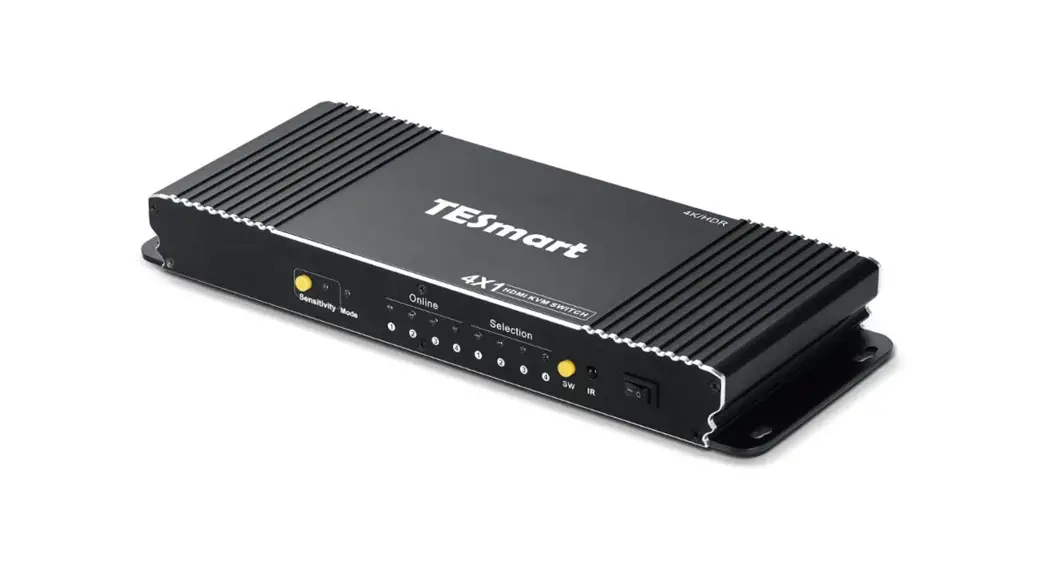

KCEVE LKV441 4×1 HDMI KVM Switch
Important Safety Instructions
- To prevent electric shock, please ensure that all devices are properly grounded.
- Do not place this device near or over a radiator or heat register, or where it is exposed to direct sunlight.
- Place the device in a well-ventilated area, do not block any ventilation openings.
- Do not expose this device to rain or place it near water. Any liquid that goes into the apparatus may cause a failure, fire, or electric shock.
- Do not place the device on an uneven or unstable surface. The device may fall resulting in a malfunction.
- Never insert anything metallic into the open parts of this device. This may cause a danger of electric shock.
- The device should be repaired only by a qualified technician.
- If a three-party power supply is used, please ensure that the power supply specifications meet the product requirements.
Introduction
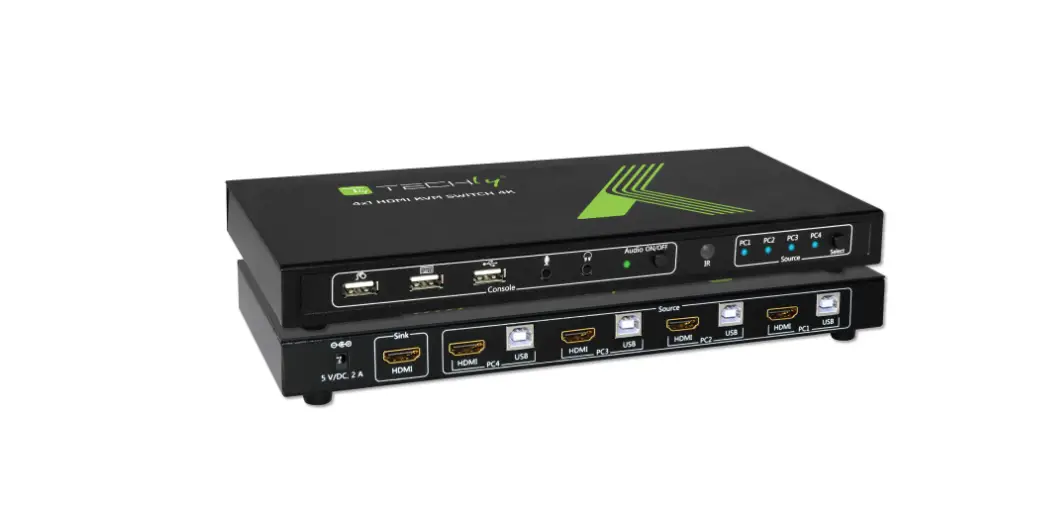
This is a 4-in 1-out ultra-high-definition switcher, supports 4 HDMI signal inputs and 1 HDMI signal output, the highest resolution is 4K×2K@60Hz and is backward compatible, supports KVM control. A variety of control methods (IR remote control, button and RS-232) can easily switch the content of the 4 HDMI signal sources to the display. The product is widely used in security monitoring, education and training, exhibitions and broadcasting, command centers, etc.
Features
- Support 4 HDMI input signals and 1 HDMI output signal
- Support up to 4096×2160@60Hz resolution and is backward compatible
- Support KVM
- Support multiple switching modes: IR remote control, button, RS-232
- Support USB 2.0
- Support EDID passthrough and auto downscaling
- Support HDR10
- Plug and play, easy installation
Package Contents
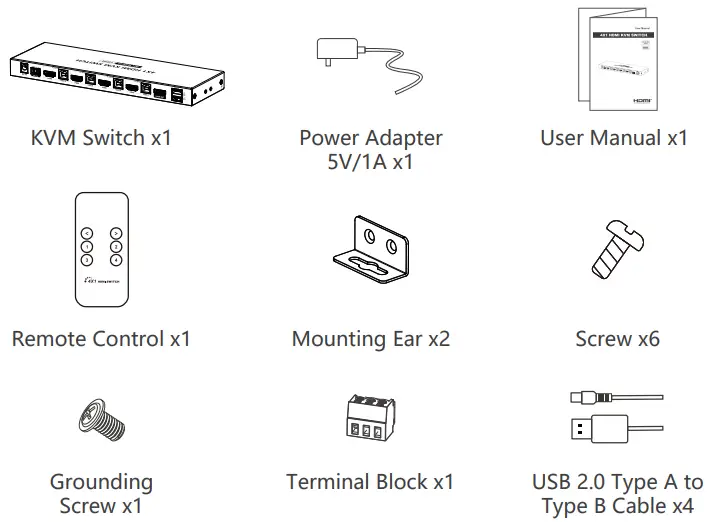
Installation Requirements
- HDMI source device (DVD, game console, set top box, PC, etc.)
- HDMI display device like TV, projector with HDMI port
- HDMI cable: Standard HDMI 2.0 cable (Support 4Kx2K@60Hz)
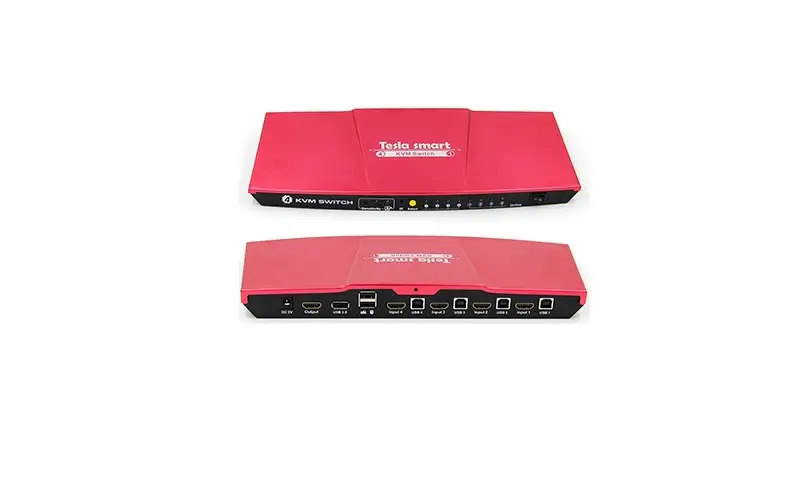
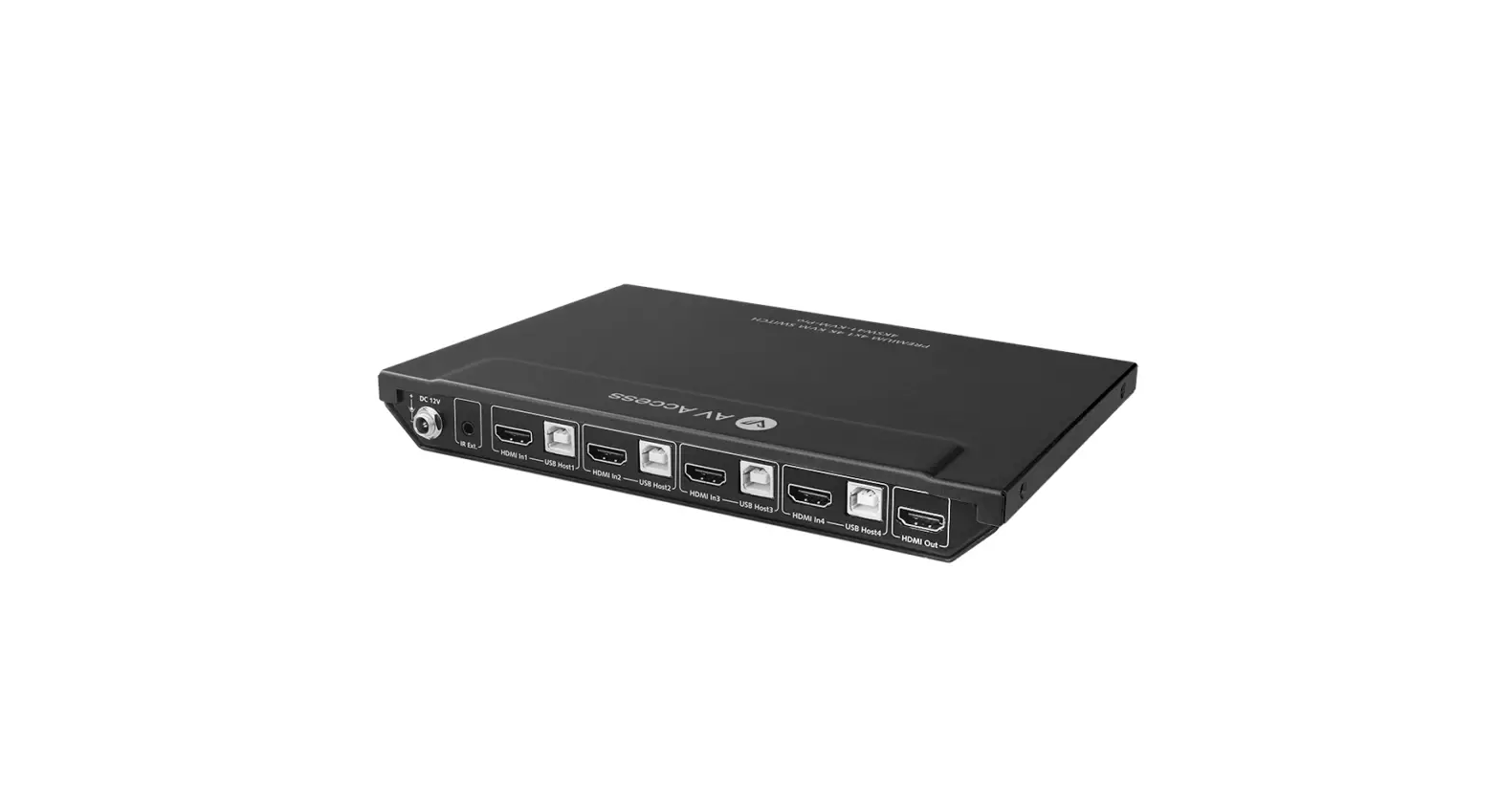
Panel Description
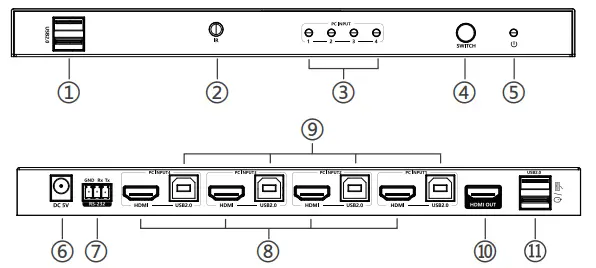
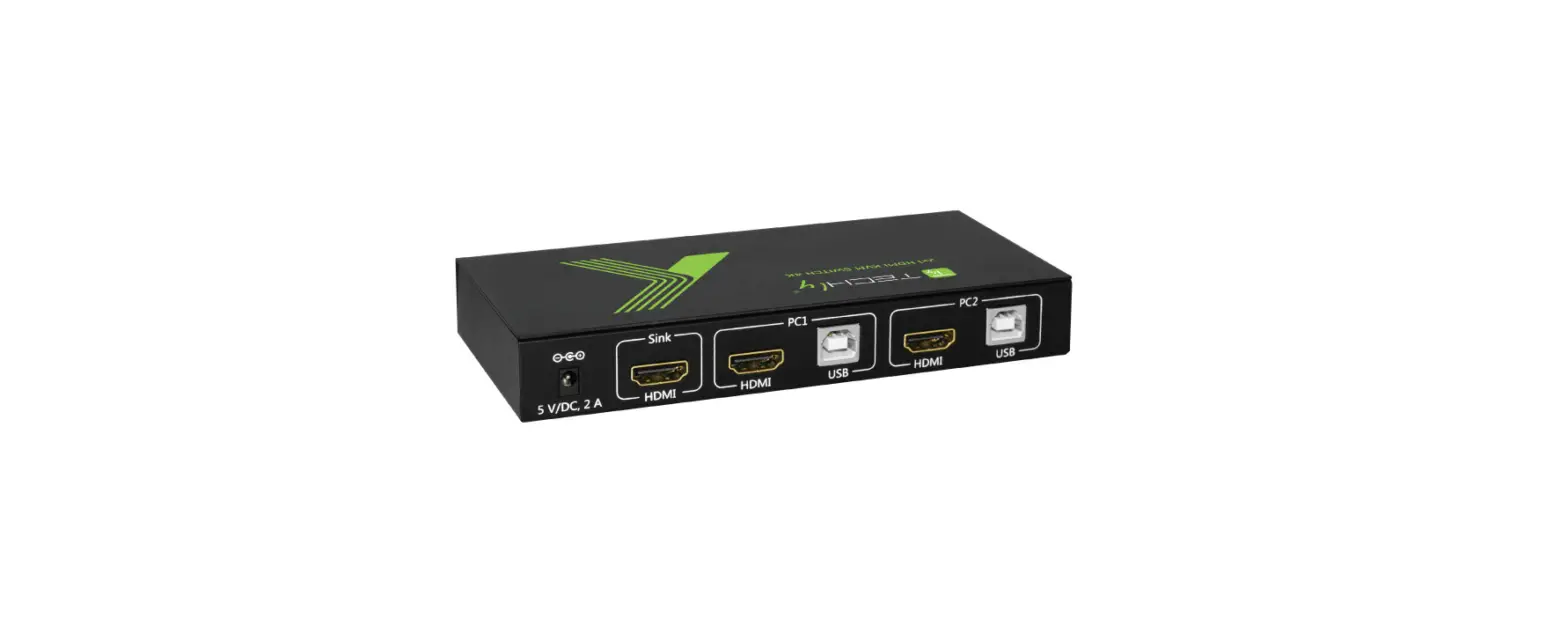
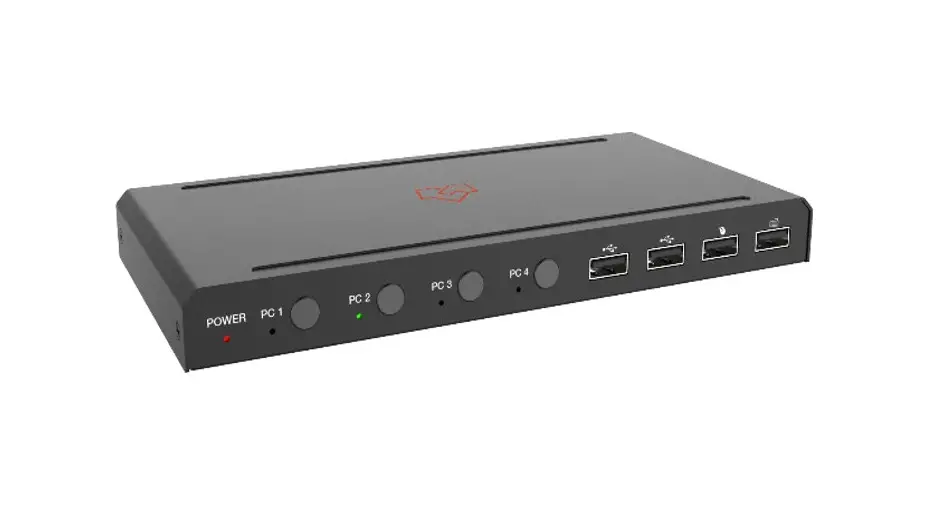
| ① | USB 2.0 (Type-A) | Connect with USB devices |
| ② | IR receiving window | Receive IR signal |
| ③ | HDMI input indicator | Corresponding to HDMI input 1, 2, 3, 4 respectively |
| ④ | Switch button | Press the button to switch the input of the signal source |
| ⑤ | Power indicator | When there is power, the indicator will light solid yellow |
| ⑥ | DC 5V | Connect with DC5V/1A power adapter |
| ⑦ | RS-232 | Used for RS-232 command control |
| ⑧ | HDMI input | Connect with HDMI source device |
| ⑨ | USB 2.0 (Type-B) | Connect to the computer’s USB ports with USB cables |
| ⑩ | HDMI output | Connect with HDMI display device |
| USB 2.0 (Type-A) | Connect with keyboard and mouse |
Remote Control
- “<” and “>” button, to choose channel forward or backward.
- “1-4” number buttons, to choose any source device as you need.
Installation
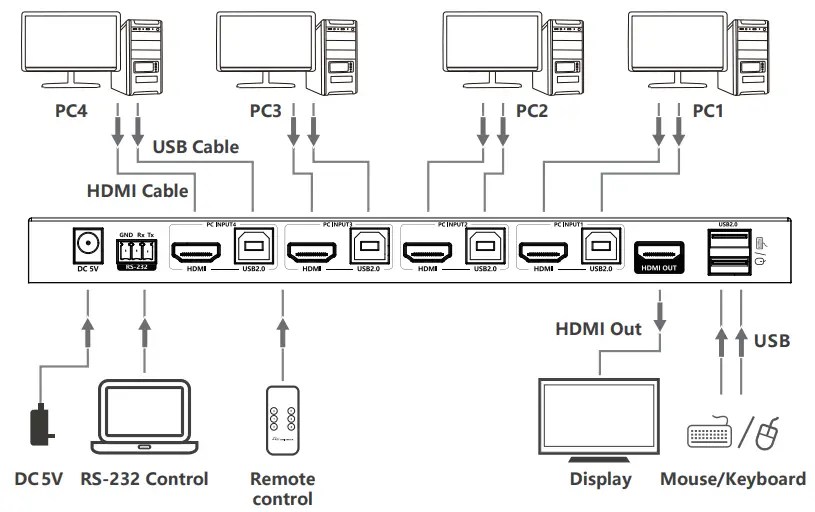
- Connection Diagrams

- Connection Instructions
- Connect the source devices to the HDMI input ports with HDMI cables.
- Connect the display device to the HDMI output port with HDMI cable.
- To use the KVM function, connect the mouse and keyboard to the USB type-A port of the switch, while connecting the computer and the switch with a USB Type A to Type B cable.
- Power on the devices to get started.
- Note: You can switch the signal source by pressing the switch button or use the remote control.
- RS-232 control
- Baud rate: 9600
- Data bits: 8
- Stop character: 1
- Parity: none
| / | HDMI1 input | HDMI2 input | HDMI3 input | HDMI4 input |
| PS1XR\n | PS11R | PS12R | PS13R | PS14R |
| Reset\n | Restart the device | |||
| Recover\n | Restore factory setting | |||
| Status\n | Query for status information If no HDMI port is inserted, NA is displayed. PS12R is displayed if HDMI 2 was the last to be inserted. Status: Baud 9600 PS12R OK | |||
| Baud XX\n | Set baud rate value: 9600 (default), 19200 | |||
FAQ
- Q: No image output?
- A: 1) Check the power supply and make sure the power indicator is on.
- 2) Check if the HDMI cables connected well.
- 3) Check and make sure the TV has been set up to the right channel.
- 4) While connect with PC or laptop via HDMI, please make sure the output mode is mirror or extend.
- Q: Picture quality is not fluent and stable?
- A: 1) Please check and make sure all HDMI cables are connected well.
- 2) Try to connect the source device to display device directly, or change to another source device for a try to see the picture quality.
- 3) Please use high quality HDMI standard cable when HDMI 4K signal input.
Specification
| Items | Descriptions |
| HDMI version | HDMI 2.0(HDR,YUV4:4:4) |
| Compatible with HDCP 2.2, HDCP 1.4 | |
| HDMI interface | 4 HDMI inputs, 1 HDMI output |
| Transmission rate | 18Gbps |
| Bandwidth | 600MHz |
| 4096×2160@24/25/30/50/60Hz, 3840×2160@24/25/30/50/ | |
| 60Hz, 1080i@50/60Hz, 1080p@50/60Hz, 720p@50/60Hz, | |
| Resolution | 576i@50Hz, 576p@50Hz, 480i@60Hz, 480p@60Hz, 3440×1600, 3440×1440, 2560×1600, 2560×1440, 2048×1080, |
| 1920×1440, 2560×1080 |
| Audio format | LPCM7.1/DTS-HD/DTS-Audio/Dolby Digital plus/Dolby TrueHD 7.1/Dolby Digital/Dolby Atmos |
| RS-232 | 3 Pin(GND/Rx/Tx), Baud rate 9600 |
| Voltage | DC 5V/1A |
| Power consumption | <3W |
| Working temperature | -20℃~60℃ |
| Storage temperature | -30℃~70℃ |
| Humidity | 0~90%RH |
| Housing | Iron |
| Color | Black |
| Weight | 510g |
| Dimension | 250.0(L) x 80.0(W) x 21.0(H) mm |
|
Protection | ESD protection 1a Contact discharge level 2 (±4KV) 1b Air discharge level 3 (±8KV) Implementation of the standard: IEC61000-4-2 |
| Lightning protection, Surge protection |
Disclaimer
The product name and brand name may be registered trademark of related manufactures. ™ and ® may be omitted on the user manual. The pictures in this user manual are just for reference. The terms HDMI, HDMI High-Definition Multimedia Interface, and the HDMI Logo are trademarks or registered trademarks of HDMI Licensing Administrator, Inc. We reserve the rights to make changes without further notice to a product or system described herein to improve reliability, function or design.