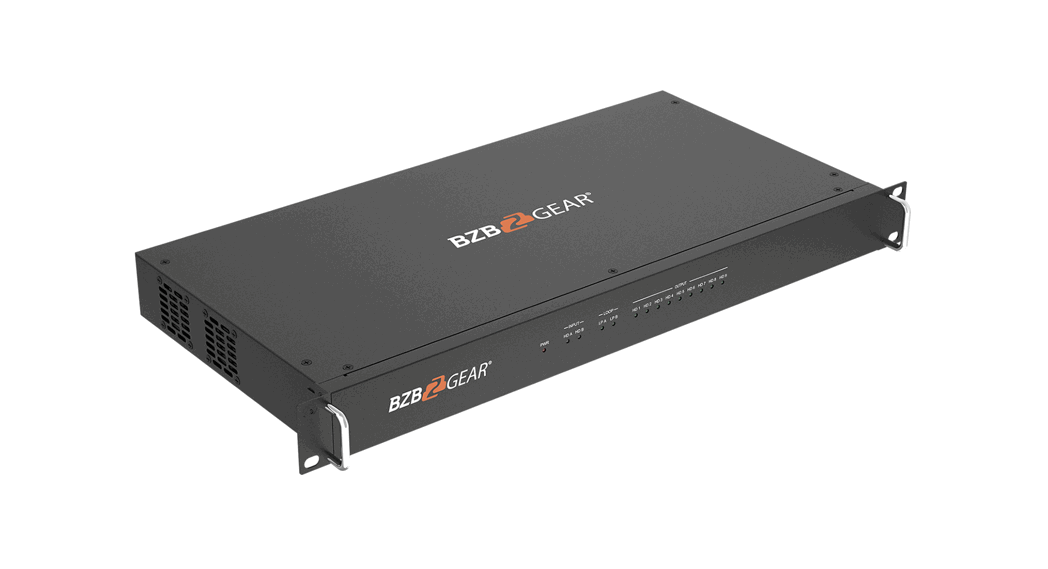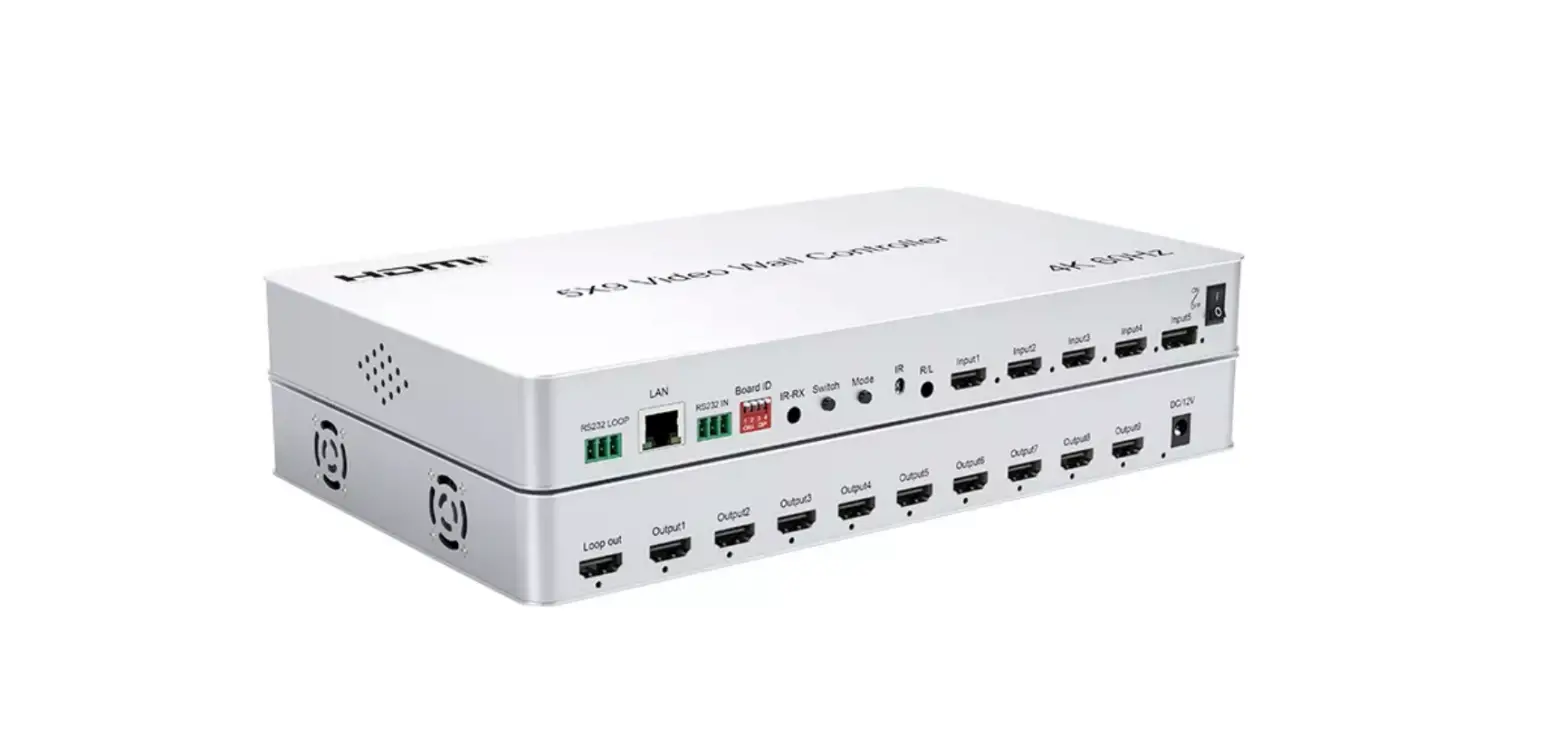
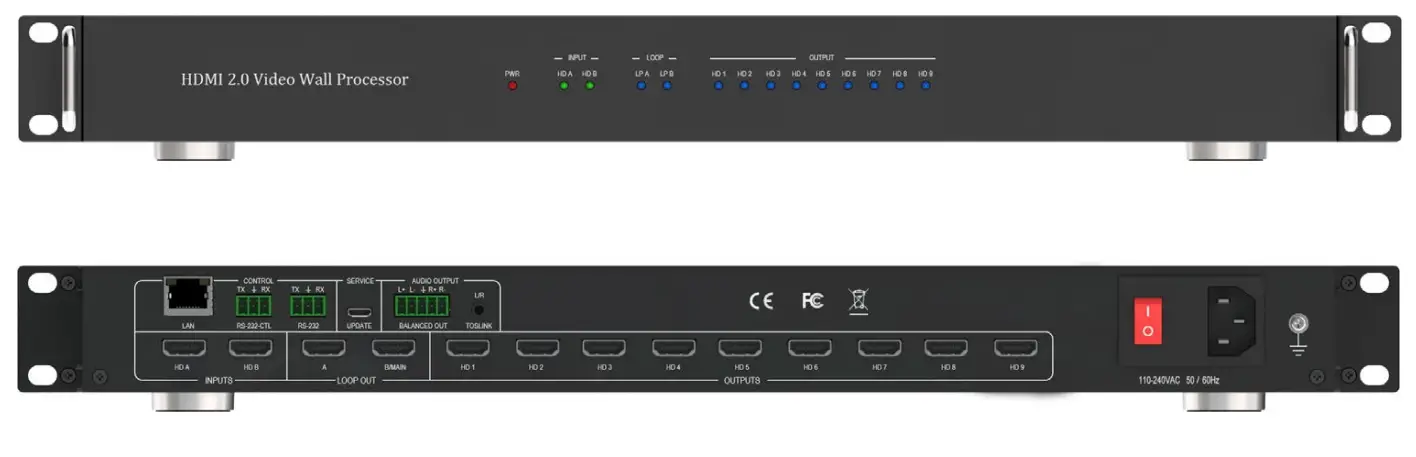
 18Gbps 2×9 HDMI Video Wall Processor
ENT-VWMX202X9
 User Manual
VER 1.1
Thank you for purchasing this product
For optimum performance and safety, please read these instructions carefully before connecting, operating, or adjusting this product. Please keep this manual for future reference.
Surge protection device recommended
This product contains sensitive electrical components that may be damaged by electrical spikes, surges, electric shocks, lightning strikes, etc. The use of surge protection systems is highly recommended in order to protect and extend the life of your equipment.
Introduction
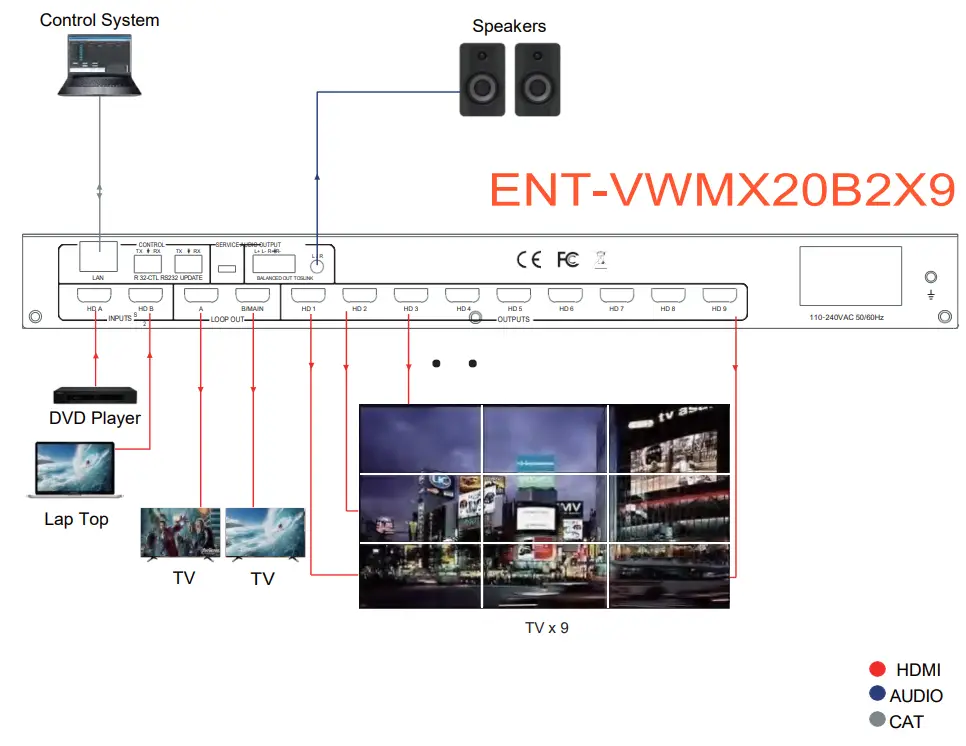
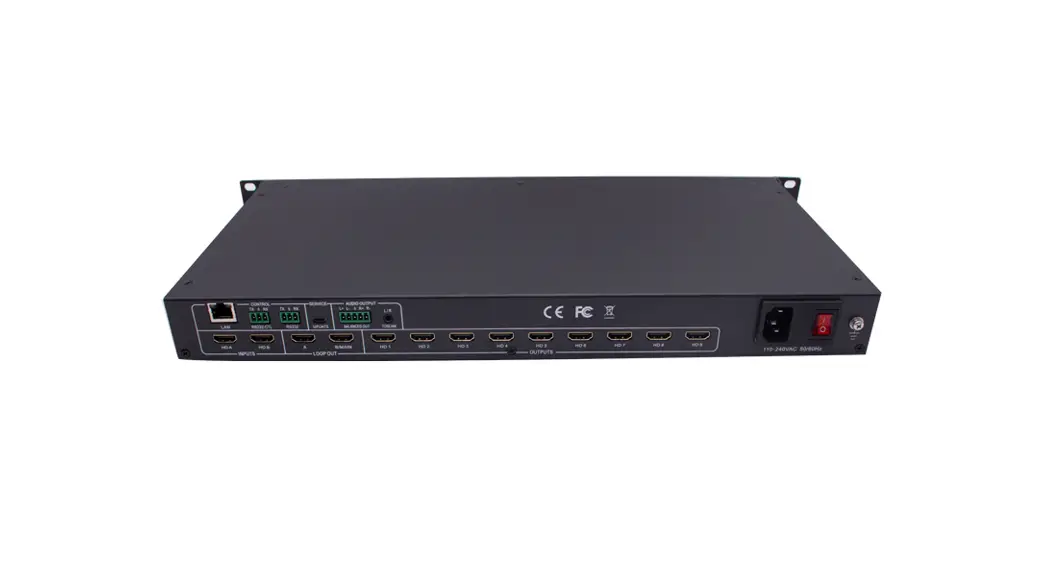
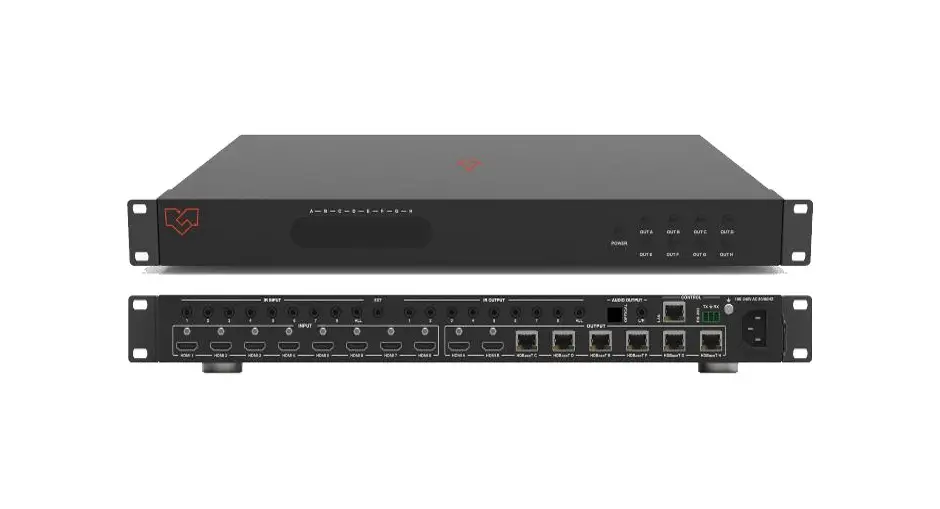
This product is an HDMI 2.0 Video Wall controller with 2 HDMI inputs, 2 HDMI loop outputs and 9 HDMI scaling outputs for video wall processing. The Toslink jack terminal provides analogue L/R audio and digital SPDIF audio output. 5-pin phoenix jacket provides balanced L/R audio output. The product also supports RS-232 bypass feature for daisy chain and cascade connection among different units.
Features
- HDMI 2.0 and HDCP 2.2 compliant
- Support multi-resolution up to 3840×2160@60Hz video output for video wall
- Support Bezel Compensation with two modes
- Support 2 channels HDMI loop out
- Support PIP on video wal
- Support 180º rotation
- Support RS-232 and TCP/IP control
- Support CEC control with displayers by PC Tool or commands
Package Contents
- 1 x Ultra HD Video Wall Processor
- 1 x AC Power Cord
- 1 x 5-pin Phoenix Connector
- 2 x 3-pin Phoenix Connector
- 1× RS232 to Phoenix Cable
- 1× CAT6 cable
- 1× USB to RS232 Cable
- 1× User Manual
Specifications
| Technical | |
| HDMI Compliance | HDMI 2.0 |
| HDCP Compliance | HDCP 2.2/1.4 |
| RS-232 | Baud rate: 57600, data bit: 8, Stop bit: 1, no parity |
|
Input Video Formats | 1024×768@60, 1280×800@60, 1280×1024@60, |
| 1280×960@60, 1360×768@60, 1366×768@60, | |
| 1440×900@60, 1400×1050@60, 1600×900@60, | |
| 1600×1200@60, 1680×1050@60, 1920×1200@60, | |
| 480p@60, 576p@50, 720p@50, 720p@60, 1080i@50, | |
| 1080i@60, 1080p@24, 1080p@25, 1080p@30, 1080p@50 | |
| 1080p@60, 3840×2160@24, 3840×2160@25, | |
| 3840×2160@30, 3840×2160@50, 3840×2160@60, | |
| 4096×2160@24, 4096×2160@30, 4096×2160@50, | |
| 4096×2160@60 | |
| Audio Format | 2.0 channel, 5.1 channel, LPCM, Dolby, AC3, DTS |
| ESD Protection | Human-body Model: ±8kV (Air-gap discharge) , ±4kV (Contact discharge) |
| Mechanical | |
| Housing | Metal Enclosure |
| Color | Black |
| Dimension | 430mm (W)×220mm (D)×44mm (H) |
| Weight | 5Kg |
| Supply Voltage | 110-220V AC |
| Operating Temperature | 0°C ~ 40°C / 32°F ~ 104°F |
| Storage Temperature | -20°C ~ 70°C / -4°F ~ 158°F |
| Relative Humidity | 10%~50% RH (non-condensing) |
Operation Controls and Functions
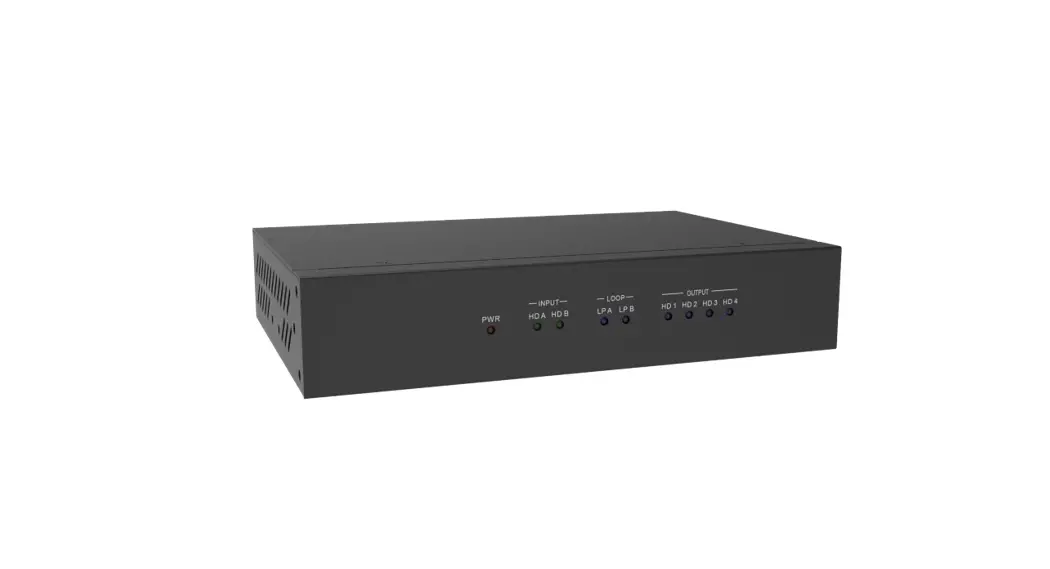
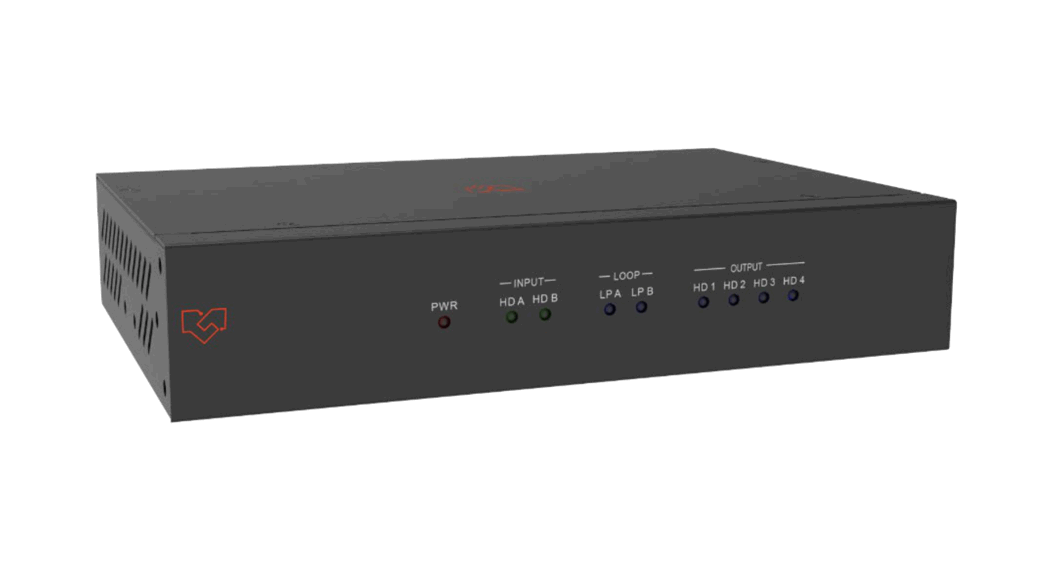
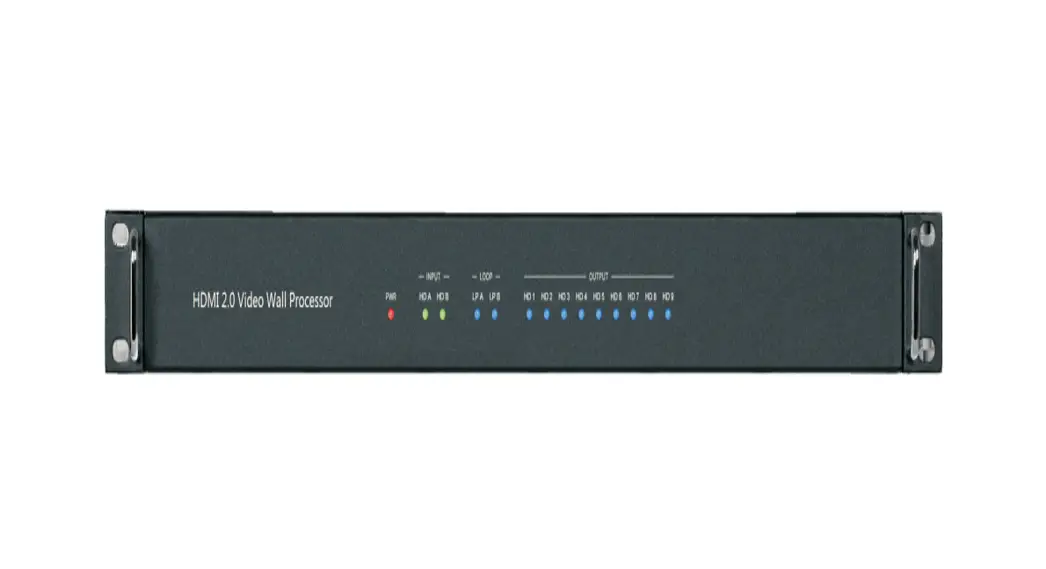
Front Panel

| No. | Name | Function Description |
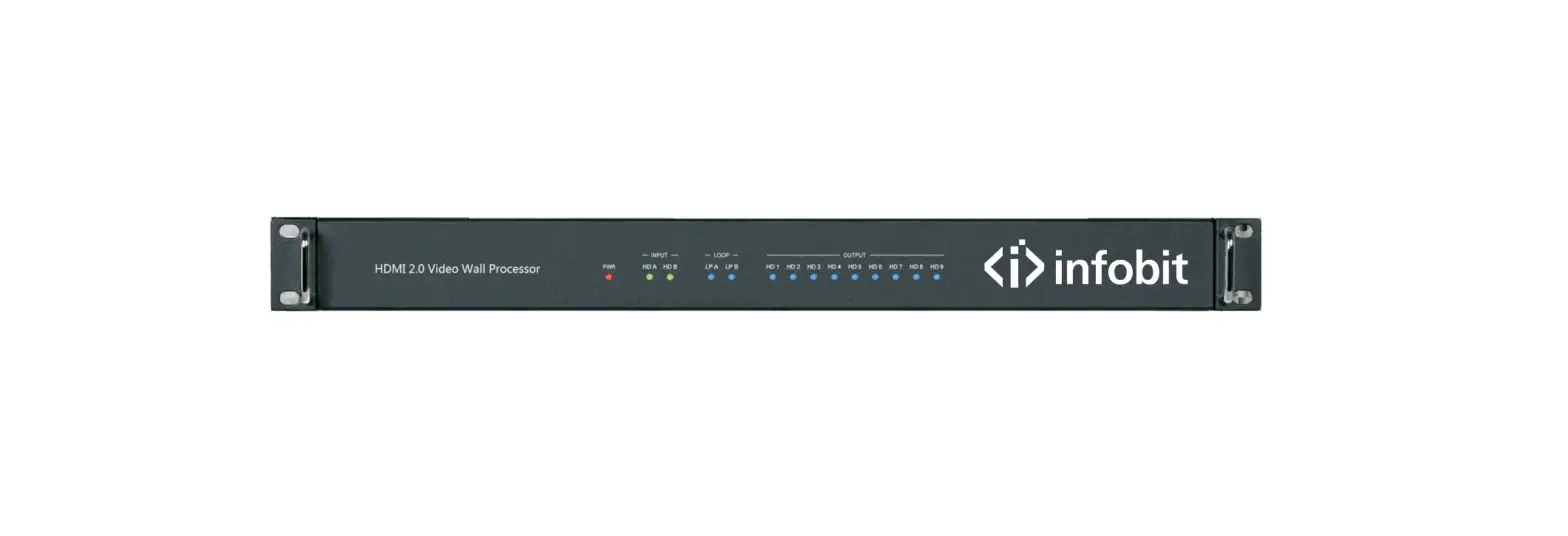
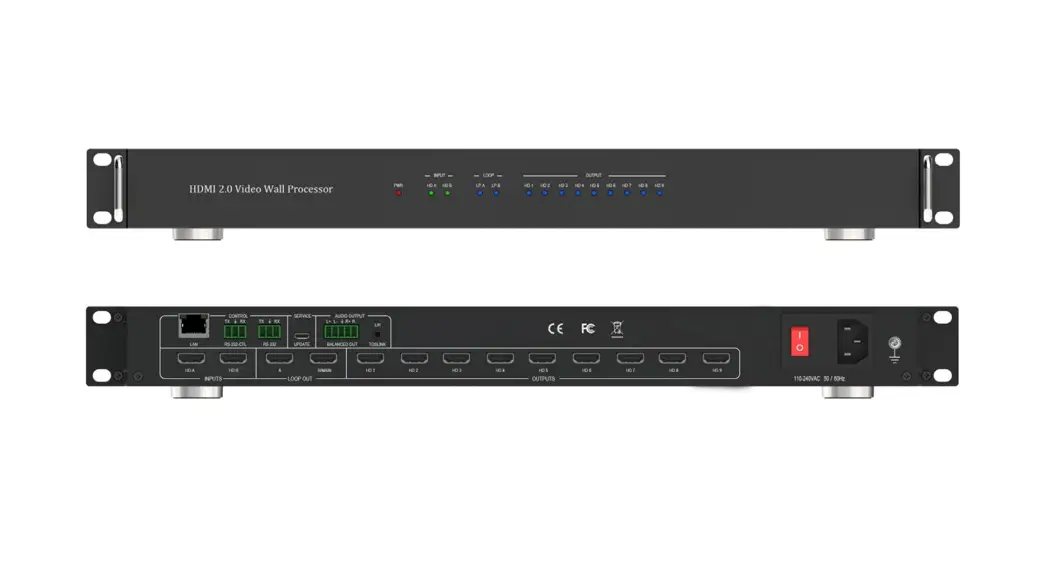
| 1 | Power LED | Power LED will be on when the unit is powered on. |
| 2 | INPUT LED | The LED will be on when the corresponding HDMI input port is connected to active HDMI source device. |
| 3 | LOOP LED | The LED will be on when the corresponding LOOP OUT port is connected to HDMI display device. |
| 4 | OUTPUT LED (1-9) | The LED will be on when the corresponding HDMI output port is connected to HDMI display device. |
Rear Panel
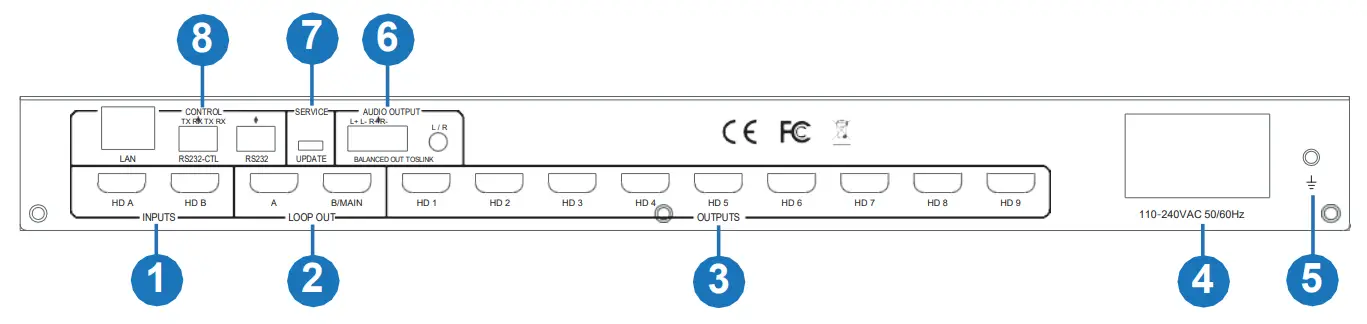
| No. | Name | Function Description |
| 1 | INPUTS | HDMI signal input ports, connect to HDMI source device such as DVD or PS4 with HDMI cable. |
| 2 | LOOP OUT | HDMI signal loop out ports. Loop out HDMI A/B signal to downstream. It can be configured by RS-232 command. |
| 3 | OUTPUTS | HDMI signal scaling output for video wall. |
| 4 | 110-240VAC | 110-240V AC power input port. |
| 5 | GND | Ground the product housing. |
|
6 |
AUDIO OUTPUT | TOSLINK: • Anolog L/R audio output 3.5mm Stereo Jack. 20Hz ~ 20kHz, 1.5Vrms max • Digital SPDIF audio output |
| BALANCED OUT: Balanced audio output port. 5-pin phoenix connector, 20Hz ~ 20kHz, 1.5Vrms max. | ||
| 7 | SERVICE | Firmware update port. |
|
8 |
CONTROL | RS232: Bypass RS232-CTL commands to next unit. |
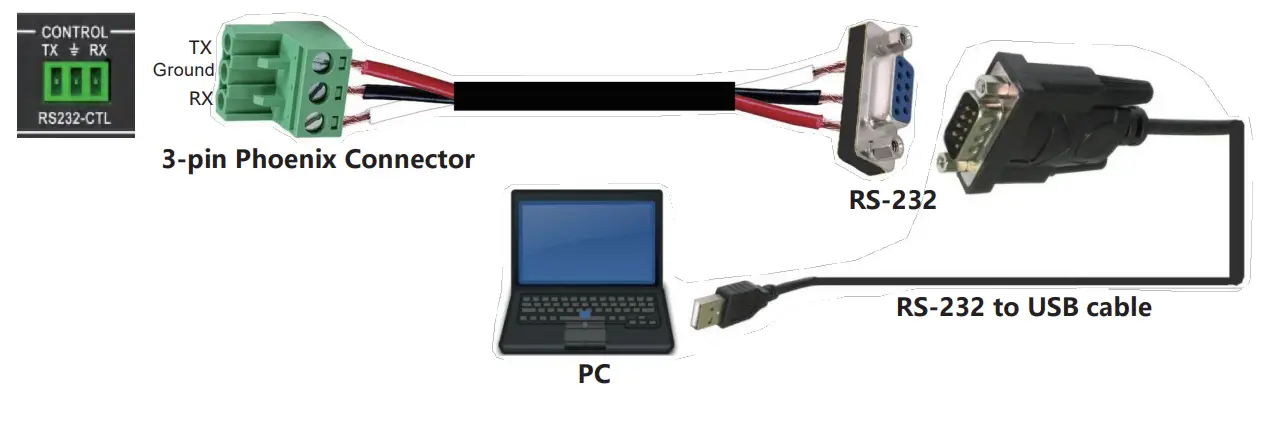
| RS232-CTL: External RS-232 control, Baud Rate: 57600 Data Bits:8, Parity: None Stop Bits:1 | ||
| LAN: Network port for TCP/IP control. Connect to an active Ethernet link with an RJ45 cable. |
RS-232/LAN Control Connection
6.1 RS-232 Control Connection
The product supports RS-232 control. Connect the RS232-CTL port of the product to a PC via a serial cable, as shown in the following figure:
6.2 Network Control Connection
The product also supports Network control. Connect the LAN port of the product to a PC via an UTP cable, as shown in the following figure:
PC Tool User Guide
The PC tool is an installation-free control software that supports both UART and network control. It consists of five parts: Matrix Switch, Signal Setting, FineTune:PQ, Video Wall and CEC Control. The UI is as follows:
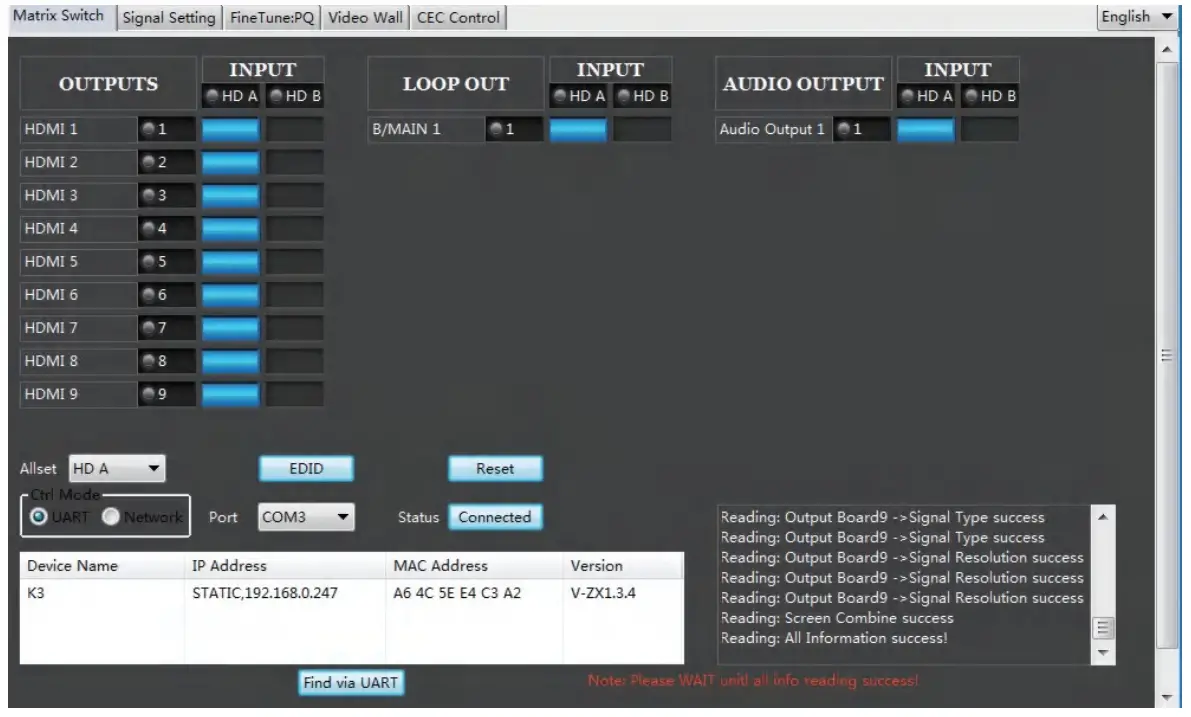
• Matrix Switch Page
- You can select UART (with RS232 cable) or Network to connect device, baud rate is 57600 bps.
- Select input source for each scaling output port.
- “AllSet” function: Select HD A or B input source to all the scaling output.
- Select input source for B/MAIN output port.
- Select audio source for balanced audio output and Mini Toslink output.
- Reset: The PC tool supports reset system to recover to factory configuration.
- EDID Control: Click the “EDID” button on the Matrix Switch page, there will be a pop-up EDID control window.
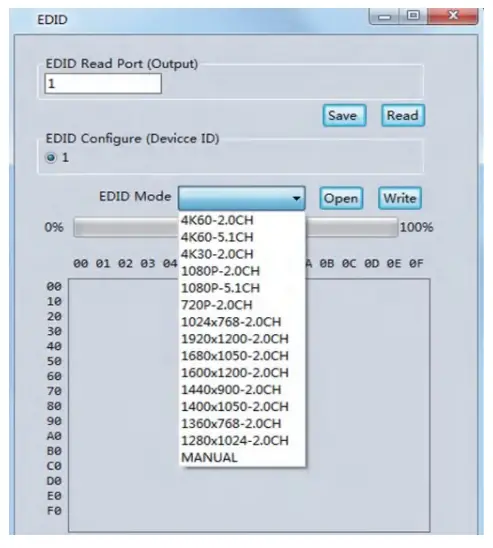
a) Read each scaling output port downstream EDID and save as a BIN file.
b) Open an existing EDID file and write to the HDMI A and B input port as Manual EDID.
c) Select predefined EDID and write to HDMI A and B input ports.
Predefined EDID option is as below:
| 4K60-2.0CH | 1920×1200-2.0CH |
| 4K60-5.1CH | 1680×1050-2.0CH |
| 4K30-2.0CH | 1600×1200-2.0CH |
| 4K30-5.1CH | 1440×900-2.0CH |
| 1080P-2.0CH | 1400×1050-2.0CH |
| 1080P-5.1CH | 1360×768-2.0CH |
| 720P-2.0CH | 1280×1024-2.0CH |
| 1024×768-2.0CH | Manual |
- Signal Setting Page
User can read the resolution of each input port and set the resolution of each scaling output.
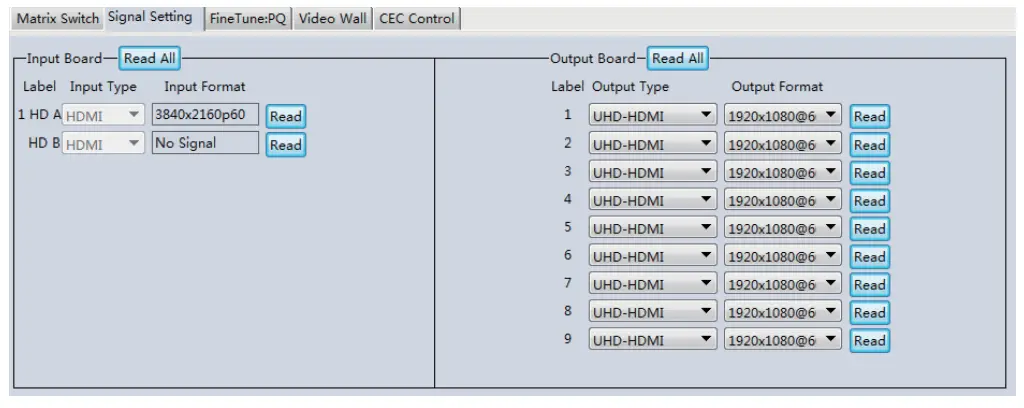
Available output resolutions:
| No. | Output Resolution Setting | No. | Output Resolution Setting |
| 1 | 3840x2160p 60Hz | 9 | 1440×1050 60Hz |
| 2 | 3840x2160p 50Hz | 10 | 1366×768 60Hz |
| 3 | 3840x2160p 30Hz | 11 | 1360×768 60Hz |
| 4 | 3840x2160p 25Hz | 12 | 1280×1024 60Hz |
| 5 | 1920×1200 60Hz | 13 | 1280×768 60Hz |
| 6 | 1920x1080p 60Hz | 14 | 1280x720p 60Hz |
| 7 | 1920x1080p 50Hz | 15 | 1280x720p 50Hz |
| 8 | 1600×1200 60Hz | 16 | 1024×768 60Hz |
Note: 3840×2160 25/30Hz can only be used for standalone display, not for video wall.
- FineTune:PQ Page
You can read and set the Brightness/Contrast/Saturation/Sharpness of each output.

Note: Suggest always use the default setting 50/50/50/50. Do not change the default settings without special conditions; If there is a problem after changing, click “Reset” to
return to the factory settings.
- CEC Control Page
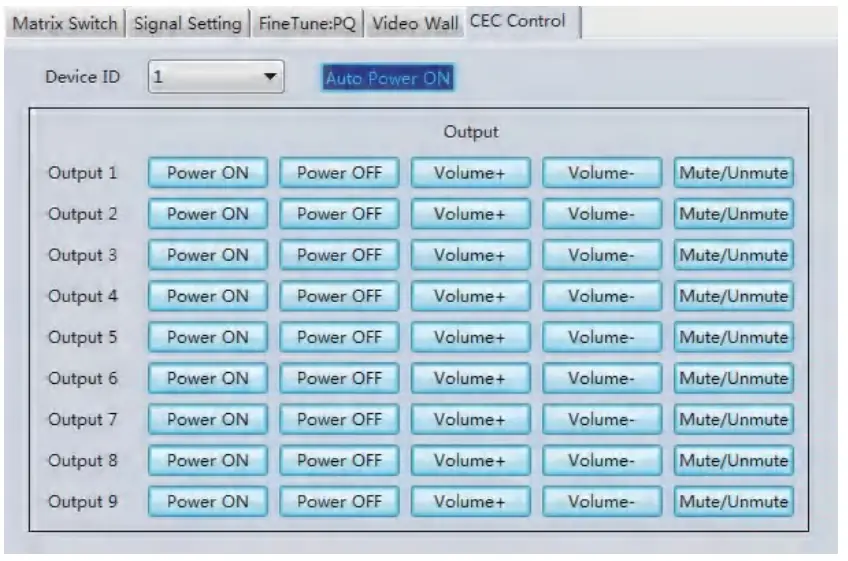
If Auto Power On is enabled, every time when the product is turned on, it will turn on all displayers which are connected to it. The product supports CEC function, including Power on/off, Volume+/-, Mute/Unmute.
- Video Wall Page
This page is used to configure a group of outputs to function as a video wall.
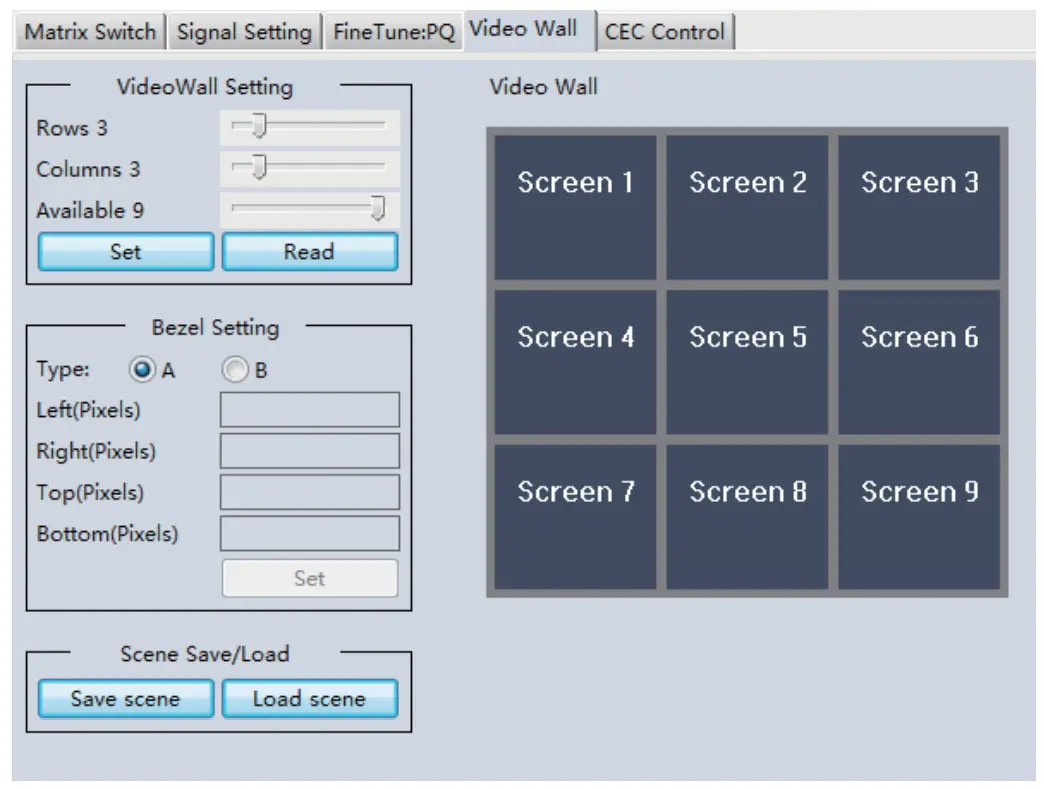
- Use the Video Wall Setting controls to change how the displays are arranged on the Video Wall page:
a. Adjust the Rows and Columns sliders to change the displayed screen arrangement to permit proper Drag-and-Select of the desired screens for the video wall.
b. Change the Available slider to set how many outputs will be used for the Video Wall.
c. Click the “Set” button to change the Screen configuration. - Use the left mouse button to drag-select the screens that will be set for video wall mode.
The selected screens will be shown as bright blue. - Use the right mouse button to open a menu.
- Select “Screen Stitching” from the menu to program the video wall mode. The selected screens will now be shown as bright green.
- To change the displayed image: either use the methods detailed in the section Controlling the Matrix Switcherright-click to open the pop-up menu and select the desired input from the “Input Select” menu option.
- Repeating steps 2 ~ 5 above with a different set of outputs allows the creation of a second video wall. However, changing the Rows, Columns and Available sliders will automatically delete the current video wall set up when the “Set” button is clicked. The following example shows a more unusual video wall set-up of two video walls with 1×3 and 2×2 configurations:
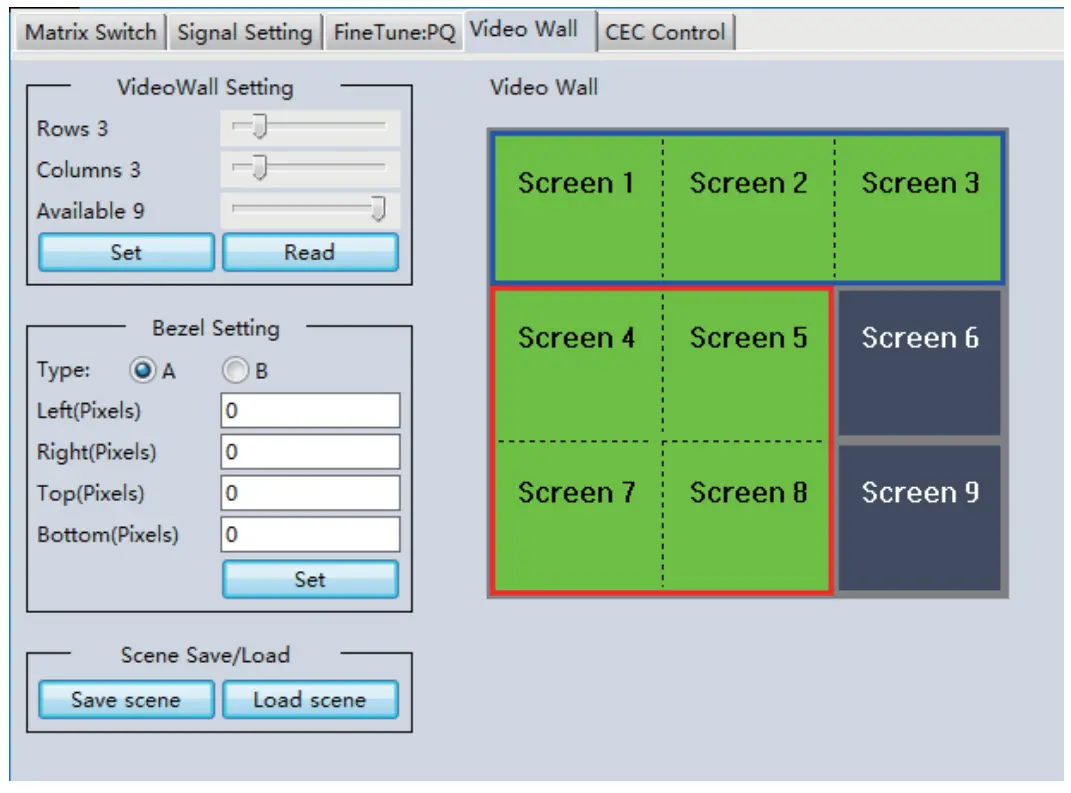
Video Wall Context Menu
Right clicking on any of the screen icons will display the following context menu:
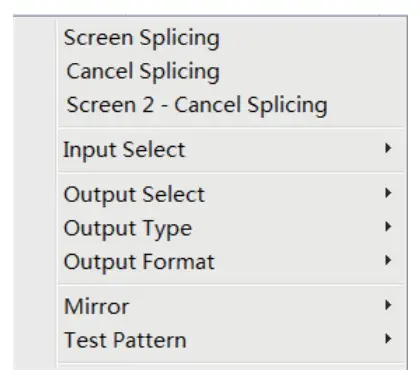
| Screen Stitching | This option connects the selected screens into a video wall configuration. |
| Cancel Stitching | Return the Video Wall configuration to normal outputs. |
| Screen x – Cancel Stitching | Remove the single screen x from the video wall to allow the displaying another full frame image within the video wall configuration, as shown in this example: |
| Input Select | Use the sub-menu to select the input to display on the video wall or the secondary input image shown in the above example. |
| Output Select | This option is only available for any screen that is not assigned to a video wall mode. |
| Output Type | This option is only available for any screen that is not assigned to a video wall mode. |
| Output Format | This option is only available for any screen that is not assigned to a video wall mode. It allows setting of the output resolution for the selected screen output. |
| Mirror | Four sub options : OFF ( default ), H ( Horizontal ), V ( Vertical ) , H+V When select H+V, you can make 180º rotation with the selected screen. |
| Test Pattern | When Test Pattern is enabled, the output will display Color Bar pattern. |
Bezel Setting
The Bezel Setting section allows the entry of values to compensate for the display bezel thickness. These values may be entered either as pixels (Type A) or as millimetre (Type B).
Type A Bezel Settings
The image size will be adjusted to allow for the number of pixels entered in each of the entry boxes. Click the “Set” button to view the effect of the new values.
Type B Bezel Settings
The image size will be adjusted to allow for the Inner and Outer display dimensions as entered in each of the entry boxes. Click the “Set” button to view the effect of the new values.
Bezel Compensation
The following images demonstrate the effect of not having bezel compensation and what a correctly configured bezel compensation settings should produce:

Layout Save/Load
The Save Scene/Layout and Load Scene/Layout buttons allow a video wall configuration to be saved or recalled at any time. Up to 10 configurations, each with their own name can be saved or recalled. When saving, each Scene can optionally be given a name to identify that video wall scene setup.
Safety Instructions
To ensure reliable operation of this product as well as protecting the safety of any person using or handling this device while powered, please observe the following instructions.
- Do not operate either of this product outside the specified temperature and humidity range given in the above specifications.
- Ensure there is adequate ventilation to allow this product to operate efficiently.
- Repair of the equipment should only be carried out by qualified professionals as these products contain sensitive devices that may be damaged by any mistreatment.
- Only use this product in a dry environment. Do not allow any liquids or harmful chemicals to come into contact with these products.
Connection Diagram