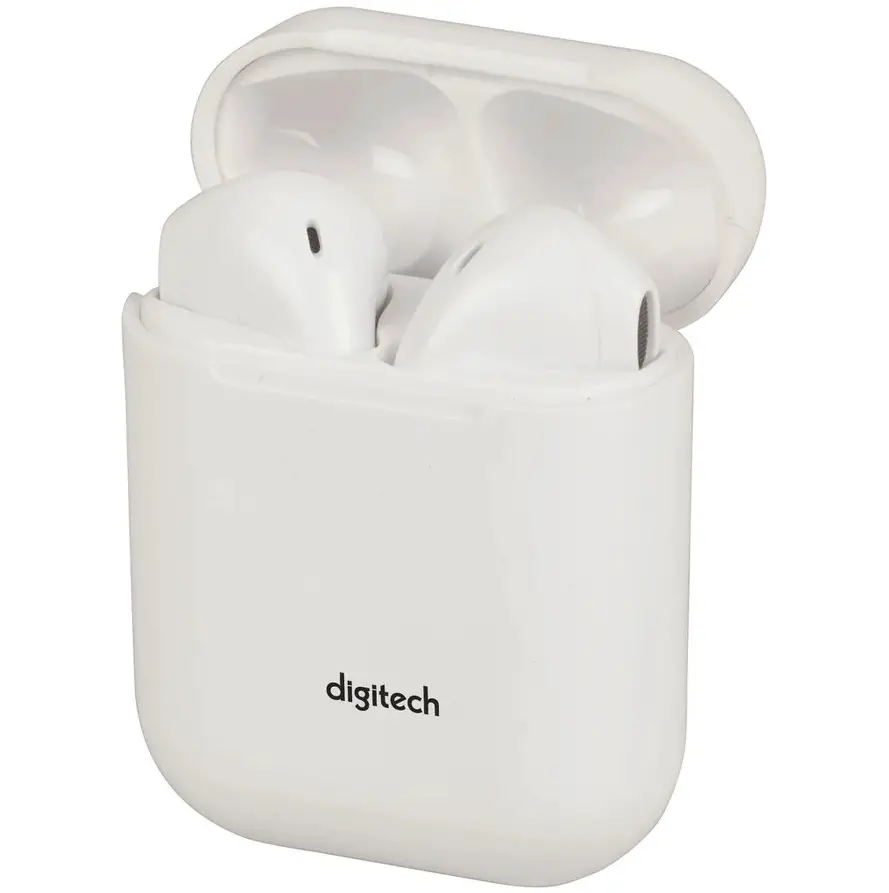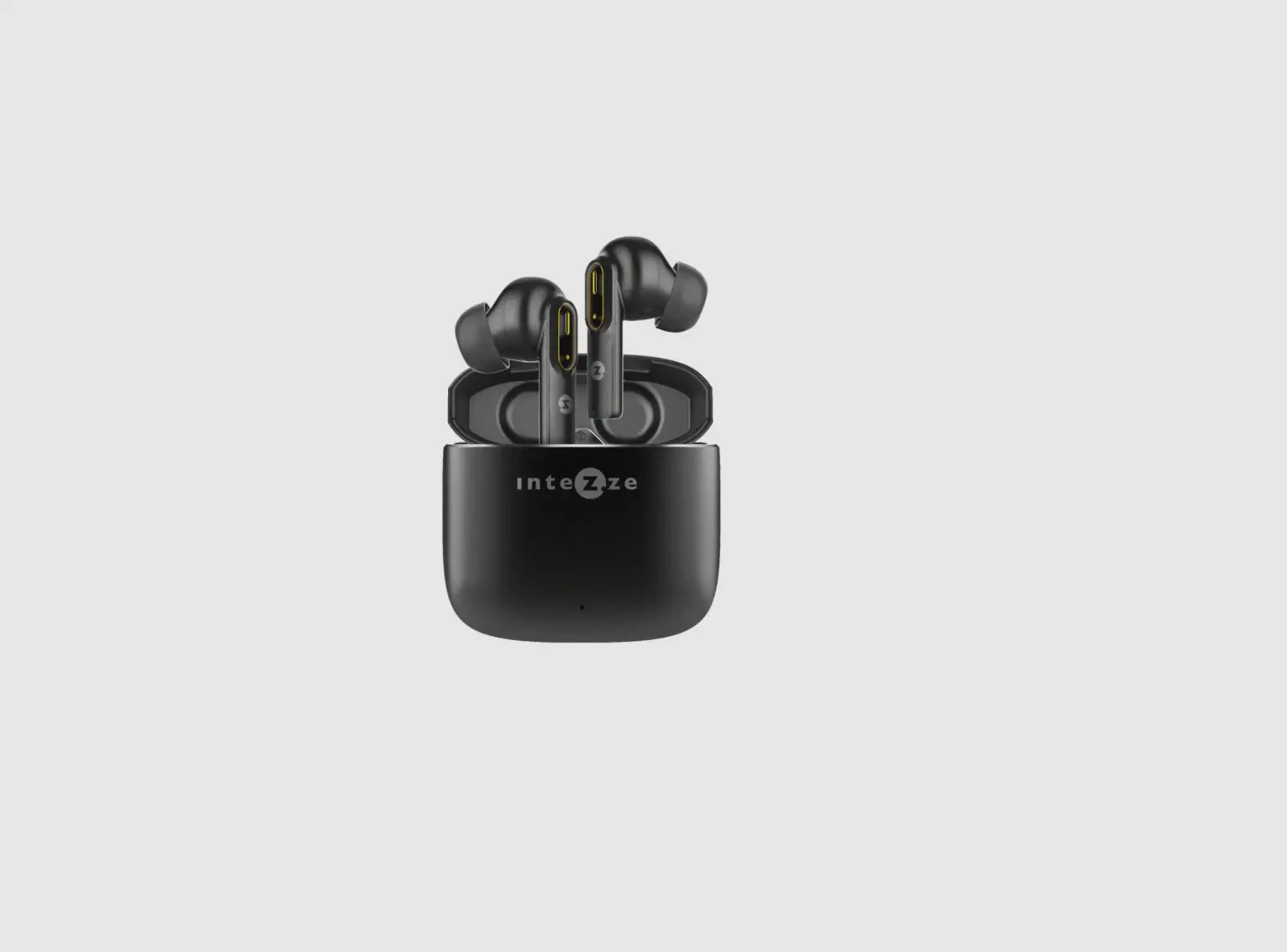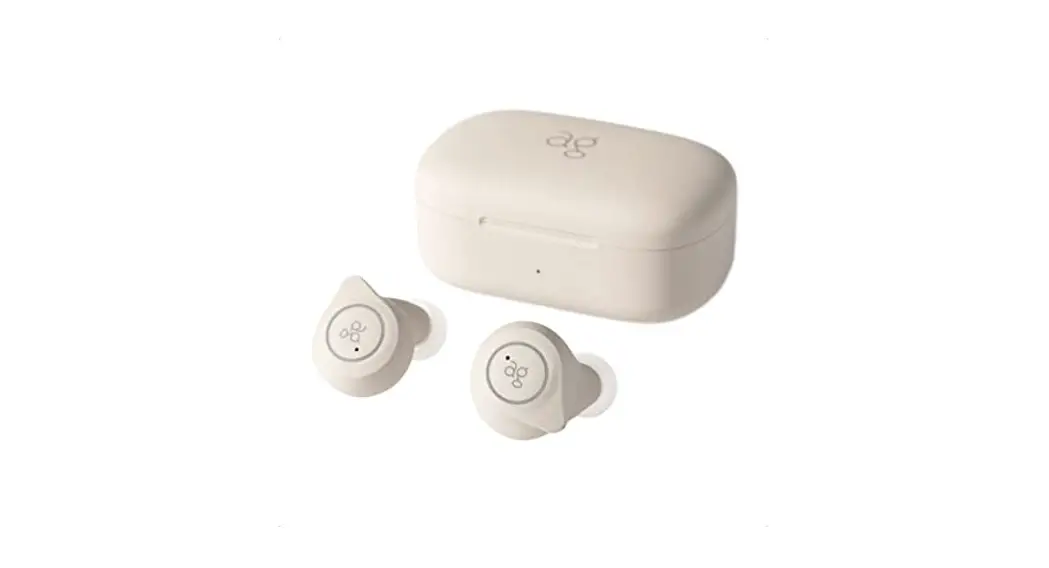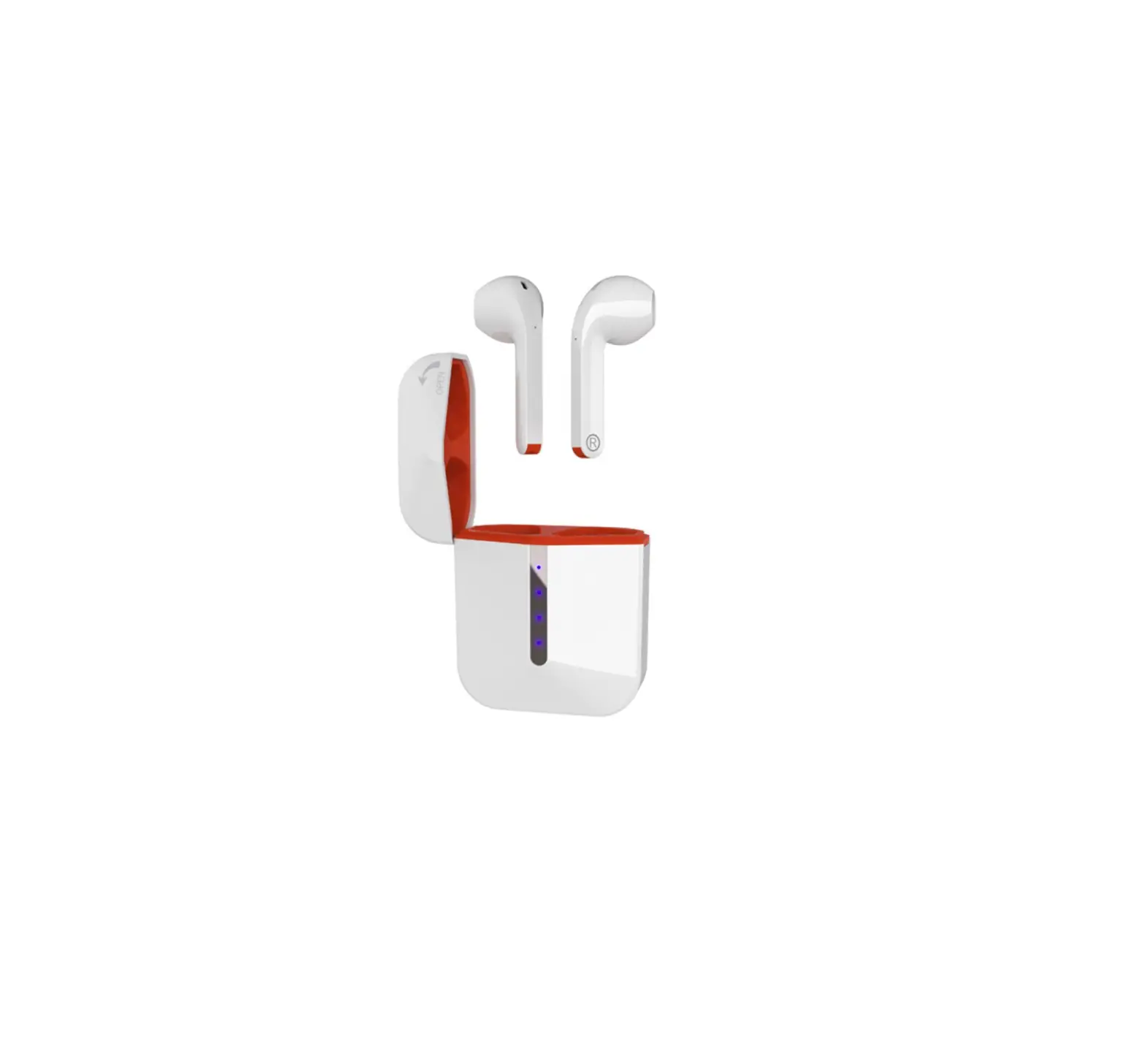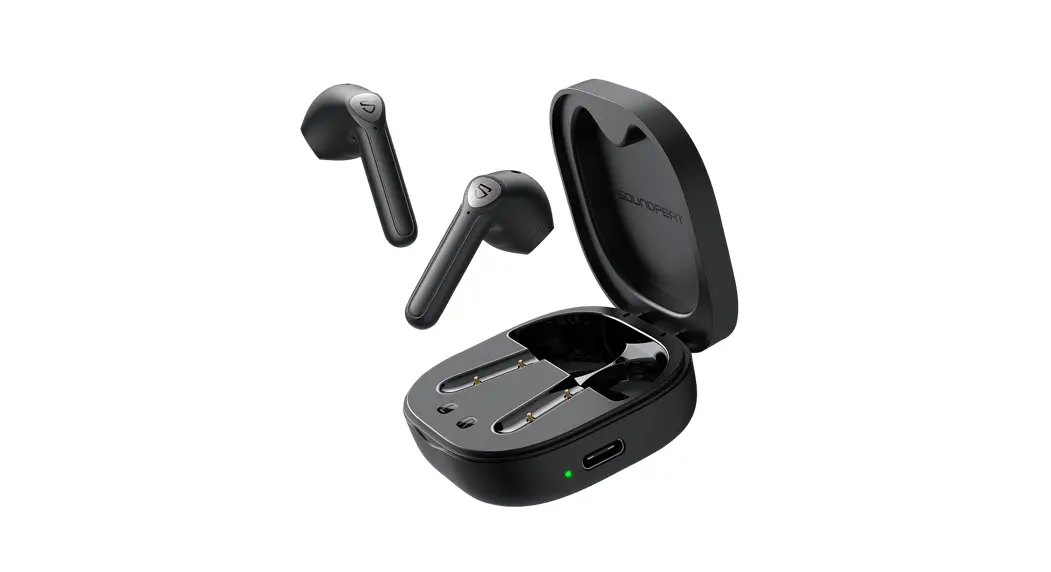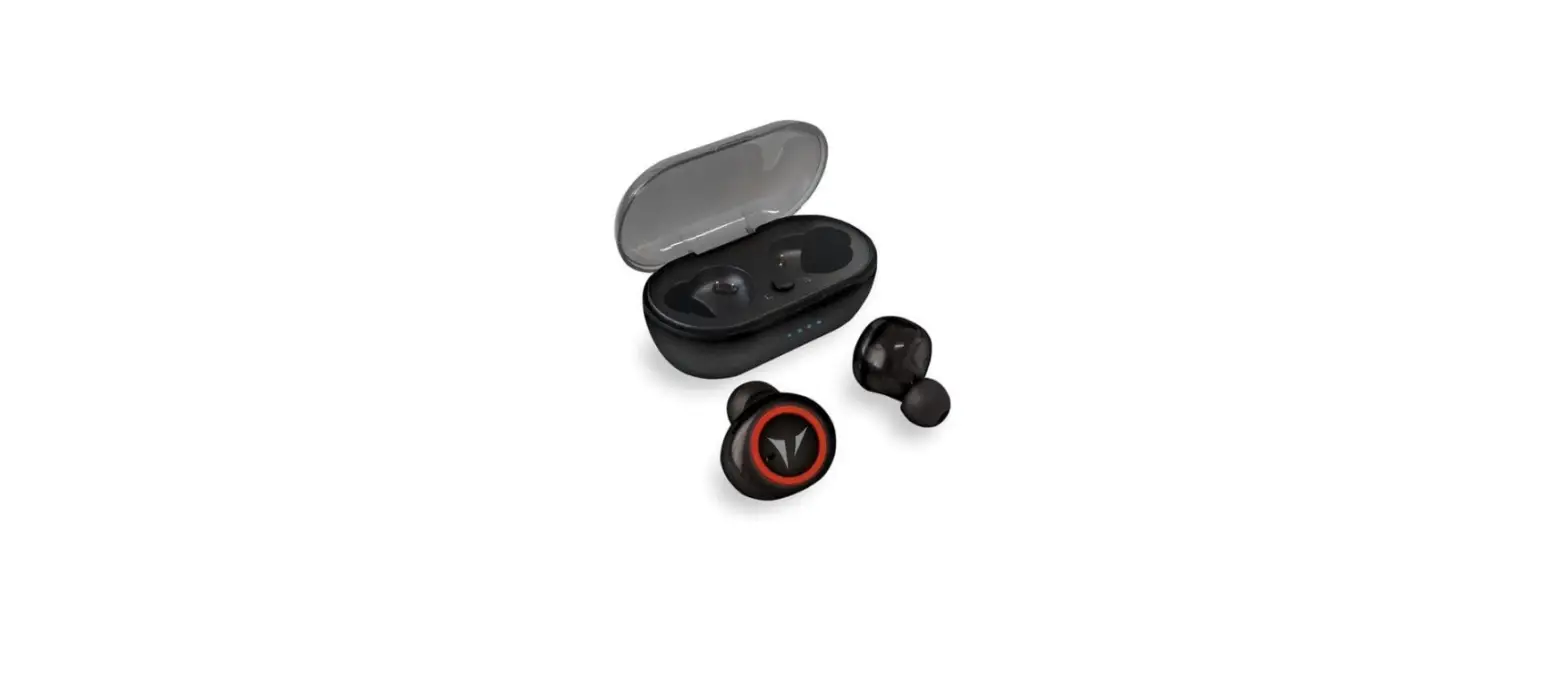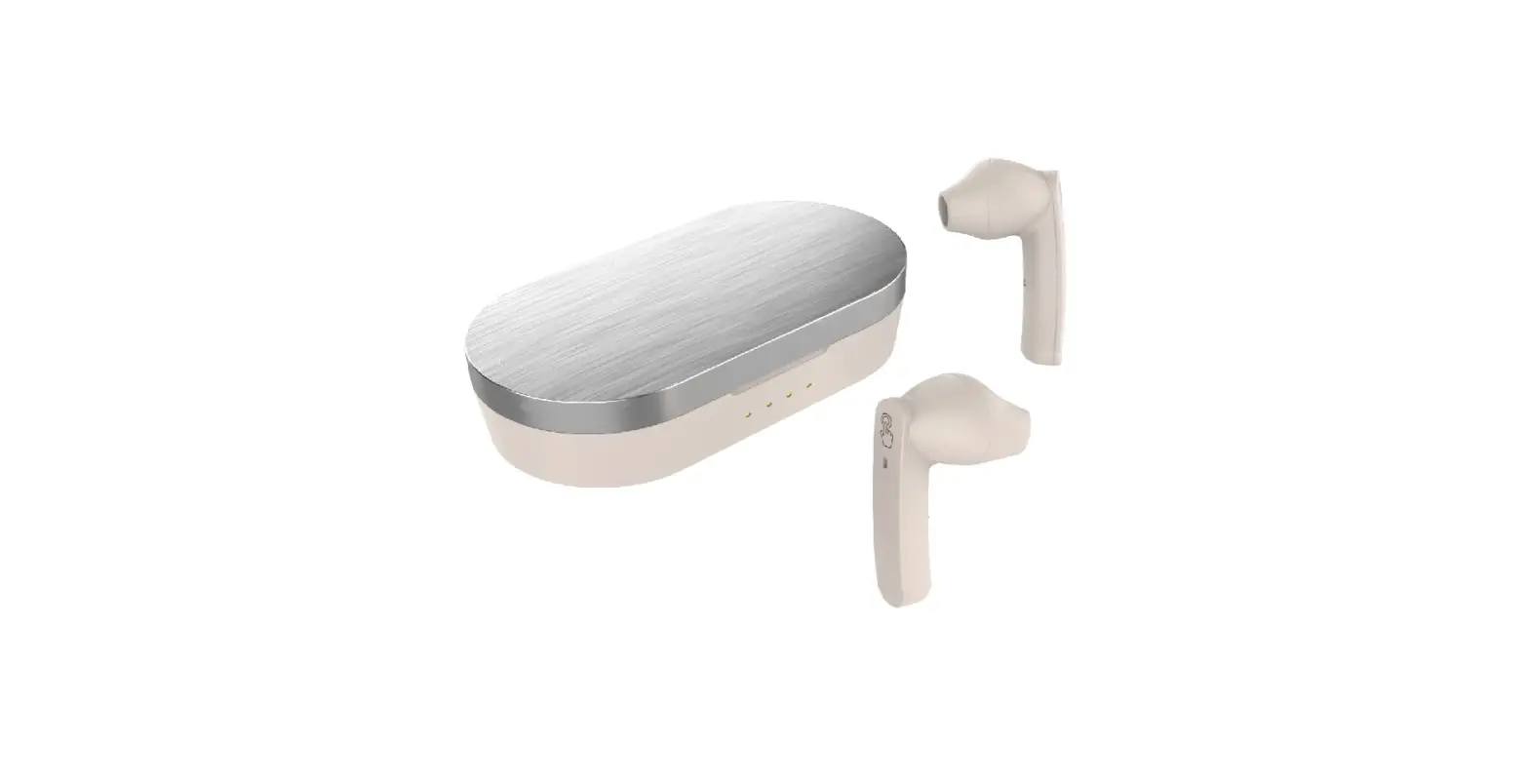

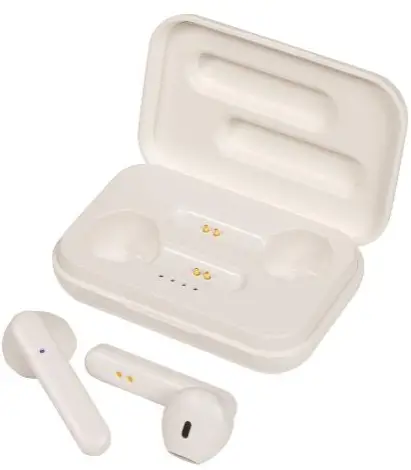
digitech AA-2165 Wireless TWS Earphones
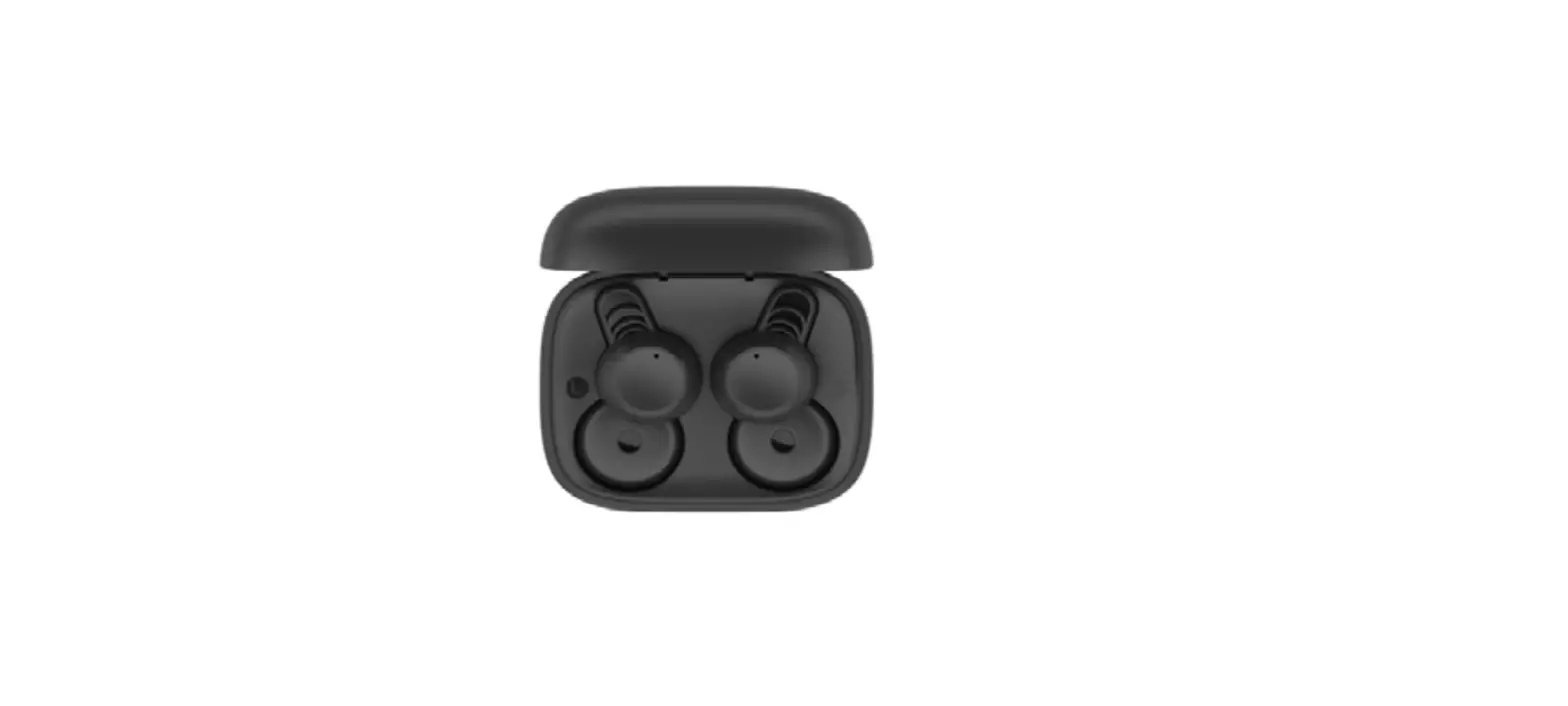
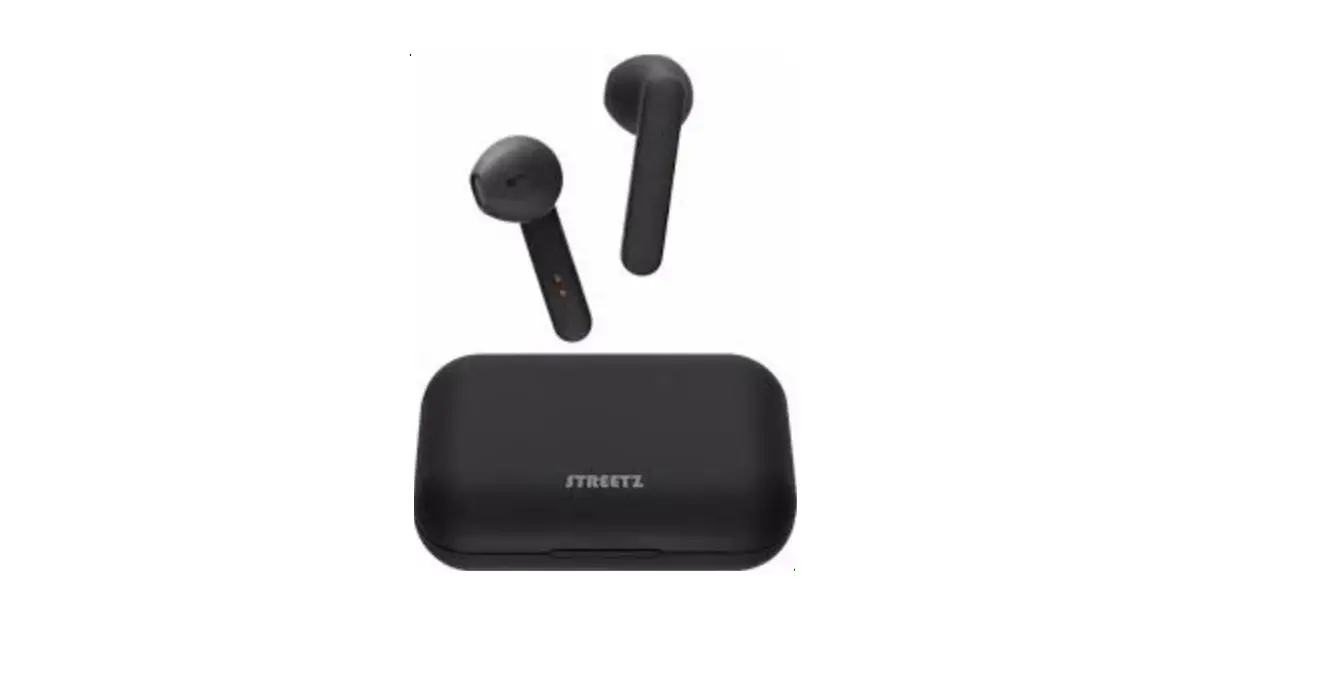
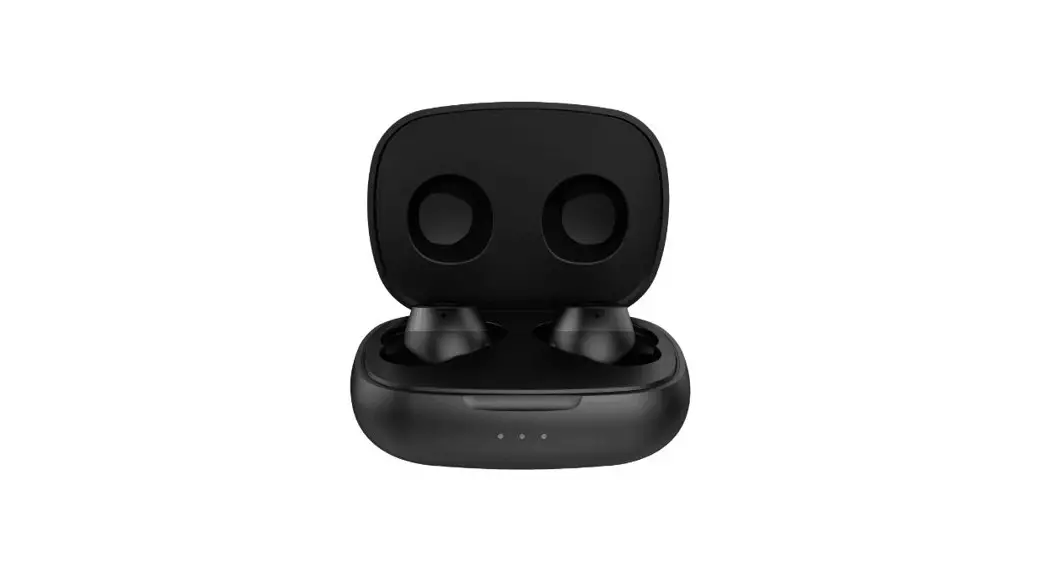
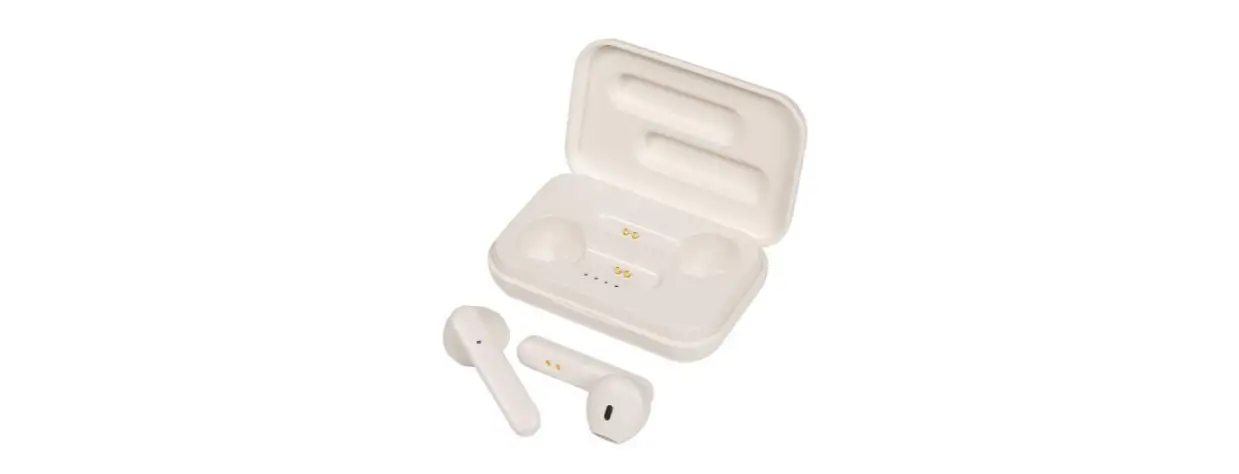
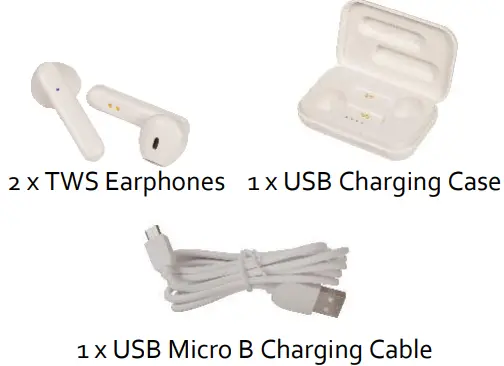
Box Contents
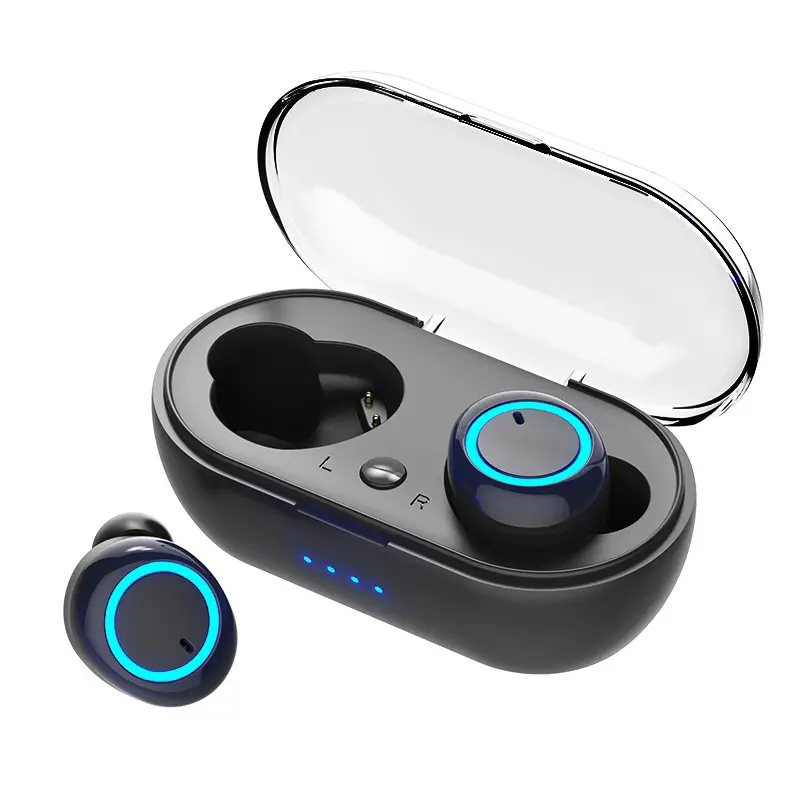
Product Diagram
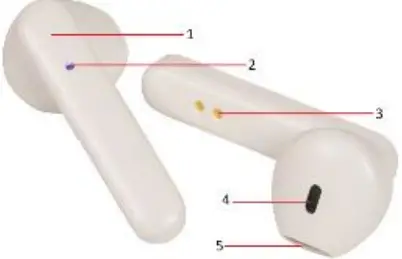
| # | Feature | Description |
| 1. | Play/Pause / Call/Volume Button | Press to play or pause while playing music Press to accept, reject or redial last number called |
|
2. | Microphone/LED Status Indicator | Microphone located in the right and left earphones for phone calls Display the power and pairing status |
| 3. | LED Status Indicator | Displays the power and pairing status of the earphones |
| 4. | Speaker | Earphone speaker covered by a dustproof mesh |
| 5. | Speaker | Earphone speaker covered by a dustproof mesh |
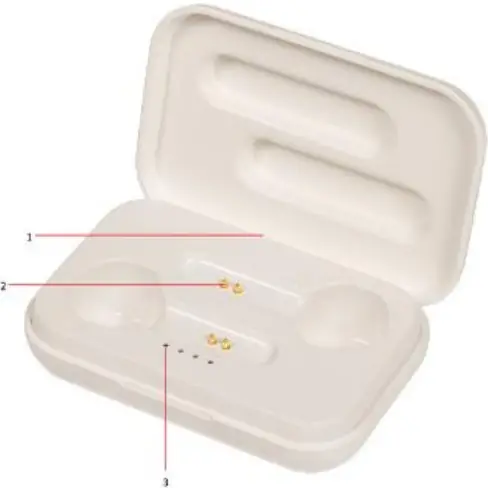
| Feature | Description | |
| 1. | USB Power Socket (Rear) | Connect to the USB charging cable and suitable USB power source |
| 2. | Charging Ports | Charges the earphones |
| 3. | Earphone Case LED Battery Indicator | Displays the current battery status of the earphone case |
Operation
Bluetooth Paring
- Make sure the earphones are fully charged before use, pull both earphones out of the charging case.
Note: Press and hold the power button for up to 5 seconds to turn the earphones off. - The LED indicator should be flashing red and blue. Open the settings of your smart phone and ensure Bluetooth® is turned on.
- Once your Bluetooth® is enabled; Scan for devices and the Bluetooth® name AA-2165 should appear.
Bluetooth® Name: AA-2165 - Press the AA-2165 on the Bluetooth® device list and your smartphone should show that it is connected.
- You will hear a voice prompt from the earphones saying “Connected”. The volume can be controlled by your smartphone or earphones. The battery status can also be shown in your Bluetooth settings.
Note: The earphones will automatically turn off after 3 minutes or if they’re too far away from your device.
Bluetooth® Hands-Free
| Function | Button |
| Answer Incoming Call | Press the play/call button to answer the current incoming call |
| Reject Incoming Call | Press the play/call button two times to reject the current incoming call |
| Hang Up Call | Once a call has been received; press the play/call button again to hang up |
|
Google Assistant & Siri® | Press the play/call for up to 1.5 seconds to activate Google Assistant or Siri® on your smartphone. Your smartphone or tablet requires Google Assistant or Siri in order to work |
Music Playback
| Function | Button |
| Pause | Press the play/call button t to pause the current music track |
| Play | Press the play/pause button again after pausing to resume the current music track |
| Next Track | Press the play / call button 2 times to skip to the next music track |
| Volume | Press the play / call button 3 times to turn the volume up or down |
Charging
Earphones
Insert the earphones into the earphone charging case to recharge them. The red LED should now be lit on the earphones to indicate charging.
Note: The LED indicator will turn off once the charging has finished.
Charging Case
- Insert the USB micro B charging cable in a 5VDC mains power adaptor (not included) or a suitable USB charging port such as a computer.
- Insert the micro B USB plug into the USB power socket of the charging case.
- The LED status indicator will flash blue once charging has started.
- Once fully charged; the LED status indicator will turn to a solid blue.
Troubleshooting
| Problem: | Solution: |
|
Battery Won’t Charge Or Power On | Connect to a suitable USB charging source such as a USB mains power adaptor or USB charging port and make sure it’s correctly turned on. |
| Make sure the battery is fully charged up to 2 hours and make sure the LED status indicator has turned off. |
| Problem: | Solution: |
|
No Power / LED Indicator | Ensure the USB charging cable is connected properly to a USB charging port or USB charging adaptor. |
| Check to see if your USB power source is working correctly. | |
|
No Audio | Ensure the volume is correctly turned up on your smartphone. |
| Ensure the earphones are correctly paired and turned on. | |
| Turn the earphones off and on again, turn off the Bluetooth of your smartphone or tablet and turn back on. | |
| Type in the password “0000” if it asks you for one. |
Safety
- Do not open the earphones or charging case of this product to prevent the unit from damage.
- Keep the earphones and earphone charging case away from high temperatures as it may damage the device.
- Do not expose the earphones or earphone charging case to water or liquids to prevent the unit from damage.
Specifications
- Bluetooth® Version: 5.3+EDR
- Transmission Range: Up to 10m
- Frequency Response: 20Hz-20KHz
- Sensitivity: 95dB±3dB Mic
- Sensitivity: -42dB±3dB
- Impedance: 32Ω Driver Size: 10mm
- Playback Time: 2-4 Hours
- Talk Time: Up to 4 Hours
- Standby Time: Up to 100 Hours (Single) Up to 60 Hours (Both) Charging
- Time: Up to 1 Hour (Earphones) Up to 2 Hours (Charging Case)
- Battery: 3.7V Li-Ion, 30mA (Each Earphone) 3.7V Li-ion, 300mA (Battery Case)
- Power: 5VDC, 500mA (Micro B USB)
- Power Consumption: 10mA Each (Max)
- Dimensions:
41(H) x 18(W) x 17(D)mm (Each Earphone)
68(L) x 45(W) x 22(D)mm (Case)
Distributed by:
Electus Distribution Pty. Ltd.
46 Eastern Creek Drive, Eastern Creek NSW 2766 Australia
Ph: 1300 738 555
Int’l: +61 2 8832 3200
Fax: 1300 738 500
www.electusdistribution.com.au
 Electus Distribution - Home