 VLUC-USB34K
4K60 downscale to 1080p60 and to USB3.0 Video Capture
VER 1.02
User Manual
VLUC-USB34K 4K60 downscale to 1080p60 and to USB3.0 Video Capture
Thank you for purchasing this product
Please read these instructions carefully for optimum performance and safety before connecting, operating, or adjusting this product. Please keep this manual for future reference.
Surge protection device recommended
This product contains sensitive electrical components that electrical spikes may damage, surges, electric shock, lightning strikes, etc. The use of surge protection systems is highly recommended to protect and extend the life of your equipment.
Introduction
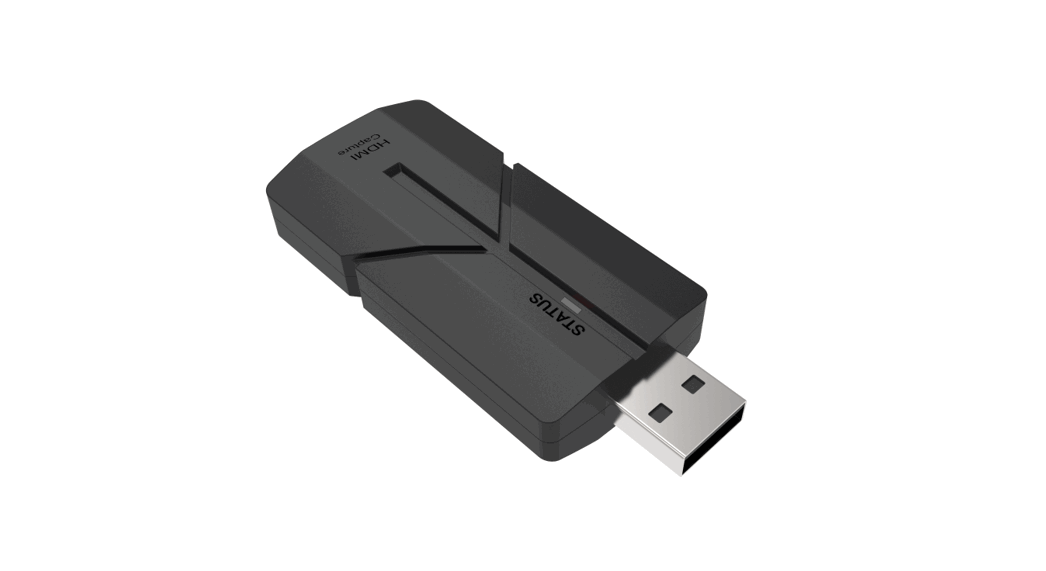
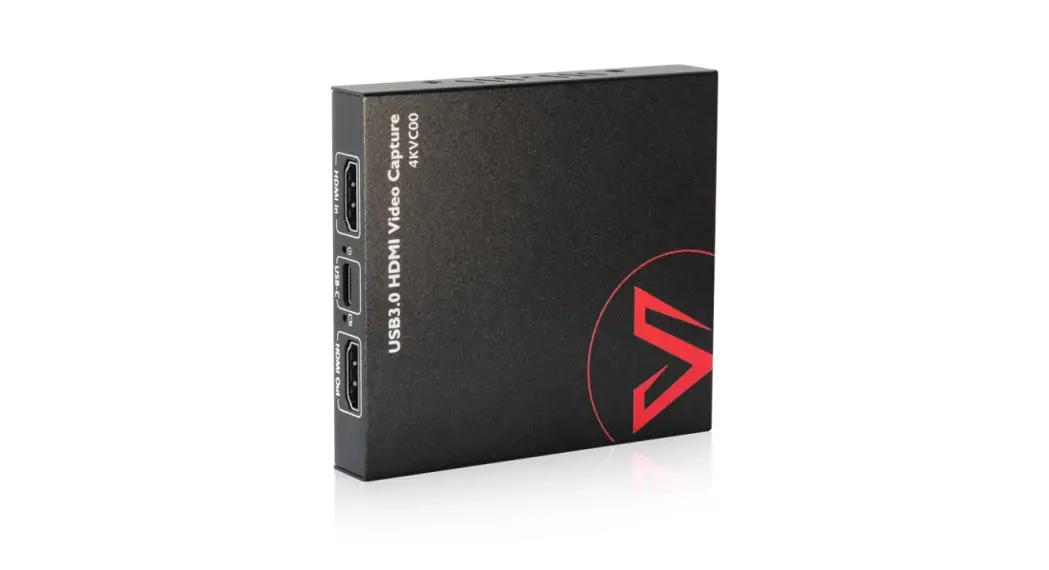
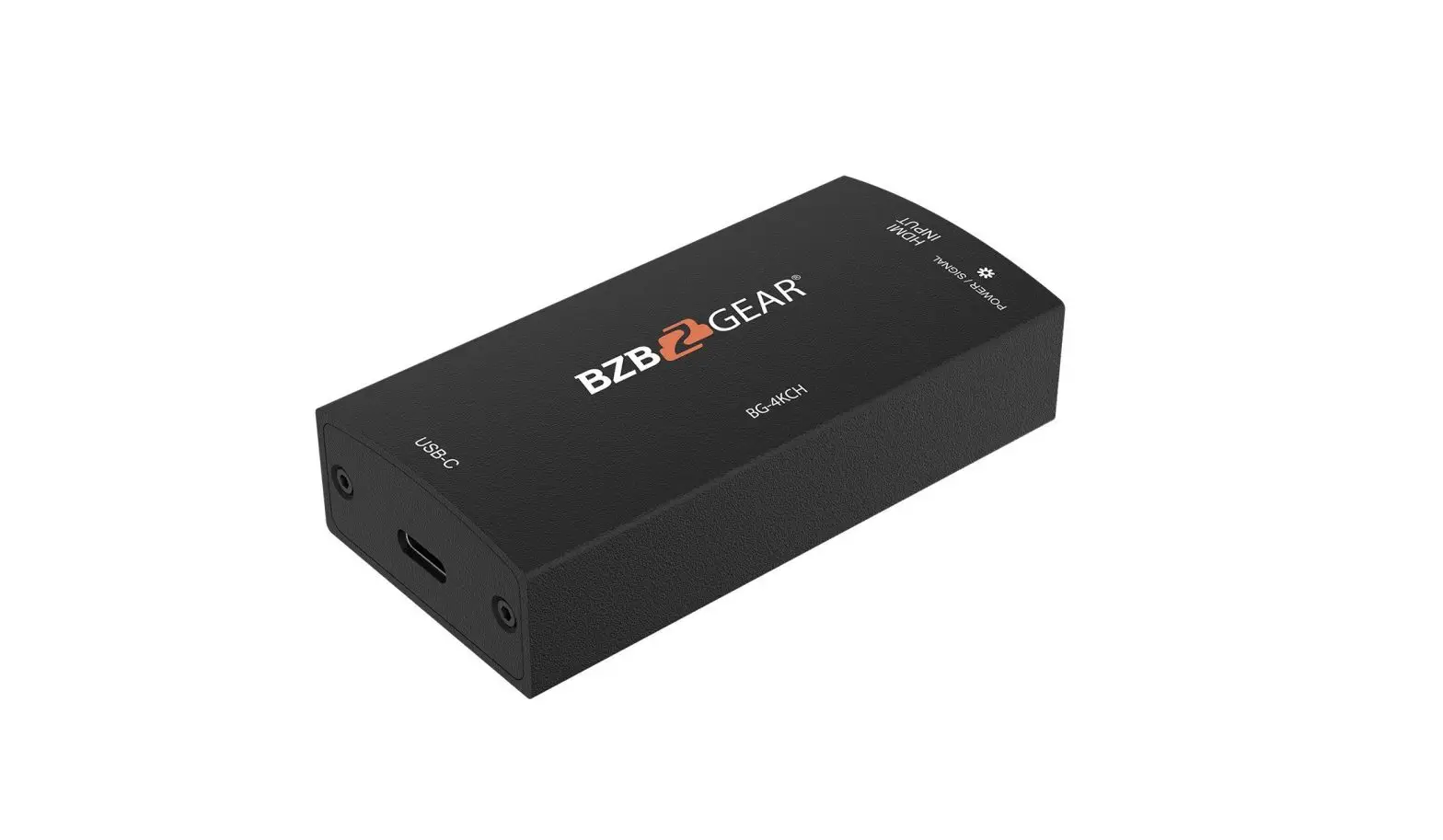
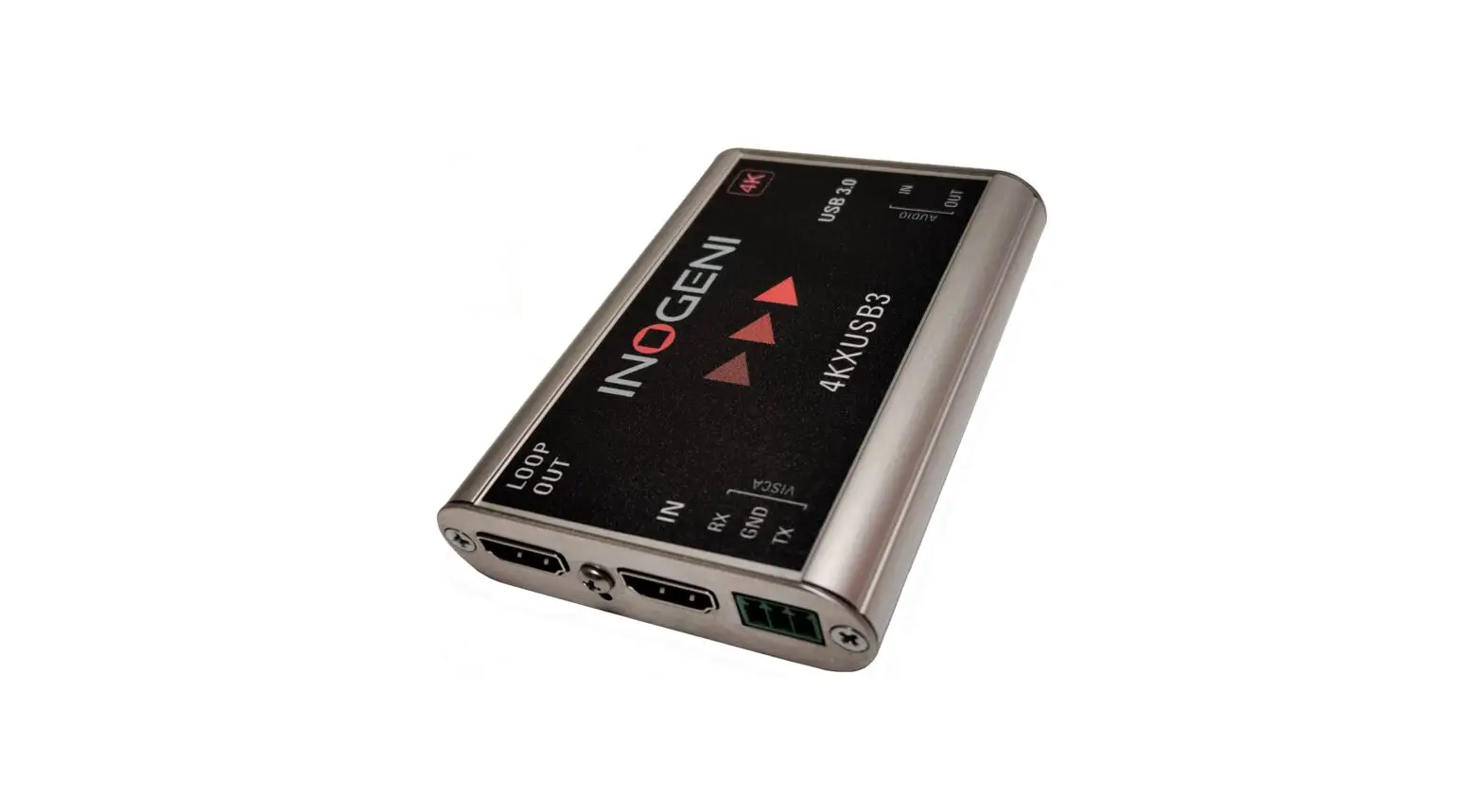
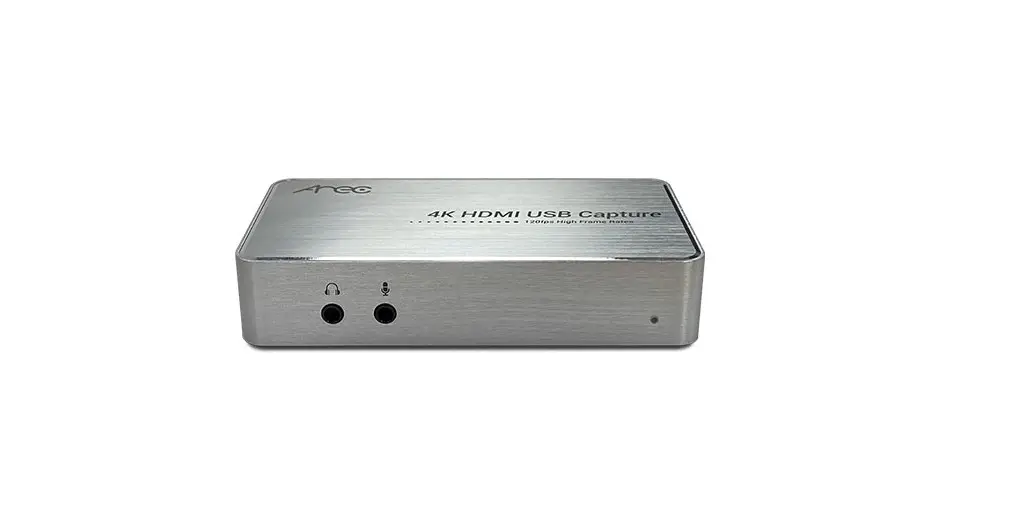
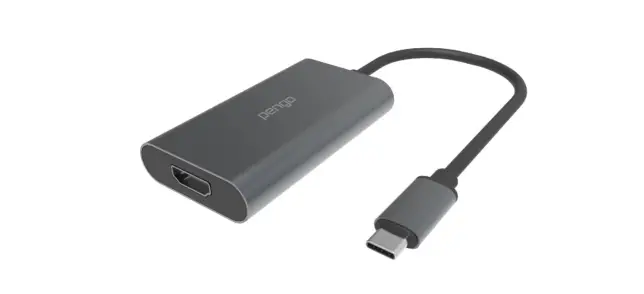
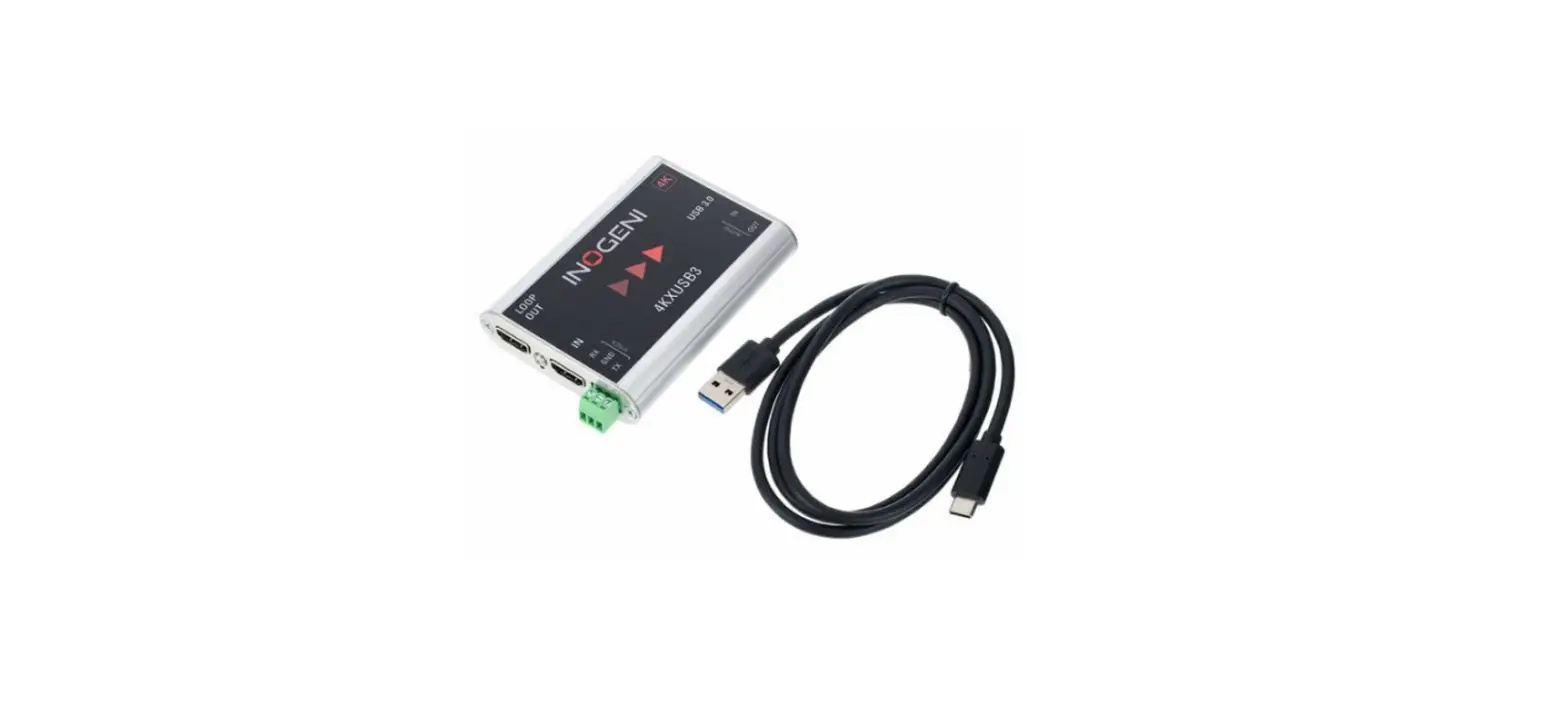
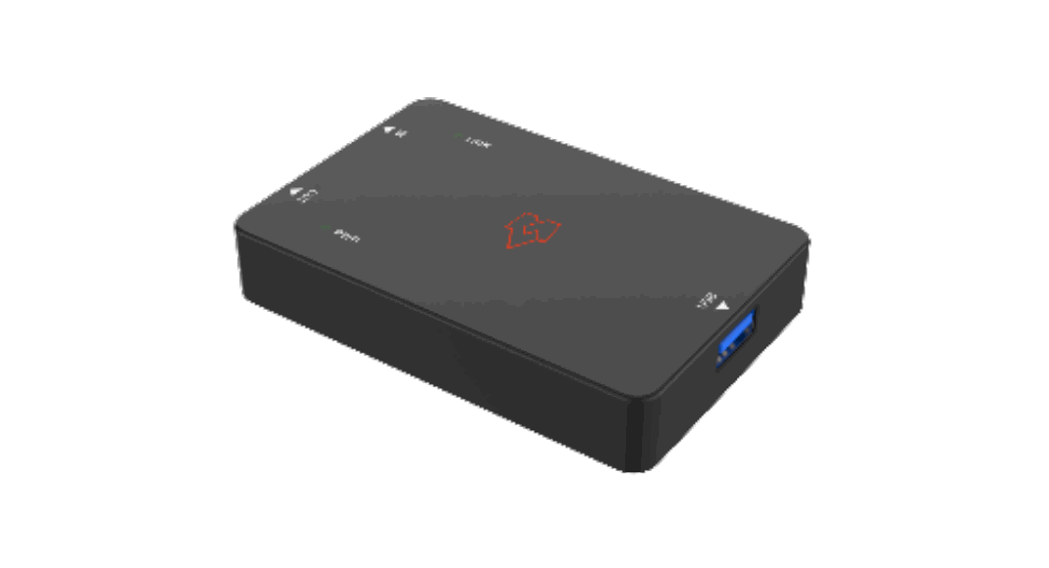
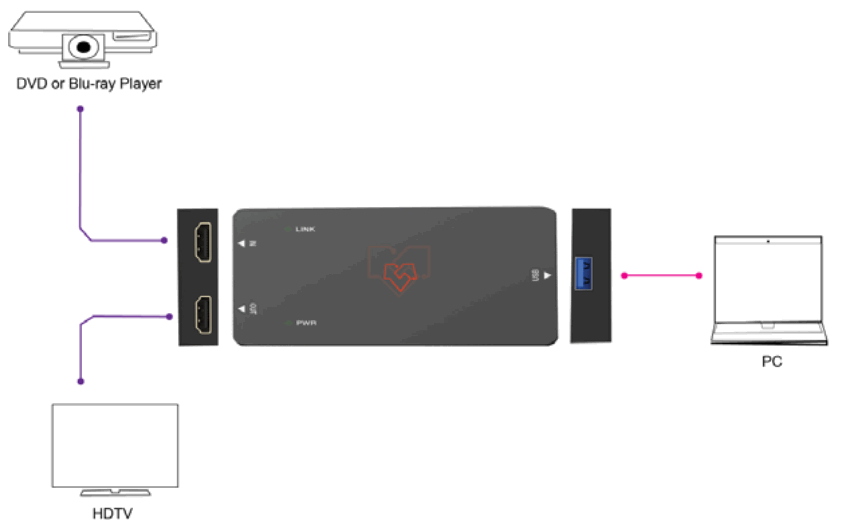
This HDMI to USB video capture dongle has 1 HDMI INPUT, 1 HDMI LOOP OUT, and 1 USB OUTPUT.
The HDMI INPUT supports inputting videos with resolutions up to 4K60. The USB OUTPUT can be used to power the device and capture videos with solutions up to 1080P60. It can be wildly used in video conferences, multi-media broadcasting, and other HDMI video-capturing occasions.
Features
☆ HDMI 2.0b, HDCP 2.2, USB 2.0 and USB 3.0 compliant
☆ 18Gbps HDMI video bandwidth, 5Gbps USB video bandwidth
☆ HDMI INPUT video resolution reaches up to 4K2K@60Hz; USB OUTPUT video resolution has a range between 480i to 1080p60Hz
☆ Supports 4K2K@60Hz downscaling to 1080p60Hz
☆ Supports 4K60 4:4:4 HDMI loop out
☆ Operative in Windows, Linux, and OS X
☆ USB transmission speed up to 300~350Mb/s
☆ Compatible with VLC, OBS, XSPLIT, AMCAP and other video-capturing software.
☆ Compact in design, plug, and play
Package Contents
- 1× HDMI to USB Video Capture Dongle
- 1× USB 3.0 Type-A Cable (0.5m, Blue)
- 1× User Manual
Specifications
| Technical | |
| HDMI Compliance | HDMI 2.0b |
| HDCP Compliance | HDCP 2.2 |
| Video Bandwidth | HDMI: 18 Gbps; USB: 5Gbps |
| Video Resolution | Up to 4K2K@60Hz 4:4:4 |
| Video will be in YUV2 with no compression if outputting via a USB 3.0 port; Video will be compressed in MJPEG if outputting via a USB 2.0 port | |
| USB OUTPUT Resolution | Support 4K24125130150/60 INPUT downscaling to 1080P OUTPUT; For resolutions lower than 1080P, INPUT keeps the same as OUTPUT |
| Color Depth | 8/10/12-bit |
| Color Space | RGB, YCbCr_4:4:4, YCbCr_4:2:2, YCbCr4:2:0 |
| HDMI Audio Format | PCM 2.0 |
| USB Version | USB 3.1 GEN 1 |
| ESD Protection | Human body model — ±8kV (air-gap discharge) & ±4kV (contact discharge) |
| Connection | |
| Input | 1.HDMI Type A [19-pin female] |
| Outputs | 1 xHDMI Type A [19-pin female] 1 xUSB Type A [female] |
| Mechanical | |
| Housing | Plastic Enclosure |
| Color | Black |
| Dimensions | 90mm[VV] x 60mm[D] x 16mm[H] |
| Weight | 47g |
| Power Supply | USB 5V / 900mA |
| Power Consumption | 3.5W (Max) |
| Operation Temperature | 32 – 104°F / 0 – 40°C |
| Storage Temperature | -4 – 140°F / -20 – 60°C |
| Relative Humidity | 20 – 90% RH (no condensation) |
Operation Controls and Functions
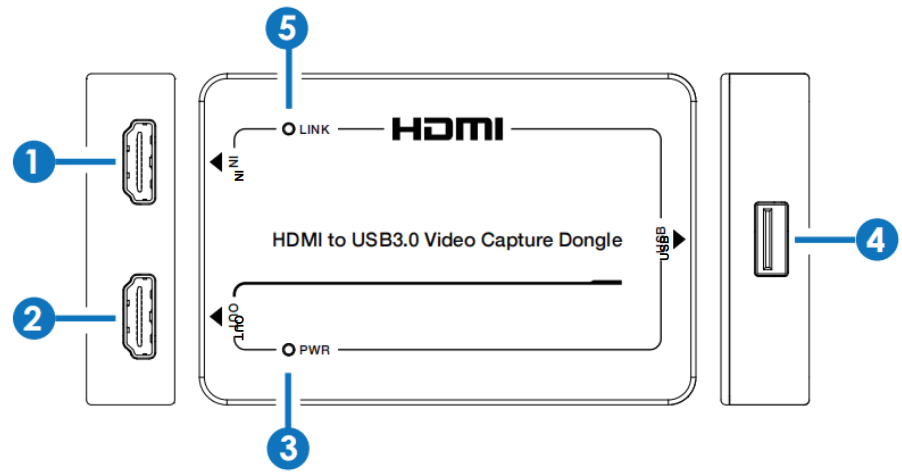
| No. | Name | Function Description |
| 1 | HDMI IN | The HDMI input port connects to a source device via the HDMI cable. |
| 2 | HDMI OUT | HDMI loop out port, connect to a display device such as TV via the HDMI cable. |
| 3 | PWR LED (Green) | The power LED lights in green when the device is powered on. |
| 4 | USB | USB type-A output port, connect to a PC with the USB cable. |
| 5 | LINK LED (Green) | The link LED lights green when the USB port signals to the connected PC. |
OBS Operation Instructions
The OBS (Open Broadcaster Software) Studio software must be installed on your PC before video capture. After the device connection, you can follow the steps below to process the OBS settings.
Step 1: Download the “OBS” application to your computer first.
Step 2: Double-click the OBS shortcut to open the application.
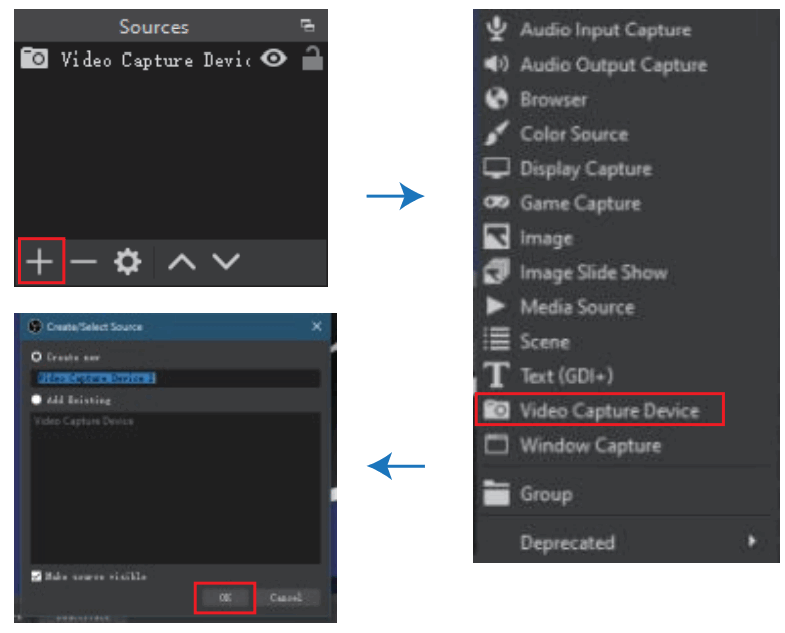
Step 3: Click “+” at the right-bottom corner of the Source window, and select “Video Capture Device,” then click “OK” to select a source video as shown below.
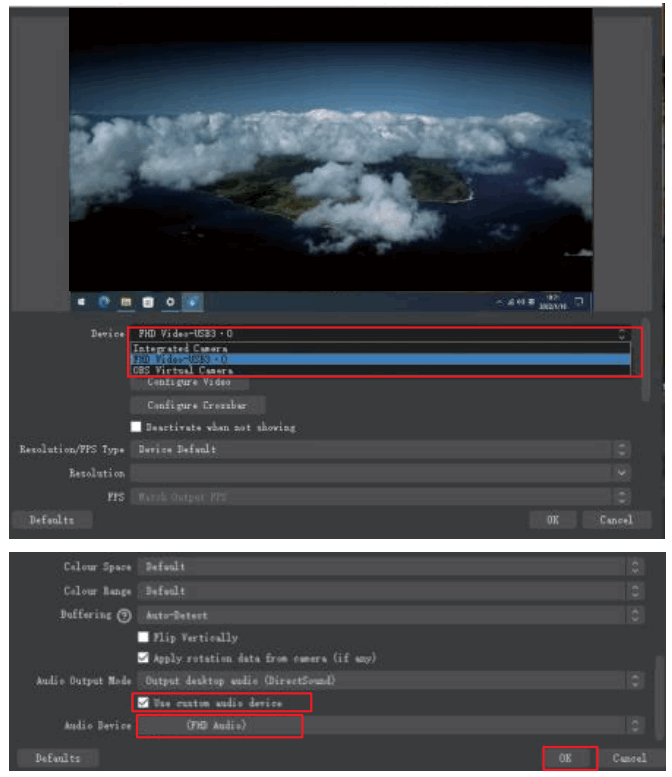
Step 4: Select “FHD Video-USB3.0” from the Device drop-down menu at the beginning of the pop-up Properties page, then check “Use custom audio device” and choose “FHD Audio” at the bottom of the page. After that, click “OK” to save the property settings.
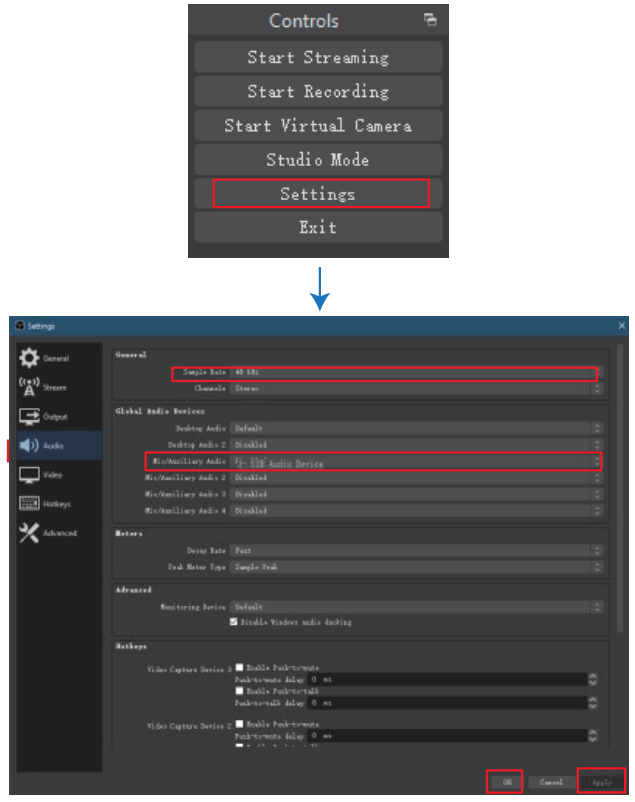
Step 5: On entering the setting page, click the “Audio” tab, then choose “48Khz” as the Sample Rate and “USB3.0 Capture Digital Audio” for “Mic/Auxiliary Audio Device.” After that, click “Apply” and “OK” to save the audio settings.
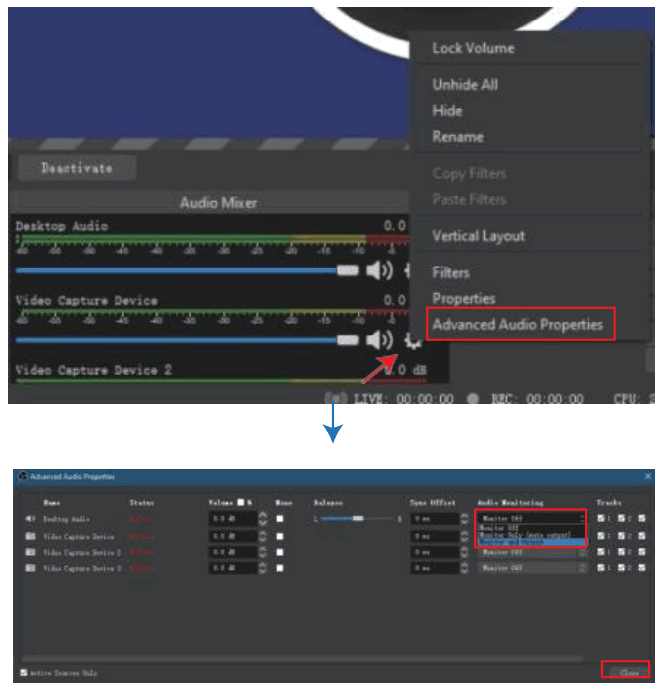
Step 6: Click the setting icon on the Audio Mixer window, and select “Advanced Audio Properties.”
When a box pops out, you can choose “Monitor and Output” and click “Close” to exit out of the advanced audio properties settings.
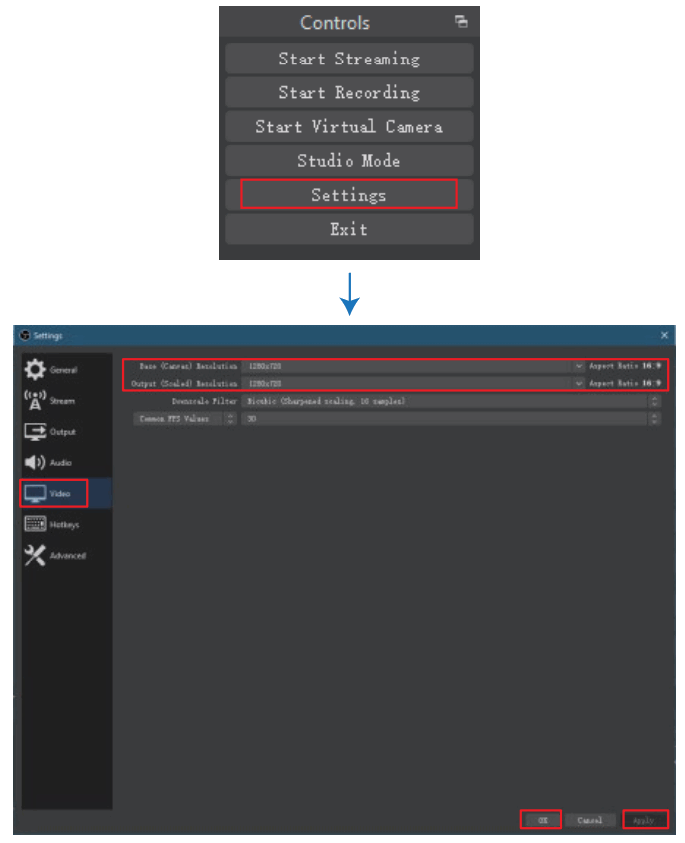
Step 7: On entering the setting page, click the “Video” tab, then you can set “Base Resolution” and “OUTPUT Resolution.” After that, click “Apply” and “OK” to save the Video settings.
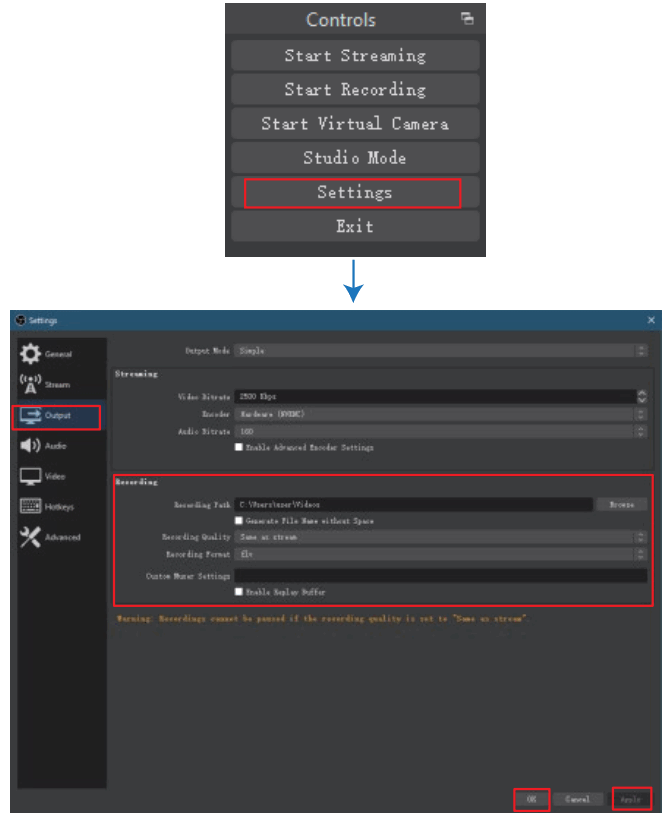
Step 8: On entering the setting page, click the “OUTPUT” tab, then select a “Recording Path,” set “Recording Quality,” “Recording Format,” etc. After that, click “Apply” and “OK” to save the Output settings.
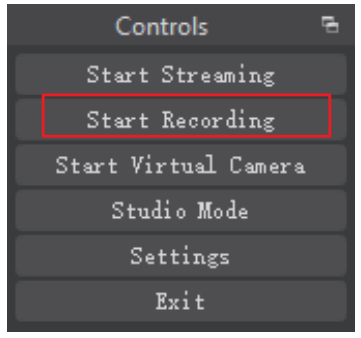
Step 9: When all settings have been completed, click “Start Recording” to start video capture.
Clicking it again, the video capture will be stopped.
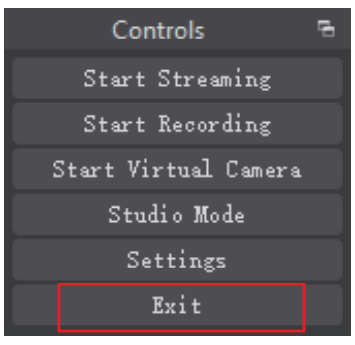
Step 10: When the video is captured, click “Exit” and the software will be closed.
Application Example
 HDMI and HDMI High-Definition Multimedia interface and the HDMI Logo are trademarks or registered trademarks of HDMI Licensing LLC in the United States and other countries.