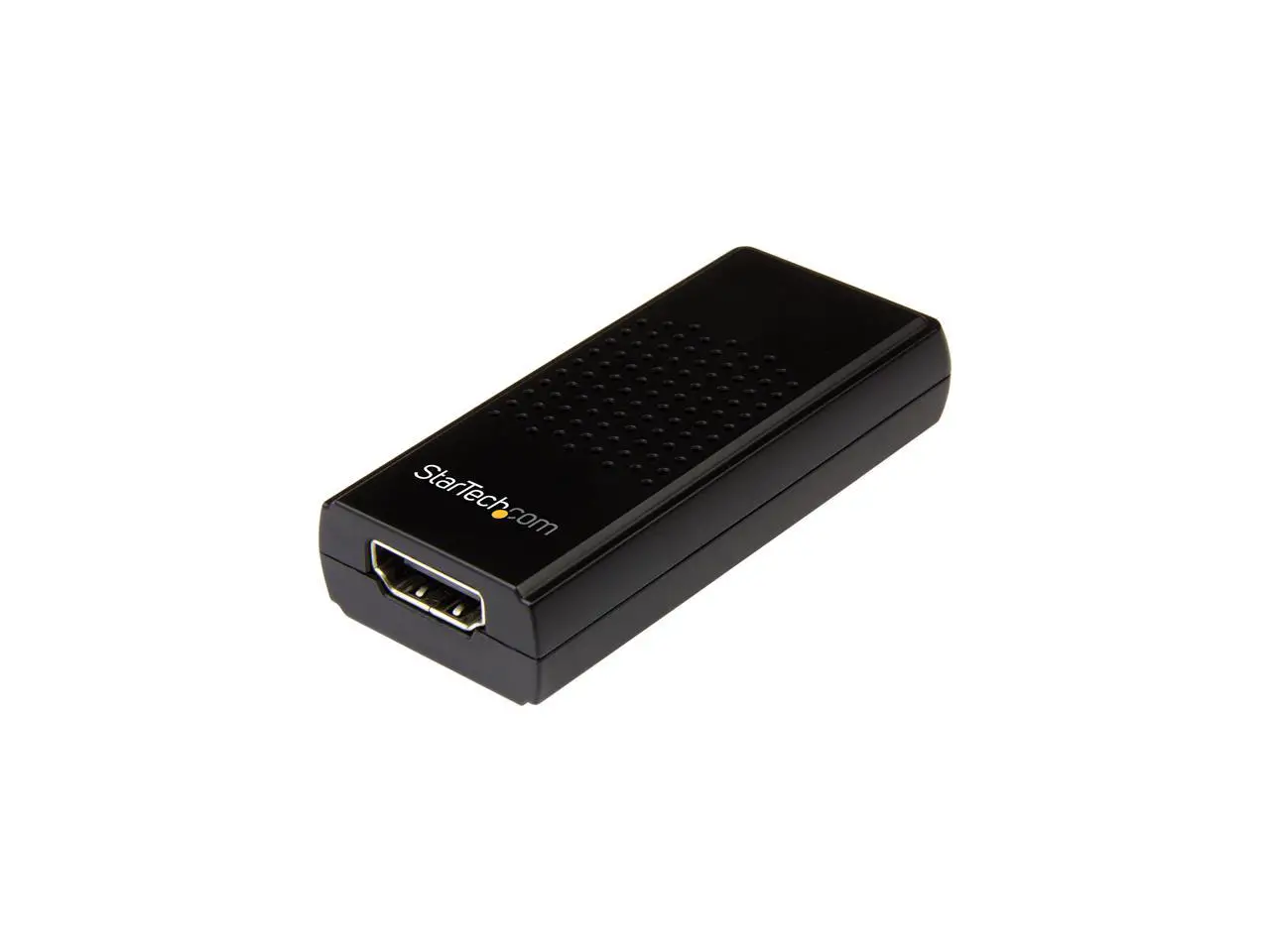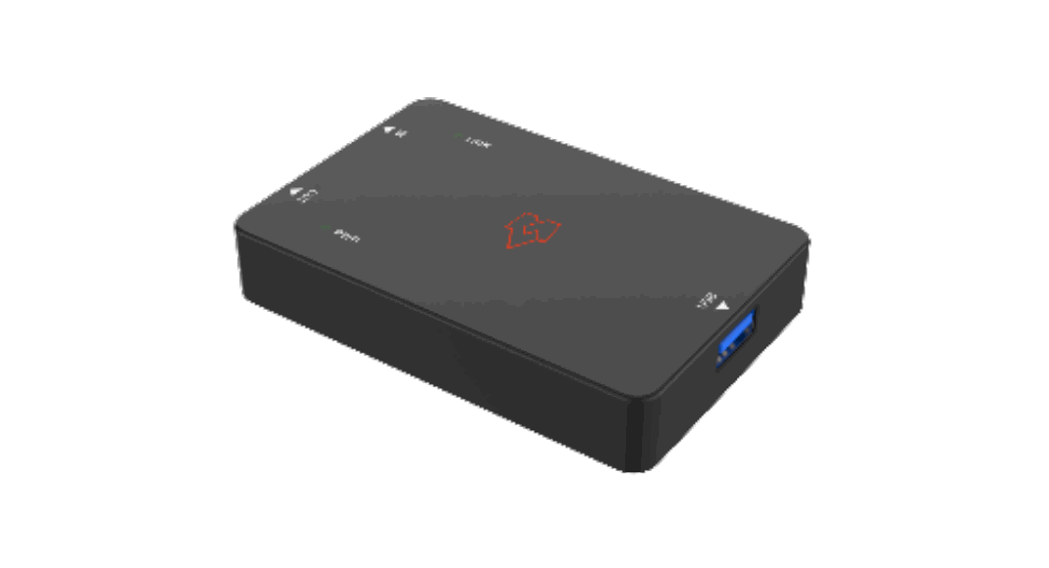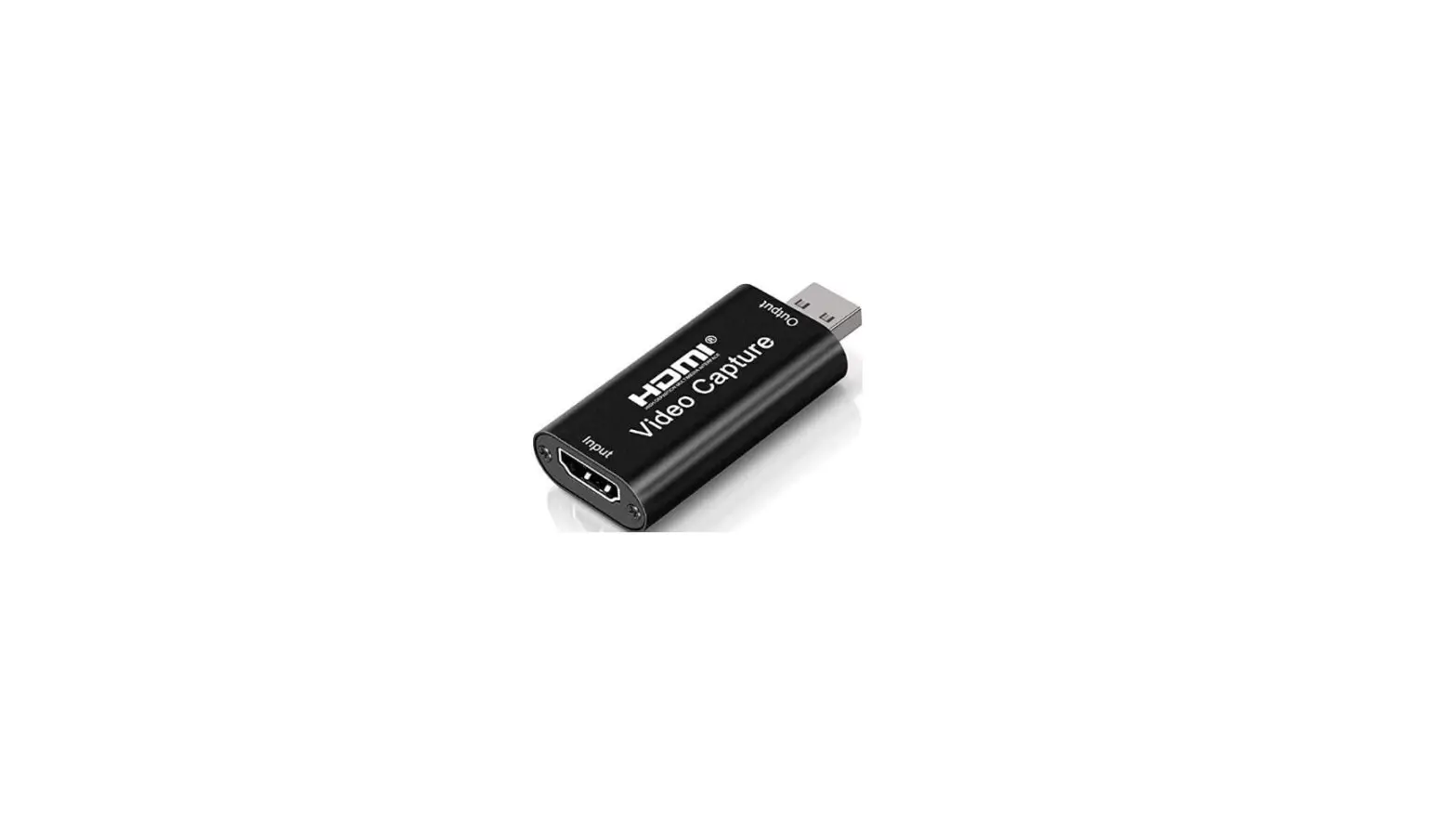
 VLUC-USB22K
1080p HDMI to USB2.0 Video Capture
Ver 1.02
User Manual
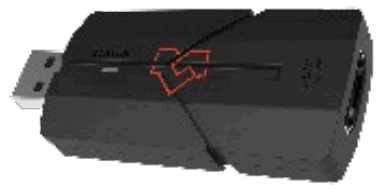
VLUC-USB22K 1080p HDMI to USB2.0 Video Capture
Thank you for purchasing this product
Please read these instructions carefully for optimum performance and safety before connecting, operating, or adjusting this product. Please keep this manual for future reference.
Surge protection device recommended
This product contains sensitive electrical components that electrical spikes may damage, surges, electric shock, lightning strikes, etc. The use of surge protection systems is highly recommended to protect and extend the life of your equipment.
Introduction
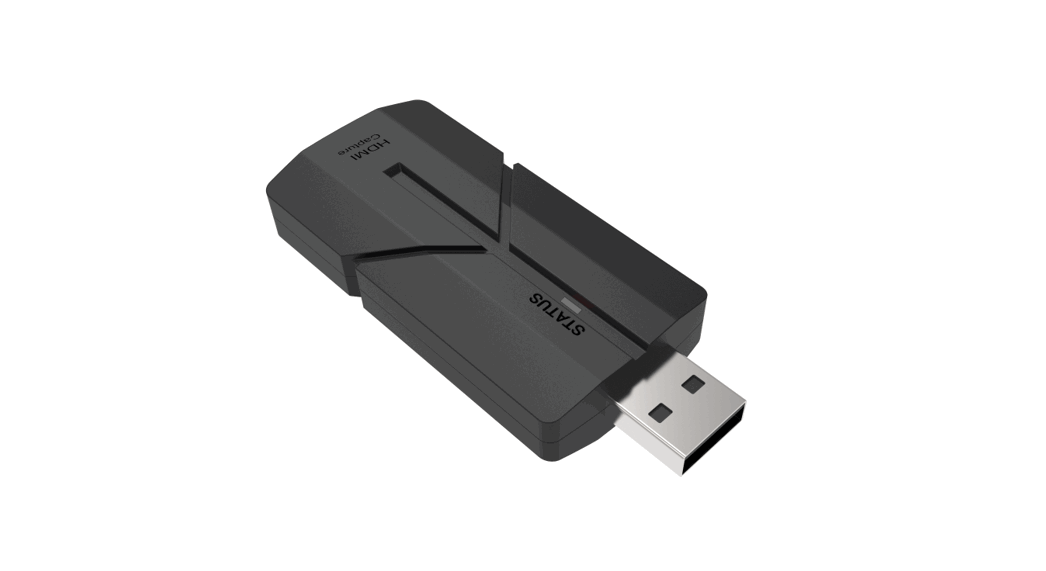
This HDMI to USB2.0 video capture can collect HDMI audio & video input signals. The captured video resolution is up to 4K2K@30Hz, and the output resolution is up to 1080P@60Hz. The product has the advantages of high performance, high compatibility, and manageable carrying and installation. It is compatible with Windows, Linux, Mac OS X operating system, USB2.0 port, plug and play, and easy to use.
Features
☆ HDMI 1.4 and HDCP 1.4 compliant
☆ Supports 10.2Gbps video bandwidth
☆ The captured video resolution is up to 4K2K@30Hz, and the output resolution is up to 1080P@60Hz
☆ Be compatible with Windows, Linux, Mac OS X operating system, and USB2.0 port
☆ Supports automatic recognition of input video format
Operation Controls and Functions
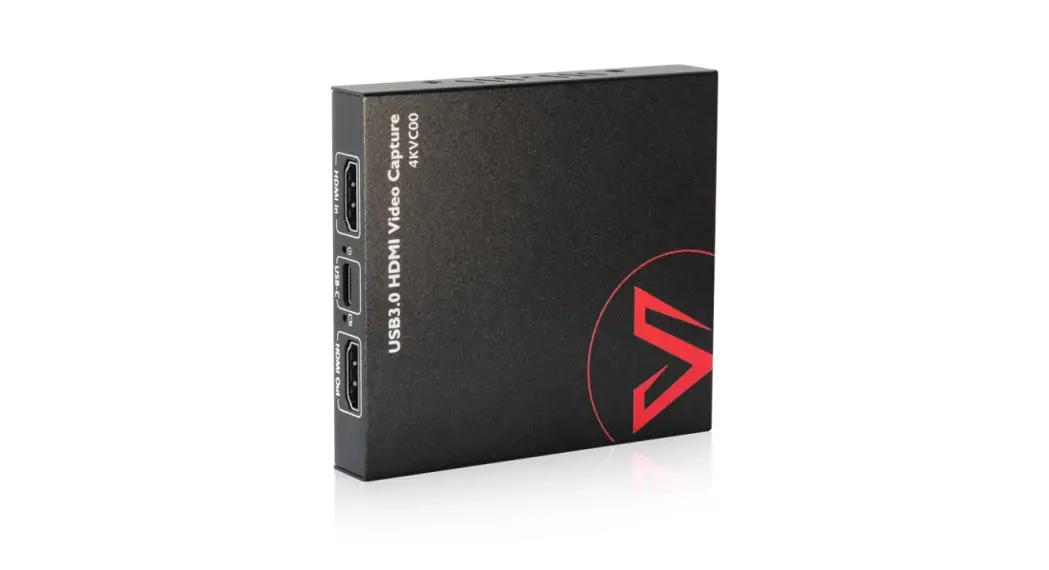
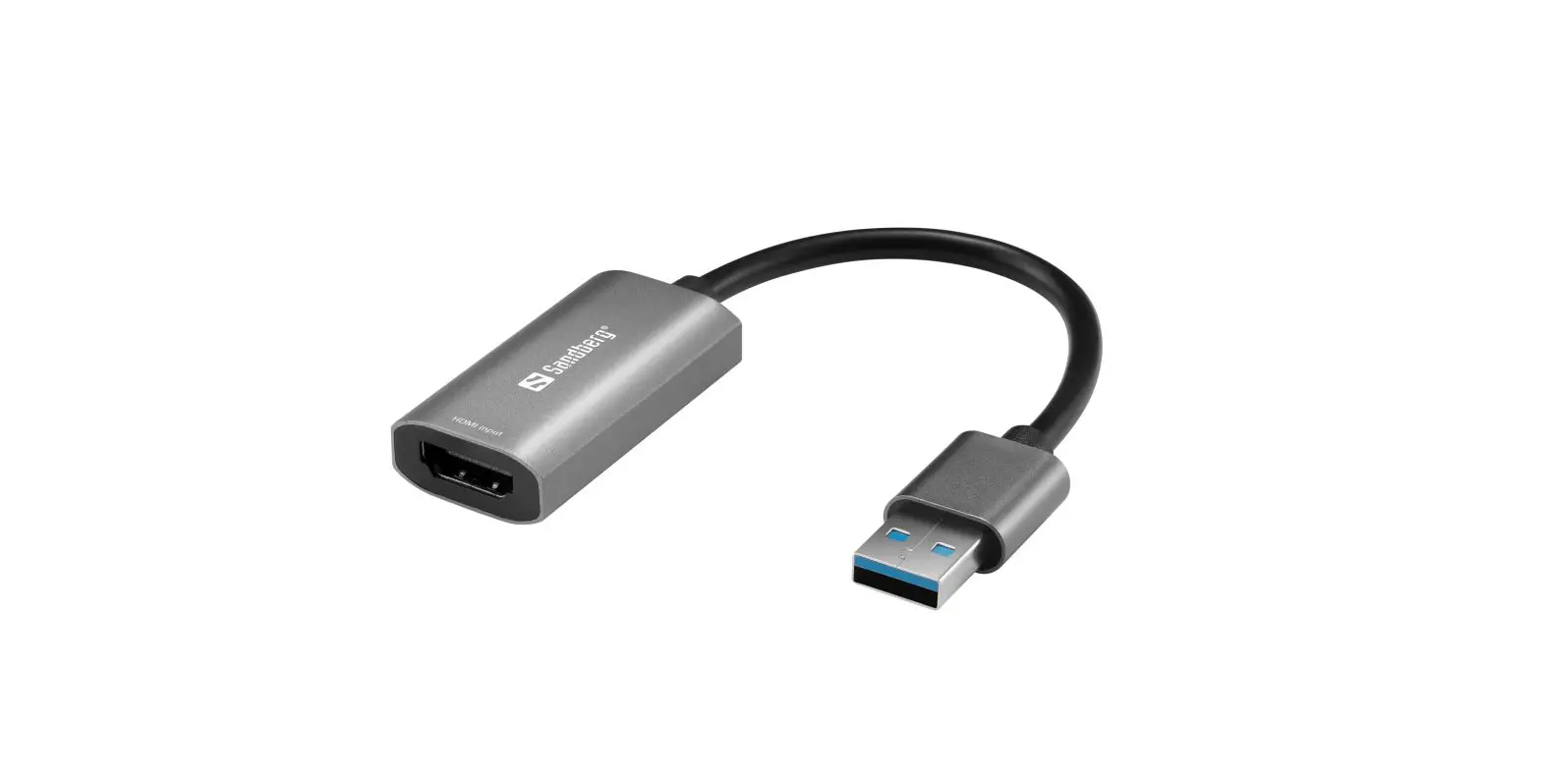
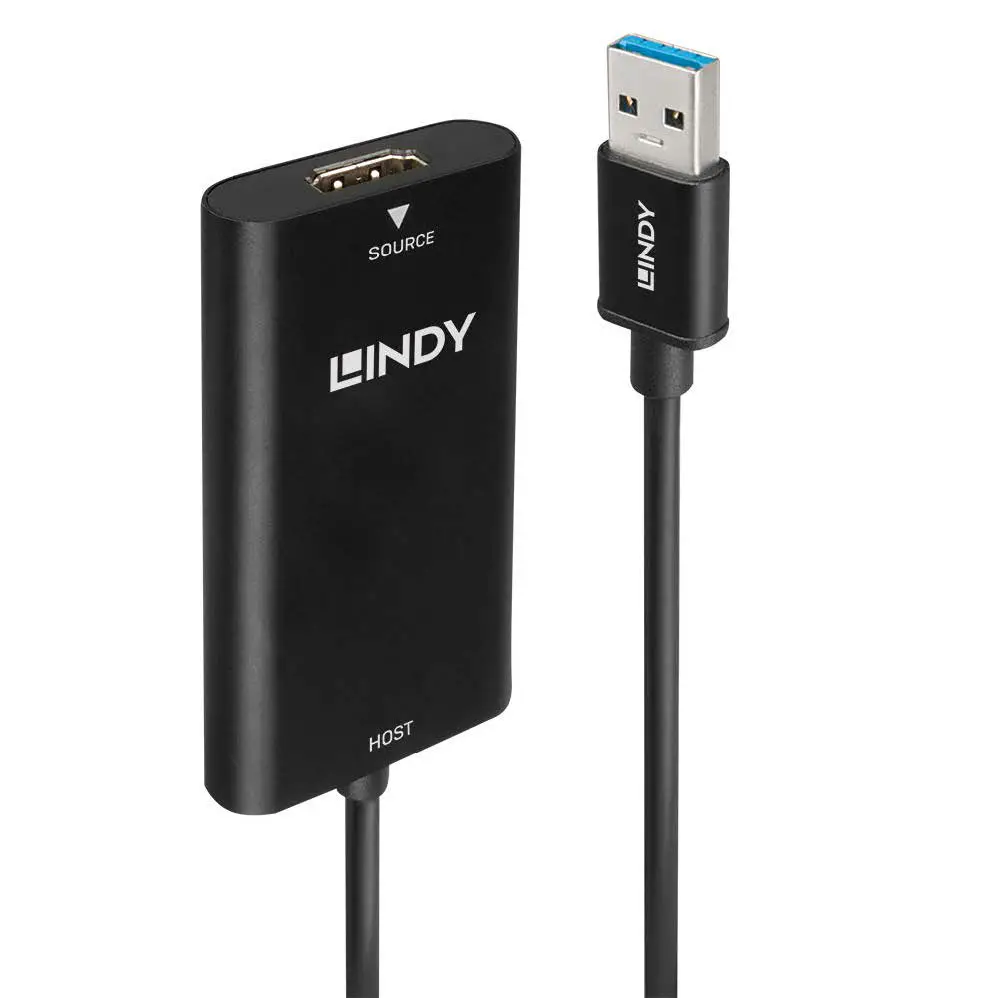
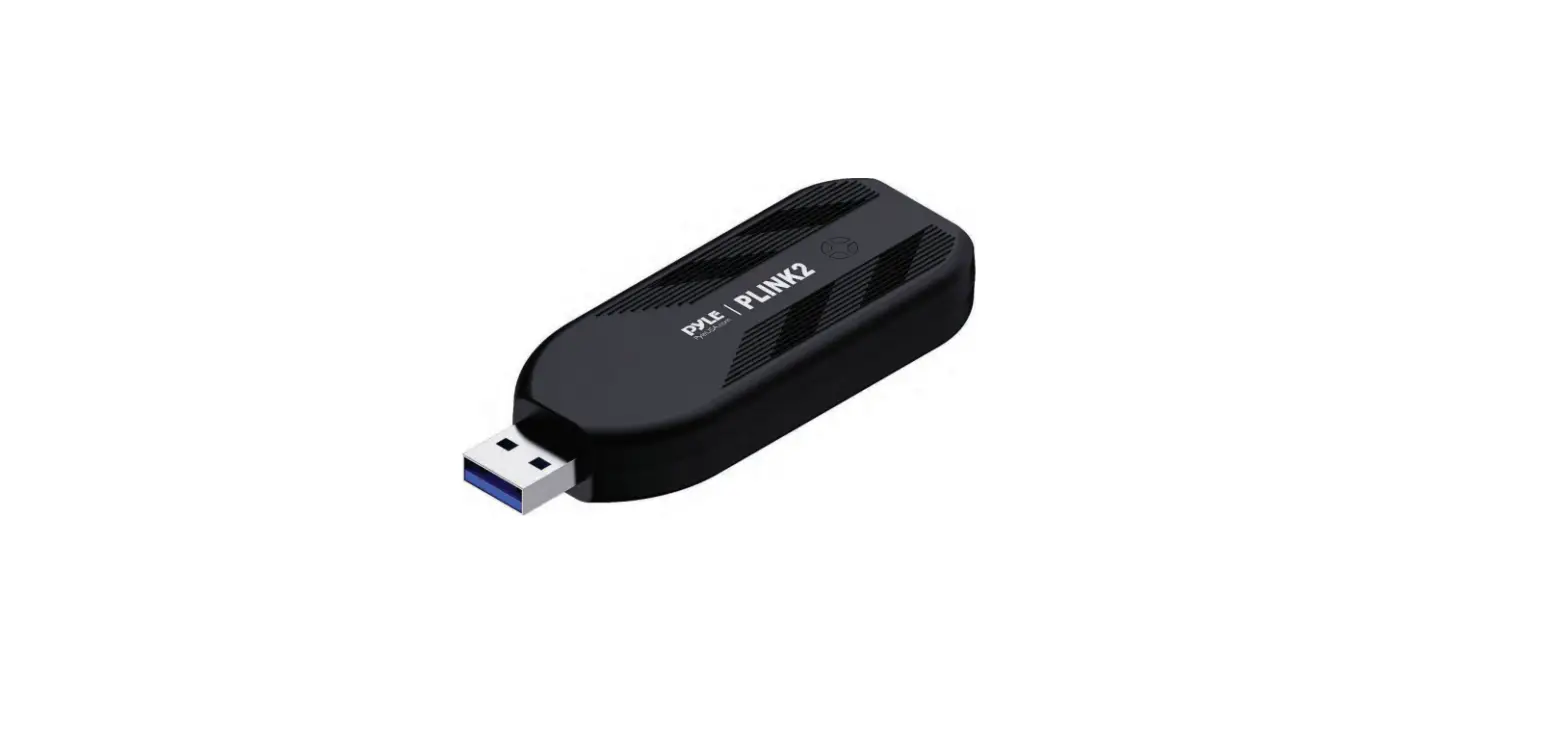
- USB port: USB signal output port, connect to the USB port of a PC directly.
- STATUS LED: Red LED is always on when the capture is related to active HDMI IN signal source, flashes slowly when not connected, about 1 second once.
- HDMI IN port: HDMI signal input port, connect to HDMI source device such as DVD with HDMI cable.
Specifications
| Technical | |
| HDMI Compliance | HDMI 1.4 |
| HDCP Compliance | HDCP 1.4 |
| Video Bandwidth | 10.2 Gbps |
| Video Resolution | Input: Up to 4k2k@30Hz; Output: Up to 1080P@60Hz |
| Color Depth | 8/10/12-bit (1080P@60Hz); 8-bit (4K2K@30Hz YUV4:4:4) |
| Color Space | RGB, YCbCr 4:4:4/4:2:2, YUV 4:2:0 |
| HDMI Audio Formats | LPCM2.0 |
| USB Version | USB 2.0 |
| ESD Protection | Human body model — ±8kV (Air-gap discharge) & ±4kV (Contact discharge) |
| Connection | |
| Input | lx HDMI [Type A 19-pin female] |
| Output | lx USB [Type A male] |
| Mechanical | |
| Housing | Plastic Enclosure |
| Color | Black |
| Dimensions | 51 mm[W] x 31 mm[D] x 13mm[H] |
| Weight | 16g |
| Power Supply | PC USB 5V |
| Power Consumption | 1.75W |
| Operating Temperature | 32 – 104°F / 0 – 40°C |
| Storage Temperature | -4 – 140°F / -20 – 60°C |
| Relative Humidity | 20 – 90% RH (no condensation) |
Package Contents
- 1× HDMI Capture
- 1× User Manual
Software instruction
Take OBS (Open Broadcaster Software) software, windows10 system as an example. The specific operation is as below:
Step 1: Install the “OBS” application software on the computer.
Step 2: Double-click the “OBS Studio” shortcut to open the application.
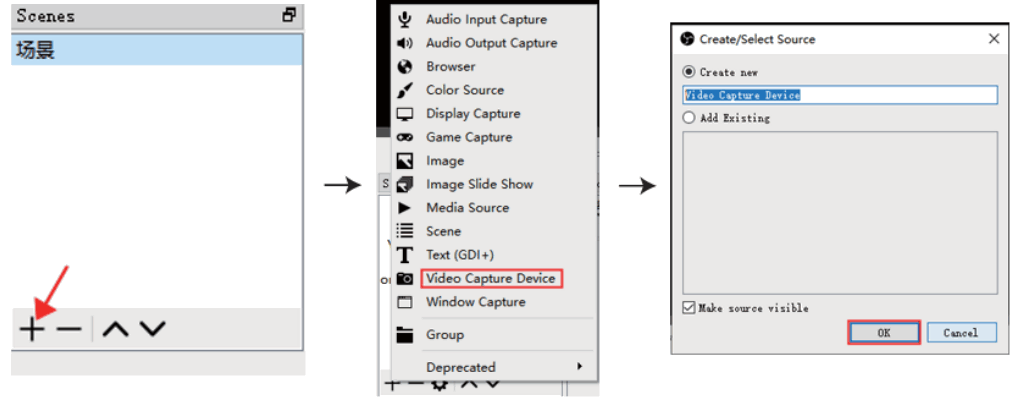
Step 3: Click the “+,” you can see a drop-down menu and select “Video Capture Device,” and then click the “OK” button.
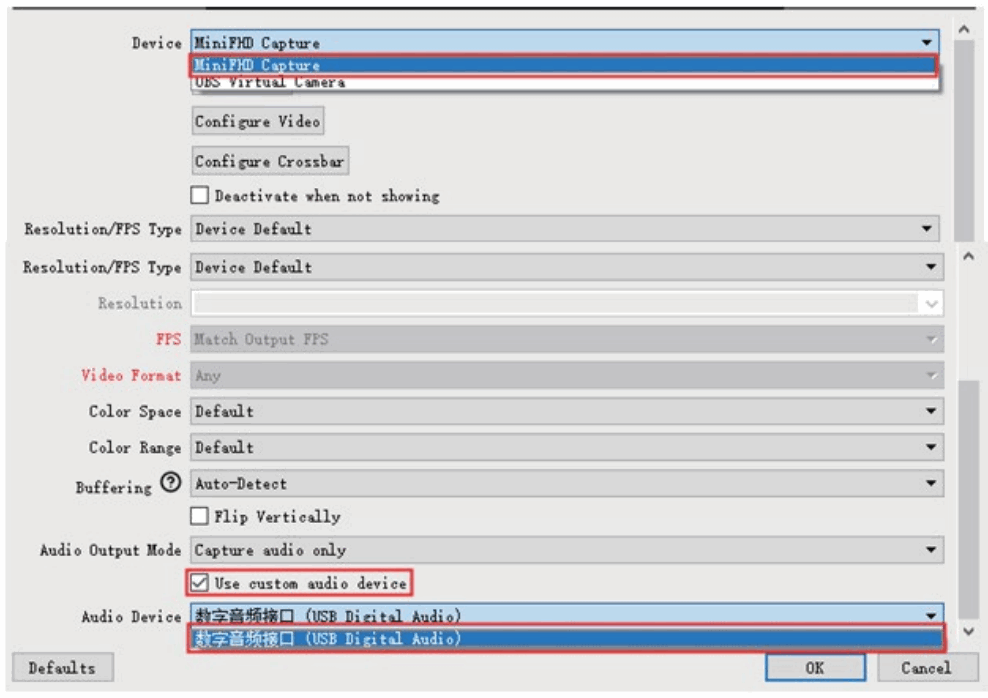
Step 4: Select “Mini FHD Capture” in the Device option box, then check “Use a custom audio device” under Audio Output Mode and select “USB Digital Audio” for Audio Device. Then click the “OK” button.
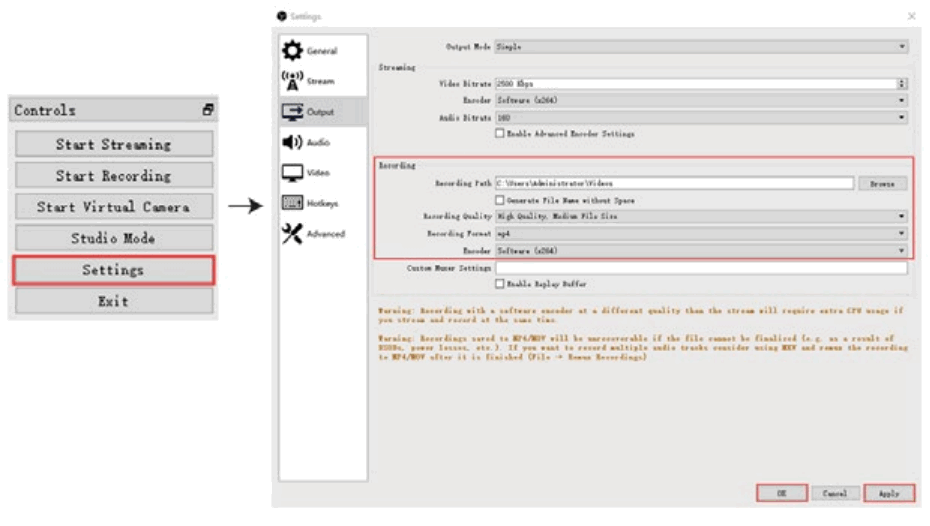
Step 5: Click “Settings” to open the Settings page, then select the “Output” option. On this page, you can choose a recording path for video capture, set recording quality, format, etc. Then click the “Apply” button and the “OK” button.
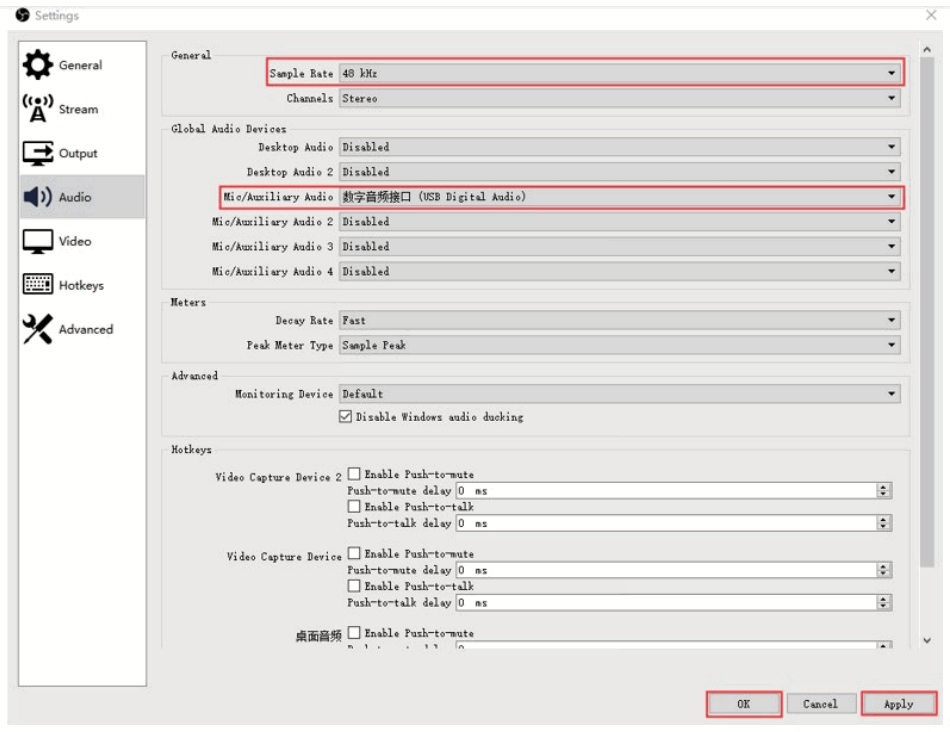
Step 6: On the Settings page, you can select the “Audio” option. On this page, you need to set “Sample Rate” and select “USB Digital Audio” for the “Mic/Auxiliary Audio.” Then click the “Apply” button and the “OK” button.
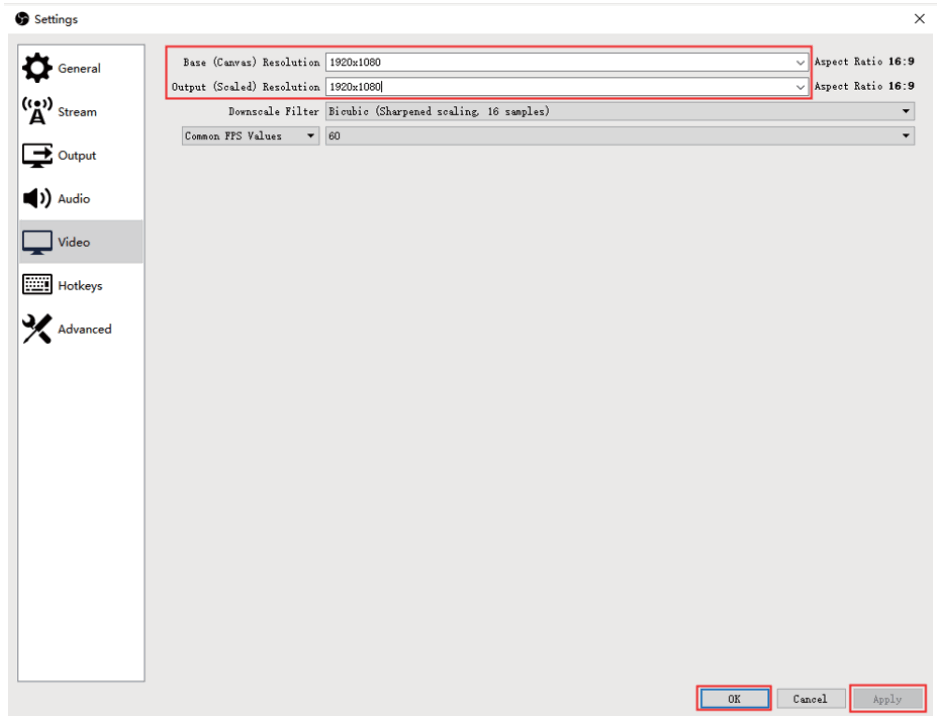
Step 7: You can select the “Video” option on the Settings page. You can select “Base Resolution” and “Output Resolution” on this page. Then click the “Apply” button and the “OK” button.
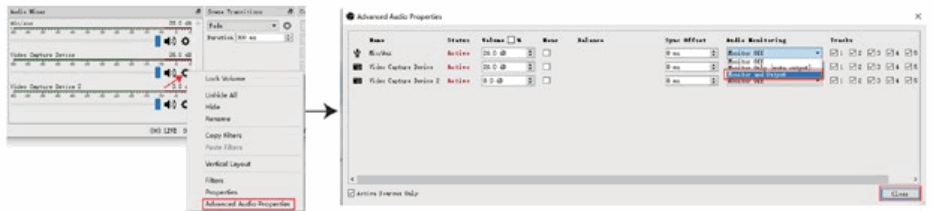
Step 8: Use the mouse to click the Setting icon, then select the “Advanced Audio Properties” option. And choose the “Monitor and Output” option on the Advanced Audio Properties page. Then click the “Close” button.
Step 9: When you have finished all settings, you can click the “Start Recording” button to start video capture. If it has finished, click this button again to stop video capture.
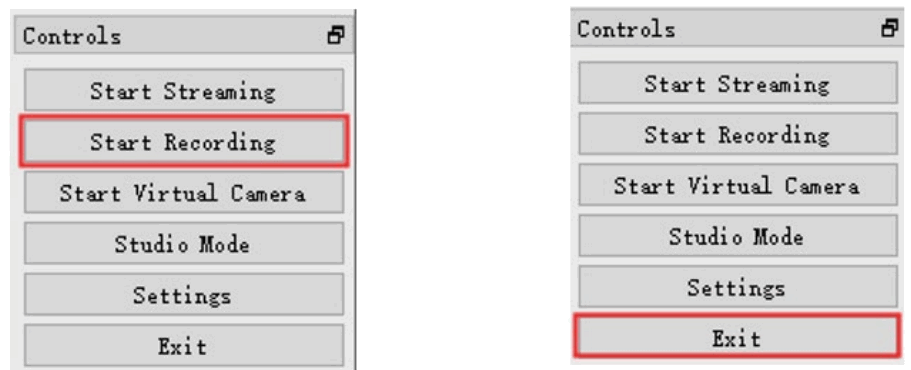
Step 10: You can click the “Exit” button to close the software when the video capture is finished.
Note: The software instruction is only about video capture settings at the above content. You can browse other related settings functions.
Application Example

 HDMI and HDMI High-Definition Multimedia interface and the HDMI Logo are trademarks or registered trademarks of HDMI Licensing LLC in the United States and other countries.