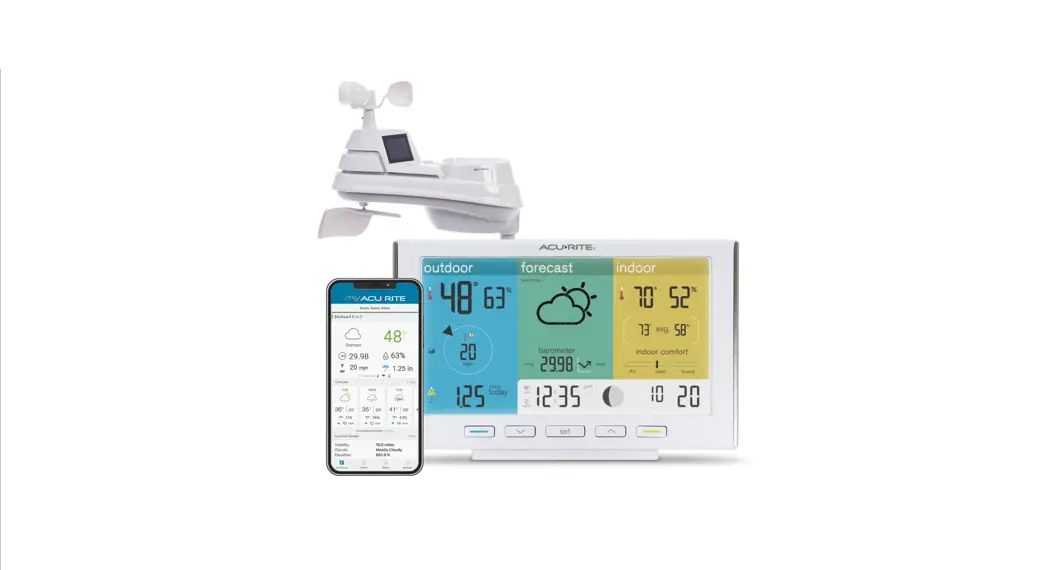

AcuRite 01536M PC Connect for Windows
PC Connect Features
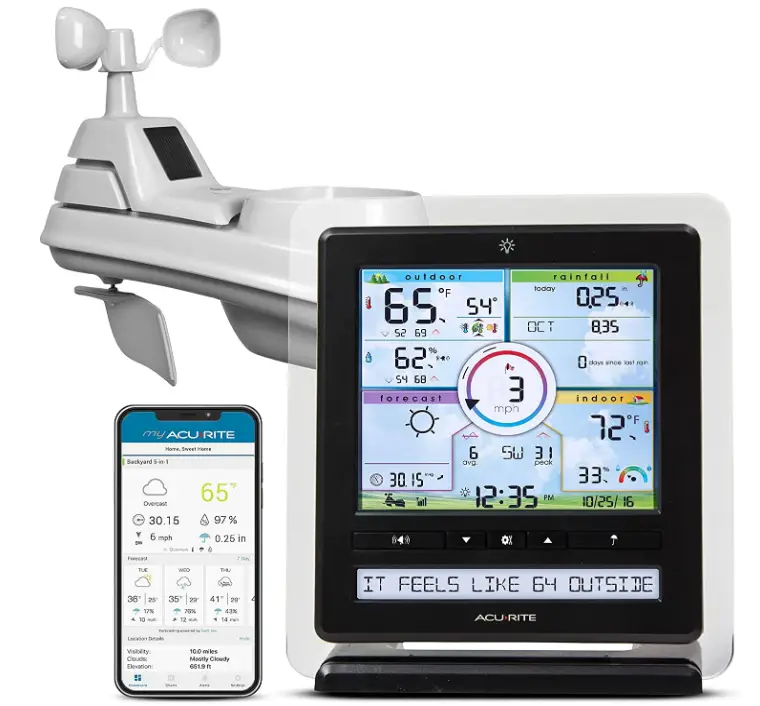
PC Connect provides an easy method to share the readings collected by a single 5-in-1 Weather Station with My
AcuRite and Weather Underground, and store readings on your computer.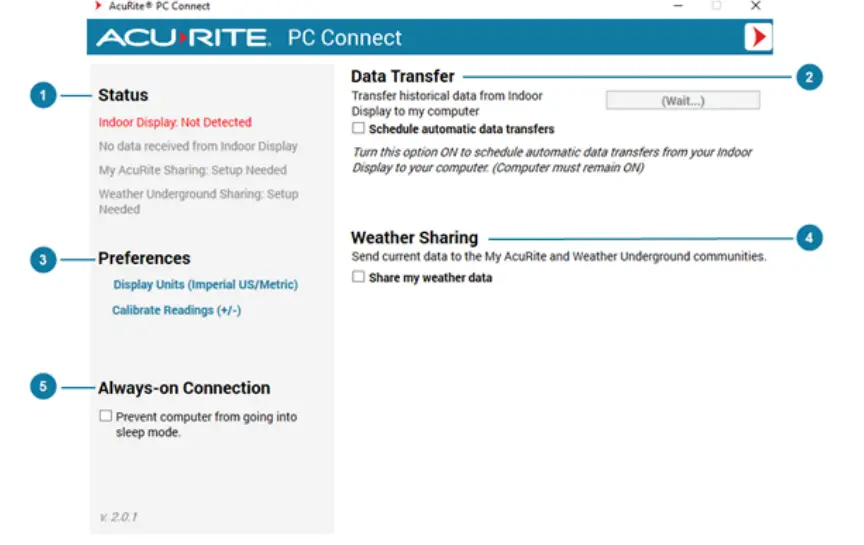
- Status
The Status section provides a summary of the setup, connection, and sharing statuses. From here, you can quickly identify if everything is working as expected or if there is an issue with the setup or a connection. - Data Transfer
You can set up PC Connect to transfer the readings collected by your 5-in-1 Weather Station to a CSV file saved locally on your computer. The readings can be either manually transferred or set up to be automatically transferred based on a set schedule. - Preferences
You can set how reading units are displayed in the Data Transfer CSV file and set reading calibrations. When sensor placement or an environmental factor may impact readings, setting a reading calibration can improve accuracy and barometric pressure can be adjusted for altitude. Calibrated readings and pressure adjustments are shared with My AcuRite and Weather Underground and stored in the Data Transfer CSV file. - Weather Sharing
You can set up PC Connect to share the readings collected by your 5-in-1 Weather Station with My AcuRite and Weather Underground. From My AcuRite, you can view and monitor your conditions online at anytime from the My AcuRite mobile app or from www.myacurite.com on your laptop or desktop computer. To share with Weather Underground, you must have a My AcuRite account and set up sharing to My AcuRite, then register your AcuRite Weather Station (Personal Weather Station) with Weather Underground to obtain a Station ID and Password (Station Key). - Always-on Connection
To ensure continuous sharing with My AcuRite and Weather Underground and to allow scheduled Data Transfers, the
PC Connect software must be open on your computer and your computer must be on and have an internet connection at all times. The PC Connect software can be minimized.
To prevent your computer entering sleep mode, it’s recommend to enable the Always-on Connection setting.
Set up PC Connect
Installing the PC Connect software is simple, and once installed you can store and share readings collected by your 5-in-1 Weather Station.
Install PC Connect
Installing the PC Connect software is simple and once installed, you can set up Weather Sharing, Data Transfer, and other preferences.
Make sure your computer meets the minimum system requirements
- l PC Connect for Windows: Operating System – Microsoft® Windows® 7, 8, 8.1, or 10
- l PC Connect for Mac: Operating System – Mac® OS X Mavericks 10.9 or higher
- l Processor speed – 1 GHz or greater
- l Memory – 1 GB (32-bit) or 2 GB (64-bit) RAM
- l Available USB port (2.0)
- l Internet connection
How to install the PC Connect software
Download the software – PC Connect is available in Windows and Mac versions.
For PC Connect for Windows – go to www.acurite.com > Help > Download Software > My AcuRite – PC
Connect for Windows Download > select Install PC Connect > select Run Now (Run) to install or Save to install later (from your Downloads location, double-click on PC-Connect-Setup to install).
For PC Connect for Mac – go to www.acurite.com > Help > Download Software > My AcuRite – PC Connect for Mac Download > select Install PC Connect.
The Install Wizard guides you through the installation steps.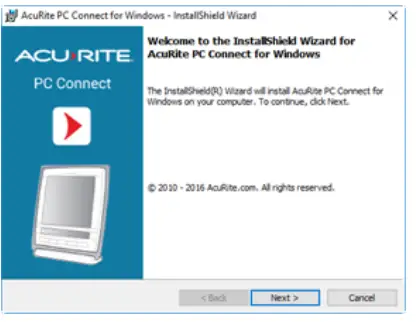
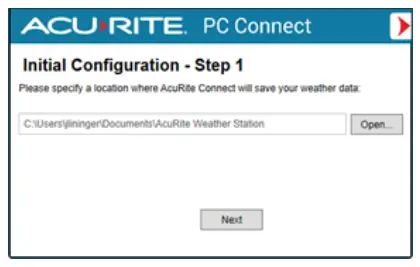
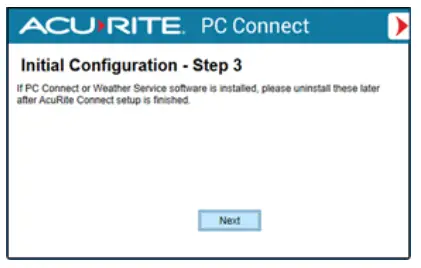
Once installation is complete, you are guided through the Initial Configuration steps.
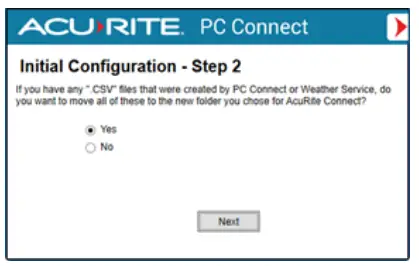
- Select where the Data Transfer CSV files will be saved. By default, they are saved to Documents\AcuRite Weather Station.

- If you have CSV files from previous installed versions, select whether you want to move the files to the location selected in Step 1.

- Reminder to uninstall – if you have any previous versions of PC Connect installed on your computer, please uninstall those later.

Connect Indoor Display
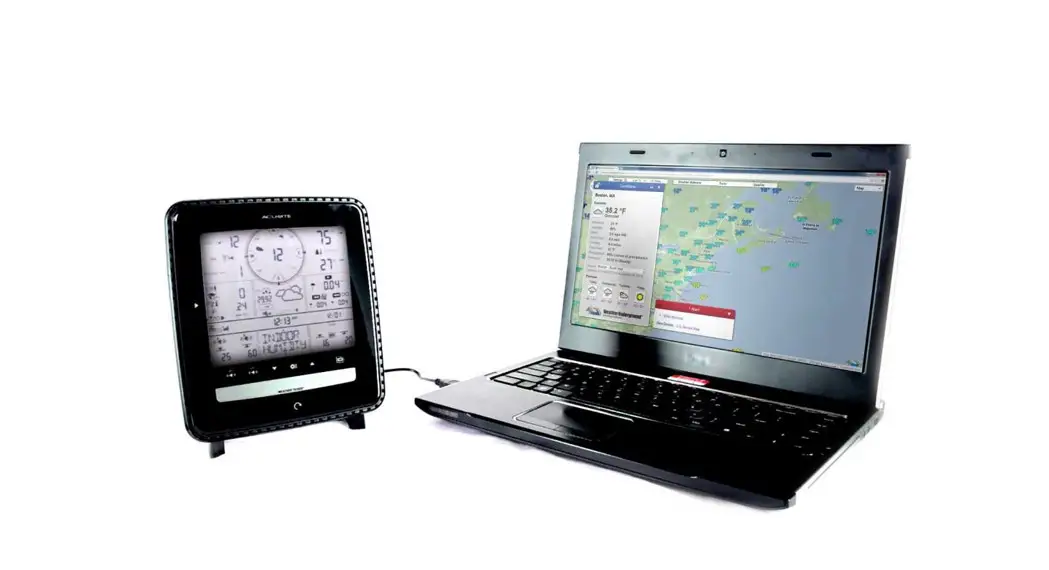
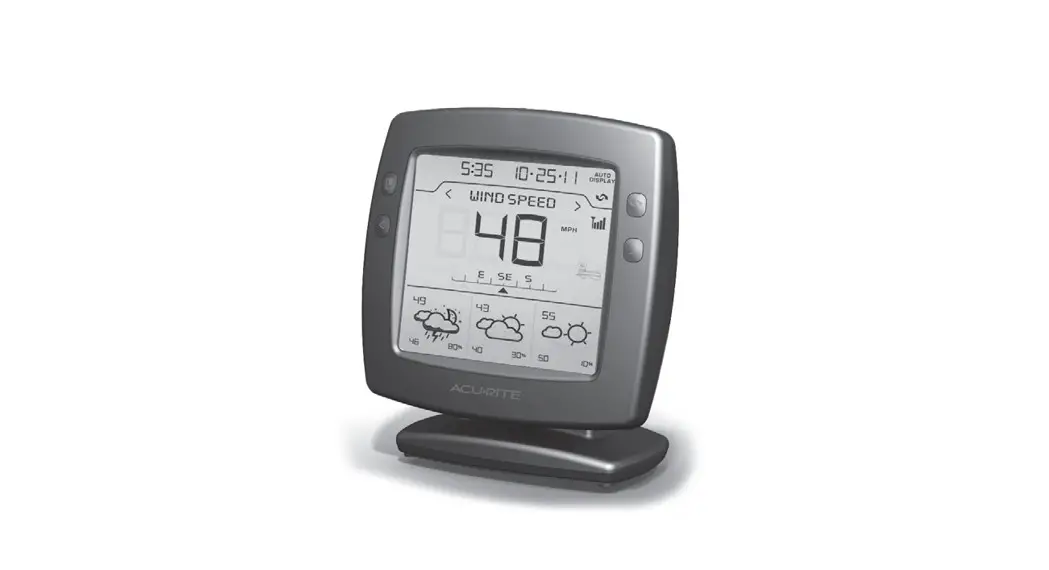
The Indoor Display is the unit that collects and displays the readings from a 5-in-1 Weather Station. The readings are sent to PC Connect by way of the USB connection between the Indoor Display and your computer.
NOTE
If your Weather Station is model 01025, 01035, 1036, 01525, or 02032 (the model number is located on the back of the Indoor Display), you need to update its MODE setting. From the SET menu located on the front of the Indoor Display, cycle through the settings to USB MODE or PC CONNECT MODE and press the up arrow to set the MODE to 3 or 4, and press SET again to save.
How to connect the Indoor Display to your computer
- Remove the battery compartment cover of the Indoor Display.
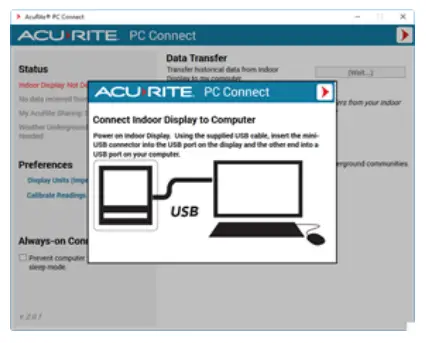
- Using the supplied USB cable, insert the mini-USB connector into the USB port of the Indoor Display and insert the other end into a USB port on your computer. PC Connect searches for the Indoor Display connection.

- From the Status section, verify the Indoor Display status changed to Detected. Once readings are received from the Indoor Display, the Data Received status displays when the last reading data was received. The timestamp updates each time a reading is received from the Indoor Display.
Set up Weather Sharing
From PC Connect, you can share the readings collected by your 5-in-1 Weather Station with My AcuRite and Weather Underground.
To view your readings online on at myacurite.com or from the AcuRite app, you must set up Weather Sharing in PC Connect. Once set up, create a My AcuRite account (go to www.myacurite.com to create an account) or if you already have a My AcuRite account, add the Device ID of the Indoor Display to your account.
To share with Weather Underground, you must have a My AcuRite account and enable sharing to My AcuRite in PC Connect, then register your AcuRite Weather Station (Personal Weather Station) with Weather Underground to obtain a Station ID and Password (Station Key).
How it works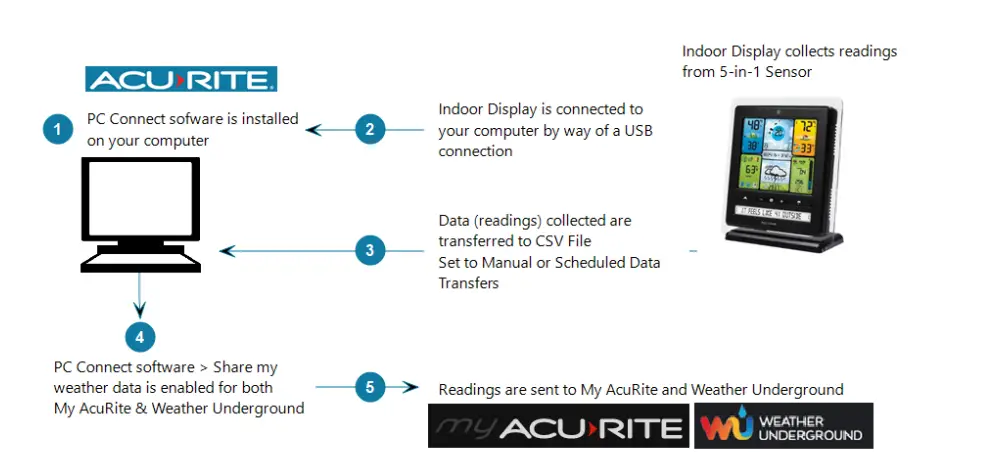
WARNING
To ensure continuous sharing with My AcuRite and Weather Underground and to allow scheduled Data Transfers, the PC Connect software must be open on your computer and your computer must be on and have an internet connection at all times. The PC Connect software can be minimized.
How to set up Weather Sharing
- Open the PC Connect software.
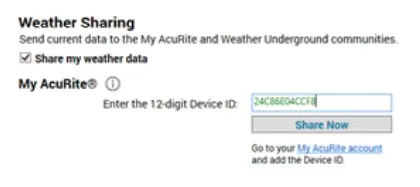
- From the Weather Sharing section, select the check box Share my weather data.
- From My AcuRite Sharing, enter the 12-character Device ID of the Indoor Display. The Device ID is located on the back of the unit.
- Select Share Now. This activates the Device ID with My AcuRite, allowing you to add the Device ID to your My AcuRite account.

- Go to myacurite.com or download the AcuRite app from the App Store or the My AcuRite app from Google Play to create a My AcuRite account. If you have an account, add the PC Connect Display to your account. Once the Device ID is added to your account, you can set up sharing with Weather Underground.
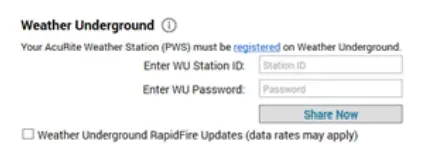
- To share with Weather Underground, enter your Weather Underground (WU) Station ID and Password (Station Key) and select Share Now. Readings are sent in 12-minute intervals to Weather Underground.

- To share readings with Weather Underground as often as every 18 seconds, select Weather Underground RapidFire updates. Enabling Rapid Fire Updates may result in significantly more data being sent over your internet connection.
- To prevent your computer from entering sleep mode, it’s recommended to enable the Always-on Connection setting.
From the Status section, you can view the status of the sensor readings being sent to My AcuRite and Weather Underground.
Set up Data Transfers
You can set up PC Connect to transfer the readings collected by your 5-in-1 Weather Station to a CSV file. The readings can be manually transferred or set to automatically transfer based on a set schedule.
How it works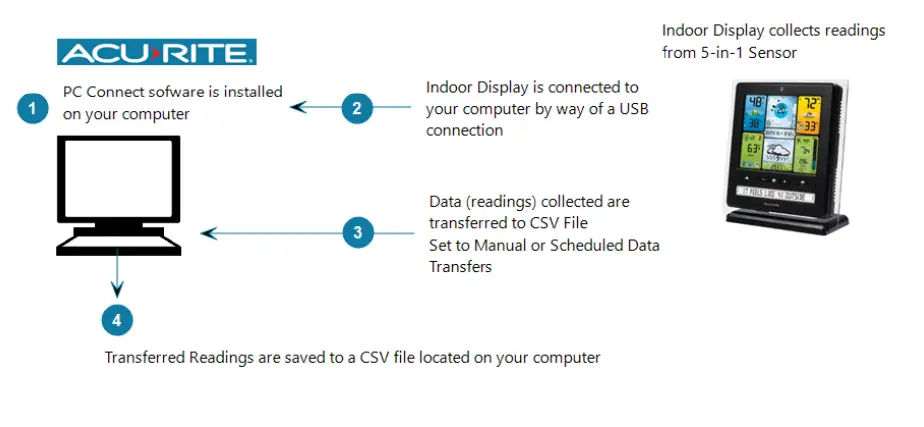
WARNING
To avoid a loss of data, do not unplug the Indoor Display or interrupt the data transfer process.
How to manually transfer data to PC Connect
- Open the PC Connect software.
- From the Data Transfer section, select Transfer Now.
- Select where to save the CSV file.
The data transfer process starts automatically and a notification message appears when complete. - Once complete, select Close.
How to set up scheduled data transfers
- Open the PC Connect software.
- From the Data Transfer section, select the check box Schedule automatic data transfers.
- Set the schedule settings.
How often would you like data to transfer?
Select the frequency that readings stored in the Indoor Display are to be transferred to the CSV file. These readings are stored in 12-minute intervals and can be set to transfer every 12 minutes, 30 minutes, 1 hour, 6 hours, 24 hours, 7 days or every 12 days.
How would you like each data transfer saved?
- New dated file – creates a new timestamped file each time data is transferred.
- Append to a single file – continuously adds new data transfers to a single, cumulative file.
- By default, files are saved to the location set during the installation of PC Connect. To save the file to a new location, select Choose Location.
Set Display Units
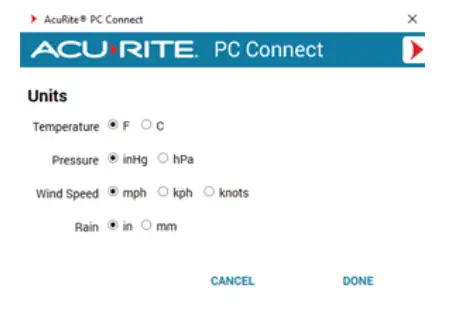
You can set how reading units are displayed in the Data Transfer CSV file.
How to set display units
- From the Preferences section, select Display Units (Imperial US/Metric).
- Set how units are displayed.

- Select DONE to save your changes.
Set Reading Calibration
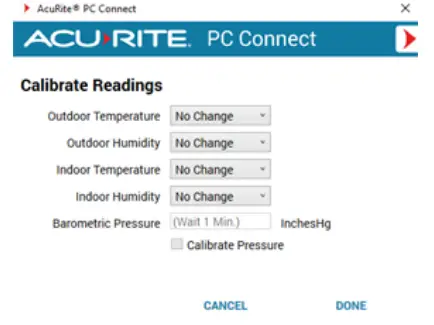
When sensor placement or an environmental factor may impact readings, setting a reading calibration can improve accuracy. Calibrated readings aare shared with My AcuRite and Weather Underground, and stored in the Data Transfer CSV file.
You can set a reading type to a positive or negative degree of calibration. When a reading calibration is adjusted, the reading is offset by the set amount. For example, setting the temperature calibration to -10 results in its readings being displayed as 10 degrees less.
How to set reading calibrations
- From the Preferences section, select Calibrate Readings (+/-).
- Set the reading calibration(s).

- Select DONE to save your changes.
Set Barometric Pressure Adjustment
By default, PC Connect transmits Station Pressure, the exact pressure measurement taken by the Indoor Display internal barometer, which does not include any adjustment for altitude. If pressure is manually adjusted in the PC Connect software, these pressure adjustments are shared with My AcuRite, Weather Underground, and the Data Transfer CSV files.
TIP
If you don’t know your current Adjusted Pressure, as long as your Weather Station display has completed the learning mode, you can enter in the PC Connect software the same adjusted reading as shown on your Weather Station display.
How to set a barometric pressure adjustment
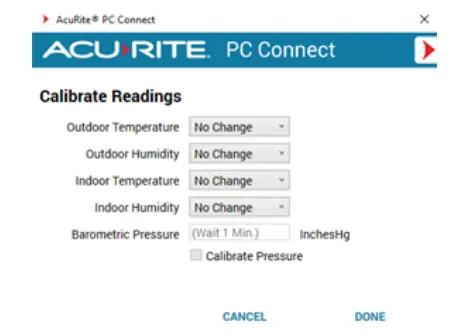
- From the Preferences section, select Calibrate Readings (+/-).
- From the Barometric Pressure setting, set a pressure adjustment in InchesHg. Pressure can be adjusted up to ±10 inHg (338.6 hpa).
- Select the check box Calibrate Pressure.

- Select DONE to save your changes.
Set Always-On Connection
Your computer must always be on with an internet connection to share sensor readings with My AcuRite and Weather Underground and to allow scheduled data transfers. In addition, the PC Connect software must always be open and can be minimized.
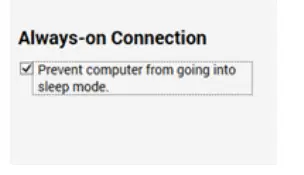
If your computer enters sleep mode, the Weather Sharing and scheduled Data Transfers do not function. You can set PC Connect to prevent your computer from going into sleep mode by enabling the Always-on connection setting.
How to set an always-on connection
- From the Always-on connection section, select the check box Prevent computer from going into sleep mode.
A checkmark appears in the check box when enabled.
View PC Connect Status
The Status section provides a summary of the status for all setup, connection, and sharing. From here, you can quickly identify everything is working as expected or if there is an issue with the setup or a connection.
Indoor Display connection
Identifies if PC Connect has detected the USB connection with the Indoor Display.
Data Received
Identifies if PC Connect has successfully received data from the Indoor Display, and displays the date and time data was last received by PC Connect.
My AcuRite Sharing
Indicates if My AcuRite sharing is configured, and if so, the current status of data being shared.
- l Setup needed – sharing is not setup, enter Device ID and select Share Now.
- l Waiting for data – establishing a connection and preparing to send data to My AcuRite.
- l Data sending – data sent to My AcuRite.
Weather Underground Sharing
Indicates if My AcuRite sharing is configured, and if so, the current status of data being shared.
- l Setup needed – sharing is not setup.
- l Waiting for data – establishing connection and preparing to send data to Weather Underground.
- l Data sending – data sent to Weather Underground.
Connect with Support
Need help? We are committed to providing exceptional customer support to each and every customer.
Visit our online support
Our online Knowledge Base provides you with product manuals, installation videos and tutorials, FAQs, and technical product specifications.
Go to www.acurite.com/support
Talk with a support representative
Our support staff is available to help you find answers to your questions.
Call +1 844 228 5465
Current Support Hours are available at www.acurite.com/support
Activate Warranty
AcuRite Product(s) must be registered to be eligible for warranty benefits.
Go to https://www.acurite.com/product-registration
Join the AcuRite Community Forum
Post questions, share your experience, and collaborate with AcuRite product users and our AcuRite employees.
AcuRite employees engage with this forum to improve our products and services.
Go to https://support.acurite.com/acurite
FAQS
Where do I set the USB Mode in PC Connect?
There is no USB mode setting in PC Connect. You may need to set the USB Mode on your Weather Station Indoor
The display unit is indicated below. The model number is located on the back of the Indoor Display.
Weather Station models 02064 and 01536 – there is no USB Mode setting on the display. Simply open the PC Connect the software and connect the Indoor Display to your computer using the supplied USB cable. Weather Station models 01025, 01035, 01036, 01525, or 02032 – before you connect the Indoor Display to your computer, from the SET menu on the Indoor Display, cycle through the settings to USB MODE or PC CONNECT MODE and then use the up arrow set to 3 or 4 and press SET to save the setting.
How often is my data sent from PC Connect to Weather Underground when Rapid Fire Updating is enabled?
Data is sent to Weather Underground as often as every 18 seconds.
Does PC Connect have a software auto-update feature?
No. Software updates are posted on our website. To view the latest PC Connect software version, from a web browser, go to > www.acurite.com > select Support> from the Categories section select Downloads > select PC Connect Download.
The current version installed on your computer is listed in the lower-left corner of the PC Connect software screen (for example v.2.0.0)
Before you install the latest version, be sure to uninstall any earlier versions.
Cannot write to the Data Transfer CSV file when the file is open
If the Data Transfer CSV file is open when a data transfer is scheduled to occur, PC Connect cannot write to the open file and the data scheduled to be transferred will be lost. To avoid a loss of data, the Data Transfer file must be closed during scheduled transfers.
Can you get the indoor temps, etc? On your phone?
Using the PC Connect software, only the data from the 5-in-1 sensor is available online or in the apps. If you have further questions, please reach out to our support team via live chat or email request on the AcuRite Support website.
How does this station work with below 10 degrees?
This unit is designed to measure and withstand temperatures between -40 and 158 degrees Fahrenheit. If you have further questions, please reach out to our support team via live chat or email request on the AcuRite Support website.
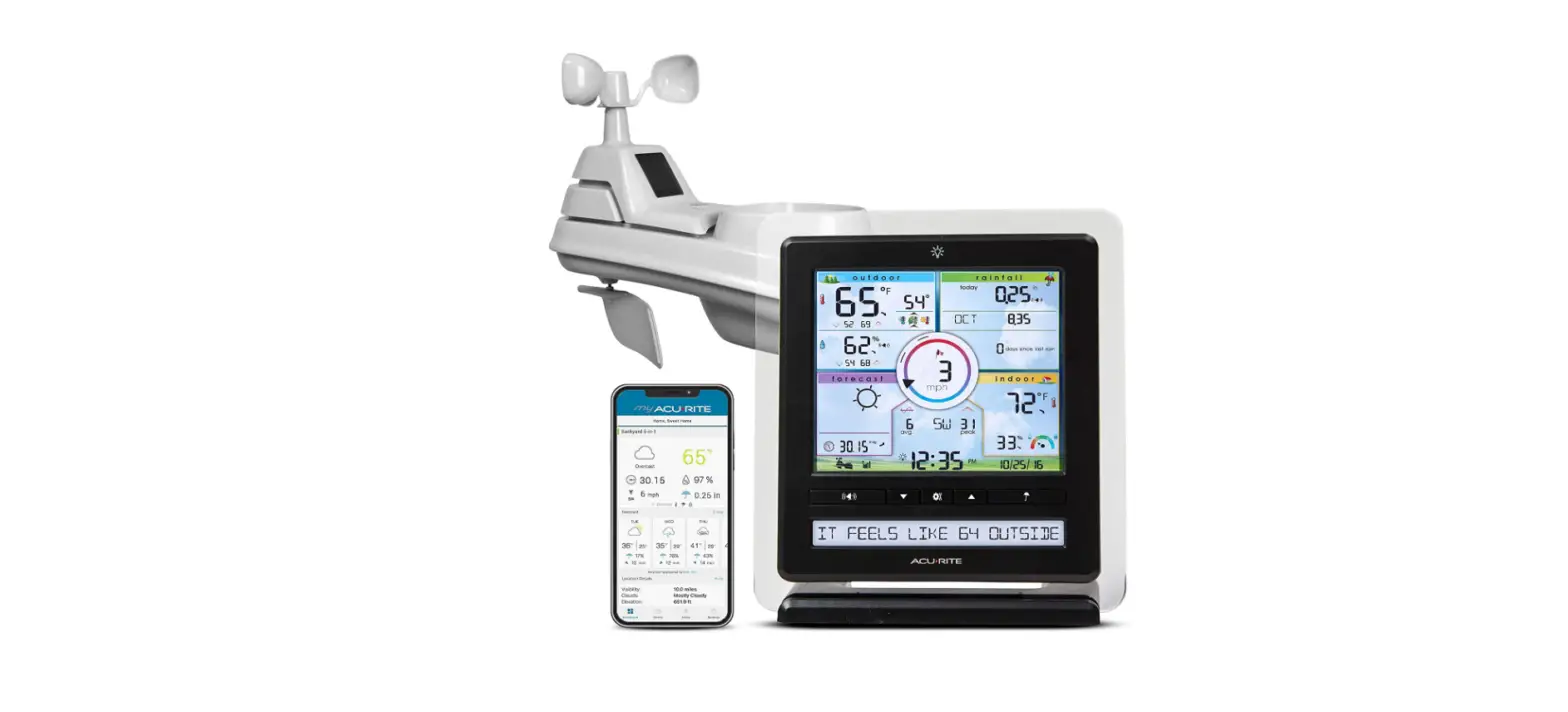
It does have a ticker, right?
Yes, this model features a Weather Ticker at the bottom of the display. If you have further questions, please reach out to our support team via live chat or email request on the AcuRite Support website.
Where would you put the weather data collector?
We recommend mounting the sensor at least 5 feet from the mounting surface without obstruction. The higher the sensor is mounted the more accurate your wind speed readings will be. We recommend a 3/4 schedule 40 pipe for mounting which will have an outer diameter of 1 inch. If you have any other questions, please contact the AcuRite Support Team via Live Chat, we are happy to assist you.
Can this unit connect to “Weather Underground”?
Yes, although the software that does this is full of bugs.
Does it come with a power adapter?
Yes, the display unit includes its power adapter. The outdoor sensor cannot be powered by a power adapter. If you have further questions, please reach out to our support team via live chat or email request on the AcuRite Support website.
can i mount it on my Back yard deck?
Yes, the outdoor sensor can be mounted to a deck railing or post using the included mounting bracket. If you have further questions, please reach out to our support team via live chat or email request on the AcuRite Support website.
Can this be run in Europe current 230v/50hz. Regards Bjorn.
Yes but you may have to source the power supply and adaptor locally
Does this unit have to be plugged into usb for it to work with the apps/websites? they all say there is no sensor connected.
Yes, this unit needs to be plugged into a Windows computer via USB cable at all times in order to stream its data online to the My AcuRite and/or Weather Underground websites and apps. For further assistance, please reach out to our support team via live chat or email request on the AcuRite Support website.
How is rainfall measured? I live in a dry area and need to have it measure in .01 increments
The rainfall measurement mechanism features tipping cups that measure in .01 inch increments. If you have further questions, please reach out to our support team via live chat or email request on the AcuRite Support website.
Can you use a raspberry pi as the pc to connect to internet?
Yes you can. Look online for a free software package for the Pi called WeeWx.