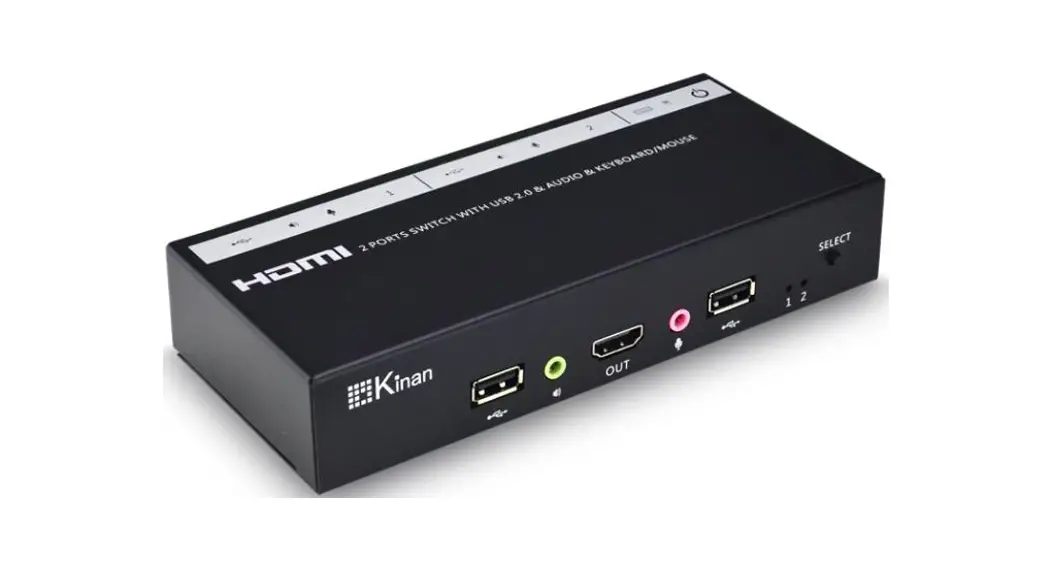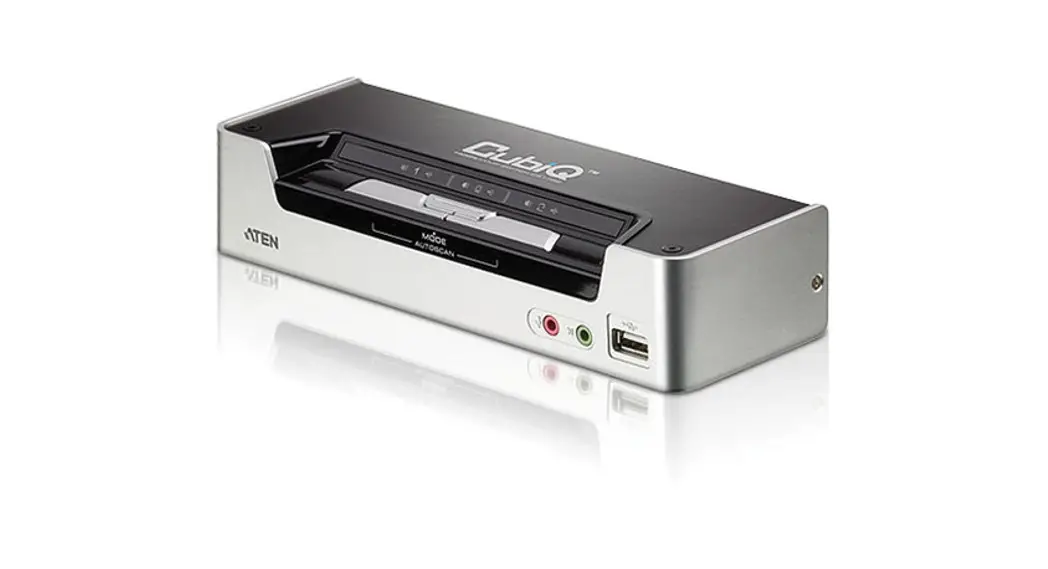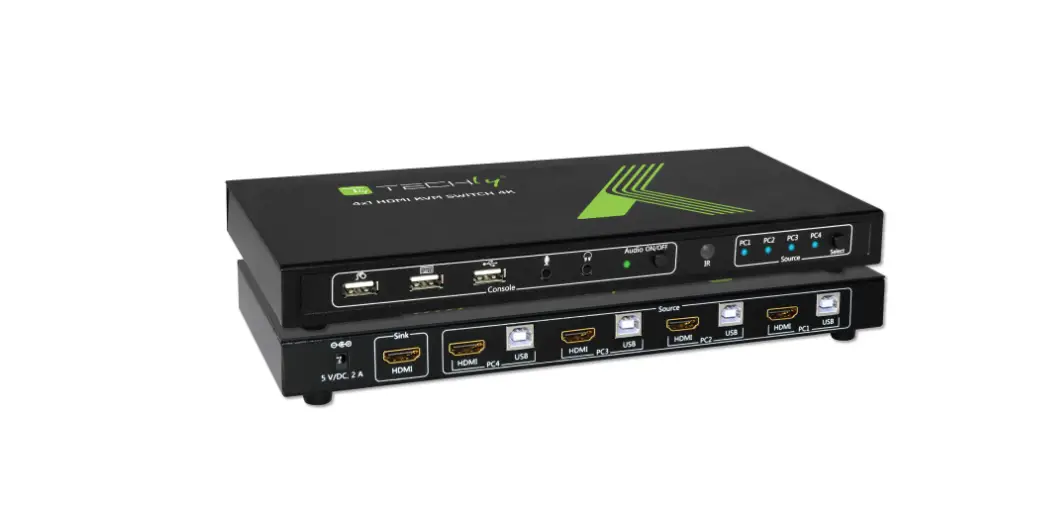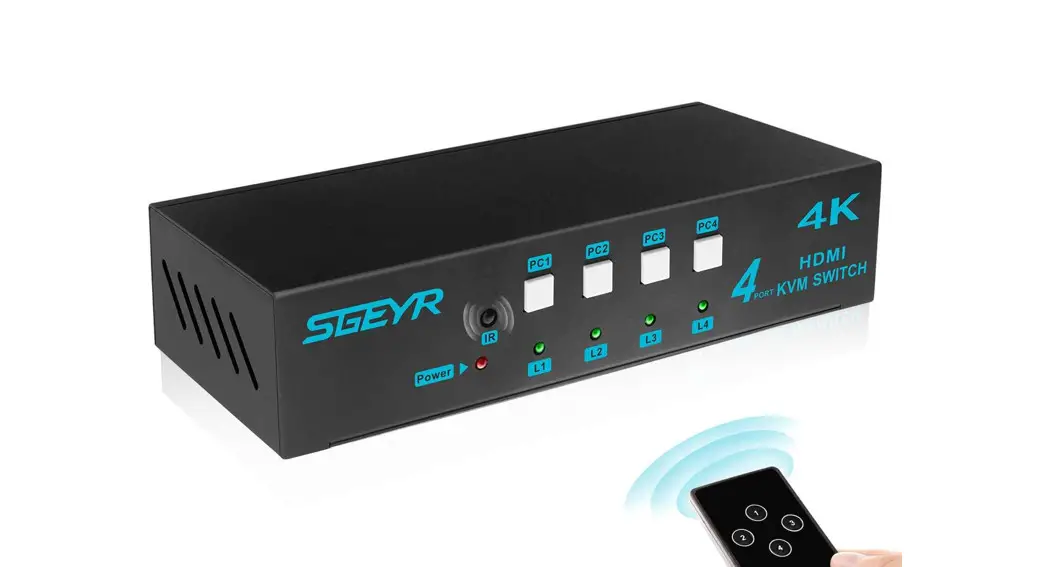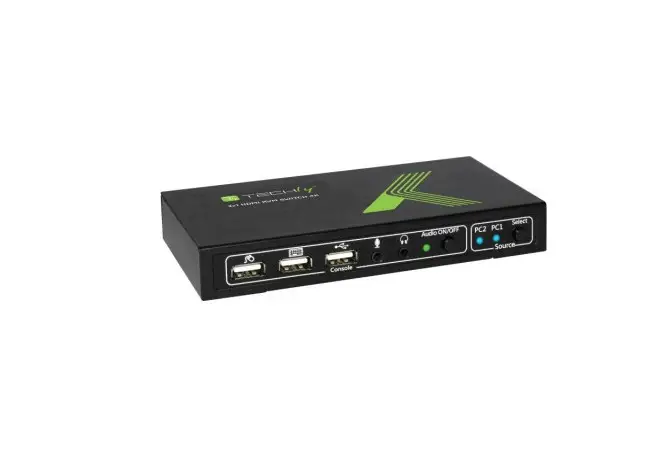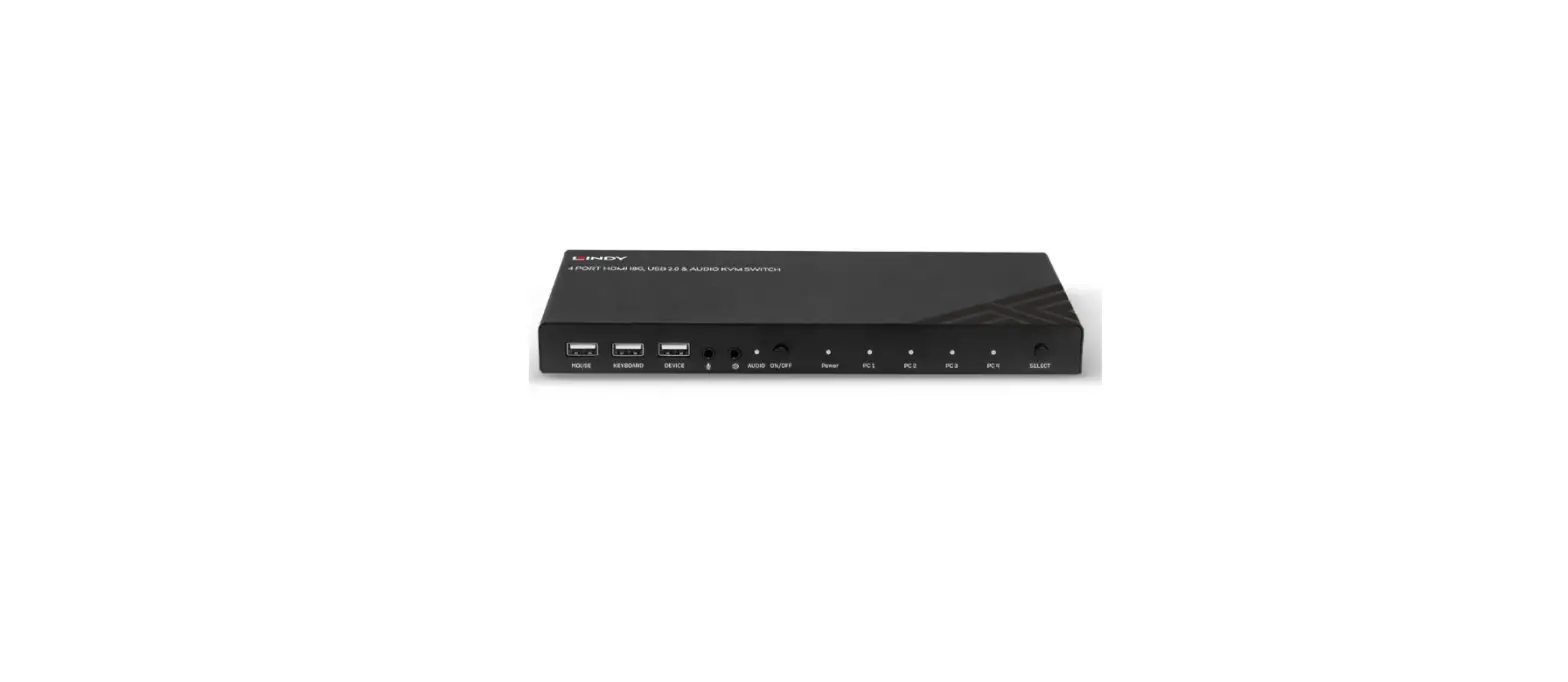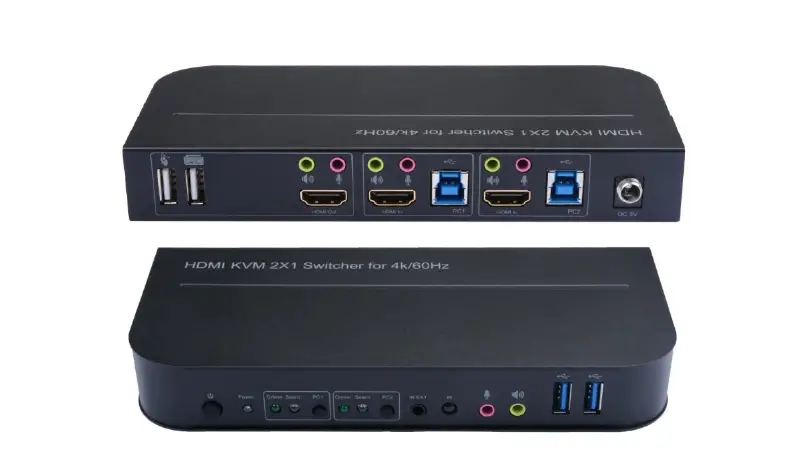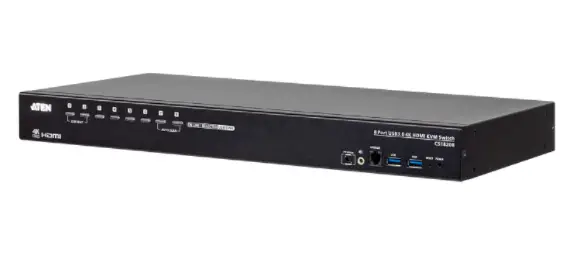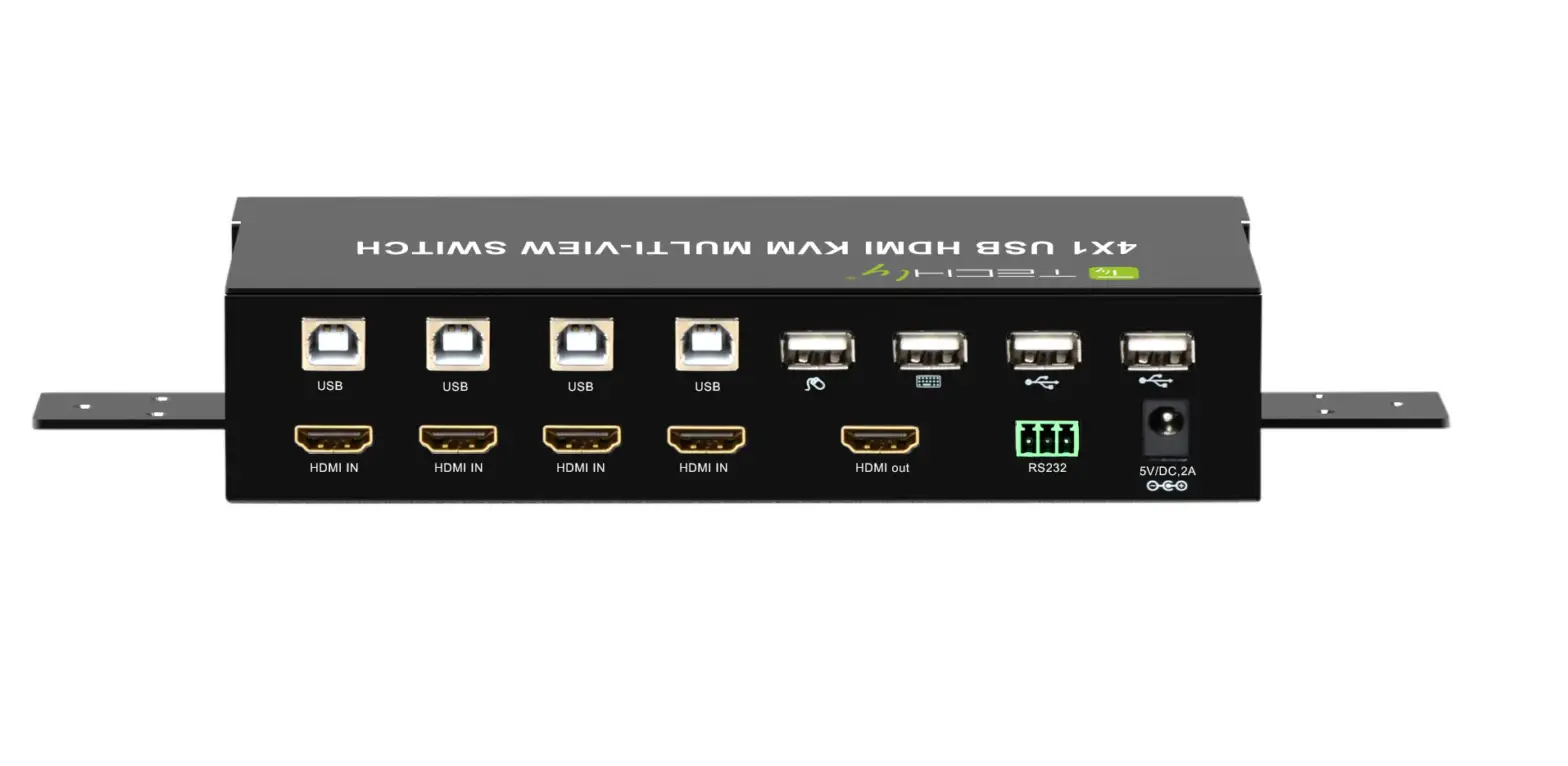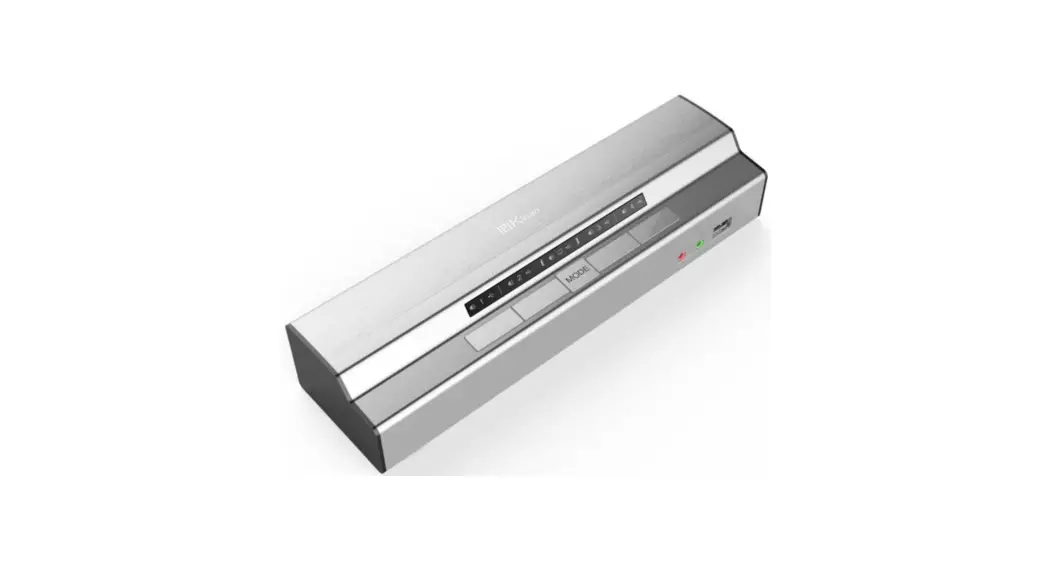
 USB2.0 HDMI KVM Switch
( HD1104)
User Manual
Overview
Product Description
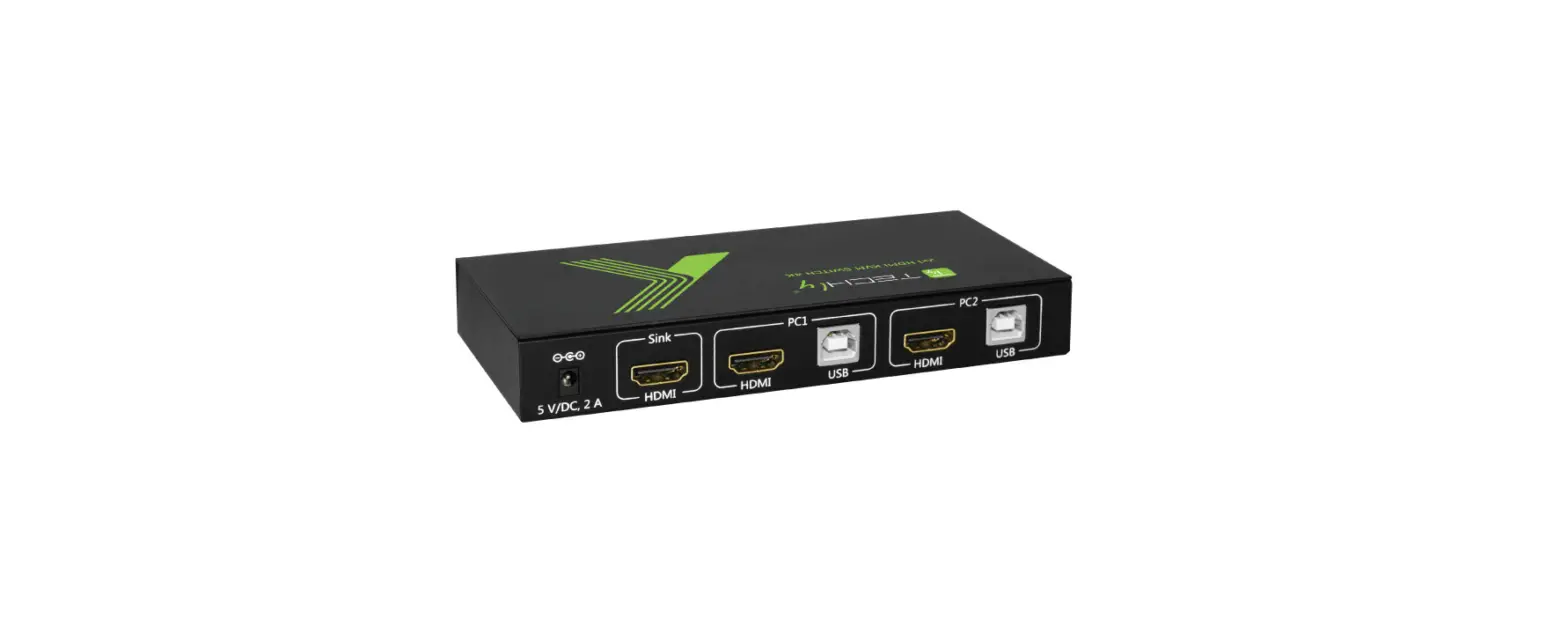
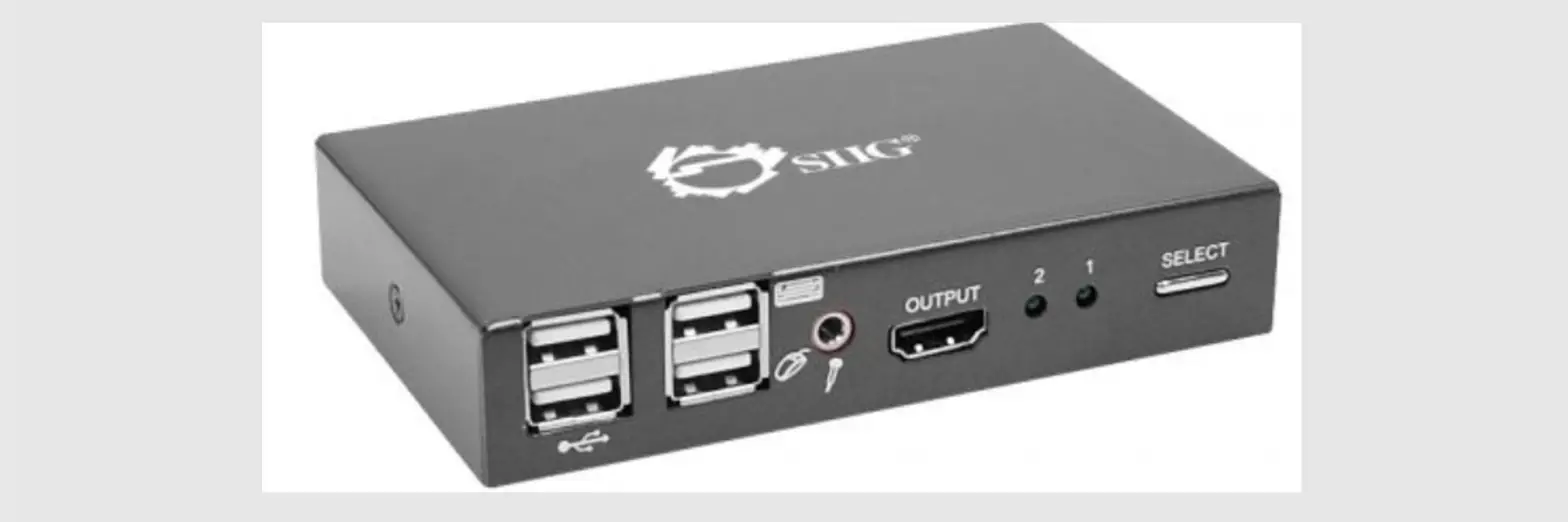
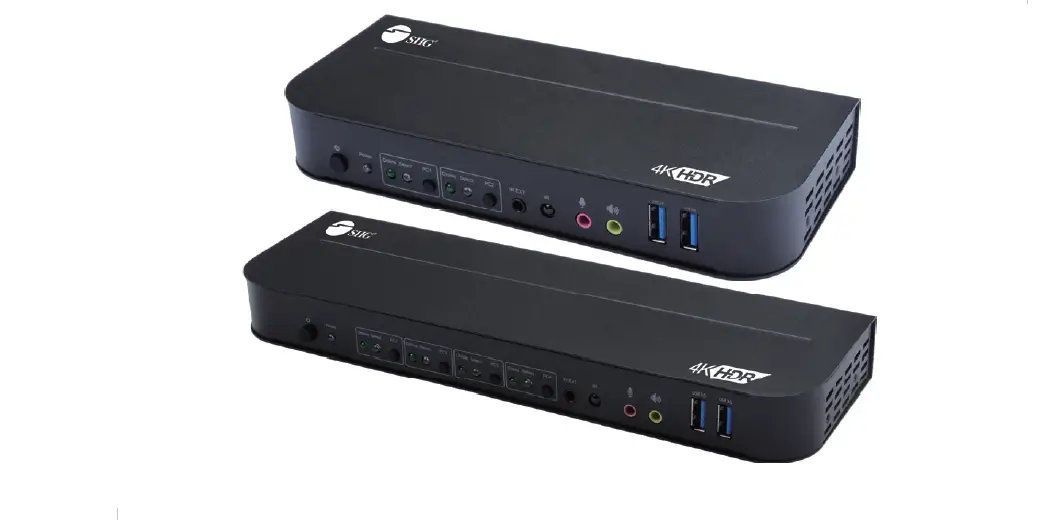
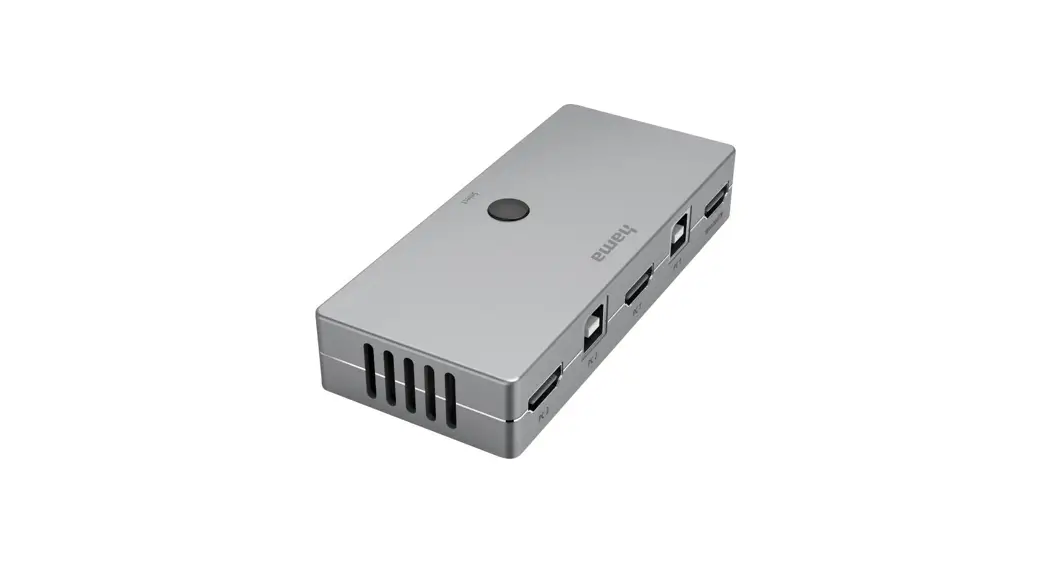
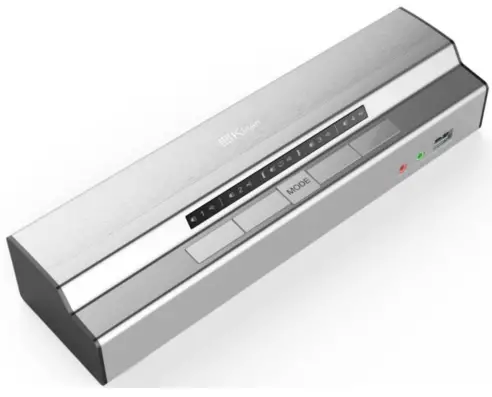
HDMI KVM Switch is a control device to control multiple computers via a set of monitor-keyboard-mouse, which provides both style and multi-functionality for today’s multimedia SOHO environment. It provides seamless HDMI signal switching between PCs or other HDMI-enabled devices, such as FPD, Plasma display, digital television, and television set-top boxes.
It’s easy and fast to install the HDMI KVM Switch; users just need to connect cables to relevant ports, with no software is required.
Product Features
- One USB console controls four HDMI-interface computers
- HDMI digital monitor support – fully compliant with HDMI1.3a and HDCP
- Support PCM2, 5.1, 7.1 channel, Dolby 5.1, DTS5.1 audio input, and Mic output
- Fully compliant with the USB 2.0
- Independent switching of KVM, USB peripheral, and audio focus
- Superior video quality support – 1080P(1920×1200)
- Supports widescreen resolutions
- Multiplatform support – Windows, Linux, Mac
- Compatible with wireless USB keyboard and mouse from Logitech and other factories
- Supports multimedia USB keyboard (PC, Mac, and Sun)
- USB and PS/2 keyboard/mouse emulation for error-free booting
- Support DDC dynamic refresh technology – The computer automatically selects the optimum screen resolution display, which can avoid resolution incompatibility when the computer is turned on.
- No software required – easy switching between PCs via front panel pushbuttons, keyboard hotkeys, and infrared remote control
- Auto Scan Mode for monitoring all computers and HDMI devices
- Hot pluggable–add or remove computers without having to power down the switch
Appearance & Structure
KVM rear view
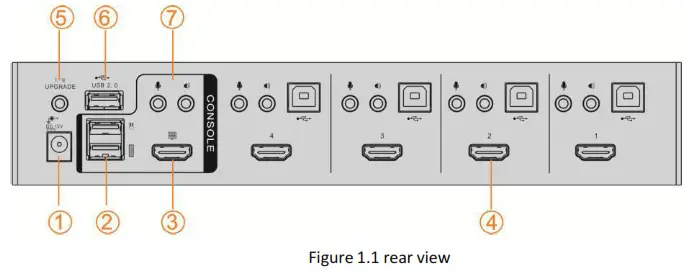
Table 1.1: instructions for figure 1.1
| No. | Instructions |
| 1 | Power port |
| 2 | Console USB port ( keyboard, Mouse) |
| 3 | Console HDMI port |
| 4 | KVM port |
| 5 | Firmware upgrade port |
| 6 | Peripheral USB2.0 port |
| 7 | Console audio port |
Installation Instructions
Before installation, make sure all the devices that to be connected are powered off.
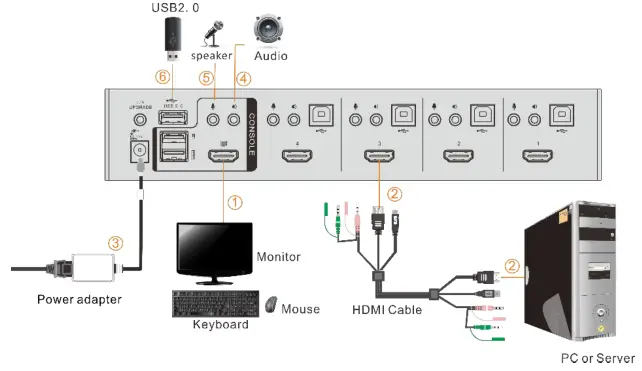
- Connect the monitor, USB keyboard, and mouse to the local console port on the device (see ① in the below figure).
- Connect the PC to the KVM Switch with an HDMI cable (see ② in the below figure).
- Connect the power adapter to the KVM power port (see ③ in the below figure).
- Power on the PC to switch via front panel pushbuttons, keyboard hotkeys, and infrared remote control.

- If a separate speaker or microphone is used, connect the speaker or microphone to the audio port on the KVM device (see ④ and ⑤ in the above figure).
- Connect the USB peripherals to the USB port (see ⑥ in the above figure).
*If the console monitor has a built-in speaker and supports audio through the HDMI connector, you do not need to use a separate speaker.
Instructions for front panel pushbuttons and infrared remote control
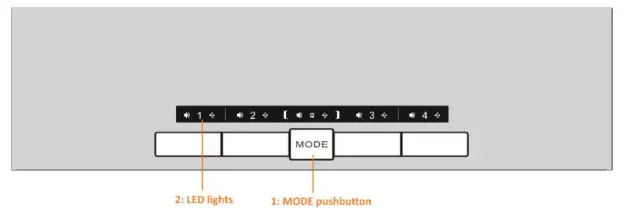
Table 1.2:
| NO. | Pushbutton (1) | LEDs (2) | Functions |
| 1 | Number button 1-4 | 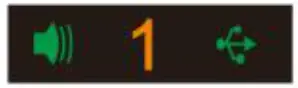 | After setting the Mode function, press the relevant number button to switch. |
| MODE | 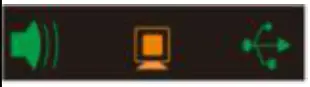 | This allows you to cycle through the three modes of focus-audio, KVM, and USB. | |
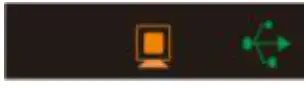 | Press the Mode pushbutton, switching between KVM and USB focus | ||
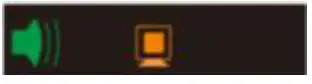 | Press the Mode pushbutton twice, switching between KVM and audio focus | ||
 | Press the Mode pushbutton three times, switching the KVM function |
Mode pushbutton cycle switching:
Video, KVM, and USB cycle switching mode (default mode) –> Press the Mode pushbutton once, switching between KVM and USB function–> Press the Mode pushbutton twice, switching between KVM and audio function–> Press the Mode pushbutton three times, switching KVM function–> Press the Mode pushbutton four times, back to cycle switching mode…
Hot Key Operations
Press the “ L_ Ctrl” key twice (with 2S interval), the keyboard is under hotkey mode after hearing one beeper sound. The keyboard will exit the hotkey mode if you do not press any hotkey within 2 seconds under keyboard hotkey mode.
Hotkey command as below: Press “ L_ Ctrl” key twice + corresponding key
| Operation | Function Description |
| [ Scroll-Lock] + [ Scroll-Lock] + [Fl] — [F4] | Switching between Port 1-4 (Brings the KVM, USB, and audio focus from the current port to the next port). |
| [ Scroll-Lock] + [ Scroll-Lock] + ( T3 / (11 | Switching to the Previous or next port. |
| (Scroll-Lock] + (Scroll-Lock] + INuml] — (Num4] | Brings the audio focus to the computer attached to the specified port. |
| [ Scroll-Lock] + [ Scroll-Lock] — + 11] 14] | Only brings the KVM focus to the computer attached to the specified port. The USB and audio focus remains where they are. |
| [Scroll-Lock] + [Scroll-Lock] + (A] + Il] — 14] | Brings the KVM and audio focus to the computer attached to the specified port. The USB focus remains where they are. |
| (Scroll-Lock] + [Scroll-Lock] + Iul + Ill — 143 | Brings the KVM and USB HUB focus to the computer attached to the specified port. The the audio focus remains where they are. |
| [ Scroll-Lock] + [ Scroll-Lock] + Izl | Toggles the beeper On and Off. |
| [ Scroll-Lock] + [ Scroll-Lock] + Isl | Invokes Auto Scan. The KVM focus cycles from port to port. Press any key to exit the auto scan mode. |
| (Scroll-Lock] + (Scroll-Lock] + (F] | Invoke the hotkey cycling mode (Scroll -)Shift 9 L_Ctrl) |
| [Scroll-Lock] + [Scroll-Lock] + [B] | Under broadcast mode, the computer keyboard can be operated synchronously. |
Specifications
| Function | HD1104 | ||
| Computer Connections | 4 | ||
| Port Selection | Front panel pushbuttons, keyboard hotkey, infrared remote control | ||
| Connector | Console | Monitor | lx HDMI type A |
| Keyboard | lx USB type A (Black) | ||
| Mouse | lx USB type A (Black) | ||
| Microphone | 2x Min stereo port (pink) | ||
| Speaker | 2x Min stereo port (green) | ||
| KVM port | Monitor | 4x HDMI type A | |
| Keyboard/Mouse | 4x USB type B (White) | ||
| Microphone | 4x Min stereo port (pink) | ||
| Speaker | 4x Min stereo port (green) | ||
| Power supply | lx DC socket | ||
| USB2.0 port | 2x USB type A (Black) | ||
| Upgrade port | lx 3.5mm socket (Black) | ||
| Switch | Port selection | 5x pushbuttons | |
| LEDs | Audio | 5x (green) | |
| KVM | 5x (orange) | ||
| USB | 5x (green) | ||
| Input power | DC 12V | ||
| Video signal | 1080P | ||
| Power consumption | 5W | ||
| Emulation | Keyboard/Mouse | USB | |
| Environment | Operating Temperature | 0-50°C | |
| Storage Temperature | -20-50°C | ||
| Humidity | 0-80%11H, Non-condensing | ||
| Physical Features | Material | Metal, plastic | |
| Weight | 0.6kg | ||
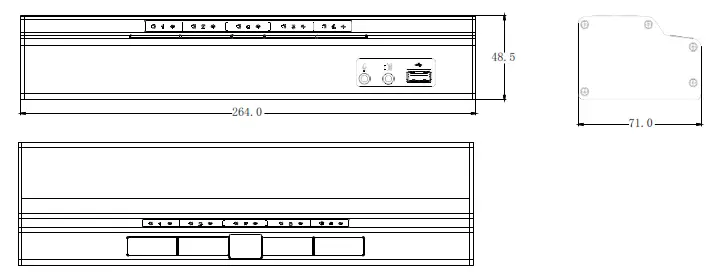
| Dimension | 264 mmx48.5 mmx7lmm | ||
http://www.kinankvm.com/
@all right reserved Shenzhen Kinan Technology Co., Ltd
Printing date:2022/04
Version: V1.2
 Kinan-Professional KVM over IP, LCD KVM Console, KVM Switch Manufacturer