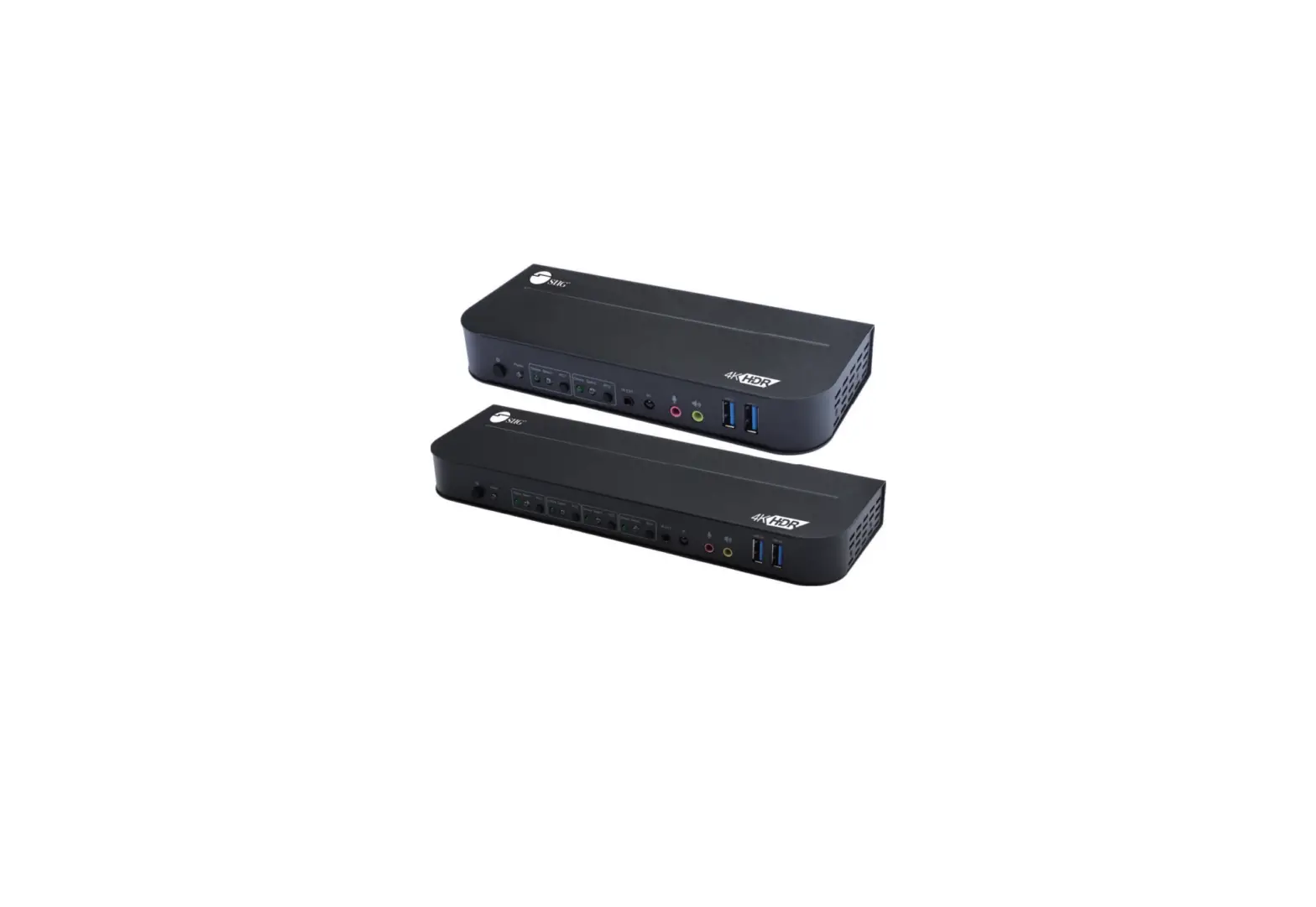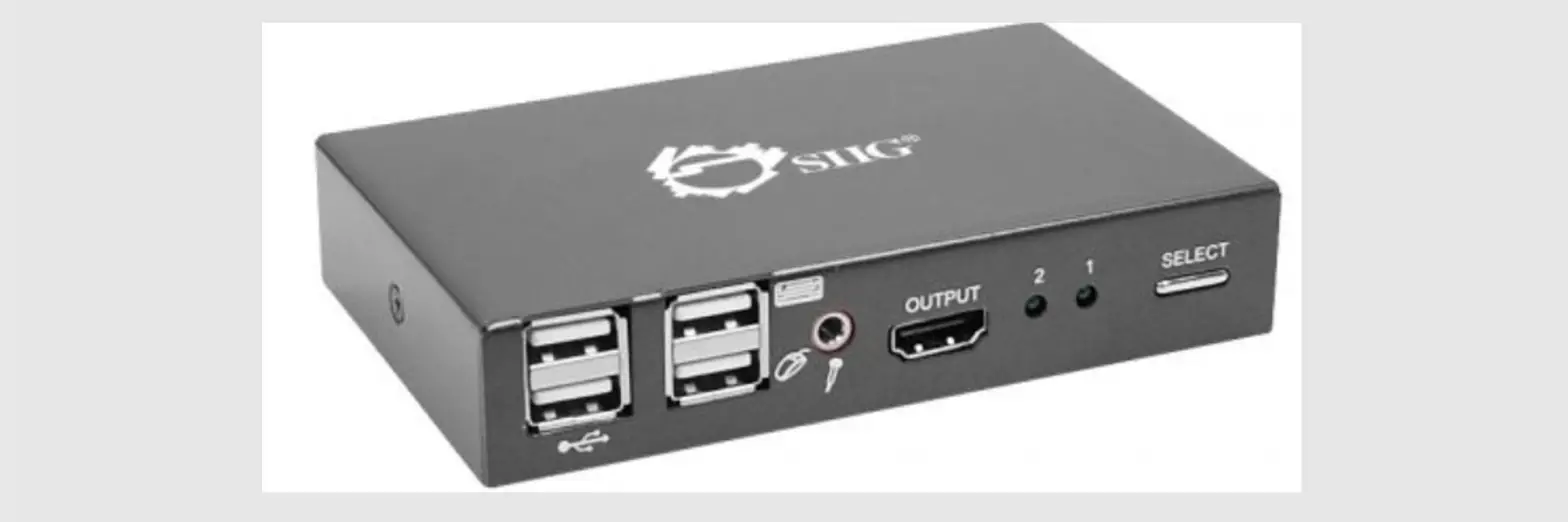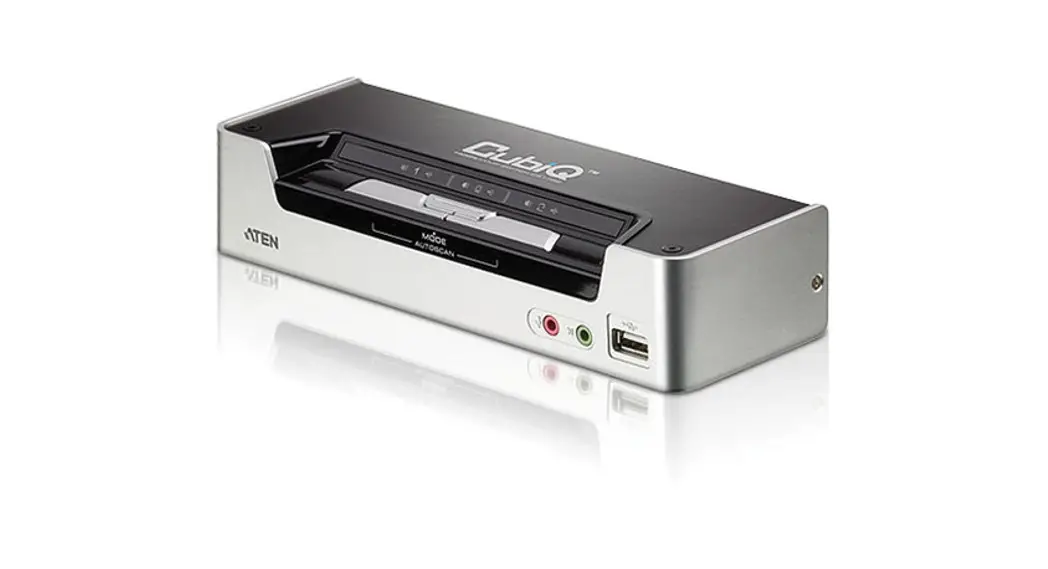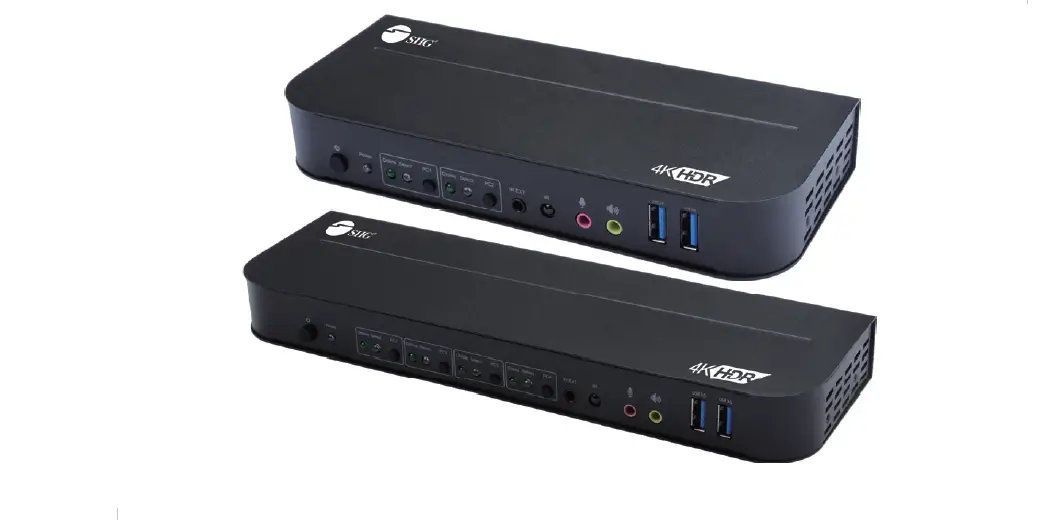

2-Port USB 3.0 KVM Switch – HDMI – 4K 60Hz
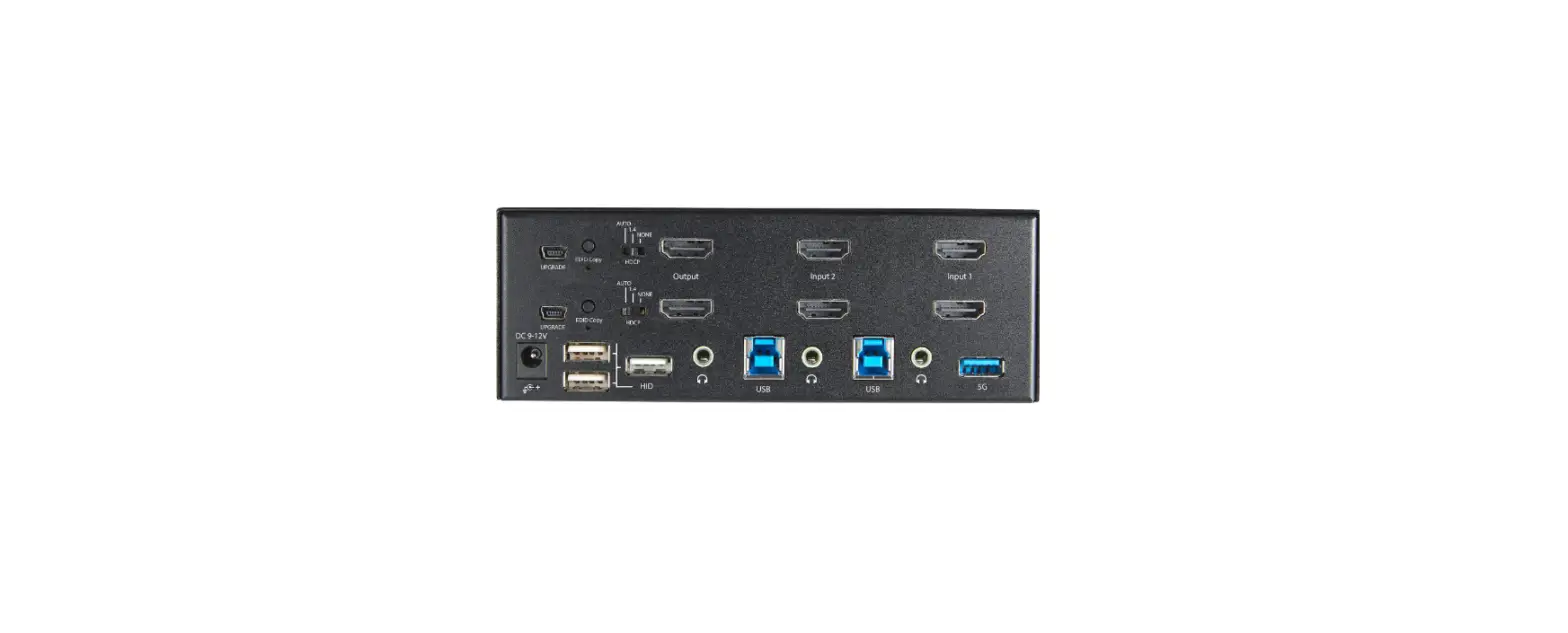
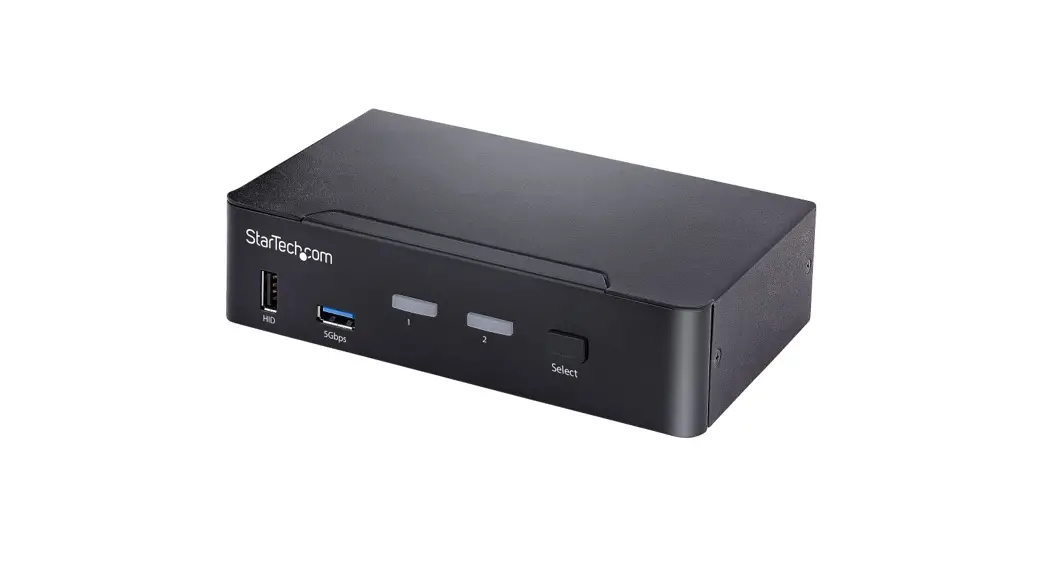
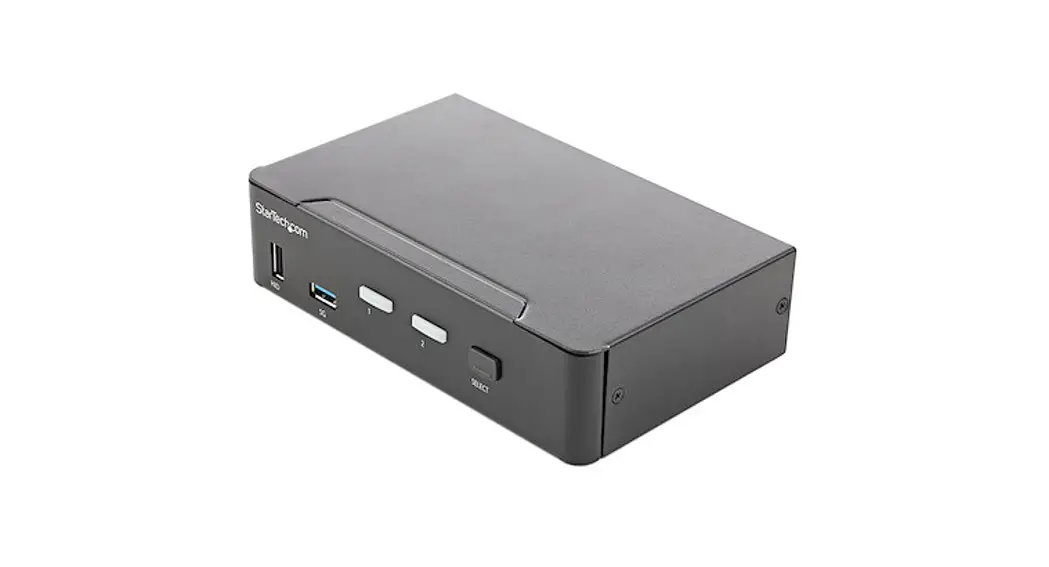
Product Diagram (SV231HU34K6/SV231DHU34K6)
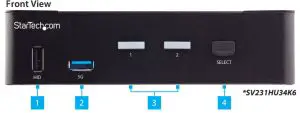
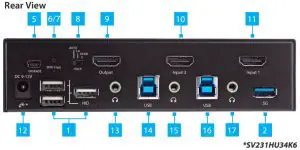
| Port | Function | |
| 1 | Console USB HID Ports | • Connect up to 4 USB Human Interface Devices (HID) (e.g. Keyboard, Mouse, Trackpad, Number Keypad, Drawing Tablet) |
| 2 | Console USB Hub Ports | • Connect up to 2 SuperSpeed USB 5Gbps (USB 3.2 Gen 1) Peripheral Devices |
| 3 | Port Selection LED Indicators | • Green: PC 1 and/or PC 2 connected (power on) • Red: PC 1 or PC 2 selected (power on) |
| 4 | Port Selection Button | • Press the Port Selection Button to select PC 1 or 2 |
| 5 | Firmware Upgrade Port(s) | • Used to upgrade the Firmware. Use with Firmware from StarTech.com only |
| 6 | EDID Button(s) | • EDID Copy or Auto EDID from the Console HDMI Display |
| 7 | EDID LED Indicator(s) | • Indicates EDID Mode |
| 8 | HDCP Switch(es) | • Control HDCP Mode |
| 9 | Console HDMI Output Port(s) | • (SV231HU34K6) Connect the Console HDMI Display • (SV231DHU34K6) Connect to two Console HDMI Displays |
| 10 | PC 2 HDMI Input Port(s) | • (SV231HU34K6) Connect to an HDMI Port on PC 2 • (SV231DHU34K6) Connect to two HDMI Ports on PC 2 |
| 11 | PC 1 HDMI Input Port(s) | • (SV231HU34K6) Connect to an HDMI Port on PC 1 • (SV231DHU34K6) Connect to two HDMI Ports on PC 1 |
| 12 | Power Input Port | • Connect a DC 12V Power Source to power the KVM Switch |
| 13 | Console Audio Port | • Connect an Audio Device (Stereo Speakers or a Microphone) |
| 14 | PC 2 USB Port | • Connect to a SuperSpeed USB 5Gbps (USB 3.2 Gen 1) Port on PC 2 |
| 15 | PC 2 Audio Port | • Connect to an Audio Port (for Stereo Speakers or a Microphone) on PC 2 |
| 16 | PC 1 USB Port | • Connect to a SuperSpeed USB 5Gbps (USB 3.2 Gen 1) Port on PC 1 |
| 17 | PC 1 Audio Port | • Connect to an Audio Port (for Stereo Speakers or a Microphone) on PC 1 |
Requirements
For the latest requirements and to view detailed instructions on all product functionality in a full user manual, please visit:
www.startech.com/SV231HU34K6
www.startech.com/SV231DHU34K6
Source PCs
- Computers (HDMI enabled) x 2
- HDMI Cables x 2 (SV231HU34K6), 4 (SV231DHU34K6)
- SuperSpeed USB 5Gbps (USB 3.2 Gen 1) Cables (Type-A Male to Type-B Male) x 2
- (Optional) 3.5 mm Audio Cables (Male to Male) x 2
Console
- HDMI Display(s) x 1 (SV231HU34K6), 2 (SV231DHU34K6)
- HDMI Cable(s) x 1 (SV231HU34K6), 2 (SV231DHU34K6)
- USB Keyboard x 1
- USB Mouse x 1
- (Optional) Audio Device (e.g. Headphones, Microphone, etc.) x 1
- (Optional) USB HID Devices x 2
- (Optional) SuperSpeed USB 5Gbps (USB 3.2 Gen 1) Peripheral Devices x 2
Installation
Connect the Console
- Power off the HDMI Display and any Peripherals before connecting to the KVM Switch.
- Connect 1 (SV231HU34K6) or 2 (SV231DHU34K6) HDMI Display(s) to the Console HDMI Output Port(s) on the rear of the KVM Switch.
- Connect a USB Keyboard and a USB Mouse to the Console USB HID Ports on the rear of the KVM Switch.
- (Optional) Connect an additional USB HID Device to the remaining Console USB HID Port on the front of the KVM Switch.
- (Optional) Connect the Audio Device to the Console Audio Port on the rear of the KVM Switch.
- (Optional) Connect up to two SuperSpeed USB 5Gbps (USB 3.2 Gen 1) Peripheral Devices to the Console USB Hub Ports located on the front and rear of the KVM Switch.
Connect the PCs
- Power off the Computer and any Peripherals before connecting to the KVM Switch.
- Connect 1 (SV231HU34K6) or 2 (SV231DHU34K6) HDMI Cable(s) from the HDMI Port(s) on the Computer to the PC 1 HDMI Input Port(s) on the rear of the KVM Switch.
- Connect a SuperSpeed USB 5Gbps (USB 3.2 Gen 1) Cable (Type-A Male to Type-B Male) from the USB-A port on the computer to the PC 1 USB Port on the rear of the KVM Switch.
Note: A SuperSpeed USB 5Gbps (or better) Cable is recommended for optimal performance. - (Optional) Connect a 3.5 mm Audio Cable from the Audio Port on the Computer to the corresponding PC 1 Audio Port on the rear of the KVM Switch.
- Repeat steps 1 to 4 for PC 2.
Operation
Power-On Sequence
- Connect the Universal Power Adapter from a Wall Outlet to the Power Input Port on the rear of the KVM Switch.
- Power on all Peripherals.
- Select PC 1 and power on the corresponding Computer.
Note: Ensure that the Computer connected to the PC 1 ports has fully booted to the operating system before proceeding. - Repeat step 3 for PC 2.
FCC Compliance Statement
This equipment has been tested and found to comply with the limits for a Class A digital device, pursuant to part 15 of the FCC Rules. These limits are designed to provide reasonable protection against harmful interference in a residential installation. This equipment generates, uses, and can radiate radio frequency energy and, if not installed and used in accordance with the instructions, may cause harmful interference to radio communications. However, there is no guarantee that interference will not occur in a particular installation. If this equipment does cause harmful interference to radio or television reception, which can be determined by turning the equipment off and on, the user is encouraged to try to correct the interference by one or more of the following measures:
- Connect the equipment into an outlet on a circuit different from that to which the receiver is connected.
- Consult the dealer or an experienced radio/TV technician for help
This device complies with part 15 of the FCC Rules. Operation is subject to the following two conditions:
(1) This device may not cause harmful interference, and (2) this device must accept any interference received, including interference that may cause undesired operation. Changes or modifications not expressly approved by StarTech.com could void the user’s authority to operate the equipment.
Industry Canada Statement
This Class A digital apparatus complies with Canadian ICES-003.
Cet appareil numérique de la classe [A] est conforme à la norme NMB-003 du Canada.
CAN ICES-3 (A)/NMB-3(A)
This device complies with Industry Canada licence-exempt RSS standard(s). Operation is subject to the following two conditions:
(1) This device may not cause interference, and (2) This device must accept any interference, including interference that may cause undesired operation of the device.
Use of Trademarks, Registered Trademarks, and other Protected Names and Symbols
This manual may make reference to trademarks, registered trademarks, and other protected names and/or symbols of third-party companies not related in any way to StarTech.com. Where they occur these references are for illustrative purposes only and do not represent an endorsement of a product or service by StarTech.com, or an endorsement of the product(s) to which this manual applies by the third-party company in question. StarTech.com hereby acknowledges that all trademarks, registered trademarks, service marks, and other protected names and/or symbols contained in this manual and related documents are the property of their respective holders.
Warranty Information
This product is backed by a two-year warranty.
For further information on product warranty terms and conditions, please refer to www.startech.com/warranty.
Limitation of Liability
In no event shall the liability of StarTech.com Ltd. and StarTech.com USA LLP (or their officers, directors, employees, or agents)
for any damages (whether direct or indirect, special, punitive, incidental, consequential, or otherwise), loss of profits, loss of business, or any pecuniary loss, arising out of or related to the use of the product exceeds the actual price paid for the product. Some states do not allow the exclusion or limitation of incidental or consequential damages. If such laws apply, the limitations or exclusions contained in this statement may not apply to you.
Safety Measures
- If the product has an exposed circuit board, do not touch the product under power.