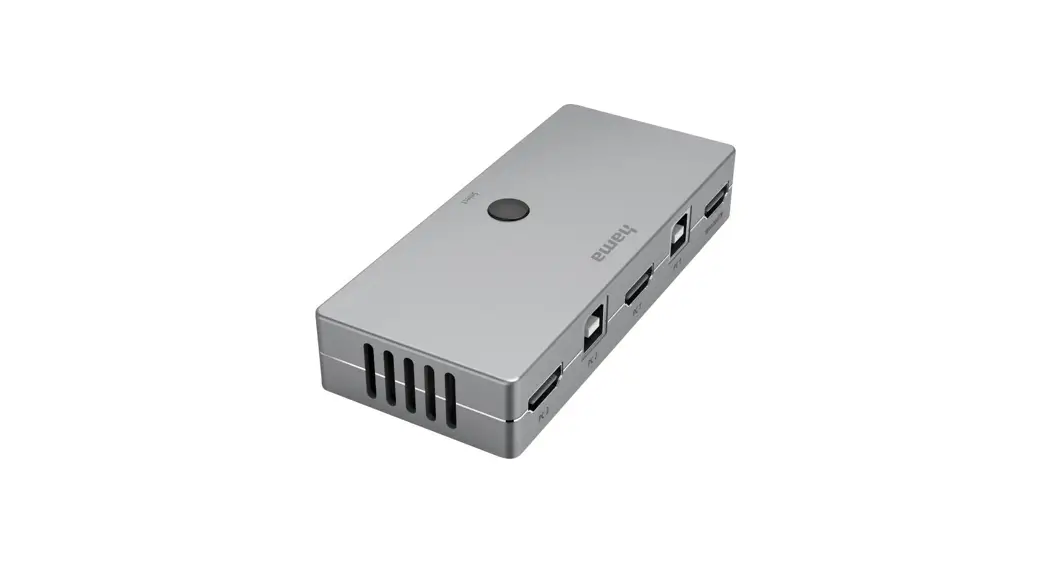
VLKV-HDU21 HDMI/USB-C 2×1 KVM Switcher
User Manual
VLKV-HDU21 HDMI/USB-C 2×1 KVM Switcher
Thank you for purchasing this product
Please read these instructions carefully for optimum performance and safety before connecting, operating, or adjusting this product. Please keep this manual for future reference.
A surge protection device recommended
This product contains sensitive electrical components that electrical spikes may damage, surges, electric shocks, lightning strikes, etc. The use of surge protection systems is highly recommended to protect and extend the life of your equipment.
Introduction
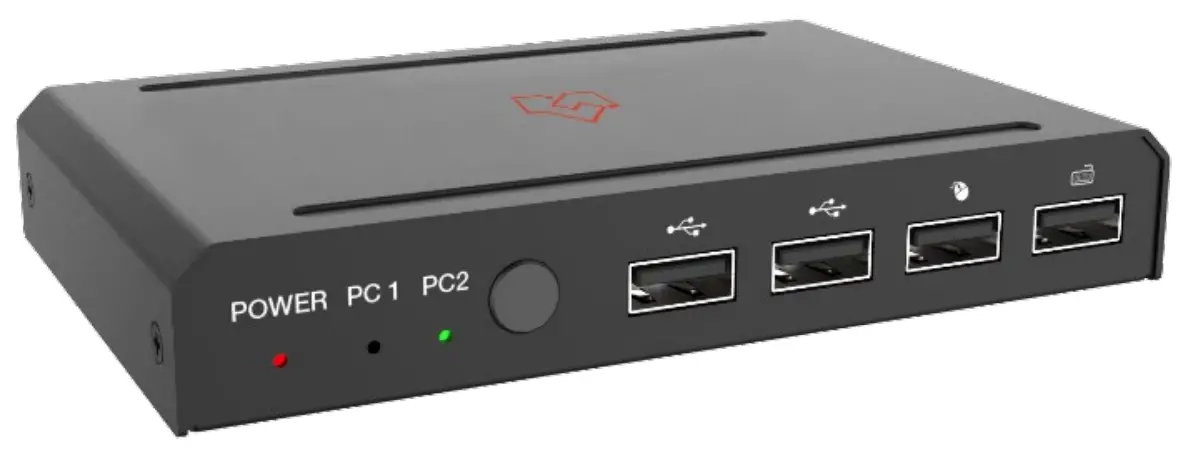
This video switcher can switch HDMI or USB-C input device signals (such as PC, laptop, Mac) to 1 HDMI display device (such as TV, projector, LED display) and realize 2 signal source devices to share 1 display device. It supports video resolution up to 4K2K@60Hz 4:4:4. The product is designed with 4 USB (2xUSB2.0, 2xUSB1.1) output ports so that you can not only operate 2 source devices with a keyboard and mouse but also can share U disk and printer, which is widely used in various offices.
Features
☆ HDMI 2.0, HDCP 2.2 / 1.x, DVI 1.0, and DP1.2 compliant
☆ Video resolution up to 4K2K@60Hz 4:4:4
☆ Supports 18Gbps video bandwidth
☆ Supports HDR, HDR10, HDR10+, Dolby Vision HLG pass-through
☆ Supports HDMI audio pass-through up to 7.1CH HD audio (LPCM, Dolby TrueHD, and DTS-HD Master Audio)
☆ Supports HDMI/USB-C (AV) inputs and 1*HDMI+ 4*USB (2* USB2.0+ 2*USB1.1) outputs
☆ Supports input auto switching
☆ Adaptive EDID, able to adapt to a variety of complex application environment
☆ Both HDMI and USB input and output support hot swap
☆ Controls via front panel button/hot-key/mouse
☆ Simple to install, plug and play
Package Contents
- 1 × HDMI/USB-C KVM Switcher
- 1 × 5V/2A Power Adapter
- 1 × USB Cable (1.5 meters)
- 1 × User Manual
Specifications
| Technical | |
| HDMI Compliance | HDMI 2.0 |
| HDCP Compliance | HDCP 2.2 / 1.x |
| Video Bandwidth | 18Gbps |
| Video Resolution | 4Kx2K©24/30Hz. 4K2K(g60Hz |
| Color Space | RGB 4:4:4. YCbCr 4:4:4 / 4:2:2 / 4:2:0 |
| Color Depth | 8-bit. 10-bit. 12-bit (1080p©60Hz) 8-bit (4K2K©60Hz YUV4:4:4) 8-bit. 10-bit. 12-bit (4K2K©60Hz YCbCr 4:2:2 / 4:2:0) |
| HDMI Audio Formats | PCM 7.1CH. Dolby TrueHD and DTS-HD MasterAudio |
| HDR | HDR. HDR 10. HDR 10+. and Dolby vision |
| USB Version | USB2.0 (Data transfer rate up to 480MB/S) |
| ESD Protection | Human-body Model: ±8kV (Air-gap discharge). ±4kV (Contact discharge) |
| Connection | |
| Input | 1 x HDMI Type A [19-pin female] 1 x USB-B 1 x USB-C (AV signal input) 1 x USB-C (POWER input. When switching to USB-C input. connect a power adapter to power the computer.) |
| Output | 1 x HDMI Type A [19-pin female] 4 x USB-A |
| Mechanical | |
| Housing | Metal Enclosure |
| Color | Black |
| Dimensions | 142mm(W) x 82mm(D) x 21mm(H) |
| Weight | |
| 300g | |
| Power Supply | Input: DC 5V/2A. Support DC5-12V wide voltage power supply: Output with overcurrent protection function |
| Power Consumption | 1.5W (Max) |
| Operating Temperature | 0°C – 40°C / 32°F – 104°F |
| Storage Temperature | -20°C – 60°C /-4°F – 140°F |
| Relative Humidity | 20 – 90% RH (Non-Condensation) |
Operation Controls and Functions
5.1 Front Panel 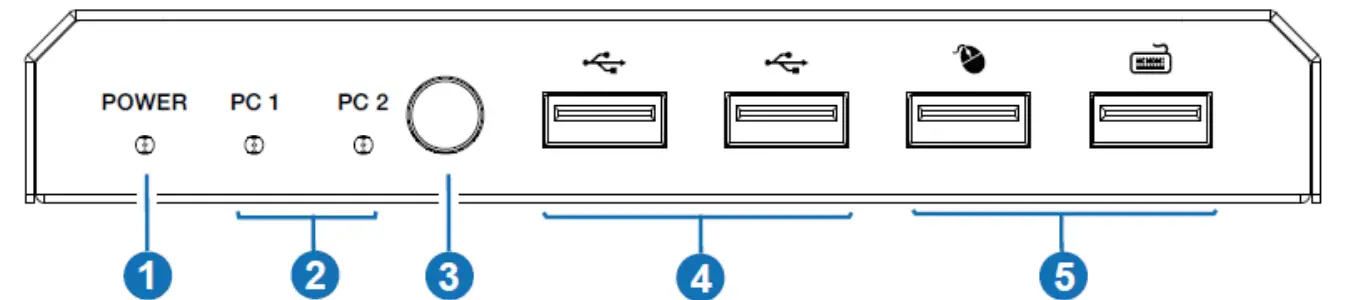
| No. | Name | Function Description |
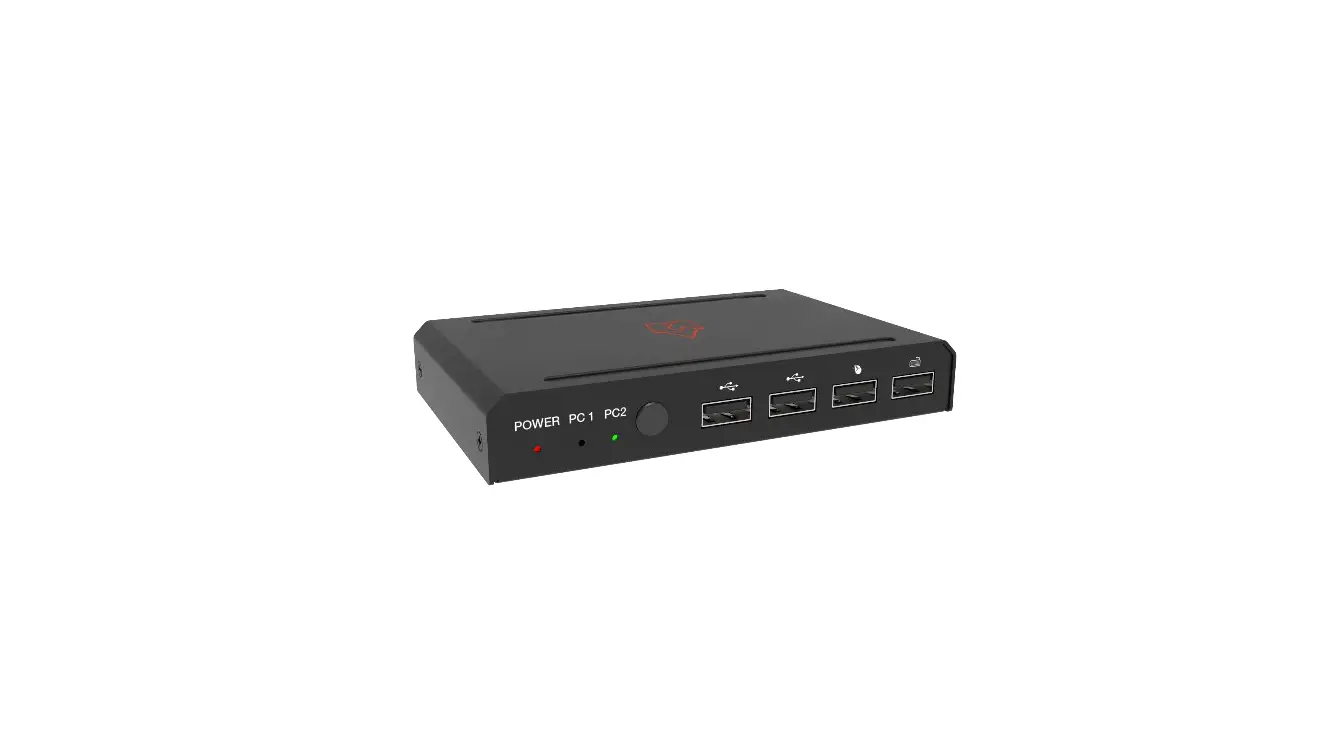
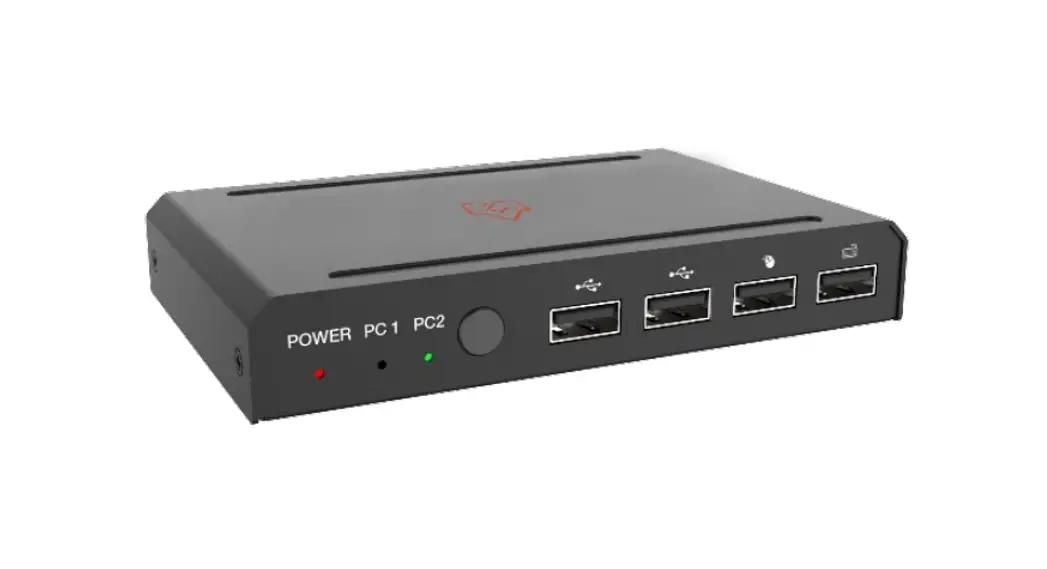
| 1 | POWER LED | When the product is powered on. a red LED will be on. |
| 2 | PC 1/2 LED | Input status indicators. When the input source is selected, the corresponding PC 1/2 LED will be on. |
| 3 | Signal source selection button | Press the button to select the input signal source, and the corresponding PC 1/2 LED will be on. Note: 1. HDMI and USB ports are binding, so only one input source can be selected. 2. The default setting is an auto switch, e.g., when unplugging the current selected PC1, it will switch to PC2 automatically. |
| 4 | USB2.0 ports | Connect to a U disk or other standard USB2.0 devices. |
| 5 | USB1.1 ports | Connect to mouse or keyboard for KVM control. ▪ Mouse operation: 1. Slide the mouse beyond the upper and left interface of the screen to select the last input port. 2. Slide the mouse beyond the bottom and the proper interface of the screen to determine the next input port. Note: The mouse operation function is turned off by default. Pressing “*+s” on the keyboard can turn on edge detection (mouse sliding switch function); Pressing “*+1/ 2/3/4” can turn off edge detection. ▪ The keyboard hotkeys are as follows: 1. Scroll Lock+ Scroll Lock + 1/2/3/4: switch ports. Ctrl + Ctrl + 1/2/3/4: switch ports. Two switching hotkey methods can coexist. 2. Scroll Lock + Scroll Lock + i + 5~999 seconds + enter: Scanning time setting. 3. Scroll Lock + Scroll Lock + s: start auto scanning; Pressing any key on the keyboard will cancel the auto scanning function. |
5.2 Rear Panel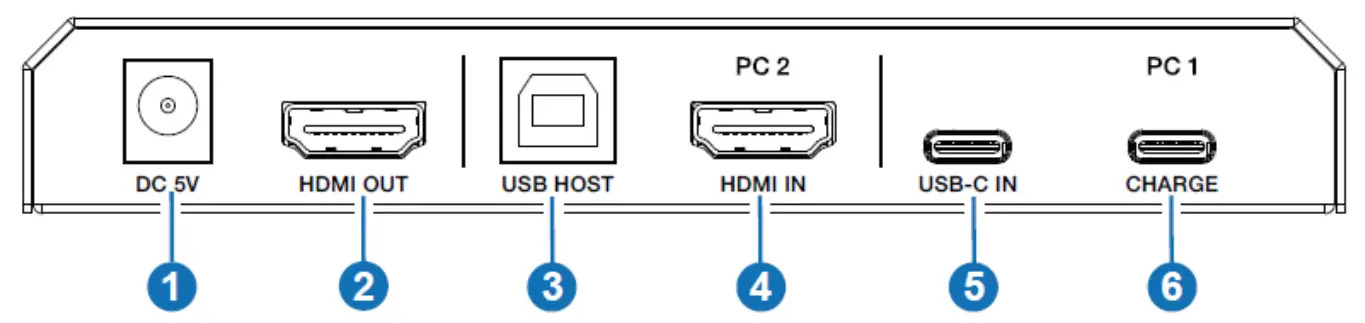
| No. | Name | Function Description |
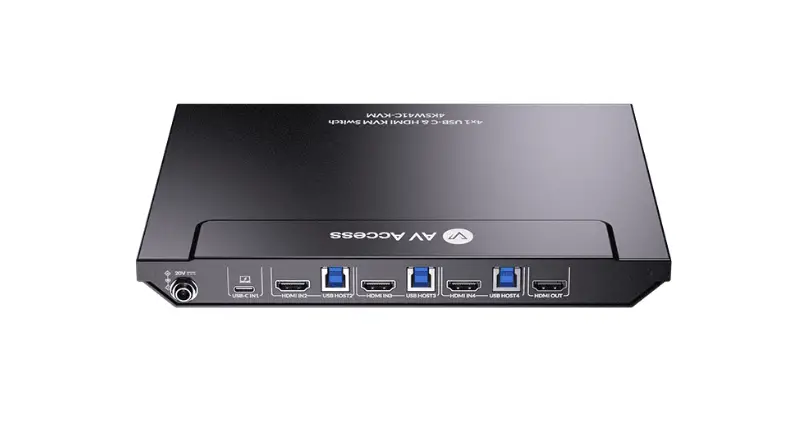
| 1 | DC 5V | DC 5V-12V power input port. |
| 2 | HDMI OUT | HDMI signal output port. Connect to HDMI display device with HDMI cable. |
| 3 | USB HOST | USB signal input port. Connect to PC with USB cable. |
| 4 | HDMI IN | HDMI signal input port. Connect to HDMI source device with HDMI cable. |
| 5 | USB-C IN | USB signal input port. Connect to PC with USB cable. |
| 6 | CHARGE | The power input port (USB C port supports PD 3.0 protocol). When the USB-C IN port is connected to an active PC, you can connect the CHARGE port with a power adapter to power the PC. |
Application Example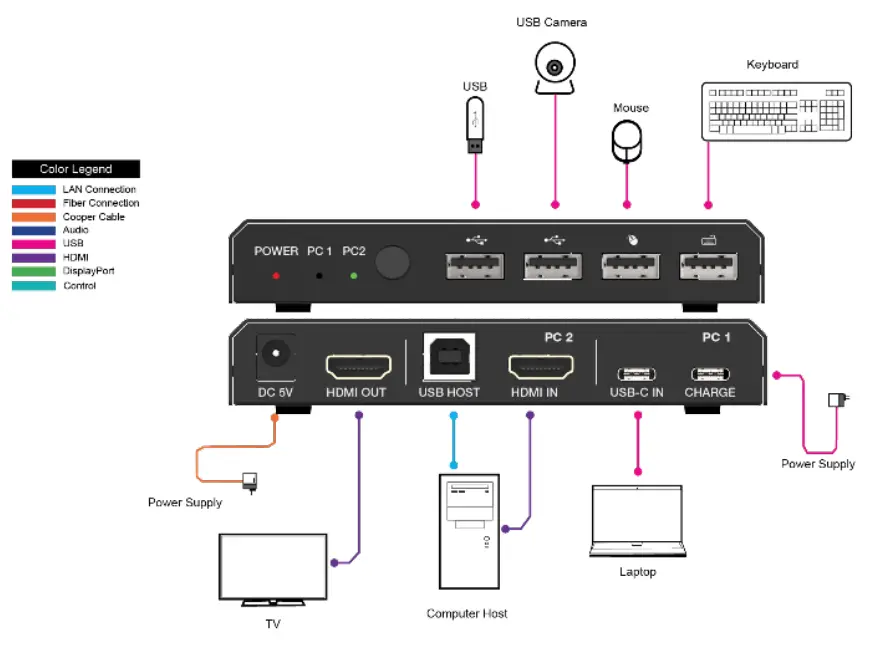
 HDMI and HDMI High-Definition Multimedia interface and the HDMI Logo are trademarks or registered trademarks of HDMI Licensing LLC in the United States and other countries.