
User’s Manual
AudioCodes High Definition IP Phones Series
RX-PAD Meeting Room
Controller
Version 2.0
 Microsoft Partner
Gold Communication
RX-PAD Meeting Room Controller
Notice
Information contained in this document is believed to be accurate and reliable at the time of printing.
However, due to ongoing product improvements and revisions, AudioCodes cannot guarantee accuracy of printed material after the Date Published nor can it accept responsibility for errors or omissions.
Updates to this document can be downloaded from https://www.audiocodes.com/library/technicaldocuments.
This document is subject to change without notice.
Date Published: Mar-21-2023
Trademarks
AudioCodes Ltd. All rights reserved. AudioCodes, AC, HD VoIP, HD VoIP Sounds Better, IPmedia, Mediant, MediaPack, What’s Inside Matters, OSN, SmartTAP, VMAS, VoIPerfect, VoIPerfectHD, Your Gateway To VoIP, 3GX, VocaNom, AudioCodes One Voice and CloudBond are trademarks or registered trademarks of AudioCodes Limited All other products or trademarks are property of their respective owners. Product specifications are subject to change without notice.
WEEE EU Directive
Pursuant to the WEEE EU Directive, electronic and electrical waste must not be disposed of with unsorted waste. Please contact your local recycling authority for disposal of this product.
Customer Support
Customer technical support and services are provided by AudioCodes or by an authorized AudioCodes Service Partner. For more information on how to buy technical support for AudioCodes products and for contact information, please visit our Web site at
https://www.audiocodes.com/services-support/maintenance-and-support.
Stay in the Loop with AudioCodes

Abbreviations and Terminology
Each abbreviation, unless widely used, is spelled out in full when first used.
Documentation Feedback
AudioCodes continually strives to produce high quality documentation. If you have any comments (suggestions or errors) regarding this document, please fill out the Documentation Feedback form on our Web site at http://online.audiocodes.com/documentation-feedback.
Related Documentation
| Document Name |
| RXV81 MTR on Android Video Collaboration Bar Deployment Guide |
| RXV81 MTR on Android Video Collaboration Bar Release Notes |
| Device Manager Administrator’s Manual |
Introduction
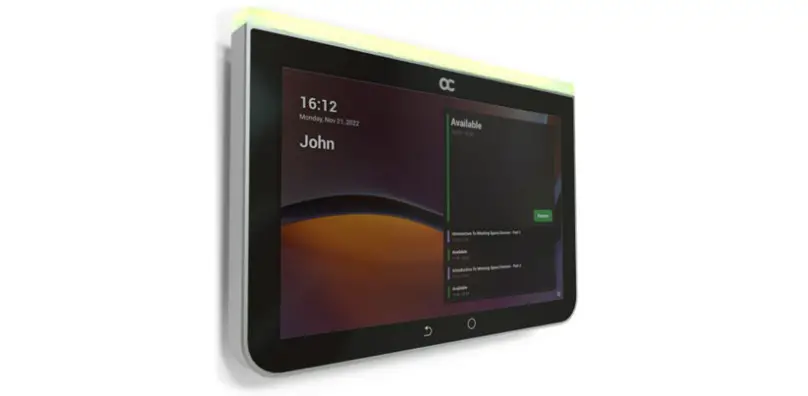
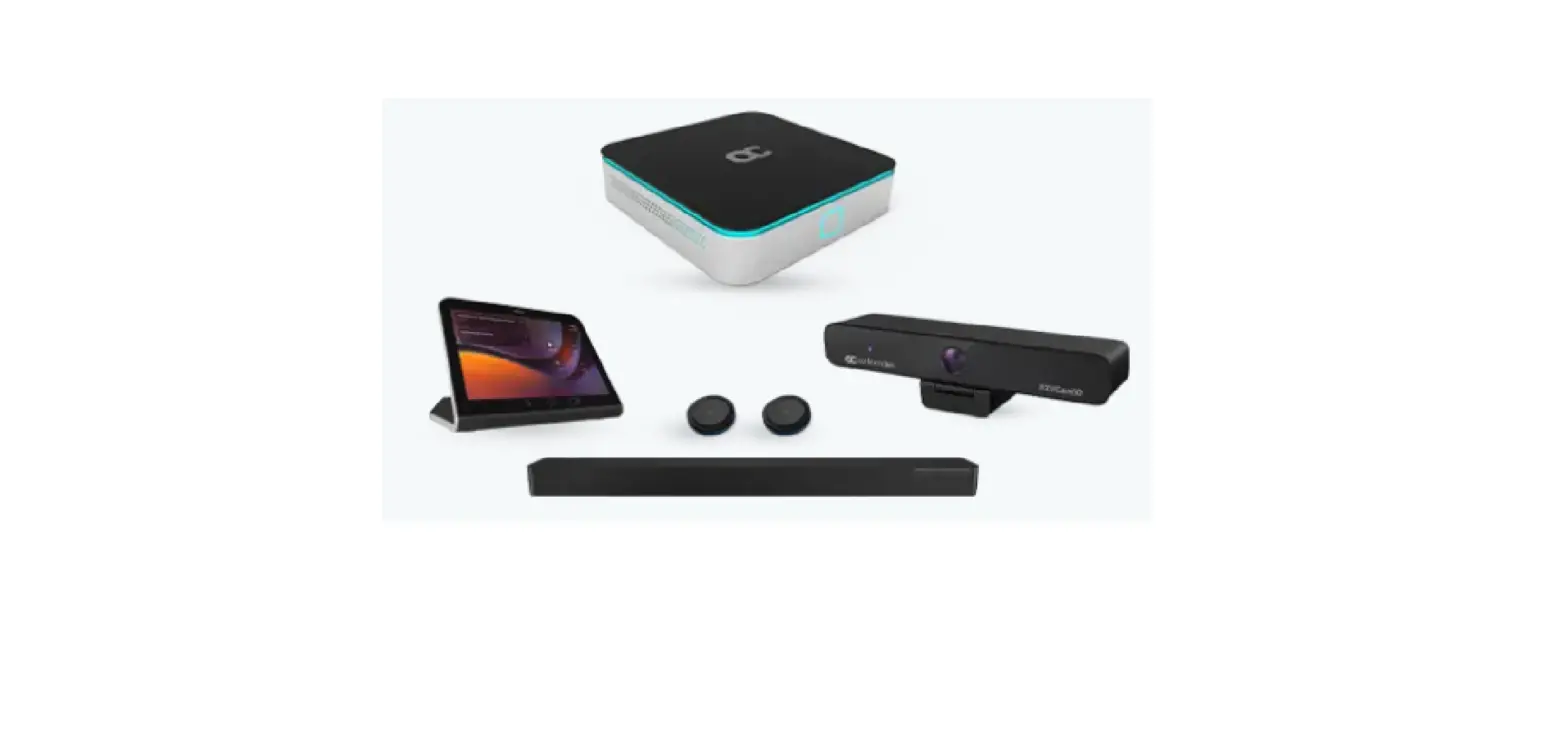
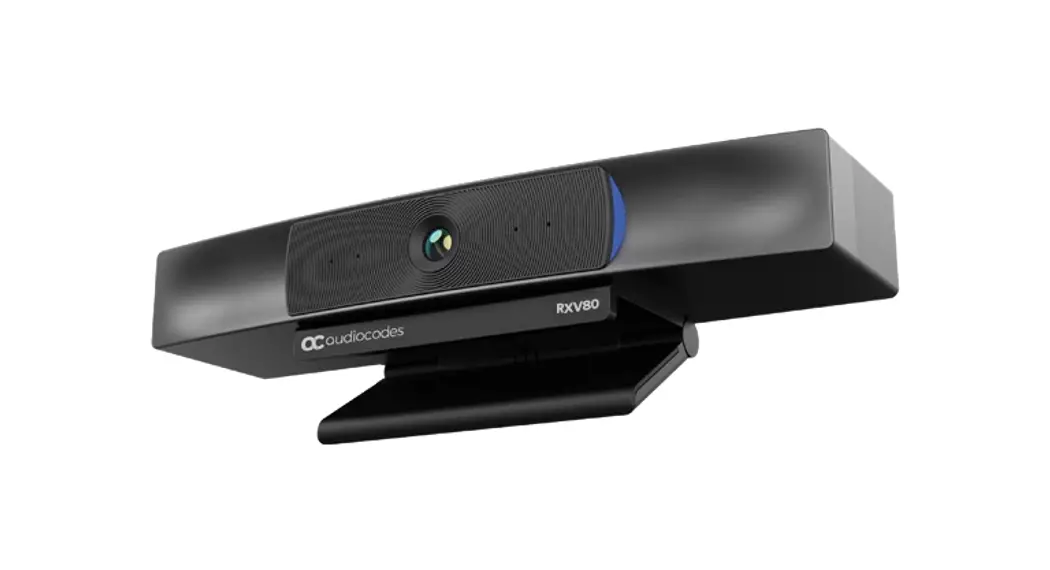
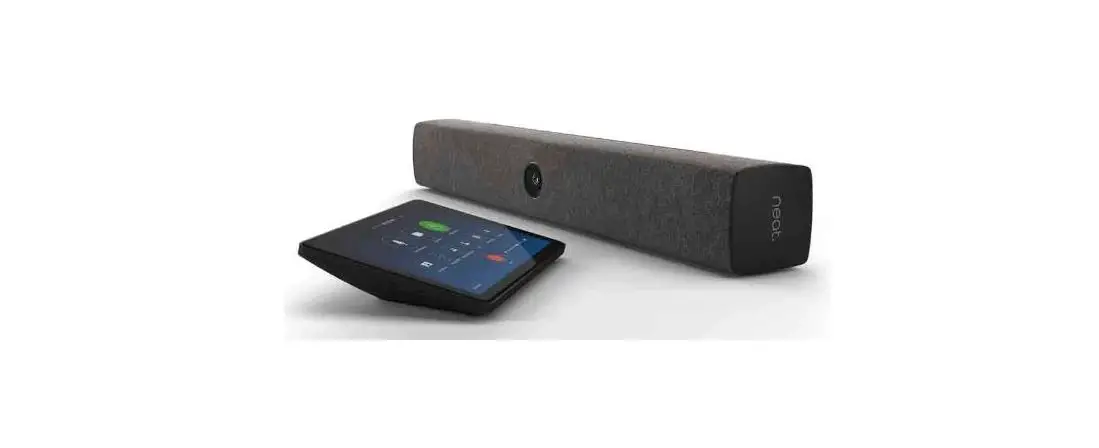
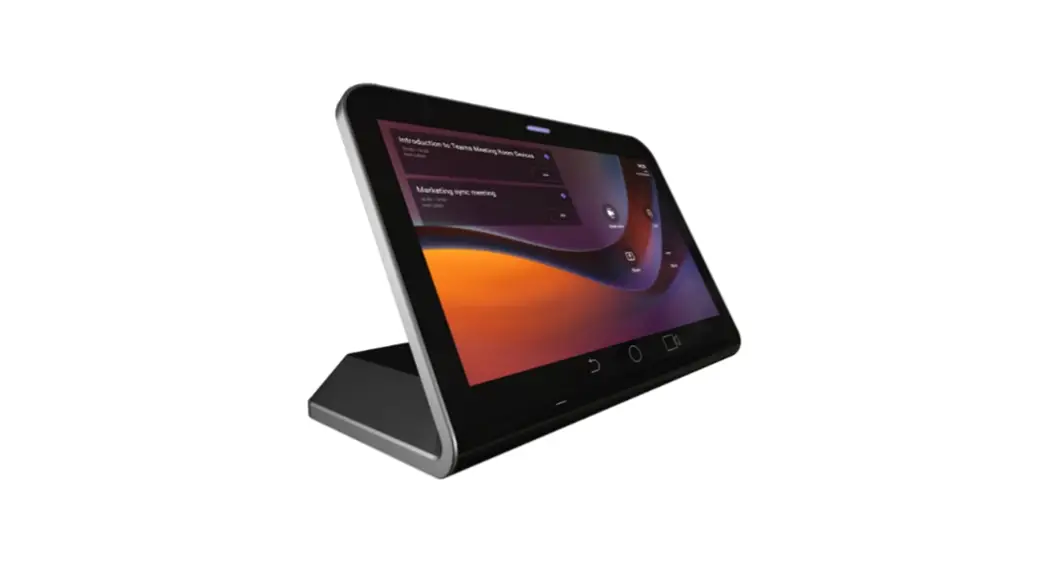
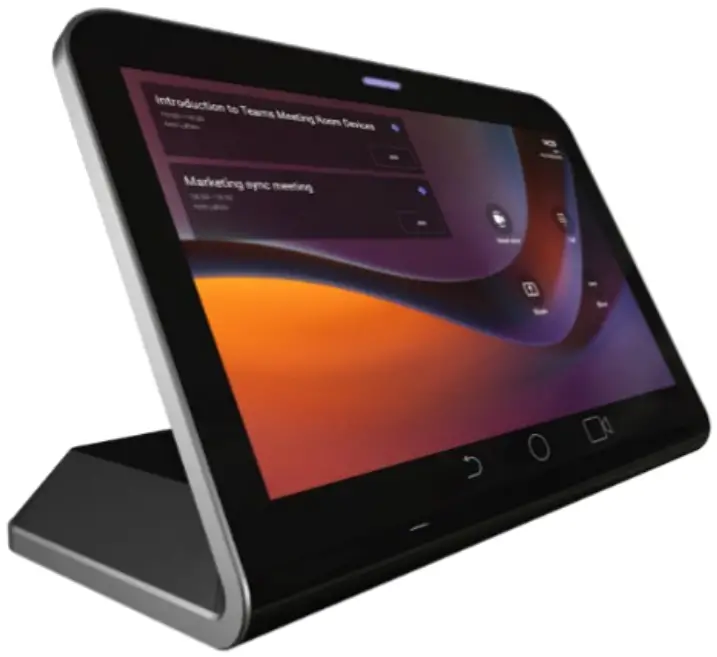
Available as a bundle with the RXV81, AudioCodes’ RX-PAD is a center-of-room intelligent touch controller that provides access to the RXV-81 meeting room.
 Note:
Note:
- Only applies to users who have the TEAMS-RXV81-B10 bundle.
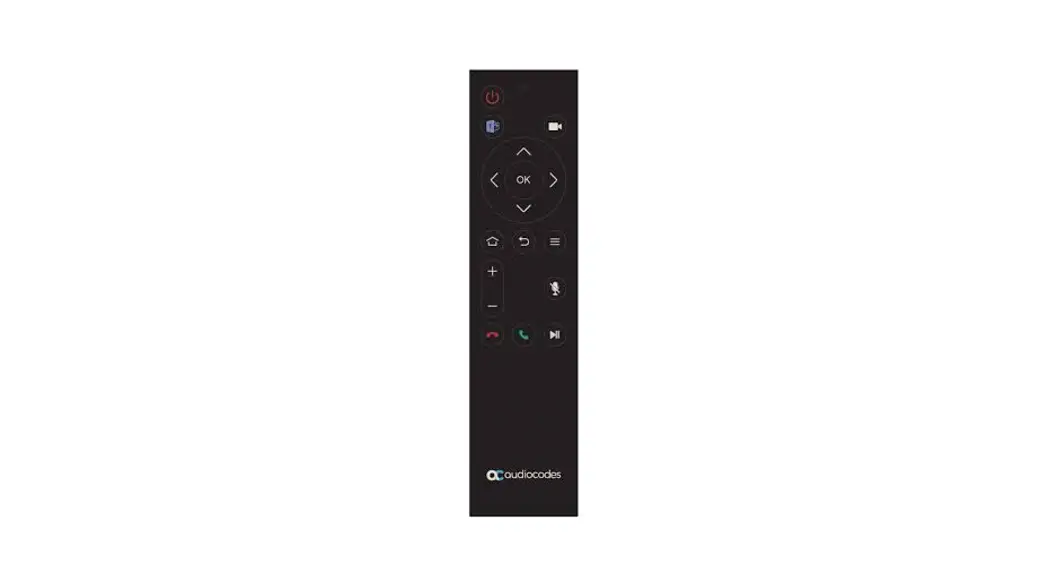
- Optionally replaces RXV81’s RC for management and control functions such as dialing and keyboard functions.
RX-PAD enables capabilities such as one-click collaboration initiation with an integrated calendar, content sharing and camera adjustments, and more.
Requiring only a PoE cable for quick installation, RX-PAD leverages plug-and-play simplicity to provide a familiar Microsoft Teams meeting experience.
See AudioCodes’ website here for more information about RX-PAD.
1.1 Specifications
| Feature | Specification |
| Display | Landscape Touch 8” LCD (1280 x 720 resolution) |
| Device interfaces | • Ethernet: 10/100/1000 Mbps (RJ-45) network interface (PoE) Wi-Fi (dual band support) • Bluetooth 5.0 • 12V/3A DC power input • Proximity Sensor |
| Network provisioning | • TCP/IP (IPv4), DHCP/ static IP; Time and date synchronization via SNTP; VLAN support; QoS support: IEEE 802.1p/Q tagging (VLAN) • Layer 3 TOS and DSCP RTCP support: (RFC 1889) • IP address configuration: TCP/IP (Ipv4), DHCP/static IP Time and date synchronization: SNTP |
| OS | Android 9.0 with short-term roadmap for Android 12 |
| UC platform support highlights | • Intuitive meeting experience with calendar integration and click-to-join meetings or proximity join experience • Easy-to-use touch controller for meeting management |
1.2 Checklist: Shipped Items
Make sure you received the following items in the shipped box:
- Power cable
- Network cable
1.3 Positioning
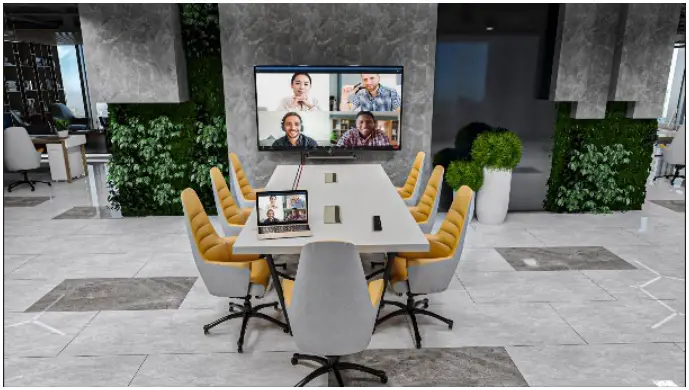
Position RX-PAD on the table for optimal management. Use this figure as reference.
1.4 Cabling
The figure below shows RX-PAD connector ports.
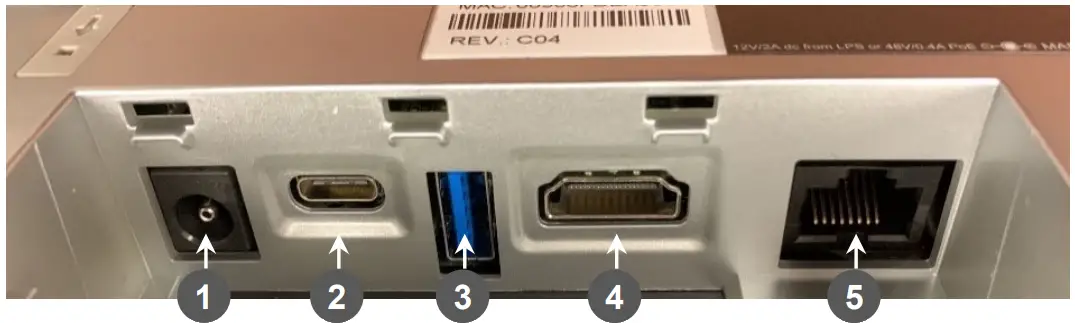
| L-R | Description |
| 1 | Power cable |
| 2 | Currently inapplicable. USB Type C. |
| 3 | Currently inapplicable. USB Type A Super Speed. |
| 4 | Currently inapplicable. HDMI for external video ingest. |
| 5 | Network port (PoE) |
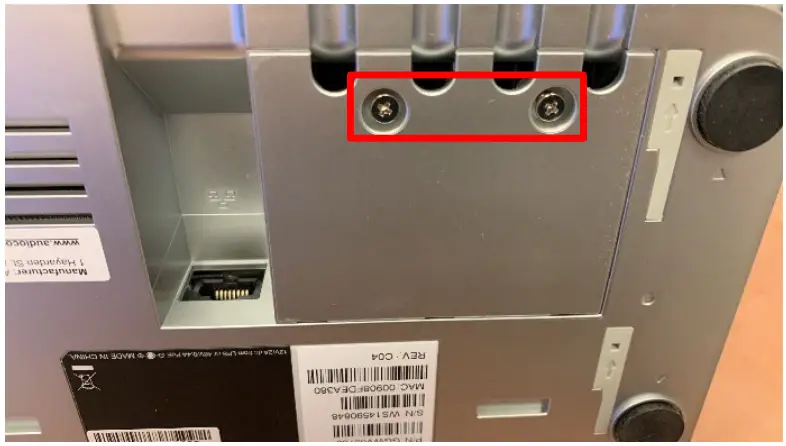
Access the connector ports by unscrewing the two screws to remove their cover.
1.5 Powering up
After connecting the power cable -OR- the network port (PoE), RX-PAD powers up.
1.6 General Pairing Prerequisites
Make sure:
- No physical blocks exist between RX-PAD and RXV81.
- Both devices are running the latest GA version released by AudioCodes.
- Both devices are connected to the same network (subnet).
- For the initial pairing of the out-of-the-box set, make sure that the physical distance between them is less than 50 cm.
1.7 Managing the Device
RX-PAD MTR is managed by AudioCodes’ One Voice Operations Center | Device Manager.
Management includes:
- Firmware management / upgrade
- Alarm management
- Upgrade the MTR APK
Getting Started
The instructions here show how to get started with RX-PAD and RXV81.
• To get started:
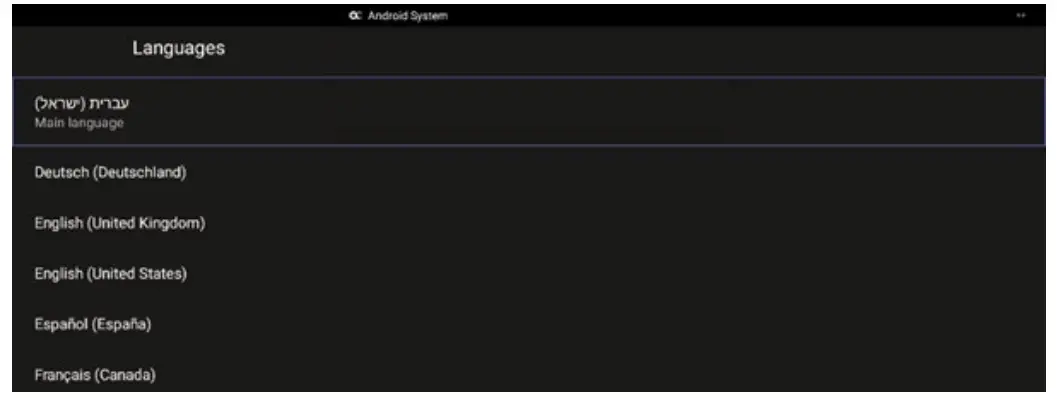
- After powering up (see here), RX-PAD displays the ‘Languages’ page.

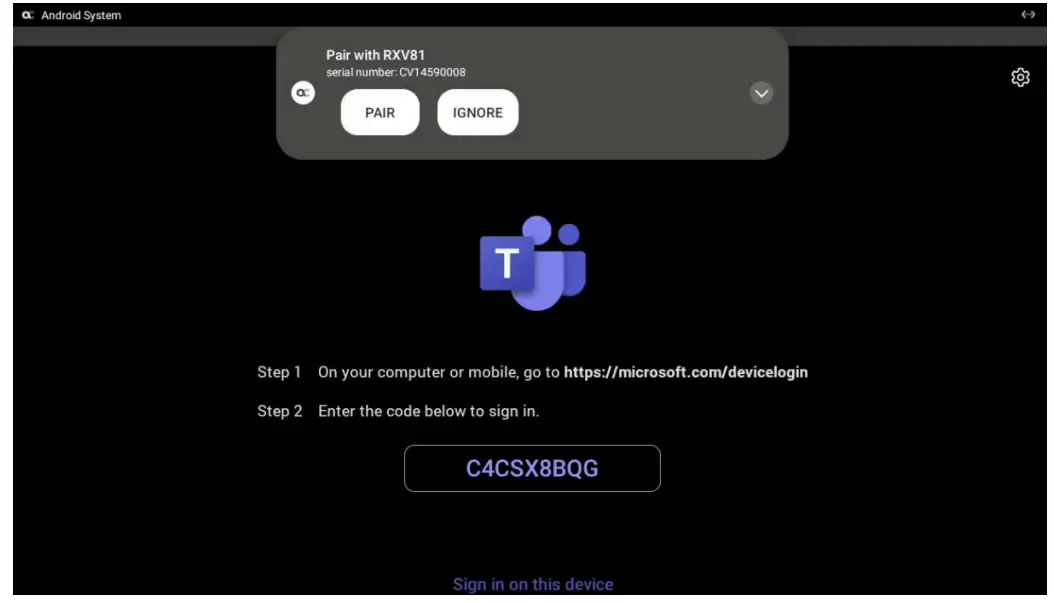
- Make sure both RX-PAD and RXV81 are connected to the network and then select a language; an RXV-PAIR process is automatically initiated; view the following on RX-PAD:

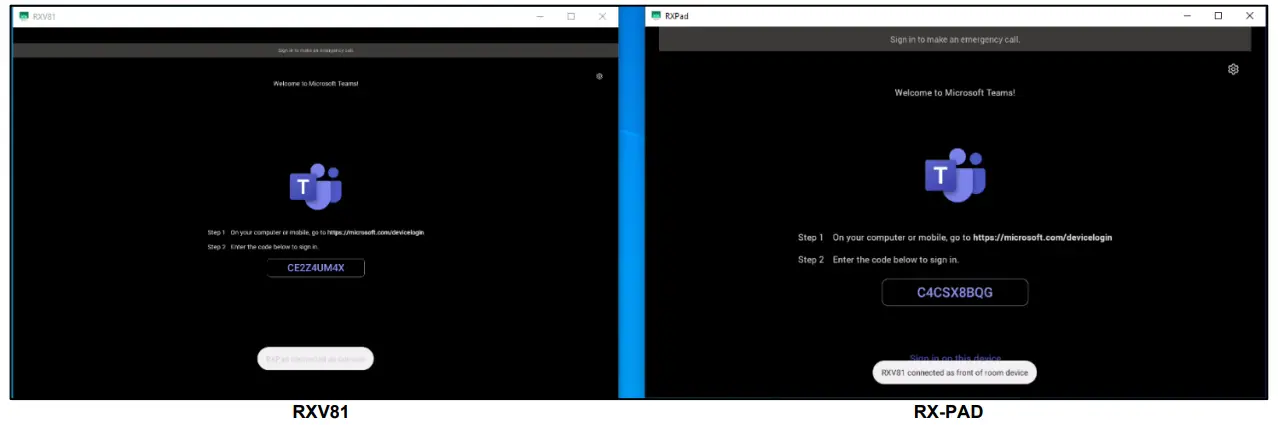
- Tap PAIR; RXV-PAIR auto pairing between RX-PAD and RXV81 is activated.

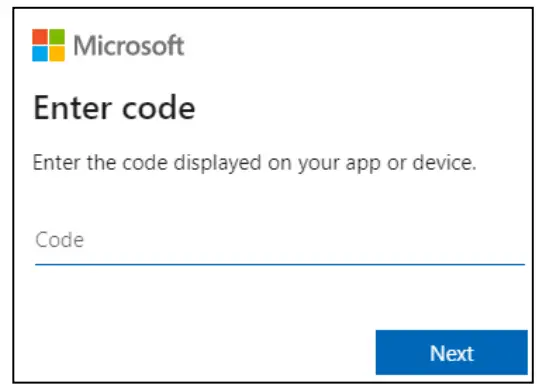
- On your pc | laptop, point your browser to https://microsoft.com/devicelogin as shown in the previous two figures.

- Enter the code using the RX-PAD keyboard, and then select Next.

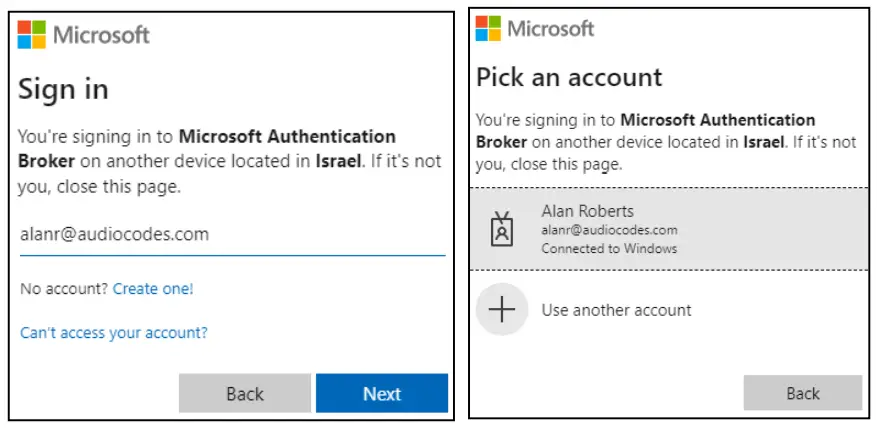
- Enter your email or Teams username and select Next -OR- click the account to sign in with.
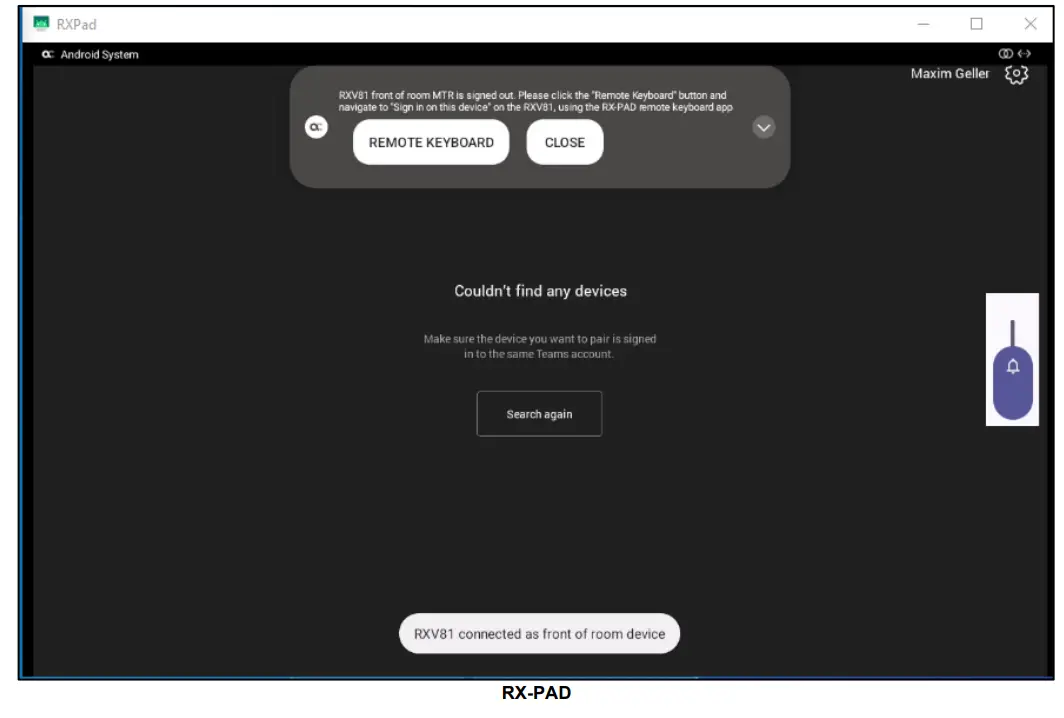
- After sign-in to RX-PAD is finished, use the Remote Keyboard application that pops up on RXPAD to sign in to the RXV81.

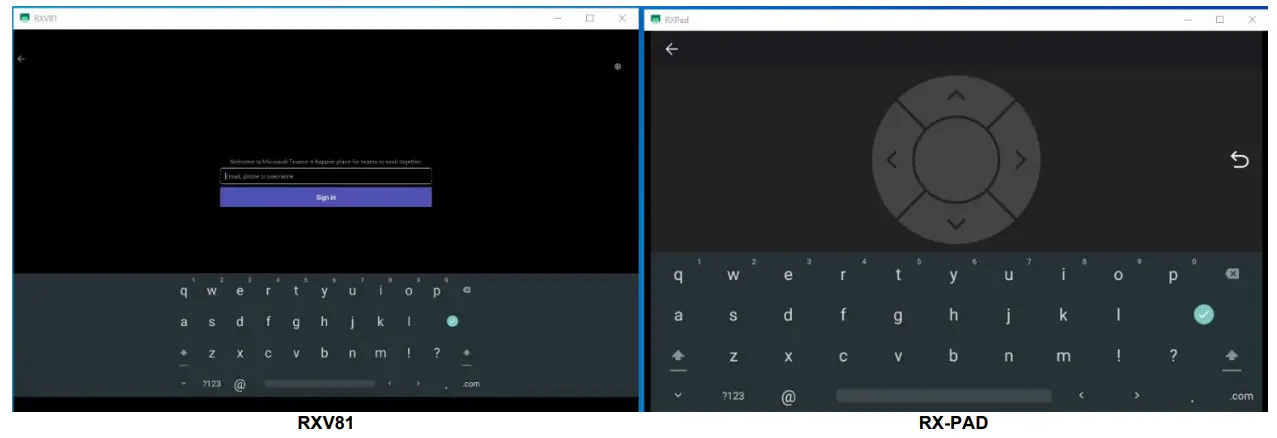
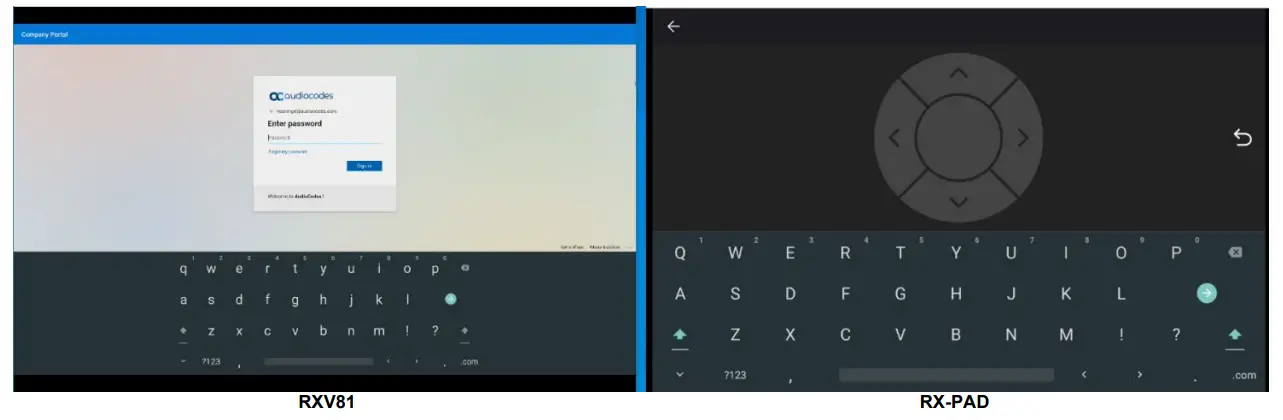
- Tap Remote Keyboard to enter the same credentials on the RXV81.

- Enter your Password.

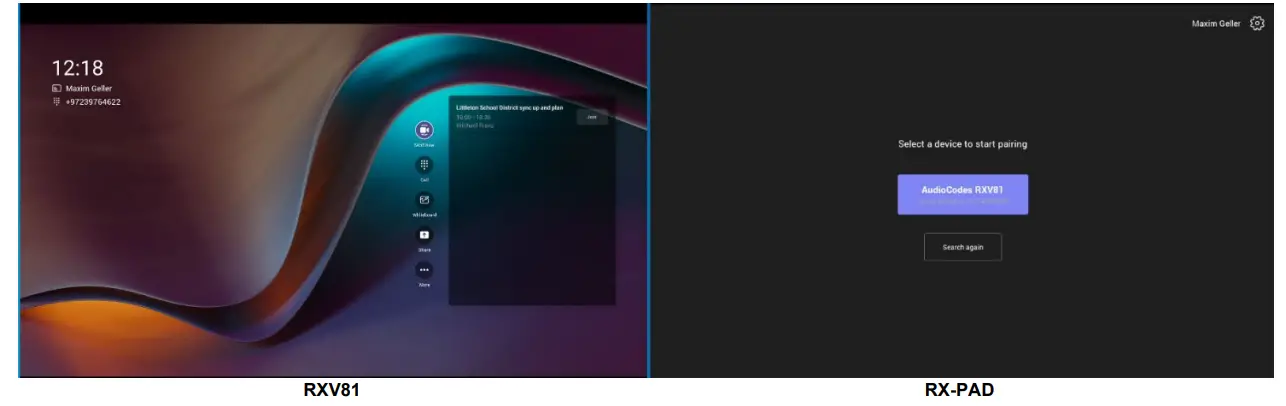
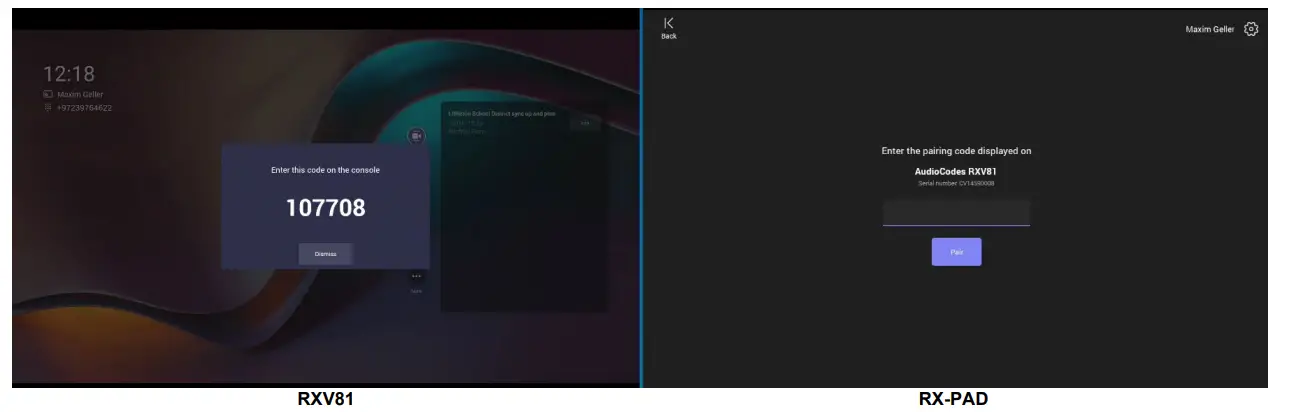
- After sign-in on both devices is complete, click Search again; the RXV81 (Serial Number) bundled with RX-PAD becomes available for selection.

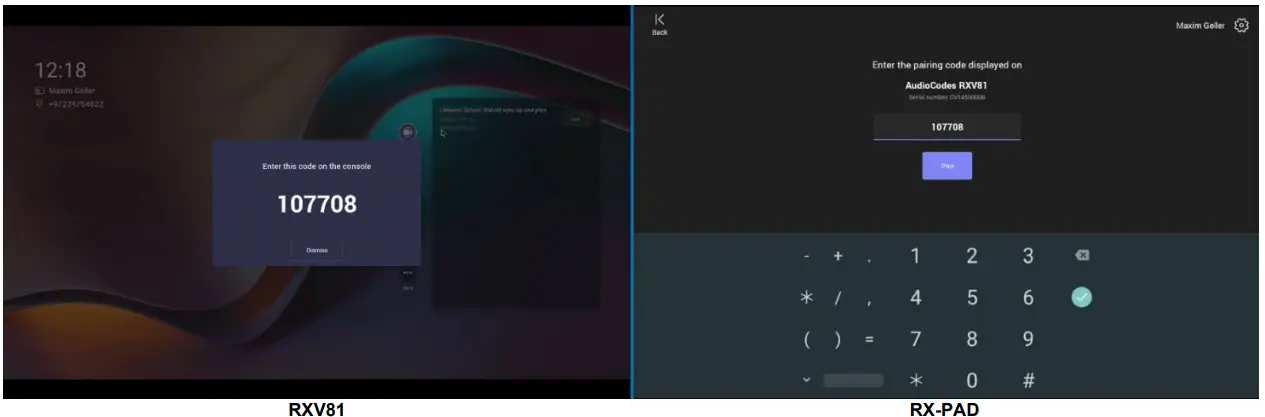
- After selecting RXV81, a pairing code is displayed on the RXV81 screen.

- Enter the code using the keypad on RX-PAD.

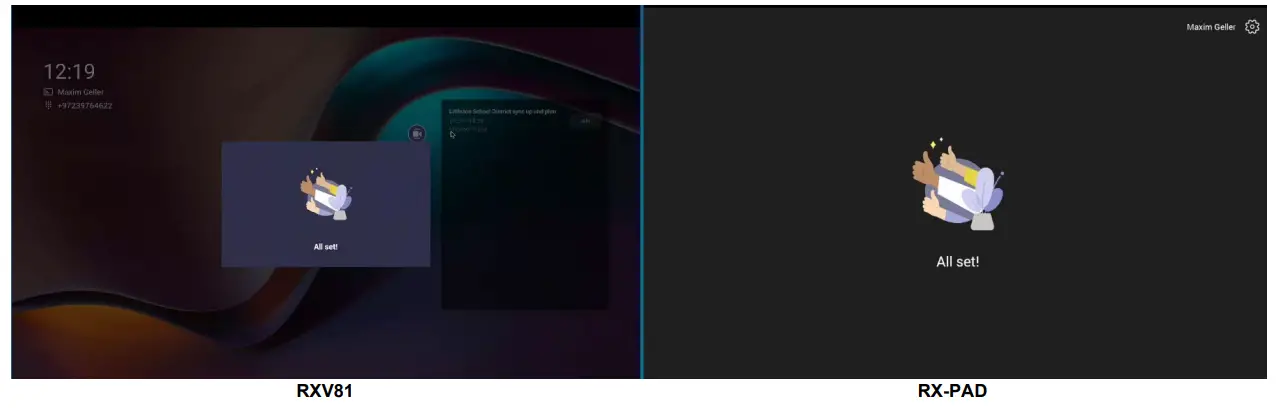
- After Microsoft’s pairing process finishes, view an All set! indication on each device.

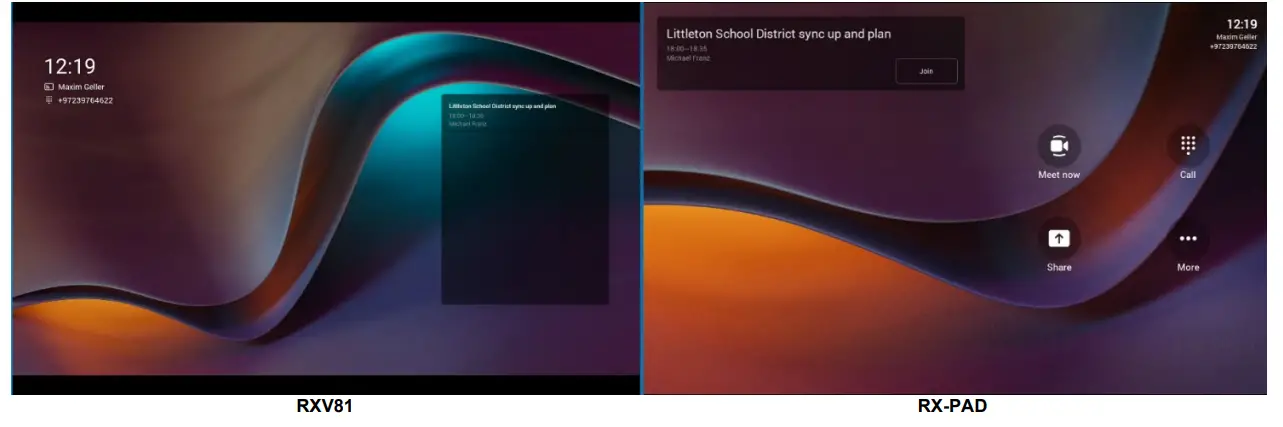
- After a few moments, the indication disappears and you’ll view the home page with controls of the RXV81 displayed on RX-PAD.

Using RX-PAD
Use the figure and the table following as a reference to using RX-PAD.
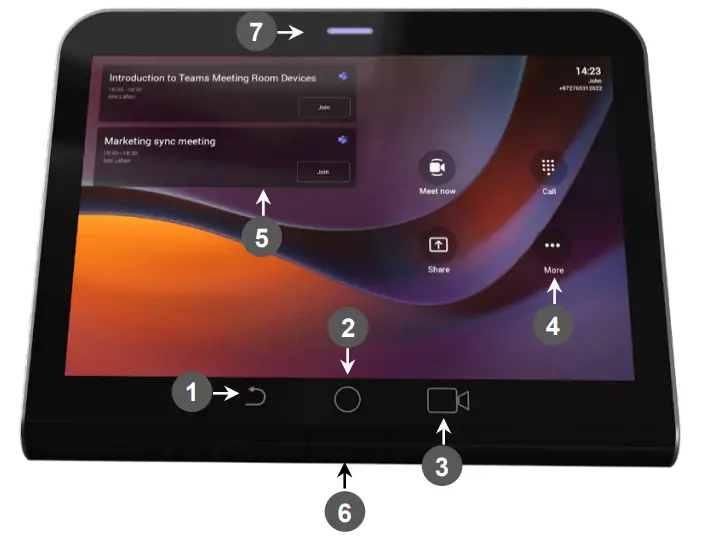
| L-R | Description |
| 1 | Back option |
| 2 | Home button: tap to return to the home screen from any screen. Long-press to open the device Settings screen. |
| 3 | Tap to access camera settings |
| 4 | Tap to open administrator-related menus including Settings |
| 5 | Calendar meetings |
| 6 | Hidden motion sensor that allows ‘waking up’ the device while in screensaver mode – when someone enters the room |
3.1 Using RX-PAD to Adjust RXV81 Camera Settings
RX-PAD can be used to control RXV81 camera settings.
• To adjust RXV81 camera settings:
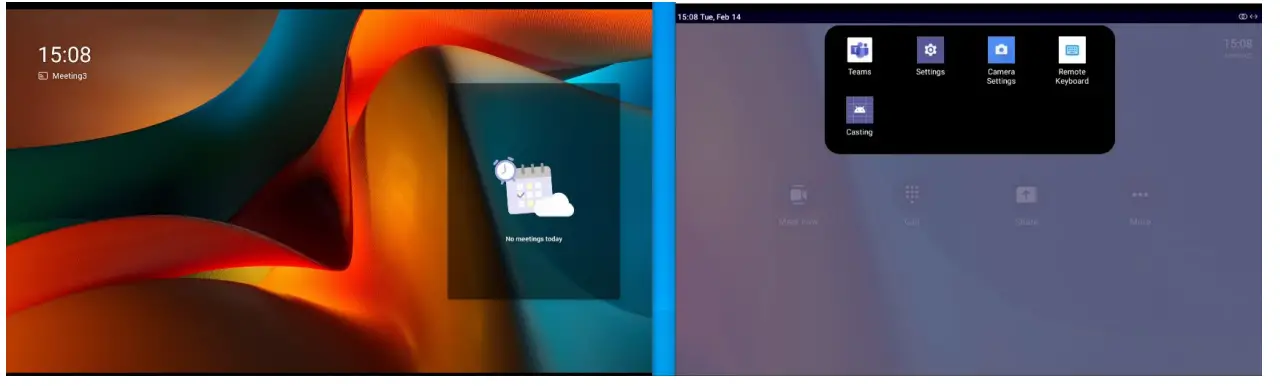
- In RX-PAD, pull down the notification bar and select the Camera Settings icon -OR- on the
physical interface of the RX-PAD, tap the camera icon (labeled 3 in the preceding figure).
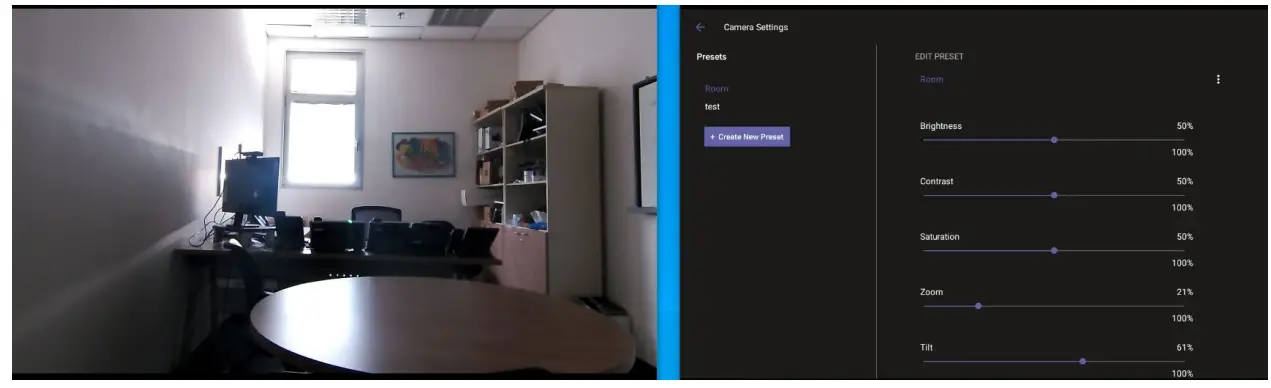
- View the camera settings menu and a preview of the room the RXV81 is located in.

- In the Camera Settings page, adjust the Brightness, Contrast, Saturation, Zoom and Tilt.
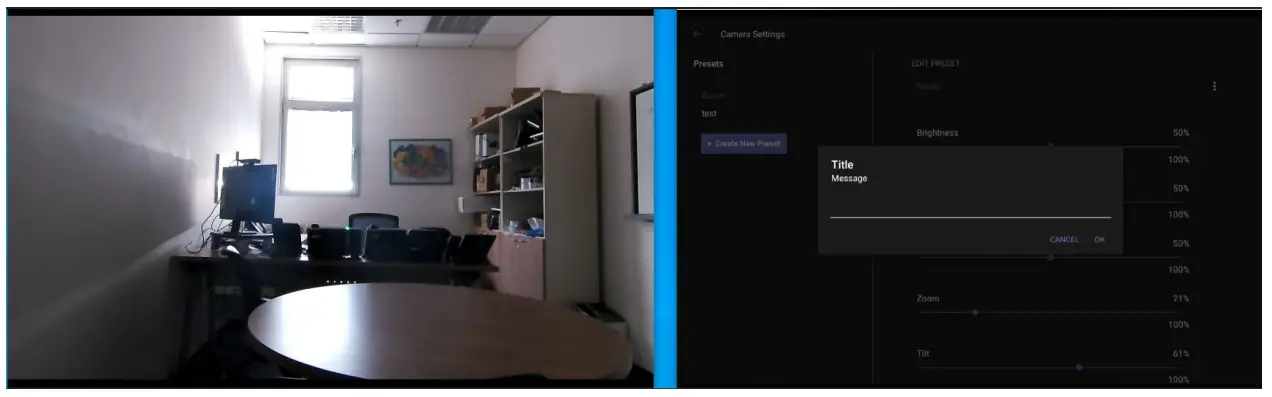
- Optionally, save the current settings in the running preset, or save them in a separate preset using the Create New Preset button.

International Headquarters
1 Hayarden Street,
Airport City
Lod 7019900, Israel
Tel: +972-3-976-4000
Fax: +972-3-976-4040
AudioCodes Inc.
80 Kingsbridge Rd.,
Piscataway, NJ 08854, USA
Tel: +1-732-469-0880
Fax: +1-732-469-2298
Contact us: https://www.audiocodes.com/corporate/offices-worldwide
Website: https://www.audiocodes.com/
©2023 AudioCodes Ltd. All rights reserved. AudioCodes, AC, HD VoIP, HD VoIP Sounds Better, IPmedia, Mediant, MediaPack, What’s Inside Matters, OSN, SmartTAP, User Management Pack, VMAS, VoIPerfect, VoIPerfectHD, Your Gateway To VoIP, 3GX, VocaNom and AudioCodes One Voice are trademarks or registered trademarks of AudioCodes Limited. All other products or trademarks are property of their respective owners. Product specifications are subject to change without notice.
Document #: LTRT-18111
FCC Caution:
Any Changes or modifications not expressly approved by the party responsible for compliance could void the user’s authority to operate the equipment.
This device complies with part 15 of the FCC Rules. Operation is subject to the following two conditions: (1) This device may not cause harmful interference, and (2) this device must accept any interference received, including interference that may cause undesired operation.
Note: This equipment has been tested and found to comply with the limits for a Class B digital device, pursuant to part 15 of the FCC Rules. These limits are designed to provide reasonable protection against harmful interference in a residential installation. This equipment generates, uses and can radiate radio frequency energy and, if not installed and used in accordance with the instructions, may cause harmful interference to radio communications. However, there is no guarantee that interference will not occur in a
particular installation. If this equipment does cause harmful interference to radio or television reception, which can be determined by turning the equipment off and on, the user is encouraged to try to correct the interference by one or more of the following measures:
- Reorient or relocate the receiving antenna.
- Increase the separation between the equipment and receiver.
- Connect the equipment into an outlet on a circuit different from that to which the receiver is connected.
- Consult the dealer or an experienced radio/TV technician for help.
This equipment complies with FCC radiation exposure limits set forth for an uncontrolled environment. This equipment should be installed and operated with minimum distance 20cm between the radiator& your body.
 AudioCodes Voice - Blog
 Documentation Feedback
 Sign in to your account
 AudioCodes - Voice DNA for the digital workplace