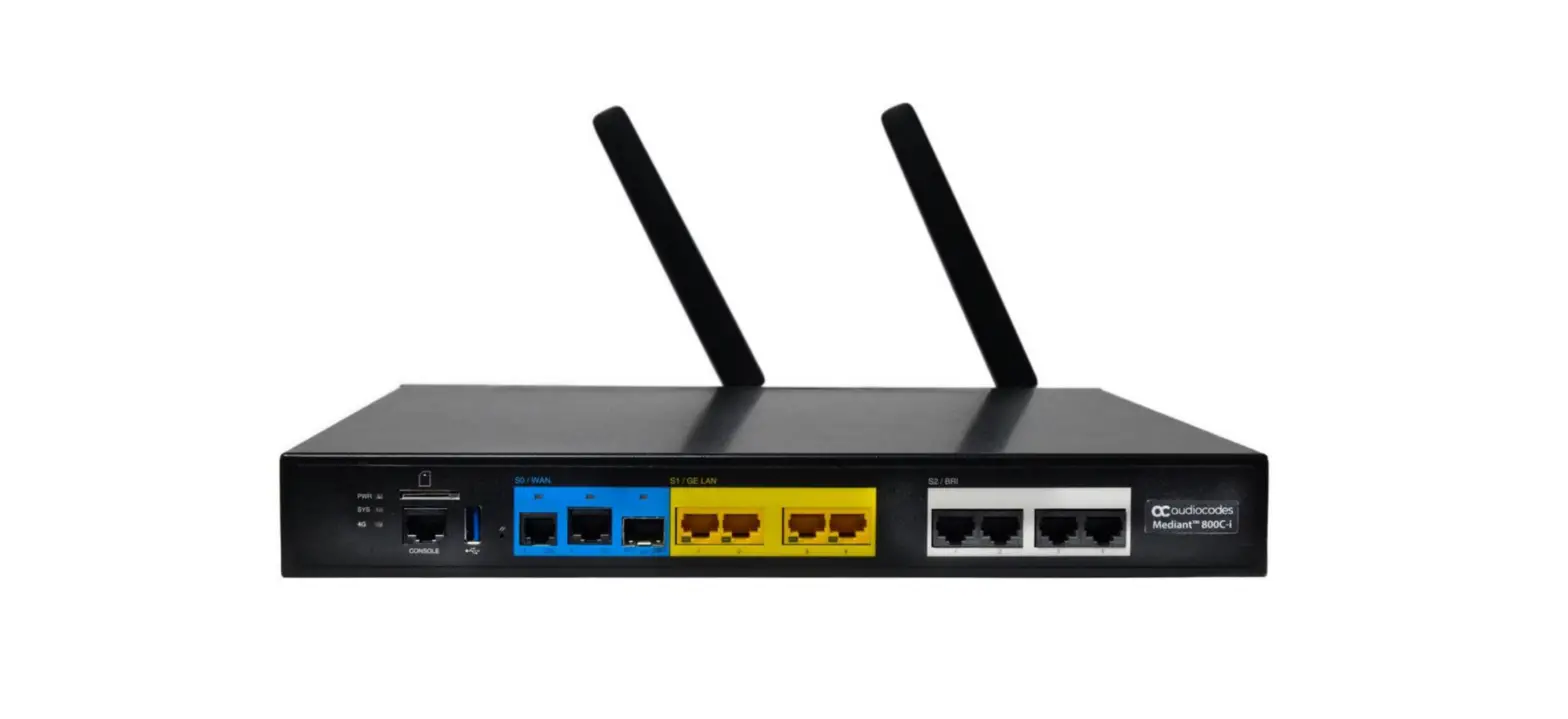
Mediant™ 800Ci uCPE
Quick Setup Guide
Welcome
Thank you for choosing AudioCodes’ Mediant 800Ci uCPE.
This document is intended to provide basic instructions for initial setup of the Mediant 800Ci uCPE (hereafter, referred to as device) and connecting it to your network. For advanced configuration, please refer to the device’s Configuration Notes and Hardware Manual respectively, which can be downloaded from AudioCodes Website at https://www.audiocodes.com/library/technical-documents.
Before you begin, please read the Safety Precautions on the next page and click here to view the Regulatory Information document.

Safety Precautions
- This device is an indoor unit and therefore, must not be installed outdoors.
- Ethernet cabling must be routed only indoors and must not exit the building.
- Do not open or dismantle the device.
- Do not expose the device to water or moisture.
- Make sure the device is installed in a well-ventilated location to avoid over heating of internal components and subsequent damage.
- Do not place any object on top of the device and make sure that sufficient clearance from the top and sides are maintained to ensure proper airflow to avoid over heating of internal components.
- Operate the device in an ambient temperature (Tma) that does not exceed 40°C (104°F).
- Use only the supplied AC/DC power adapter for connection to the power source.
- In case of a malfunction, do not attempt to fix the power adapter and do not use any other type of power adapter.
Package Contents
Make sure that the following items (in addition to any separate-orderable items that you may have purchased) are included with your shipped device:
- 4 x anti-slide bumpers for desktop mounting
- 1 x AC/DC power adapter
- Regulatory Information document
- This Quick Guide
Physical Description of Front Panel
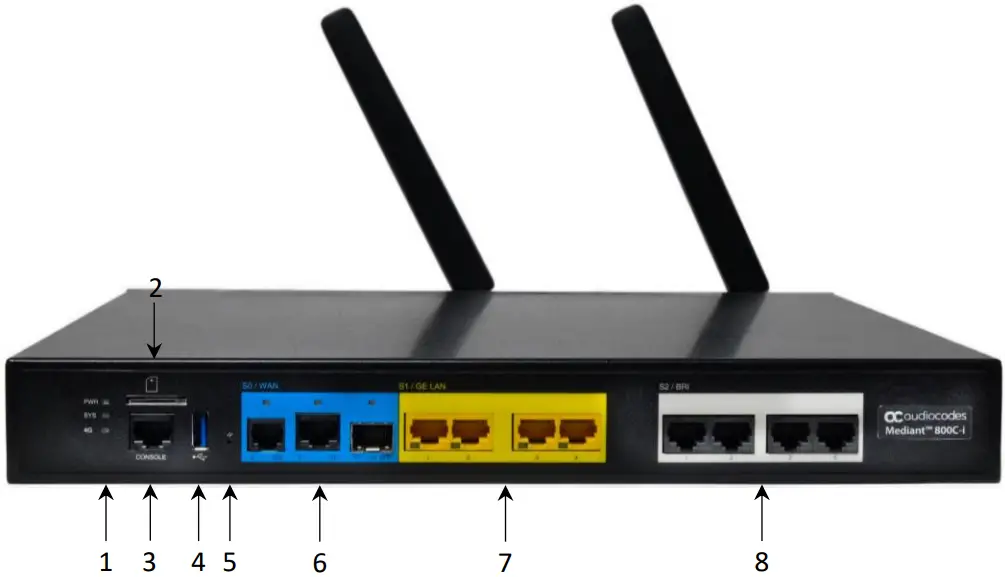
| 1 | PWR | LED indicating power status: | ||
 Green On Green On | Power received by device. | |||
 Off Off | No power. | |||
| SYS | LED indicating operating status: | |||
| Green On | Device is operational. | |||
| Green Flashing | Initial rebooting stage or software upgrade in process. | |||
 Red On Red On | Boot failure. | |||
| Off | Advanced rebooting stage. | |||
| 4G | LED indicating 4G LTE cellular modem status: | |||
| Green On | SIM card installed and an LTE cellular connection has been established. | |||
| Green Flashing | In the process of connecting to the cellular network. | |||
| Red On |
| |||
| Off |
| |||
| 2 |  | SIM card slot for inserting a SIM card (mini-SIM card size) provided by your service for 4G Long-Term Evolution (LTE) cellular modem (cellular WAN). | ||
| 3 | CONSOLE | RJ-45 port for RS-232 serial communication with the device. | ||
| 4 |  | USB 3.0 port which can be used for storage on external USB flash disk. | ||
| 5 | // | Reset pinhole button for resetting the device or restoring it to factory defaults. To restore to factory defaults: with a paper clip or any other similar pointed object, press and hold down the button for at least 12 seconds (but no more than 25 seconds). | ||
| 6 | S0 / WAN | WAN Ethernet ports: DSL: RJ-11 port for DSL WAN interface. | ||
| Green On | DSL link connected (trained) with peer (“showtime”). | |||
| Green Fast-Flashing | Training up (connection in progress) and negotiating with peer. | |||
| Green Slow Flashing | DSL port administratively up, but idle (not connected and no peer detected). | |||
| Green Two Fast-Flashes and then Idle Sequences | DSL port initializing itself after being enabled or upon mode change. | |||
| Off | DSL port administratively shutdown or not configured | |||
| GE: RJ-45 port for Gigabit Ethernet WAN interface. | ||||
| Green On | WAN GE link established. | |||
| Green Flashing | Data received or transmitted. | |||
| Off | No WAN GE link or power not received by the device. | |||
| SFP: SFP transceiver module for fiber optic WAN. | ||||
| Green On | WAN fiber link established. | |||
| Green Flashing | Data received or transmitted. | |||
| Off | No WAN fiber link. | |||
| 7 | S1 / GE LAN | LED indicating Gigabit Ethernet LAN | ||
| Green On | Ethernet link established. | |||
| Green Flashing | Data received or transmitted. | |||
| Off | No Ethernet link. | |||
| 8 | S2 / BRI | RJ-45 ports for connecting BRI ISDN terminal equipment such as ISDN telephones or PBXs | ||
| Green On | Physical layer (Layer 1) is synchronized (normal operation). | |||
| Red On | Physical layer (Layer 1) is not synchronized. | |||
| Off | Trunk is not active. | |||
Physical Description of Rear Panel
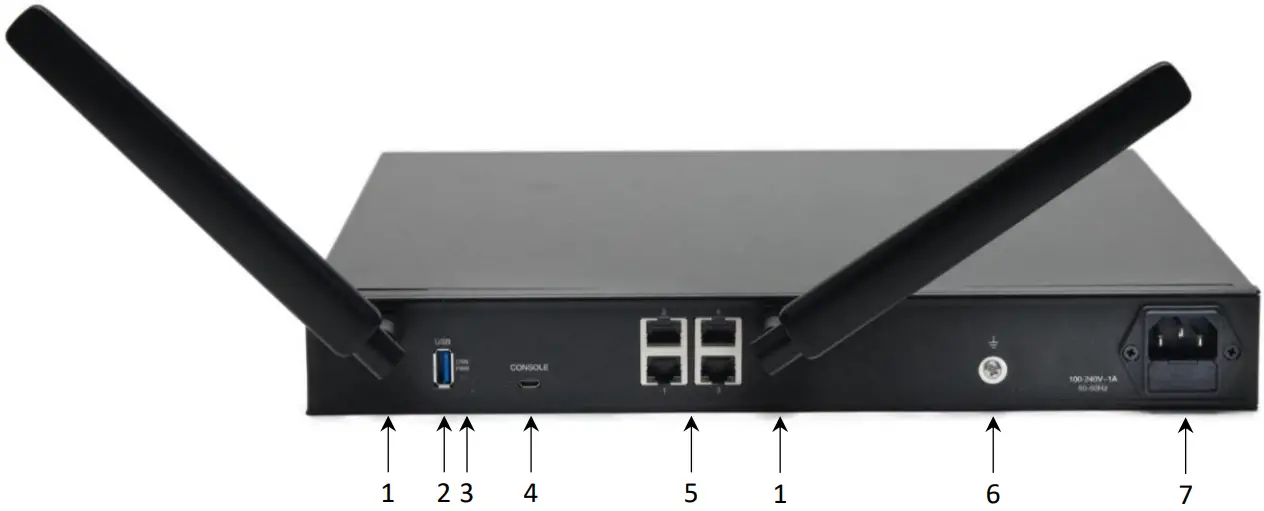
| 1 | – | Two cellular antennas for 4G LTE cellular connectivity. |
| 2 | USB | USB 3.0 port (Standard-A type) for connecting computer peripherals (e.g., mouse and keyboard) to the OSN server. |
| 3 | OSN PWR | LED indicating power status of the OSN server. |
| 4 | CONSOLE | Micro USB port for connecting a monitor to the OSN server. |
| 5 | 1-4 | Four 10/100/1000Base-T Ethernet (RJ-45) ports for connecting directly to the OSN server. For example, one port can be connected to the LAN (IP Phones) and another port to the WAN interface (IP PBX). |
| 6 |  | Protective earthing (grounding) screw. |
| 7 | 100-240V ~1A 50-60Hz | AC power plug entry. |
Mounting the Device
You can mount the device in several ways:
- Placing it on a desktop using the four anti-slide bumpers (supplied), which you need to stick on the grooves located on the underside of the device. The bumpers avoid involuntary movement of the unit on the desktop as well as enable better air flow for cooling the device.
- Mounting it in a standard 19-inch rack, which involves placing the device on a pre-installed rack shelf (not supplied) and then securing the device to the rack frame using the front-mounting brackets (supplied).
Initial Connectivity
This section describes how to initially access the device’s management interface and change its default IP address to correspond with your networking scheme. Device management can always be done through the LAN interface, but you can also enable device management through the WAN (as explained in the configuration guide).
Accessing Device through Web Interface
You can access the Web-based management interface using the device’s default LAN IP address:
- IP Address: 192.168.0.1
- Prefix Length: 24 (255.255.255.0)
- Default Gateway: 0.0.0.0
- VLAN ID: 1
 By default, the device’s embedded DHCP server is enabled for the LAN, and with default IP pool addresses relating to the default subnet LAN. The DHCP server allocates this pool of IP addresses to computers connected to its LAN interface. You can disable the DHCP server or modify the IP address pool.
Accessing Device through Default LAN IP Address
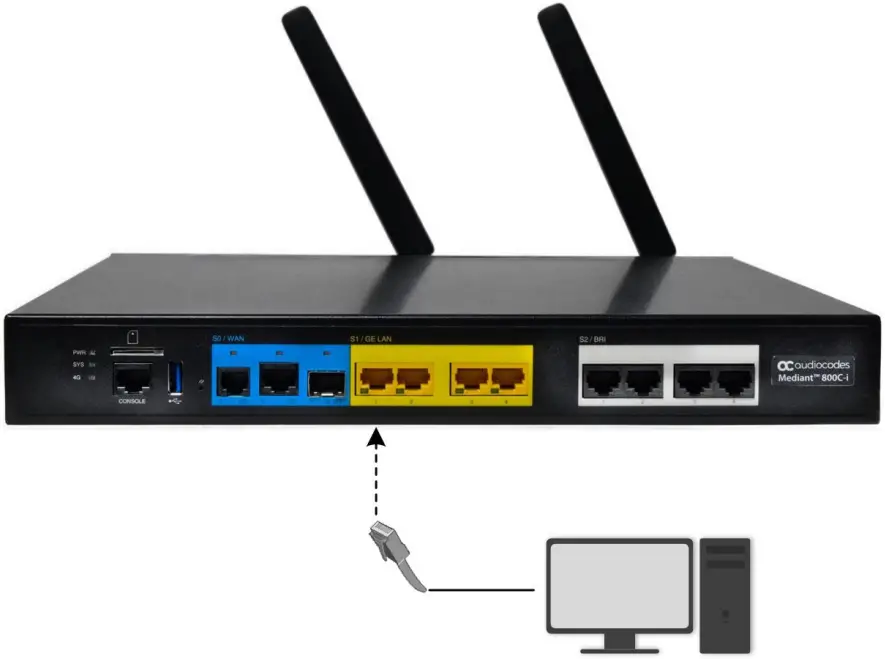
1. Connect the LAN Port (S1 / GE LAN) to your computer’s network interface, using a straight-through Ethernet cable:
2. Make sure that your computer is configured to automatically obtain an IP address. The device has an embedded DHCP server, which by default, allocates IP addresses to connected computers.
3. On your computer, start a Web browser and in the URL address field, enter the device’s default IP address; the Web interface’s Web Login screen appears:
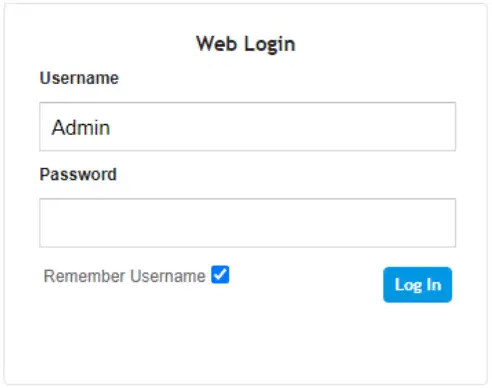
4. In the ‘Username’ and ‘Password’ fields, enter the case-sensitive, default login username (Admin) and password (Admin).
5. Click Log In.
Configuring LAN and WAN
This section describes how to configure the device’s LAN and WAN interfaces.
After accessing the device through the LAN interface, you can configure Web management access from one of the following interfaces:
- Any of the configured Voice Gateway LAN interfaces.
- WAN port interface: In this setup, you need to enable remote access to the WAN port interface.
For basic configuration, click here to view the configuration note.
Modifying LAN Interface
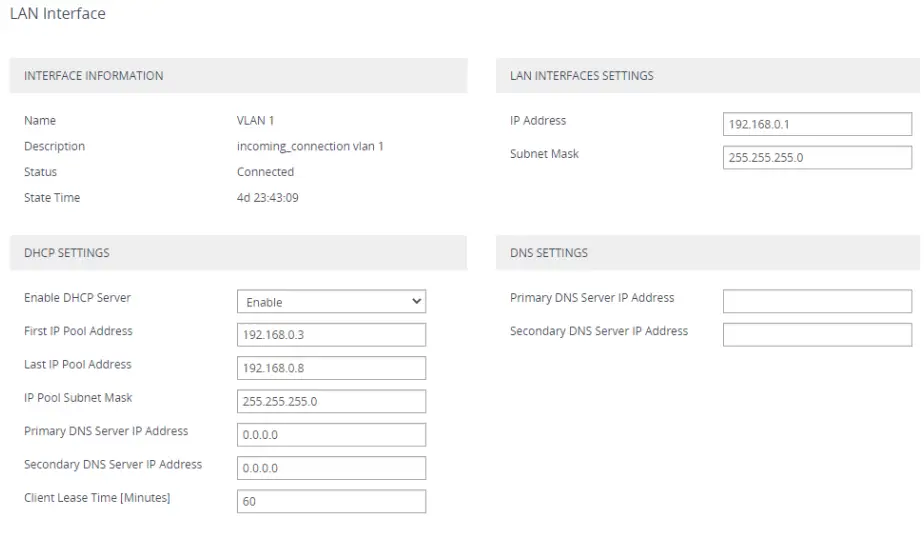
The device’s default LAN IP address is 192.168.0.1/24. You can change this to suit your networking scheme.
By default, the device’s embedded DHCP server is enabled for the LAN, and with default IP pool addresses relating to the default subnet LAN. You can disable the DHCP server or modify the IP address pool. The DHCP server allocates this pool of IP addresses to the computers connected to its LAN interface.
- Open the LAN Interface page (Setup menu > IP NETWORK tab > CORE ENTITIES folder > LAN Interface).
- Configure the following:
• LAN Interfaces
• DHCP (enable / disable)
• DNS
Configuring WAN Interface
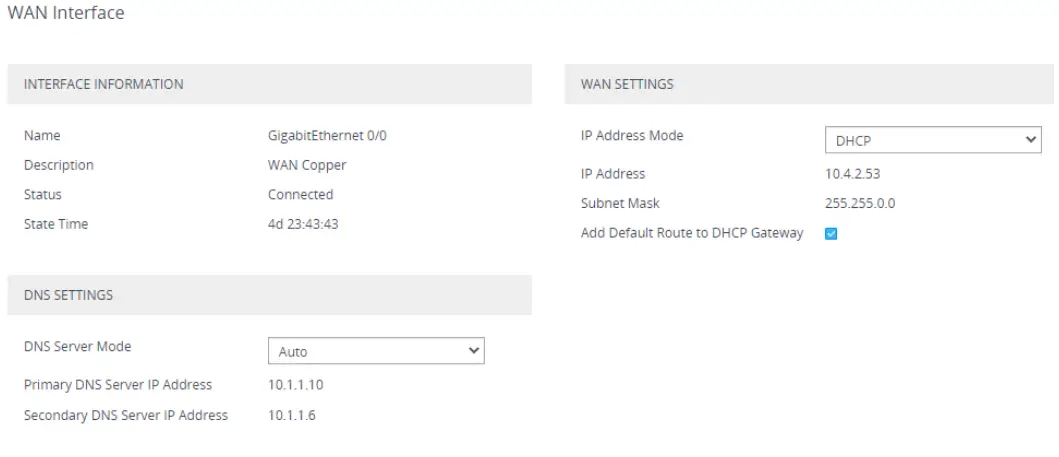
This section describes how to configure the WAN interface, which uses Gigabit Ethernet.
Before configuring the WAN interface, make sure that you have all the required information from your Internet service provider.
- Connect the WAN port to the WAN network. For information on cabling the WAN port, refer to the Hardware Installation Manual.
- Open the WAN Interface page (Setup menu > IP NETWORK tab > CORE ENTITIES folder > WAN Interface).
- Configure the following:
• WAN settings (Static or DHCP Client – default is DHCP Client)
• DNS settings (Static or Auto – default is Auto)
Cabling the Device
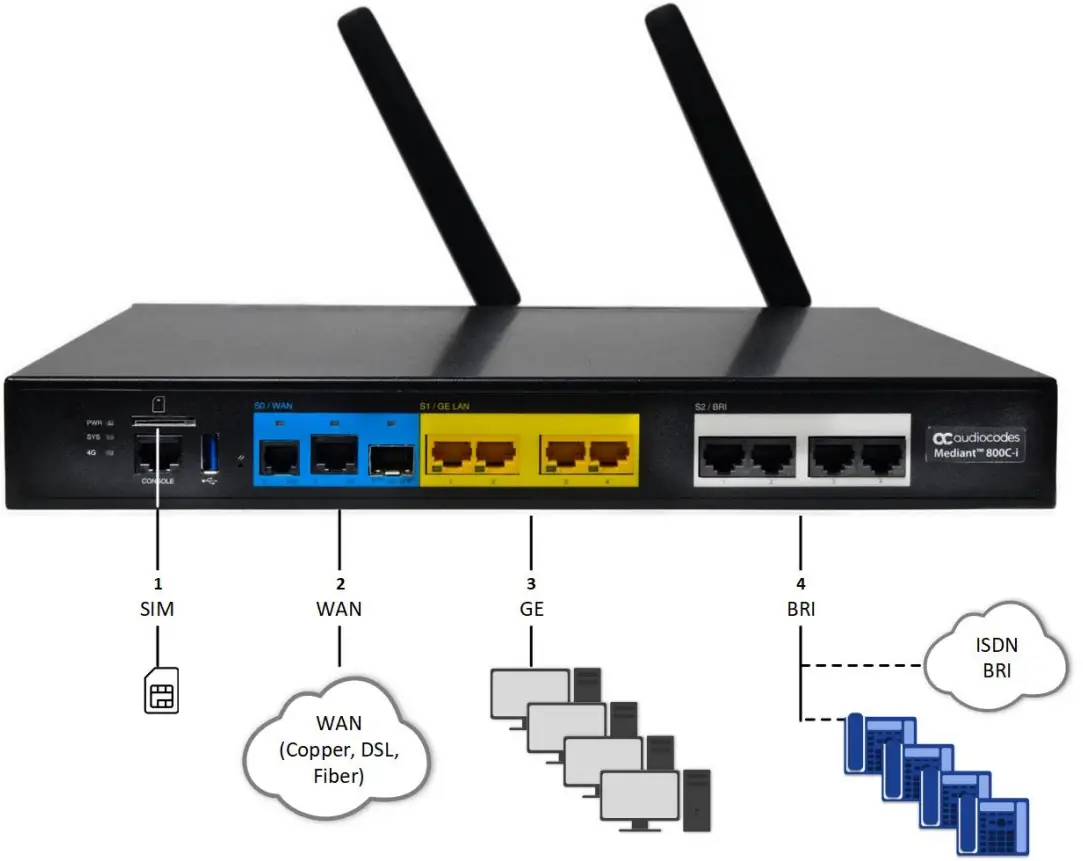
- Insert the SIM card (provided by your Service Provider) into the SIM slot.
- Connect the device’s WAN port interface to your router.
- Connect the device’s Gigabit Ethernet ports to your LAN network.
- Connect the device’s BRI ports to BRI phones or the ISDN network.
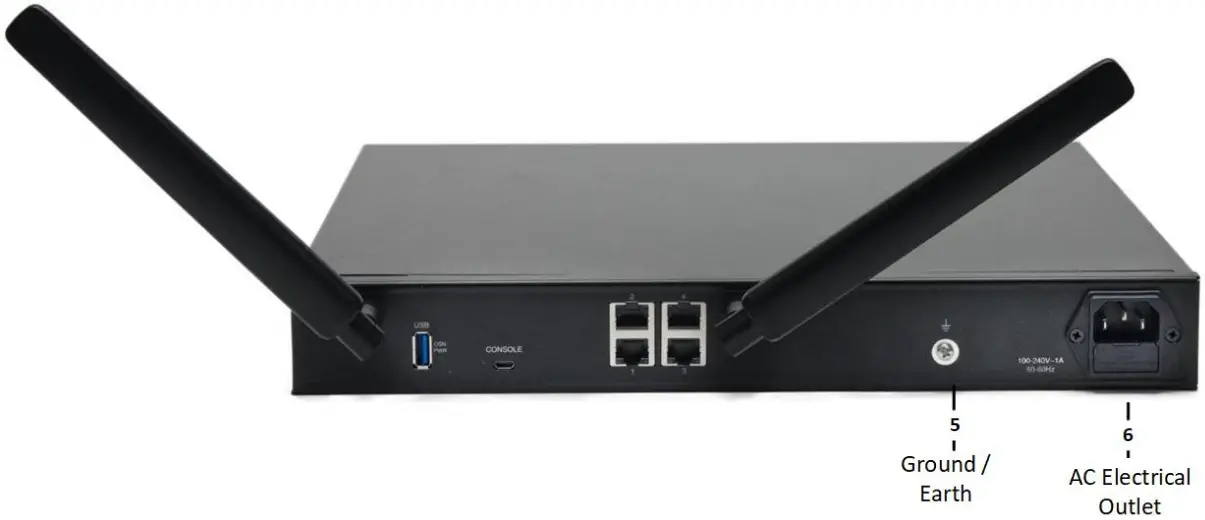
- Ground (earth) the device, using the grounding screw on the rear panel.
- Connect the device to your AC electrical outlet, using the power outlet on the rear panel.
Connecting to OSN Server
The following procedure describes how to access the device’s embedded OSN server so that you can install your applications (e.g., SD-WAN).
- Establish a serial connection with the OSN server:
a. Connect your computer’s COM port to the device’s Micro USB port (labeled CONSOLE) located on the rear panel.
b. Using a terminal emulator program (e.g., PuTTY), connect to the OSN server using the following settings:
• Serial Line: <COM port check your computer’s Device Manager for assigned COM>
• Speed: 115200 bps
• Connection Type: Serial - Attach your bootable USB dongle to the device’s USB port (labeled USB) located on the rear panel, and then power up the device. By default, the server boots from the USB as first boot priority.
©2022 AudioCodes Ltd. All rights reserved. AudioCodes, AC, HD VoIP, HD VoIP Sounds Better, IPmedia, Mediant, MediaPack, What’s Inside Matters, OSN, SmartTAP, User Management Pack, VMAS, VoIPerfect, VoIPerfectHD, Your Gateway To VoIP, 3GX, VocaNom, AudioCodes One Voice, AudioCodes Meeting Insights, AudioCodes Room Experience and CloudBond are trademarks or registered trademarks of AudioCodes Limited. All other products or trademarks are property of their respective owners. Product specifications are subject to change without notice.
International Headquarters
1 Hayarden Street,
Airport City
Lod 7019900, Israel
Tel: +972-3-976-4000
Fax: +972-3-976-4040
AudioCodes Inc.
200 Cottontail Lane,
Suite A101E,
Somerset, NJ 08873
Tel: +1-732-469-0880
Fax: +1-732-469-2298
Contact us: https://www.audiocodes.com/corporate/offices-worldwide
Website: https://www.audiocodes.com
Document #: LTRT-23620
Date Published: 3/5/2022
 AudioCodes - Voice DNA for the digital workplace