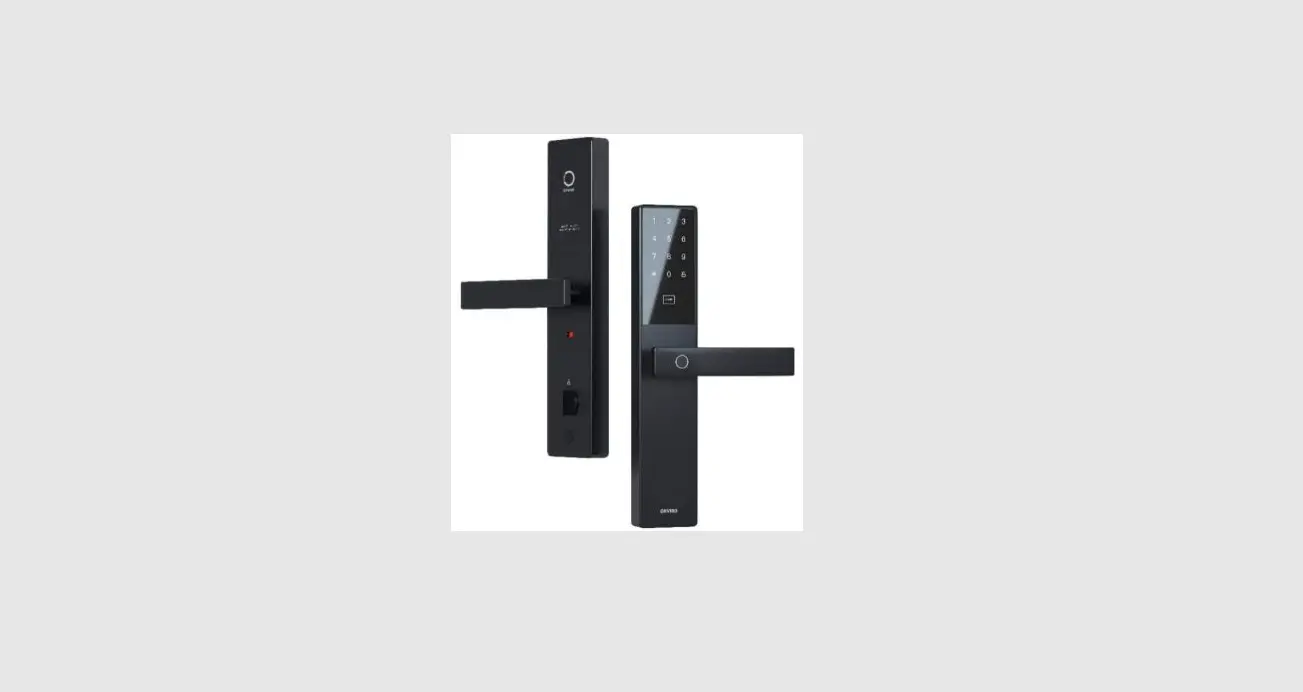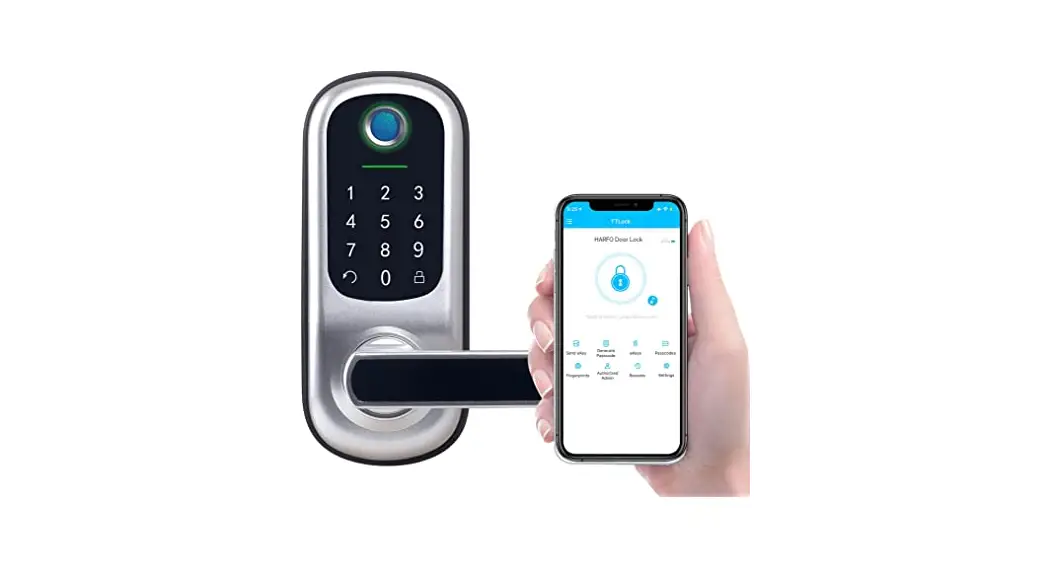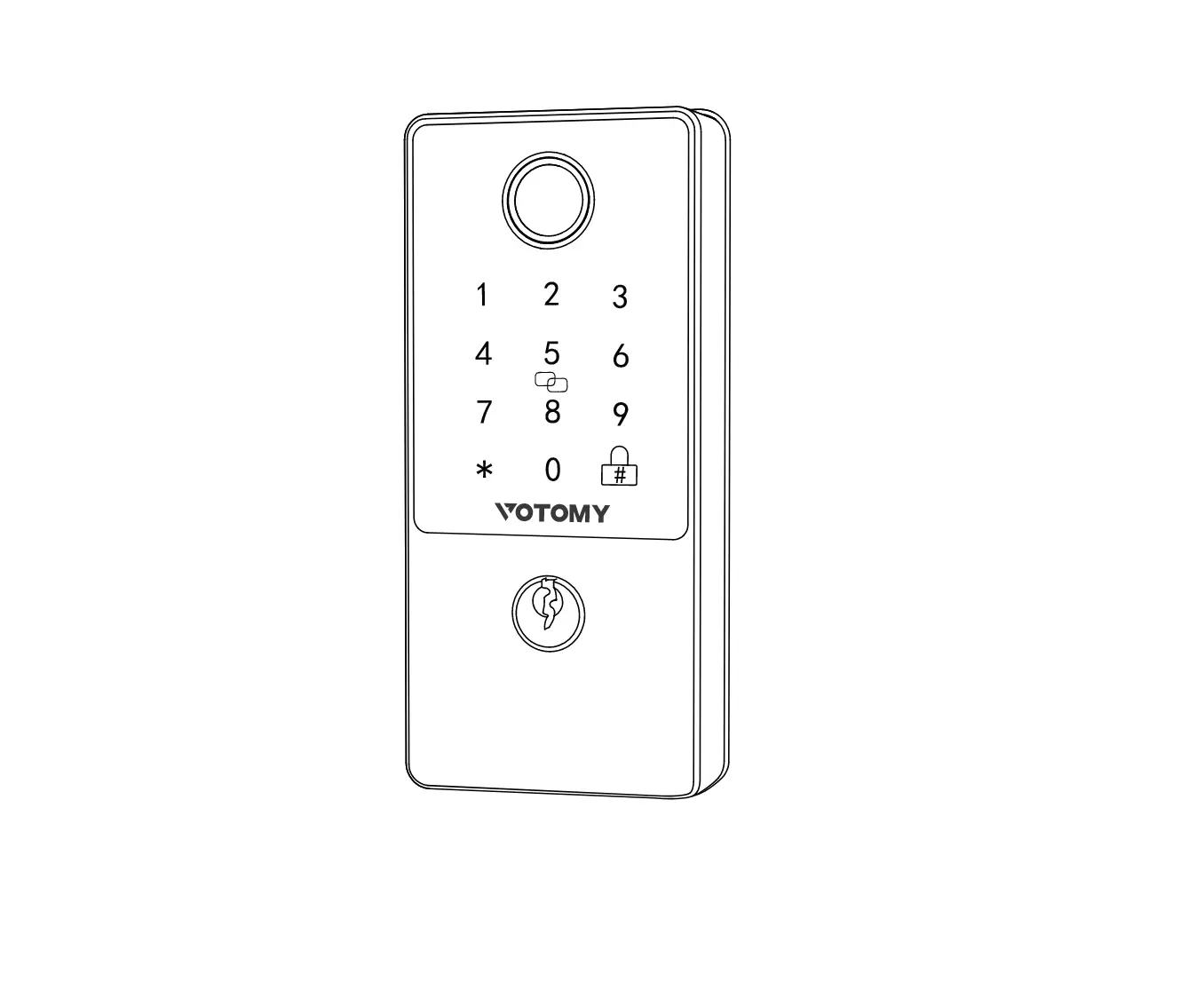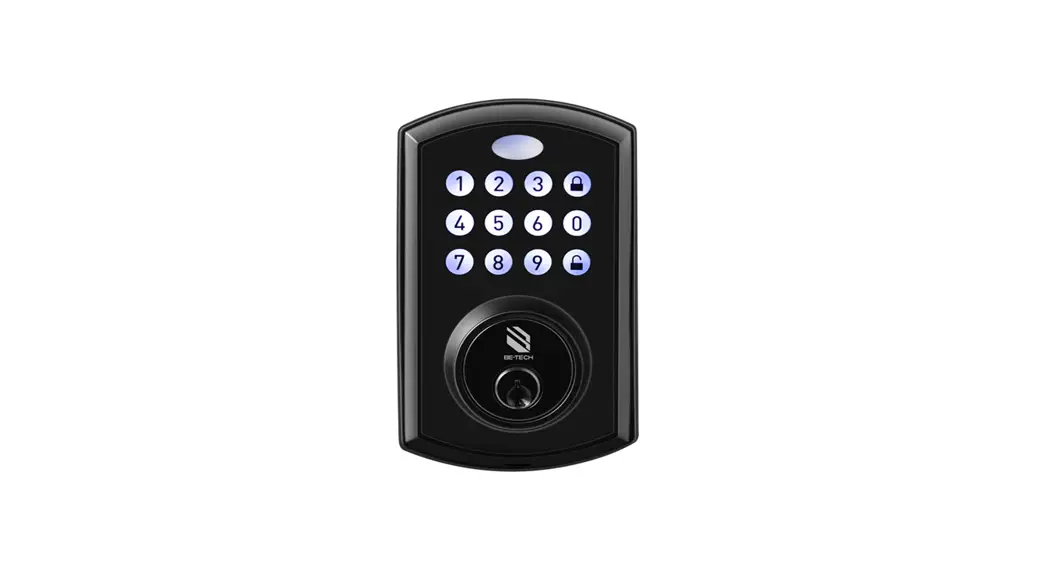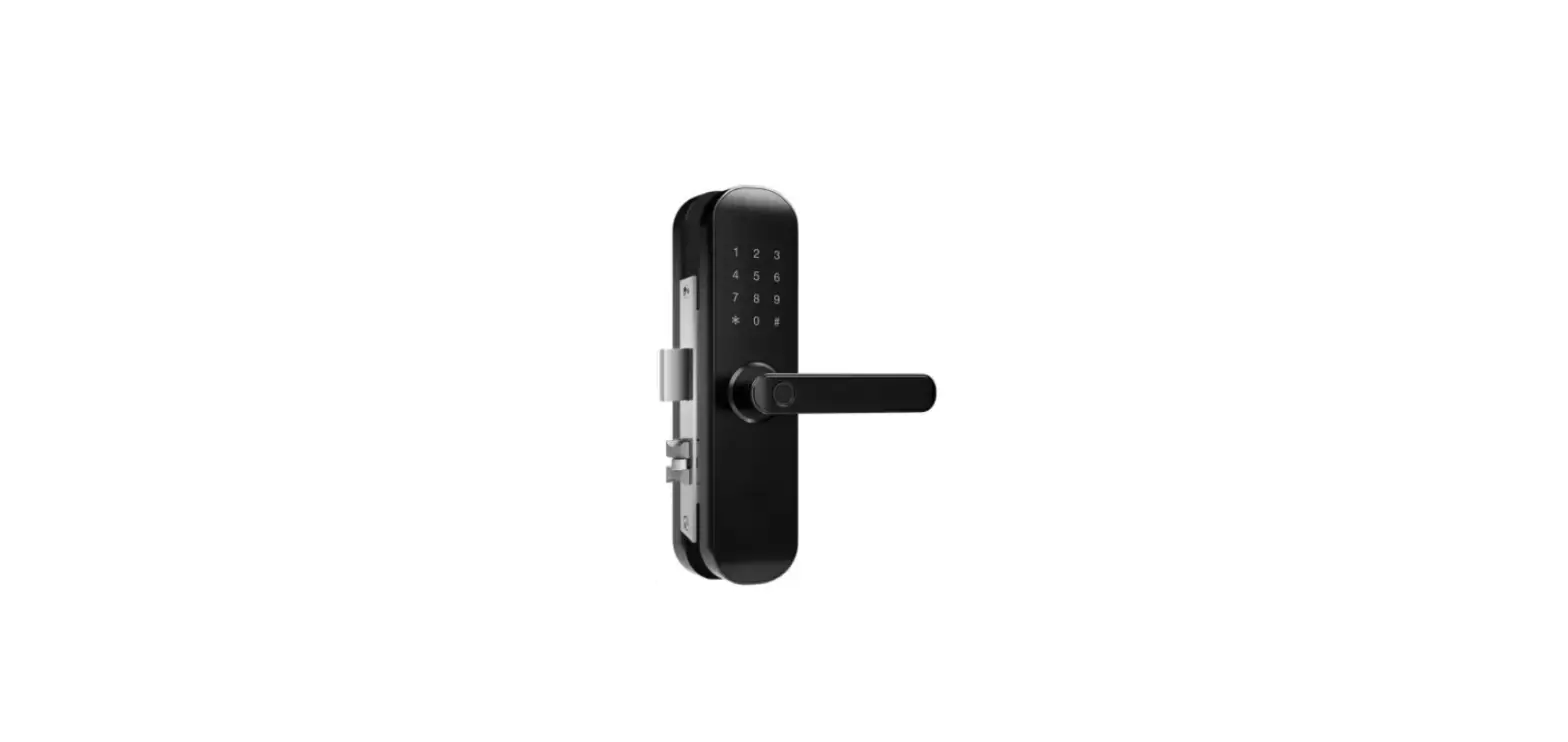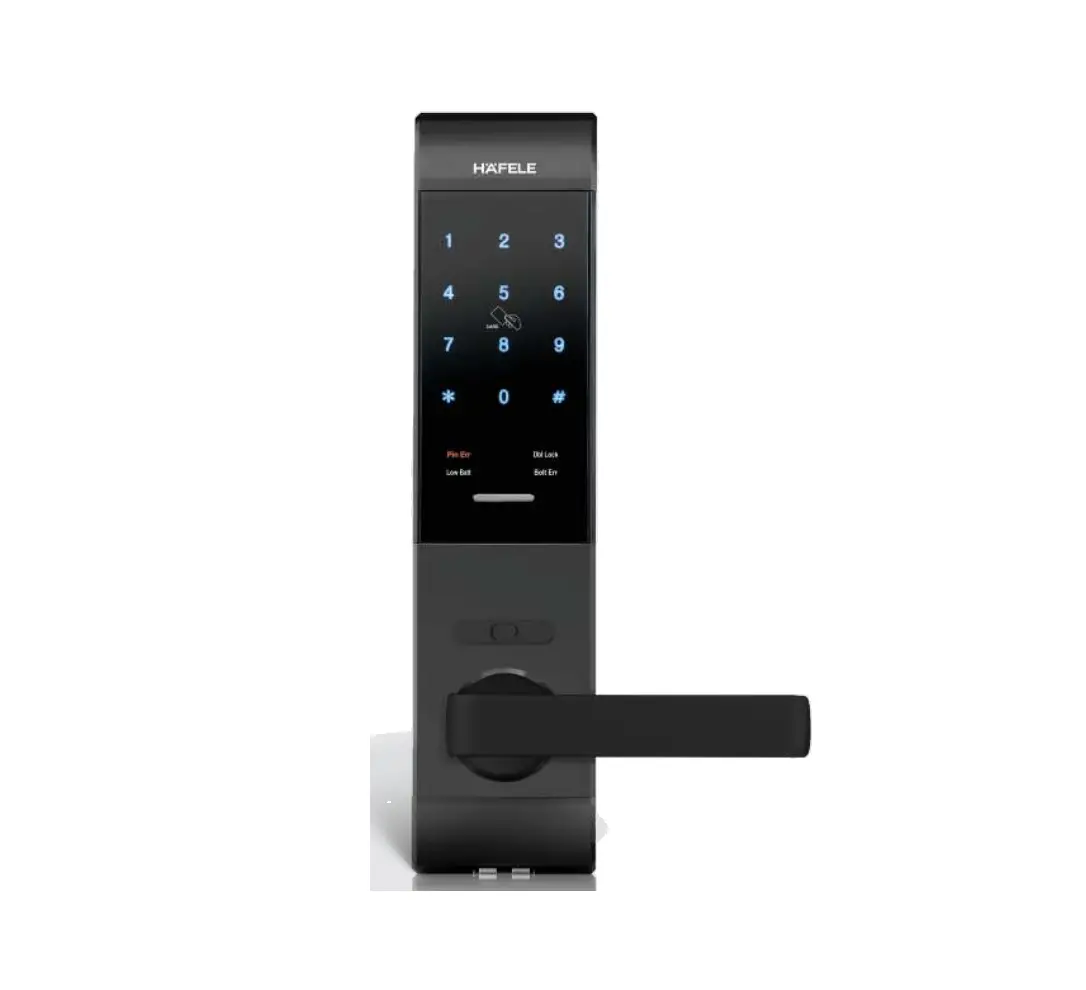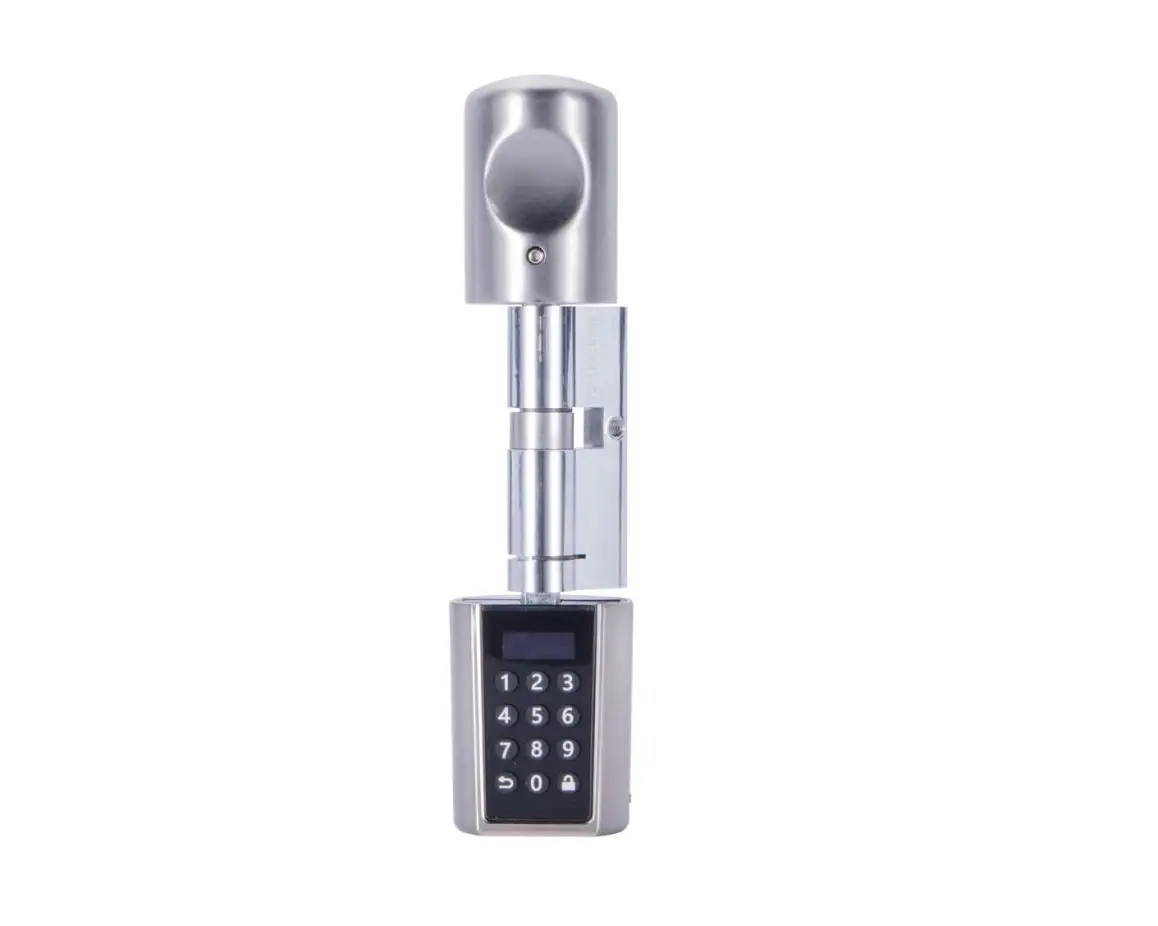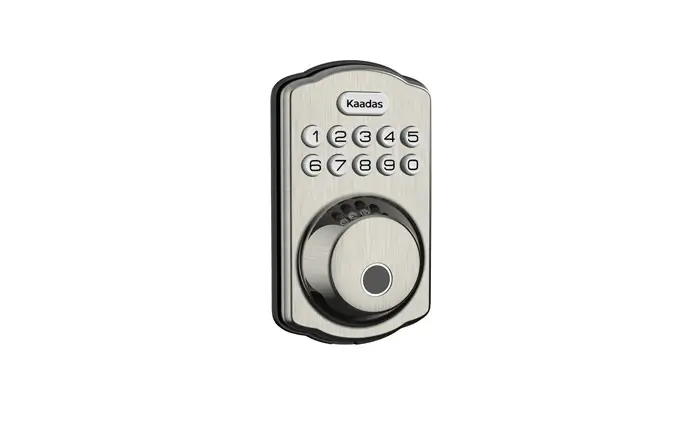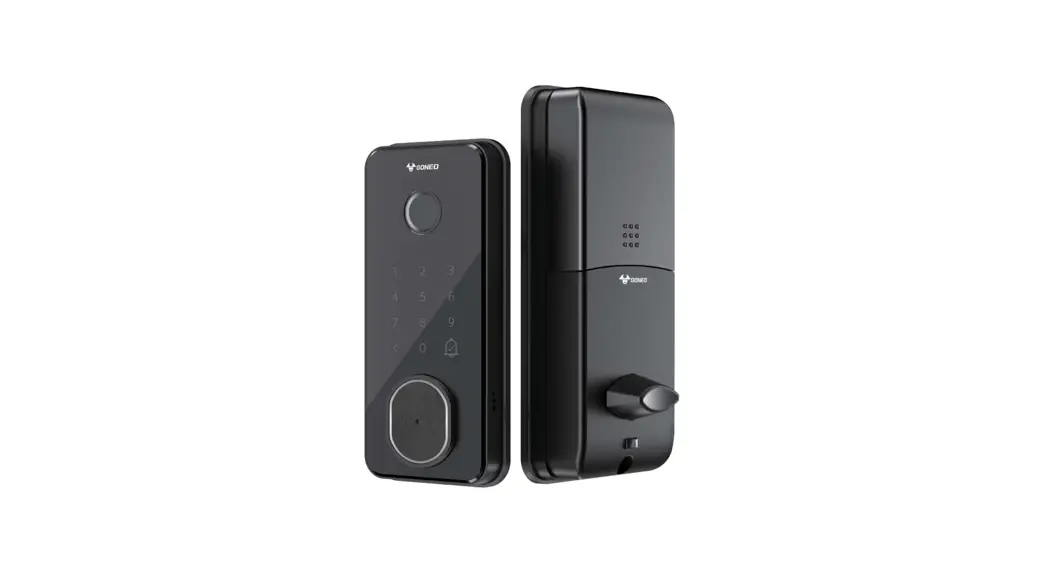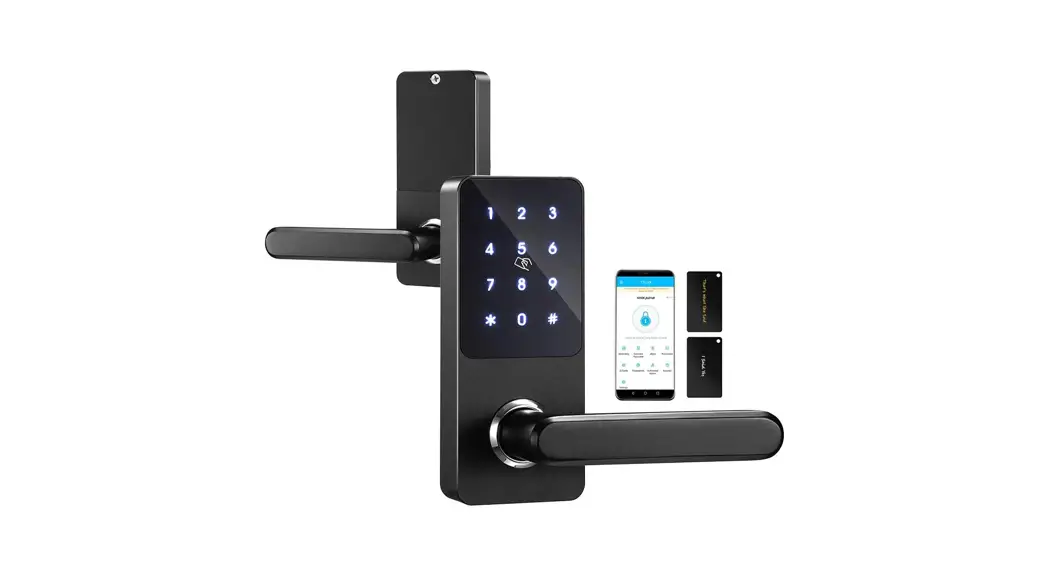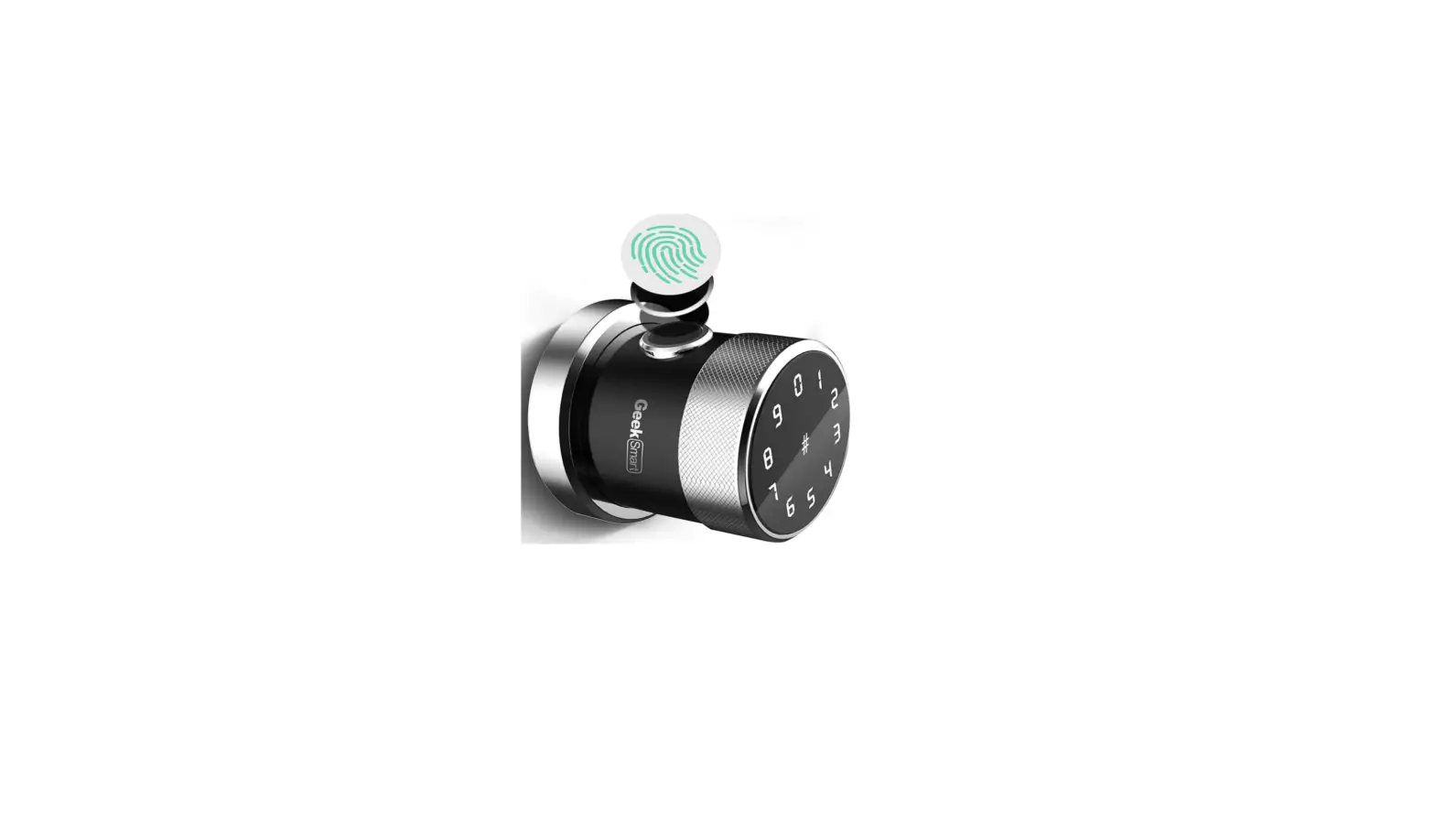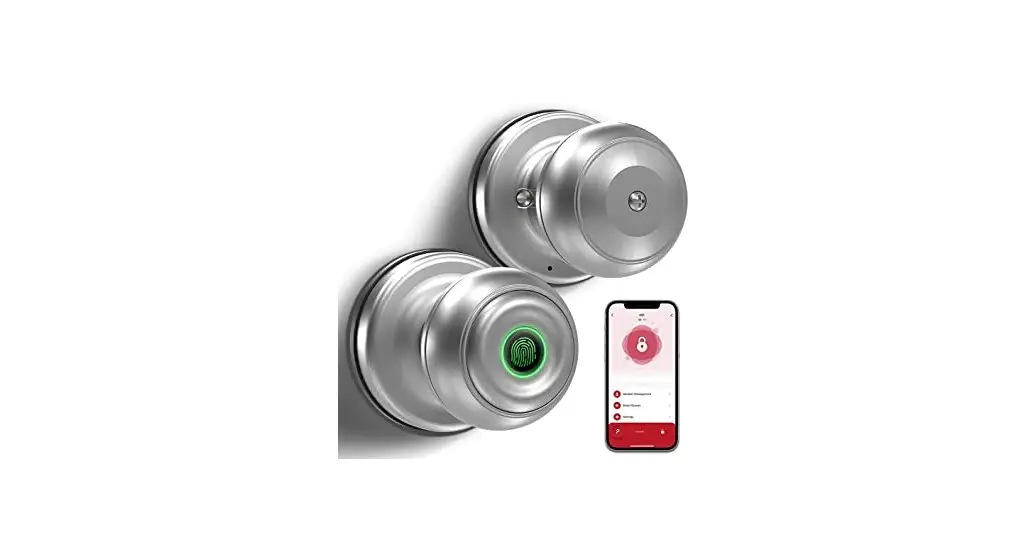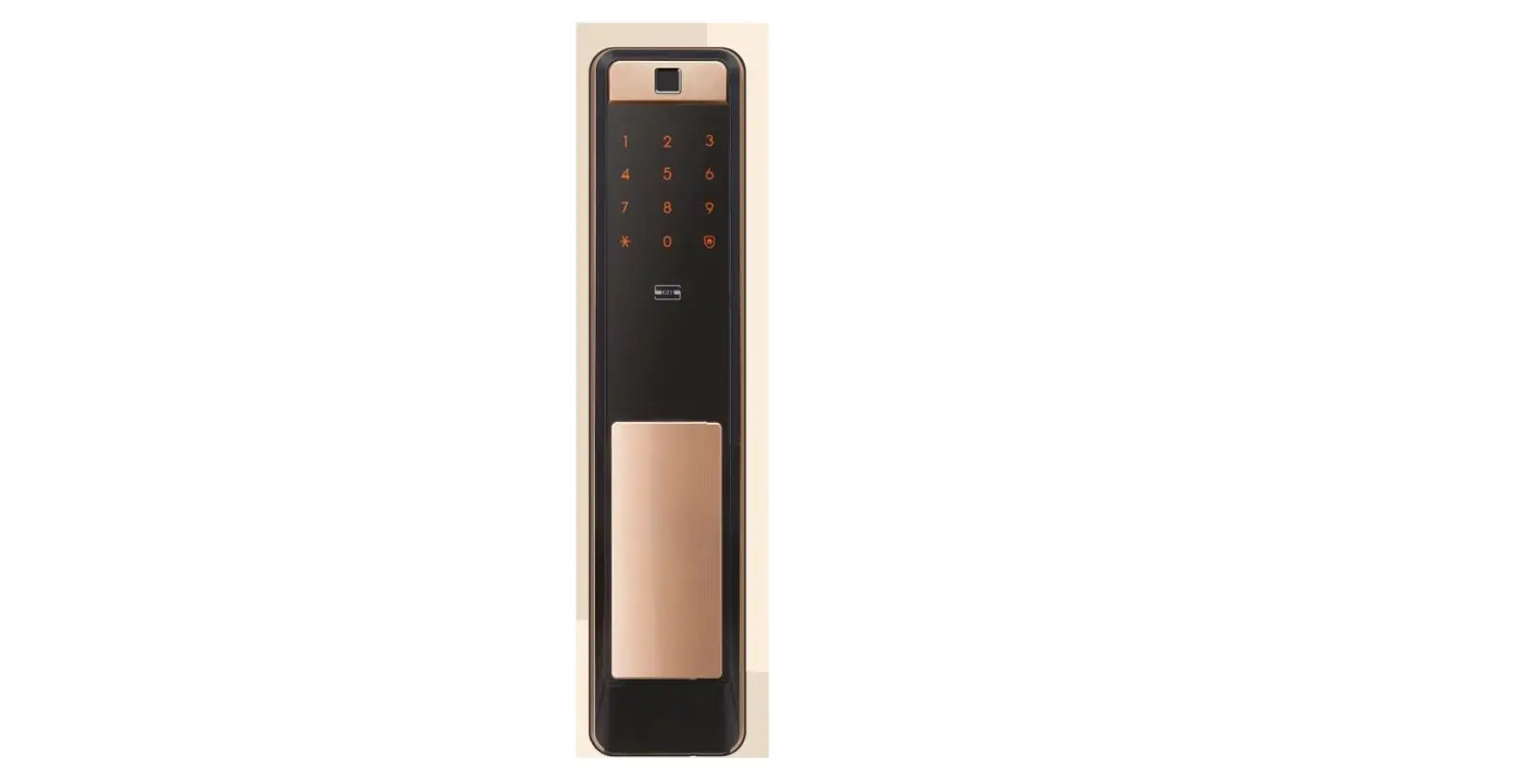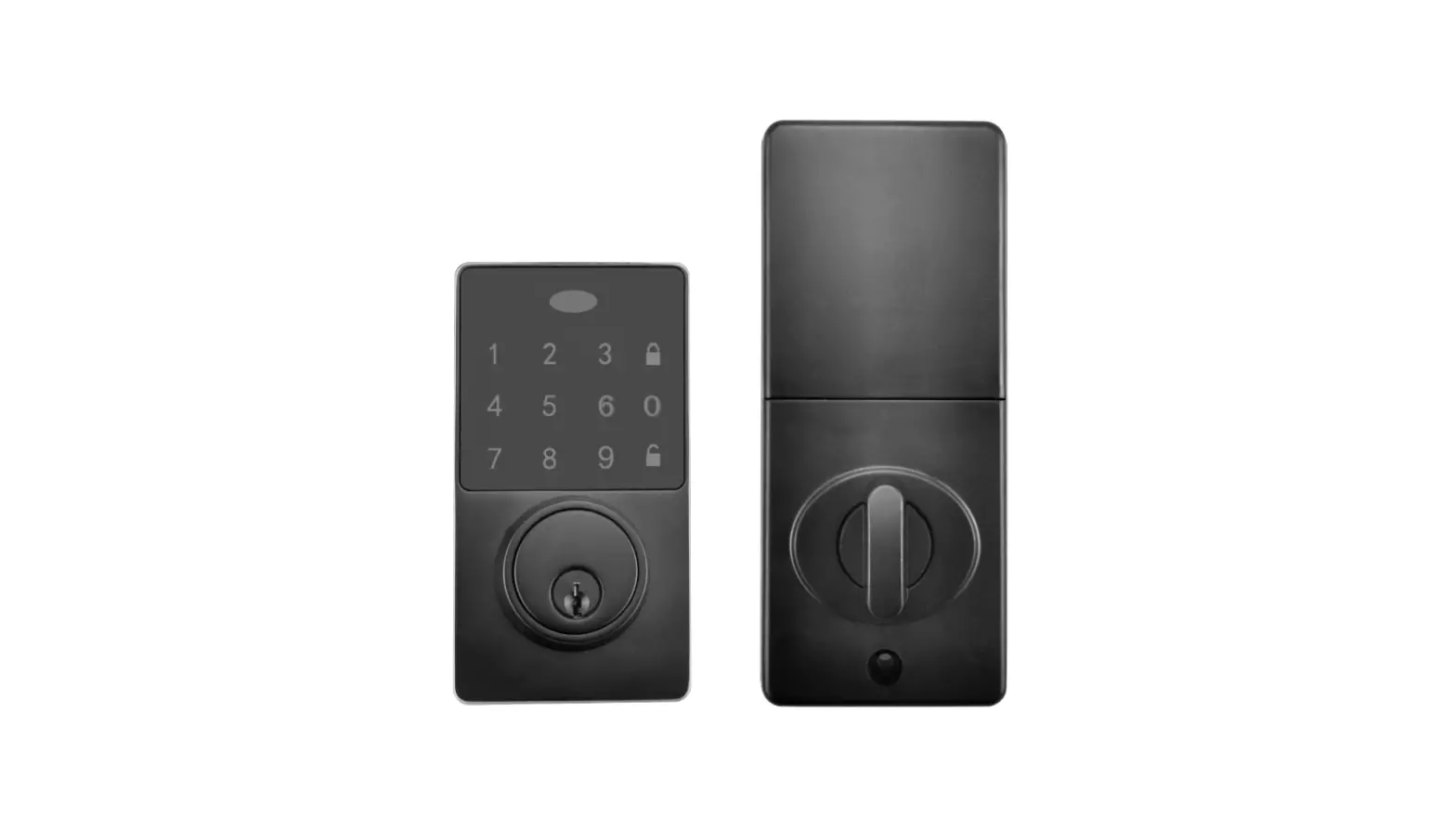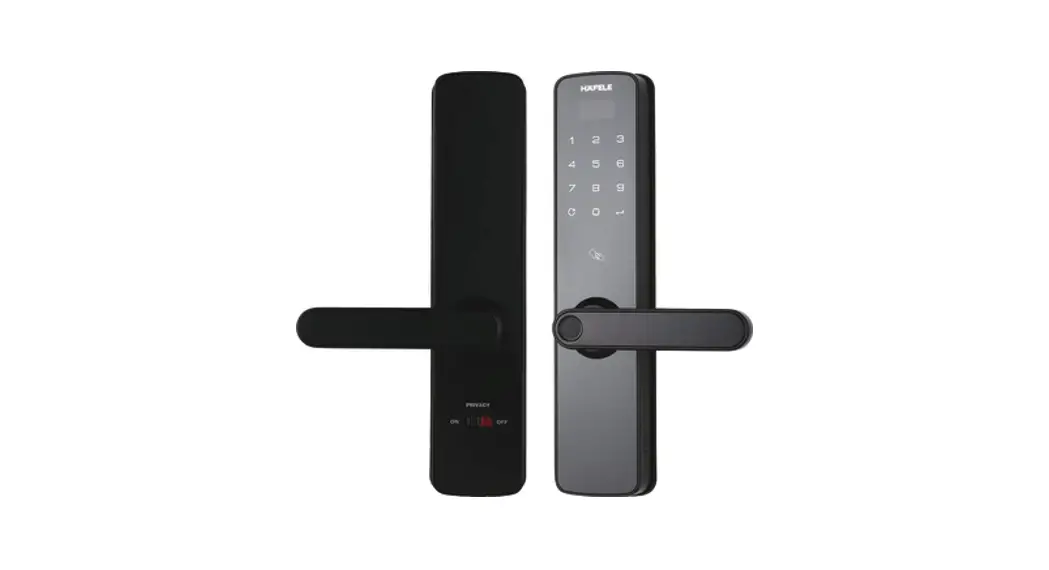

Pairing Manual Digital Door Lock 7100
with Hafele Smart Living Application

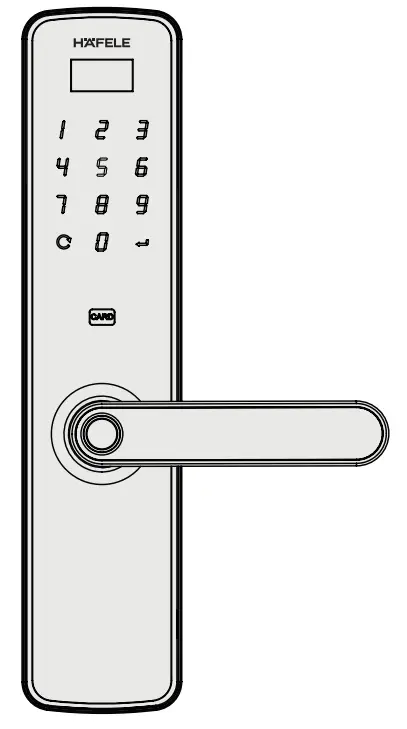
USER MANUAL
* The contents of this user manual are subject to change without prior notice to the user in order to the user in order to enhance performance of products
Contents hide
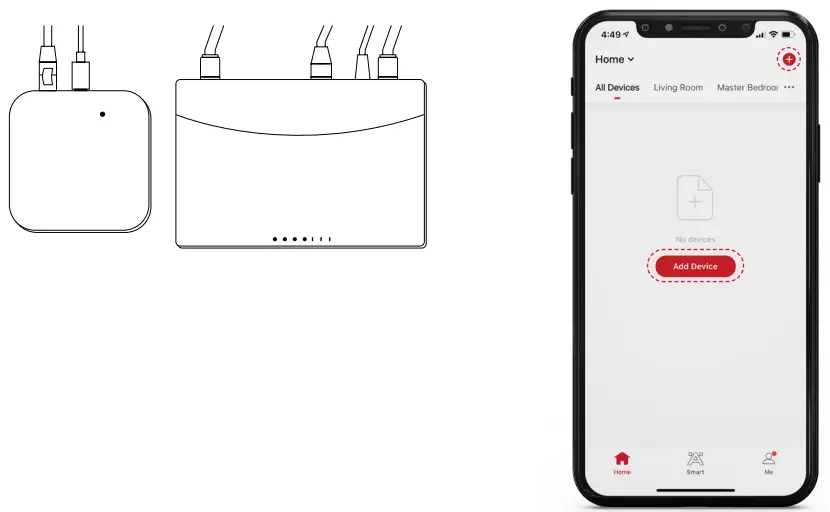
Add Gateway Device to LAN
- Connect the power supply and LAN cable into the device and WIFI router
- Go to Hafele Smart Living APP, click on “+” on the right side or click on “Add Devices”

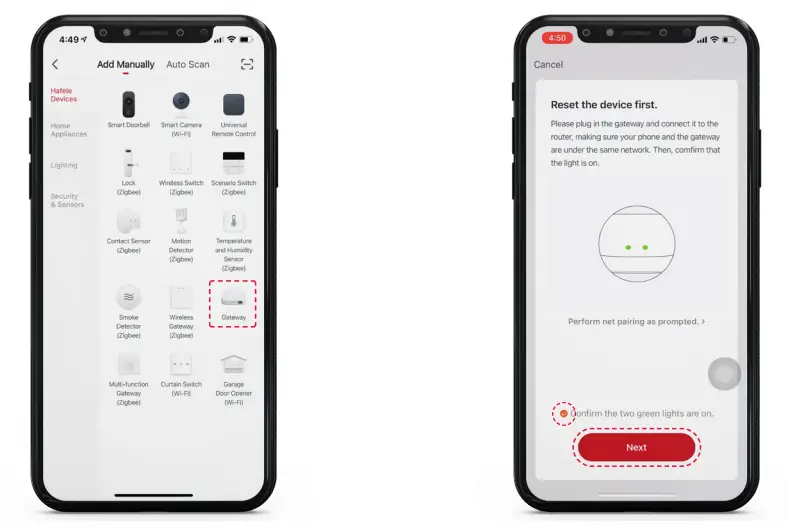
- Go to “Hafele Devices”and then select “Gateway”
- Click on “Confirm the two green lights are on” and then press “Next”

- The application will search for the devices, please wait until the device appeares and then press on “+” sign

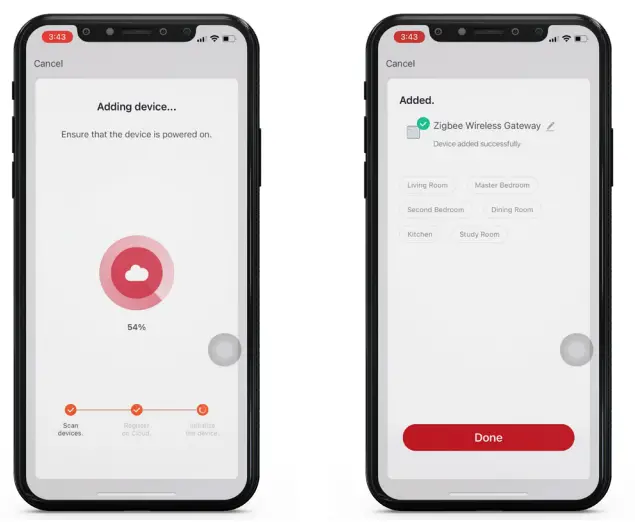
- When the display screen shows “Added” that means the device pairing was successful

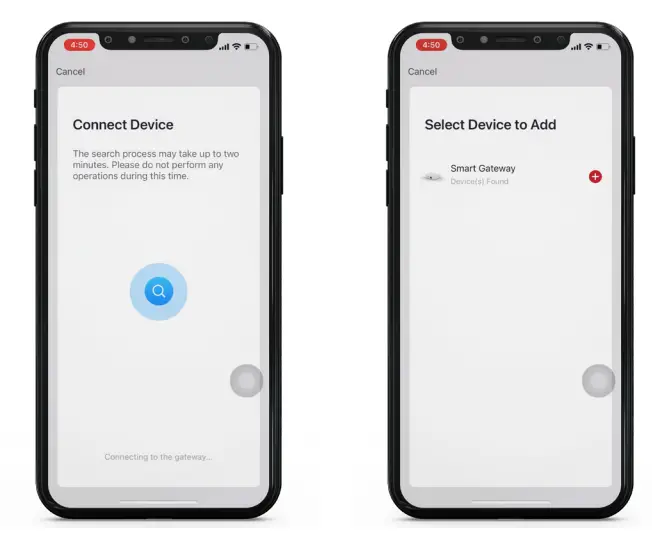
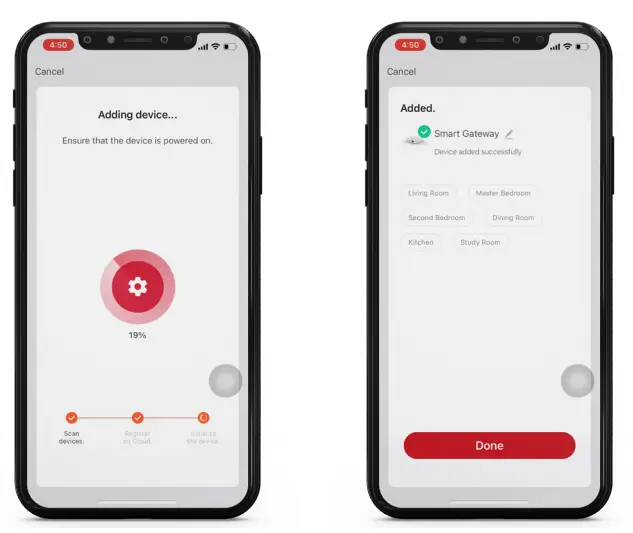
Add Wireless Gateway (Zigbee)
- Connect the power supply cable to the device
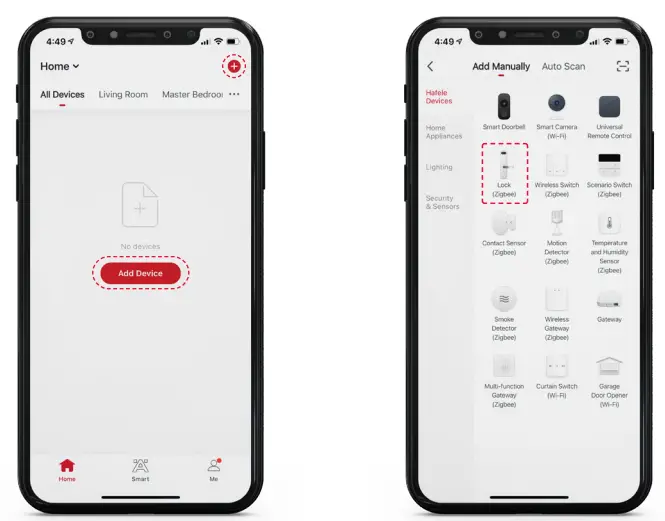
- Go to “Hafele Smart Living” and then select “+” on the right side or press on “Add”

- Go to “Hafele Devices” and select “Wireless Gateway (Zigbee)”
- Select WIFI menu, enter WIFI password and then press “Next”

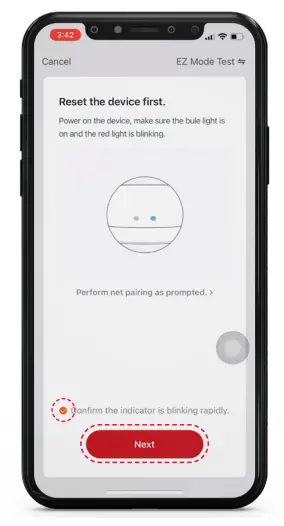
- Click on “Confirm the indicator is blinking rapidly” and then press “Next”

- When the display screen shown “Added” that means the device pairing was successful

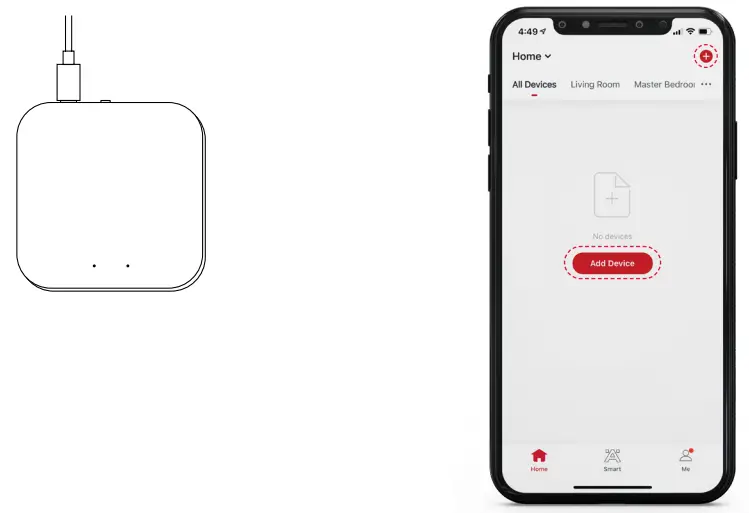
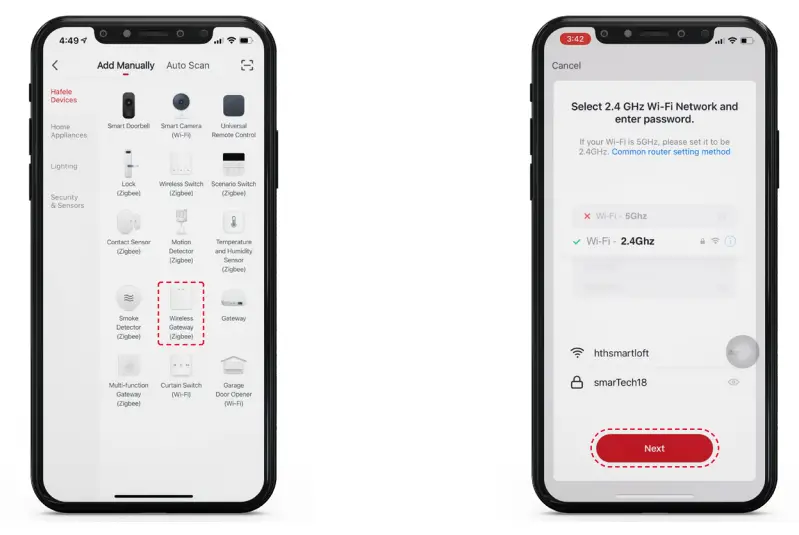
Pairing lock with Application
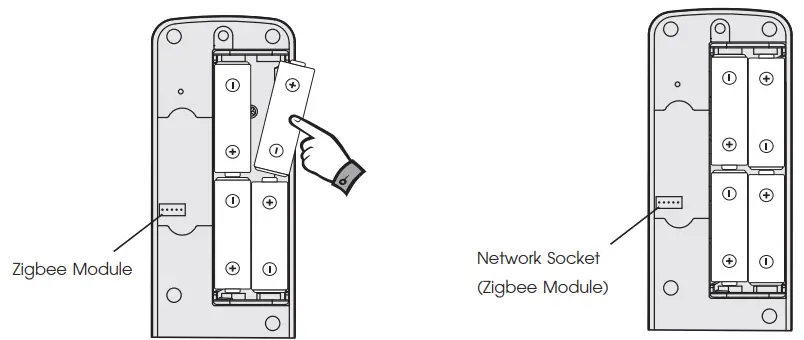
- Open battery cover and then remove one piece of battery
- Connect the Zigbee module and re-insert the battery

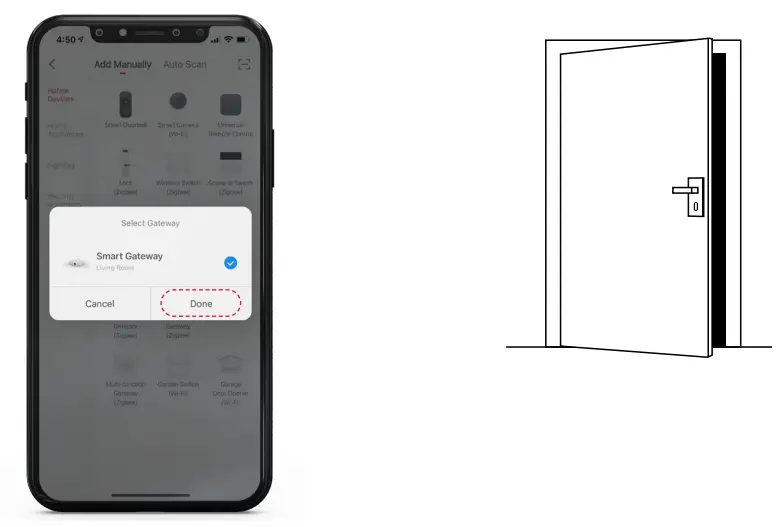
- Go to “Hafele Smart Living APP”, select “+” and then click on “Lock (Zigbee)”

- Select the Gateway to add the lock and click on “Confirm”
- Unlock the lock and hold on the door open

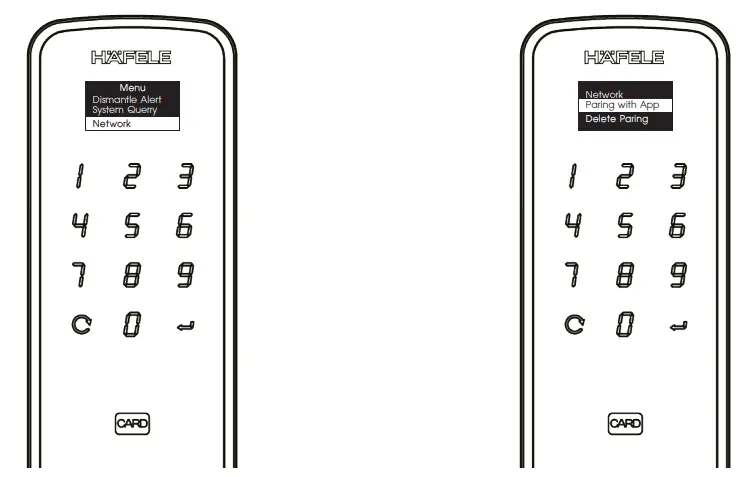
- Enter the Locks settings menu, then select“Network”
- Select “Pairing with APP” on the digital door lock

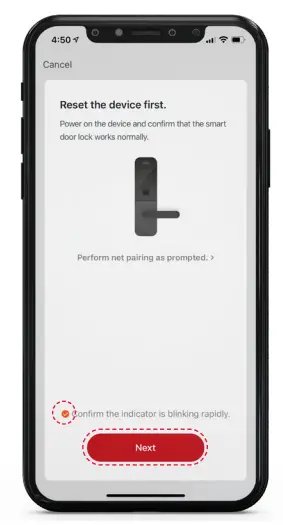
- Click on “Confirm the indicator is blinking rapidly” and then press “Next”

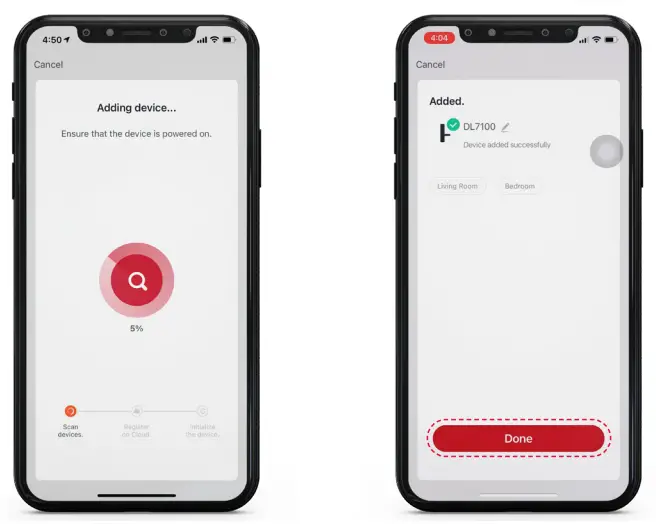
- When the device has been paired successfully, the application will show an icon to change the device name and then press “done”
Basic function
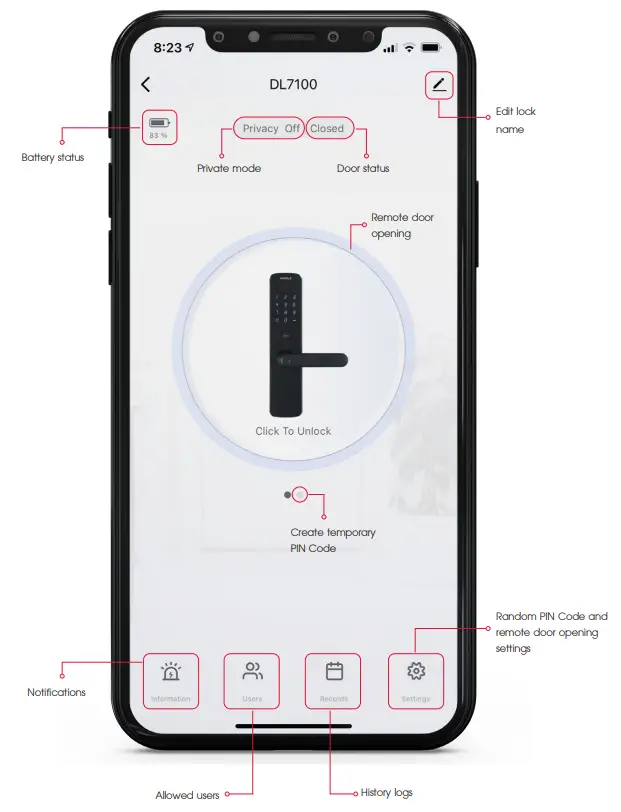
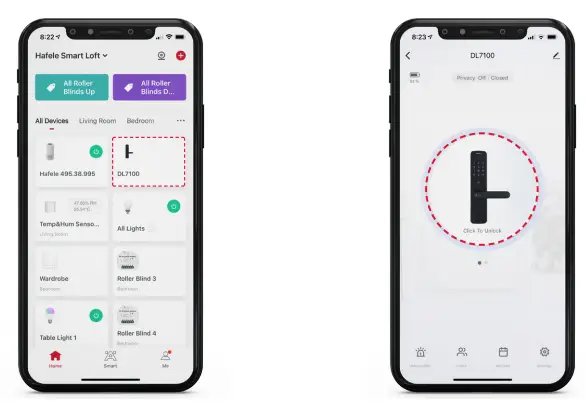
Remote door opening with mobile APP
- Open the application and select lock management
- Touch and long press to the sign on centre

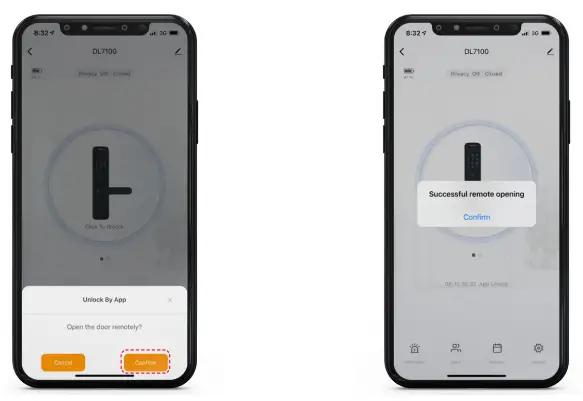
- When the display screen appears, then click “Confirm”
- Please wait until display screen shows opening successful

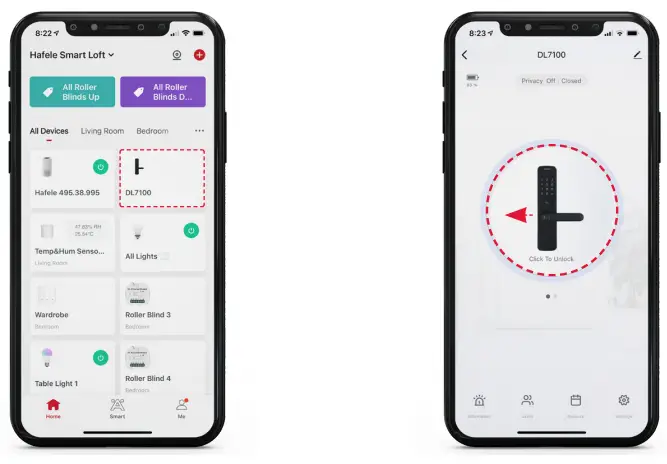
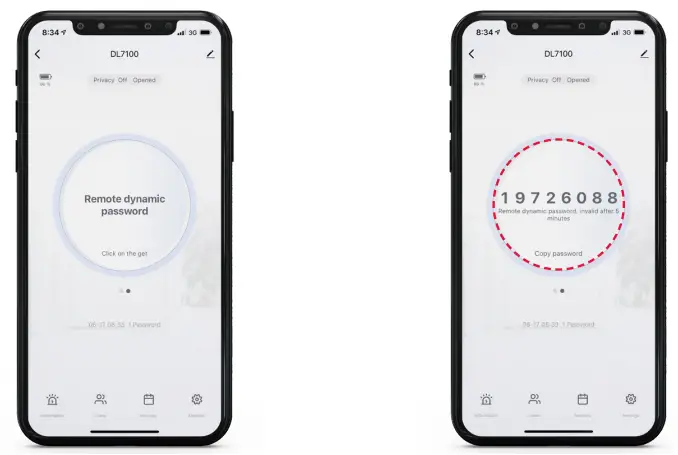
Create temporary PIN Code
- Open the application and select lock management
- Touch the sign on centre and then slide left

- “Remote dynamic password” will show as the picture below
- Touch the screen and please wait until the digits stop

Add users
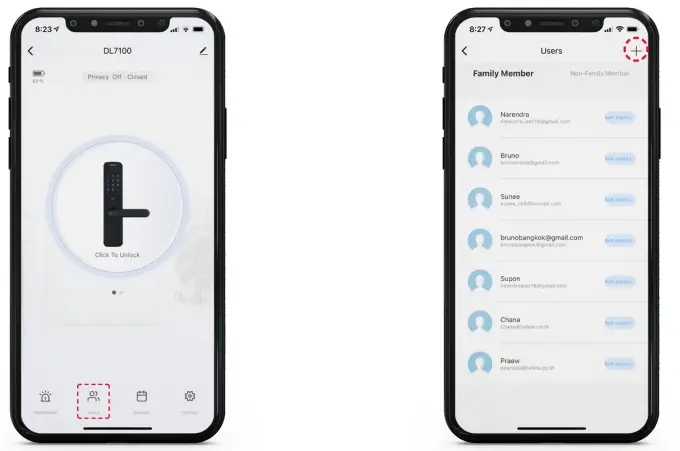
- Select “Users” on the bottom
- Select “+” on the right side

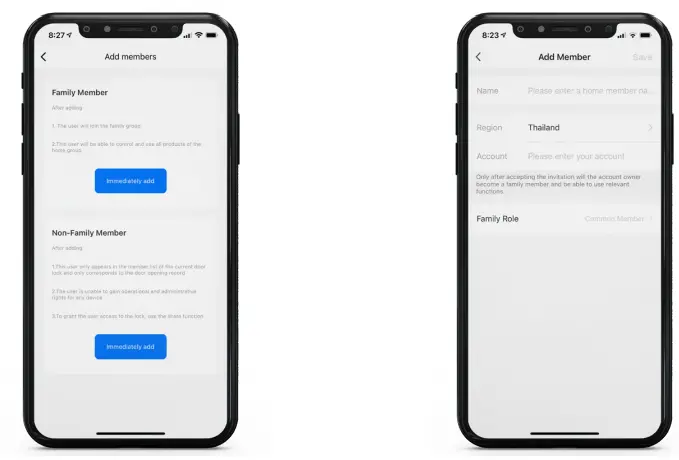
- Select the member type and then click “Immediately add”
- Family Members; enter user data e.g. Name, Region, Account (email of their mobile APP account)
**Note: Users will then see this lock in their APP and have access to all functions.
- Enter non-family user data. These members are only added to display their name in the unlock “Records”. This is very useful, but needs some setup.
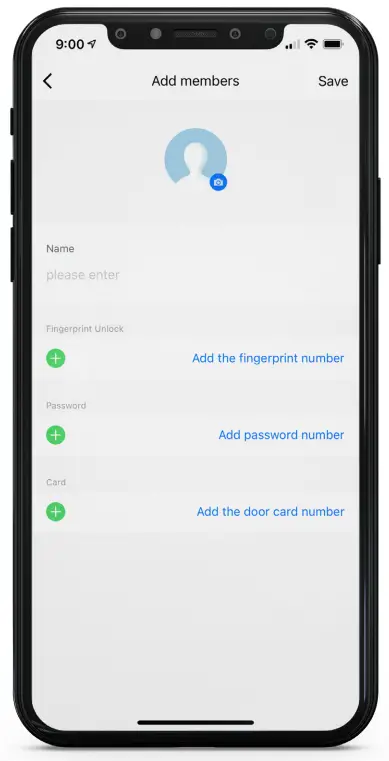
5.1 Add user PIN Code, fingerprint or card using the locks own menu (not in the app) 5.2 Test your PIN Code, fingerprint or card to open the lock5.3 Open the App and check the unlock “Records”5.4 You can see the Number assigned to your PIN Code, fingerprint or card in the logfile5.5 Go back to “Users”, select the user and click “Edit”5.6 Now you can assign the correct PIN Code, fingerprint or card “number” to the correct user name
Unlock records
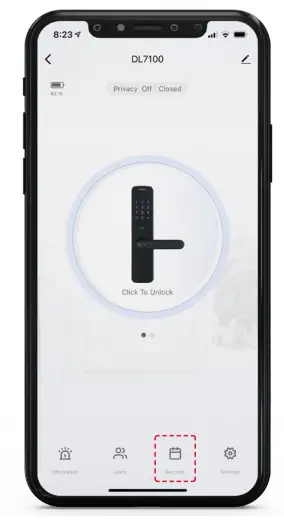
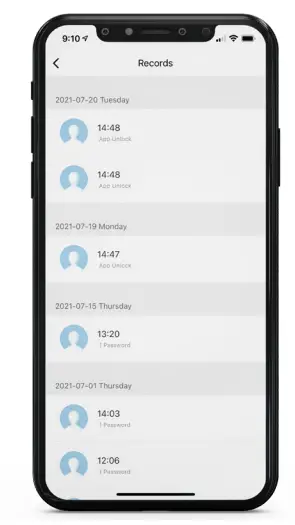
- Select “Records” on the bottom

- The application will show the usage history e.g. name, time and unlock activity
Temporary PIN Code function
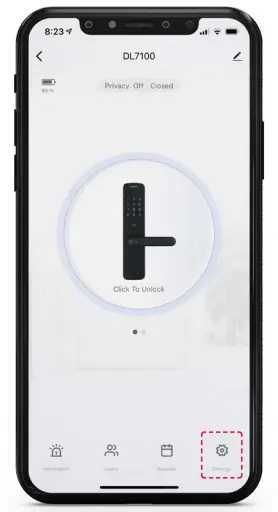
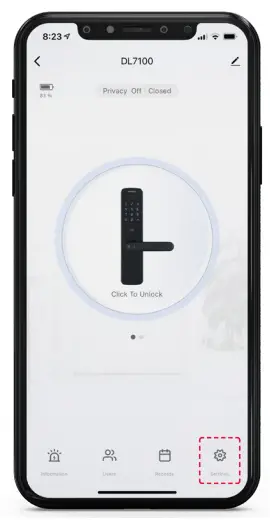
- Select “Setting” on the right

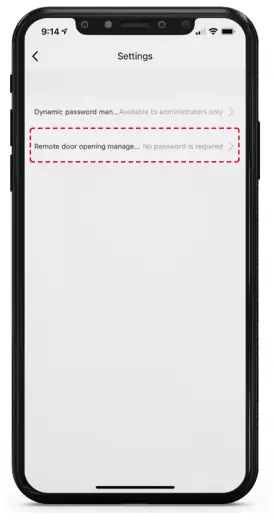
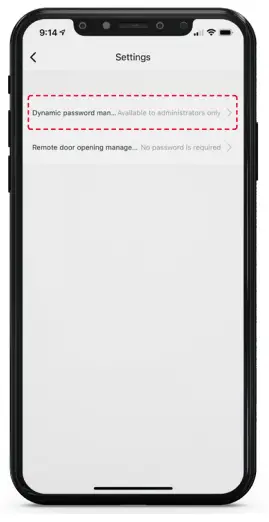
- Select “Dynamic Password Management”

- Select “Available to administrators only” to activate the random security coding function for admin only
- Select “All users are available” to activate the random security coding function for all users

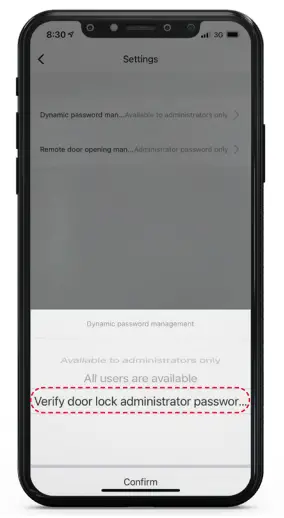
- Select “Verify door lock administrator password is available” in case of need to enter Master’s PIN Code before using the random security coding function
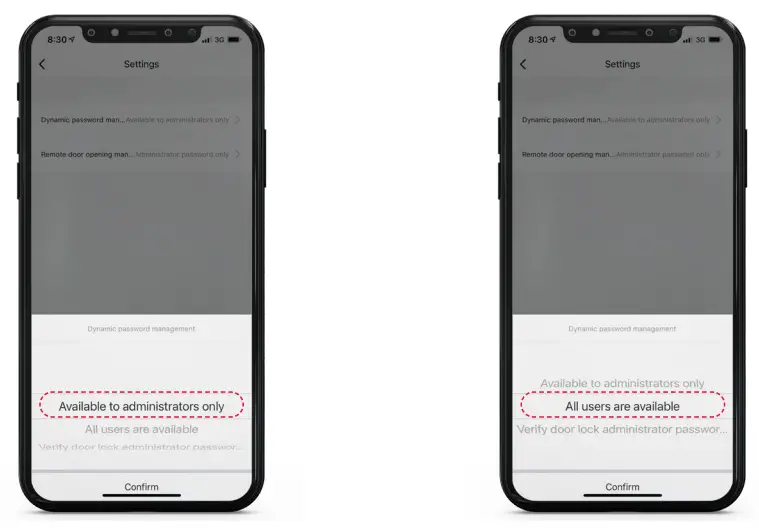
Remote door function settings
- Select “Setting” on the right

- Select “Remote Door Opening Management”

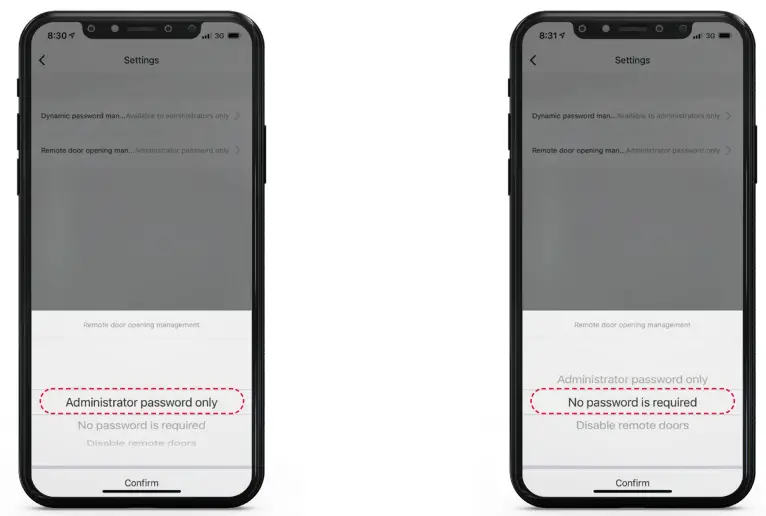
- Select “Administrators password only” to activate the function for admin only
- Select “No password is required” to activate the function for all users

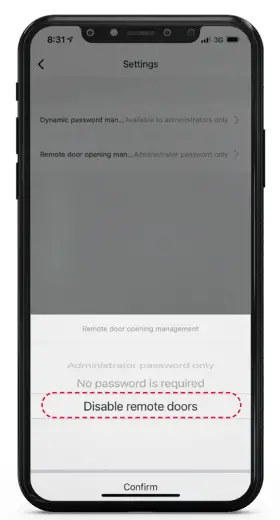
- Select “Disable remote doors” to deactivate the remote doors function