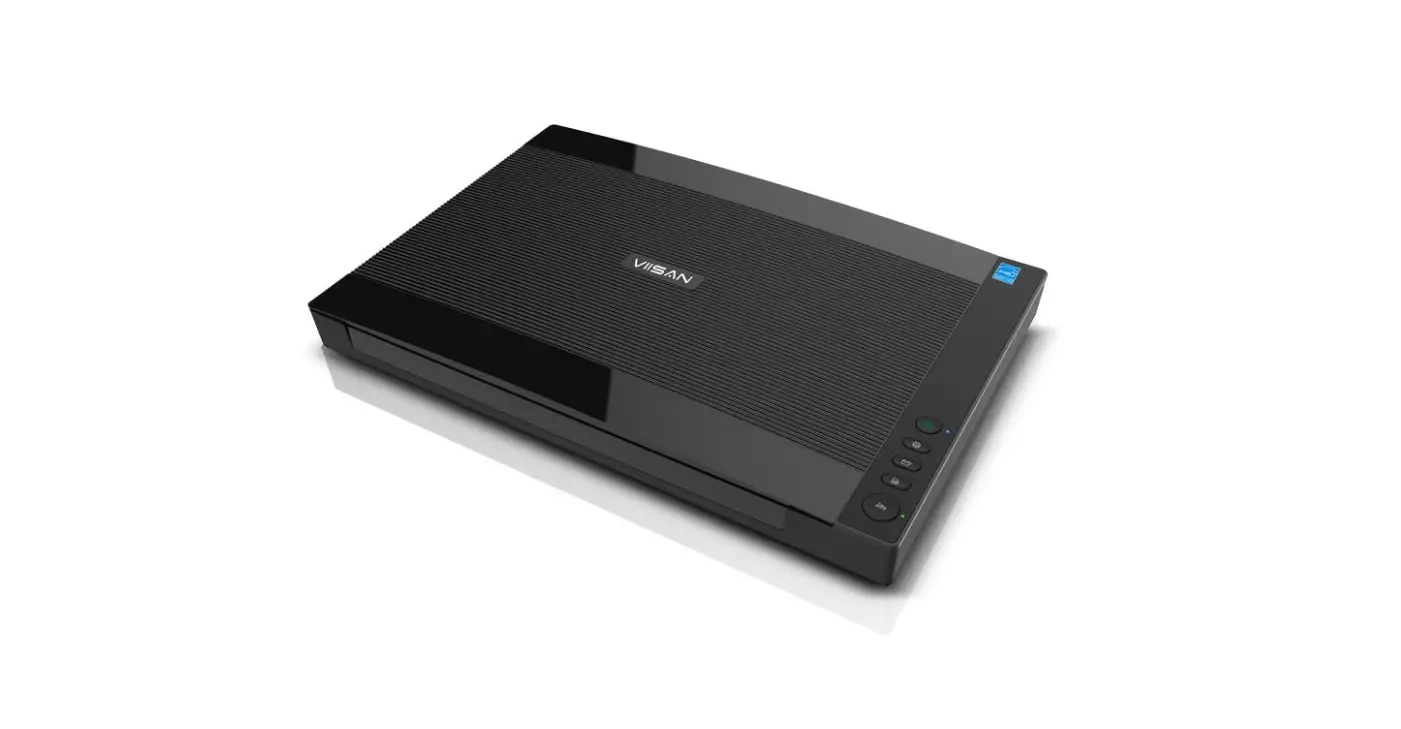
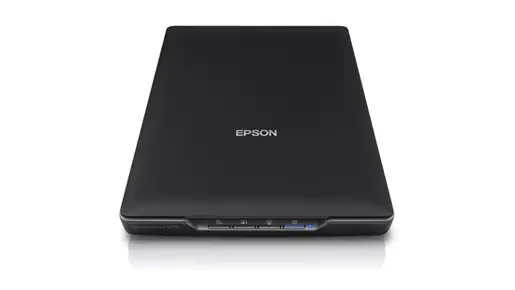
VF3240 A3 High Speed Flatbed Scanners
Product Information
The VF3120 / VF3240 is a high-speed flatbed scanner that is
compatible with Windows operating systems. The package includes a
scanner, USB cable, power adapter, installation CD, and warranty
card. The scanner has a DC IN port, USB port, and a power LED
indicator. It is capable of scanning A3 sized documents.
Product Usage Instructions
Step 1: Before connecting the scanner to the
computer, insert the installation CD into the CD drive of the
computer. For Windows 11/10/8.1/8/7 users, if the [User Account
Control] screen appears, click [Yes] to start installation.
Step 2: Click on [Easy Installation] and follow
the instructions on the screen to complete the installation. If you
want to reinstall only specific software that you have previously
uninstalled, select [Custom Installation] and specify the software.
When the installation is completed, click [Finish] to exit the
program.
Note: If your computer does not have a CD
drive, please visit https://www.viisan.com/en/download/type2.html
to download the standalone software.
Step 3: Connect the supplied power adapter to
the scanner’s DC IN port, and plug the other end to a power
outlet.
Step 4: Connect the supplied USB cable to the
scanner’s USB port and the other end to the computer.
Step 5: Press and hold [POWER] to turn on the
scanner until the Power LED lights up in blue. To turn off the
power, press and hold [POWER] for a while until the Power LED turns
off.
Note: Do NOT connect the scanner to the
computer before installing the software. You must install the
scanner driver first then connect the scanner to the computer.
VF3120 / VF3240 – A3 High Speed Flatbed Scanners
Quick Start Guide / Kurzanleitung / Guide de démarrage rapide / Snelstartgids /
Windows Edition
V1.2
1 Unpacking / Lieferumfang / Déballage / Uitpakken /
1
2
3
4
English
Deutsch
Français
Nederlands
1 Scanner
1 Scanner
1 Scanner
1 Scanner
1
2 USB Cable
2 USB-Kabel
2 câble USB
2 USB-kabel
2 USB-
3 Power Adapter
3 Netzteil
3 adaptateur secteur
3 Voedingsadapter
3
4 Installation CD
4 Installations-CD
4 CD d’installation
4 Installatie-CD
4
5 Quick Start Guide 5 Schnellstartanleitung 5 Guide de démarrage rapide 5 Snelstartgids
5
6 Warranty Card
6 Garantiekarte
6 Carte de garantie
6 Garantie kaart
6
5
6
2 Installing the Software / Installieren der Software / Installation du logiciel / Installeren van de software /
English
Deutsch
Français
Nederlands
NOTE: Do NOT connect the scanner to computer before installing the software. You must install the scanner driver first then connect the scanner to computer.
HINWEIS: Schließen Sie den Scanner NICHT an einen Computer an bevor die Software installiert wurde. Der Scannertreiber muss vorher installiert werden und anschließend der Scanner mit dem Computer verbunden werden.
REMARQUE: Ne connectez pas le scanner avant d’installer le logiciel. Vous devez d’abord installer le driver et puis connecter le scanner à l’ordinateur.
1. Insérez le CD dans le lecteur de l’ordinateur, puis
Let op: Sluit de scanner NIET aan voordat de software geïnstalleerd is. De scanner software moet eerst geïnstalleerd worden voordat u de scanner aansluit.
: . , .
1. Insert the Installation CD into the drive of the computer then execute [Setup.exe] from the disk.
NOTE: For Windows 11/10/8.1/8/7 users, if the
1. Legen Sie die Installations-CD in das Laufwerk des Computers ein und führen Sie dann [Setup.exe] von der Installations-CD aus.
exécutez [Setup.exe].
REMARQUE: Pour les utilisateurs de Windows 11/ 10 / 8.1 / 8 / 7, si l’écran [Contrôle de compte
1.Plaats de installatie CD in de CD speler van de computer en start het programma [setup.exe] van de CD.
1. , [Setup.exe] .
[User Account Control] screen appears, click [Yes] to start installation.2. Click [Easy Installation] and follow the instruc-
HINWEIS: Für Benutzer von Windows 11 /10 / 8.1 / 8 / 7, wenn der Bildschirm [Benutzerkontensteuerung] wird angezeigt. Klicken Sie auf [Ja],
d’utilisateur] apparaît, cliquez sur [Oui] pour lancer l’installation.
2. Cliquez sur [Installation rapide] et suivez les
NB.: Voor Windows 11 / 10 / 8,1 / 8 / 7 gebruikers, als het scherm [Gebruikersaccountbeheer] verschijnt, klik [Ja] om de installatie te starten.
: [ ] Windows 11/10/8.1/8/7,
1
tions on the screen to complete installation. If you want to reinstall only specific software that you have previously uninstalled, select [Custom Installation] and specify the software. When the installation is completed, click [Finish] to exit the program.
um die Installation zu starten.
2. Klicken Sie auf [Einfache Installation] und folgen Sie den Anweisungen auf dem Bildschirm, um die Installation abzuschließen. Wenn Sie nur bestimmte Software neu installieren möchten, die Sie zuvor deinstalliert haben, wählen Sie [Benutzerdefinierte Installation] und spezifizieren
instructions pour terminer l’installation. Si vous souhaitez réinstaller les logiciels spécifiques que vous avez désinstallés précédemment, sélectionnez [Installation personnalisée] et spécifiez le logiciel. Lorsque l’installation est terminée, cliquez sur [Terminer] pour quitter le programme.
2.Klik [Makkelijke installatie] en volg de instructies op het scherm om de installatie te voltooien. Als alleen u specifieke software wil installeren die u eerder verwijderd heeft klik dan op [Aangepaste installatie] en kies de gewenste software. Als de installatie voltooid is klik [Voltooien] om het programma te verlaten.
[], . 2. [ ] , . , , [ ]2
Sie die Software. Wenn die Installation
.
abgeschlossen ist, klicken Sie auf [Fertig
,
stellen], um das Programm zu beenden.
[], .NOTE: If your computer does not have a CD drive, please visit
https://www.viisan.com/en/download/type2.html
to download the standalone software.
HINWEIS: Wenn Ihr Computer kein CD-Laufwerk hat, besuchen Sie bitte
https://www.viisan.com/en/download/type2.html,
um die eigenständige Software herunterzuladen.
NOTE:
Si votre ordinateur ne dispose pas d’un lecteur CD, veuillez visiter
https://www.viisan.com/en/download/type2.html
pour télécharger le logiciel autonome.
OPMERKING: Als uw computer geen CD-drive heeft, bezoek dan
https://www.viisan.com/en/download/type2.html
om de standalone software te downloaden.
: CD-, ,
https://www.viisan.com/en/download/type2.html,
.
3 Connecting the Scanner / Scanner anschließen / Connexion du scanner / Aansluiten van de scanner /
English
Deutsch
Français
Nederlands
3
1
2
1. Connect supplied Power Adapter to the scanner’s DC IN port, and plug the other end to a power outlet.
2. Connect supplied USB Cable to the scanner’s USB Port and the other end to the computer.
3. Press and hold [POWER] to turn on the scanner until the Power LED lights up in blue. To turn off the power, press and hold [POWER] for a while until the Power LED turns off.
NOTE: Windows will automatically detect the scanner when the USB cable is connected and turned on power, please wait a while until Windows appears device driver software installed successfully message.
1. Schließen Sie das mitgelieferte Netzteil in den DC IN-Anschluss des Scanners an und stecken Sie das andere Ende in eine Steckdose.
2. Schließen Sie das mitgelieferte USB-Kabel an den USB-Anschluss des Scanners an und das andere Ende an den Computer.
3. Um den Scanner einzuschalten, halten Sie [POWER] gedrückt bis die Power-LED blau leuchtet. Um den Scanner auszuschalten drücken Sie die [POWER] Taste und halten sie für eine Weile gedrückt bis die Power-LED erlischt.
HINWEIS: Windows erkennt den Scanner automatisch wenn der USB-Kabel angeschlossen und der Scanner eingeschaltet ist. Bitte warten Sie eine Weile bis Windows die Gerätetreibersoftware installiert hat und eine Nachricht über die erfolgreiche Installation erscheint.
1. Connectez l’adaptateur secteur au du scanner et branchez l’autre côté sur une prise secteur.
2. Connectez le câble USB au port USB du scanner et l’autre côté à l’ordinateur.
3. Pour activer le scanner, appuyez sur [Alimentation] et maintenez jusqu’à ce que LED s’allume en bleu. Pour désactiver votre l’appareil, maintenez [Alimentation] pendant un moment jusqu’à ce que le LED s’éteigne.
REMARQUE: Windows détectera automatiquement le scanner lorsque le câble USB est connecté. Attendez jusqu’à vous voyez “logiciel installé avec succès” apparu sur votre écran.
1. Sluit de voedingsadapter aan op de scanner DC ingang, en op het stopcontact.
2. Sluit de meegeleverde USB kabel aan op de Scanner USB poort en de USB poort van de computer.
3.Druk de [AAN] knop van de scanner zolang in totdat de LED blauw oplicht. Om de scanner uit te schakelen druk de [AAN] knop zolang in totdat de LED uit gaat.
NB.: Windows herkent de scanner automatisch zodra de USB kabel is aangesloten en de scanner is ingeschakeld. Dit kan even duren , zodra de driver geïnstalleerd is krijgt u van Windows een melding dat de driver succesvol geïnstalleerd is.
1. DC IN . 2. USB- USB- . 3. [POWER], , . , [POWER] , . : Windows USB- . , , Windows .
4 Place scan material / Scanmaterial platzieren / Placer le matériel de numérisation / Plaats scanmateriaal /
2 1
English
1. Open the scanner lid and place the original facing down on the flatbed glass.
2. Align the original at the position Arrow Mark and close the scanner lid.
NOTE: If you are scanning books or other thick documents, you can lift the scanner lid straight up or remove it.
Deutsch
1. Öffnen Sie den Scannerdeckel und legen Sie das Original mit dem Bild nach unten auf das Flachbettglas
2. Richten Sie das Original an der Positionspfeilmarkierung aus und schließen Sie den Scannerdeckel.
HINWEIS: Wenn Sie Bücher oder andere dicke Dokumente scannen möchten, können Sie den Scannerdeckel vertikal hochheben oder oder den Deckel entfernen.
Français
1. Ouvrez le couverture et placez l’original face vers le bas sur la vitre du scanner.
2. Alignez l’original avec le repère Mark et puis fermez le couverture.
REMARQUE: Si vous numérisez des livres ou d’autres documents épais, vous pouvez soulever le couvercle du scanner ou même le retirer.
Nederlands
1. Open het deksel van de scanner en let het document met het te scanner oppervlak naar beneden op de glasplaat.
2. Lijk het document uit met behulp van de markeringspijl en sluit het deksel.
NB.: Als u dikkere voorwerpen zoals bijv. een boek wil scannen kunt u het deksel open laten of geheel verwijderen.
1. . 2. , , . : ,
5 Scan by Using Event Utility / Scannen mit Event Utility / Scan en utilisant le programme Event Utility / Scannen met behulp van het Event Utility / Event Utility
English
Deutsch
Français
Nederlands
1. Click the Event Utility icon from the system
1. Klicken Sie in der Taskleiste auf das Symbol
1. Cliquez sur l’icône Event Utility dans la
1. Klik het Event Utility icoon op de
1. “Event Utility”
1
tray to bring up the control panel. Or click system
Event Utility um das Bedienfeld zu öffnen.
zone de notification pour afficher le panneau
Windows werkbalk om het programma te
,
Windows
Oder klicken Sie auf System Windows und
de configuration. Ou cliquez sur l’icône
starten. Of klik het Windows logo om alle
.
icon then [All apps] to select Event Utility
wählen Sie dann [Alle Apps], um das Event
Système Windows puis sur [Toutes les
programma’s te tonen en selecteer het Event
“Windows” ,
4
program.
Utility-Programm auszuwählen.
applications] pour sélectionner le programme Event Utility.
Utitility program.
“Event Utility” .
2.You can directly press a button from Event
2. Sie können direkt eine Taste vom Event
2. U kunt direct een knop selecteren in het
Utility panel to start scanning to the destination.
Utility Bedienfeld drücken um mit dem Scannen
2. Vous pouvez appuyer l’Event Utility pour
Event Utility programma om naar een
2.
zum Ziel zu beginnen.
lancer la numérisation vers la destination.
specifieke locatie te scannen.
“Event Utility”,
3. Alternatively, you can press a button on the
. ,
2
Scanner to start scanning to the destination.
3. Alternativ können Sie eine Taste am Scanner
3. Vous pouvez également appuyer sur le
3. U kunt ook de gewenste knop op de scanner ,
drücken um mit dem Scannen zum Ziel zu
bouton du scanner pour lancer la numérisation
selecteren om een actie uit te voeren.
.
4. To set the scan settings of Event Utility, click
beginnen.
vers la destination.
on settings
4. Om de instellingen van Event Utility te
3.
icon in the right top corner of control panel to
4. Um die Scaneinstellungen des Event Utility
4. Pour configurer de l’Event Utility, cliquez sur
veranderen klikt u op het instellingen icoon
“Event Utility”,
bring up the settings menu.
einzustellen, klicken Sie auf das Einstel-
l’icône des paramètres dans le coin en haut
in de rechtse hoek van het programma om het
“”
lungssymbol in der rechten oberen Ecke des
droit du panneau de commande pour faire
instellingen programma te starten.
.
NOTE: For more detailed operation of Event
Bedienfelds, um das Einstellungsmenü
apparaître le menu des paramètres.
Utility, you can refer to user’s manual from the
aufzurufen.
NB.: Voor meer details over het Event Utility
:
3
supplied CD-ROM.
REMARQUE: Pour plus de détailles de Event
programma kunt u de handleiding op de
“Event
HINWEIS: Eine detailliertere Bedienungsbesch-
Utility, vous pouvez consulter le CD-ROM
meegeleverde CD bekijken.
Utility”
reibung von Event Utilityfinden Sie in dem
fourni.
,
mitgelieferten Handbuch auf der CD-ROM.
CD-.
6 Scan by Using ViiScan Program / Scannen mit dem ViiScan-Programm / Scan en utilisant le programme ViiScan / Scannen met het ViiScan programma / ViiScan
English
Deutsch
Français
Nederlands
1
2
1. Click the system Windows icon then [All apps] select the [VIISAN] folder to open the
1. Klicken Sie auf das Windows-Symbol des Systems und dann auf [Alle Apps] und
1. Cliquez sur l’icône Windows puis sur [Toutes les applications] sélectionnez le
1. Klik het Windows icoon om alle programma te tonen selecteer de [VIISAN]
1. “Windows” ,
“ViiScan” program.
wählen Sie den Ordner [VIISAN], um
dossier [VIISAN] pour ouvrir le programme
folder om het
[VIISAN],ViiScan Programm zu öffnen.
ViiScan.
ViiScan programma te openen
“ViiScan”.
2. Select VFxxxx Scanner from the select source
ViiScan Window
list and click [OK] then the ViiScan interface will be opened immediately.
2. Wählen Sie VFxxxx Scanner von der Quellenliste und klicken Sie auf [OK]. Das
2. Sélectionnez le scanner VFxxxx dans la liste des sources sélectionnées et cliquez sur
2. Selecteer VFxxxx Scanner uit de lijst en klik [OK] om het programma te openen.
2. VFxxxx [OK],
ViiScan Programmfenster wird sofort geöffnet.
[OK], ViiScan s’ouvre immédiatement.ViiScan
3. You can make changes in the settings as
3. Er kunnen wijzigingen in de instellingen
.
necessary and then click [Preview] to preview the 3. Sie können Änderungen an den Einstellun-
3. Vous pouvez modifier les paramètres si
gemaakt worden indien nodig, klik [Voorbeeld]
image before scanning.
gen wie gewünscht vornehmen und klicken
nécessaire, puis cliquer sur [Aperçu] pour
om de scan te bekijken alvorens te scannen.
3.
dann auf [Vorschau], um eine Vorschau des
prévisualiser l’image avant la numérisation.
, ,
4. When the pre-scanned image appears, you
Bildes vor dem scannen zu erstellen.
4. Wanneer de voorbeeld scan verschijnt, kan
[ ],
can resize the scan area by dragging the
4. Lorsque l’image apparaît, vous pouvez
het te scannen vlak worden aangepast door
marquee handles around the image to frame the
4. Wenn das vorgescannte Bild angezeigt wird,
redimensionner la zone de numérisation en
de markeringslijnen rond de scan aan te
.
3
desired area of the image. The area outside of
können Sie die Größe des Scanbereichs
faisant glisser les poignées de sélection autour
passen. Het gebied buiten het gemarkeerde
the frame will be cropped after clicking the Scan
ändern, indem Sie die Auswahlkeile um das
de l’image pour encadrer la zone souhaitée de
gebied wordt weggesneden.
4.
button.
Bild ziehen, um den gewünschten Bereich des
l’image. La zone en dehors du cadre sera
,
Bildes einzufassen. Der Bereich außerhalb des
rognée après avoir cliqué sur le bouton
NB.: Voor meer details over de werking van
,
NOTE: For the more detailed operation of
Rahmens wird abgeschnitten, nachdem Sie auf
Numériser.
ViiScan programma kunt u de handleiding op
“ViiScan”, you can refer to the user’s manual
die Schaltfläche Scannen geklickt haben.
de meegeleverde CD bekijken.
,
from the supplied CD-ROM.
REMARQUE: Pour plus détaille de ViiScan,
.
HINWEIS: Eine detailliertere Bedienungsbesch-
vous pouvez consulter le manuel du CD-ROM
reibung von ViiScan finden Sie in dem
fourni.
“”.
mitgelieferten Handbuch auf der CD-ROM.
:
“ViiScan”
4
,
CD-.
 VIISAN Download A3 Flatbed Scanners