Road Scout Radar Detector and Dash Camera
Product Information
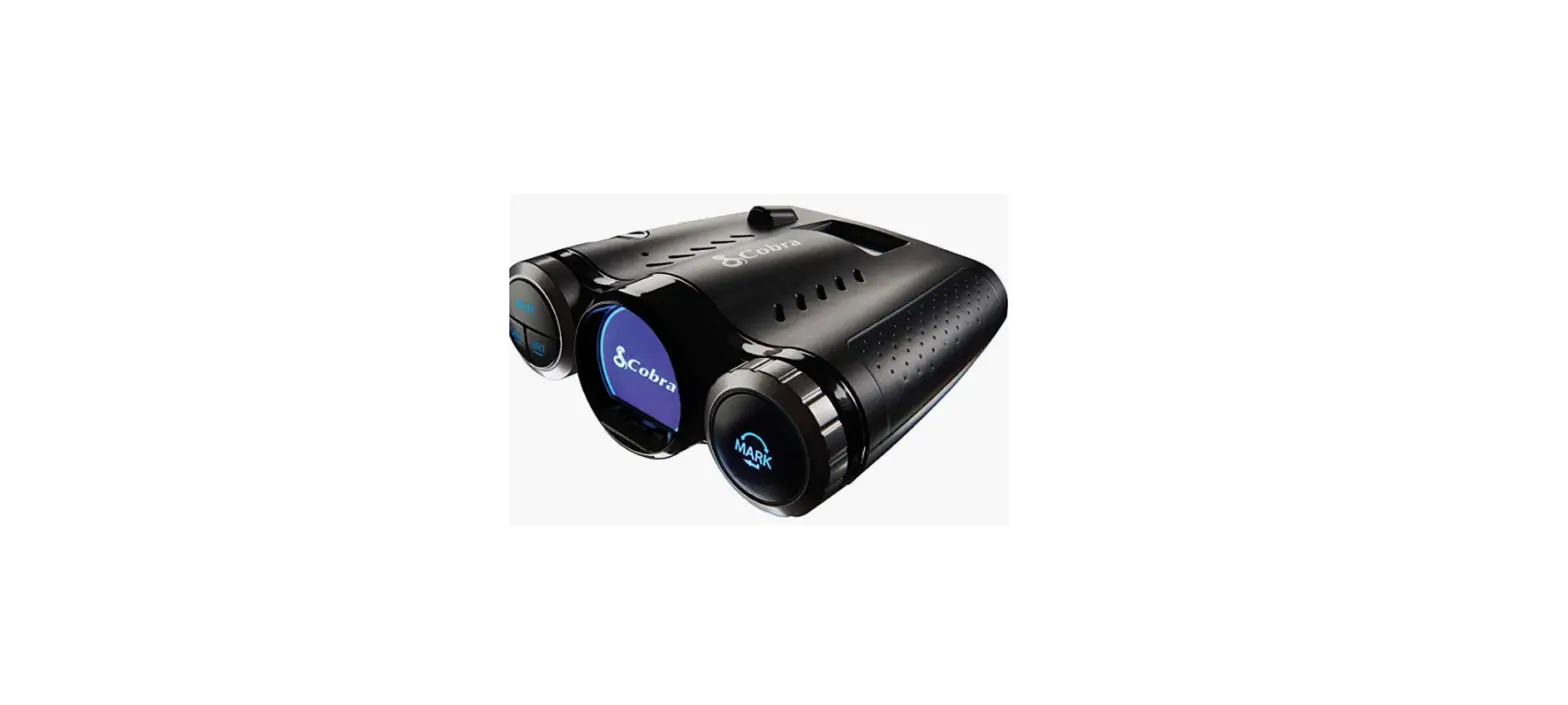
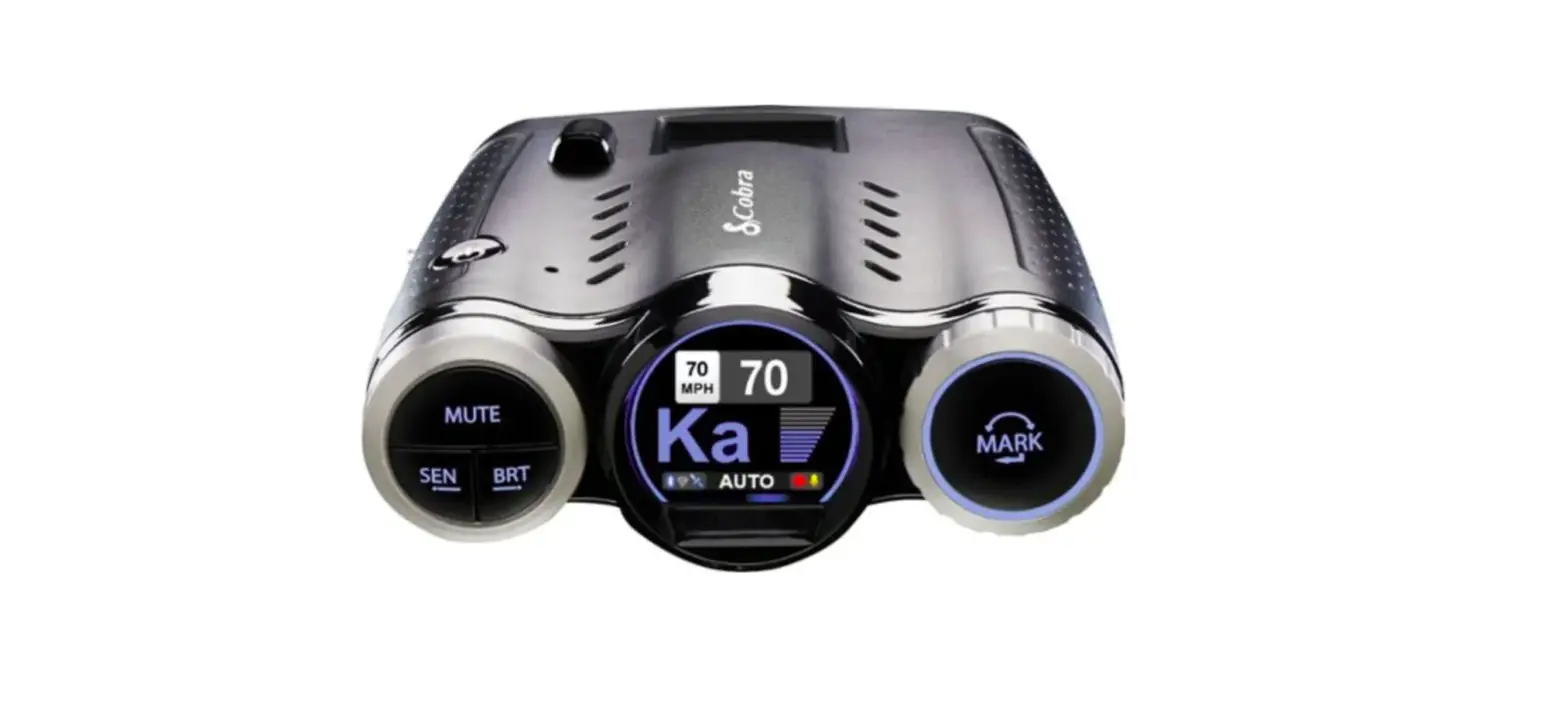
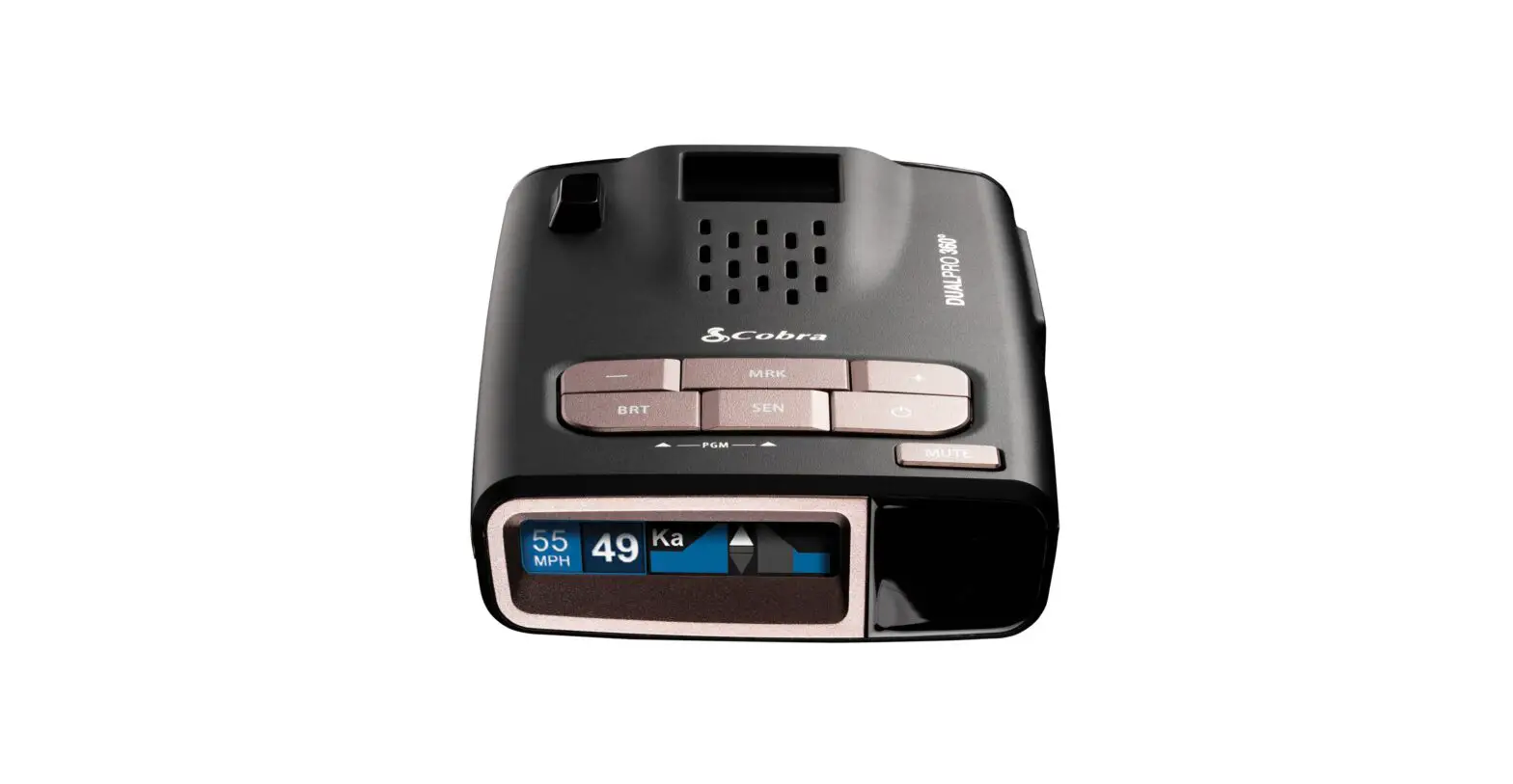
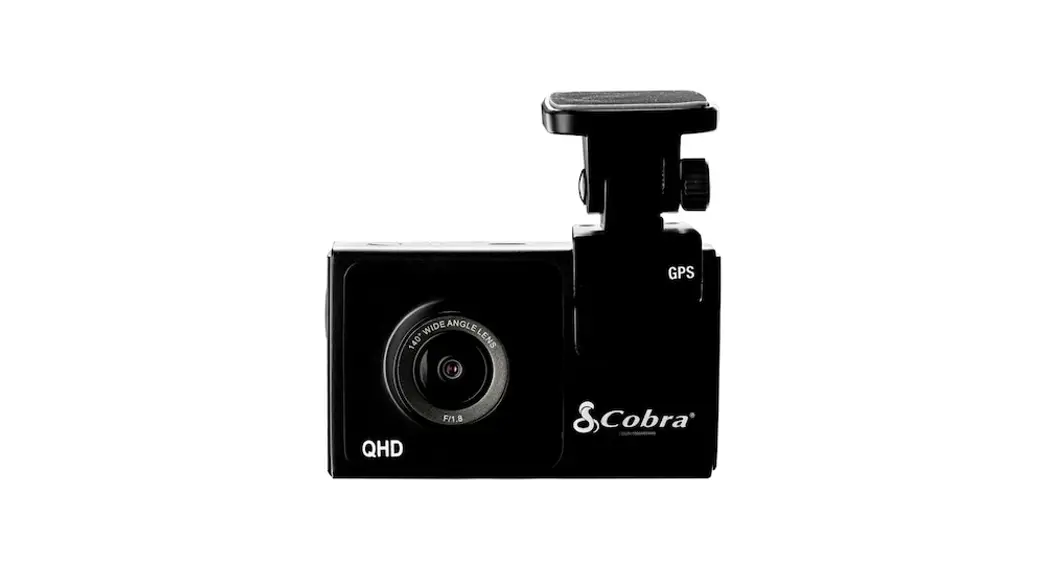
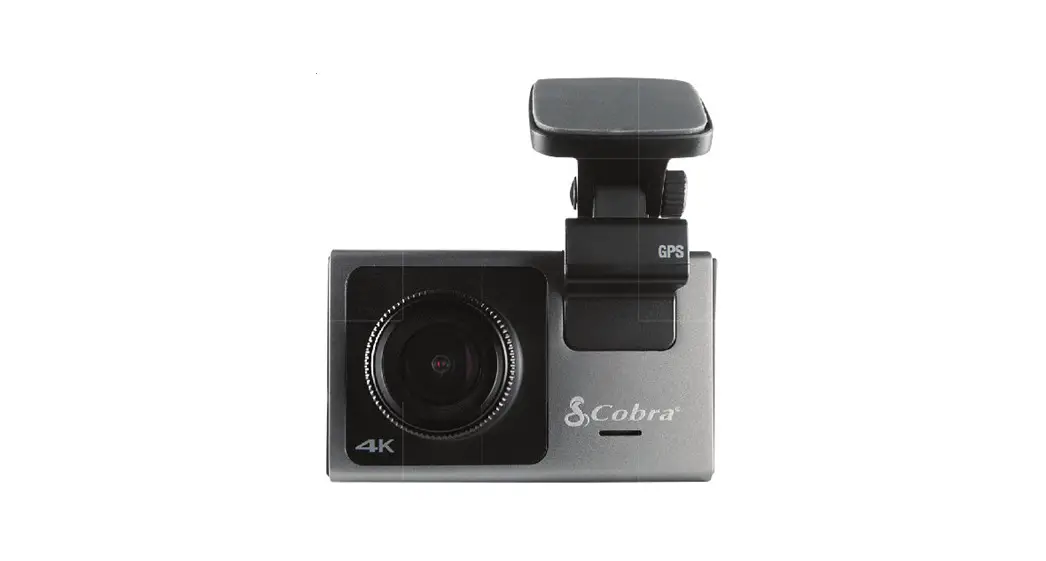
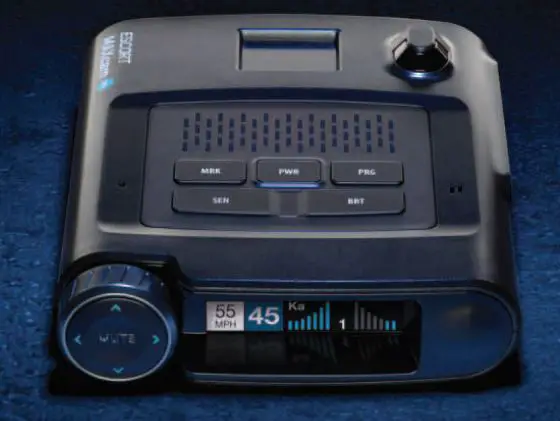
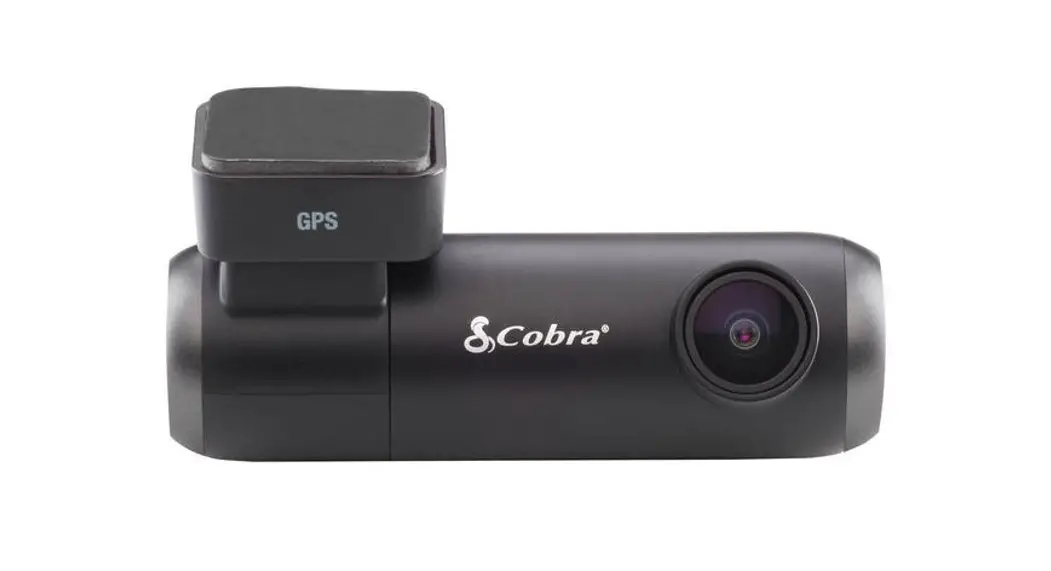
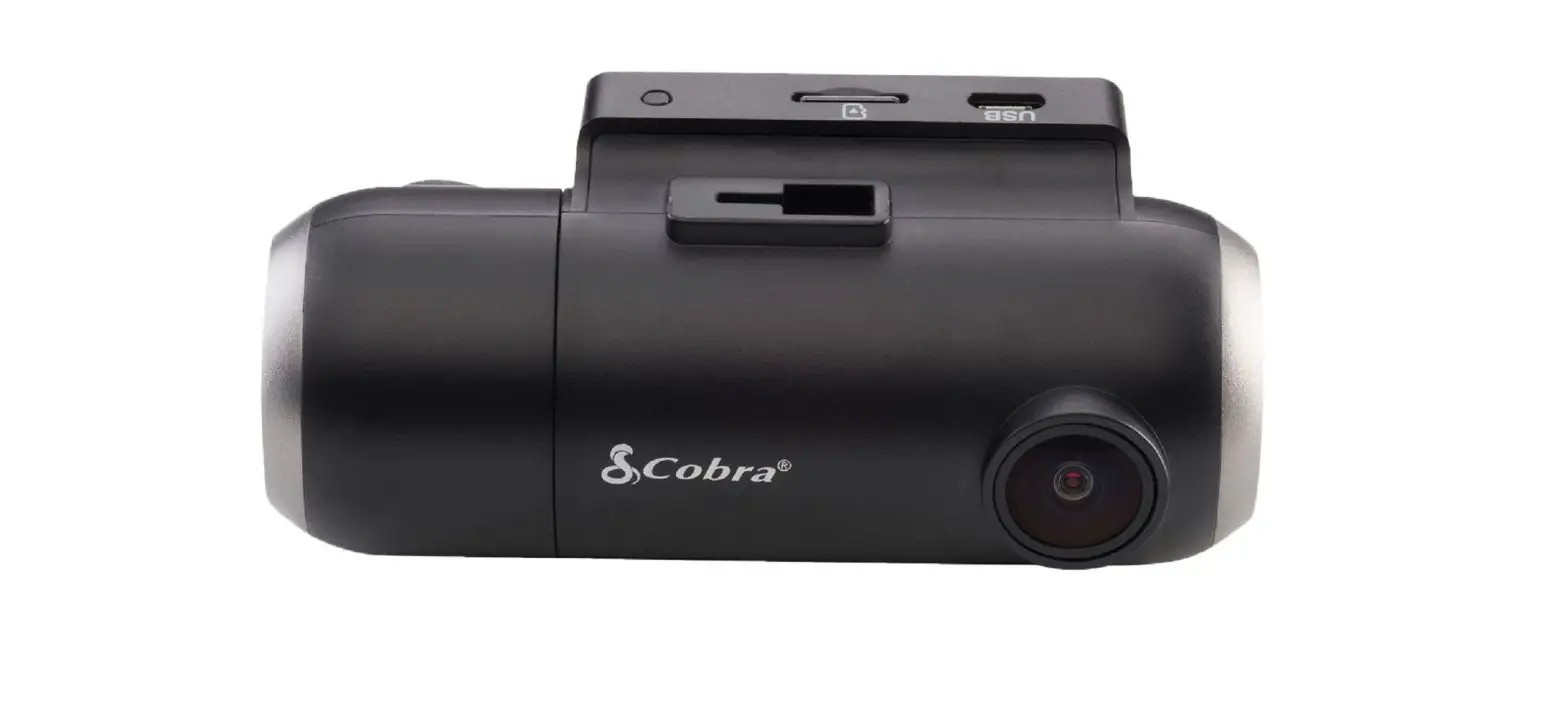
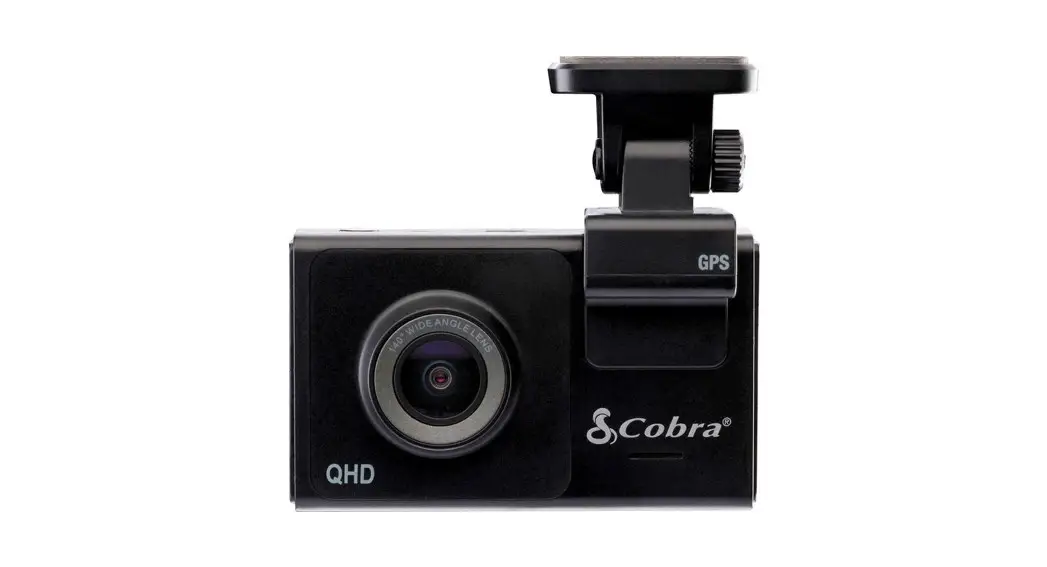
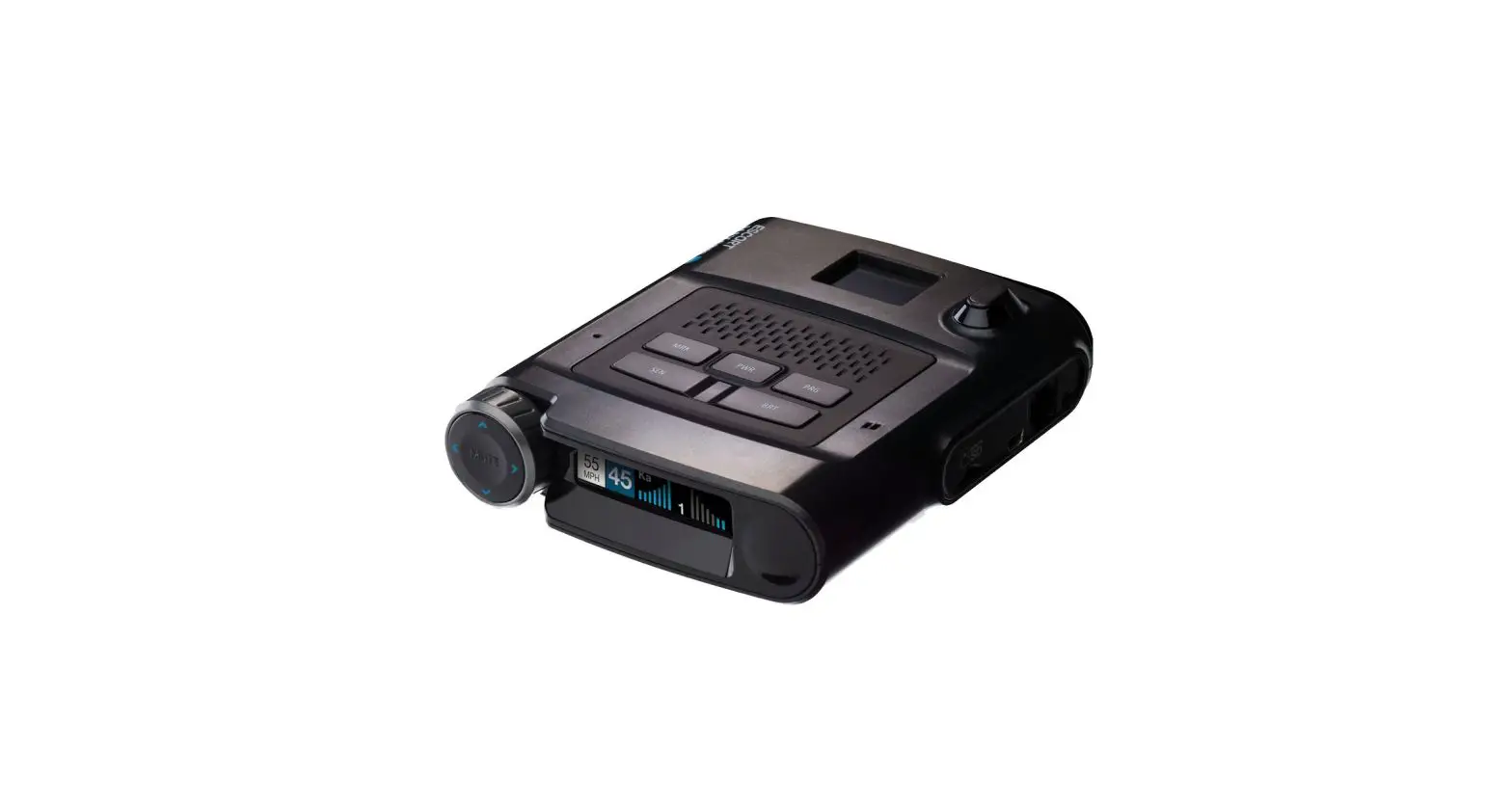
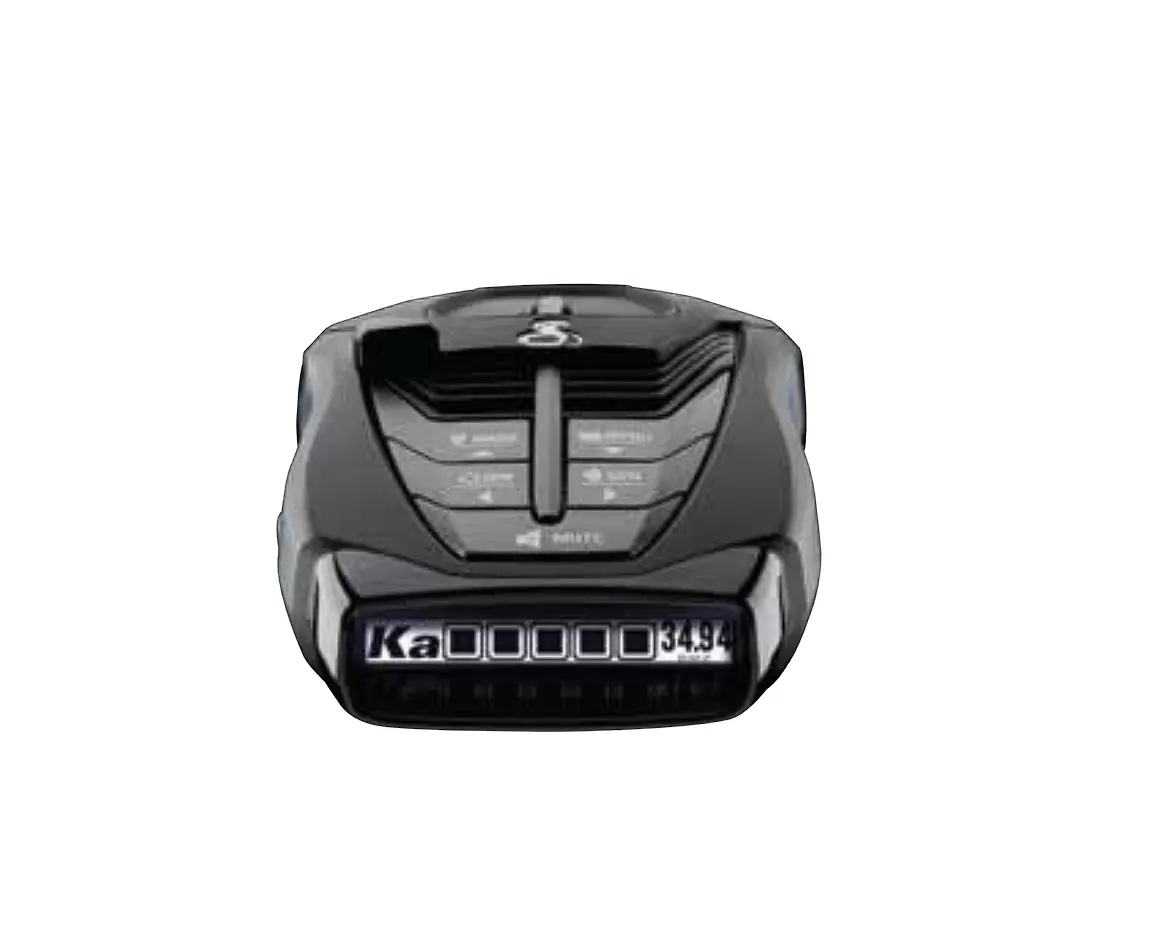
The Cobra Road Scout is a 2-in-1 Radar Detector and Dash Camera
that provides advanced connectivity and convenience features. It
offers real-time software and database updates to ensure accurate
and precise detection, minimizing false alerts. The device can
connect to your car’s Wi-Fi hotspot (if available) for seamless
updates and exclusive iRadar Community alerts without the need to
launch the app on your smartphone. The Road Scout also features a
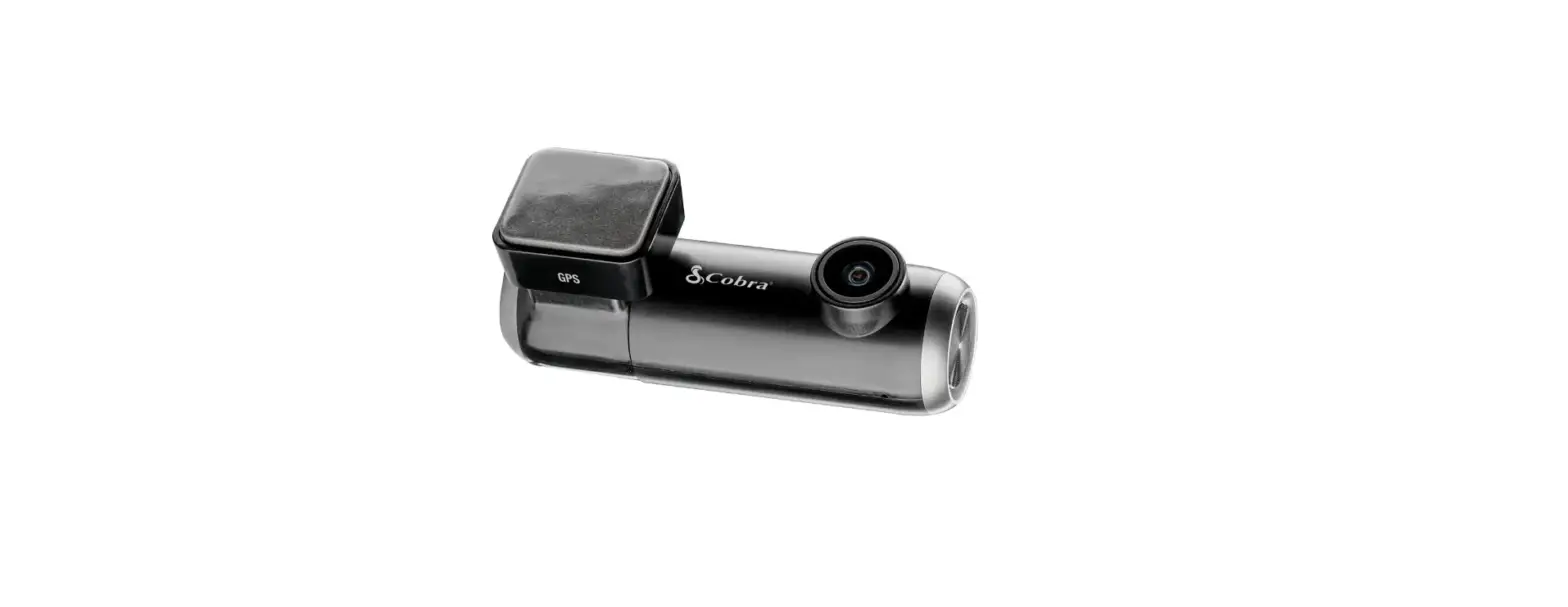
dash cam for recording videos.
Key Features:
- Radar detector with advanced connectivity
- Dash cam for video recording
- Real-time software and database updates
- iRadar Community alerts
- Rotary Dial for volume and settings control
- Emergency recording function
- Micro USB port for charging and data transfer
- microSD card slot for storage
- 12V power connector for car’s 12V port
Product Usage Instructions
Radar Detector Setup:
- Connect the Road Scout to your car’s 12V port.
- Power on the Road Scout. The first time you power it on, you
will be prompted to select your time zone and daylight saving
time. - Install and run the Cobra iRadar app on your smartphone. Upon
first run, you will be prompted to register a new account. - In the iRadar app, press the Menu button and select
Devices. - Select “Road Scout” from the list.
- The Road Scout entry in the iRadar app will display “Connected”
when paired. Press the Menu button and then Home to return to the
Map screen.
Dash Cam Setup:
View and edit videos on your smartphone:
- Install and run the Cobra Drive HD app on your smartphone.
- On the Road Scout unit, press and hold the BRT button until
“CAMERA” appears on the display. If “iRADAR” appears, press and
hold BRT again. - On your smartphone, go to the Wi-Fi menu in your settings and
select network SSID: “Road Scout”. If prompted for a password,
enter “12345678”. Note: Make sure this step is done in your
smartphone settings, not in the app. - Once your smartphone Wi-Fi is connected to the Road Scout,
launch the Drive HD App. The live view from the dash cam will be
available on the Drive HD screen, along with a full control
menu.
View and edit videos on your computer:
For detailed instructions, please refer to the full owner’s
manual available for download at www.cobra.com/roadscout.
Radar Detector Instructions
Connect detector to your smartphone via Bluetooth®
A Power on the Road Scout Make sure the unit is connected to your car’s 12V port. Note:the first time the Road Scout is powered on, you will be prompted to select your time zone and daylight saving time
B Install and run the Cobra iRadar app on your smartphone Note:the first time you run the app, you will be prompted to register a new account
C In the iRadar app, press the Menu button then select “Devices”
D Select “Road Scou”tfrom the list
E In the iRadar app, the Road Scout entry will display “Connected” when it has paired. Press the “Menu” button then “Home” to return to the Map screen.
F You’re all set!
6
Radar Detector Instructions
Radar Detector Advanced Connectivity Mode Connected Car Users (vehicle Wi-Fi hotspot required)
The Road Scout can connect to your car’s Wi-Fi (if available) for quick in-car convenient software and database updates in real time that keeps your detector accurate and precise, minimizing false alerts and improving detection.
You’ll also get exclusive iRadar Community alerts without having to launch the app on your smartphone.
For information on how to connect the Road Scout to Wi-Fi hotspots and other advanced operations instructions, please go to: www.cobra.com/roadscout to download the full owner’s manual.
Dash Cam Instructions
View and edit videos on your smartphone
Install and run the Cobra Drive HD app on your smartphone Once you have installed the Cobra Drive HD App, follow the steps below to connect the Road Scout to your smartphone: A On the unit: Press and hold the BRT button until “CAMERA” appears
on the display. If “iRADAR” appears, press and hold BRT again.
B On your smartphone: Go to the Wi-Fi menu in your smartphone’s settings and select network SSID: “Road Scout”; if a password is required, enter “12345678”. Note:make sure this step is done on your smartphone settings, not on the app.
C After your smartphone Wi-Fi is connected to the Road Scout, launch the Drive HD App. Live view from the dash cam will be available on theDrive HD screen on your smartphone, as well as a full control menu.
D You’re all set!
Dash Cam Instructions
View and edit videos on your computer
www.cobra.com/roadscout
7
8
9
2-in-1 Radar Detector and Dash Camera
Thank You! For purchasing the Cobra Road Scout
Full Manual and 3D Instructions
using the
app available at:
www.cobra.com/roadscout
FCC ID: BBORDCAM. THIS DEVICE COMPLIES WITH PART 15 OF THE FCC RULES. OPERATION IS SUBJECT TO THE FOLLOWING TWO CONDITIONS: (1) THIS DEVICE MAY NOT CAUSE HARMFUL INTERFERENCE, AND (2) THIS DEVICE MUST ACCEPT ANY INTERFERENCE RECEIVED INCLUDING INTERFERENCE THAT MAY CAUSE UNDESIRED OPERATION.
Warning: Any changes or modification not expressly approved by the party responsible for compliance could void the user’s authority to operate the device.
Note: This equipment has been tested and found to comply with the limits for a Class B digital device, pursuant to part 15 of the FCC Rules. These limits are designed to provide reasonable protection against harmful interference in a residential installation. This equipment generates, uses and can radiate radio frequency energy and, if not installed and used in accordance with the instructions, may cause harmful interference to radio communications. However, there is no guarantee that interference will not occur in a particular installation. If this equipment does cause harmful interference to radio or television reception, which can be determined by turning the equipment off and on, the user is encouraged to try to correct the interference by one or more of the following measures: – Reorient or relocate the receiving antenna. – Increase the separation between the equipment and receiver. – Connect the equipment into an outlet on a circuit different from that to which the receiver is connected. – Consult the dealer or an experienced radio/TV technician for help.
©2019 COBRA ELECTRONICS CORPORATION, 6500 W. CORTLAND ST., CHICAGO, IL 60707.
1
Cobra Road Scout features
Rotary Dial Turn to change volume/setting
Press to Mark Location/Select Menu Items
Mount to the windshield
Press and Hold SEN and BRT to Enter Menu
Press and Hold to Start Emergency Recording
Micro USB Port
microSD Card Slot
12V Power Connector
To access and navigate the general menu press and hold “SEN”+”BRT” at any time. To exit the general menu simply wait a few seconds.
2
3
Connectivity Guide Radar Detector
RADAR DETECTOR – STANDARD MODE
Maximum Protection from the iRadar Community and Customized Alert Settings Pair your phone easily through Bluetooth to customize your detector’s settings and access iRadar community alerts. See Page 6 for Radar Detector Set Up Instructions.
Bluetooth connection
Connectivity Guide Dash Cam
DASH CAM MODE
View, Edit and Download your Videos Wirelessly The Road Scout incorporates its own Wi-Fi source
to stream video directly to your phone to save, edit and share right from your car.
See Page 8 for Dash Cam Set Up Instructions.
Dash cam Wi-Fi Connection
IMPORTANT Use the CobraiRadar app to control the radar detector
4
IMPORTANT Use the Cobra DRIVE HD app
to control the dash cam
5
 Cobra Road Scout