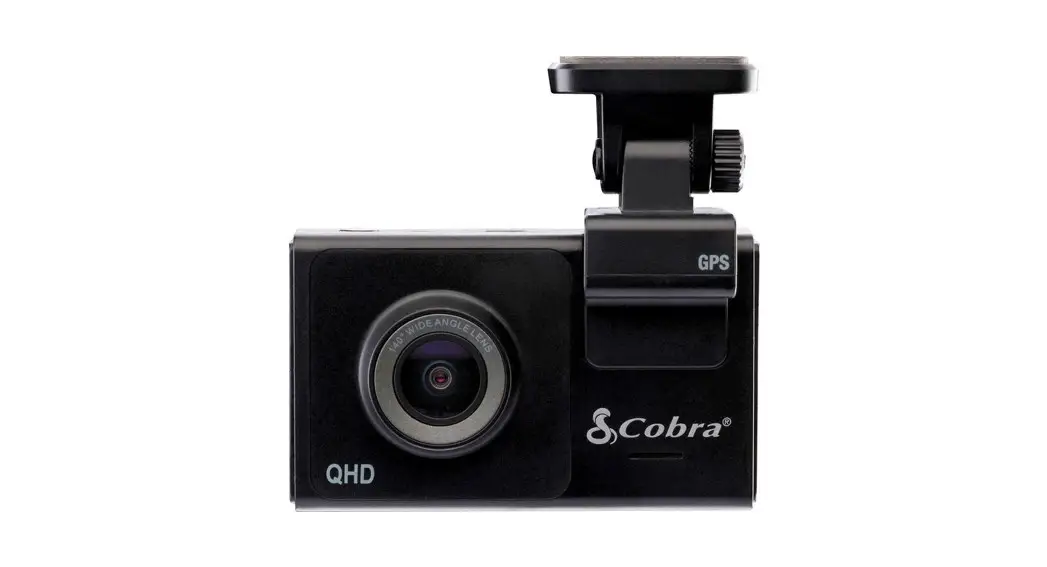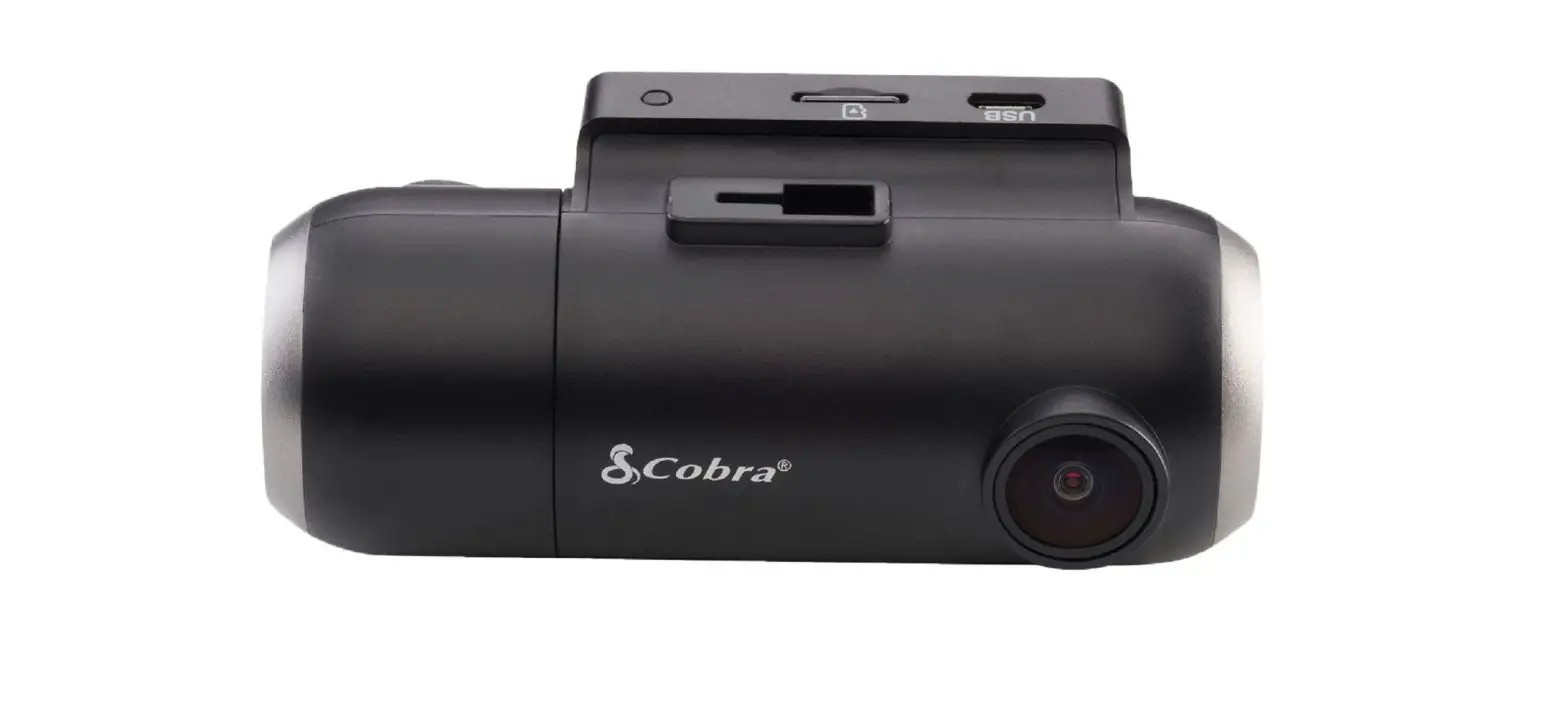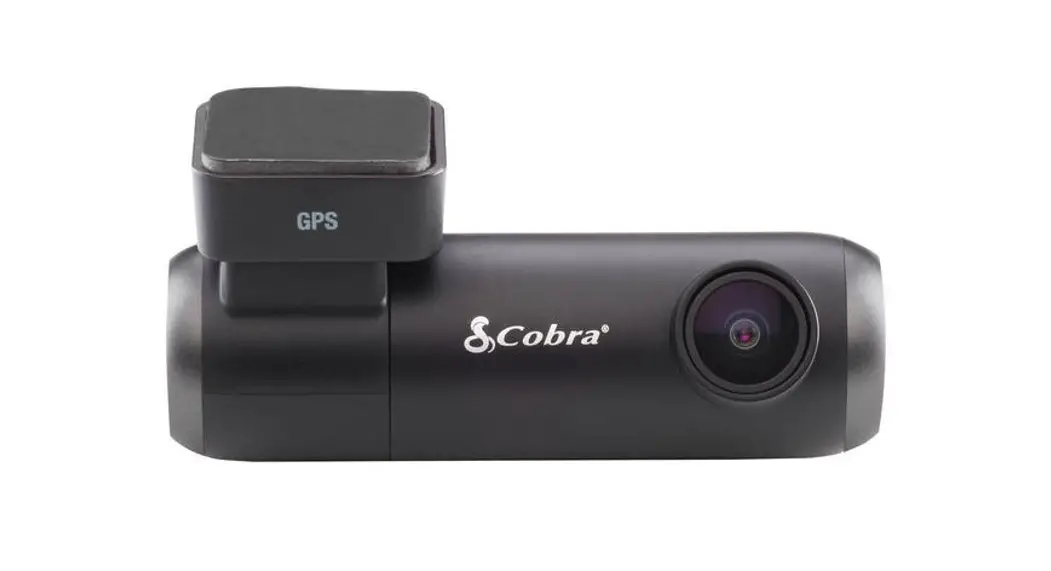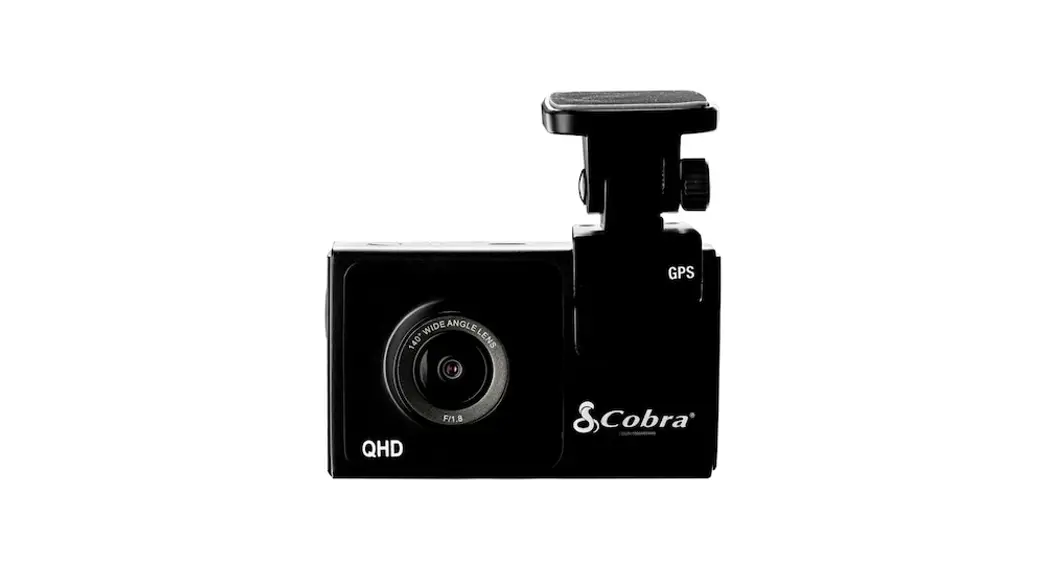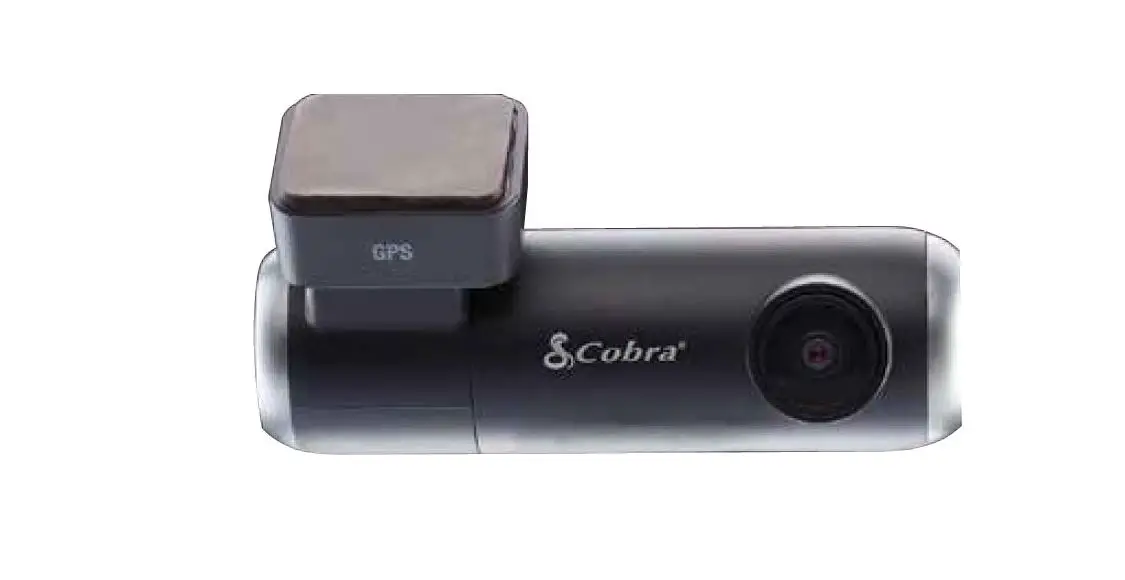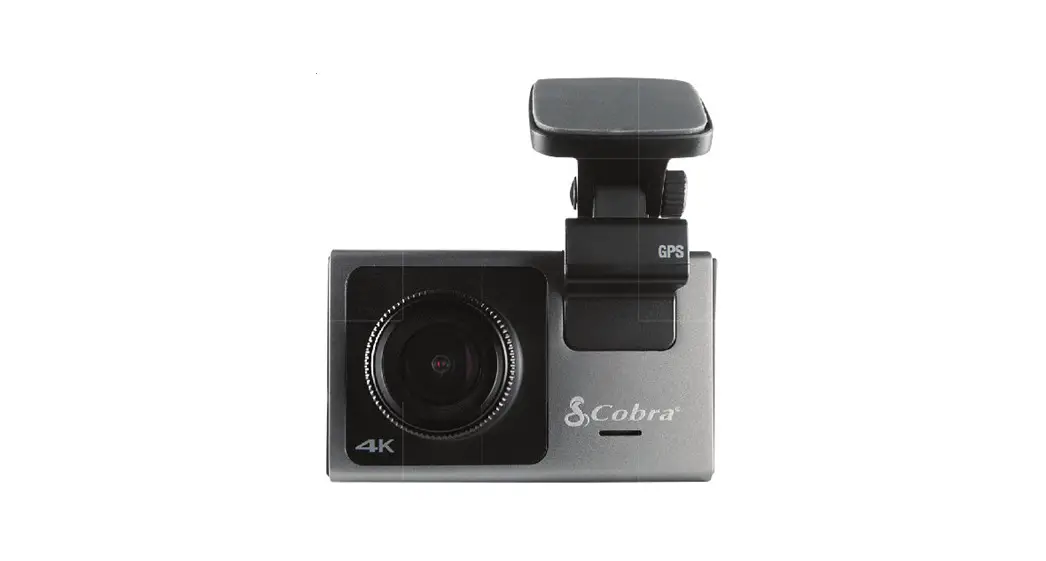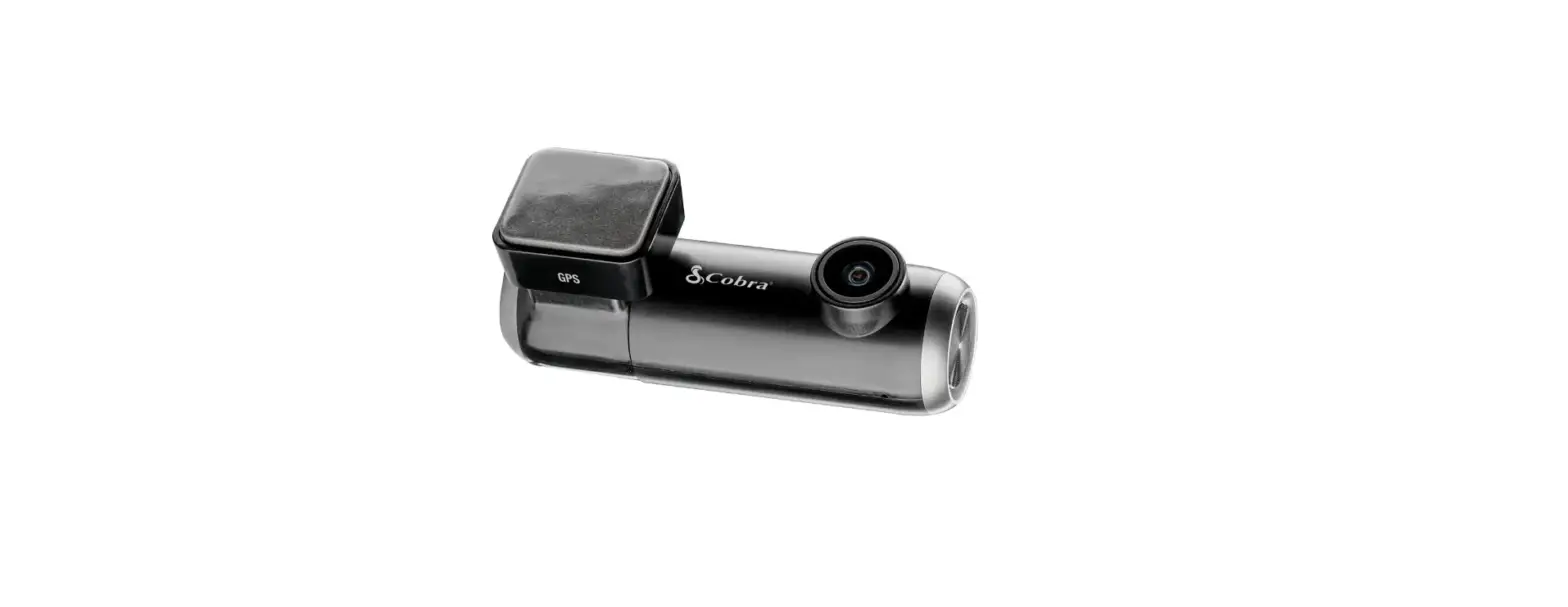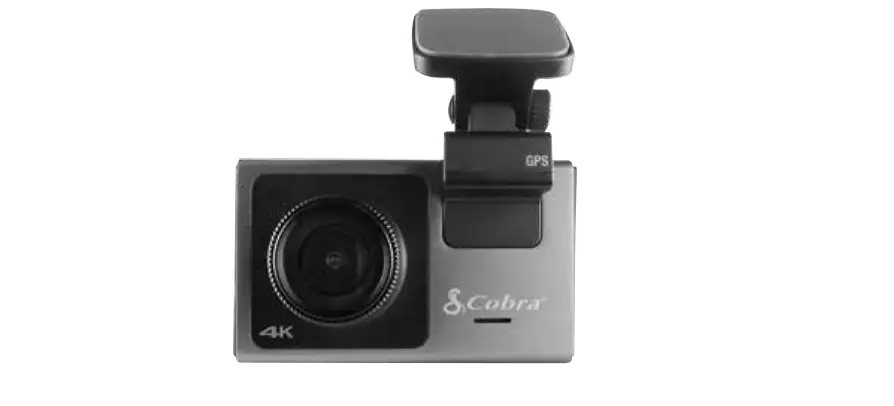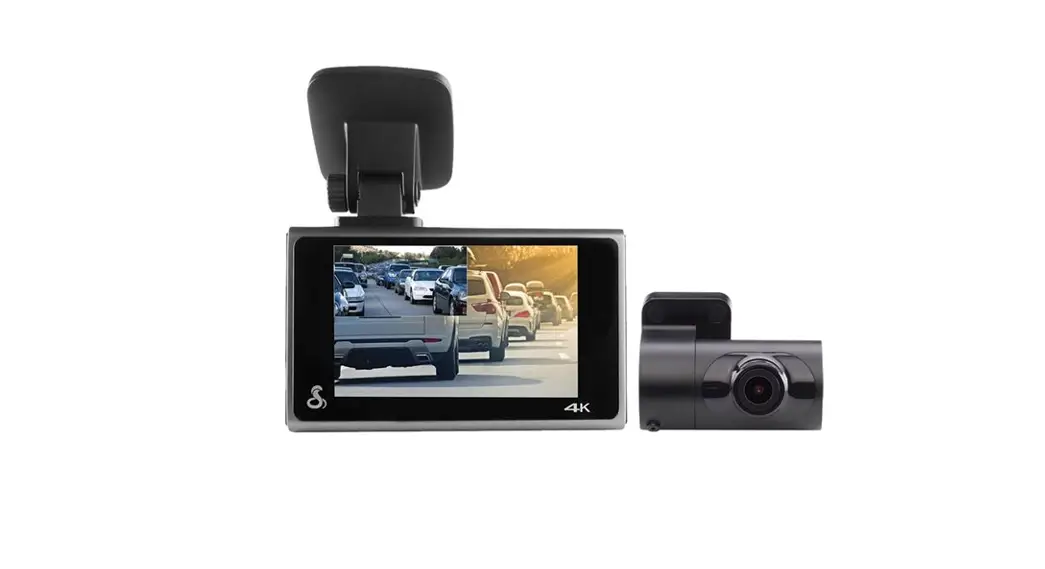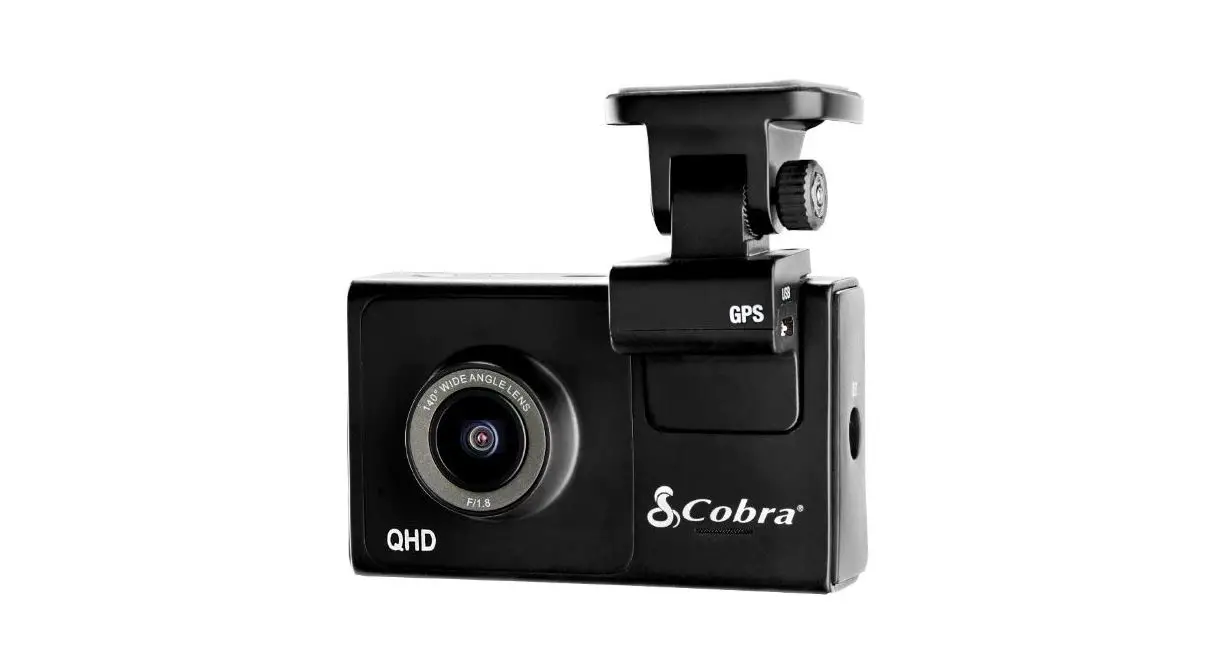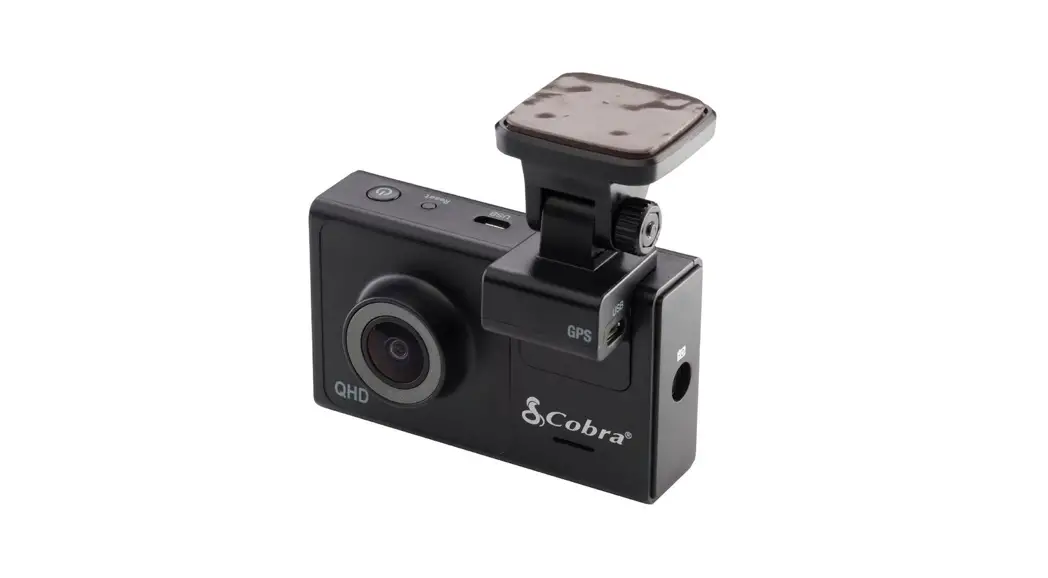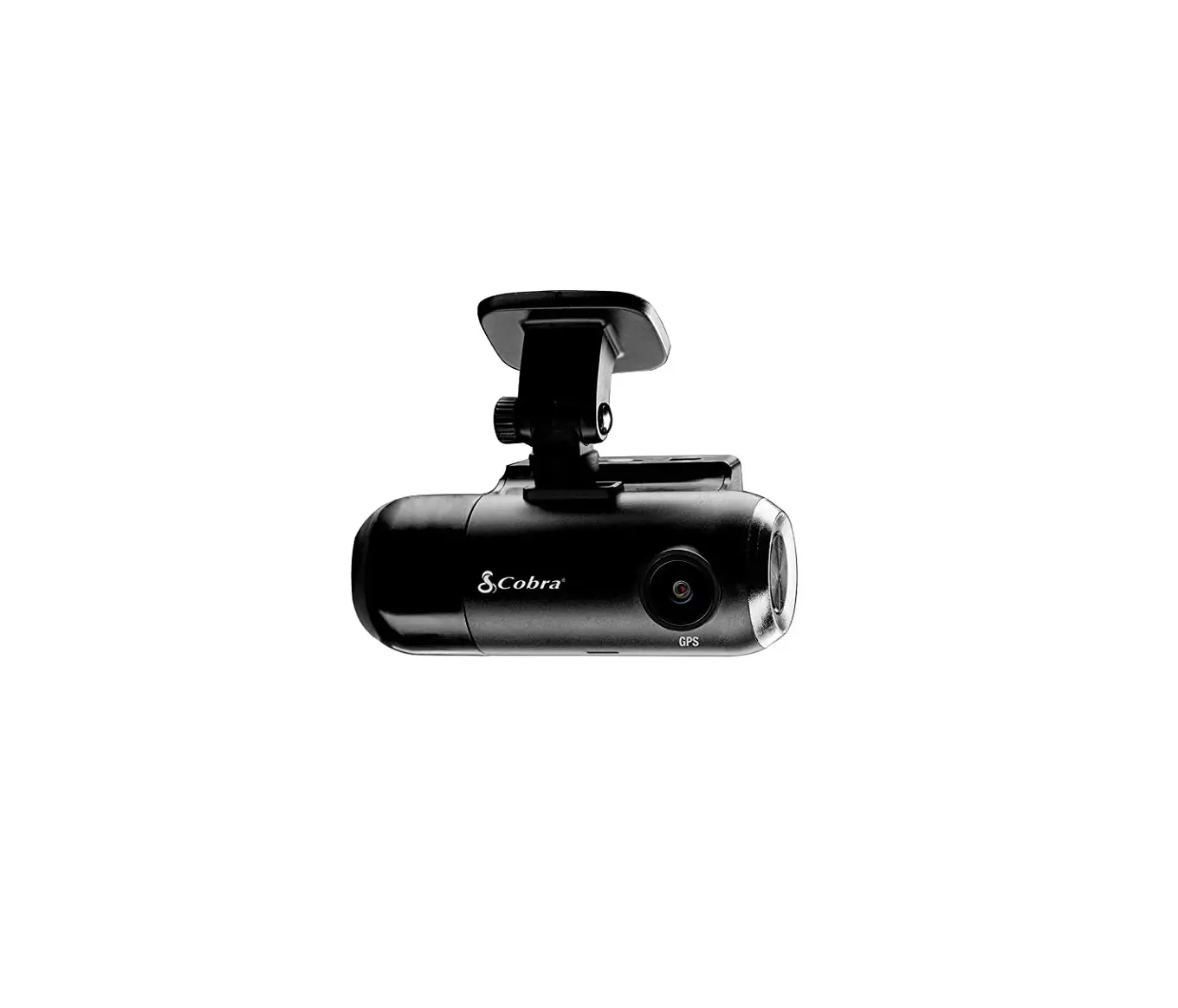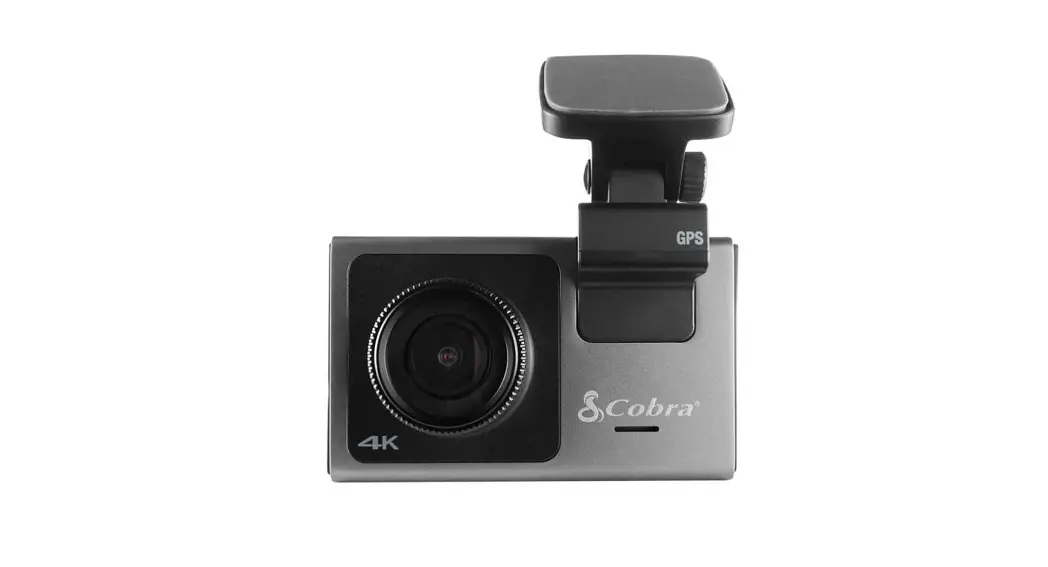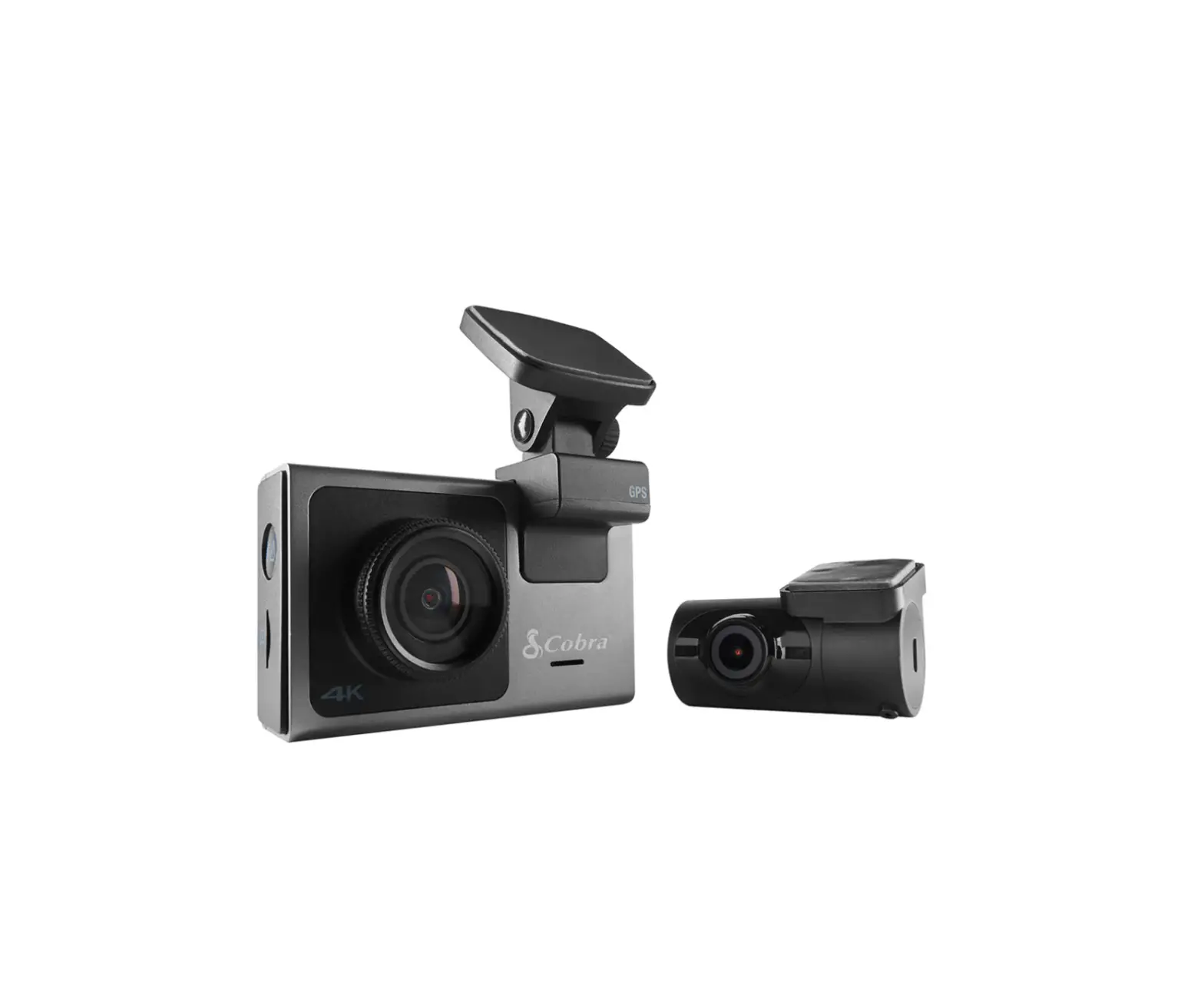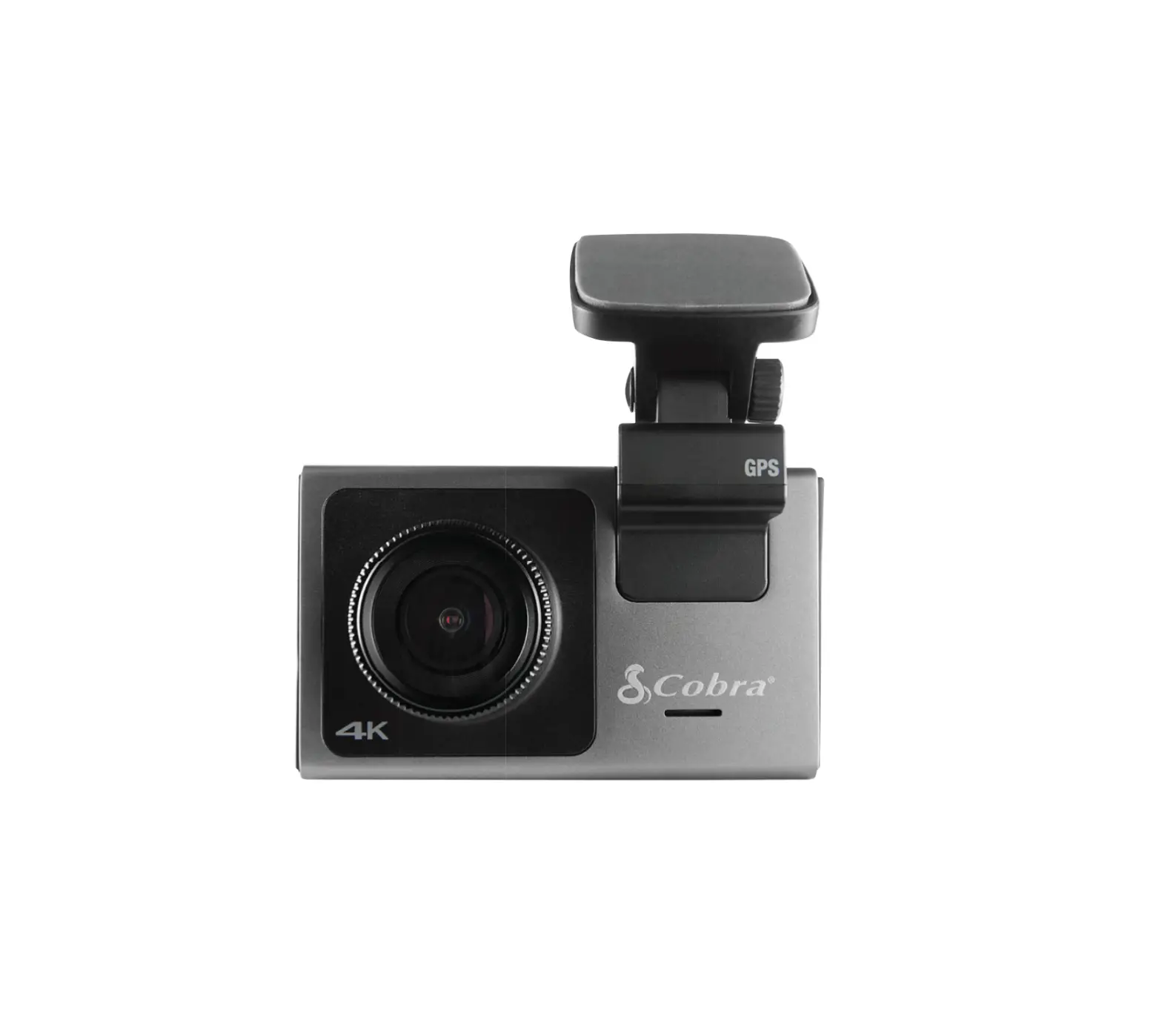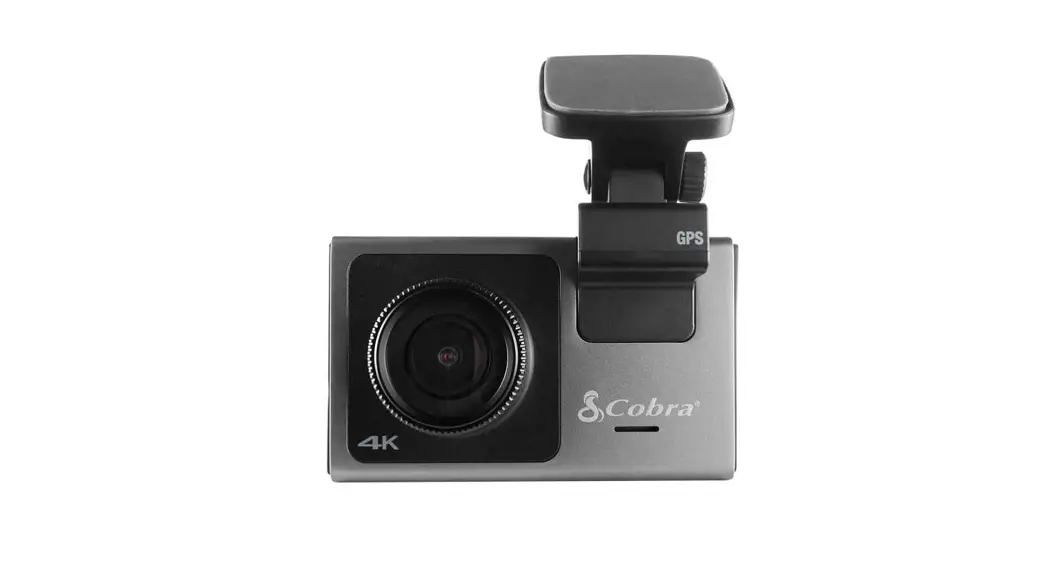

SC 200
DASHCAM
Scan QR Code For
Additional Languages:

https://drivesmarter.com/support/manuals/
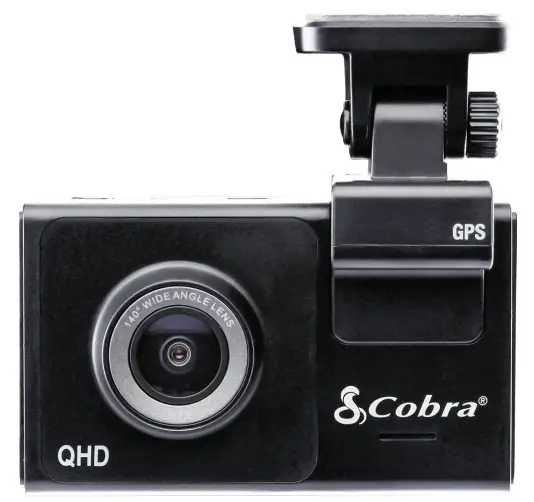
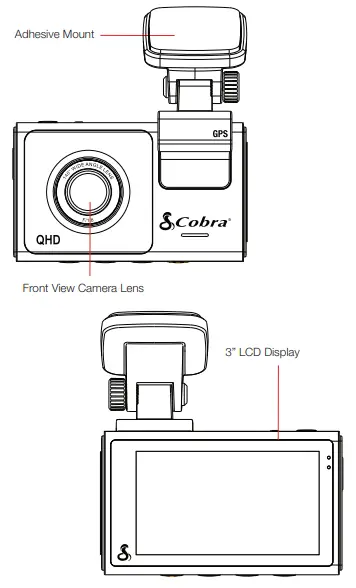
SC 200 Features
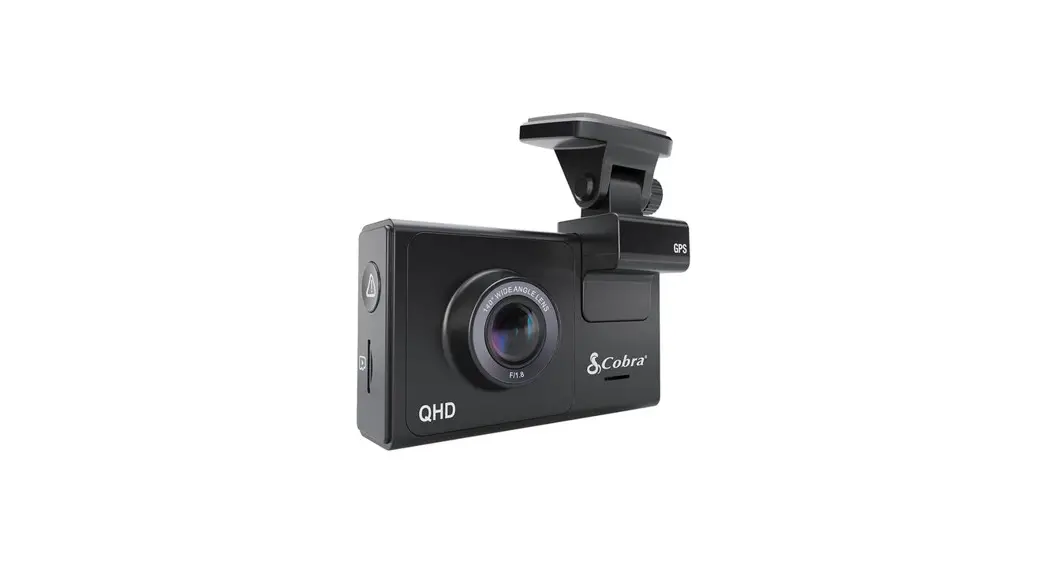
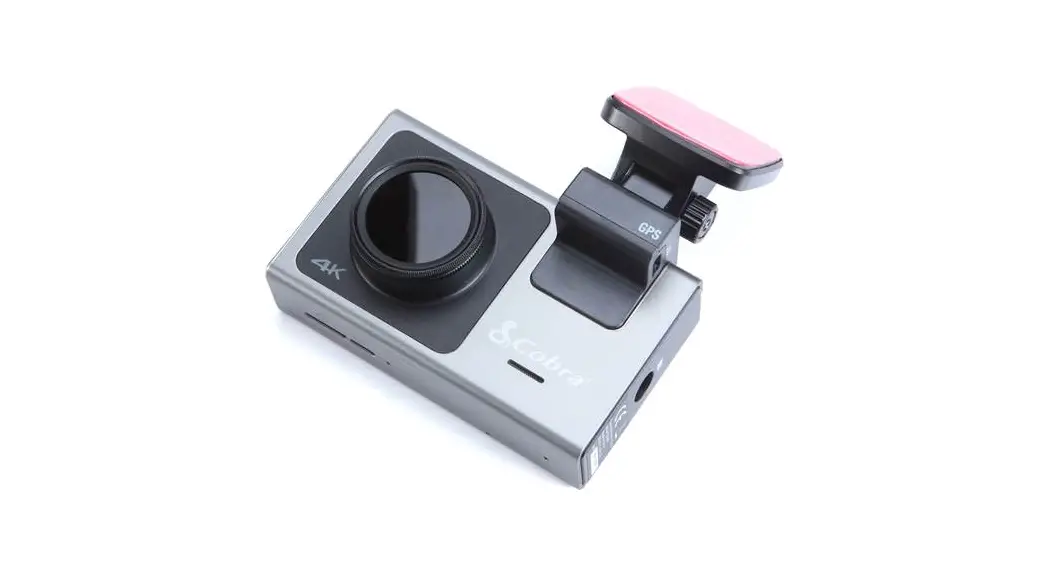
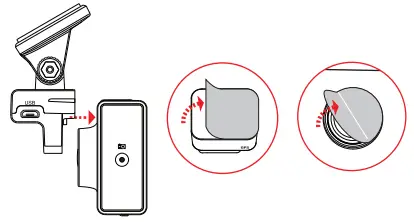
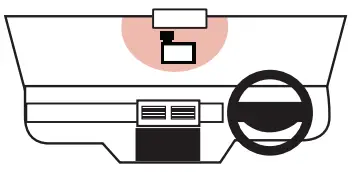
- Attach GPS mount and remove the protective film from mount and front lens

- Attach Camera Assembly to Windshield

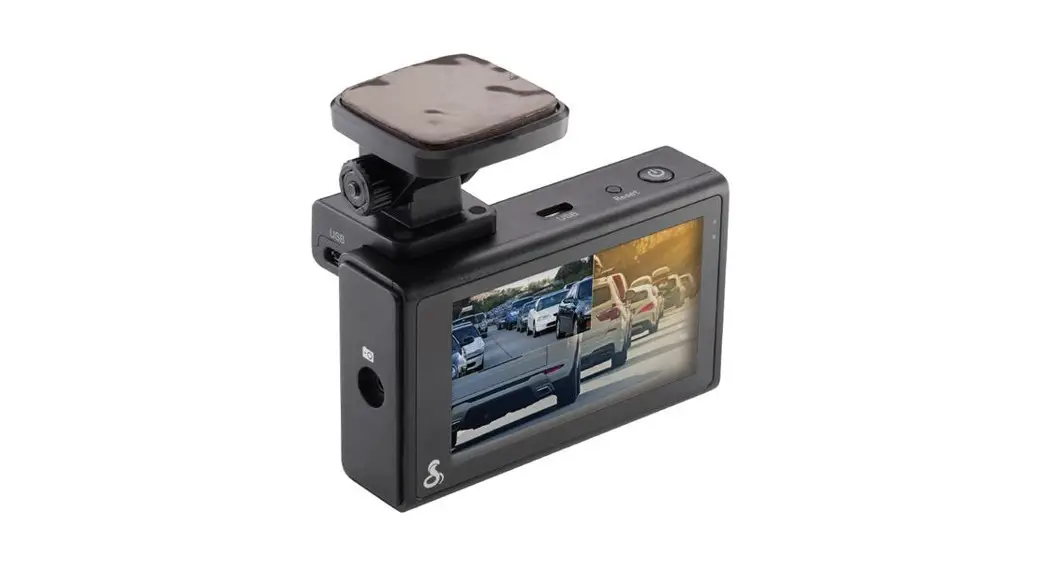
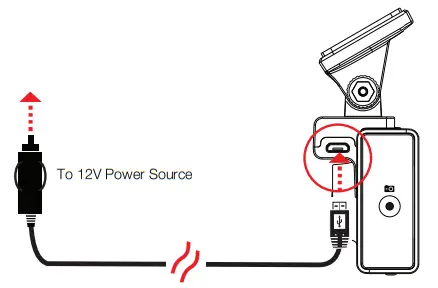
- Connect to port on the side of the GPS mount
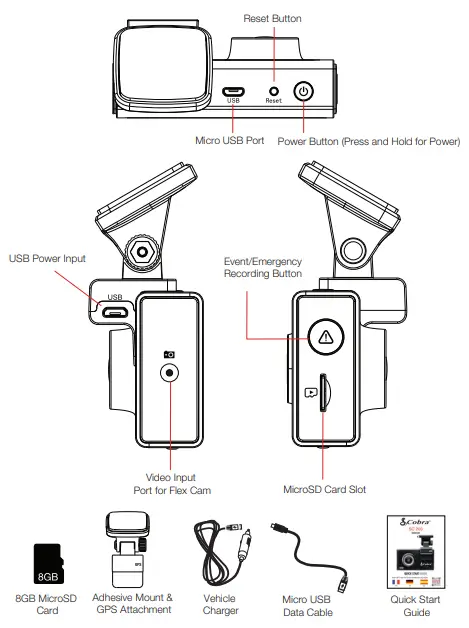
Button Functions (Recording Stopped):
 | Access the dash cam’s Settings menu. |
 | Takes a snapshot and stores it in the Photo Folder. |
 | Enters the playback menu to review previous recordings and photos. |
 | Begins loop recording. |
Button Functions (While Recording):
 | When pressed the camera saves the current clip from being overwritten. |
 | Takes a snapshot and stores it in the Photo Folder. |
 | Toggles the microphone on/off. Note that the icon on the button indicates the action that will be taken when the button is pushed, not the current setting. The current setting is shown on the status bar at the top of the screen. |
 | Stops loop recording. While in an Emergency Recording you will be asked to confirm. |
Voice Commands
SC200 will respond to certain voice commands so you can stay focused on the road ahead. Try the following voice commands.
| Say | Camera Action |
| “Front Video On” | The front-View camera is displayed on the screen |
| “Rear Video On” | A rear-View camera is displayed on the screen (optional accessory camera required) |
| “Record Video” | Begins loop-recording |
| “Lock Video” | (If currently recording), The camera locks the video and tags it as Favorite |
| (If not currently recording), The camera begins emergency recording, locks first video, and tags as favorite | |
| “Screen On” | Turn Display On |
| “Screen Off” | Turn Display Off |
| ‘Take Photo” | Takes a photo of the front and/or rearview and saves it to the “Photos” folder |
Attaching Additional Flex View Cameras
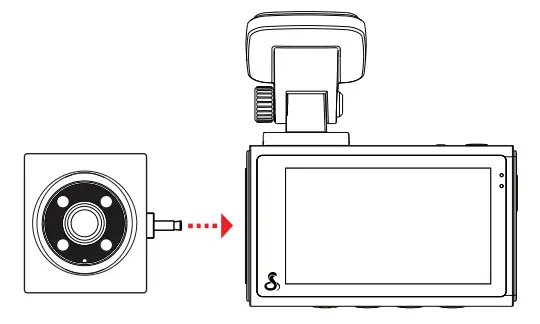
For Cabin View*
Connect Cabin Camera to the
Video-Input Port on the SC 200
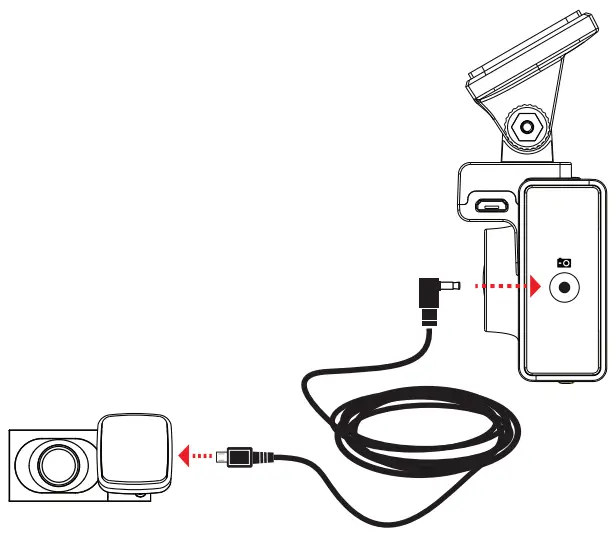
For a View of the Road Behind You*
- Connect Extension Cable to the Video Input Port on the Dash Cam
- Connect Extension Cable to the Rear Camera
- Attach Rear Camera to the Vehicle’s Back Window
Warning: Please position the camera on the rear windshield so it faces out of the vehicle in the orientation shown
THANK YOU!
For purchasing the new
COBRA® SC 200

View, edit, and share from your smartphone or desktop.
Share & receive real-time driver alerts.
Download today!
drivesmarter.com/downloads
http://drivesmarter.com/downloads
Full manual available at: www.cobra.com 
FCC ID:BBOSC200, IC:906A-SC200. THIS DEVICE COMPLIES WITH PART 15 OF THE FCC RULES. OPERATION IS SUBJECT TO THE FOLLOWING TWO CONDITIONS: (1) THIS DEVICE MAY NOT CAUSE HARMFUL INTERFERENCE, AND (2) THIS DEVICE MUST ACCEPT ANY INTERFERENCE RECEIVED INCLUDING INTERFERENCE THAT MAY CAUSE UNDESIRED OPERATION.
FCC NOTE: Modie cations not expressly approved by the manufacturer could void the user’s FCC granted authority to operate the
equipment.
Cobra® and the snake design are registered trademarks of Cobra Electronics Corporation, USA. Cobra Electronics Corporation™ is a
trademark of Cobra Electronics Corporation, USA. Other trademarks and trade names are those of their respective owners.
©2020 Cobra Electronics Corporation
 Downloads - DriveSmarter
 Portable Power & Automotive Electronics | Cobra.com